
Choosing the Best External Hard Drives for Backup
When it comes to finding the best external hard drives for backup, think of it as your digital life insurance policy. For most of us, the ideal solution isn't just one drive, but a smart mix: a cost-effective HDD for long-term storage and a zippy, tough SSD for the files you're working on right now.
Why a Backup Is Your Digital Life Insurance
Take a second and imagine it: every photo, every important document, every irreplaceable memory—gone in an instant. It’s a terrifying thought, but relying only on your computer's internal drive is exactly that kind of gamble. You're betting against a hard drive crash, a spilled coffee, theft, or even a ransomware attack.
This is where an external drive stops being a simple accessory and becomes an absolute necessity.
Here's a simple way to look at it: your computer holds the working copies of your files. Your backup drive holds the permanent record. It’s a separate, physical copy that stays safe no matter what happens to your main machine.
The Real Risks of Not Backing Up
These dangers aren't just something that happens to "other people." A sudden power surge during a storm, a laptop slipping from your grasp, or a nasty virus can wipe out years of data in a blink. Trusting your internal drive alone is like building a house with no foundation—it feels fine until the first real storm rolls in.
A dedicated backup drive is your defense against the most common data disasters:
- Hardware Failure: Every drive has a lifespan. It’s not a question of if it will fail, but when.
- Accidental Deletion: We’ve all done it. That one wrong click can erase a critical file, and without a backup, it's gone for good.
- Physical Damage: Laptops are made to move, but that also makes them vulnerable to drops, spills, and other real-world accidents.
- Cyber Threats: Ransomware can lock up your files, holding them hostage. Malware can corrupt them beyond repair. You can learn more about how to protect your privacy online and keep your data safe from these threats.
An external hard drive provides a simple, tangible solution. It’s the most accessible and reliable tool for creating a safety net, empowering you to protect your digital world without needing to be a tech expert.
People are catching on. The external hard disk market is projected to grow by USD 3.76 billion as more of us realize that a backup isn't optional. This surge is driven by the sheer amount of data we create every day—from students protecting term papers to families saving a lifetime of photos, dedicated storage has become essential. You can explore additional details about this market growth and its implications.
Decoding Drive Types: HDD vs. SSD
When you start looking for an external drive, the first big choice you'll face is between two very different technologies: the classic Hard Disk Drive (HDD) and the modern Solid-State Drive (SSD). Getting this one decision right is the most important step in finding the perfect backup solution for your needs.
Think of an HDD as a tiny, high-tech record player. Inside, a spinning platter holds your data, and a mechanical arm moves across it to read or write information. Just like finding a specific track on a vinyl record, the arm has to physically move to the right spot, which takes a little time.
An SSD, on the other hand, is more like the memory in your smartphone. It uses interconnected flash-memory chips and has zero moving parts. Finding a file is instantaneous, like tapping an app and watching it open immediately. This core difference is what drives everything else, from speed and durability to price.
The Speed and Durability Advantage of SSDs
Because they don't have moving parts, SSDs are astonishingly fast. A typical HDD might transfer data around 130 MB/s, but a standard external SSD can easily reach speeds of 1,050 MB/s or even more. What does that mean for you? It means a huge backup of your photos and videos finishes in minutes, not hours.
That solid-state design also makes SSDs much tougher. If you accidentally knock an HDD while it's working, the sensitive mechanical arm can crash into the spinning platter, potentially destroying your data forever. An SSD can handle the bumps, drops, and jostling of daily life, making it the clear winner for anyone who travels, commutes, or just has a busy desk. This reliable durability is a big reason why people now choose laptops with built-in SSDs for better performance and peace of mind.
Why HDDs Still Rule for Bulk Storage
So, if SSDs are so much faster and more durable, why do we even talk about HDDs anymore? It all comes down to one simple, powerful advantage: cost per gigabyte.
HDD technology has been around for decades, making it incredibly cheap to produce massive amounts of storage. You can often grab a colossal 8TB HDD for the price of a 2TB SSD. This makes HDDs the unbeatable champions for archiving huge collections of data you don't need to access every day.
Here's a simple way to visualize their roles:
- HDD: The Digital Attic. It's perfect for stashing years of family photos, old work files, or your entire movie library. HDDs offer a massive, affordable space for long-term storage where blistering speed isn't a priority.
- SSD: The High-Speed Go-Bag. This is your drive for active projects, daily backups, or anything you need to access quickly and frequently. It’s the performance workhorse for your current and most critical files.
HDD vs SSD: What's Best for Your Backup Needs?
To make the choice even clearer, this table breaks down the key differences to help you decide which drive technology fits your backup style.
| Feature | Hard Disk Drive (HDD) | Solid-State Drive (SSD) | Best For |
|---|---|---|---|
| Speed | Slower (around 130 MB/s) due to moving mechanical parts | Dramatically faster (starts around 1,050 MB/s) | SSD for quick, frequent backups; HDD for large, occasional archives. |
| Cost | Very low cost per gigabyte | Higher cost per gigabyte | HDD for maximizing storage on a budget. |
| Durability | Fragile; susceptible to damage from drops and bumps | Highly durable and shock-resistant | SSD for portability, travel, and anyone prone to accidents. |
| Capacity | Widely available in very large sizes (8TB and up) | High capacities are available but get expensive quickly | HDD for building a massive digital archive. |
| Lifespan | Can eventually fail due to mechanical wear and tear | Finite number of write cycles, but excellent for backups | Both are very reliable, but SSDs have no moving parts to wear out. |
| Best Use Case | Long-term archiving, media libraries, secondary backups. | Active projects, daily backups, bootable clones, travel. | Using both: an SSD for speed and an HDD for cheap, massive storage. |
Ultimately, choosing between an HDD and an SSD isn't about which one is "better" overall, but which one is better for you.
The smartest backup strategies often use both. An SSD is perfect for your primary, fast backup of critical, recent files, while a larger, cheaper HDD can act as a secondary, comprehensive archive for everything else you own.
Think about what you truly need. Do you need lightning-fast access for daily work, or a giant, affordable vault for long-term peace of mind? Your answer will point you directly to the right drive.
Key Features That Define the Best Backup Drive
Once you've figured out whether you need the speed of an SSD or the sheer storage space of an HDD, it's time to dig into the details. These are the features that separate a good-enough drive from the one that’s perfect for you. Let’s break down the technical jargon into practical advice you can actually use.
How to Choose the Right Storage Capacity
The first question after drive type is always about size. Think of capacity like a digital closet—how much room do you really need? A common pitfall is buying a drive that’s just big enough for today, only to have it bursting at the seams a year from now.
A solid rule of thumb is to get a drive that's two to three times larger than the amount of data you're backing up right now. So, if your laptop has 500GB of photos, documents, and projects, a 2TB drive gives you plenty of breathing room for the future. You won't have to worry about running out of space anytime soon.
This "buffer" is essential for a few reasons:
- Future Files: Let’s face it, your collection of photos, videos, and documents is only going to grow.
- Version History: Modern backup software like Apple's Time Machine or Windows' File History saves multiple versions of your files. This is a lifesaver if you need to revert to an older draft, but it eats up extra space.
- Multiple Backups: A larger drive can easily handle full system backups from more than one computer, like both your laptop and desktop.
For most people, the sweet spot for capacity is somewhere between 1TB and 5TB. This range hits the perfect balance between affordability and having more than enough space. With humans creating a staggering 2.5 quintillion bytes of data every single day, having that extra capacity is quickly becoming a necessity, not a luxury. You can read the full research about external drive market trends to see just how popular this segment has become.
To put it in perspective, here's what those numbers actually mean for your files:
- 1TB: Can hold roughly 250,000 photos from a 12MP camera or about 250 hours of HD video.
- 4TB: Stores around 1 million photos or 1,000 hours of HD video. Perfect for serious hobbyists or the family's designated photo archivist.
- 8TB+: This is professional territory—ideal for videographers, designers, and anyone who needs to archive massive project files for the long haul.
This flowchart can help you visualize that initial HDD vs. SSD decision based on your priorities.
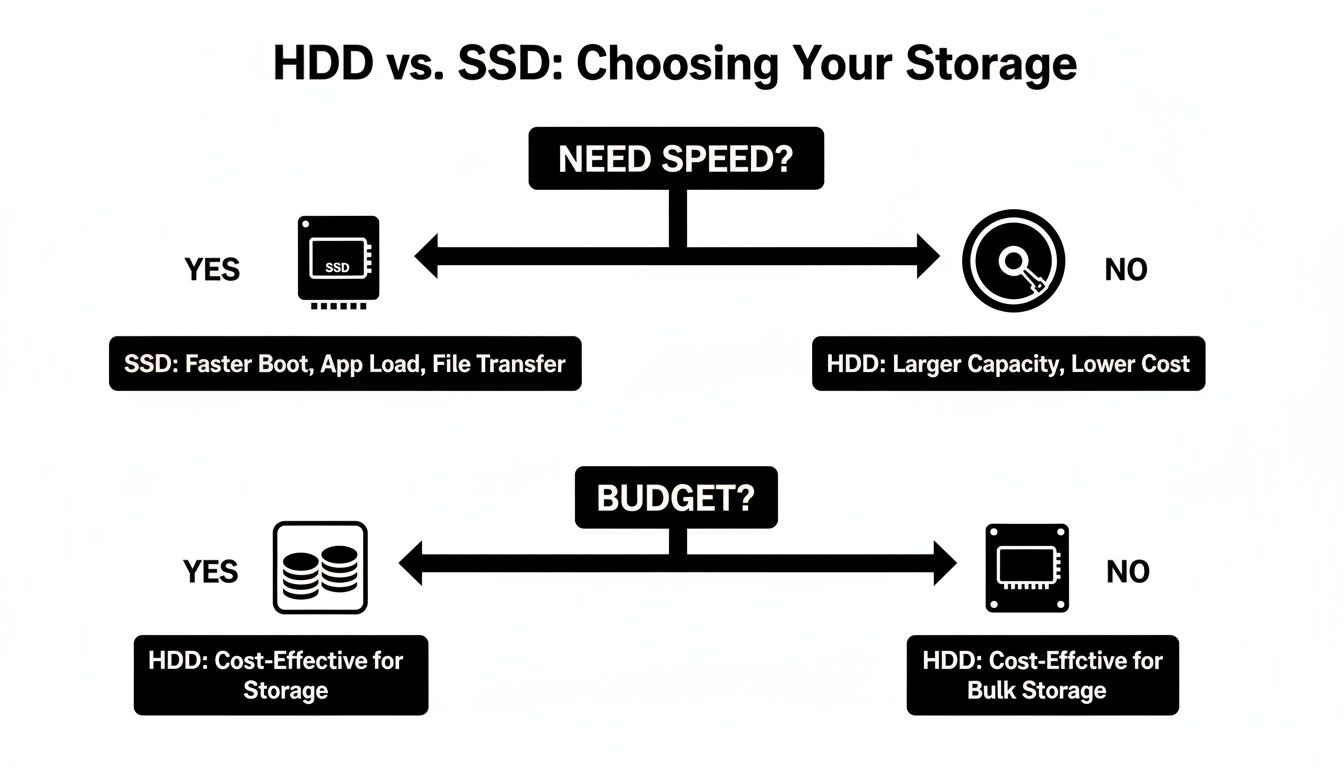
As you can see, it really comes down to a trade-off. If you need lightning-fast backups and are willing to pay for it, SSD is your answer. If you need tons of space without breaking the bank, a traditional HDD is the way to go.
Connection Types: The Speed of Your Data Highway
The type of port and cable you use to connect the drive is just as important as the drive's internal speed. It's like a highway. Your new SSD might be a supercar, but if you force it onto a single-lane country road (like an old USB 2.0 port), it’s never going to reach its top speed.
Here’s a quick rundown of the connections you’ll see today:
- USB 3.0 (or USB 3.2 Gen 1): The dependable multi-lane highway. It delivers speeds up to 5 Gbps, which is plenty for most HDD backups and everyday use.
- USB 3.2 Gen 2: A wider, faster expressway. At up to 10 Gbps, this lets high-performance SSDs shine, transferring huge files in just a few seconds.
- Thunderbolt 3 / 4 & USB4: The bullet train of data transfer. With blistering speeds up to 40 Gbps, this is the standard for creative professionals who move massive video files or even run entire operating systems from their external drives.
When you're shopping, always match the drive's connection to the ports on your computer. Plugging a super-fast Thunderbolt drive into a standard USB-C port will work, but it will be throttled down to that port's slower speed limit.
Durability and Security: Protecting Your Data Physically and Digitally
Your backup drive is the vault for your most important memories and files, so it needs protection from both physical and digital threats.
First, durability. Think about where the drive will live. If it’s just going to sit on your desk, a standard enclosure is perfectly fine. But if you’re a student, traveler, or field photographer, you need something rugged. Look for drives with shock-absorbent rubber casings and ratings for water and dust resistance—they’re built to survive the inevitable bumps and drops of a life on the move.
Next up, digital security. For this, you want hardware encryption. This feature turns your drive into a digital Fort Knox. Everything you save is automatically scrambled, and the only way to unlock it is with a password. If the drive is ever lost or stolen, your data is completely unreadable and inaccessible to anyone else. It's a non-negotiable feature if you're backing up any sensitive personal or business information.
Finding a Backup Strategy That Fits Your Life
Let's be honest: the "best" external drive is the one you'll actually use. It doesn't matter how fast or big a drive is if it's a pain to plug in and the backup process is a chore. A complicated strategy is an ignored strategy.
The real key is to match your gear and your habits to your real-world needs. To help you figure this out, we'll look at three common scenarios. See which one sounds the most like you, and you’ll be on your way to building a backup plan that feels completely natural.
For the Family Archivist
You're the designated keeper of the family's digital history. We're talking decades of photos, home videos from every holiday, and scans of old letters. For you, the main goal isn't blazing speed—it's maximum storage and long-term safety. You’re building a library for irreplaceable memories.
- Recommended Drive Type: A big, beefy HDD is the clear winner here. You simply get the most storage for your money, making it affordable to archive terabytes of photos and videos.
- Ideal Capacity: Think big from the start. A 4TB or 8TB drive is a great starting point, giving you plenty of room to grow for years to come.
- Backup Frequency: A complete backup once a month is a solid routine. You’ll also want to do immediate backups after big events, like a vacation or family wedding, to make sure those new memories are safe right away.
Your game plan is to create a single, centralized vault. A desktop HDD that lives in one safe spot is perfect for this role.
For the Student or Remote Worker
Your world runs on deadlines. Whether it's a term paper, a coding project, or a client presentation, losing even a week's worth of work would be a catastrophe. Your priorities are reliability, portability, and backups that are frequent and fuss-free.
Your drive is practically glued to your side, moving from your dorm to the library, a coffee shop, or your home office.
- Recommended Drive Type: Go with an SSD. They have no moving parts, so they can handle being tossed in a backpack without a second thought. Their speed also means your daily backups will finish in minutes, not hours.
- Ideal Capacity: A 1TB or 2TB drive usually hits the sweet spot. It's more than enough space for all your active projects and a full system backup, without making you pay for capacity you don't really need.
- Backup Frequency: This is non-negotiable: back up daily. Use the automatic tools built into your computer (like Time Machine on macOS or File History on Windows) to schedule a backup that runs every night. Set it once and let it do its thing.
This "set it and forget it" mindset is a lifesaver for busy students and professionals. Automation is your best friend—it guarantees your safety net is always current, even when a massive deadline makes you forget everything else.
For the Creative Professional
As a photographer, videographer, or designer, you don't just deal with files—you deal with enormous files. A single video project can easily eat up hundreds of gigabytes. For you, data loss isn't just a setback; it's a potential career-ending disaster. Your backup strategy needs to be tough, multi-layered, and seriously fast.
This is where the legendary 3-2-1 backup rule comes into play. The rule is simple: have three copies of your data on two different types of media, with one of those copies stored off-site.
Here’s what that looks like in the real world:
- Copy 1 (Working Files): These are the originals living on your computer's internal SSD.
- Copy 2 (Local Backup): A high-speed external SSD (a Thunderbolt or USB 3.2 Gen 2 model is ideal) for daily, lightning-fast backups of your current projects. This lets you recover in minutes if your main drive has a problem.
- Copy 3 (Off-Site Backup): This could be a huge HDD you keep at another location (like your office or a trusted friend's house) that you update weekly. Alternatively, many pros use a cloud-based service. Learning how cloud storage works can help you build a seamless, automated off-site layer of protection.
This layered approach protects you from everything—simple drive failure, theft, and even a physical disaster like a fire. It's the gold standard for anyone whose livelihood depends on their digital creations.
Your First Backup: A Simple Walkthrough
Alright, theory is one thing, but let's get our hands dirty. Setting up your first backup is way easier than it sounds, and you won't need any fancy software—the best tools are already built into your computer. Let’s turn this from a "maybe later" task into a "done in five minutes" reality.
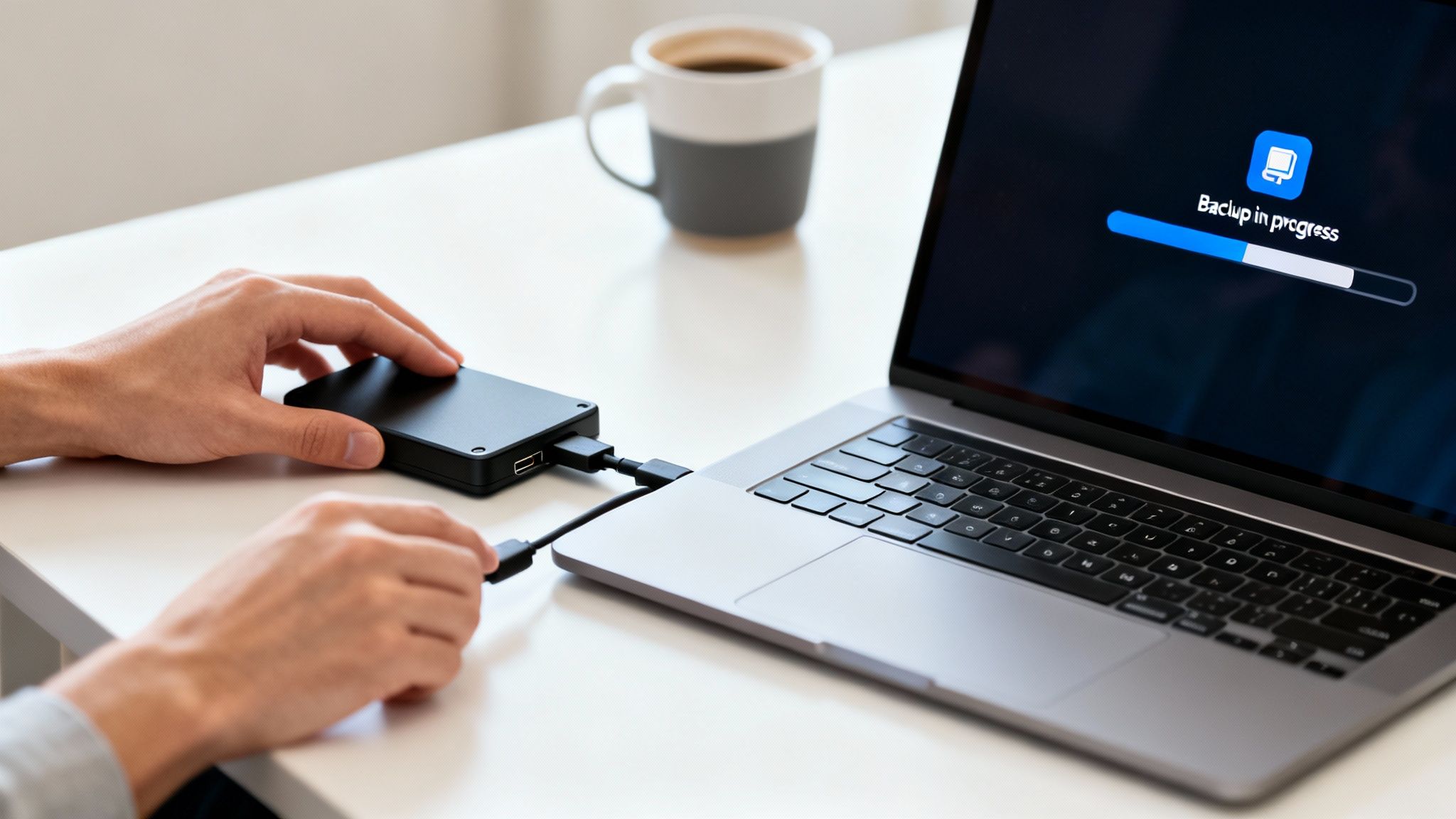
If you take away just one thing from this guide, let it be this: make your backups automatic. Relying on yourself to manually copy files is a recipe for disaster. You'll get busy, you'll forget, and eventually, it just won't happen. An automated system, on the other hand, works quietly in the background, keeping you protected without you ever having to think about it. This "set it and forget it" approach is the secret to real data safety.
Prepping Your New Drive
Before your computer can start saving files, it needs to properly communicate with your new external drive. This requires a quick, one-time step called formatting. Think of it like paving a new road so your data can travel down it smoothly.
- For macOS users: Your Mac is pretty smart about this. When you plug in a new drive, it will probably ask if you want to use it with Time Machine, its built-in backup tool. Just say yes and follow the prompts. It handles all the technical stuff, like formatting the drive to the right file system (APFS), for you.
- For Windows users: Most external drives arrive ready to go for Windows (pre-formatted as NTFS). If for some reason your PC doesn't recognize it, you can format it in seconds. Just find the drive in "This PC," right-click it, and choose "Format."
Think of formatting as preparing a blank notebook. You're just choosing the line spacing and page style (the file system) before you start writing in it (saving your data). It's a quick, essential first step.
Setting Up Automatic Backups on macOS
Apple makes this process incredibly straightforward with its native Time Machine software.
- Connect Your Drive: Plug the external drive directly into an available port on your Mac.
- Open Time Machine: Head to System Settings > General > Time Machine.
- Select Your Drive: Click "Add Backup Disk" and pick your new drive from the list. Your Mac will likely ask if you want to encrypt the backup—I highly recommend you do this for better security.
- Let It Run: That's it! Time Machine kicks off the first complete backup and then automatically saves hourly, daily, and weekly snapshots of your files whenever the drive is connected.
Enabling Automatic Backups on Windows
Windows has a similar feature called File History that keeps your personal files safe and sound. Setting it up is just as simple.
- Plug In Your Drive: Connect the external hard drive to your Windows computer.
- Navigate to Settings: Go to Settings > Update & Security > Backup.
- Add a Drive: Look for "Back up using File History," click "Add a drive," and select your external drive.
- Turn It On: Windows activates File History automatically. By default, it will save copies of your files every hour.
Growing concerns over data security are a huge reason people are buying external drives. In the USA alone, external drives make up 36% of the market demand, largely driven by everyday users who want to protect their files from hacks and hardware failure. Choosing the best external hard drives for backup often comes down to finding one with solid encryption. You can learn more about hard disk drive market trends to see how this is shaping the industry.
And remember, your computer isn't the only device with priceless photos and files. Our guide on how to backup your phone's data can help you protect those memories, too.
Your Backup Questions Answered
Even with the best plan, it's natural to have a few questions rattling around. After all, getting your backup strategy right is all about feeling confident that your digital life is safe. Let's clear up some of the most common questions people ask.
Think of this as the final check-in before you can sit back and relax, knowing your files are secure.
How Often Should I Back Up My Data?
The simple answer? It depends on how often your files change. For most of us who are just saving family photos and personal documents, an automated weekly backup is a great place to start. It’s frequent enough to prevent a major loss but not so frequent that it’s always running.
But if you're a student deep into a thesis or a professional juggling client projects every day, the stakes are much higher. For you, automatic daily backups are non-negotiable.
The key word here, for everyone, is automation. Use your computer's built-in tools to schedule it and forget it. You take human error right out of the picture.
The best backup schedule is the one you don't have to think about. Automate your backups to run when you’re not using your computer, like overnight. This way, your data stays protected without ever getting in your way.
Can I Use One External Drive for Both a Mac and a PC?
You absolutely can, but it needs a little prep work first. Straight out of the box, a drive is usually formatted for either Windows (with a file system called NTFS) or macOS (with APFS). These two systems don't play nicely with each other by default.
The solution is to format the drive to a universal file system like exFAT. Both Windows and macOS can read and write to an exFAT drive without needing any extra software.
Just keep two critical things in mind:
- Formatting erases everything. You have to do this before you put any files on the drive.
- It’s not great for system backups. Tools like Time Machine on a Mac need a specific Mac-only format to work properly. For full system images, it's much safer to have one dedicated drive for each computer.
What Exactly Is the 3-2-1 Backup Rule?
The 3-2-1 rule is a time-tested strategy for making your data practically indestructible. It's considered the gold standard for a reason, and it’s surprisingly easy to follow.
Here’s how it works:
- Have 3 total copies of your data (the original on your computer counts as one).
- Store these copies on 2 different types of media (e.g., your computer's internal drive plus an external drive).
- Keep at least 1 copy completely off-site (this could be a second external drive you keep at the office or a cloud backup service).
Following this rule protects you from pretty much any disaster you can think of—from a simple drive crash or accidental deletion to a fire or theft. Even when files are deleted, recovery is sometimes possible; our guide on how to restore deleted files on Linux explores some of these more advanced techniques.
How Long Do External Hard Drives Last?
This is a big one, because no drive lives forever. A classic external hard disk drive (HDD), the kind with spinning platters, generally has a lifespan of 3 to 5 years. This can shift depending on how much you use it, the quality of the brand, and whether it gets knocked around.
Solid-state drives (SSDs) are a bit tougher since they have no moving parts, which helps them survive bumps and drops. Their memory cells do have a limited number of write cycles, but for backup use—where you aren't constantly rewriting huge files—you'll likely never hit that limit.
The best advice is to not push your luck. Plan on replacing your main backup drive every 4 to 5 years. Remember, the drive is just a piece of hardware you can easily replace; your photos, projects, and documents are not. A small investment in a new drive is well worth the peace of mind.
At Simply Tech Today, we believe that understanding your technology is the first step toward making it work for you. For more guides and simple explanations on the tech you use every day, visit us at https://www.simplytechtoday.com.
Member discussion