
The Best Laptops for Engineering Students A Complete Guide
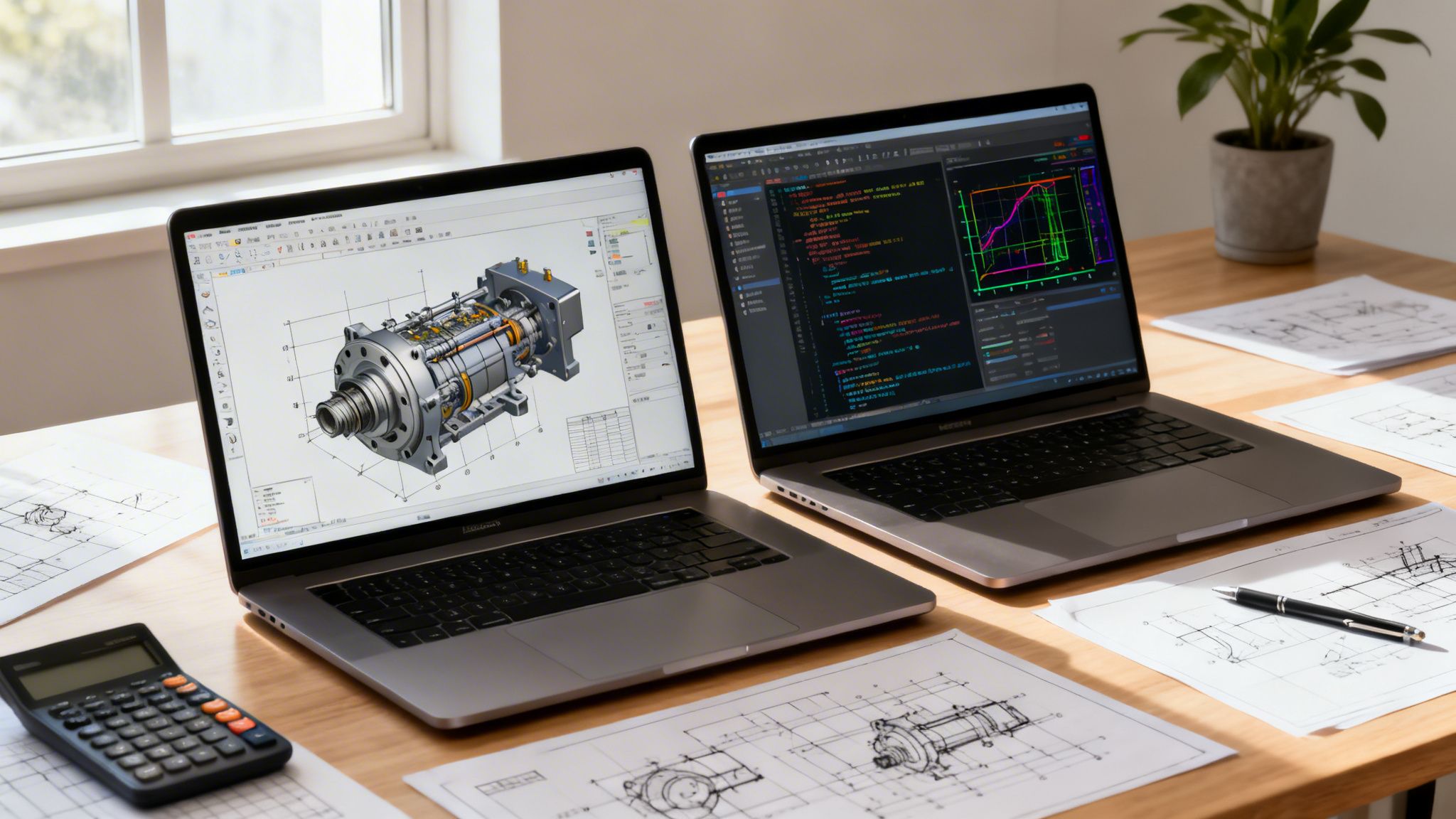
Picking the right laptop for an engineering program isn't just about getting a new computer; it's about investing in the single most important tool you'll use for the next four years. You're looking for a machine with a powerful processor, like an Intel Core Ultra 7 or AMD Ryzen 7, a dedicated graphics card like an NVIDIA RTX 4050, and a minimum of 16 GB of RAM. These aren't just suggestions—they're the baseline for running essential software like AutoCAD, SolidWorks, and MATLAB without constant, frustrating slowdowns.
Why Engineering Demands a High-Performance Laptop
Forget the typical student laptop used for writing papers and streaming videos. An engineering student's machine is a portable workstation, plain and simple. It needs to muscle through complex calculations, render detailed 3D models, and compile massive codebases—tasks that would completely overwhelm a standard notebook.
The specific field you're going into—whether it's mechanical, electrical, or computer science—will shape your exact hardware needs. There's no one-size-fits-all answer here.
Discipline-Specific Software Requirements
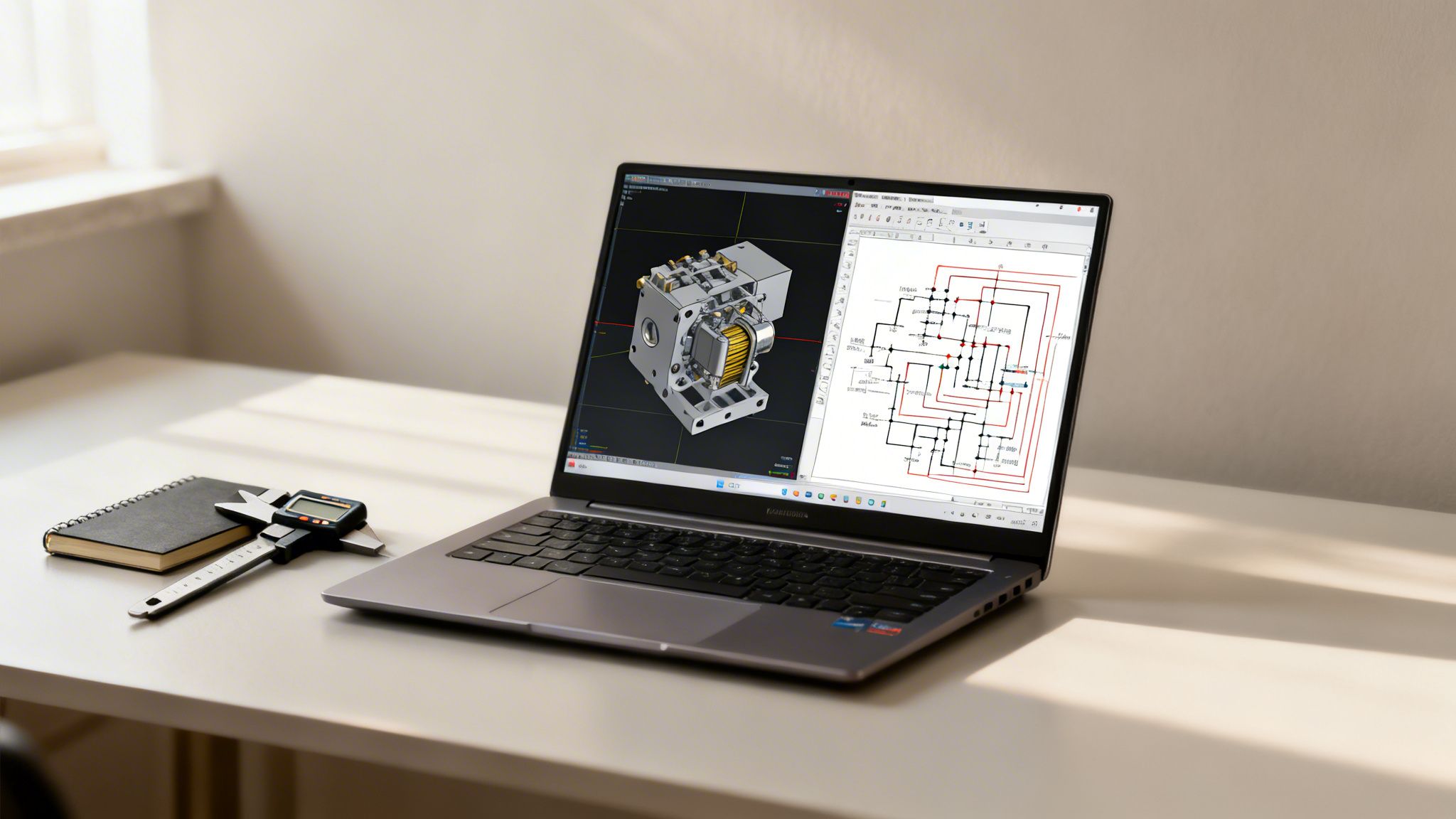
The software you'll live in every day is what truly determines the power you need. A mechanical engineering student navigating large, intricate assemblies in SolidWorks absolutely needs a strong dedicated GPU to keep the 3D rendering smooth. On the other hand, an electrical engineering student running circuit simulations in SPICE will get more mileage from a CPU with blazing-fast single-core speeds to chew through calculations faster.
This is why just grabbing any "good" laptop off the shelf is a mistake. These professional programs have very specific, non-negotiable demands.
Key Insight: Don't think of the processor, graphics card, and memory as just specs on a list. They are the engine that will either power you through your coursework or hold you back. Investing in the right hardware from the start means fewer bottlenecks, less stress, and more time focused on learning.
The tech market has certainly taken notice. The global laptops market was valued at USD 281.88 billion in 2025 and is expected to hit USD 391.11 billion by 2029, growing at an 8.5% compound annual rate. This surge is powered by the needs of specialized academic programs and the reality that students now spend over 6.5 hours online daily. You can dive deeper into this trend by reading the full research about the laptops market.
Core Components and Their Roles
It’s critical to understand what each part of the laptop actually does for your work. Think of the CPU as the brain, crunching the numbers and handling the logic. The GPU is the artist, responsible for rendering everything you see on the screen in CAD and simulations. Finally, RAM is the short-term memory or workspace, letting you keep multiple demanding applications open at once without the system grinding to a halt.
Here's how your coursework translates directly to hardware requirements.
| Engineering Task | Primary Component Needed | Why It Matters |
|---|---|---|
| 3D CAD Modeling (SolidWorks, AutoCAD) | Dedicated GPU | Renders complex visual models smoothly without lag or screen tearing. |
| Complex Simulations (ANSYS, MATLAB) | Multi-core CPU | Processes thousands of calculations in parallel, significantly reducing wait times. |
| Compiling Code (C++, Python) | Fast CPU & SSD | Quickly processes code and accesses files, speeding up development cycles. |
| Multitasking Applications | 16 GB+ RAM | Allows you to run CAD, a browser, and a compiler at once without slowdown. |
The way these components work together is what makes a laptop a true engineering workhorse. Our guide on how to check your CPU can help you get a better sense of what your current machine is capable of. Making a smart, informed choice now will give you a reliable partner for your entire academic career.
Translating Specs into Real-World Engineering Performance
A spec sheet can feel like a foreign language, filled with jargon like "multi-core," "dedicated GPU," and "NVMe SSD." But for an engineering student, learning to speak that language is the key to picking a machine that actually helps you work, rather than holding you back. Every component inside that laptop plays a specific, vital role in handling the beastly software you'll be using every day.
Think of it this way: your laptop isn’t a single machine. It's a team of specialists. The CPU is your lead mathematician, the GPU is the visual designer, RAM is the workbench space, and the SSD is a hyper-organized file clerk. For your engineering projects to run smoothly, every member of this team needs to be a top performer.
The CPU: The Brains of Your Operation
The Central Processing Unit (CPU) is the engine that drives every single calculation, from a simple spreadsheet formula to a complex structural analysis in a program like ANSYS. For the kind of work you'll be doing, two metrics really matter: clock speed (measured in GHz) and core count.
Clock speed tells you how fast a single core can process instructions. This is still important for tasks that rely on one powerful thread, which includes a surprising number of operations in older CAD programs. But modern engineering software is built to spread the work around, making core count the bigger factor for overall performance these days.
When your laptop is running a simulation or compiling code, it’s like solving a thousand math problems at once. A CPU with more cores—think an 8-core or 10-core model—can tackle more problems simultaneously, which dramatically cuts down your wait time.
For instance, compiling a big C++ project or running a fluid dynamics simulation can max out every core you have. A laptop with a 4-core CPU might take 10 minutes for a task that a 12-core CPU rips through in under three. That time really adds up over a long semester.
The GPU: Distinguishing Visual Power From Basic Graphics
The Graphics Processing Unit (GPU) handles everything you see on the screen. Laptops come with two main types, integrated and dedicated, and for an engineering student, this is one of the most critical distinctions to get right.
- Integrated Graphics: These are built right into the CPU and share your system's RAM. They're perfectly fine for browsing the web and watching videos, but they will absolutely buckle under the pressure of 3D modeling or rendering.
- Dedicated Graphics: This is a separate, specialized chip with its own video memory (VRAM), made by companies like NVIDIA or AMD. It is non-negotiable for anyone who will be working with CAD, 3D rendering, or any visually intensive simulations.
When you rotate a complex 3D assembly in SolidWorks or Fusion 360, a dedicated GPU renders the model smoothly. An integrated GPU would just struggle, leaving you with stuttering, lag, and a workflow that's just plain frustrating. For a deeper dive, check out our in-depth guide on how to choose a graphics card for your needs.
RAM and Storage: The Speed of Your Workflow
Random Access Memory (RAM) is your laptop's short-term memory—the active workspace where your open applications and current data live. Engineering software is notoriously RAM-hungry. Having multiple programs like MATLAB, your web browser with a dozen research tabs, and a code editor open at once can easily chew through 12 GB of RAM or more.
This is exactly why 16 GB is the absolute minimum you should consider, and 32 GB is strongly recommended for a smooth, future-proof experience. With 32 GB of RAM, you can run a virtual machine, a complex simulation, and all your other apps without your system slowing to a crawl.
Finally, your storage drive dictates how fast your laptop boots up and loads programs. You have to go with a Solid-State Drive (SSD) over an old-school Hard Disk Drive (HDD). An NVMe SSD is thousands of times faster than an HDD, meaning applications like AutoCAD will launch in seconds, not minutes. While HDDs offer more storage for less money, the speed trade-off is just not worth it for your primary drive.
Choosing the right components isn't just about avoiding frustration; it's about setting yourself up for success. This table breaks down the baseline you can get by with versus what we truly recommend for a machine that will carry you through all four years without a hitch.
Minimum vs Recommended Specs for Engineering Workloads
| Component | Minimum Requirement (Good for 1st/2nd Year) | Recommended Spec (Ideal for All Years & Specializations) |
|---|---|---|
| CPU | Intel Core i5 or AMD Ryzen 5 (latest generation, 6+ cores) | Intel Core i7/i9 or AMD Ryzen 7/9 (latest generation, 8+ cores, high clock speeds) |
| GPU | NVIDIA GeForce RTX 3050 / 4050 (4 GB VRAM) | NVIDIA GeForce RTX 3060 / 4060 or higher (6+ GB VRAM); NVIDIA Quadro series for professional work |
| RAM | 16 GB DDR4/DDR5 | 32 GB DDR5 (or more for heavy simulation work) |
| Storage | 512 GB NVMe SSD | 1 TB NVMe SSD (or larger); consider a secondary drive for project files |
| Display | 1080p (FHD), 60Hz, decent color accuracy (sRGB >90%) | 1440p (QHD) or 4K, 120Hz+, high brightness (400+ nits), excellent color accuracy (100% DCI-P3) |
| Ports | At least one USB-C/Thunderbolt, 2x USB-A, HDMI | Multiple Thunderbolt 4 ports, SD card reader, full-size HDMI, ethernet port |
| Battery & Thermals | 50 Whr+ battery; a dual-fan cooling system is a must to avoid performance throttling under sustained load. | 75 Whr+ battery; advanced vapor chamber or multi-heat-pipe cooling solution to maintain peak performance during long rendering sessions. |
The minimum specs will get the job done, but opting for the recommended specs gives you the headroom to take on more complex projects in your junior and senior years without your hardware becoming a bottleneck.
The industry is constantly pushing forward to meet these high-performance demands. When you're looking at the best laptops for engineering students, processor power and battery life are top priorities. The latest chips, like Apple's M3, pack an 8-core CPU and 10-core GPU, which enables smooth operation of engineering software like Python scripting, Fusion 360, and MATLAB. In fact, market forecasts show the AI laptop market hitting USD 33.17 billion in 2025 and climbing to USD 124.21 billion by 2033, and that trend is pushing innovation even further. These new machines often include neural processing units (NPUs) that can boost efficiency by up to 40% in AI-driven simulations. You can read more about the rise of AI laptops on Persistencemarketresearch.com.
Finding the Right Balance of Power, Portability, and Price
Picking the right laptop for an engineering degree is a classic juggling act. You’re constantly trying to balance raw power, how easy it is to carry around, and what your wallet can handle. Let’s be real—you’ll rarely find a machine that maxes out all three. The first step is figuring out what you truly need, which will turn this purchase into a smart, long-term investment.
Think about the two extremes you'll see on campus. First, there's the beastly gaming laptop—basically a desktop in disguise. It’s got a top-tier NVIDIA RTX GPU and a beefy Intel Core i9 processor, making it an absolute monster for running complex ANSYS simulations or rendering huge assemblies in SolidWorks from your dorm. The catch? It weighs a ton (often over five pounds), and the battery will be gasping for air before your longest lecture is over. Lugging that thing around every day gets old, fast.
On the other side, you have the sleek ultrabook. It’s feather-light, disappears into your backpack, and has a battery that lasts all day, so you can forget your charger. It's a dream for coding in Python or taking notes in class. But the moment you fire up a serious CAD project or 3D modeling software, its integrated graphics will hit a wall, leaving you with frustrating lag and choppy performance.
Defining Your Primary Use Case
To find your perfect fit somewhere in the middle, you need to be honest about your day-to-day reality. Are you a mechanical engineering student who will be living in CAD software? Or are you a computer science major who needs a lightweight machine to code on the go? Your answer points directly to where you should spend your money.
Here's a quick way to think about it:
- Performance-First: If heavy 3D modeling, simulations, or VR is your world, the CPU and a dedicated GPU are non-negotiable. You'll just have to accept a heavier machine and shorter battery life as part of the deal.
- Portability-First: If you’re always moving between class, the library, and study groups, look for laptops under 3.5 pounds with amazing battery life. This likely means compromising on high-end graphics power.
- Budget-First: If the price tag is your biggest worry, check out last year's models or configurations with mid-range parts, like an NVIDIA RTX 4050. These often provide the best bang for your buck.
This decision tree breaks down the most important starting point: do you actually need a dedicated graphics card?
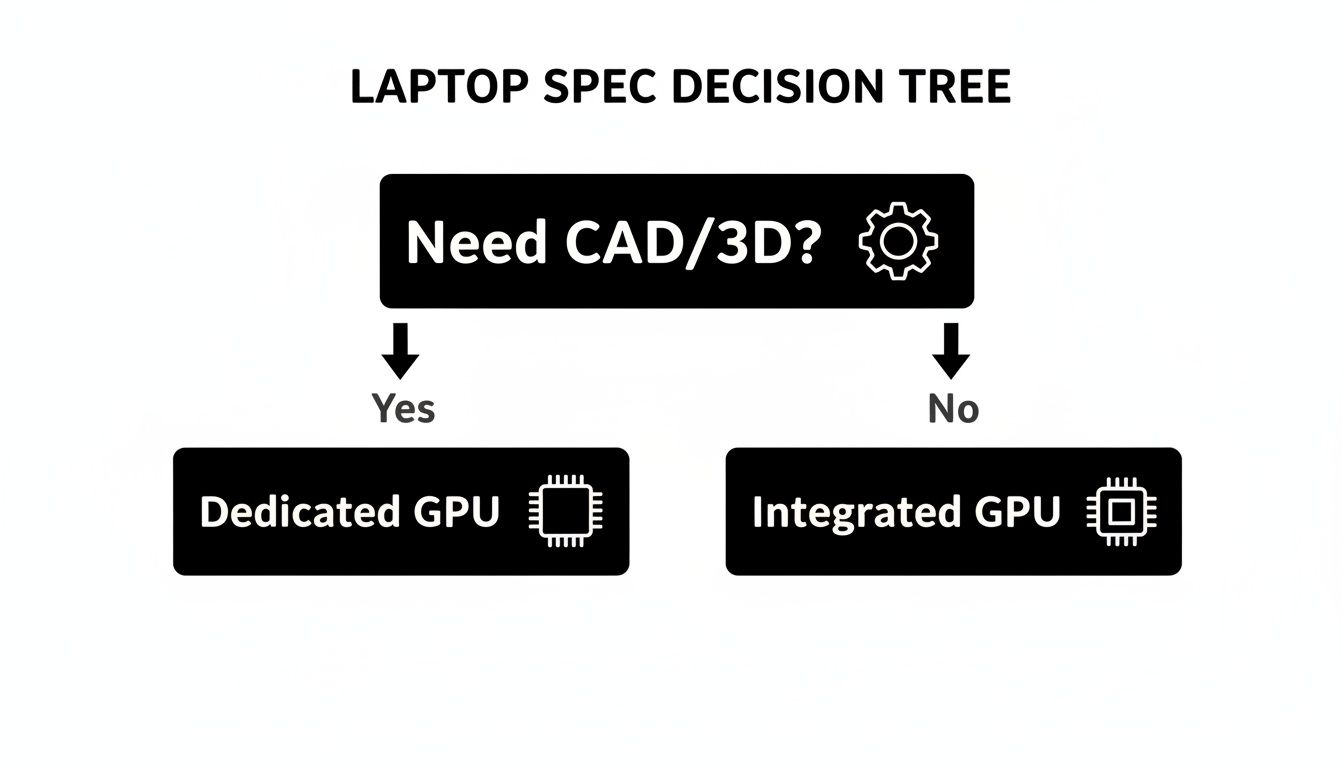
This simple choice has the biggest impact on both performance and price, setting you on the right path from the get-go.
Making Smart Budgetary Decisions
Being on a student budget doesn't mean you're stuck with a sluggish machine. The trick is to spend your money where it counts. The laptop industry is projected to grow from USD 135.92 billion in 2025 to USD 174.87 billion by 2033, and that competition is great for students. We're seeing powerful, affordable options pop up everywhere. Take the ASUS ROG Zephyrus G14—it packs NVIDIA RTX graphics for under $1,500 and can outperform mid-range laptops in ANSYS simulations by 35%. You can learn more about how market trends affect laptop pricing and availability.
My Take: You don't always need the top-of-the-line model. A well-balanced machine with a solid mid-tier GPU and a modern processor often gives engineering students the best return on their investment. It has enough muscle for demanding software without the sky-high price of a premium gaming rig.
For many, finding a great deal is the top priority. If your budget is tight, our guide to the best cheap laptops that don't compromise on performance has some excellent recommendations.
Here are a few tips to make your money go further:
- Invest in the Core: You can't upgrade a CPU or GPU later, so put your money there first. You can almost always add more RAM or a bigger SSD down the road.
- Hunt for Sales: Keep an eye out for student discounts and back-to-school deals. They can literally save you hundreds of dollars.
- Consider Last-Gen Hardware: A laptop with a high-end processor from last year will often run circles around a new mid-range one, and it will cost you less.
At the end of the day, the "best" laptop isn't just about the most power or the highest price. It's the one that hits that sweet spot of performance, portability, and price for your specific needs. It’s about finding a reliable tool that will see you through your entire degree without breaking the bank.
Beyond the Core Specs: Features That Actually Matter in the Real World
While the CPU and GPU are the engine, a handful of other features determine what it’s actually like to use your engineering laptop day in and day out. Ignoring them is like buying a race car with flimsy seats and a terrible steering wheel. You’ve got the power, but good luck using it without getting frustrated. These supporting features are what separate a machine that just looks good on paper from one that genuinely makes you more productive.
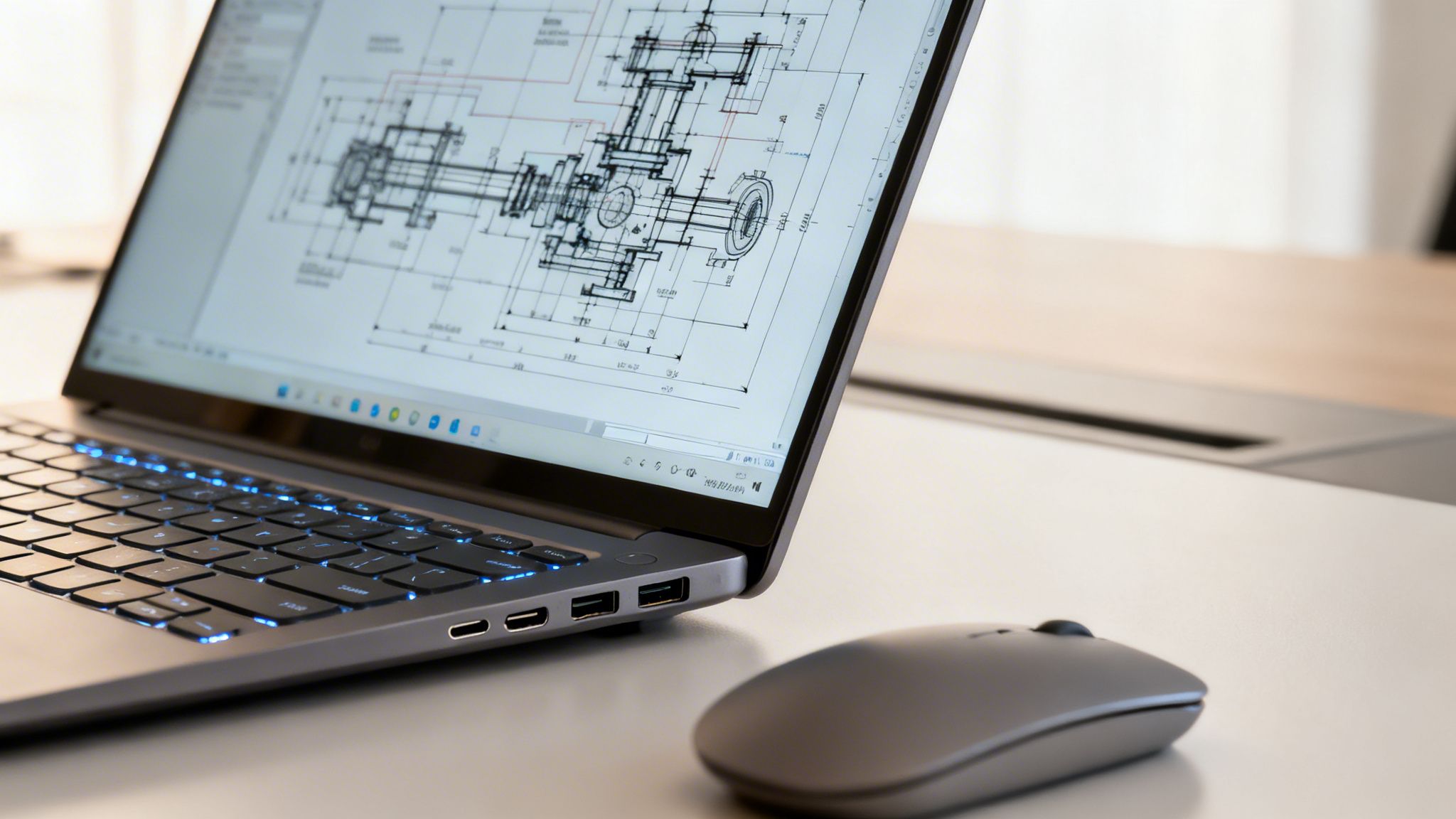
The best laptops for engineering students are built as a complete package, with every component working in harmony. A brilliant display helps you spot tiny flaws in a schematic, while a solid keyboard makes those marathon coding sessions tolerable. These aren't luxuries; they're essential tools for your efficiency.
Display and Keyboard: Your Interface with the Machine
You're going to spend thousands of hours staring at this screen, so its quality is a huge deal. A low-resolution screen makes intricate CAD drawings look fuzzy and will absolutely strain your eyes. Likewise, a dim display is basically useless in a bright classroom or if you ever want to work outside.
Here’s what you should be looking for in a display:
- Resolution: A 1920x1080 (Full HD) screen is the absolute minimum. If you can swing it, a 1440p (QHD) display provides a significant jump in sharpness, making text and fine lines in diagrams much easier to see.
- Brightness: Look for a screen rated for at least 300 nits of brightness. This is the baseline for being able to see your work clearly in different lighting conditions.
- Color Accuracy: A high sRGB percentage ensures colors are true-to-life. This might not seem critical for compiling code, but it's a game-changer for visual design and simulation work.
The keyboard is just as important. You’ll be hammering out thousands of lines of code, reports, and emails. A mushy, cramped keyboard will slow you down and lead to fatigue. Look for keyboards with decent key travel (how far the key pushes down) and, crucially, backlighting. You'll thank yourself for having illuminated keys during those late-night project grinds.
A great screen and keyboard aren't just about comfort—they're about precision. When you can see every detail of a 3D model and type code without errors, you work faster and produce better results.
Ports and Connectivity: Your Gateway to Everything Else
As an engineering student, you will constantly be plugging things into your laptop. We’re talking lab equipment, big external monitors, classroom projectors, and hard drives for backing up massive project files. Relying on a bag full of dongles isn't just a hassle—it's a recipe for disaster when you realize the one you need is back in your dorm.
A solid port selection is non-negotiable. Here's what a practical setup looks like:
- USB-C with Thunderbolt: This is the superstar port. It handles super-fast data transfer, connecting multiple 4K displays, and charging your laptop, all from one cable.
- USB-A: Don't write it off yet. It’s still essential for connecting to older lab equipment, countless flash drives, and most mice and keyboards.
- HDMI: This is the most straightforward way to connect to most projectors and monitors you'll encounter on campus without needing an adapter.
- SD Card Reader: Incredibly useful if you do any photography or need to pull data from other devices.
Having a good mix of these built right in saves you time, money, and a whole lot of stress.
Build Quality and Thermal Management
Finally, the physical construction of your laptop is vital. This machine has to survive being tossed in a backpack and carried across campus every single day. A flimsy plastic body is far more likely to crack or flex, which can damage the sensitive components inside. Aim for laptops with an aluminum or magnesium-alloy chassis for much better durability.
That sturdy build often goes hand-in-hand with better thermal management. Powerful processors generate a ton of heat, especially during long simulations or 3D rendering. If that heat has nowhere to go, your system will throttle—it will intentionally slow down the CPU and GPU to avoid overheating. This can gut your performance by 30% or more, right when you need it most.
Laptops with robust cooling, like dual fans and well-engineered heat pipes, can sustain that peak performance for hours. A little extra investment here ensures the machine actually delivers the power you paid for. If you're looking to optimize your system, you can learn more about how to extend laptop battery life by managing its performance and heat.
Choosing Between Windows and macOS for Engineering
The operating system you pick is a bigger deal than you might think. It’s not just about a preference for one interface over another; this decision directly controls what software you can run without jumping through hoops. For an engineering student, choosing between Windows and macOS is a major fork in the road.
For as long as anyone can remember, the engineering world has run on Windows. That’s still the reality today, which makes a Windows laptop the safest, most straightforward choice for almost every discipline, especially for mechanical, civil, and aerospace engineering. The reason is simple: software compatibility.
The Case for Windows: The Industry Standard
The vast majority of heavy-duty engineering applications—the kind you’ll use in your advanced courses and in your career—are built for Windows and only Windows. We’re talking about industry giants like SolidWorks, CATIA, and ANSYS, none of which have a native version for Mac.
By choosing a Windows machine, you simply eliminate any future anxiety about whether a required program will work. This direct compatibility saves you from the headaches of setting up virtual machines or dual-booting your system, which can be tricky and often hurt performance. If you want a smooth, frustration-free experience, Windows is the default path.
The Appeal of macOS: A Niche for Coders
Even with Windows' dominance, macOS has earned a solid reputation in specific fields like computer science, software engineering, and parts of electrical engineering. Developers often love the Unix-based architecture of macOS because it comes with powerful command-line tools and a clean development environment right out of the box.
If your degree is all about coding, building apps, or working with data, a MacBook can be a fantastic tool. Apple's ecosystem is known for its stability, intuitive design, and holding its value over time. But if you’re heading into a major that leans heavily on 3D CAD or complex simulations, you need to go in knowing you'll need a workaround.
A popular fix for Mac users is to run Windows using virtualization software like Parallels or by creating a partition with Boot Camp. While this works, you should expect a performance drop, especially with graphically demanding tasks. The hardware just isn't optimized to run a non-native OS at full tilt.
Software Compatibility by Engineering Discipline
Let's get specific. Seeing exactly which programs run on which platform makes this decision much clearer. The best laptop is the one that runs your required software without a fight. This table breaks down native support for common engineering applications.
| Software Name | Primary Engineering Field | Native Windows Support | Native macOS Support |
|---|---|---|---|
| SolidWorks | Mechanical, Aerospace | ✅ Yes | ❌ No |
| AutoCAD | Civil, Mechanical, Architecture | ✅ Yes | ✅ Yes (with some feature differences) |
| MATLAB | All Disciplines | ✅ Yes | ✅ Yes |
| ANSYS | Mechanical, Electrical, Civil | ✅ Yes | ❌ No |
| Revit | Civil, Architecture | ✅ Yes | ❌ No |
| LTspice | Electrical | ✅ Yes | ✅ Yes |
| Fusion 360 | Mechanical, Industrial Design | ✅ Yes | ✅ Yes |
As you can see, while some key tools like MATLAB and Autodesk Fusion 360 are cross-platform, many of the big ones are still Windows-only.
Before you buy anything, check your university’s engineering department website. They almost always list their software requirements and recommendations, and that's the best advice you can get. Learn more about making these kinds of crucial decisions in our guide on how to choose the right laptop for your needs. Aligning your OS with your coursework from day one is one of the smartest things you can do to set yourself up for success.
Your Top Laptop Questions, Answered
Picking a high-performance laptop can be a headache, especially when every spec feels like a make-or-break decision. To cut through the noise, I've rounded up the most common questions I hear from engineering students and laid out some straight, practical answers. Think of this as the final check to clear up any doubts before you buy.
Is a Dedicated GPU Essential for My First Year?
Honestly, for most first-year students, the answer is "not strictly, but you'll want one soon enough." Your intro courses are heavy on fundamentals like physics, calculus, and basic programming—tasks that lean almost entirely on the CPU. A modern integrated GPU can handle that workload just fine.
But here's the thing: you need to think beyond freshman year. By the time you're a sophomore, you’ll almost certainly be diving into CAD, 3D modeling, or other graphically intense software. Investing in a laptop with a dedicated GPU like an NVIDIA RTX 3050 or 4050 from the get-go means your machine won't become a bottleneck right when your classes get serious. It’s the smart way to future-proof your purchase.
Can I Just Use a Gaming Laptop?
Absolutely. In fact, a gaming laptop is often an excellent choice. These machines are built from the ground up for performance, packing powerful CPUs, high-end GPUs, and cooling systems designed to run flat-out for hours. That hardware profile is a near-perfect match for an engineering student running demanding simulations or rendering complex models.
The trade-offs? Portability and style. Gaming laptops are usually heavier, bulkier, and have a battery life that can be measured in minutes, not hours. The aggressive "gamer" aesthetic also isn't for everyone.
The Bottom Line: If your main goal is getting the most performance for your money and you don't mind the extra weight, a gaming laptop offers incredible value. Just get used to carrying your charger everywhere and accept that it won't be as sleek as an ultrabook.
How Much Should I Realistically Budget?
You can find a machine that works for under $1,000, but the real sweet spot for a reliable, long-lasting engineering laptop is between $1,200 and $1,800. In this range, you can expect a powerful Intel Core i7 or AMD Ryzen 7 processor, a solid mid-range GPU (like an NVIDIA RTX 4060), 16 GB of RAM, and a roomy 1 TB SSD.
Here’s a quick way to think about your budget:
- Under $1,000: It’s possible, but you'll be making compromises. Expect a weaker GPU, a smaller SSD, or both. If you go this route, prioritize getting the best CPU you can find and at least 16 GB of RAM.
- $1,200 - $1,800: This is the ideal zone. You’ll find well-balanced machines from great brands that can comfortably power through a four-year engineering curriculum without hitting a wall.
- Over $2,000: This is the premium tier. Laptops here offer top-of-the-line everything—build quality, displays, and advanced cooling. It’s a luxury, not a necessity, for most students.
Spending a little more upfront on a well-balanced machine will almost always save you the frustration (and cost) of needing an upgrade halfway through your degree.
What Is the Best Screen Size for an Engineering Student?
The perfect screen size comes down to a trade-off between productivity and portability. For most engineering students, a 15-inch or 16-inch display is the goldilocks zone. It gives you enough screen real estate to see detailed schematics, snap multiple windows side-by-side, and work on complex designs without constantly squinting.
A 14-inch laptop is a fantastic option if you live on the move and prioritize a lighter backpack. They are much easier to carry around campus. Just be aware that the smaller screen can make intricate design work feel a bit cramped.
On the other end, 17-inch laptops provide a gorgeous, immersive workspace but are often just too big and heavy for daily campus life. Unless your laptop is going to live on a desk, you’re better off sticking with a smaller screen and investing in a large external monitor for your dorm. That setup truly gives you the best of both worlds: portability when you need it and a massive, productive workspace at home.
At Simply Tech Today, our goal is to help you understand the technology you use every day. For more guides and simple explanations on everything from laptops to smart home devices, visit us at https://www.simplytechtoday.com.
Member discussion