
Computer Running Slow How to Fix A Practical Guide
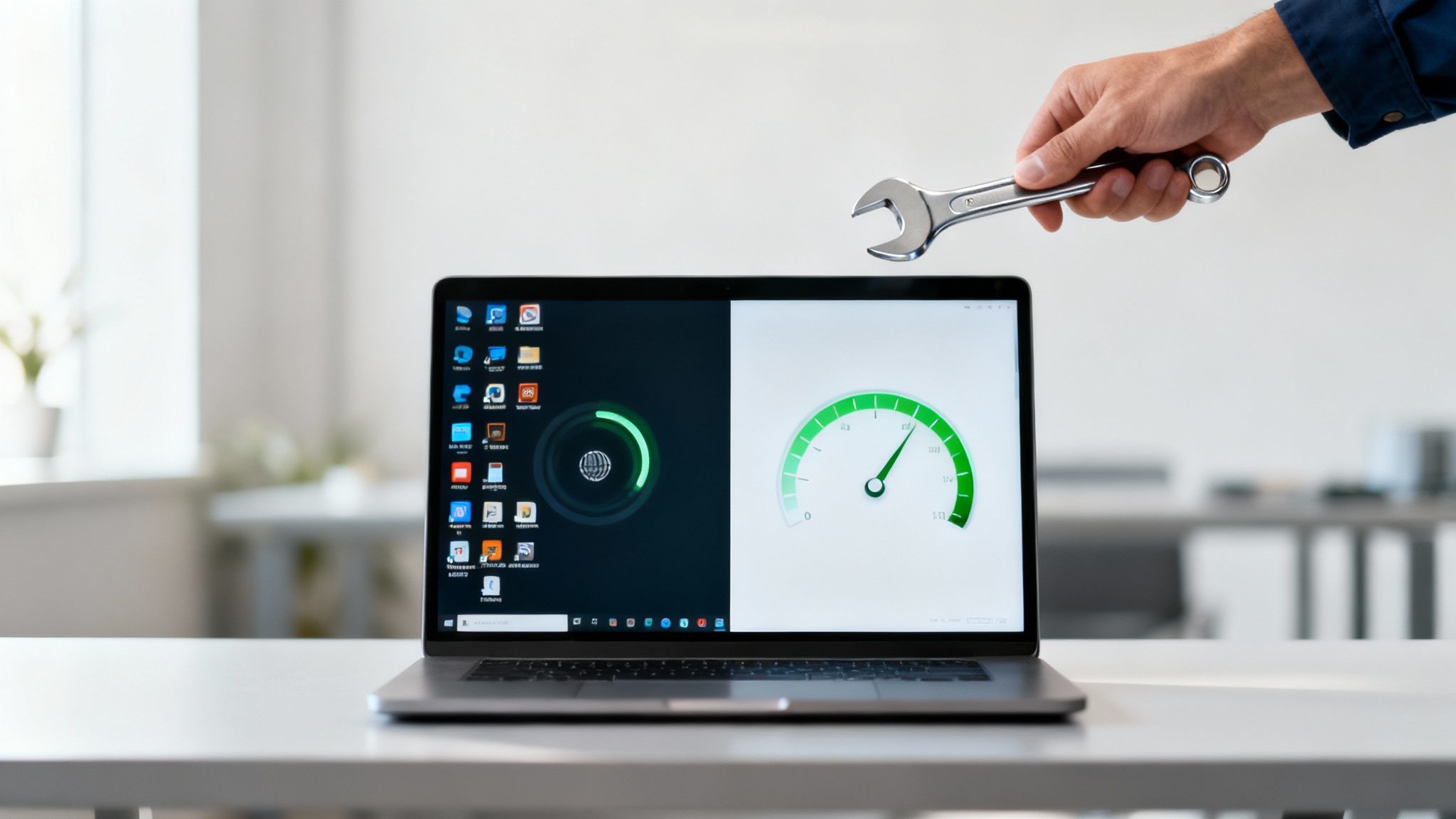
We’ve all been there. One minute your computer is humming along just fine, and the next, it feels like you're trying to run a marathon through quicksand. Opening a file takes an eternity, and your patience wears thin. It’s incredibly frustrating, but before you start pricing out new machines, let's figure out what's really going on.
More often than not, a sudden slowdown isn't a sign of hardware failure. It's usually something much simpler—a misbehaving app, a background process gone rogue, or just the accumulated digital clutter from a long uptime. Think of it less as a breakdown and more as your computer sending up a flare for a little attention.
Why Is My Computer Suddenly So Slow?
The first thing to do is play detective. Don't just assume your computer is "old." Instead, let's look for clues to see what’s actually bogging it down right now. The culprit is often a single resource-hungry program that’s hogging all the system's power.
Your computer comes with its own built-in diagnostic tools that give you a live look at what's happening under the hood. It’s the first place I always check.
- On a Windows PC, press
Ctrl + Shift + Escto open the Task Manager. - On a Mac, you'll want to open Activity Monitor, which you can find in your Applications > Utilities folder.
Once you have it open, click on the CPU and Memory columns to sort them from highest to lowest. Are you seeing a program at the top using a crazy amount of resources, like 90% of your CPU? That’s your prime suspect. Sometimes, simply closing that one app and relaunching it is all it takes to fix the problem.
It’s also worth considering if the slowdown is related to your network, not your computer itself. If web browsing is slow but offline apps are fine, you can learn more from our guide on how to troubleshoot an internet connection.
Before you get lost in diagnostics, I always tell people to try the simplest fix first. It sounds almost too easy, but it works wonders.
Just restart it. Seriously. Rebooting your computer is the most effective quick fix in the book. It clears out temporary memory, shuts down stuck processes, and gives your entire system a fresh start. Make it your go-to move whenever performance unexpectedly drops.
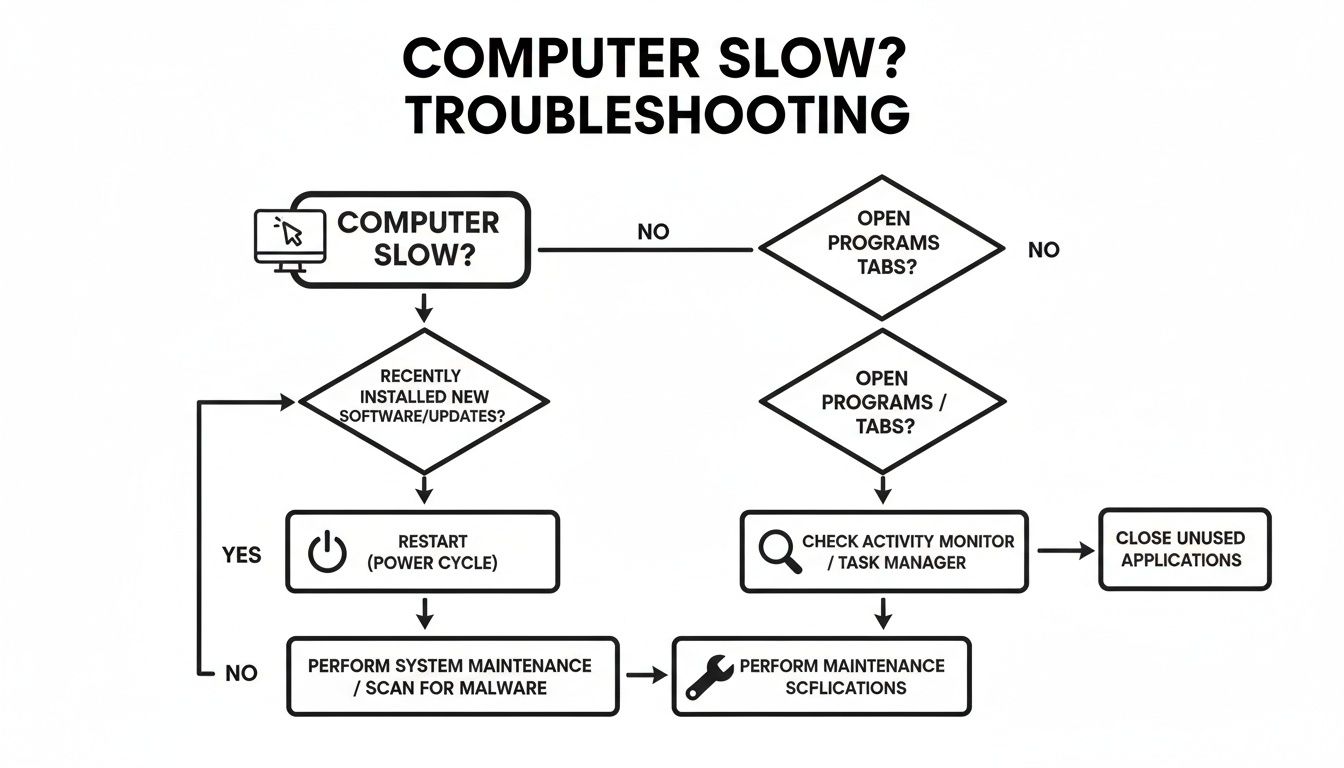
The flowchart below breaks down these initial, simple steps. It's all about ruling out the easy stuff before you start digging into more complicated solutions.
Quick Fix Checklist For A Slow Computer
Here’s a quick summary of the first few things you can do without needing any technical expertise. Think of this as your five-minute tune-up.
| Action to Take | What It Does | Time Required |
|---|---|---|
| Restart Your Computer | Clears temporary memory (RAM) and closes all hung programs. | ~2 minutes |
| Check Task Manager / Activity Monitor | Identifies specific apps using excessive CPU or memory. | ~1-2 minutes |
| Close Unnecessary Programs | Frees up system resources for the tasks you're focused on. | ~1 minute |
| Check Internet Speed | Rules out a slow network as the cause of the problem. | ~30 seconds |
Following these simple actions can often resolve performance issues instantly. If your computer is still slow after trying these steps, then it's time to move on to more in-depth software and hardware checks.
Clear Out Digital Clutter and Unused Software
Think of your computer like a workshop. Over time, it gets cluttered with old projects, dusty tools, and random junk. This mess doesn't just take up room; it makes it hard to find what you need and generally slows you down. Your computer's digital space works the exact same way.
Every app you install, file you download, and temporary file created leaves a footprint. All this digital baggage adds up, eventually bogging down your system and making a once-speedy machine feel like it's trudging through mud. A good digital cleanup can often bring back a surprising amount of that lost performance.
Tame Your Startup Programs
Every time you turn on your computer, a whole parade of applications can launch in the background, often without you even knowing it. Some are necessary for your system to run, but many are just sitting there, gobbling up precious memory and processing power right from the get-go.
This is one of the most common culprits behind a slow boot-up. In fact, a 2023 survey found that slow startup times are a top frustration for 42% of users, an issue that’s frequently traced back to these launch-happy programs. You can dive deeper into these user complaints and their solutions in Nerds on Site's findings.
It's time to take control.
- On a Windows PC, press Ctrl + Shift + Esc to open the Task Manager and head over to the "Startup apps" tab.
- On a Mac, you'll find this list in System Settings > General > Login Items.
You'll see a list of every program that wants to start with your computer, often with an "impact" rating like "High," "Medium," or "Low."
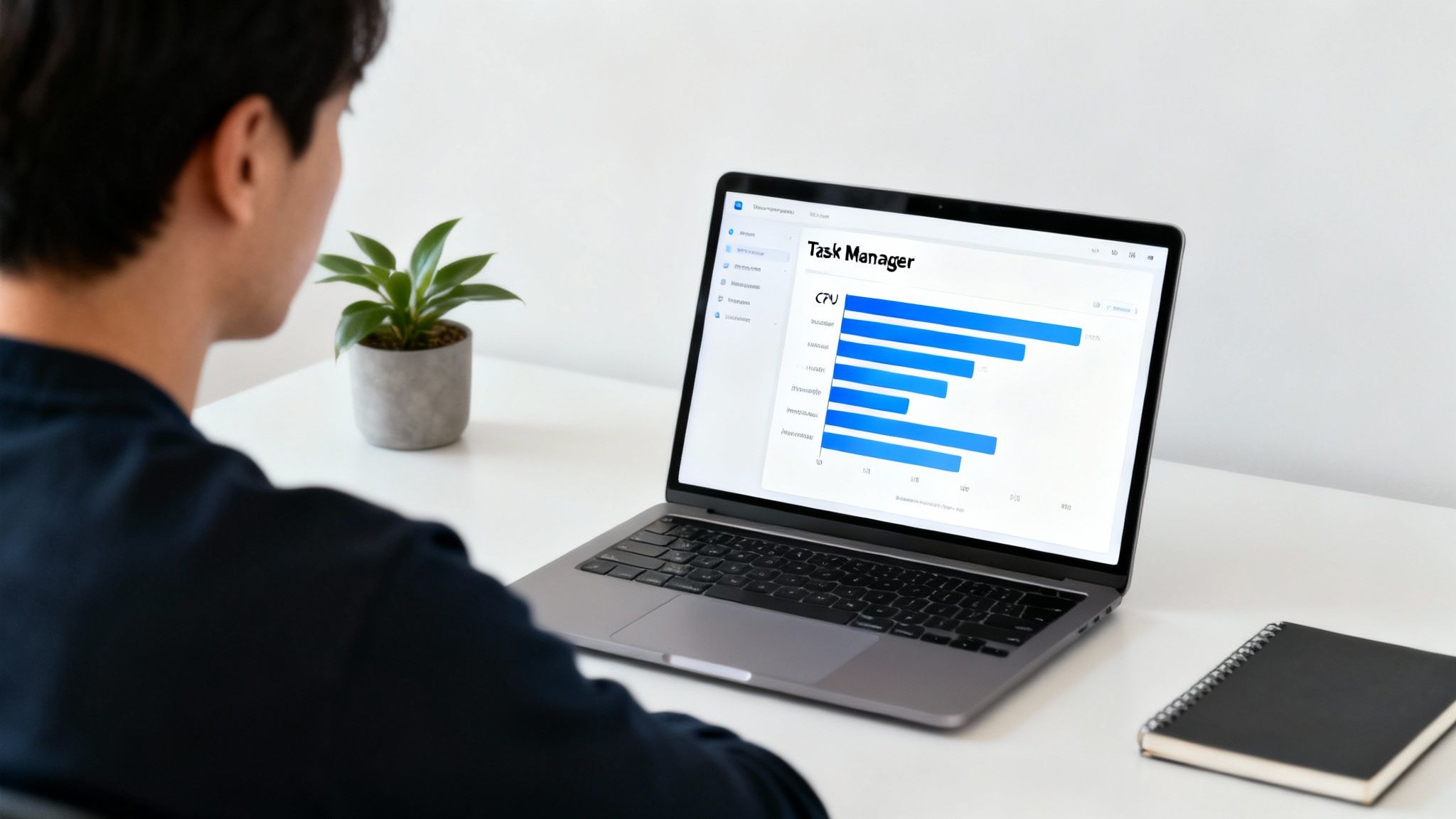
This is where you can be the bouncer. Look for anything with a "High" impact that you don't need the second you log in—things like game clients, chat apps, or music players are common offenders. Just right-click and disable them. They'll still work perfectly when you open them manually, they just won't be slowing you down from the start.
Uninstall Bloatware and Unused Apps
Brand-new computers are notorious for coming packed with software you'll never touch. This stuff is often called bloatware, and it does more than just waste disk space. These pre-installed trials and utilities can run hidden processes in the background, draining resources for no good reason.
The same goes for that one-off program you installed two years ago and completely forgot about. It's time to do a digital spring clean.
Be ruthless. Go through your list of installed applications and if you haven't used something in the last six months, it’s probably safe to get rid of it.
- In Windows, head to Settings > Apps > Installed apps.
- On a Mac, just open your Applications folder and drag the unwanted apps to the Trash.
Getting this unnecessary software off your machine is a huge step. If you're running low on room, our guide on how to free up storage space on your computer has even more tips.
Pro Tip: Some stubborn programs don't uninstall cleanly. They leave behind stray files and registry entries. For these, a dedicated uninstaller tool can be a lifesaver, as it's designed to hunt down and scrub away every last trace of the application.
Clean Your Web Browser Cache and Extensions
Your web browser is probably the most-used piece of software on your machine, which also makes it a prime suspect for performance issues. Day after day, it builds up a massive cache of website data, cookies, and history that can eventually slow your browsing to a crawl.
Even more impactful are browser extensions. They can be incredibly handy, but each one you add is another little program running in the background, using up memory and CPU cycles. Go through your extension list and be honest about what you actually use. Disabling or removing the rest can make your browser—and your whole computer—feel much snappier.
Give Your System a Tune-Up for Better Performance and Security
Think of your computer like a car. You wouldn't skip oil changes and expect it to run perfectly, right? The same logic applies here. Regular maintenance is the bedrock of a fast, healthy machine, and skipping it is one of the most common reasons a computer starts to feel sluggish.
When a system slows to a crawl, it's not always about having too many files or old hardware. Sometimes, there’s something more sneaky going on behind the scenes. Two of the most important things you can do are scan for malware and keep everything updated.

Let’s dig into how these two simple habits can make a world of difference.
Scan for Malware and Viruses Religiously
Malicious software is a resource hog by design. It deliberately runs hidden processes that can devour your CPU power and memory without you ever knowing. That sudden, inexplicable slowdown? It might not be your 20 open browser tabs—it could be a virus chugging away in the background.
Beyond just slowing you down, these threats are a serious security risk. From adware and spyware to full-blown viruses, they can steal your personal info, corrupt your precious files, or even lock you out of your own computer. I make it a point to run a full system scan at least once a week; it's just non-negotiable these days.
Thankfully, you don’t need to buy expensive software to get started.
- On Windows: The built-in Windows Security (you might know it as Windows Defender) is surprisingly powerful. Just head into your Settings, find it, and kick off a full scan.
- On macOS: Macs have a reputation for being virus-free, but that's a dangerous myth. They are targets, too. A great tool is Malwarebytes, which offers a fantastic free version for on-demand scanning to find anything lurking on your system.
Building a solid defense is key. For a deeper dive, check out our guide on how to secure your home network.
Key Takeaway: A "clean" desktop doesn't mean a clean system. The most effective malware is invisible, quietly siphoning off resources and compromising your data. Don't assume you're safe—verify it with a scan.
Keep Your OS and Drivers Up-to-Date
I know, I know—update notifications are annoying. But skipping them is like turning down a free performance boost for your computer. Developers constantly push out patches that do more than just plug security holes; they often include critical optimizations that help your software and hardware work together more efficiently.
Running an outdated operating system can cause all sorts of headaches, from strange glitches to compatibility problems with new apps. The same goes for your drivers. These are tiny but crucial bits of code that let your OS talk to your hardware—think graphics cards, printers, or your Wi-Fi chip. Old drivers can cause performance bottlenecks and instability.
Here's a quick rundown on how to get everything current:
Operating System:
- Windows: Go to Settings > Update & Security > Windows Update.
- Mac: Open System Settings > General > Software Update.
- Let it run its check and install whatever it finds. It's that simple.
Drivers (especially for Windows):
- While Windows Update is pretty good at handling most drivers, you can often get a significant performance bump by getting them straight from the source. This is especially true for graphics cards. If you're a gamer or do video work, go directly to the NVIDIA, AMD, or Intel website to grab the latest drivers. You'd be surprised what a difference it can make.
Making these scans and updates a regular part of your routine is a proactive strategy. You're not just fixing a slow computer—you're stopping it from slowing down in the first place.
Still Slow? It Might Be Time to Look at Your Hardware
If you’ve done all the software cleanup and your computer still feels like it’s wading through mud, it's time to pop the hood and look at the engine. Your computer’s physical components—the hardware—are where the real work gets done. When one of these parts can't keep pace, it creates a performance bottleneck, dragging everything else down with it.
This doesn't automatically mean you need a whole new computer. Sometimes, one smart, targeted upgrade is all it takes to make an old machine feel zippy again. We're going to focus on the big three culprits: your RAM (memory), your storage drive, and your CPU (processor).
Is Your RAM Holding You Back?
Think of RAM (Random Access Memory) as your computer's countertop space. Every app, browser tab, and document you have open sits on this countertop for quick access. When you run out of space, your system has to shuffle things back and forth from a much slower storage closet (your main drive). That shuffling is what causes frustrating lag and slowdowns.
So, how much RAM is enough? It really boils down to how you use your machine.
- Light Use (8GB): If you’re mostly on the web, checking emails, or working in documents, 8GB usually gets the job done.
- Everyday Multitasking (16GB): For the rest of us who have way too many browser tabs open while streaming music and running a few apps, 16GB is the new standard. It's the sweet spot for smooth performance.
- Heavy Use (32GB+): If you’re a gamer, video editor, or someone running heavy-duty software, you’ll feel the difference with 32GB or more.
You can easily see if RAM is your problem. On Windows, open Task Manager (Ctrl+Shift+Esc), or on a Mac, open Activity Monitor. If your memory usage is constantly sitting at 90% or higher during normal tasks, you’ve found a major bottleneck. The good news? A RAM upgrade is one of the easiest and most affordable ways to get a quick performance win.
The Single Biggest Upgrade You Can Make: An SSD
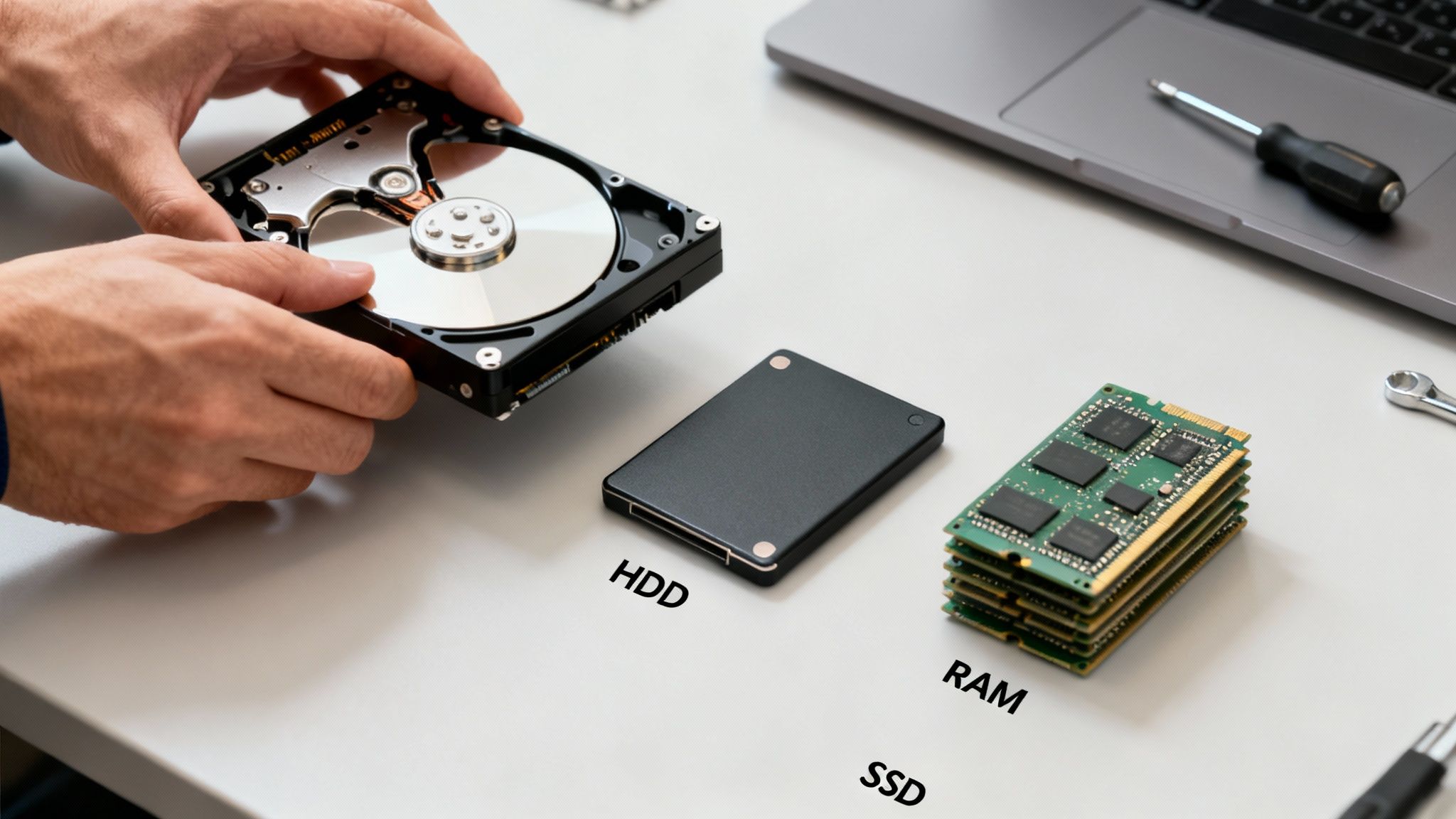
If there’s only one thing you do to speed up an old computer, let it be this: switch from a classic Hard Disk Drive (HDD) to a Solid-State Drive (SSD). The difference is staggering.
An old-school HDD works with a spinning metal platter and a mechanical arm that reads data, sort of like a tiny record player. It’s slow and fragile. An SSD, on the other hand, is all digital, using flash memory chips with zero moving parts.
The performance jump from an HDD to an SSD isn’t just a minor improvement—it’s a night-and-day transformation. It can make a five-year-old laptop feel faster than a brand-new one that’s still stuck with an old mechanical drive.
Here’s a look inside a typical Solid-State Drive. Notice what's missing? There are no spinning disks or moving arms—just silent, super-fast memory chips.
This lack of moving parts is precisely why an SSD is so much faster and more reliable.
HDD vs SSD: What's The Real-World Difference?
To put it in perspective, here's a quick breakdown of how these two drive types stack up in daily use.
| Feature | Hard Disk Drive (HDD) | Solid-State Drive (SSD) |
|---|---|---|
| Boot-Up Time | Typically 30-60 seconds | Often under 15 seconds |
| App Launch Speed | Noticeable delay, especially for large programs | Almost instantaneous |
| File Transfers | Slower; large files can take several minutes | Drastically faster; finishes in a fraction of the time |
| Durability | Vulnerable to drops and bumps due to moving parts | Much more durable and shock-resistant |
| Noise | Can produce audible clicks and whirring sounds | Completely silent operation |
The takeaway is clear: if your computer still runs on an HDD, an SSD is the most significant performance upgrade you can invest in.
Checking Your CPU Usage
The Central Processing Unit (CPU) is your computer's brain. It handles all the instructions and calculations that make your software run. While it's less common for the CPU to be the main bottleneck for simple tasks, an older or weaker processor can definitely struggle with modern applications and heavy multitasking.
You can check your CPU's workload right in Task Manager or Activity Monitor, just like with RAM. If you see the usage pinned at or near 100% when you're just doing basic things, it's a clear sign your processor is struggling to keep up.
Upgrading a CPU is a more involved process (and sometimes not possible on laptops), but understanding its limitations is crucial. To dive deeper, you can learn how to check your CPU performance in our guide. This will help you decide if it's finally time for a new machine or if other upgrades will suffice.
Advanced Optimization and When to Call a Professional
So, you’ve done the basic cleanups, but your computer is still lagging. Don't worry, we're not out of tricks yet. It's time to dive a little deeper with some advanced tweaks that can really make a difference, though they do require a bit more attention to detail.
A great place to start is by dialing back your operating system's visual flair. Those smooth animations, transparent windows, and fading effects look great, but they all consume a little slice of your CPU and GPU power. Disabling them can give you a surprisingly snappy feel, especially on older machines.
Fine-Tuning Your System for Speed
In Windows, you can find these settings under "Performance Options," while Mac users can look in "Accessibility." I usually focus on turning off the non-essential animations for minimizing windows or navigating menus. You might barely notice they’re gone, but the instant response from the system is hard to miss.
Another easy win is to check your power plan. Laptops, by default, often use a "Balanced" mode to save the battery. By switching it to "High Performance," you’re telling the computer to unleash its full processing power. The trade-off, of course, is shorter battery life, so keep that in mind if you're on the go.
If you're still running on an old-school Hard Disk Drive (HDD), you’ll want to look at disk defragmentation. As you use your computer, files get broken up and stored in different physical spots on the drive's spinning platters.
Think of defragmenting as tidying up a messy bookshelf. It groups all the pages of each book together so you can find what you need instantly. For a mechanical drive, this process can dramatically speed up how quickly files are accessed, which is a classic fix for a slow-moving computer.
Knowing When It’s Time for Help
There comes a point where no amount of software tweaking is going to solve the problem. Sometimes, you just have to admit defeat and call in an expert. Pushing a failing machine too hard can turn a small issue into a catastrophe, like permanent data loss.
Watch out for these red flags—they’re clear signs that the problem is hardware-related and likely beyond a simple DIY fix:
- The Blue Screen of Death (BSOD): If your computer is crashing randomly and frequently, it’s often a symptom of failing hardware, like bad RAM or a dying motherboard.
- Grinding or Clicking Noises: Any strange mechanical sound is a major warning sign. Power down your machine immediately, as this is the classic death rattle of a failing hard drive.
- Failure to Boot: When your computer won't even start up properly after a few tries, you're likely dealing with a critical hardware failure or a corrupted operating system.
If you run into any of these issues, it’s time to stop. Your first priority should be backing up your data if you can still access it. After that, it’s best to contact a trusted computer repair technician. Sometimes, knowing when to stop is the smartest move you can make.
And if a repair seems too costly, it might be time for an upgrade. Our guide on how to choose the right laptop can walk you through finding a new machine that fits your needs.
Got Questions About Fixing a Slow PC? We've Got Answers
Even with a step-by-step guide, you're bound to run into some specific head-scratchers. I get it. Trying to figure out why your particular machine is crawling can be frustrating. Let's tackle some of the questions I hear all the time.
Why Did My Computer Get Slower After an Update?
It’s completely counterintuitive, right? You install an update expecting a boost, and instead, your computer feels like it's wading through mud. More often than not, this is a temporary problem.
Right after a major update, your system is working overtime in the background. It's busy re-indexing all your files for faster searches, sorting out the new software components, and generally getting its house in order. Give it a few hours, or even a full day.
If things don't speed up after that, you might be looking at a bug in the update itself or a conflict with one of your drivers. Before you do anything drastic, head over to your hardware manufacturer’s website (think NVIDIA, AMD, or Intel) and see if they’ve released new drivers designed for that specific OS update.
Is More RAM Always the Answer?
Not always, and this is a classic trap people fall into. Throwing more RAM at a slow computer only works if a lack of RAM was the problem in the first place.
Here’s an analogy I like: imagine your RAM is your workbench. If your bench is tiny and covered in projects (open apps), getting a bigger one will make a world of difference. But if you've already got a massive workbench with tons of free space, an even bigger one won't help you finish your work any faster.
Before you spend a dime, open up Task Manager (on Windows) or Activity Monitor (on Mac) and just watch your memory usage during a typical session. If you’re constantly seeing it hover at 85% or higher, then yes, a RAM upgrade is probably the single best thing you can do. If not, your performance bottleneck is somewhere else—most likely your storage drive.
I've seen it a hundred times: people spend money on more RAM when the real culprit is a sluggish old mechanical hard drive (HDD). Upgrading from an HDD to a Solid-State Drive (SSD) will almost always give you a much more dramatic and noticeable speed boost.
Seriously, Can Too Many Files on My Desktop Slow Things Down?
Believe it or not, yes. This is one of those old-school tips that still holds true, especially for older machines.
Every single icon on your desktop is more than just a picture; it’s an active little window that your graphics system has to constantly manage and keep ready. When you have hundreds of files, folders, and shortcuts plastered all over your screen, you're making your computer do a little bit of extra work every single time the desktop is drawn.
It won't cripple a powerful gaming rig, but on an everyday laptop? You can definitely feel the difference. Cleaning it up can make the whole experience feel snappier. The easiest fix is to just create one or two main folders on your desktop and drag everything into them. Simple, but effective.
Still navigating tech troubles? Simply Tech Today is your go-to source for clear, practical advice that cuts through the jargon. For more easy-to-follow guides and tips, check out our other articles at https://www.simplytechtoday.com.

Member discussion