
How to Create Contact Group iPhone for Fast Messaging
Let’s be honest, endlessly scrolling through your contacts just to start a group text is a real pain. The good news? You can absolutely create contact groups on your iPhone to make everything from family chats to work projects a breeze. But there's a catch: the feature isn't built directly into the iOS Contacts app, so you'll need to use a simple workaround like iCloud.com on a computer.
Why Bother Organizing Your iPhone Contacts?
Think about the last time you tried to get a group of people on the same page. Maybe you were planning a family vacation, coordinating your kid's weekend sports team, or sending an update to colleagues. You probably spent way too long tapping through your contacts, adding people one by one, hoping you didn't forget anyone. It feels inefficient because, well, it is.
A few minutes of setup now can completely eliminate that tedious process down the road. By creating dedicated groups for the different circles in your life, you can turn a multi-step chore into a single tap.
Make Your Daily Communication Effortless
Contact groups aren't just a neat organizational trick; they're a massive time-saver that too many people overlook. Imagine how much simpler things could be:
- Family Updates: Need to share baby photos or confirm holiday plans? A single message to your "Family" group gets the word out instantly.
- Project Collaboration: Send meeting notes to your "Work Team" in one go, without the fear of leaving someone important off the email chain.
- Social Planning: Quickly organize your "Book Club" meetup or your "Weekend Hiking" crew with a quick text instead of a logistical headache.
Each group becomes a shortcut, making your communications smarter and faster. This is less about being tidy and more about reclaiming your time and smoothing out the little frustrations in your day.
When you take control of your contacts, you can focus on what you want to say, not the hassle of how to send it. It’s a simple change that makes a huge difference in how you connect with the people who matter most.
Since the original iPhone launched back in 2007, contact management has been at the core of the experience. It's evolved from a simple phonebook to a hub that powers our personal and professional lives. If you're curious about how we got here, you can read the full research about these evolving group chat features to learn more.
It might sound a little backward, but the most straightforward and reliable way to create contact groups for your iPhone is to hop on a computer. Apple’s official method uses iCloud.com, which guarantees that any groups you make will perfectly sync across your iPhone, iPad, and Mac. It’s the cleanest way to do it without messing with third-party apps.
Let’s create a "Book Club" group as an example. I’ll walk you through it to show just how simple it is, even though you can't technically do it on the iPhone itself.
Getting Into Your iCloud Contacts
First things first, open up a web browser on your Mac or PC and head over to iCloud.com. You’ll need to sign in with your Apple ID and password. Once you're in, you'll see a dashboard with familiar icons. Find the green Contacts icon and give it a click.
This web version looks a lot like the Contacts app on your devices, but it has a secret weapon: powerful group management tools that are completely missing on the iPhone. This is the command center for all your contact info stored in the cloud. We actually cover more about this in our guide on how to use cloud storage.
The layout is pretty intuitive, with your main contact list right in the middle. The real action, though, happens in the sidebar on the left.
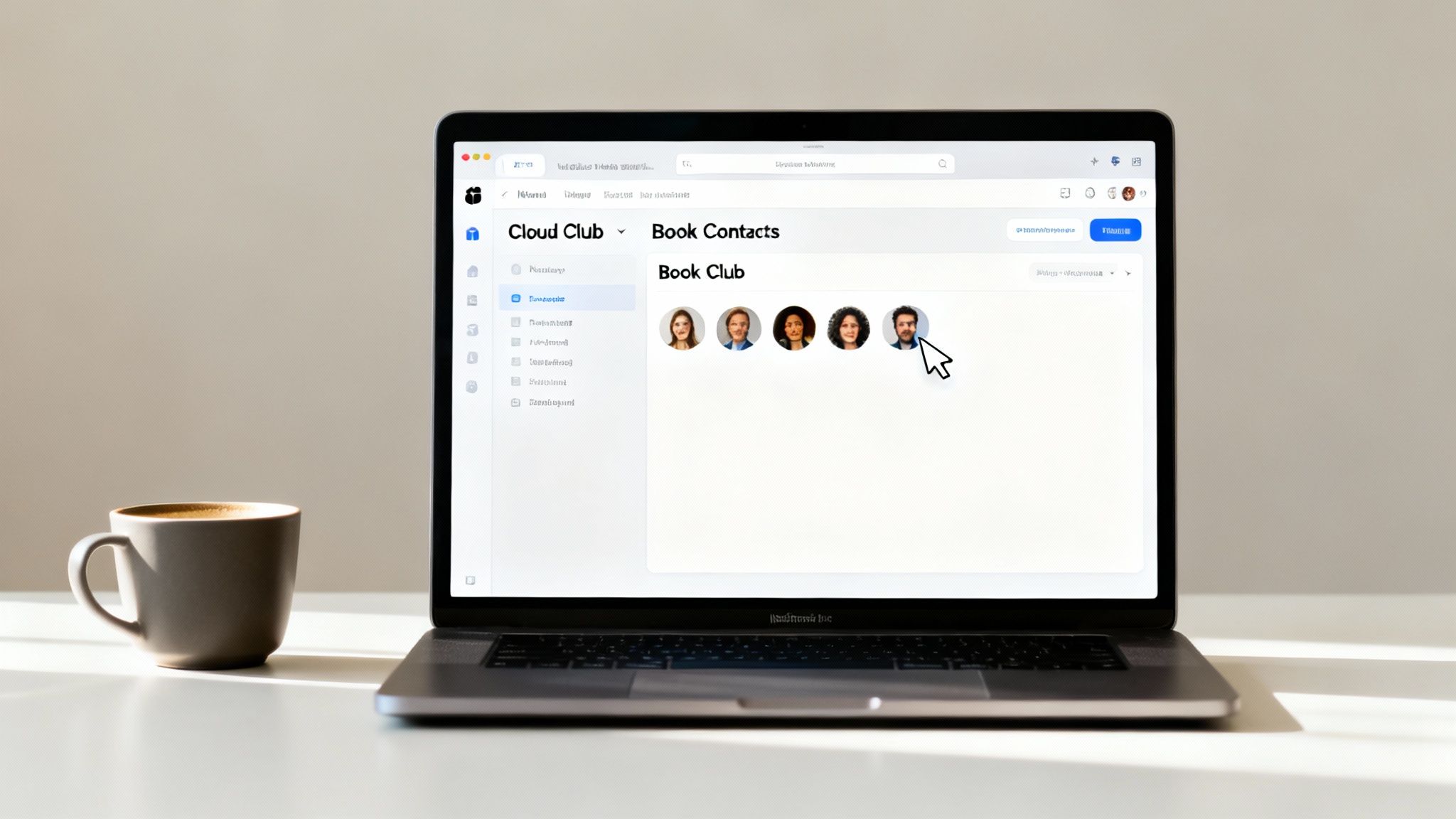
See that little plus (+) button at the bottom of the sidebar? That’s where we’ll start.
Making and Naming Your Group
Look for that plus (+) icon in the bottom-left corner and click it. A tiny menu will pop up. From there, just choose New Group.
Instantly, an "Untitled Group" will appear in your sidebar, waiting for a name. For our example, let's type in "Book Club" and hit Enter. And just like that, you’ve created an empty group.
Because it's all handled through iCloud, this new list syncs to your iPhone almost immediately. If you were to check your phone right now, you'd see "Book Club" under Contacts > Lists.
Adding People to Your New Group
Now that the "Book Club" group exists, it’s time to fill it up. This part is just a simple drag-and-drop.
- First, click back on the "All Contacts" list to see your full address book.
- Scroll through or use the search bar to find the first person you want to add.
- Now, just click and hold their name, drag it over to the "Book Club" list in the sidebar, and let go.
You’ll see their name pop up under the group. To add several people at once, hold down the Command key (on a Mac) or the Ctrl key (on a PC) as you click on each contact. Once you’ve selected everyone, you can drag them all over in one go.
Expert Tip: Don't sweat it if you add someone by mistake. Just click on the group, find their name, and hit the Delete key. This only removes them from that specific group, it won't delete them from your main contacts list.
This is, hands down, the best way to create a contact group for your iPhone. It’s clean, it’s official, and it just works seamlessly across all your Apple devices.
Creating Groups on Your Mac for a Seamless Experience
If you're already plugged into the Apple ecosystem, using the Contacts app on your Mac is probably the quickest and most natural way to create a contact group for your iPhone. While the iCloud website gets the job done, the native app just feels more responsive and integrated. The real beauty here is how everything syncs up—build a group on your Mac, and it pops up on your iPhone and iPad almost instantly.
Honestly, this is my go-to method when I’m at my desk. It cuts out the web browser entirely. The interface is clean, familiar, and just plain efficient for getting your contacts organized in a hurry.
Launching the Contacts App and Starting a Group
First things first, fire up the Contacts app on your Mac. You can find it in your Applications folder, or just hit Command + Spacebar to bring up Spotlight and type "Contacts." The layout will look familiar if you've used the iCloud version, with your groups listed on the left and your contacts filling the main window.
To make a new group, head up to the menu bar at the top of your screen and click File > New Group. A placeholder called "Untitled Group" will instantly show up in the sidebar. Go ahead and give it a name—let's say, "Weekend Crew"—and hit Enter.
Here's a pro-tip: Make sure you’re creating an iCloud group, not one that only lives on your Mac. In the sidebar, your groups need to be under the "iCloud" heading. If they show up under "On My Mac," they won't sync across your devices.
Populating Your Group with Ease
Now that your "Weekend Crew" group is ready, it's time to add your friends. This is where the native app really excels. Instead of endless scrolling, you can use the search bar at the top to find people instantly by name, email, or phone number. It's so much faster.
Once you find a contact, just click and drag their name from the main list right over to the "Weekend Crew" group in the sidebar. Want to add a bunch of people at once? Hold down the Command key as you click each contact you want, then drag the whole selection over in one go. It's a surprisingly satisfying little maneuver.
Managing your groups is just as straightforward:
- Rename a group: Simply right-click (or Control-click) the group's name and choose "Rename Group."
- Delete a group: Right-click it and select "Delete Group." Don't worry, this only removes the list itself—your contacts are safe and sound.
Using your Mac is hands-down the most powerful way to manage groups that sync flawlessly with your iPhone. Because everything is linked to your Apple ID, you get perfect consistency across all your devices. If you ever run into syncing problems, it’s often an issue with your login. For help with that, check out our guide on how to sign out of an Apple ID.
It’s a classic iPhone puzzle: you need to create a contact group, but you’re nowhere near a computer. While the native Contacts app on your iPhone famously lacks a "create group" button, that doesn't mean it's impossible. You just have to get a little creative.
Fortunately, there are a few excellent workarounds you can use right from your phone. These methods are perfect for on-the-go organization, whether you're trying to corral the family for a reunion text or quickly set up a project team chat.
This simple decision tree breaks down your options at a glance. It all depends on whether you have a computer handy.
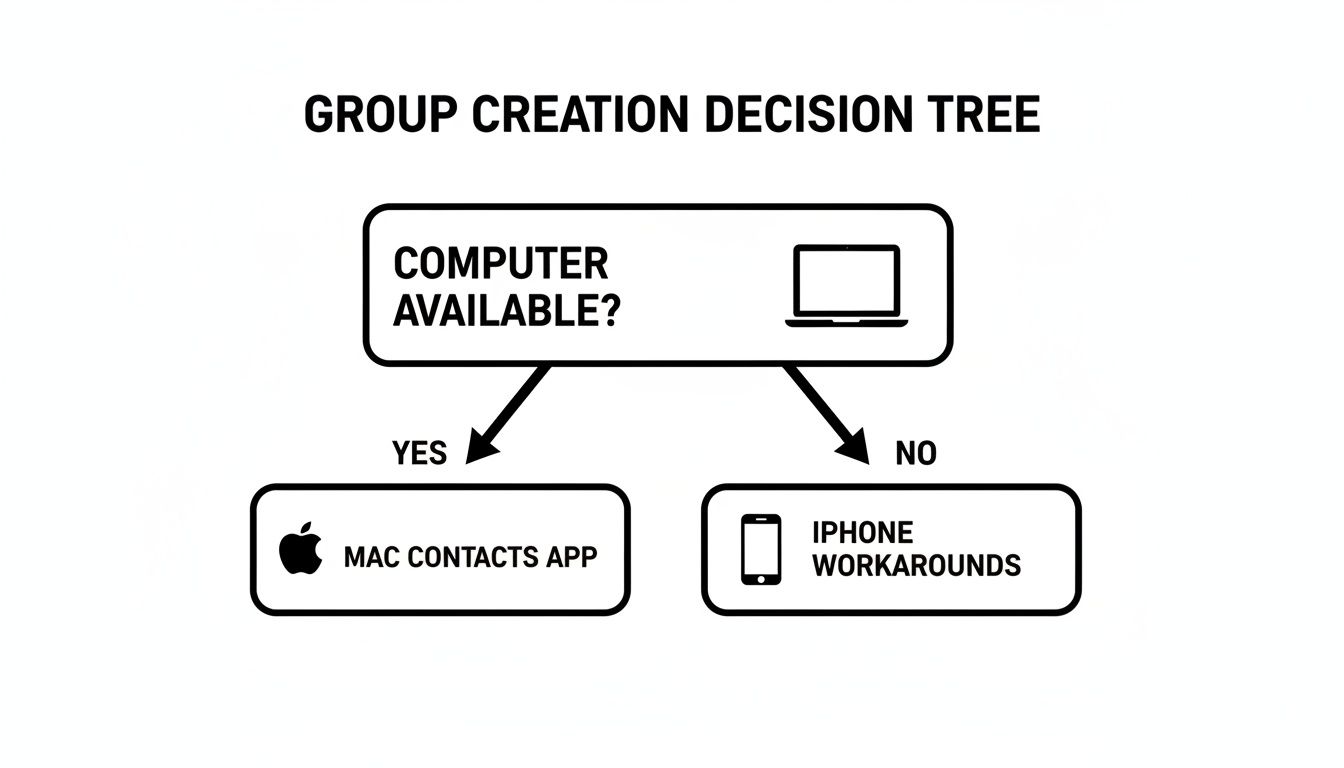
If you're stuck without a computer, your best bets are either a dedicated third-party app or a clever built-in tool you might have overlooked: the Shortcuts app.
Option 1: Use a Third-Party App
By far, the easiest and most direct way to manage groups on your iPhone is with a specialized app from the App Store. These apps were literally built to fill the gap Apple left.
I've used a few over the years, and most work beautifully. Apps like Groups or Contact Groups are popular for a reason—they sync directly with your iCloud contacts, so any group you create in the app instantly appears everywhere else. No manual syncing, no fuss.
What I really like about these apps is how they streamline everything:
- Drag-and-drop interfaces for adding contacts to groups.
- Color-coding to quickly identify different lists (e.g., family, work, book club).
- One-tap messaging and emailing to the entire group.
Most of these apps are free, though they might have in-app purchases for power-user features like backups or advanced sorting. For just creating and managing basic groups, the free versions are usually more than enough.
Option 2: Build a Custom Workflow with the Shortcuts App
If you'd rather not download another app and enjoy a good DIY project, Apple's own Shortcuts app is an incredibly potent tool hiding in plain sight. It’s a bit more hands-on, but you can build a custom "shortcut" that basically creates a temporary group for a message or email.
Think of it as creating your own personal "group message" button.
Here's the basic recipe:
- Open the Shortcuts app and tap the + to start a new one.
- Add the “Find Contacts” action. Set the filter to “Ask Each Time,” which will let you pick your people on the fly.
- Next, add an action like “Send Message” or “Send Email.”
- The shortcut automatically pipes the contacts you selected in the first step into the recipient field of your message.
You can save this shortcut to your Home Screen for instant access. While it doesn't create a permanent group that shows up in your Contacts app, it's perfect for quickly messaging the same crew over and over without having to pick them out one by one.
Pro Tip: A custom shortcut is like having a tiny, dedicated assistant on your phone. It automates a small but repetitive task, saving you from the tedious process of manually picking out the same five or six people for a group chat every single time.
This is also a great trick to remember if you’re upgrading your phone. When you're all set up, you can quickly recreate your shortcuts. If you need a refresher, our guide on how to set up a new iPhone walks you through getting your data squared away.
Comparing iPhone Contact Group Methods
So, which path should you take? This table breaks down the main ways to create contact groups, helping you decide based on what devices you have and how much effort you want to put in.
| Method | Required Device | Ease of Use | Best For |
|---|---|---|---|
| iCloud.com | Any computer with a web browser | Easy | The universal method that works for everyone, regardless of computer type. |
| Mac Contacts App | Mac computer | Very Easy | Mac users who want the most seamless, integrated experience. |
| Third-Party App | iPhone | Very Easy | Anyone needing to create and manage groups directly on their phone. |
| Shortcuts App | iPhone | Medium | Tech-savvy users who want a custom solution for recurring group messages. |
Ultimately, a dedicated third-party app is the best bet for heavy-duty, on-the-go group organization. But for quick, repeatable messaging tasks, a simple shortcut is an elegant and powerful solution.
Putting Your New Contact Groups to Work
Alright, you've done the setup work. Now for the payoff. Creating contact groups is one thing, but actually using them to make your life easier is where the magic happens. Since your new groups are synced through iCloud, they're ready to go on your iPhone right now.
Think about the last time you had to organize a family dinner or a get-together with friends. You probably spent a few minutes pecking away, adding each person to the email or text thread one by one. With groups, that hassle is gone.
Sending Group Emails and Messages
Ready to see it in action? Pop open the Mail app and compose a new email. In the "To:" field, just start typing the name you gave your group—"Family," for example. You'll see it pop up as a suggestion. Tap it, and bam—every single person from that list is instantly added. No more scrolling and tapping through your entire contact list.
The same simple trick works in the Messages app. Start a new message, type the group name like "Book Club" or "Weekend Crew" in the recipient field, and tap the suggestion. In seconds, you've started a group chat with the right people, without the risk of accidentally leaving someone out. It’s a huge time-saver.
Think of each group as a custom shortcut. You're not just organizing contacts; you're building a communication dashboard tailored to your life, ready to use at a moment's notice. This is where your initial effort really pays dividends.
How to Keep Your Groups Up to Date
Your life isn't static, and neither are your contact groups. People come and go—a new person joins your project team, or a friend moves. Keeping your lists fresh is key to them staying useful, and thankfully, it’s a straightforward process.
To add or remove people, you’ll just head back to where you originally created the group, which is either the iCloud website or the Contacts app on your Mac.
- Adding someone new? Just find their contact card in your main "All Contacts" list and drag it right into the group folder. It's the same move you used to build the list in the first place.
- Need to remove someone? Click on the group, find the person you want to take out, and hit the Delete key. Don't worry, this only removes them from that specific group. Their contact info is still safe and sound in your main address book.
Because iCloud is handling the sync, any updates you make are pushed to your devices almost instantly. Add a new team member on your Mac, and they'll be included the very next time you email that group from your iPhone. This constant, automatic syncing keeps your lists accurate and ready for action.
Solving Common Syncing and Sharing Problems
You’ve gone through the trouble of creating a contact group on iCloud.com or your Mac, but when you grab your iPhone to send a group text, it’s just… not there. It’s a surprisingly common and frustrating moment, but the good news is the fix is usually pretty simple. Most of the time, these syncing hiccups come down to a handful of settings or a spotty connection.
The most frequent culprit is simply that your iPhone hasn't had a chance to pull down the latest data from iCloud yet. Before you start digging into settings menus, give your contacts a manual refresh. Open the Contacts app and just swipe down from the top of your lists. A little loading spinner will pop up, which tells you it’s actively syncing with iCloud.
Checking Your iCloud Sync Settings
If a quick refresh didn't do the trick, your next move is to check your iCloud settings. Think of this as the main control panel for how data gets shared across your Apple devices. One flipped switch is often all that stands in your way.
Head into Settings, tap on your name right at the top, then go into iCloud. You'll see a section called "Apps Using iCloud"—tap Show All.
Now, scroll down the list until you find Contacts. The toggle next to it must be green. If it already is, try the classic "turn it off and on again" trick. When you turn it off, your iPhone will ask what to do with the contacts on your device; choose to keep them. Then, when you flip it back on, make sure to select "Merge."
This little toggle reset is my go-to first step for any stubborn iCloud issue. It forces a fresh handshake between your iPhone and the iCloud servers, which often clears up any lingering sync problems.
The "On My Mac" vs. iCloud Mistake
For those of us who organize contacts on a Mac, there's another classic snag: creating a group locally instead of in iCloud. In the Mac Contacts app, you can create a group that lives "On My Mac" or one that lives under the "iCloud" heading in the sidebar.
Only the groups you create under the iCloud section will ever sync with your iPhone or iPad.
If you realize you’ve done this, don't worry—it's an easy fix. You can't just drag the local group into the iCloud section, but you can quickly move the contacts over.
- First, create a new, empty group, making sure you create it under the iCloud heading.
- Next, click on your old local group to show all of its members.
- Select all the contacts inside (a quick way is to click one, then press Command + A) and drag them right onto your newly created iCloud group.
Once you see the new group and its members pop up on your iPhone, you can go ahead and delete the old local one from your Mac.
Lastly, don't forget that iCloud is completely dependent on a solid internet connection. A weak Wi-Fi signal or spotty cellular data can easily delay or block syncing. If you’ve tried everything else, it’s worth checking your network. Our guide on how to troubleshoot your internet connection can help you sort out any network issues that might be getting in the way.
Your Top Questions About iPhone Contact Groups, Answered
Got a few lingering questions about managing your iPhone contact groups? You're not alone. Here are some of the most common things people ask, along with straight-to-the-point answers from our experience.
Why did my contact groups disappear from my iPhone?
This is a classic—and frustrating—problem. More often than not, it's a simple iCloud syncing issue.
The first thing to check is your iCloud settings. Your iPhone might have temporarily stopped syncing with iCloud Contacts, which is where the groups actually live.
- Head over to Settings > [Your Name] > iCloud.
- Tap Show All under the "Apps Using iCloud" section.
- Find Contacts and make sure the toggle is on.
If it's already on, try toggling it off and then back on again. It sounds simple, but this little trick often forces a re-sync and brings your groups right back.
Another culprit could be if you recently signed out of your iCloud account or changed your password without updating it everywhere. A quick check of your account status can save you a lot of headaches.
How do I add or remove contacts from a group on my iPhone?
Editing a group is a bit tricky since you can't do it directly in the iPhone's Contacts app. It’s one of those quirks we all wish Apple would fix.
The best way to manage who's in a group is to use the Mac Contacts app or log into iCloud.com on a computer.
- On iCloud.com or Mac: Just open the group you want to edit. To remove someone, select their name and hit the delete key. To add someone, drag their contact card from your "All Contacts" list and drop it right into the group.
The changes you make there will sync back to your iPhone automatically.
Can I share an entire contact group?
Unfortunately, Apple doesn't offer a direct "Share Group" button. It’s a feature many of us have been hoping for, but for now, we have to get a little creative.
Your best bet is to use the Mac Contacts app.
- Open the Contacts app on your Mac.
- Select the group you want to share from the sidebar.
- Go to File > Export > Export Group as vCard.
This creates a single .vcf file containing all the contacts from that group. You can then email or AirDrop this file to someone else. When they open it, their device will prompt them to add all those contacts at once.
Why won't my contact groups sync between my Apple devices?
Syncing issues are almost always tied to your iCloud account. If your groups are showing up on your Mac but not your iPhone, or vice versa, here’s a quick troubleshooting checklist:
- Same Apple ID: Are you signed into the exact same Apple ID on all your devices? It's a common oversight, especially if you have work and personal accounts. Double-check in Settings on each device.
- iCloud Contacts Enabled: As mentioned before, make sure Contacts is toggled on in your iCloud settings on every device.
- Good Internet Connection: A weak or unstable Wi-Fi connection can interrupt the sync process. Make sure you have a solid connection.
- Patience After Updates: Did you just update your iOS or macOS? Sometimes it takes a little while for everything to re-sync in the background. Give it an hour or so before you start worrying.
How many contacts can I have in one group?
While Apple doesn't publish an official hard limit for the number of contacts per group, for all practical purposes, there isn't one you're likely to hit.
Most people find they can easily add hundreds of contacts to a single group without any issues. However, if you're managing a massive list for a large organization (think thousands), you might want to consider a dedicated CRM tool instead of relying on iCloud Contacts.
Is it possible to create a contact group when transferring to a new iPhone?
Creating contact groups isn't part of the standard phone-to-phone transfer process. When you move your data, all your individual contacts will come over, but the groups themselves might not unless they are properly synced with iCloud.
Your best strategy is to set up your groups on iCloud before you switch phones. That way, when you sign into your new iPhone with your Apple ID, the groups will be pulled down from the cloud along with everything else.
Pro Tip: Getting your iCloud in order is a key step before any device change. If you're planning an upgrade, check out our guide on how to transfer data to a new phone for a smooth transition.


Member discussion