
How to Download Backup from iCloud: Your Complete Guide 2026

You're usually here for one of three reasons. Your iPhone is gone or wiped, you're setting up a new one, or you're staring at iCloud on a computer wondering why there isn't a simple button that says “download my whole backup.”
That confusion is normal. Apple uses iCloud Backup, iCloud Photos, iCloud Drive, and device restore tools in ways that overlap just enough to be frustrating. If you want to download backup from iCloud, the first thing to know is that “download” can mean very different things depending on what you need.
What It Really Means to Download Your iCloud Backup
It's common to picture a backup as one big file sitting in the cloud, ready to save to a laptop like a ZIP folder. That isn't how iCloud Backup works. Apple built it mainly for restoring an iPhone or iPad, not for handing you a single archive of your whole device.
Apple said iCloud Backup processes over 1 trillion backup operations annually, and more than 90% of iPhone users actively use iCloud Backup as of 2023 in Apple Newsroom updates about its ecosystem and services. That tells you how central this system is. It also explains why Apple designed it around recovery and migration, not around exporting one tidy file.
Three different things people mean by download
When someone says they want to download backup from iCloud, they usually mean one of these:
| What you want | Best method | What you get |
|---|---|---|
| Put everything back on an iPhone or iPad | Restore from iCloud Backup during setup | Apps, settings, layout, and backed-up device data |
| Save only certain items | iCloud.com | Individual photos, files, notes, contacts, and similar items |
| Access synced files on a computer | Mac iCloud integration or iCloud for Windows | Ongoing access to selected folders and synced content |
That's the key distinction. Restoring a backup and downloading files are not the same action.
A full iCloud device backup is meant to rebuild a device. It isn't presented like a normal downloadable folder in a browser.
Why this feels so confusing
Apple's cloud tools mix backup and sync in one account. So if you open iCloud.com and see Photos or Drive, it's easy to assume your whole phone backup should be there too. It isn't.
If you want a broader plain-English background on cloud systems, this IT infrastructure guide for Philippine companies gives a useful comparison of cloud access versus locally stored systems. For a simpler everyday explanation of syncing, storage, and where your files live, this breakdown of how cloud storage works is a good companion.
Restore Your iPhone or iPad From an iCloud Backup
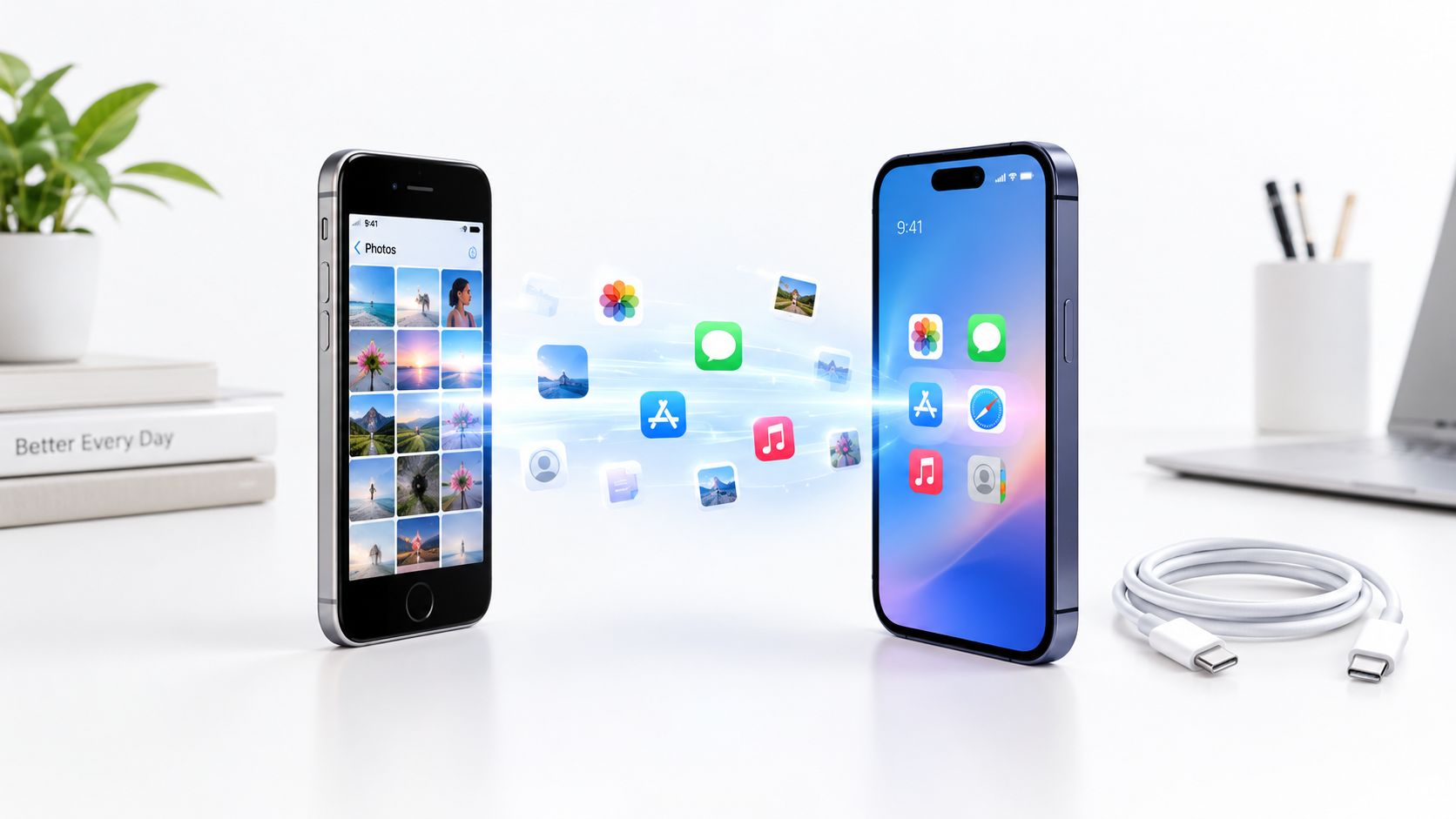
If your goal is to make a new or erased device look like your old one, this is the method you want. This is the closest thing Apple offers to “downloading” your complete iCloud backup.

What has to be true before you start
The device must be new or fully erased. Apple's restore path starts from the setup flow, not from a fully configured device.
Apple notes that the restore process must be started on a new or erased device from the Transfer Your Apps & Data screen. It also warns that restoring on an already set-up device has a 100% failure rate for that restore path, and disconnecting from Wi-Fi has a 95% probability of pausing the process indefinitely in Apple developer support system information.
Practical rule: If the iPhone is already set up and showing your Home Screen, you're not at the correct starting point for a full iCloud restore.
How to restore from iCloud Backup
Follow these steps on the iPhone or iPad you want to restore:
Erase the device if it's already set up
Go to Settings, then General, then Transfer or Reset iPhone or iPad, then erase all content and settings.Start setup again
Turn the device back on and follow the on-screen prompts until you reach the data transfer screen.Choose the iCloud restore option
Tap the option to restore or transfer from iCloud Backup.Sign in to your Apple Account
Use the same Apple Account that created the backup.Pick the backup you want
Choose the most relevant backup based on device name and date.Stay on Wi-Fi and power if possible
Keep the device connected. Large restores can take time, especially if your photo library and app data are substantial.
For a related walk-through focused on setting up a new device, this guide on how to transfer apps to a new iPhone helps if you're deciding between restore methods.
What this method actually restores
A restore is designed to recreate the device experience, not let you pick through folders one by one.
This is an all-device recovery method. You don't browse the backup like a hard drive.
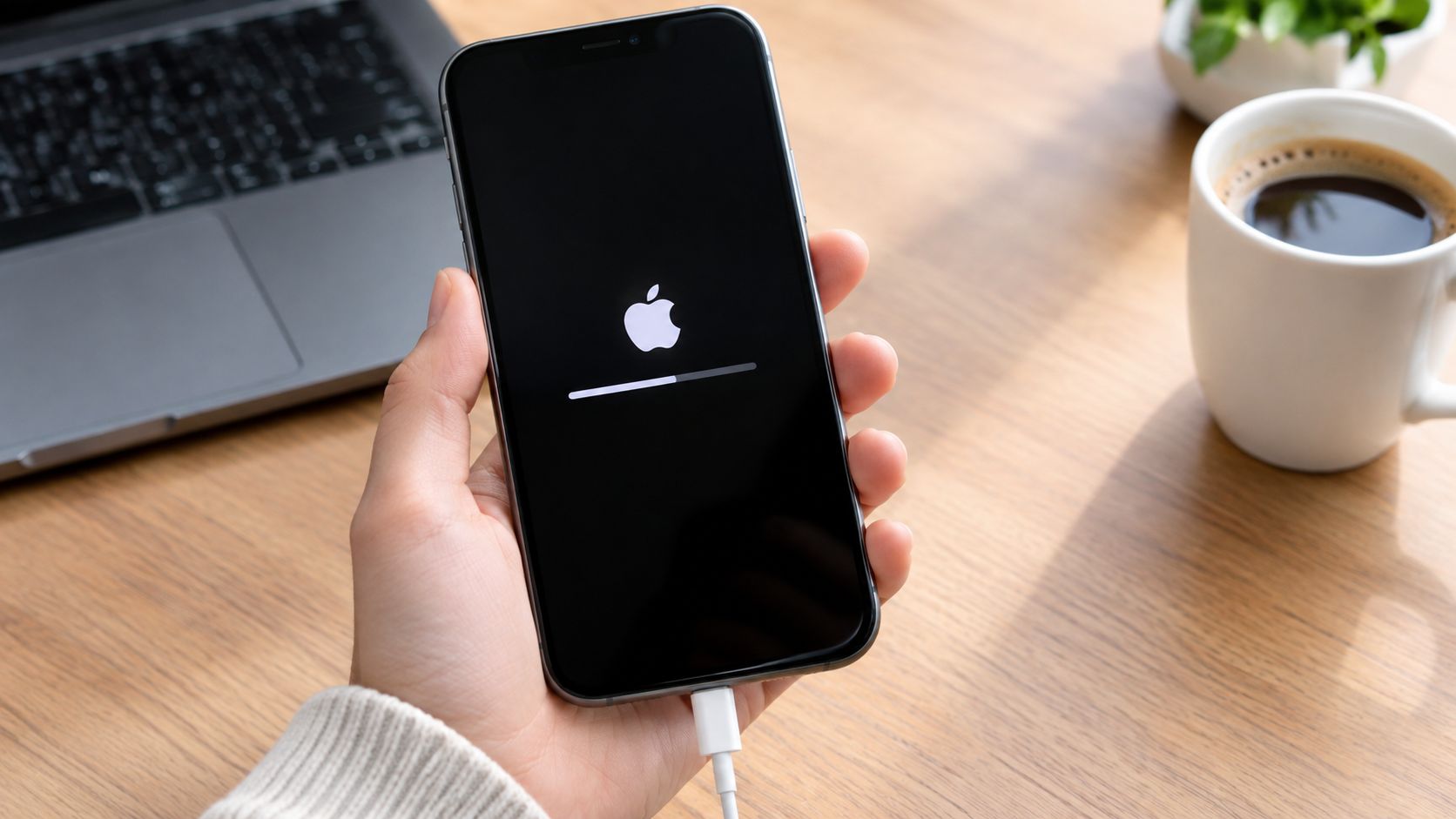
You can expect this process to bring back the device state that was included in the backup, such as settings, app layout, and other backed-up content. Some items may continue downloading in the background after the phone becomes usable again, so don't panic if everything doesn't appear at once.
A common question
Can I restore just Messages, or just one app?
Not through Apple's normal iCloud Backup restore flow. A full restore is meant to rebuild the device as a whole.
Download Specific Photos and Files via iCloud.com
Sometimes you don't want a full restore. You just want your vacation photos, a PDF from iCloud Drive, a note, or a contact list. In that case, iCloud.com is the easier route.

When iCloud.com is the right tool
Use iCloud.com if:
- You only need a few things like photos, files, or notes
- You don't want to erase your iPhone
- You're using a shared or secondary computer and just want local copies
- You're helping someone recover important files quickly
This is the best answer to the question, “But what if I just want my photos?”
How to download photos or files
Open a web browser on a computer and sign in to iCloud.com with your Apple Account. After that, choose the app that matches the type of data you want.
- Photos lets you select images and videos, then download them to your computer.
- iCloud Drive gives you access to documents and folders stored there.
- Notes, Contacts, and other web-accessible apps let you review and export or copy specific information depending on the app.
A simple example helps. If you dropped your phone in water and only care about getting your family photos onto a laptop tonight, signing into iCloud.com and downloading them from Photos is much faster than wiping another iPhone and running a full restore.
What you won't get from iCloud.com
Many people encounter a challenge: iCloud.com does not show a complete phone backup that you can save as one package.
You can download selected content, but not the full encrypted device state that includes everything like app settings and system-level backup structure. If you came looking for a single “download backup from iCloud” button for your whole iPhone, iCloud.com will feel incomplete because it is incomplete for that job.
If you only need photos or documents, iCloud.com is convenient. If you need your phone back exactly as it was, use a device restore instead.
Sync and Access iCloud Data on a Mac or Windows PC
A lot of guides blur together backup and sync. Apple's official desktop tools don't treat them as the same thing.

What sync does well
On a Mac, iCloud can keep files, photos, and certain app data available across Apple devices. On Windows, iCloud for Windows can sync selected content so it appears in File Explorer and other supported places.
That's useful if your goal is access. It's not the same as archiving a full iPhone backup offline.
Why Windows users get especially frustrated
This is a recurring pain point. Over 22,000 frustrated posts in the Microsoft Tech Community in 2025 asked how to download a complete iCloud backup to a Windows PC, and those discussions reflect the same problem: iCloud for Windows syncs specific folders, but it doesn't capture the full encrypted backup with app data, messages, and settings, as described in the Microsoft Tech Community discussions around this issue.
That means a Windows PC can be great for getting copies of certain synced content, but not for grabbing a complete iPhone backup file through Apple's standard tools.
Backup vs sync in plain language
| Tool | Good for | Not good for |
|---|---|---|
| iCloud for Windows | Accessing selected synced content | Downloading a complete iPhone backup archive |
| iCloud on Mac | Viewing and syncing Apple ecosystem data | Exporting a full device backup as one file |
| iCloud.com | Cherry-picking web-accessible items | Full-device backup download |
If you're cleaning up an old Apple account before changing devices or access methods, this guide on how to sign out of Apple ID can help you avoid account mix-ups.
The simplest way to think about it
Sync keeps certain data available across devices.
Backup is a recovery copy used to restore a device state.
Once you separate those two ideas, Apple's tools make a lot more sense.
Troubleshoot Common iCloud Download and Restore Issues
Most iCloud problems are less mysterious than they look. The hard part is figuring out which category your problem belongs to.

Technical benchmark data reported by Macworld says the real-world success rate for a complete iCloud backup download is around 62% because of issues such as intermittent connectivity, and 78% of failures come from trying to restore to a device that isn't fully erased or is running an incompatible iOS version, according to Macworld coverage of iCloud backup restore behavior.
The restore is stuck
This often happens when the internet connection drops or becomes unstable during the process. A restore can appear frozen even though the device is waiting for network continuity.
Try this:
- Check Wi-Fi first and make sure the device stays on a stable connection
- Plug into power so the device doesn't throttle or sleep mid-process
- Wait longer than feels normal because some content continues in the background after initial setup
- Avoid switching networks during the restore
If you're also dealing with a nearly full device, this guide on how to free up storage space may help before trying again.
The backup won't appear or can't be selected
When a backup is grayed out, missing, or rejected, the cause is often one of these:
Wrong Apple Account
Sign in with the Apple Account that created the backup.Device not erased
The full restore path depends on starting from setup.Software mismatch
Some backups won't restore cleanly if the device software is too far out of line with the backup's requirements.
A missing backup isn't always gone. Very often, the device or account state just doesn't meet the conditions Apple expects for restore.
You don't have enough space
People often focus on the backup itself and forget about the target device. The restore needs room to rebuild the backed-up data.
Look at three areas:
Device capacity
The iPhone or iPad must have enough space for what's being restored.Temporary working room
Restores can need overhead while the device rebuilds content.Current clutter
If the device was partially set up before, start clean rather than trying to force data into a cramped environment.
You only want one piece of data
This isn't exactly an error, but it causes a lot of failed attempts. People launch a full restore when all they really want is a note, a few photos, or one document.
Use the right method for the job:
- Whole device back means restore from iCloud Backup
- Specific files back means iCloud.com
- Ongoing computer access means sync tools on Mac or Windows
That decision alone solves a lot of frustration.
A Quick Note on iCloud Backup Security
When your data is sitting in the cloud, the obvious question is whether anyone else can get to it. Apple does encrypt iCloud backups, but the details matter.
From a practical standpoint, the takeaway is simple. Your backup isn't just floating around openly readable, but your access and recovery path still depend heavily on your Apple Account security. That's why strong authentication matters as much as the backup itself.
Why account security matters so much
If someone gets into your Apple Account, they can potentially access parts of your iCloud-connected world. That makes basics like a strong password and trusted-device verification worth treating seriously.
Two habits help more than anything else:
- Keep your Apple Account credentials current
- Use two-factor authentication so sign-ins require more than a password
If you want a straightforward setup guide, this article on how to use two-factor authentication is a solid place to start.
What Advanced Data Protection changes
Apple also offers Advanced Data Protection, which gives users more control over the keys protecting much of their cloud data. In plain language, it raises the privacy bar by putting more protection around the data tied to your account.
That matters if you're especially concerned about sensitive personal information and want stronger safeguards beyond standard account security. You don't need to understand the cryptography to benefit from it. You just need to know it's a more locked-down option for people who want tighter control.
Your backup strategy isn't only about getting data back. It's also about making sure only you can get it back.
The best setup is the boring one that works when you need it. Regular backups, a secure Apple Account, and a clear understanding of restore versus file download will save you more stress than any last-minute fix.
Simply Tech Today keeps tech practical. If you want more plain-English help with Apple accounts, device setup, storage, and everyday troubleshooting, visit Simply Tech Today.


Member discussion