
Home Button Not Working? Practical Fixes You Can Try Now
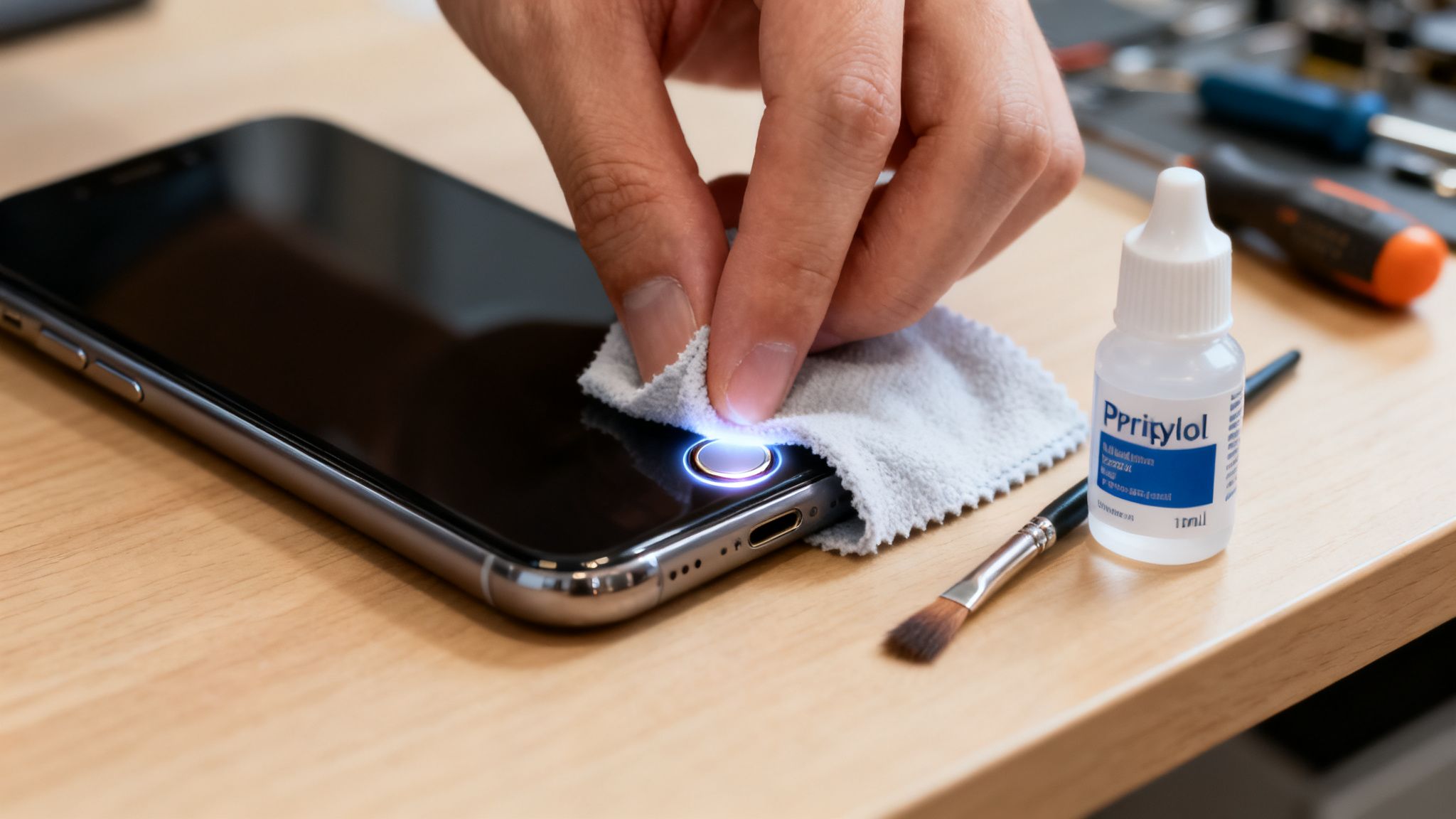
When your home button suddenly stops working, the quickest and easiest fix is usually a simple software reset. I've found that a force restart can often clear up whatever temporary glitch is causing the problem, getting your phone back in working order in less than a minute without touching your data.
Your First Steps When The Home Button Fails
We’ve all been there—that moment of panic when you press your phone's home button and... nothing. It’s a frustrating experience, but before you assume the worst (like a costly hardware repair), take a breath. More often than not, the real culprit is a software bug.
A frozen app, a minor system error, or even a pending update can mess with the connection between the physical button and the software that tells it what to do. The good news? You can fix most of these issues yourself without ever leaving home. Always start with the simplest solutions first.
Begin With A Simple Restart
The old "turn it off and on again" trick is a cliché for a reason—it works. A normal restart cleanly shuts down all the background processes and reloads the operating system, which is often enough to resolve small conflicts.
But what if your screen is completely frozen? That's when you need a force restart. It's a bit more abrupt, basically cutting the power to force a reboot, but it's incredibly effective when a standard restart isn't an option.
- Standard Restart: Your go-to for clearing out temporary files and fixing minor hiccups.
- Force Restart: The essential tool for an unresponsive screen or a totally frozen device.
Don't worry, a force restart won't delete any of your photos, apps, or contacts. It just gives your phone's operating session a fresh start.
Check For Software Updates
Your phone's manufacturer is constantly pushing out software updates packed with bug fixes and improvements. If you're running on an older version of the OS, you could be dealing with a known issue that’s already been fixed. An unresponsive home button might just be a symptom of outdated software, and that pending update could be the exact patch you need.
This simple decision tree lays out the troubleshooting path I always recommend starting with.
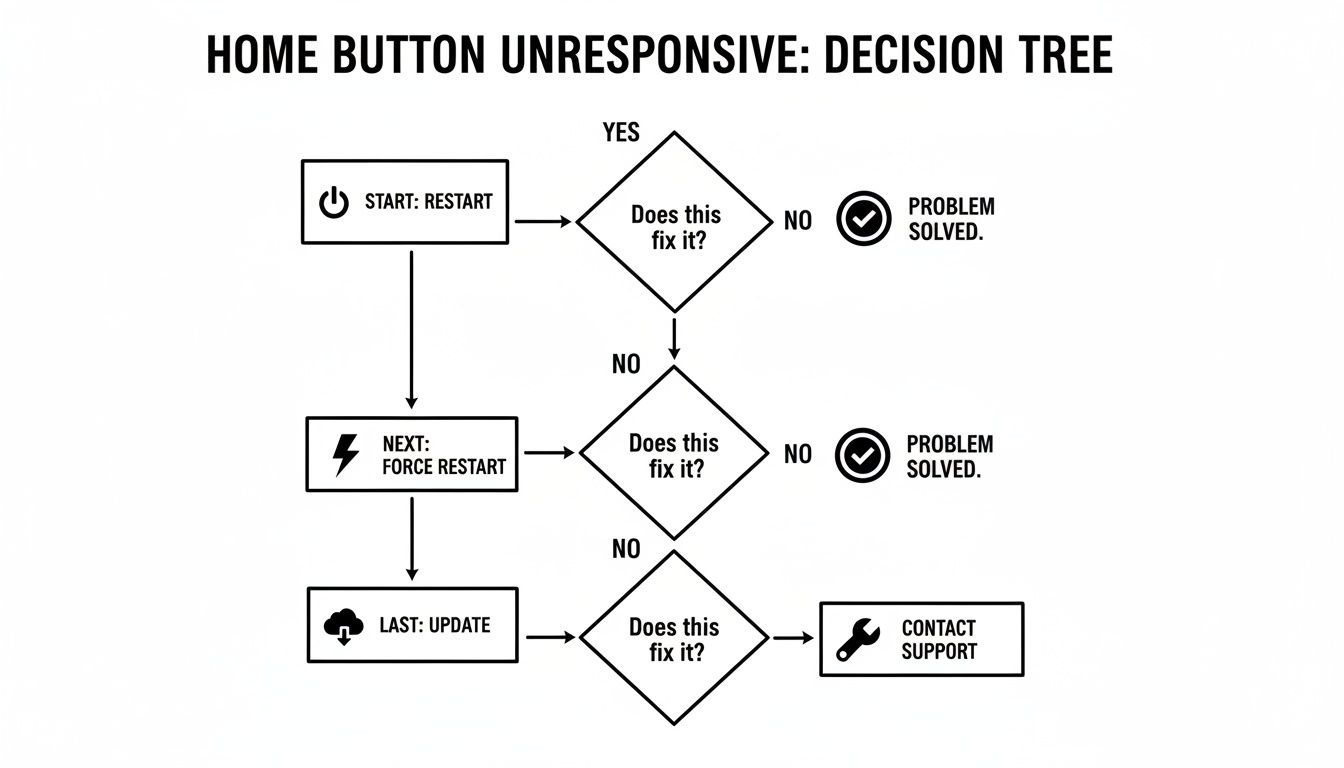
As you can see, moving from a simple restart to a force restart and then checking for updates gives you a logical way to rule out the most common software problems first. These steps are your first line of defense because they solve a huge number of issues without any technical skills or risk of data loss.
To help you keep these initial steps straight, here’s a quick checklist I put together.
Quick Fix Checklist For An Unresponsive Home Button
| Symptom | Potential Cause | First Action To Take |
|---|---|---|
| Home button is occasionally laggy or unresponsive. | A minor software bug or a background app is frozen. | Perform a standard restart. |
| The entire phone screen is frozen; nothing responds. | The operating system has crashed or is stuck. | Perform a force restart. |
| The button stopped working after a specific app was used. | The app itself may be causing a system conflict. | Close the app and perform a standard restart. |
| The problem is persistent even after a restart. | The operating system may have an underlying bug. | Check for and install any available software updates. |
Following this checklist helps you methodically rule out the simple stuff before you even think about more complex solutions.
Always remember to back up your data before you try anything more drastic, like a factory reset down the line. If you're not sure how, you can learn more about how to back up phone data in our complete guide. These first few steps, however, are completely safe and won’t affect your files. They are the foundational checks that, in my experience, resolve a surprising number of home button headaches.
Software Settings And Accessibility Workarounds
So, a restart didn't bring your home button back to life? Don't panic just yet. More often than not, the culprit is a software quirk, not total hardware failure. A setting that's gone rogue or a minor conflict can easily render the button useless, but the good news is both iOS and Android have fantastic built-in tools to get you by.
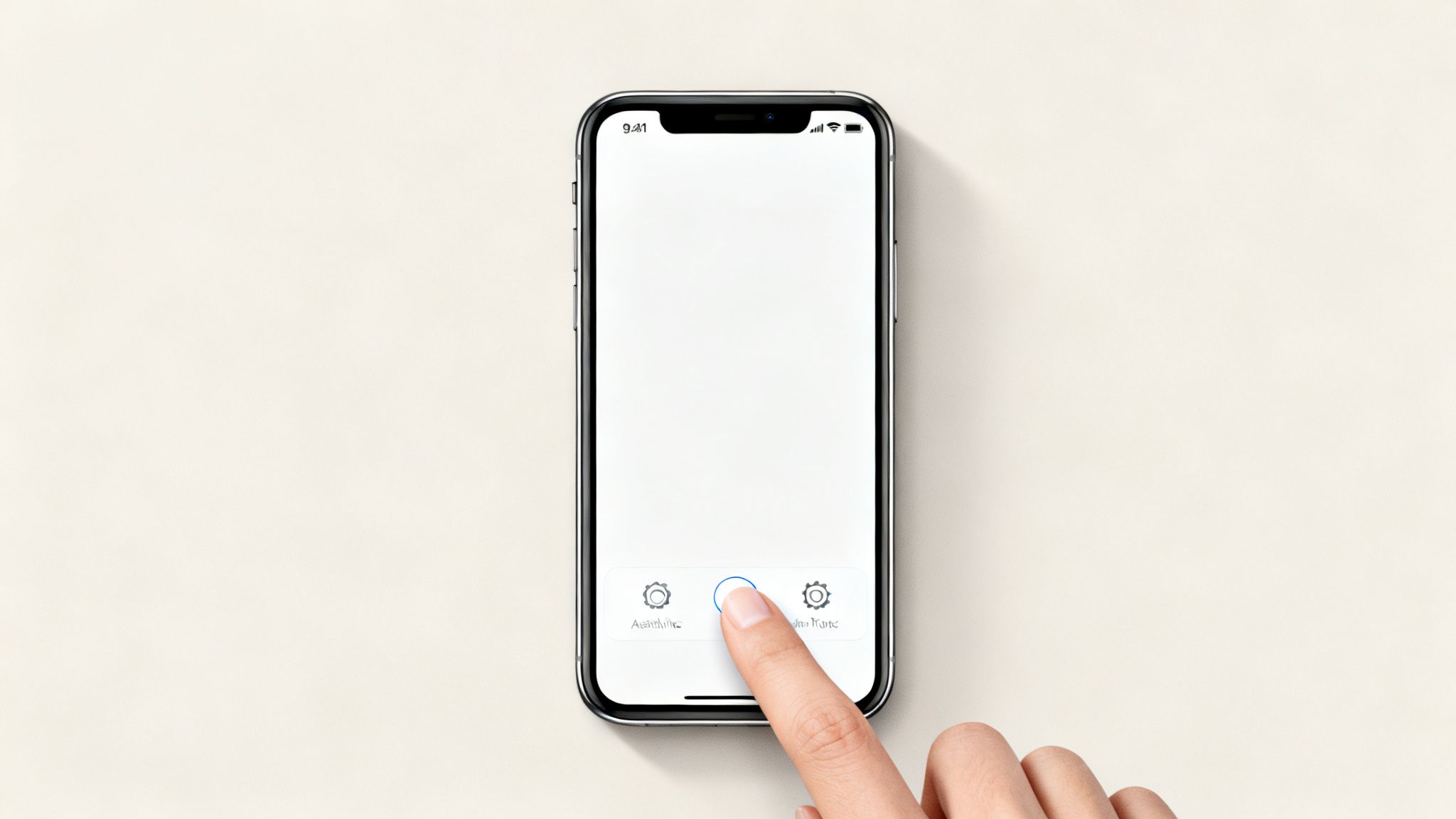
These accessibility features are designed to offer other ways to navigate your phone. Think of them as a reliable bridge, keeping your device perfectly usable while you figure out the real problem.
Enabling An On-Screen Home Button
The quickest and most effective workaround is to pop a virtual home button right onto your screen. This little floating icon does everything your physical button can, from taking you to the home screen to pulling up recent apps.
For anyone with an iPhone, this feature is called AssistiveTouch. It's been a lifesaver for years, letting you completely bypass a faulty physical button.
- To turn it on, head over to Settings > Accessibility > Touch.
- Just toggle AssistiveTouch on, and a semi-transparent button will instantly appear on your screen.
This virtual button actually became a go-to for heavy users of older iPhones. I’ve seen countless forum discussions, like this MacRumors community thread, where people pressing the home button over 100 times a day found it wearing out in a year or so. Many just switched to the on-screen button preventatively.
Android has a similar tool, usually tucked away in its Accessibility Menu. The exact path can differ a bit depending on who made your phone, but you'll generally find it under Settings > Accessibility. Look for an option called "Accessibility Menu" or "Assistant Menu," and once enabled, you'll have a persistent on-screen button to help you navigate.
Pro Tip: Don't just turn it on and forget it—customize it! Both iOS and Android let you assign different shortcuts to the virtual button, like taking a screenshot or opening your notifications. It can become a seriously powerful tool.
Switching To Gesture Navigation
If you're using a relatively modern phone, another fantastic option is to switch over to gesture-based navigation. This completely replaces the buttons with a series of intuitive swipes. A lot of people find it much faster and more fluid once they get the hang of it, and you might just decide you prefer it for good.
While iPhones with a physical home button rely on AssistiveTouch for gesture-like actions, making the switch on most Android devices is a breeze:
- Jump into your Settings app.
- Use the search bar to look for "Navigation" or navigate to System > Gestures > System Navigation.
- Choose Gesture navigation.
This immediately gets rid of the button bar at the bottom, giving you a bit more screen real estate and a cleaner look. If you're starting from scratch with a new device, you can get more tips in our guide on how to set up a new iPhone.
Ultimately, using these software tricks ensures a broken home button is just a minor annoyance, not a full-blown disaster.
When software fixes don't do the trick, it’s time to look at the hardware itself. Let’s be real—our phones go everywhere with us. They get tossed in pockets, purses, and backpacks, collecting an invisible army of dust, lint, and pocket gunk along the way.
It’s no surprise that some of this debris eventually finds its way into the tiny gap around your home button. Over time, that buildup can make the button feel sticky, mushy, or just plain unresponsive.
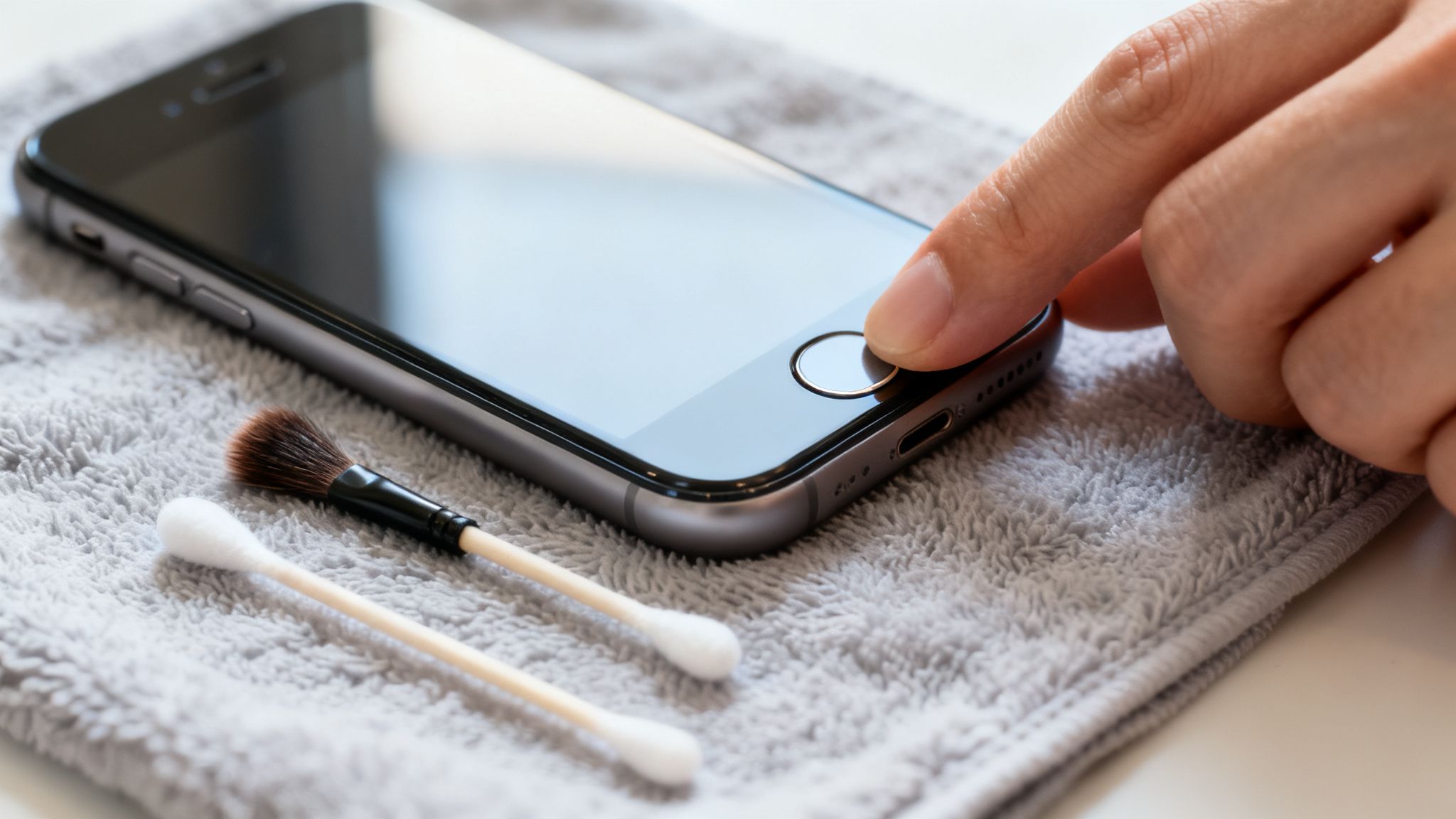
Often, what’s happening is that the grime is physically blocking the button from making a clean connection with the sensor underneath. A careful, thorough cleaning is usually all it takes to get that satisfying click back and make the button feel new again.
The Right Way To Clean Your Home Button
First things first: power your phone down completely. The last thing you want is to be accidentally calling someone or launching apps while you're trying to clean.
Your best friend for this job is a soft, lint-free microfiber cloth. If it's just surface dirt, a slightly damp cloth might be enough. But for a truly sticky button, a bit of isopropyl alcohol (make sure it's 90% or higher) can work wonders.
Here’s the process I’ve used countless times:
- Don't pour liquid directly on the phone. This is a cardinal sin of device cleaning. Lightly dampen a cotton swab or the corner of your microfiber cloth with the alcohol.
- Gently wipe around the button's edges. You want the alcohol to seep into the gap and dissolve the gunk without flooding the internals.
- Get clicking. Once you've applied the alcohol, press the home button repeatedly for a minute or so. This motion helps work the cleaning agent in and breaks up whatever is stuck underneath.
- Patience is key. Let your phone air dry for at least 15-20 minutes before you even think about turning it back on.
This method is tried and true. The core principles are similar to those we cover in our guide on how to clean a laptop screen safely, which also emphasizes the importance of using microfiber and the right kind of alcohol.
The Old-School Recalibration Trick
Got an older iPhone, like a 6s or earlier? There’s a quirky little trick that has been known to bring a misbehaving home button back in line. It's not an official Apple procedure, but it has a surprisingly good track record in the repair community for re-syncing the sensor.
Open a built-in app, like Clock or Weather. Press and hold the power button until the "slide to power off" prompt appears on the screen. Now, let go of the power button and immediately press and hold the home button. Keep holding it for about 10 seconds until the app closes, and you're back on your home screen.
Physical wear and tear has always been a battle. The Samsung Galaxy S6, which sold over 50 million units by 2016, was notorious for a home button that easily collected micro-scratches, interfering with its fingerprint scanner. In fact, repair data from that era showed home button failures accounted for 10-15% of early returns for some popular models.
Giving these simple hardware fixes a shot can often solve the problem in minutes, saving you a trip (and a bill) from the repair shop.
Using A System Restore As A Last Resort
So, you’ve tried all the simple software tricks and even given the home button a good cleaning, but it’s still not responding. This is usually the point where we have to consider something more drastic—a deep-seated software glitch that’s messing with how the phone’s brain talks to its physical buttons.
Before you give up and assume it’s a hardware failure, there’s one last-ditch software fix to try: a full system restore. It's a big step, but it’s the ultimate way to rule out any stubborn software corruption. This process wipes your device clean and reinstalls the operating system from scratch.
Backing Up Your Data Is Absolutely Critical
Let me be perfectly clear: a system restore will erase everything. We're talking photos, contacts, apps, messages—the lot. That’s why backing up your device first isn't just a friendly suggestion; it's a non-negotiable first step. If you skip this, your data is gone for good.
You’ve got two main ways to get this done:
- Cloud Backup: If you’re on an iPhone, iCloud is your best friend here. For Android folks, Google One (which bundles Drive and Photos) does the same job. It's convenient and keeps your stuff safe and sound off your device.
- Computer Backup: The old-school method still works great. You can connect your phone directly to a Mac or PC. iPhones will use Finder or iTunes to create a complete local backup, while many Android phones have their own desktop software or let you simply drag and drop your important files.
Think of a full backup as your parachute. It ensures that after you've wiped the phone, you can get all your important information right back where it belongs. Seriously, don't skip this.
Performing The Factory Reset
Once you're confident your data is safely tucked away, it's time to pull the trigger on the factory reset. It sounds scarier than it is, but this is what will reinstall the OS and hopefully solve your problem.
On an iPhone, you’ll find the option under Settings > General > Transfer or Reset iPhone > Erase All Content and Settings. For most Android devices, the path is something like Settings > System > Reset options > Erase all data (factory reset). For a more in-depth look at the process, our guide on how to factory reset an Android phone has you covered.
After the reset completes, your phone will restart as if it just came out of the box. Go through the initial setup, and when it asks, choose to restore from the backup you just made. Once all your data is back, give that home button a press. If a software bug was the culprit, it should be back in business.
When It's Time to Call in the Pros
So, you've worked through all the software tricks, carefully cleaned every nook and cranny, and even went through the hassle of a full system restore. If your home button is still giving you the silent treatment after all that, it's time to accept the reality: this is almost certainly a hardware problem. No amount of fiddling with settings is going to fix a physical failure.
The signs are usually pretty obvious. Does the button feel wobbly, is it physically cracked, or has it lost that satisfying "click" it used to have? If so, the internal mechanism has probably failed. This is the point where you have to hang up your DIY hat before you accidentally cause more damage.
The Hidden Dangers of Unauthorized Repairs
I know it's tempting to hop online and grab a cheap replacement kit. But for modern phones, that's a path loaded with serious risks, especially for devices with fingerprint sensors like Apple's Touch ID. The home button on these models is cryptographically "married" to the main logic board at the factory.
If you or a third-party shop swaps out that original button, you permanently sever that secure link. The new button might get you back to the home screen, but the Touch ID function will be gone forever. That means no more unlocking with your fingerprint and no more authorizing App Store purchases with a simple touch.
This isn't a software bug—it's a deliberate security feature. An unauthorized repair can turn your phone's advanced biometric sensor into a useless piece of plastic. It's a massive trade-off and something you absolutely need to consider before letting just anyone open up your device.
Finding a Repair Shop You Can Trust
When you're facing a hardware issue, finding the right technician is everything. Not all repair shops are the same. You need someone who is certified and has real experience working on your specific model.
Before you hand over your phone, make sure you ask a few key questions:
- Do you use genuine or OEM-quality parts? The quality of the replacement component makes a huge difference in how well it works and how long it lasts.
- Will this repair affect my phone's fingerprint sensor? A knowledgeable tech will immediately understand the security pairing issue and explain the implications.
- What kind of warranty do you offer on parts and labor? A reputable shop will always back up their work, usually with a warranty of 90 days or more.
There's a reason the design of home buttons has changed so much over the years. Early mechanical buttons were notorious for failing due to dirt and moisture, with many users on forums reporting they'd only last a year or two with heavy use. Everything changed when Apple introduced the solid-state haptic button on the iPhone 7, which uses vibrations to simulate a click, dramatically cutting down on failures. You can see users discussing this very shift in longevity in the Apple community forums.
Ultimately, choosing professional repair isn't giving up. It's the smart move to protect your device's security and core functionality. Just remember, before handing your phone over, you'll probably need to turn off "Find My iPhone," which means logging out of your account. If you need a reminder, check out our guide on how to sign out of your Apple ID.
Common Questions About A Busted Home Button
When your home button stops working, a lot of questions probably pop into your head. Is this something I can fix myself? What's it going to cost? Let's clear up some of the most common concerns so you can figure out the best way forward.
We've walked through the troubleshooting steps, but now it's time to tackle those nagging "what if" questions that I hear all the time.
Can I Just Replace the Home Button Myself?
Tempting as it is to order a cheap repair kit online, I'd strongly caution against it. For older phones without a fingerprint sensor, it's technically possible, but it’s incredibly fiddly work. You can easily tear a tiny ribbon cable or damage something else inside if you don't have a steady hand and some experience.
But for any phone with a fingerprint scanner—like Apple's Touch ID—a DIY repair is a hard no. That original home button is cryptographically paired to your phone's main logic board right at the factory. If you swap it out, the new button might let you go to the home screen, but you will permanently lose the fingerprint sensor function. It's a security measure that simply can't be bypassed.
Honestly, this is the number one reason to leave a home button hardware replacement to a pro. Keeping your phone's security intact is well worth the cost of a professional repair.
How Much Should I Expect to Pay for a Fix?
The cost to fix a home button is all over the map. It really boils down to your phone's model, how old it is, and who you trust to do the repair.
Here's a general idea of what to expect:
- Local Repair Shops: For older phones, a good independent shop will likely charge between $50 and $100.
- Official Manufacturer Repair: Going straight to the source, like an Apple Store, will almost always cost more. They often replace the entire display assembly along with the button, which can run $150 or more.
My advice? Always ask for a firm quote before you hand over your phone.
Will a Factory Reset Really Delete Everything?
Yes, it will. A factory reset is the "nuclear option"—it erases every single thing you've added to the device. All your apps, photos, texts, contacts, and personal settings will be gone, returning the phone to the state it was in when you first took it out of the box.
This is exactly why backing up your phone first isn't just a suggestion; it's essential. Before you even think about starting a reset, make sure you have a recent, complete backup either in the cloud (like iCloud or Google Drive) or on your computer. Once the reset is done, you'll be able to restore all your precious data from that backup.
Is the On-Screen Button a Good Long-Term Fix?
Absolutely. For a lot of people, this is the best and final solution. The on-screen accessibility button, like AssistiveTouch on iPhones, mimics all the functions of the physical button. It's a completely free and totally workable alternative to an expensive hardware repair.
Sure, it might feel a little weird having a floating button on your screen for the first day or two, but you get used to it fast. If your phone is a bit older and you're not planning to keep it for another two years, switching to the on-screen button is probably the smartest move. It saves you money and keeps your phone perfectly usable.
For more straightforward guides and practical tech advice, trust Simply Tech Today to deliver the information you need. Visit us at https://www.simplytechtoday.com.
Member discussion