
How to Automate Repetitive Tasks and Free Up Your Time

Learning how to automate repetitive tasks really just boils down to a three-part process: first, you identify the manual grunt work that’s eating up your day. Next, you select a simple tool to do the job for you. Finally, you build a basic "if this, then that" workflow. Forget complex coding—this is all about making small, smart tweaks to win back your focus for the work that actually matters.
Why Your To-Do List Needs Automation

Take a second to think about all the small, almost mindless things you do every day at your computer. Maybe it's copying a new client’s details from an email and pasting them into a spreadsheet. Or renaming a batch of downloaded files one by one. Or even just sorting your inbox into different folders.
Each task seems tiny in the moment, but when you add them all up, they become a huge drain on your productivity and mental energy.
This constant "busy work" is more than just an irritation. It's a genuine obstacle to creative thinking and focused work. When your brain is stuck in a loop of boring routines, you have far less bandwidth left for complex problem-solving or coming up with new ideas. Handing these chores over to an automated system isn't just a time-saver; it’s about protecting your most precious resource: your attention.
The True Cost of Manual Work
The fallout from repetitive tasks extends way beyond just lost minutes. These recurring, monotonous actions are a fast track to burnout and create a surprisingly high risk of human error. A single typo while manually entering data can snowball into a massive problem that takes hours to track down and fix. Automation tackles this head-on, delivering consistency and accuracy every single time.
By taking manual repetition off your plate, you free up cognitive space. This allows you to focus on strategic goals, customer relationships, and the creative aspects of your job that a machine could never replicate.
Embracing a More Efficient Workflow
The shift toward automation is happening everywhere, in every industry. Just look at Robotic Process Automation (RPA), which is software built specifically to mimic human actions for digital tasks. The RPA market shot up from $7.11 billion in 2021 to over $10 billion in 2023, and it's not slowing down. This growth shows just how quickly the professional world is moving away from manual work.
This guide is here to help you apply those same principles to your own daily grind. We'll walk through how to:
- Pinpoint the tasks in your day that are perfect for automation.
- Pick simple, user-friendly tools that don't demand any technical skills.
- Create your very first automated workflow and see the benefits right away.
For example, your inbox is almost always a goldmine for automation opportunities. To dip your toes in the water, take a look at our guide on how to organize work email. It’s a great first step toward a more automated workflow.
Finding the Best Tasks to Automate First
Before you can jump in and build your first workflow, you need a target. The best way to find one is to simply pay attention to the rhythm of your own workday. Think of it as a quick "task audit"—no fancy software required, just a bit of awareness.
For the next few days, keep a running list of what you're doing. A simple notepad or a text file will do. Jot down anything that makes you sigh and think, "this again?" Are you manually copying customer details from an email into a spreadsheet every single morning? Do you spend the first 20 minutes of every Monday pulling the same numbers for a weekly report? Those are your prime candidates.
Identifying High-Impact Opportunities
The sweet spot is finding a task that's not just a repetitive nuisance, but one where automating it gives you a real return on your time. You're looking for work that ticks a few of these boxes:
- It's frequent: You do it daily, weekly, or at least multiple times a month. The more often it happens, the more time you get back.
- It's time-consuming: Automating a 15-minute daily chore saves you over an hour a week. That adds up fast.
- It's rule-based: The task follows a clear, predictable pattern. If you can write down the steps in a simple list, a tool can almost certainly handle it.
- It's prone to human error: Do you sometimes make typos or copy the wrong number? Automation does it perfectly, every single time.
This isn't just a productivity hack; it's about making your work more enjoyable. A 2023 survey of over 6,400 global workers found that 58% believe automation can slash burnout and boost job satisfaction. They were most eager to offload tasks like data analysis (52%), data entry (50%), and running reports (48%). You can dive into the full UiPath report to see how automation is changing how people feel about their jobs.
Prioritizing Your First Project
Once you have a list of possibilities, the key is to pick just one to start with. Trying to automate your entire to-do list at once is a classic rookie mistake that leads to frustration. Instead, go for the low-hanging fruit—something simple enough to succeed with but impactful enough that you'll feel the difference immediately.
Use this simple scoring table to compare your potential tasks. Add up the points for each one; the task with the highest score is probably your best bet.
Choosing Your First Automation Project
| Task Characteristic | High-Impact (Automate This!) | Low-Impact (Maybe Later) |
|---|---|---|
| How often? | Daily or weekly (+3) | Monthly or rarely (+1) |
| How long does it take? | More than 15 minutes (+3) | Less than 5 minutes (+1) |
| Are the steps always the same? | Yes, 100% rule-based (+3) | Steps vary a lot (+1) |
| Is it prone to errors? | Yes, mistakes are common (+2) | No, it's pretty simple (+1) |
| How many apps are involved? | 1-2 apps (+2) | 3+ complex apps (+1) |
After scoring your tasks, you should have a clear winner. A high score points to a task that is frequent, time-consuming, and follows a consistent pattern—the perfect recipe for a successful first automation project.
Your first automation project should be a quick win. Choose a simple task that will give you immediate results and build your confidence to tackle more complex workflows later on.
Simple file management or basic data transfers are often a great place to start. These tasks are usually straightforward and don't have too many tricky variables. For example, setting up a workflow that automatically renames and moves email attachments from a specific sender is a fantastic first project. This approach of applying simple rules is a core concept, and you can learn more about it in our guide on how to use AI tools.
By picking a small, manageable task, you're not just saving a few minutes—you're setting yourself up for success and building the momentum you'll need for bigger things.
Choosing Your Automation Toolkit
Okay, you've got a task in mind that’s practically begging to be automated. Now comes the fun part: picking the right tool for the job. The great news is you don’t need a computer science degree. Many of the best automation tools are built for regular people and might even be hiding in the software you already use every day.
I like to think of automation tools in a few different tiers, from simple one-trick ponies to powerful platforms that can orchestrate your entire workflow. You can start small and build up your confidence. The real secret is matching the tool's complexity to the task's complexity. You wouldn't use a jackhammer to hang a picture frame, right? Same principle applies here.
And the potential here is huge. McKinsey crunched the numbers and figured that current tech could automate about 57% of US work hours—mostly the exact kinds of mind-numbing, rule-based tasks we're talking about. It's not just a future concept, either. Globally, about 34% of business tasks are already automated in some way, which has kicked off a workflow automation market valued at a whopping $20.3 billion in 2023. You can dig deeper into these workforce automation findings on mckinsey.com.
If you're still on the fence about a task, this little decision tree can help make it crystal clear.
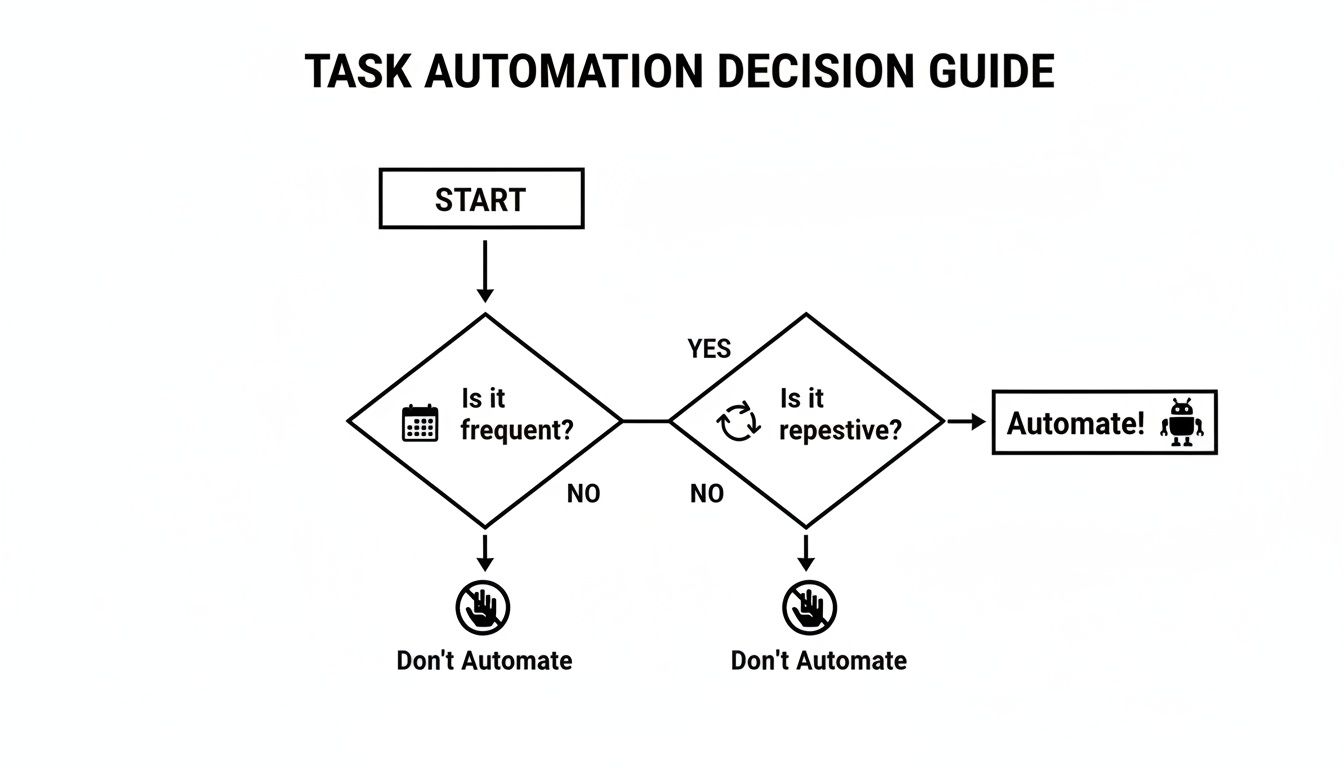
It really boils down to two simple questions: Do you do it often, and do you do it the same way every time? If you answered "yes" to both, you've struck automation gold.
Start With What You Already Have
Before you go hunting for new software, take a look at what’s already on your computer. These built-in features are perfect for simple automations that live inside a single program. They're the low-hanging fruit.
- Email Filters and Rules: Your inbox is a great place to start. Automatically sort incoming mail, tag messages from key clients, forward receipts to a specific folder, or even set up canned replies. It's a game-changer.
- Text Expansion: This is one of my personal favorites and a massive time-saver. You can use a simple tool (many are built right into your OS) to turn a short snippet like ";addr" into your full mailing address or ";thanks" into a polite closing paragraph.
- Spreadsheet Macros: Ever find yourself doing the same sequence of clicks in Excel or Google Sheets to format a report? A macro can record that exact sequence and play it back with a single click. It's pure magic for anyone who lives in spreadsheets.
No-Code Platforms for Connecting Apps
What happens when your task needs to jump between different programs? That's where no-code platforms come in. These services are the digital duct tape of the internet, connecting all your favorite apps using simple "if this, then that" logic.
Think of no-code tools like a set of digital dominos. You set up a trigger (the first domino falls), and it automatically kicks off a chain reaction of actions (the other dominos topple in sequence) without you having to lift a finger.
Heavy hitters in this space include Zapier and IFTTT (If This Then That). With them, you could build a workflow like: "When a new file is added to my Dropbox folder (the trigger), automatically upload it to Google Drive and send me a notification in Slack (the actions)."
If you're in the Microsoft world, you have a powerhouse in Power Automate. It's built to work seamlessly with Office 365, Windows, and the whole Microsoft suite. It’s fantastic for automating pretty much anything within that ecosystem. And if you're looking to explore even further, our guide on the best AI tools for productivity has some other great options.
Getting Your Hands Dirty: Building Your First Automation

Theory is one thing, but the real confidence comes from actually doing it. This is where we’ll build a few simple but high-impact automations from the ground up. The goal here is to give you a tangible win and show you just how approachable this stuff really is.
We're going to focus on the core logic behind nearly every automation: the trigger and the action. A trigger is the event that kicks everything off, and the action is what happens as a result. Nail this relationship, and you’ve unlocked the secret to automating just about anything.
Example 1: Save Email Attachments to the Cloud with Zapier
Manually downloading attachments, finding the right folder, and renaming them is a classic time-suck. Let's build a simple "Zap" in Zapier to take care of it for us. This is a lifesaver for things like invoices, weekly reports, or any recurring document that lands in your inbox.
The idea is to connect your email (like Gmail) to a cloud storage service (like Google Drive or Dropbox).
- The Trigger: A new email arrives in Gmail that matches a very specific search. You could filter for emails from " invoices@company.com" or with the subject line "Weekly Sales Report." Being specific is key—otherwise, you'll end up saving every cat photo your aunt sends you.
- The Action: The attachment from that email is automatically uploaded to a designated folder in your Google Drive, say, one called "Client Invoices."
Setting this up in Zapier is surprisingly simple. You'll pick Gmail as the trigger app, choose "New Email Matching Search" as the event, then select Google Drive as your action app and "Upload File." Zapier walks you through connecting your accounts and tells it to grab the attachment from the email and put it in Drive.
My Two Cents: When setting up file-saving automations, always include a step to name the file dynamically. Use data from the email, like the sender's name and the date, to create a clear, searchable file name. Something like "Invoice_ClientName_2023-10-26.pdf" is a thousand times better than "attachment1.pdf".
Example 2: Turn Flagged Emails into To-Do Items with Power Automate
How many times have you flagged an email as important, only to have it disappear into the inbox abyss? This little automation turns your flagged emails into actual tasks in an app like Microsoft To Do, making sure nothing critical slips through the cracks.
This is a perfect job for Microsoft Power Automate, especially if your life already runs on Outlook and other Microsoft 365 apps.
The logic couldn't be simpler:
- Trigger: An email in my Office 365 Outlook inbox gets flagged.
- Action: A new task pops up in my Microsoft To Do list. The email's subject line becomes the task title, and the body of the email gets dropped into the notes for context.
This little workflow bridges the gap between your inbox (where requests live) and your to-do list (where work gets done). It’s a simple way to bring order to the chaos.
Example 3: Fly Through Email Replies with Text Expansion
Our last example is the simplest of the bunch, but it can claw back a shocking amount of time each day. You don't need a big platform like Zapier or Power Automate; all you need is a text expansion app or even a built-in feature on your computer.
Think about a response you send all the time—maybe acknowledging a customer inquiry and giving them a response time. Typing that out over and over is a drag and a perfect place to make typos.
- The Shortcut: You create a short, memorable snippet, like
;ack. - The Expansion: The moment you type
;ackand hit the spacebar, it instantly blossoms into your full, pre-written message:
"Thank you for reaching out! We've received your message and will get back to you within 24 business hours. We appreciate your patience."
I use this for everything: my address, common URLs I share, answers to frequently asked questions, and even blocks of code. It's a foundational automation skill and one of the fastest ways to feel a real difference in your daily grind.
Keeping Your Automations Running Smoothly
Flipping the switch on a new automation feels great, but the job isn’t quite done. Treating it as a "set it and forget it" tool is a common mistake that can lead to chaos down the road. Honestly, a broken automation you don't know about is often worse than just doing the task manually.
The real magic of automation comes from a little ongoing maintenance. Think of these workflows like little digital assistants. You’d check in with a human assistant to make sure they're on track, and you should do the same with your automations, especially since the software they connect to is always changing.
Test Before You Trust
Never, ever deploy a new automation on your live files and just walk away. Before you let it loose on your actual work, you have to put it through a full dress rehearsal in a safe, controlled space. A good test run will catch weird bugs and unexpected behavior before they can make a real mess.
The goal isn't just to see if it works—it's to see if it fails correctly and doesn't run when it shouldn't.
- Create a Sandbox: Set up a test folder, a junk email account, or a throwaway spreadsheet. Whatever you do, don't test with your primary project files or real client data.
- Throw It Some Curveballs: What happens if an invoice is in a PDF format instead of a Word doc? What if an email is missing the attachment it's supposed to process? Run a few "what if" scenarios to see how your workflow handles imperfect input.
- Check the Whole Chain: For automations with multiple steps, make sure every single part of the process works. Did the file get renamed correctly before it was moved to the right cloud folder? Did the notification email actually get sent?
Perform Regular Check-Ups and Fixes
The apps we use are constantly being updated behind the scenes. A simple change to your project management tool's API or a layout tweak in your email app can quietly break a workflow that was running perfectly yesterday.
A quick check-in once a quarter can save you from finding out weeks later that nothing has been working. Most automation tools have a history log or an activity dashboard. Get in the habit of glancing at it. Look for error messages or failed runs. Many times, the fix is as simple as reconnecting an app that got logged out.
The most common culprit I see is a broken connection. When you change a password or an app updates its security protocols, your automation tool loses access. Simply re-authorizing the connection usually gets things back on track.
Stay Secure and Mindful of Data
When you set up an automation, you're giving one service permission to access another. This is incredibly powerful, but it also means you need to be smart about security. You're building bridges between your accounts, and you need to make sure those bridges are solid.
Here are a few security habits to get into:
- Grant Minimal Permissions: If your automation only needs to read your calendar, don't give it permission to delete events. Always follow the principle of least privilege—give it only the exact access it needs to do its job, and nothing more.
- Use Strong, Unique Passwords: This is a given. Use a password manager for your automation platform account and turn on two-factor authentication (2FA) whenever you can.
- Be Careful with Sensitive Data: Think long and hard before building automations that handle things like financial records, personal health information, or other confidential data.
It's also about making sure your data flows to the right place. For example, if you automate saving invoices, you need to be sure they land where they belong. Our guide on how to use cloud storage has some fantastic advice for keeping your digital files organized and secure.
Common Questions About Task Automation
Once you start exploring how to automate tasks, you'll naturally have a few questions. It’s smart to think about security, what happens when things break, and just how far you can take this stuff before you get too deep in the weeds. Let's walk through some of the most common things people wonder about.
Is It Safe to Give Automation Tools Access to My Accounts?
This is the big one, and it's a great question to ask. The good news is that well-regarded platforms like Zapier, IFTTT, and Microsoft Power Automate don't ask for your passwords. Instead, they use secure authentication methods (like OAuth) where you grant them very specific, limited permissions.
Think of it this way: you’re not handing over the master key to your digital life. You’re giving a valet a key that can only start the car, not one that opens the trunk or glove box.
Still, you have to be smart about it.
- Be mindful of the data. For truly sensitive info, always read the platform's privacy policy.
- Use two-factor authentication on every single account. This is non-negotiable.
- Grant minimal permissions. Only give the tool access to what it absolutely needs to do its job.
I'd be cautious about automating tasks involving highly confidential financial data or personal health records unless you're on a secure, company-approved system designed for that purpose.
What if an Automation Goes Wrong and Creates a Mess?
It happens. That’s exactly why testing is your best friend. Never build a new workflow and immediately hook it up to your most important files.
Always test it with dummy data first. I like to have a dedicated "Test Folder" in my cloud drive or use a throwaway email address to make sure everything works as expected before I let it touch my real work.
Most automation platforms have a history log where you can see every single time a workflow ran, if it succeeded, and what data it handled. This log is your go-to for troubleshooting.
If an automation starts acting up, the first thing you do is turn it off. Simple. Then, dig into that history log to figure out what went sideways. Once you’ve diagnosed the problem and fixed it, you can safely turn it back on.
Can I Automate Tasks on My Phone?
You bet! This is where things get really fun. Both iOS (with its built-in Shortcuts app) and Android have some seriously powerful automation tools baked right in.
You can set up simple automations like, "When I connect to my car's Bluetooth, open Google Maps and start my 'Driving' playlist." These on-device automations are getting smarter all the time, tying into a broader ecosystem of connected devices—a concept you can learn more about by understanding what is the Internet of Things.
Plus, the big players like Zapier and IFTTT all have mobile apps, so you can build, manage, and monitor your workflows right from your phone. Mobile automation is fantastic for tasks triggered by your location, your phone's status (like a low battery), or for connecting all the apps you use most on the go.
At Simply Tech Today, our goal is to provide clear, actionable guides that help you make the most of your technology. For more tips and straightforward explanations, visit us at https://www.simplytechtoday.com.


Member discussion