
How to backup phone data: The Essential Guide

Knowing how to back up your phone is the single best way to protect yourself from a lost, stolen, or broken device. At its core, it’s about creating a copy of your photos, contacts, and other important files, either on a cloud service like iCloud or Google One, or on a local device like your personal computer. Get this right, and you'll always have a safety net for your digital life.
Why Your Old Backup Habits Aren't Good Enough Anymore
If you think occasionally saving your photos to your laptop is enough, it’s time for a reality check. The dangers your phone faces have moved way beyond just accidental drops or leaving it in a cab. We're now dealing with sophisticated digital threats, and your backup isn't just a safety copy—it's become a primary target for attackers.
A modern backup plan has to be smarter and more resilient. Just think about everything that lives on that small device in your pocket:
- Priceless Memories: Years of family photos, videos of once-in-a-lifetime events, and messages from loved ones.
- Private Data: Logins for your banking apps, personal health information, and confidential work files.
- Your Entire Network: Every personal and professional contact you have, all in one place.
Losing all of that isn't just a headache; for most people, it would be a personal disaster.
Ransomware Has Changed the Game
Criminals are fully aware of how valuable your personal data is, and they've changed their tactics accordingly. Ransomware attacks, where your files are locked up until you pay a fee, are on the rise and getting sneakier. In just the first five weeks of the year, the number of U.S. ransomware victims posted on leak sites hit 378, a shocking 149% jump from the previous year.
Here's the really scary part: 94% of these attacks now intentionally go after backup locations, according to recent ransomware trend data from Infrascale.com. That old, simple backup method you’ve been using? It's likely the first thing they'll try to destroy.
A single point of failure is practically an invitation for disaster. If your only backup is on a computer that gets hit with ransomware, both your live data and your "safe" copy could be gone in an instant.
This is exactly why having more than one layer of protection is so important. Relying on just a single method—whether it's only the cloud or only a local drive—leaves you dangerously exposed.
We'll get into how combining methods, like using cloud storage and a separate physical drive, creates a much tougher system to break. For a primer on the basics, you can check out our guide explaining how cloud storage works. A solid backup plan today isn't just about recovering from a cracked screen; it's about building a fortress around your digital life.
Choosing Your Backup Method: Cloud vs. Local Storage
When it comes to backing up your phone, the first big decision you’ll face is where to store everything. Should you go with a cloud service or keep your data close on a local hard drive? There’s no single right answer here. The best choice really boils down to your personal habits and what you value most—be it on-the-go access, raw speed, or having total control over your digital life.
Think about it this way: if you're constantly traveling and need your documents and photos handy at a moment's notice, a cloud service like iCloud or Google One is a game-changer. As long as you have an internet connection, your files are right there with you. This incredible convenience is a huge reason why the cloud backup market is booming.
On the flip side, someone like a professional photographer who deals with massive RAW image files might find local backups far more practical. It's way faster to transfer gigabytes of data to a computer with a simple USB cable than to wait for it all to upload. Plus, you’re not at the mercy of your internet speed or paying monthly fees to store it all.
Cloud vs. Local Phone Backups At a Glance
To help you decide what fits your needs, here's a quick comparison of the two methods. Think about which features are most important for your day-to-day life.
| Feature | Cloud Backup (e.g., iCloud, Google Drive) | Local Backup (e.g., Computer, External Drive) |
|---|---|---|
| Accessibility | High—access your files from any device with an internet connection. | Low—requires physical access to your computer or storage drive. |
| Cost | Often requires a monthly subscription for significant storage space. | A one-time purchase of a hard drive or using your existing computer. |
| Speed | Slower for large backups and restores, limited by internet speeds. | Much faster for transferring large files, especially via a direct connection. |
| Security | Strong encryption, but you're trusting a third party with your data. | You have complete physical control over your data and its security. |
| Automation | Easily automated to run in the background, often daily. | Requires you to manually connect your phone and initiate the backup. |
Ultimately, this table shows there's a trade-off between convenience and control. Many people, myself included, find that a mix of both offers the best of all worlds.
The Hybrid Approach: Why Both Is Often Best
You don't have to pick just one. In fact, for true peace of mind, using both cloud and local backups is the gold standard in data protection. This is often called the 3-2-1 rule: 3 copies of your data, on 2 different types of media, with 1 copy stored offsite.
Why is this so important? Take a look at this flowchart. It clearly shows how a hybrid strategy protects you from disasters like ransomware that could encrypt both your phone and a connected local drive at the same time.
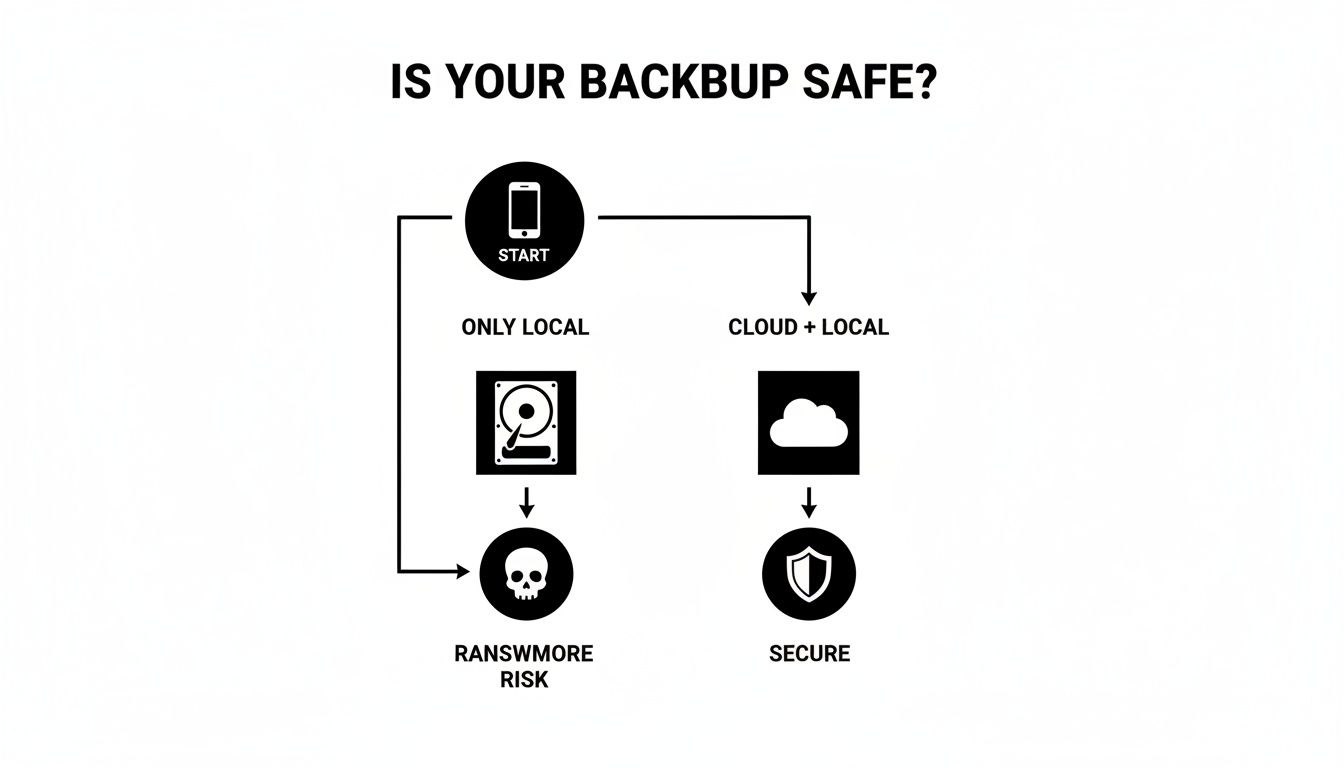
As you can see, relying only on a local drive leaves you vulnerable. That offsite cloud copy is your ultimate safety net.
The industry has certainly taken notice. The global cloud backup market is expected to jump from $5 billion to over $22 billion in the next decade. Even in professional settings, 38% of IT experts now lean on cloud-native tools for their efficiency.
The smartest strategy isn't about picking one method over the other. It's about building a system that covers all your bases. An automated daily cloud backup handles the day-to-day, while a weekly local backup gives you a complete, physically-accessible archive.
If you’re new to the cloud, it's worth getting familiar with the basics. Our guide on how to use cloud storage is a great place to start. By understanding the strengths of each approach, you can create a bulletproof system to protect your digital life.
A Practical Guide to Backing Up Your iPhone
When it comes to backing up your iPhone, Apple gives you two main paths: the effortless, automated world of iCloud or a more hands-on, complete backup to your computer. Each approach has its own strengths, and knowing how they work is the key to creating a solid strategy to protect your digital life.
Let’s walk through setting up both so you can figure out what fits you best.
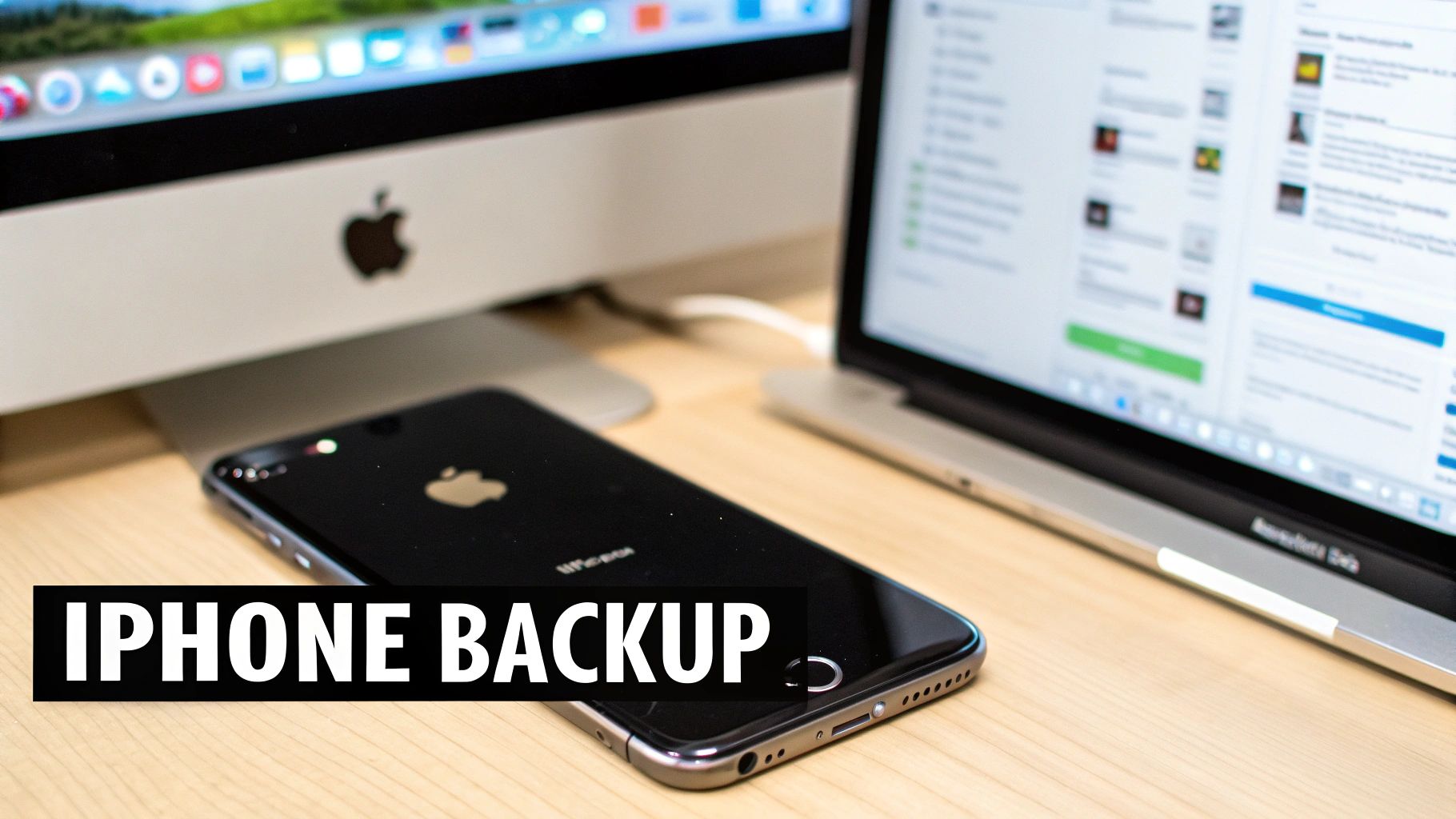
Using iCloud for Automated Backups
Think of iCloud Backup as your "set it and forget it" safety net. Once you turn it on, your iPhone handles the rest, automatically backing up your most important data every day. It just needs to be connected to Wi-Fi, plugged in, and have the screen locked. This means you’ll almost always have a recent backup waiting for you in the cloud, no manual effort required.
So, what exactly gets saved? iCloud covers the essentials:
- App Data: Information and settings for your installed apps.
- Device Settings: All your personalizations, like wallpaper and home screen layout.
- Messages: Your full iMessage, SMS, and MMS history.
- Photos and Videos: This is included if you have iCloud Photos enabled.
Getting this set up is simple. Just head to Settings > [Your Name] > iCloud > iCloud Backup.
From there, just toggle on Back Up This iPhone. The screen will also show you the exact time of your last successful backup, which is a great way to confirm everything is working as it should.
Creating Local Backups on a Mac or PC
If you're someone who prefers to have a physical copy of your data that you directly control, a local backup is the way to go. This method saves a more comprehensive snapshot of your entire device right onto your computer’s hard drive.
How you do it depends on your machine:
- On a Mac: It’s built right into Finder. Just plug in your iPhone, open Finder, and you’ll see your device pop up in the sidebar.
- On a Windows PC: You'll need to grab the Apple Devices app from the Microsoft Store first. Install it, connect your iPhone, and open the app.
Once you’ve selected your iPhone, you'll land on the General tab. You'll see an option to "Back up all of the data on your iPhone to this Mac/PC." Before you hit that "Back Up Now" button, though, there's a crucial setting you can't afford to miss.
Crucial Tip: Always, always check the box to "Encrypt local backup." This is non-negotiable if you want to save sensitive information like your saved passwords, Wi-Fi settings, website history, and Health data. Without encryption, Apple simply leaves all that private data out of the backup entirely.
By encrypting the backup, you're adding a vital layer of security that protects it with a password you create. It’s an essential step in a good digital security plan, much like knowing how to use two-factor authentication for your accounts. An encrypted backup means that even if someone got access to your computer, your private iPhone data would remain completely unreadable and safe.
A Practical Guide to Backing Up Your Android Phone
One of the best things about Android is the sheer variety of phones out there. But that same variety means backing up your data isn't always a straightforward, one-size-fits-all process. The good news is, no matter if you're using a Google Pixel, a Samsung Galaxy, or something else entirely, you've got solid options. We'll walk through the easy built-in Google tools, specific software from manufacturers, and even a simple old-school manual method.
Google One Backup: The Universal Solution
For the vast majority of Android users, the easiest place to start is right inside your Google Account. This cloud-based system is designed to be a "set it and forget it" safety net, quietly saving your most important info in the background.
This built-in feature is designed to cover the essentials:
- App data and a list of your installed apps
- Your complete call history and Contacts
- Device settings, like Wi-Fi passwords and display preferences
- All your SMS and MMS messages
Getting it set up is simple. Just head into your phone’s Settings, scroll to the Google section, and tap on Backup. From there, you can toggle on Backup by Google One and tweak the settings.
You’ll see a big "Back up now" button, which is perfect for creating an immediate save point right before you upgrade to a new phone. It gives you that visual confirmation and peace of mind.
This screen also gives you a quick, clear overview of what’s being saved and the exact time of the last backup. It’s a powerful tool for something so simple. And for your photos and videos, it works seamlessly with Google Photos, which you can set to automatically sync your entire media library to the cloud.
Manufacturer Tools for Deeper Backups
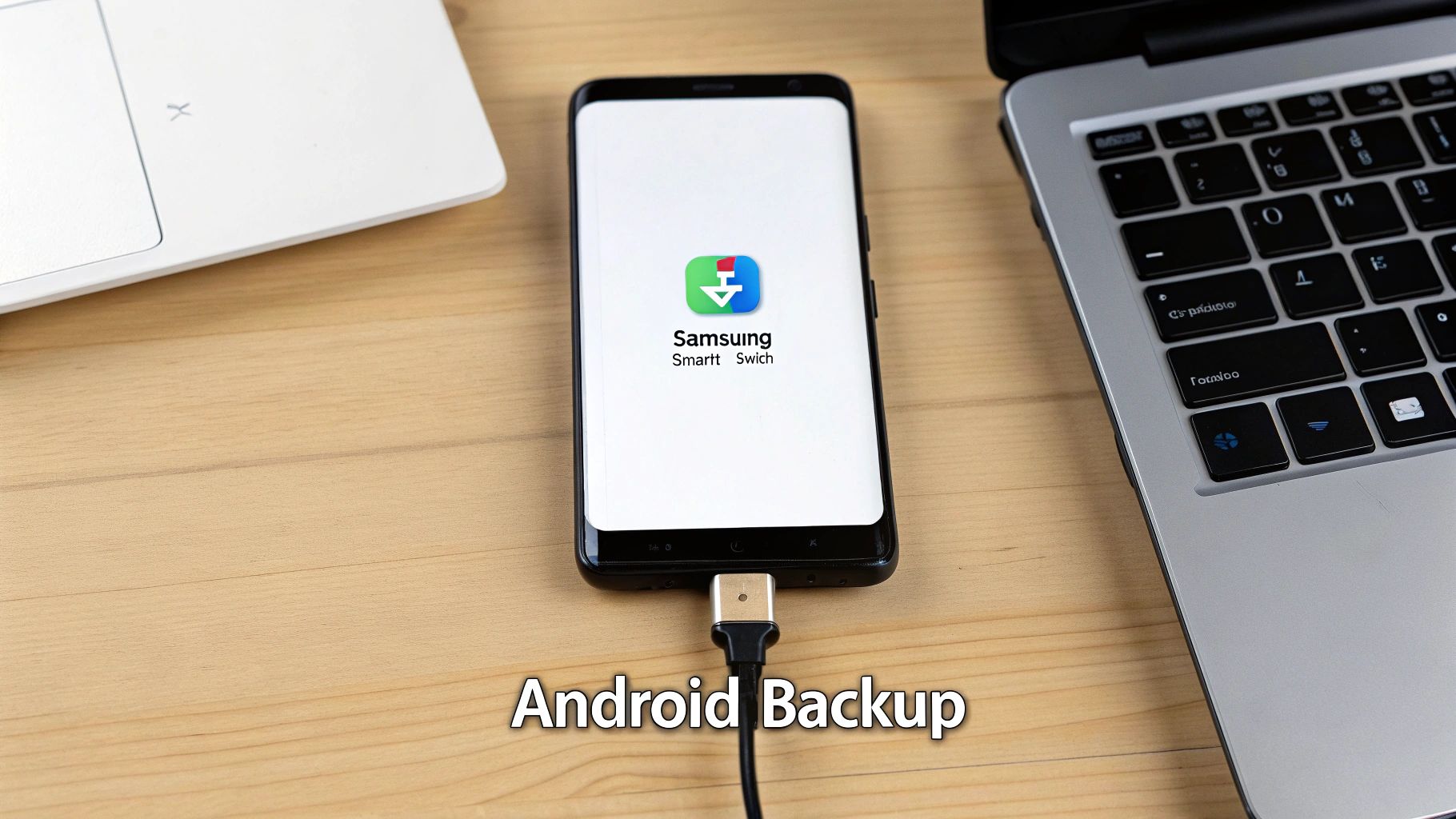
While Google’s backup is great for the core stuff, phone makers often offer their own software for a more comprehensive local backup. A perfect example is Samsung Smart Switch. This is an app for your PC or Mac that lets you create a complete image of your Samsung phone right on your computer.
This is a much deeper backup than what Google offers online. It saves practically everything—from the exact layout of your home screen to your saved alarms and network settings. It's the best option if you want a full, offline snapshot of your device. Other brands like Huawei and Xiaomi offer similar PC suite software that does much the same thing.
The Manual USB Transfer Method
Sometimes, the simplest way is the best way. If all you really care about is grabbing your photos, videos, and important documents without messing with cloud services or extra software, a direct USB transfer is incredibly reliable.
The amount of data we create is staggering. With over 7 billion active devices worldwide, we're spending an average of 3.8 hours on our phones every single day. That's a huge trail of personal data that needs protecting. You can dive deeper into these smartphone usage stats at Backlinko.com.
Just connect your Android phone to your computer with a USB cable. On your phone, swipe down the notification shade, tap the USB connection notification, and choose "File Transfer" or "Transfer files."
Your phone will pop up as a drive on your computer, just like a USB stick. From there, you can drag and drop folders directly to your hard drive. This method gives you total control over your most precious files. While it won't save your app data or settings, it's a fantastic part of a layered backup strategy, especially when you also follow the best practices for password security to keep all your accounts safe.
Automate Your Backups for Effortless Protection
Let's be honest, the best backup strategy is the one you don't have to think about. Manually backing up your phone is one of those chores that's incredibly easy to put off, and that can leave you vulnerable when you least expect it. Setting up an automated system transforms data protection from a nagging task into a reliable safety net that works quietly in the background.
Think about it: your phone suddenly dies. With an automated backup running, you haven't lost weeks or months of photos, messages, and contacts. Instead, everything from just last night is safe and sound, ready to be restored to a new device. Both iOS and Android have made this incredibly simple to set up.
The whole idea is to let your phone back itself up automatically overnight. All you have to do is make sure it's plugged in and connected to Wi-Fi. This is the perfect time for the magic to happen since it won't interrupt your day or eat into your mobile data plan.
Setting Up Your Automated System
For both iPhones and Androids, the controls are right there in your main settings menu. It only takes a minute to get going.
- On an iPhone: Head over to Settings > [Your Name] > iCloud > iCloud Backup. Just check that the toggle for "Back Up This iPhone" is switched on. From now on, your iPhone will handle the rest whenever it's locked, charging, and on a Wi-Fi network.
- On an Android Phone: Pop open Settings > Google > Backup. Make sure "Backup by Google One" is enabled. This tells your phone to automatically save your app data, contacts, and other essentials to your Google account.
Flipping that one switch is the single most important step you can take. It ensures you always have a recent, offsite copy of your data without having to lift a finger.
"The average person replaces their phone every 2.4 years, and a whopping 42% of those upgrades happen because of battery problems—often forcing a rush to get a new device without time for a final backup. Automation is your best defense against data loss during these frequent and sometimes unexpected transitions." You can dive deeper into how we use our phones with research from Backlinko.
Achieving the 3-2-1 Backup Gold Standard
Relying on an automated cloud backup is a massive step up, but for truly bulletproof protection, the pros follow the 3-2-1 rule. It's a simple concept that has stood the test of time.
Here's the breakdown:
- Keep three total copies of your data.
- Store them on two different types of media (e.g., cloud and a local computer).
- Have at least one of those copies stored offsite.
Your automated cloud backup already handles the "offsite" part for you. To complete the strategy, all you need to do is add an occasional local backup to your computer. By combining a daily, automatic cloud sync with a quick monthly local backup, you've built a robust system that protects you from just about any disaster. This layered approach is also a great way to reinforce your digital security, a key part of knowing how to protect your privacy online.
Got Questions? Troubleshooting Your Phone Backups
Even the best-laid backup plans can hit a snag. Maybe you’ve seen that dreaded storage warning pop up, or perhaps a backup just refuses to finish. Don't worry, these are common hiccups, and the fixes are usually pretty straightforward.
Let's walk through some of the problems almost everyone runs into eventually. Knowing what to do ahead of time can save you a lot of frustration.
What Do I Do When My Cloud Storage is Full?
Ah, the "Storage Full" notification. It’s easily the most common headache. When you see this, your phone immediately stops backing up, which means your newest photos, messages, and files are left unprotected until you fix it.
You’ve got two main paths forward:
- Buy more space. Honestly, this is the quickest fix. For just a few bucks a month, both Apple and Google will give you a lot more breathing room.
- Do some digital cleaning. Dive into your cloud drive and start deleting things you don't need anymore. Look for old backups from devices you no longer own, massive video files you’ve already saved elsewhere, or data from apps you deleted ages ago.
Getting into the habit of cleaning out your cloud storage every so often is a smart move. It keeps things running smoothly and ensures you're only paying for the storage you actually need.
Are My Backups in the Cloud Actually Private?
This is a big one, and it's a perfectly valid concern. You're handing over your most personal data to a massive company, and it’s natural to wonder who can see it. The short answer is that your data is very well protected. Services like iCloud and Google Drive use powerful encryption to scramble your data, both while it's traveling over the internet and while it's sitting on their servers.
For instance, your iPhone backups are automatically encrypted. But if you want to take your security to the next level, you can turn on Apple's Advanced Data Protection. This feature wraps nearly everything—your messages, photos, notes—in end-to-end encryption, meaning not even Apple can access it.
The bottom line is this: while cloud services provide the lock, you still hold the key. The single most important thing you can do is secure your account with a strong, unique password and two-factor authentication.
Your backup is only as secure as the account it’s tied to.
Help! My Backup Keeps Failing!
Seeing a "Backup Failed" message is annoying, but don't jump to conclusions. The root cause is almost always something simple. Before you get frustrated, run through this quick mental checklist:
- Check your Wi-Fi. A spotty or slow connection is the number one cause of failed backups. Your phone needs a solid signal to upload all that data.
- Look at your battery. Most phones won't even start a backup unless they have a decent charge or are plugged into a power source.
- Is your software updated? Sometimes, a weird bug in an older version of iOS or Android can prevent backups from completing. Make sure your phone is running the latest OS.
If you’ve checked all those and it’s still not working, try the classic "turn it off and on again" trick. Sign out of your iCloud or Google account on your phone, then sign back in. This often resets whatever was stuck and gets things moving again.
At Simply Tech Today, we believe that understanding technology empowers you to make smarter, safer choices every day. For more clear, practical guides on the gadgets and apps you use, explore our latest articles at https://www.simplytechtoday.com.

Member discussion