
How to change icons: Quick Guide for Windows, macOS, Android & iOS
Tired of staring at the same old default icons on your computer or phone? I get it. Personalizing your digital space is more than just a fun cosmetic change—it's about making your devices work for you and feel like they're truly yours. This guide breaks down exactly how to change icons on all the major platforms you use every day, from Windows and macOS to Android and iOS.
We'll walk through everything from the simple, built-in tools you already have to some great third-party apps that open up a world of creative options. Forget the confusing tech jargon. My goal here is to give you clear, straightforward steps anyone can follow. By the time we're done, you'll be able to give your digital workspace a complete refresh, making it more organized, easier on the eyes, and uniquely you.
This isn't just a niche hobby anymore, either. The whole idea of hyper-personalization—the tech that lets you tweak app icons and interfaces—has exploded into a massive market. In 2024, it reached US$ 21.2 billion globally and is expected to soar to US$ 67.9 billion by 2031. That growth tells you something: a lot of people are customizing their devices to make them better.
This flowchart gives you a great starting point, helping you figure out where to begin based on your device.
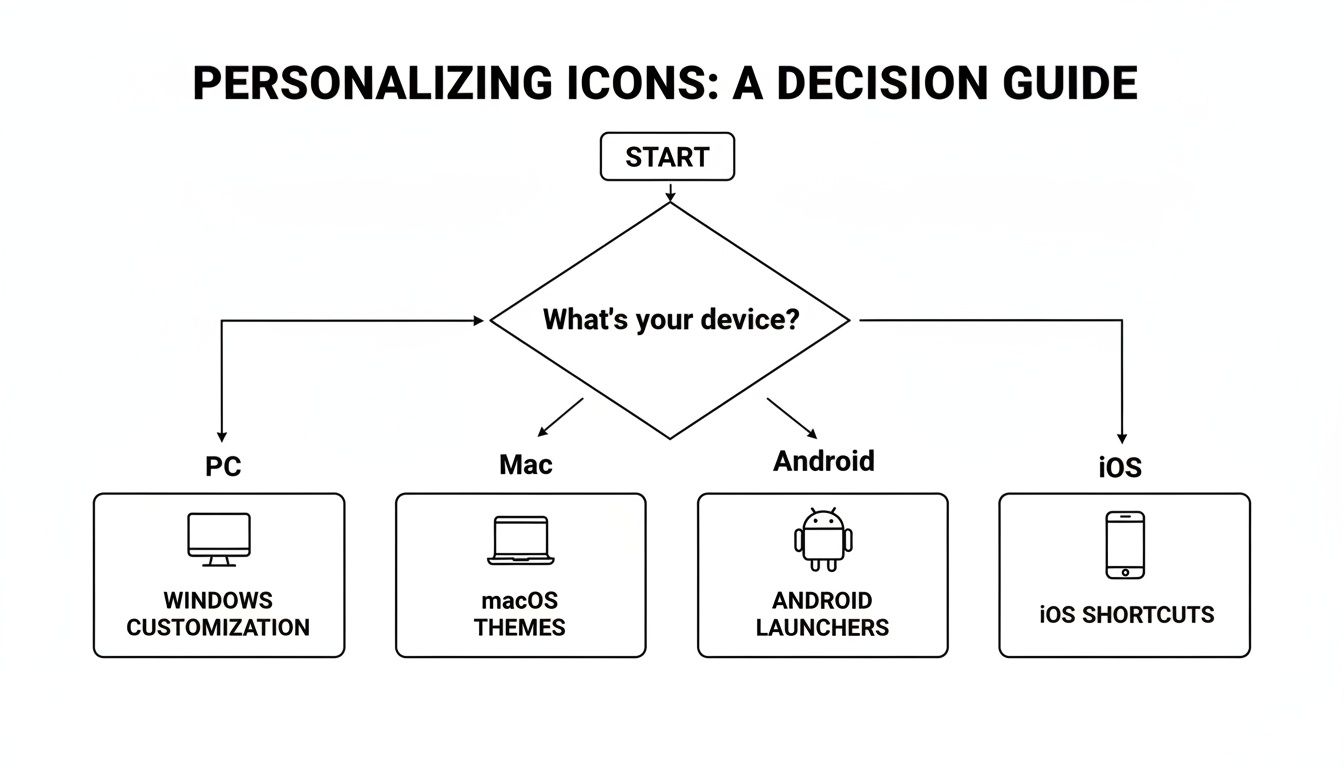
Think of it as a decision tree. It quickly points you toward the right method whether you're on a PC, a Mac, or your smartphone.
Why Bother Customizing Your Icons?
Beyond just looking cool, there are some really practical reasons to spend a little time curating your digital environment. Custom icons can genuinely speed up your workflow by helping you find apps and folders with a quick glance.
For instance, I like to use color-coded folder icons for my projects: blue for work, green for personal stuff, and a bright red for anything urgent. It's a simple visual trick, but it saves me a ton of time I'd otherwise spend hunting for files. You can even keep all your favorite icon sets together in one place. A great way to do this is to check out our guide on how to use cloud storage to keep your icons synced and accessible everywhere.
Customizing your digital space is an investment in your personal workflow. A well-organized and visually pleasing desktop or home screen reduces cognitive load, allowing you to focus on the tasks that matter most.
A clean, personalized desktop is often the first step toward better digital organization.
Quick Guide to Changing Icons by Device
Here’s a quick overview of the methods and tools you can use to change icons on the most popular operating systems.
| Operating System | Primary Method | Icon File Format | Difficulty Level |
|---|---|---|---|
| Windows | Right-click > Properties > Customize > Change Icon | .ico |
Easy |
| macOS | Get Info > Drag & Drop new icon onto the original | .icns |
Easy |
| Android | Custom Launchers (e.g., Nova Launcher) | .png, icon packs |
Easy to Moderate |
| iOS/iPadOS | Shortcuts App | .png, .jpg |
Moderate |
This table gives you a birds-eye view of what to expect on each platform, from the file types you'll need to how much effort it'll take.
The Real-World Benefits of a Custom Setup
The payoff for taking a few minutes to change your icons is surprisingly significant. Here’s what you actually get out of it:
- Better Organization: When you assign unique icons to different folders or projects, they become instantly recognizable. No more reading every single folder name.
- A Productivity Boost: Finding what you need faster means a smoother, more efficient workflow. Those saved seconds really add up.
- A Personal Touch: Your devices start to feel like a true extension of your personality and style, which just makes them more enjoyable to use every day.
- Less Digital Clutter: A cohesive, well-designed icon theme can make even a busy screen feel calmer, more focused, and less chaotic.
Finding and Preparing Your New Icons
Before we dive into the how-to, you need something to work with. The hunt for the perfect icons is half the fun, and it’s what turns a generic device into your personalized command center. Your first stop should be the big icon libraries out there.
Websites like Flaticon are absolute treasure troves, with millions of icons ready to go. You can find just about anything, from sleek, minimalist designs for a clean desktop to something more playful and vibrant. I also like to check out marketplaces like Etsy or Gumroad, where independent artists sell beautifully curated aesthetic packs.
Choosing the Right Icon Files
As you start browsing, you'll see a bunch of different file formats. This part is important—the format you need depends entirely on your operating system, so grabbing the right one from the start will save you a headache later.
Here’s a quick breakdown of what to look for:
- .ICO for Windows: This is the native format for Windows. If you're changing folder icons, shortcuts, or anything deep in the system, you'll need a .ICO file.
- .ICNS for macOS: Mac users, this one's for you. To customize your apps and folders in Finder, you'll need your icons in the .ICNS format.
- .PNG for Mobile and Converters: PNG files are the jack-of-all-trades. Their transparent backgrounds make them perfect for creating custom icons on Android and iOS. They're also the best starting point for converting to .ICO or .ICNS formats using free online tools.
A quick pro-tip: always download the highest resolution available. You can always scale a large image down without it looking fuzzy, but you can't really go the other way. A small, pixelated icon just looks bad when enlarged.
Just look at the sheer variety of styles you can find on a site like Flaticon.
The interface makes it easy to search for themes or browse entire packs, so you can grab a whole set that matches your vibe.
Preparing Your Icons for Use
So, what happens when you find the perfect image, but it's not the right format? Don't sweat it. You don't need expensive software to get your files ready. There are plenty of free, browser-based tools that get the job done in seconds.
If you have a PNG or JPG you love, just pop it into an online converter to turn it into an .ICO or .ICNS file. It’s usually as simple as uploading the image, picking the output format, and hitting download. Some tools even let you do minor resizing on the fly. And if you want more creative control, you can always make your own tweaks first with some of the best photo editing apps for beginners.
I can't recommend this enough: organize your icons in a dedicated folder. I have mine sorted into subfolders by style ('Minimalist,' '3D,' 'Pastel'), creating a personal library I can pull from anytime I want a change.
It also helps to keep an eye on design trends. Flat icons have been popular for years, but we're seeing a big comeback of 3D and gradient styles for a more modern look. Think about how major apps like Instagram and Google Play switched from detailed designs to minimalist flat icons, which reportedly improved recognizability by 30%. Today, you'll find around 70% of top apps use either flat or hybrid 3D designs. You can find some cool insights into modern icon trends on manypixels.co. Knowing what's current can help you pick a pack that feels fresh and personal.
Getting Your Windows PC Icons Just Right
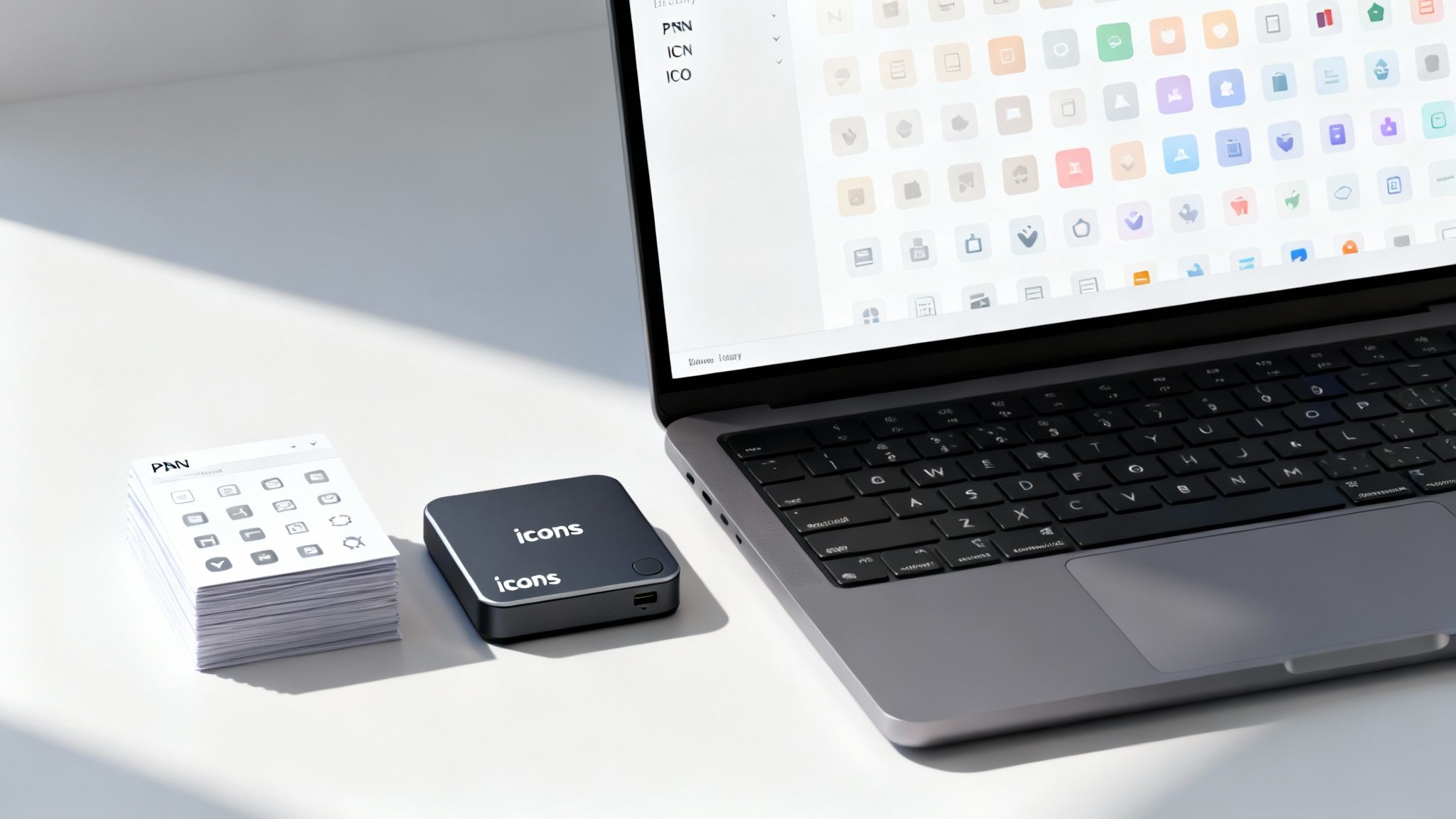
For those of us who spend a lot of time on a Windows PC, personalizing the desktop is more than just a novelty—it's about making your digital space feel like home. Learning how to change icons is a fantastic and easy way to overhaul the look of your workspace, transforming that standard grid of shortcuts into a theme that’s uniquely yours.
The most common change people want to make is swapping out the icon for a specific app on their desktop. It’s a simple process that gives you an immediate, satisfying visual update.
Just find the shortcut you want to change, give it a right-click, and choose Properties. A new window will pop up. From there, head to the Shortcut tab and click the Change Icon… button. This will open a file browser, and you're ready to pick a new look.
Swapping Out Shortcut and Folder Icons
Once you hit "Change Icon...", Windows presents you with a default set of icons, but the real fun begins when you use your own. Click the Browse… button and find the folder where you've stashed your custom .ICO files. Pick the one you want, click OK, then Apply, and you're all set. The change is instant.
This exact same trick works for folders, too. The only small difference is that after right-clicking a folder and choosing Properties, you'll need to find the Customize tab. The "Change Icon..." button will be waiting for you there.
A personalized desktop isn't just for looks; it's a genuine productivity hack. When your key folders have distinct, easy-to-spot icons, you can navigate your files much faster and with less mental effort.
For instance, I use a bright green icon for my "Current Projects" folder and a simple blue archive box for finished work. These visual cues let me find what I need in a split second, often without even reading the folder names. It’s a minor tweak that makes a major difference in my day-to-day workflow.
Tackling System Icons Like 'This PC'
So, changing shortcuts is easy enough. But you've probably noticed that core system icons like 'This PC', the 'Recycle Bin', and your 'User' folder don't play by the same rules—there's no "Change Icon" button in their properties. These require a slightly different method, but it's still perfectly straightforward.
To get to these, you’ll need to open the Desktop Icon Settings panel. The fastest way there is to right-click your desktop, select Personalize, then navigate to Themes, and look for the "Desktop icon settings" link.
This opens a small window showing all the main system icons. From here, it’s simple:
- Pick an icon to change: Click on 'This PC' or 'Recycle Bin (full)' to highlight it.
- Bring up the icon browser: Click the Change Icon… button.
- Find your custom file: Just like before, browse to your .ICO file and select it.
- Lock in the change: Click OK to save your new system icon.
Troubleshooting Common Icon Problems
Every now and then, you'll change an icon, and... nothing happens. This is almost always caused by the Windows icon cache, a tiny database that stores icon images to help them load faster. If your new icon isn't showing up, that cache probably just needs a quick refresh.
Often, a simple restart of your computer is all it takes to fix it. If that doesn’t do the trick, you can manually force Windows to rebuild the cache, though that's a bit more of an advanced step. Remember, customizing your desktop is just one of many ways to improve your PC experience; for more ideas, check out our guide on how to speed up computer performance.
Another classic issue is the "broken" icon, which usually shows up as a generic blank page. This almost always means the original .ICO file was moved or deleted after you assigned it. To prevent this headache, make sure you store all your custom icon files in a permanent, dedicated folder before you start applying them.
Swapping Out Icons on Your macOS Dock and Finder
macOS has a reputation for its polished, clean aesthetic, but that doesn't mean you're stuck with the default look. Figuring out how to change icons on a Mac is probably one of the simplest and most satisfying ways to inject some personality into your Dock and Finder. It's a small tweak that can make your entire workspace feel more organized and, well, yours.
The classic way to do this is brilliantly straightforward and has been a staple of macOS for ages. You don't need any third-party software—just a quick copy-and-paste that works on almost any app or folder you've created.
This little trick opens up a world of customization. You could go all out and create a unified theme where every icon matches, or just swap that one app icon that's always bugged you.
The Classic 'Get Info' Method
The most direct route to a new icon is through the Get Info panel. This works for nearly all the applications you install yourself and every single folder on your machine. First things first, you need to find an icon you love and have it ready. While the official Mac format is .ICNS, a simple PNG image often does the trick just as well.
Got your new icon? Open the image file in the Preview app. Hit Command + A to select the whole image, then Command + C to copy it. That's it—your new icon is now on your clipboard, ready to go.
Next, navigate to the app or folder you want to update. Right-click it and choose Get Info (or just click it once and press Command + I). This pops up a small window with all the file's details.
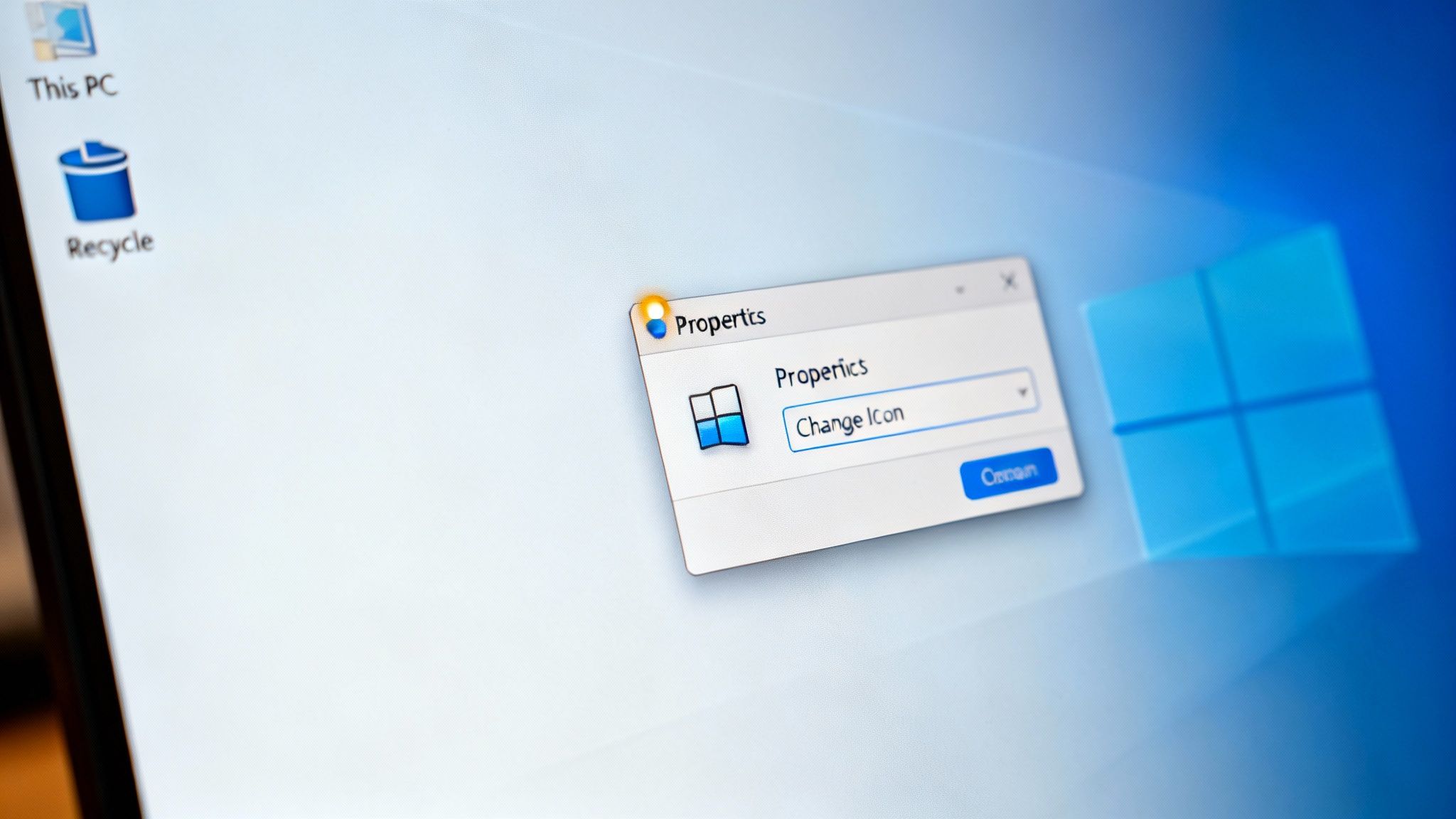
See that tiny icon in the top-left corner of the Get Info window? Click on it. You'll see a faint blue glow appear around it, signaling that it's selected. Now, just press Command + V to paste your copied image. The icon should update instantly, both in the Get Info window and on the actual app or folder.
One of the best parts of this method is that it's completely reversible. If you change your mind, just open the Get Info panel again, click the custom icon, and hit the Delete key. It'll snap right back to the original.
Working with Different Image Formats
While the Get Info method is pretty flexible, it plays best with the right file types. Copying a PNG or JPEG from Preview usually works without a hitch. However, if you want the absolute best quality, it's a good idea to convert your image to the official Mac icon format: .ICNS.
Think of an .ICNS file as a special container that holds multiple sizes of the same icon. This is how macOS keeps your icons looking sharp and perfectly scaled, whether they're tiny in a list view or huge on your Dock.
You don't need expensive software for this. There are plenty of free online tools that can convert a PNG to an .ICNS file in just a few clicks. Just upload your image, let the website work its magic, and download the finished product.
Customizing Protected System Apps
Sooner or later, you'll probably try to change an icon for a core system app like Finder or Mail and find that it doesn't work. Ever since macOS Catalina, Apple has beefed up security with System Integrity Protection (SIP), which locks down these critical files to prevent accidental damage.
It's technically possible to disable SIP and make these changes, but I really don't recommend it for most people. Turning it off can leave your Mac more vulnerable to malware. It's a pretty big security trade-off for a cosmetic change.
If you're determined to get a completely custom look, third-party apps are a much safer bet. Tools like LiteIcon or IconChamp are built specifically for this job. They let you drag and drop new icons for everything, including protected system apps, using clever workarounds that don't require you to disable SIP entirely.
These utilities are also a lifesaver if you're applying a whole icon pack. Instead of changing every single icon by hand, you can apply an entire theme in one go, making the process of how to change icons across your whole system far less of a chore.
Redesigning Your Android Home Screen
One of Android's biggest advantages has always been its incredible flexibility, and that shines brightest on the home screen. If you've ever asked yourself how to change icons on your phone, you're in luck—Android gives you more control than any other platform. You can tweak a single icon or give your entire device a visual overhaul with a whole new theme.
You have two main ways to go about this. The first is by installing a custom launcher, which is an app that completely replaces your phone's default home screen. The second route involves using dedicated apps to create custom shortcuts, which is a great option if you mostly like your current setup but want to change a few specific icons.
The Power of Custom Launchers
For a total transformation, a custom launcher is the way to go. Think of a launcher as the software that runs your home screen—it manages your app drawer, icon layout, and the overall look and feel. Swapping it out for a new one opens up a whole new world of customization.
Long-time favorites like Nova Launcher, Action Launcher, or Microsoft Launcher are popular for good reason. They do more than just let you apply icon packs from the Google Play Store with one tap; they give you precise control over things like icon size, text labels, and even the shape of the icons themselves.
Here’s a quick look at Nova Launcher on the Google Play Store, which is legendary for its deep customization options.
Using a custom launcher gives you a fresh canvas, allowing you to make sweeping changes that go far beyond just swapping out a few icons.
Getting started is simple. Just download a launcher from the Play Store and set it as your default home screen. Then, find an icon pack you like and install it. From there, you just need to pop into your new launcher’s settings, find the "Look & Feel" or "Icon Style" menu, and apply the pack. Every app icon that's supported by the pack will change instantly. Many of these launchers also pack in features that boost efficiency; you can find some great examples in our guide to the best Android apps for productivity.
Changing Icons Without a New Launcher
But what if you actually like your phone's built-in launcher and just have one or two icons you can't stand looking at? That’s where icon changer apps come into play. Apps like X Icon Changer or Awesome Icons let you create a custom shortcut for any app, letting you assign it any icon you want.
The process is a bit different:
- You pick the app you want to customize.
- You select a new image for it, either from an installed icon pack or a photo from your own gallery.
- The app generates a new shortcut on your home screen with your chosen icon.
It’s a fantastic way to make targeted changes. The one small catch is that these are shortcuts, not direct replacements for the original app icon. This can sometimes mean you won't see notification badges on them, and the original icon will still be sitting in your app drawer.
The drive to personalize our devices is powerful. It’s part of a much larger trend where we want the things we own to reflect our unique style, from our phone cases all the way down to the digital icons on our screens.
This desire has created a massive market. The global custom printing industry, which covers everything from personalized gadgets to custom decals, was valued at USD 38.10 billion in 2024 and is projected to reach USD 41.93 billion in 2025. It’s a clear reflection of a world where 70% of consumers prefer personalized products. Learning to customize your own icons is a perfect example of this trend in action. You can see more data on this growing market on grandviewresearch.com.
Giving Your iPhone and iPad a Personal Touch
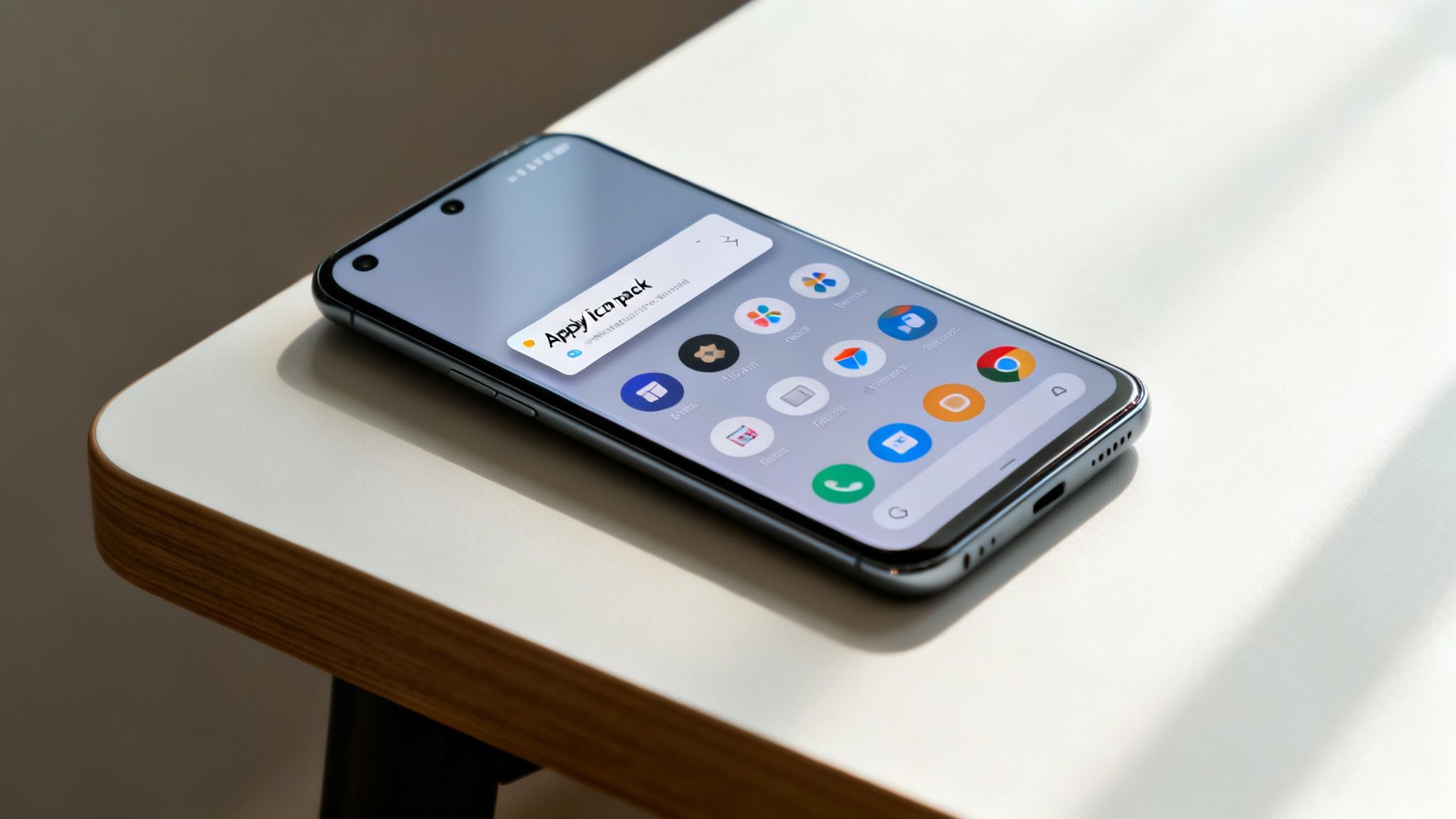
For years, the iOS home screen was a rigid, unchangeable grid. Apple kept things uniform. But recent updates have finally unlocked some serious potential for personalization, letting you create a look that's truly your own. If you've been wondering how to change icons on your iPhone or iPad, the secret isn't some third-party app—it's a powerful tool already on your device: the Shortcuts app.
What you're really doing here is creating a custom bookmark for an app, not replacing the icon itself. It’s a clever workaround that lets you slap any image you want on top, giving you complete creative freedom over your home screen's aesthetic.
Using the Shortcuts App to Create Custom Icons
The whole process lives inside the Shortcuts app, so you don't need to download anything new to get started. Just fire it up and you're ready to make a simple automation.
Here's how to create your first custom icon:
- Open the Shortcuts app and hit the plus sign (+) in the top-right corner. This starts a new shortcut.
- Tap Add Action. In the search bar that pops up, type "Open App" and select it from the list.
- You'll see a script that says "Open App." Tap the light-blue "App" placeholder and choose the application you want to customize, like your go-to music app or social media.
- Now, tap the Share button at the bottom of the screen (it’s the icon with a box and an upward arrow). A menu will slide up; choose Add to Home Screen.
- This is where the magic happens. Tap the little generic icon next to your shortcut's name. From here, you can pick any photo from your camera roll to become the new icon.
- Finally, give your shortcut a name—this is what will appear under the icon—and tap Add.
Just like that, your new icon will pop up on your home screen. This is a perfect opportunity to play around with different themes. You could go for a minimalist black-and-white vibe or find a vibrant icon pack online that perfectly complements your wallpaper.
That Pesky Notification Banner
There is one little catch. When you tap one of your new custom icons, a small banner from the Shortcuts app will briefly appear at the top of your screen as the app launches. It's a minor annoyance, and while there isn't an official switch to turn it off, it's pretty easy to get used to.
Some folks have found complex workarounds using automations to disable notifications for the Shortcuts app, but for most people, the momentary banner is a tiny price to pay for a fully customized layout. It's there and gone in a second.
Creating a custom home screen is more than a technical exercise; it's an act of digital organization. A well-designed layout with clear, thematic icons can make your device feel less cluttered and more intuitive to use every day.
Before you go all-in on a home screen makeover, it's always a smart move to have a fresh backup. Our guide on how to backup phone data has you covered. Once you’re confident everything is safe, you can hide the original app icons by moving them to your App Library, leaving you with a clean, beautifully designed home screen.
Common Questions About Changing Icons
Jumping into icon customization for the first time usually brings up a handful of questions. Let's walk through some of the most common ones I hear, so you can start tweaking your device's look without any guesswork.
Will Custom Icons Slow Down My Device?
This is probably the number one concern, but the short answer is almost always no. On a desktop, whether you're using Windows or macOS, changing an icon is a purely cosmetic tweak that has virtually zero impact on performance. The system is built to handle it without breaking a sweat.
On Android, things are a little different. If you use a custom launcher to manage your icons, it might use a tiny bit more memory than the default launcher your phone came with. But with today's powerful smartphones, you're very unlikely to notice any lag. The iOS method, which relies on the Shortcuts app, is also light on resources, though you will see a quick banner notification each time you launch an app through a custom shortcut.
How Do I Get My Old Icons Back?
What happens if you spend an hour setting up a new theme and then decide you hate it? Don't worry, you're never locked in. Getting back to the default icons is straightforward on every platform.
- Windows: Head back into the shortcut's properties, click "Change Icon," and hit the "Restore Defaults" button. It’s that simple.
- macOS: Pull up the "Get Info" panel for the app or folder, click on the little custom icon at the very top, and just press the Delete key. The original icon will pop right back.
- Android: Using a launcher? Just go into its settings and disable the icon pack. If you used a separate app to create shortcuts, simply deleting those shortcuts will do the trick.
- iOS: This is the easiest of all. Just delete the custom shortcut you made. The original app is still safe and sound in your App Library.
The ability to easily restore default icons is a key feature of modern operating systems. It encourages users to personalize their experience, knowing they can always return to a familiar setup with just a few clicks.
Where Can I Find Safe, High-Quality Icons?
The last thing you want is to download a virus along with your cool new icons. Sticking to reputable sources is the best way to keep your devices secure and get files that actually look good.
For desktop users, I've had great luck on sites like DeviantArt, IconArchive, and Flaticon. They're massive communities with millions of high-quality icons, from sleek and professional to fun and quirky.
If you're on Android, your safest bet is the Google Play Store. It's packed with thousands of icon packs, and you can read user reviews to see what you're getting before you install. For iOS, you'll need actual image files. Creative marketplaces like Etsy or Gumroad have become hubs for designers selling beautiful, aesthetic icon sets perfect for the Shortcuts method.
At Simply Tech Today, we believe that understanding your technology should be simple and empowering. For more straightforward guides and clear explanations on the gadgets you use every day, visit us at https://www.simplytechtoday.com.
Member discussion