
How to Choose a Graphics Card: A Clear, Practical Guide
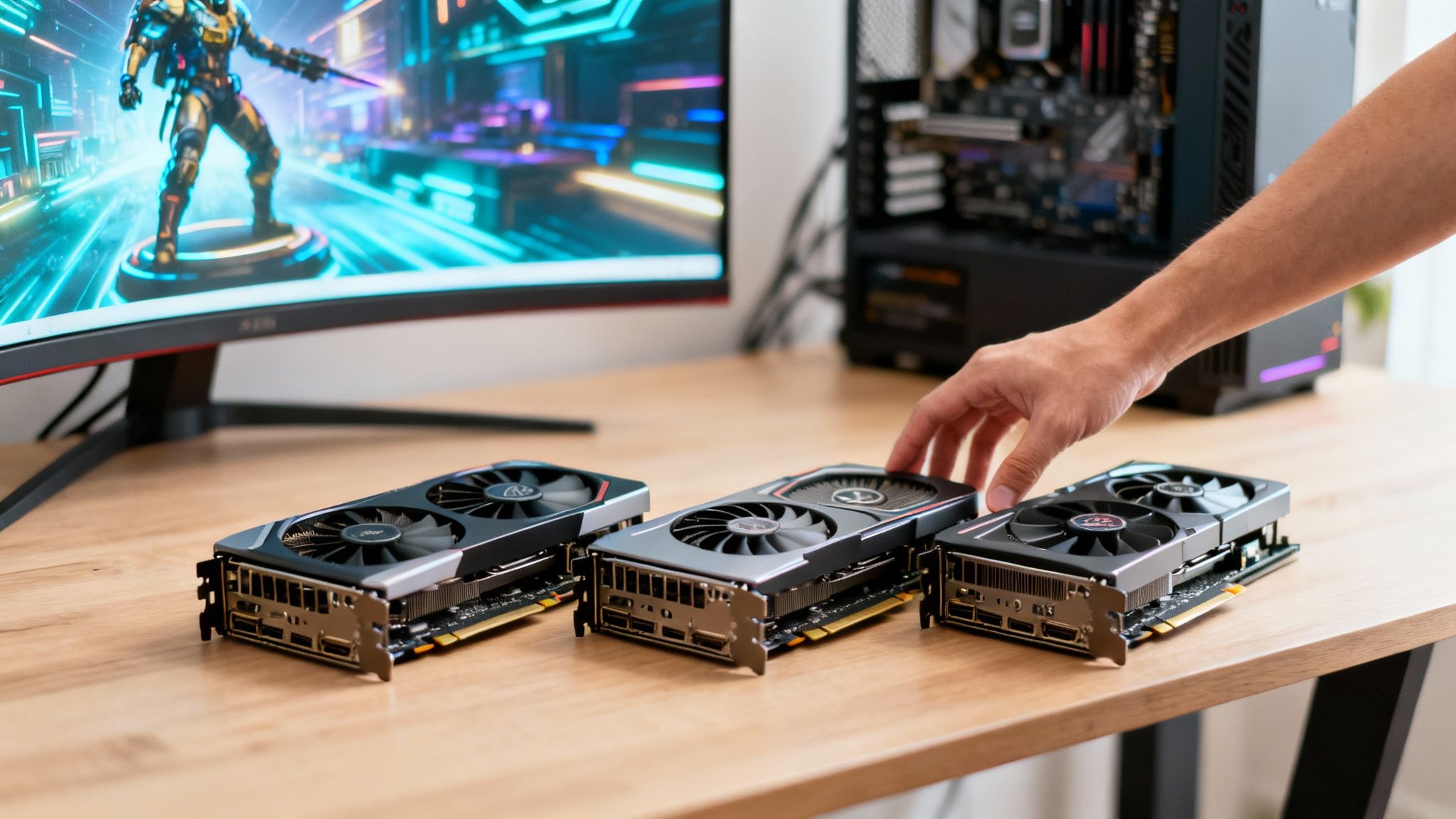
Figuring out which graphics card to buy really boils down to three things: what you'll use it for, what monitor you have, and how much you're willing to spend. Get these three locked down, and you’ll sidestep the classic mistakes—either overspending on a beast of a card you don't need or ending up with a GPU that chugs and sputters through your favorite games.
Defining Your Needs Before You Shop
Before you even think about looking at product pages or benchmark scores, take a moment to figure out what you actually need from a graphics card. It's so easy to get swept up in the marketing for the latest, most powerful GPU, but that's a fast track to buying something you'll never fully push to its limits. A little self-assessment upfront is the smartest move you can make.
The whole process starts with one simple question: What will this card be doing 90% of the time? Your answer immediately carves out a clear path and shrinks the overwhelming number of options down to a handful of solid contenders.
Identify Your Primary Use Case
Are you a competitive gamer laser-focused on hitting 240 frames per second (fps) in Valorant? Or are you looking to get lost in cinematic worlds like Cyberpunk 2077 with every visual setting cranked to the max? Maybe gaming isn't your main thing at all, and you need a workhorse for 4K video editing or complex 3D rendering.
Each of these jobs puts different demands on a GPU. A competitive gamer chasing high frame rates will prioritize raw speed at 1080p, whereas a creative professional needs tons of VRAM and specific hardware acceleration for their software.
Let's break it down into a few common profiles:
- The Competitive Gamer: All about hitting high refresh rates (144Hz or more) at 1080p or 1440p. Smoothness and responsiveness are everything.
- The AAA Enthusiast: Wants to experience the latest big-budget games at 1440p or 4K with ultra settings, usually aiming for a rock-solid 60 fps.
- The Content Creator: Needs a powerhouse for tasks like video encoding, 3D modeling, or AI work. Here, VRAM capacity and specialized driver support are king.
- The Casual Builder: Just needs a dependable card for general use and some light 1080p gaming, finding that sweet spot between performance and price.
By figuring out your main activity, you set a clear performance target. This stops you from paying extra for fancy features like ray tracing if all you play are esports titles where everyone turns it off for a competitive edge anyway.
Match Your Goals to Your Monitor
Your monitor is the other half of the equation. A graphics card's job is to pump out frames at a certain resolution, and your screen sets that target. There's just no sense in shelling out for a 4K-ready GPU if you're plugging it into an old 1080p monitor.
This flowchart lays out the decision-making process perfectly, starting with your use case before moving on to resolution and budget.
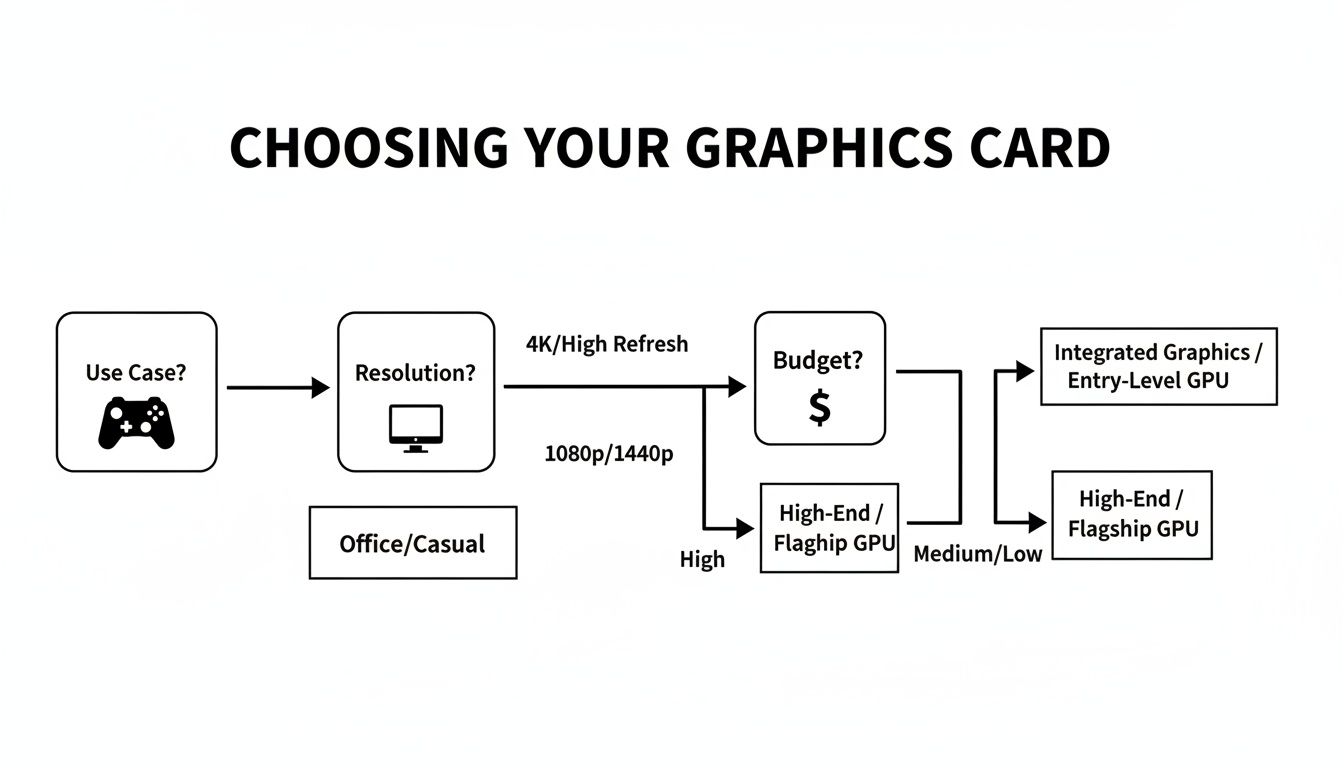
Think of your GPU and monitor as a team; for them to work well, their skills need to match. A monster GPU paired with a basic, low-refresh-rate monitor is like putting a V8 engine in a golf cart—all that power just goes to waste.
Of course, if you plan on upgrading your monitor soon, you can absolutely buy a card with that future in mind. If you're not sure what display to get, our guide on how to pick the perfect monitor for your setup can help you out.
Setting a Realistic Budget
With your use case and resolution goals clear, you can finally put a number on it. Graphics card prices are all over the place, from under $200 to well over $2,000, so setting a budget is non-negotiable.
Your performance target is going to be tied directly to the price tag. A card built for smooth 1080p gaming will always be more affordable than one designed for stunning 4K visuals with ray tracing.
Be honest with yourself about what you can spend. It’s almost always better to get the best card you can comfortably afford now for your current system, rather than stretching for a top-tier GPU that forces you to also buy a new power supply or CPU to support it. Once you've got your use case, resolution, and budget sorted, you’re ready to dive into the market with a solid plan.
Sizing Up the GPU Market
Alright, you've got your goals locked in. Now it's time to get a feel for the current landscape. When you're picking a graphics card, you're really choosing between three major players: Nvidia, AMD, and the more recent contender, Intel. Knowing who's who is a crucial first step.
This isn't just about picking a team color—green, red, or blue. Each company brings something different to the table. Nvidia, the long-time market leader, often has the inside track with game developers, so new releases might run best on their cards right out of the gate. On the flip side, AMD has built a reputation for delivering seriously competitive performance without the premium price tag, making them a go-to for savvy builders.
The whole market is buzzing with activity. The global demand for graphics cards was already valued at USD 23.57 billion in 2025 and is expected to climb to an astonishing USD 97.4 billion by 2034. That growth is fueled by everything from ultra-demanding games and AI development to professional creative work. You can see the full market breakdown from Fortune Business Insights if you want to dive deeper.
The Big Three: Nvidia, AMD, and Intel
Each brand has its own ecosystem of hardware, software features, and design philosophies. Your choice will impact everything from the upscaling tech you use to boost frame rates to the stability of your drivers.
Nvidia (GeForce RTX): As the top dog, Nvidia is famous for its robust ray tracing capabilities and its impressive AI-driven upscaling, DLSS (Deep Learning Super Sampling). Their CUDA core architecture also gives them a serious advantage in many professional apps for video editing or 3D modeling.
AMD (Radeon RX): AMD's big draw is often raw gaming power for the price. They frequently pack more VRAM into their cards at a given price point compared to Nvidia. Their upscaling technology, FSR (FidelityFX Super Resolution), is open-source, meaning it works on a huge range of GPUs—even older cards and those from their competitors.
Intel (Arc): The new kid on the block, Intel is carving out a niche in the budget and mid-range space. Early driver issues have largely been ironed out with consistent updates, making them a solid choice for 1080p gaming, especially if you're building on a tight budget and want modern features like AV1 encoding.
Let's clear up a common myth: you absolutely do not need to match your CPU and GPU brands. An AMD Ryzen CPU works perfectly with an Nvidia GeForce GPU, and an Intel Core CPU is perfectly happy with an AMD Radeon card. The real compatibility checks you need to make are with your power supply, case size, and motherboard.
How the Competition Helps You
So, what does all this corporate rivalry mean for you? It's fantastic news. The constant battle for supremacy between these brands directly impacts the performance and price of the cards on the shelf.
When one company launches a new GPU, you can bet the others will have an answer for it. This competitive back-and-forth creates clear performance tiers. For instance, the Nvidia RTX 4070 is positioned to compete directly against the AMD RX 7800 XT. Keeping an eye on these matchups is how you find the best value.
Just remember, a beastly GPU is useless if your processor can't keep up. A weak CPU will bottleneck your system, holding back your new card's potential. It's always a smart move to learn how to check what CPU you have to make sure it's a good partner for the GPU you're eyeing.
Ultimately, choosing the right card is about weighing brand-specific features against raw performance and your budget. By understanding the key players, you can make a smart, strategic choice instead of just grabbing the box with the flashiest marketing.
Making Sure Your New GPU Is a Perfect Fit
You’ve got a shortlist of promising graphics cards that match your performance goals. Awesome. But hold off on hitting that "buy" button for just a moment. There's a critical final check that even experienced builders sometimes forget: compatibility. A killer GPU is just an expensive paperweight if it won’t physically fit in your case or play nice with your other hardware.
Don't worry, this isn't as complicated as it sounds. We just need to look at four key areas: your Power Supply Unit (PSU), the physical space inside your PC case, your motherboard connection, and any potential bottlenecks from your CPU. Getting this right is the difference between a seamless upgrade and a massive headache.
Will Your Power Supply Handle It?
Think of your PSU as the heart of your PC—it pumps electricity to every single component. Graphics cards, especially the powerful ones, are the most power-hungry part of any gaming rig. If your PSU isn't up to the task, you're in for a world of random crashes, instability, or a PC that simply refuses to boot.
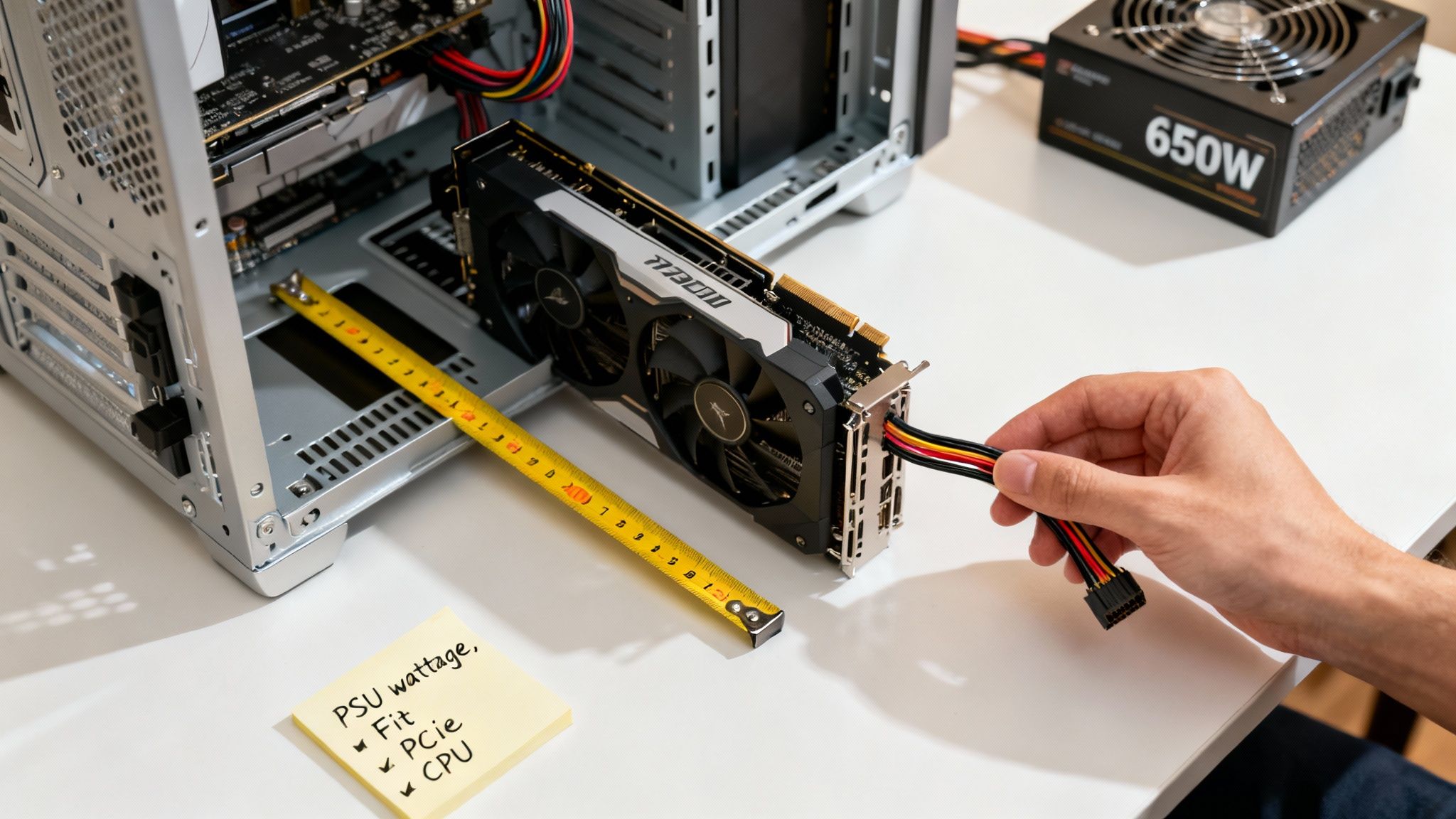
First, look at the total wattage. GPU manufacturers always list a minimum recommended PSU wattage on the product page. For example, an NVIDIA GeForce RTX 4070 generally calls for at least a 650W power supply. This figure already accounts for the power draw of an average system, so it's a solid baseline.
Next, and just as important, are the power connectors. Modern GPUs need dedicated power, often using one or more 6-pin, 8-pin, or the newer 12VHPWR connectors. Pop open your PC case and inspect the cables snaking out of your PSU; they're almost always labeled. If that card you've been eyeing needs two 8-pin connectors but your PSU only has one, you'll need to factor in a new power supply.
Expert Tip: Steer clear of power adapters that promise to convert old connectors. Using molex-to-PCIe adapters can be unreliable and, under heavy gaming loads, a potential fire hazard. It's always safer to buy a quality PSU that has the native connectors your new GPU needs.
Will the Card Physically Fit in Your Case?
This one sounds almost too obvious to mention, but you'd be surprised how often it trips people up. Graphics cards have gotten huge. Some high-end models with beefy triple-fan coolers are well over a foot long. You absolutely have to measure the space inside your PC case before buying.
Grab a measuring tape and check three key dimensions:
- Length: Measure from the metal PCIe brackets at the back of your case to whatever is at the front—usually your front case fans or hard drive cages.
- Width (or Height): See how much room there is between the motherboard's PCIe slot and the side panel of your case.
- Thickness: Note how many expansion slots the GPU will occupy. Many gaming cards are "2-slot" or even "3-slot" designs, covering up other potential slots on your motherboard.
Jot these numbers down and compare them to the official dimensions on the GPU's spec sheet. I always recommend leaving at least a little extra room for good airflow and easier cable management.
Checking Motherboard and CPU Synergy
Here's some good news: motherboard compatibility is pretty much a non-issue these days. For more than a decade, graphics cards and motherboards have all used the same PCI Express (PCIe) standard. As long as your motherboard has a full-length x16 PCIe slot (which is standard on almost any board from the last 15 years), your new card will plug right in and work.
The real concern is a potential CPU bottleneck. This is what happens when your processor is too old or slow to feed data to your powerful new graphics card quickly enough. The GPU ends up sitting idle, waiting for the CPU to catch up, and you don't get the performance you paid a premium for.
Pairing a top-of-the-line RTX 4090 with a ten-year-old Intel Core i5, for example, would be a huge waste of money. The CPU would hold it back dramatically, and your frame rates would be nowhere near the benchmarks you see online. The golden rule is to pair components from similar generations and performance tiers. A quick YouTube search for benchmarks with your specific CPU and your target GPU is the best way to see if a bottleneck is likely.
To help you visualize how these components align, here's a quick reference table.
GPU Tiers and System Requirements
| Performance Tier | Target Resolution/FPS | Example GPU Models | Recommended PSU | Ideal CPU Pairing |
|---|---|---|---|---|
| Entry-Level | 1080p / 60 FPS | RTX 3050, RX 6600, Arc A750 | 550W+ | Intel Core i3 / AMD Ryzen 3 (recent) |
| Mid-Range | 1440p / 60-120 FPS | RTX 4060 Ti, RX 7700 XT | 650W+ | Intel Core i5 / AMD Ryzen 5 (recent) |
| High-End | 1440p High FPS / 4K | RTX 4070 Ti, RX 7900 XT | 750W+ | Intel Core i7 / AMD Ryzen 7 (recent) |
| Enthusiast | 4K High FPS | RTX 4090, RX 7900 XTX | 850W - 1000W+ | Intel Core i9 / AMD Ryzen 9 (recent) |
This table gives you a great starting point for matching your ambitions with the right supporting hardware, ensuring a balanced and powerful system.
Finally, managing your system's power consumption effectively is crucial for stability and longevity. While the GPU is a big piece of that puzzle, don't forget the whole picture. For those who also work and play on the move, our guide on how to extend laptop battery life offers great tips for power management across all your devices. A holistic approach ensures everything runs smoothly.
Decoding the Specs That Truly Matter
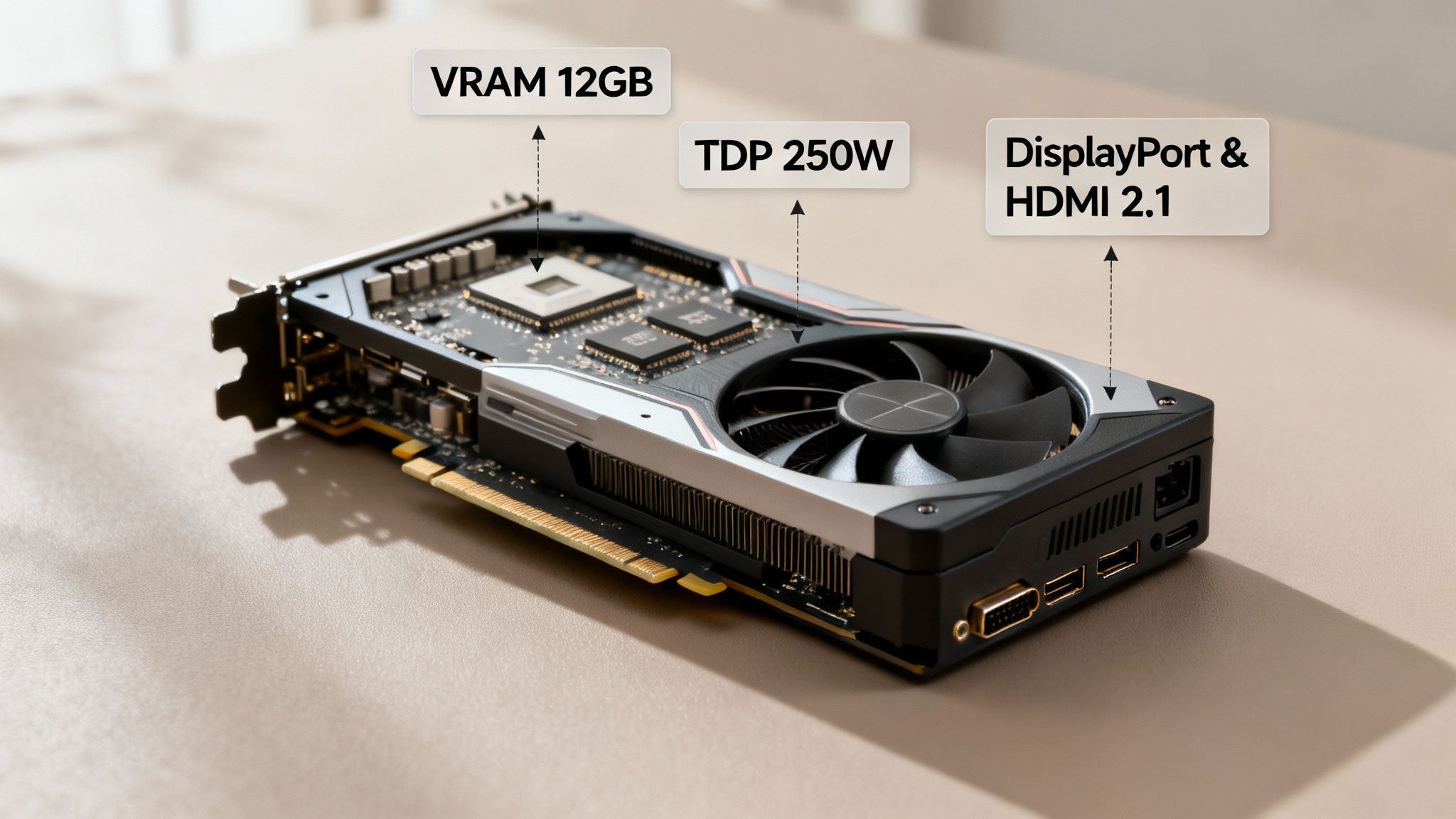
When you start comparing graphics cards, you’ll get hit with a wall of technical jargon. Don't let it overwhelm you. Most of it is just marketing noise, and only a handful of these specs have a direct, noticeable impact on how your games actually look and feel.
Learning to spot these key metrics is the secret to making a smart purchase. It lets you see past the hype and focus on what genuinely delivers better performance.
VRAM: The Fuel for High-Resolution Gaming
Think of VRAM (Video Random Access Memory) as the GPU's dedicated, lightning-fast workspace. When you're playing a game, all the high-resolution textures, complex character models, and detailed environments need a place to sit so the GPU can access them instantly.
If you run out of VRAM, your system has to scramble to pull that data from your much slower system RAM or storage. That's when you get that awful stuttering and choppy frame rates that can ruin an immersive experience.
Just a few years ago, 8GB of VRAM was the gold standard for solid 1440p gaming. But times have changed. With visually demanding titles like Alan Wake 2 or Starfield, 12GB is quickly becoming the new comfortable baseline for that resolution. If you’re aiming for 4K or love cranking up those high-res texture packs, targeting a card with 16GB or more is a very wise move.
You can’t upgrade a card’s VRAM later on. It's one of the most important specs to get right from the start, as having enough is absolutely critical for a smooth experience at higher resolutions.
Architecture Trumps Clock Speed
It’s easy to get drawn into comparing graphics cards based on their clock speed, measured in Megahertz (MHz). A bigger number seems better, right? Not necessarily. The card's architecture—its underlying design and generation—is far more important.
Imagine two car engines. One is a modern, fuel-injected V8, and the other is a massive, old-school engine from the 1970s. The older engine might boast a higher "speed" on a spec sheet, but the modern engine's superior efficiency and design mean it will produce more power and run better in every real-world scenario.
This is exactly how GPU architecture works. A newer-generation card (like an NVIDIA 40-series) will almost always outperform an older one (like a 30-series), even if the older card has a slightly higher clock speed. Always prioritize getting a card from the latest generation your budget allows.
TDP: Understanding Power and Heat
Thermal Design Power (TDP) is a simple but crucial spec, measured in watts (W). It essentially tells you the maximum amount of heat a GPU will generate under a typical heavy workload, which directly corresponds to how much power it will pull from your power supply unit (PSU).
Why does this number matter so much?
- Power Supply Needs: A beastly card with a 320W TDP, like the GeForce RTX 4080, demands a more powerful (and more expensive) PSU than a card with a 160W TDP, like the RTX 4060.
- Case Cooling: Higher TDP means more heat is being dumped into your PC case. A hot-running card requires a case with good airflow and plenty of fans to prevent it from thermal throttling—a safety feature where the GPU slows itself down to avoid overheating.
A high TDP isn't inherently bad; it's often just a sign of a very powerful card. It's simply a number you have to plan for to make sure the rest of your system can keep up. A GPU that’s constantly overheating might be a symptom of other system bottlenecks. If you're looking for ways to get the most out of your current hardware, you can find helpful advice in our guide on how to speed up computer performance.
Ports: Connecting to Your Display
Finally, take a quick glance at the back of the card. The display outputs determine what kind of monitors you can connect and what features, like high refresh rates, they can support.
Most modern graphics cards come with a standard mix of HDMI and DisplayPort outputs. The real key here is to check the version number. Look for HDMI 2.1 and DisplayPort 1.4a (or the newer 2.1). These are essential for high-refresh-rate 4K gaming because they have the bandwidth to handle all that data. If you've invested in a high-end gaming monitor, make sure your new card has the right port to unlock its full potential.
It’s More Than Just Hardware: Comparing Software and Ecosystems
When you pick a graphics card, you're not just buying a piece of silicon and a fan. You're stepping into a whole ecosystem of software, drivers, and exclusive features that genuinely shape your day-to-day experience. The battle between Nvidia, AMD, and Intel isn't just about raw horsepower; it's about their unique philosophies on how to push pixels.
This is especially obvious when we talk about performance-enhancing tech. Modern games are brutal on hardware, and sometimes even a top-tier card needs a software boost to keep frame rates smooth, particularly at higher resolutions. That's where upscaling comes in, and it's a game-changer.
The Upscaling Showdown: DLSS vs. FSR vs. XeSS
Upscaling is pure magic. The GPU renders a game at a lower, easier-to-handle resolution (like 1080p) and then uses clever AI-powered algorithms to intelligently stretch that image to fit your monitor (say, 1440p or 4K). The result? A massive FPS boost with a surprisingly small hit to visual quality.
Each team has its own special sauce:
Nvidia DLSS (Deep Learning Super Sampling): Widely seen as the king of the hill. It leans on dedicated AI hardware (Tensor Cores) inside RTX cards to reconstruct the image. The results are incredible—sometimes looking even sharper than native resolution. The latest version, DLSS 3, even adds Frame Generation, creating entirely new frames out of thin air for unbelievably smooth gameplay.
AMD FSR (FidelityFX Super Resolution): FSR's superpower is that it's open-source. It’s the universal translator of upscaling, working on just about any modern GPU, including cards from Nvidia and Intel. While the first versions couldn't quite match DLSS for clarity, the gap has closed significantly. It's a fantastic, widely available option.
Intel XeSS (Xe Super Sampling): Intel's take is a smart hybrid. It uses dedicated AI hardware on its own Arc GPUs for the best results but also offers a universal mode that works on competitors' cards, much like FSR. It's a very solid technology, especially if you're going all-in on an Intel build.
At the end of the day, your choice here really matters. If you demand the absolute best image quality and want bleeding-edge features like Frame Generation, Nvidia’s DLSS is tough to beat. But if you value open compatibility that works on any system, AMD's FSR is the people's champion.
Ray Tracing, Drivers, and Other Perks
Beyond upscaling, ray tracing is another major software-driven feature. It’s a technology that simulates how light actually works, creating stunningly realistic reflections, shadows, and lighting. It can completely change the mood of a game. All modern cards can handle it, but historically, Nvidia's hardware has maintained a performance lead in this very demanding workload.
Don't overlook driver support, either. These are the crucial software packages that let your GPU talk to your games and operating system. Bad drivers can cause crashes, visual bugs, and poor performance. Occasionally, a buggy driver can even cause bizarre system-wide issues. If you run into weird problems after an update, it might be worth checking out our guide on how to troubleshoot internet connection problems, as driver conflicts can sometimes manifest in unexpected ways.
When you look at the ecosystem, market share is a big deal. As of Q3 2025, Nvidia held a commanding 92% of the discrete graphics card market. That kind of dominance means game developers usually focus on optimizing for Nvidia hardware first, which often leads to a smoother launch-day experience. You can learn more about recent GPU market analysis on Tom's Hardware to see how these trends evolve.
Lastly, if you do more than just game, Nvidia's CUDA architecture gives them a serious edge. Many professional applications for video editing, 3D rendering, and AI development are heavily optimized for CUDA, making RTX cards the default choice for many creative pros. It all comes down to picking the brand whose software and long-term support best match what you plan to do with your PC.
Ironing Out the Final Details
You're on the home stretch. You've figured out what you need, checked your system for compatibility, and waded through the technical specs. But even now, a few common questions tend to pop up right before you pull the trigger. Let's get these sorted so you can buy with total confidence.
New Budget Card or a Used High-End Model?
This is a classic dilemma, and it's a good one to think through. For the same money, you could get a brand-new, entry-level card with a full warranty and the latest software features. Or, you could snag a used beast from a couple of years ago that might offer more raw horsepower.
The trade-off here is all about risk. That used card comes with an unknown past—was it grinding away in a crypto mine 24/7? It won’t have a warranty, and it might miss out on newer game-changing tech like DLSS 3 Frame Generation.
For most builders, especially if you're not looking for a weekend project in troubleshooting, the peace of mind from a new card is worth its weight in gold. The warranty alone is a huge plus. But, if you know what you're doing and can buy from a reputable source, a used GPU can be an absolute steal.
How to Spot a CPU Bottleneck
A CPU bottleneck is what happens when your processor can’t feed your shiny new graphics card data fast enough to keep it busy. The result is a letdown: your GPU is just sitting there, waiting, while your CPU is pegged at 100%.
The easiest way to sidestep this is through common sense pairing. You wouldn't put a race car engine in a rusty hatchback, right? The same logic applies here. Dropping a top-tier RTX 4080 in a system with a seven-year-old processor is just asking for trouble.
Here’s a quick sanity check you can do right now:
- Hop over to YouTube or your favorite tech review site.
- Search for benchmarks that use your exact CPU model with the exact GPU you're eyeing.
- Pay close attention to the performance stats in the corner of the screen. If the CPU is constantly hitting 100% usage while the GPU is chilling below 90%, that’s a clear sign of a significant bottleneck.
Founders Edition vs. Partner Cards
When a new GPU series hits the market, you'll see two flavors. There are the "Founders Edition" (FE) cards made directly by Nvidia (or reference cards from AMD), and then there are the custom "partner cards" from companies like ASUS, MSI, Gigabyte, and Sapphire. They all use the exact same GPU chip at their core, but the similarities often end there.
Partner cards are all about customization, especially the cooling. This usually translates to:
- Better Cooling: Beefier heatsinks and extra fans often lead to lower running temperatures.
- Quieter Operation: A more effective cooler means the fans don't have to spin as hard, making for a quieter rig.
- Factory Overclocks: Many come with a small performance bump straight out of the box, no tweaking required.
- More Variety: You'll find a ton of different designs, sizes, and RGB lighting options to fit your build's aesthetic.
The actual performance difference between an FE card and a good partner card is usually pretty small—we're talking just a few percentage points. The decision really boils down to what you care about most. If you want the quietest, coolest-running card or a specific look, a partner card is probably your best bet. If you like the standard design and price, the Founders Edition is a solid choice.
At Simply Tech Today, our goal is to make complex topics simple so you can make informed decisions. For more guides and clear explanations on the tech you use every day, explore our other articles at https://www.simplytechtoday.com.
Member discussion