
How to Choose the Right Laptop A Practical Buyer's Guide

I've been helping people choose the right tech for years, and the biggest mistake I see is people getting mesmerized by specs before they've answered one simple question: What are you actually going to do with this thing? Forget the marketing hype for a second. The absolute best way to buy a laptop you’ll love is to figure out how it needs to fit into your daily life.
This isn't about becoming a tech expert; it's about being an expert on you.
Figure Out What Kind of User You Are
Before you even think about processors or screen resolutions, let’s create a quick "user profile" for yourself. It’s just an honest look at your digital habits. Are you a student who basically lives in a backpack, a professional juggling a dozen browser tabs and video calls, or a creative who needs a portable powerhouse for editing photos and videos?
Your answer changes everything. That student needs a machine that's light as a feather with a battery that won't die mid-lecture. The remote worker, on the other hand, might happily trade some portability for a bigger, sharper screen and a killer keyboard for all-day typing comfort. Chasing a single "best" laptop is a surefire way to waste money on features you'll never touch.
What Do You Really Do All Day?
Get specific about your most frequent tasks. If your entire world revolves around Google Docs, email, and streaming Netflix, your needs are worlds apart from a gamer or a software developer. Don't just say it's "for work." Instead, think: "I spend my day in Slack, on Zoom calls, and wrangling massive spreadsheets."
This is how you cut through the noise. A top-of-the-line, super-expensive graphics card is dead weight if your most graphically intense task is building a PowerPoint deck. On the flip side, trying to edit 4K video on a cheap laptop with barely enough RAM is a one-way ticket to frustration city.
The real secret is to pay for the features you’ll actually use every single day. Nail down your core needs first and think of everything else as a nice-to-have bonus.
This simple flowchart is a great way to see how your primary role points you toward different priorities.
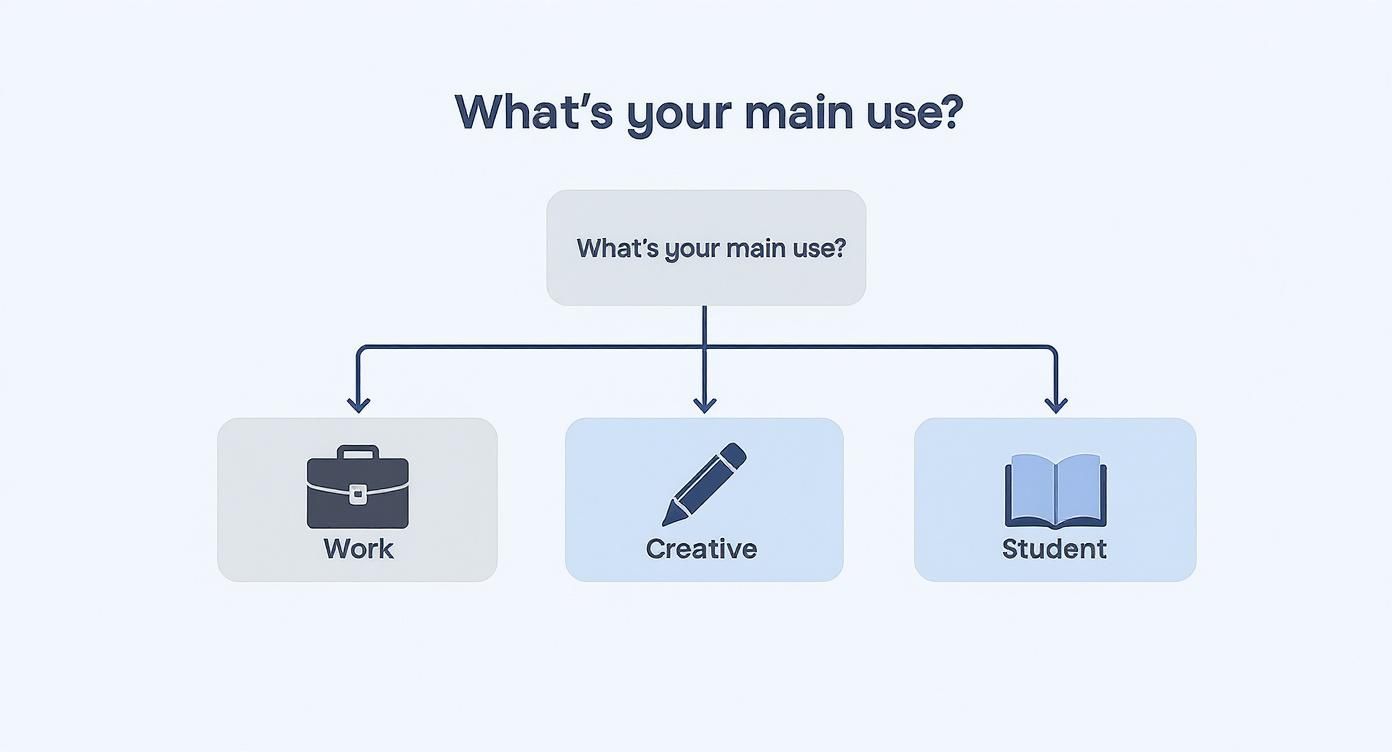
As you can see, knowing whether you're buying for work, creative projects, or school immediately helps narrow the field.
To make this even clearer, this quick reference table maps common user types to the features they should care about most.
Laptop Needs Quick Reference Guide
| User Profile | Primary Tasks | Most Important Spec | Good to Have |
|---|---|---|---|
| The Student | Note-taking, research, writing papers, streaming | Battery Life & Portability | A great keyboard, durable build |
| The Casual Home User | Web browsing, email, social media, watching videos, shopping | Screen Size & Quality | Plenty of ports, comfortable trackpad |
| The Remote Professional | Video calls, multiple apps/tabs, spreadsheets, presentations | CPU, RAM, Webcam | Excellent keyboard, multiple ports |
| The Creative Pro | Video/photo editing, graphic design, 3D modeling | Dedicated GPU, Powerful CPU | Color-accurate display, 16GB+ RAM |
| The Frequent Traveler | Email, documents, presentations on the go | Weight & Build Quality | Long battery life, Wi-Fi 6E |
This table gives you a solid starting point. By identifying which profile fits you best, you're already halfway to making a smart decision.
A Few Real-World Examples
Let's put this into practice with a few common scenarios:
The Commuting Professional: You're constantly on the move, so your laptop needs to be tough, light, and have a battery that can survive the trip from your morning espresso to your evening commute. A 13 or 14-inch ultrabook with a premium metal chassis and a focus on power efficiency is your sweet spot.
The Creative Power User: Your days are spent deep in Adobe Creative Suite, Blender, or other demanding software. As you learn more about how to use AI tools for creative work, you'll find these tasks demand serious horsepower. You need to put your money into a high-performance CPU, a dedicated graphics card (GPU), and an absolute minimum of 16GB of RAM (and honestly, 32GB is even better).
The Family's Go-To Device: This is the machine everyone grabs for homework, browsing recipes, streaming movies, and paying the bills. Here, raw power takes a backseat to reliability, a decent-sized screen (a 15-inch model is often perfect), and a keyboard that can withstand a bit of abuse.
Decoding Core Specs: CPU, RAM, and Storage
Alright, you know what you need a laptop for. Now, let's connect those needs to the hardware that actually gets the work done. The CPU, RAM, and storage are the guts of the machine—its engine, its workspace, and its filing cabinet. Getting these three right is most of the battle.
The Engine That Powers Your Work
Let’s start with the CPU (Central Processing Unit). Think of it as the laptop's engine. It’s what executes commands and runs your software, and the choice almost always boils down to Intel's Core series or AMD's Ryzen lineup. Luckily, they're both fantastic and highly competitive.
When you see names like Core i5 or Ryzen 5, just think of them as performance tiers.
For most people, an Intel Core i5 or AMD Ryzen 5 is the sweet spot. These chips offer more than enough power for everyday productivity—we're talking web browsing with dozens of tabs, running office software, and streaming video, all without a stutter.
If your work is more demanding, stepping up to a Core i7 or Ryzen 7 is where you'll feel a real difference. This is for the photographers editing chunky RAW files, developers compiling code, or anyone wrangling massive spreadsheets. For the true power users—video editors cutting 4K footage or 3D artists rendering complex scenes—a Core i9 or Ryzen 9 provides that top-tier, no-compromise performance.
A quick pro tip: A newer generation CPU often beats a higher model number from an older generation. A brand-new Core i5 can easily run circles around a Core i7 from a few years back, thanks to huge leaps in efficiency and design.
How Much RAM Do You Actually Need?
RAM (Random Access Memory) is the laptop’s short-term memory, or its active workspace. It holds all the data for the apps and files you have open right now. More RAM means you can multitask more heavily before things slow to a crawl.
Here’s a simple guide to how much you should aim for:
- 8GB RAM: This is the bare minimum for a decent experience today. It’ll handle basic web browsing and document work, but you'll feel the pinch if you try to juggle too many apps at once.
- 16GB RAM: This is the new standard for a reason. For any serious multitasker, 16GB is a must. It lets you run multiple programs, keep a ridiculous number of browser tabs open, and even edit high-res photos without your machine gasping for air.
- 32GB+ RAM: Now you're in professional territory. If your workflow involves 4K video editing, complex 3D modeling, or running virtual machines, 32GB (or more) gives you the breathing room to work without performance bottlenecks.
Storage: It's All About Speed and Space
Finally, storage is where your operating system, applications, and files live permanently. These days, there’s only one real choice for your primary drive: a Solid-State Drive (SSD). They are worlds faster than old-school Hard Disk Drives (HDDs), meaning your laptop boots in seconds and apps launch almost instantly. Don't even consider a laptop without one.
The only question left is how much space you need.
- 512GB: This is a solid starting point for most users. It provides enough room for the OS, all your essential software, and a healthy amount of personal files.
- 1TB: If you deal with large files—like a big photo library, video projects, or a collection of modern games—upgrading to 1TB is a smart move. It’ll save you the headache of constantly managing storage space.
Need even more room? External SSDs are surprisingly fast and affordable these days. You can also offload hefty files to the cloud. Learning how cloud storage works is a great way to keep your laptop’s internal drive lean and fast, reserved only for your most important programs.
Choosing Your Screen and Graphics
You’re going to spend a lot of time staring at your laptop screen, so let’s get this part right. It’s one of the single most important factors in your daily experience. A good display makes everything from answering emails to watching movies more enjoyable, while a bad one is a one-way ticket to eye strain and frustration.
When you’re thinking about how to choose the right laptop, screen size is the first big decision because it dictates portability. Those massive 17-inch screens are fantastic if your laptop never leaves your desk, but they’re a pain to haul around. This is exactly why the 14-inch laptop has become such a crowd-pleaser; it really hits the sweet spot for most of us.
In fact, market analysis shows laptops in the 13 to 14-inch range make up about 45–50% of all consumer notebook sales. It's just big enough for comfortable multitasking but small enough to slip into a backpack without a second thought. If you're curious about the numbers, you can dig into more global laptop market insights on Accio.com.
Screen Resolution: The Sweet Spot for Sharpness
Resolution is all about how sharp and crisp the image looks. It's easy to get wowed by 4K displays, but honestly, they’re often overkill on a laptop-sized screen. They also take a huge toll on your battery life and your budget.
1080p (Full HD): This is the gold standard for a reason. On a screen up to 15 inches, 1920 x 1080 pixels deliver a perfectly sharp image for text, photos, and video. It’s the ideal balance of clarity and efficiency.
QHD (1440p) and 4K (Ultra HD): These higher resolutions really only make sense for creative pros. If you’re a photographer or video editor who needs to zoom in on every last pixel, the extra detail is worth it. For everyone else, the difference is barely noticeable.
Don’t just get caught up in pixel counts. Brightness, measured in nits, is just as important. A screen with at least 300 nits is perfectly fine for most indoor settings. But if you ever work near a bright window or want to sit outside, look for 400 nits or more.
Integrated vs. Dedicated Graphics
Alright, let's talk about the engine that powers all those pixels: the graphics card, or GPU. This is where your day-to-day use case is absolutely critical. Getting this wrong means you either overspend for power you'll never use or end up with a machine that chokes on your most important tasks.
The choice really comes down to two paths.
Understanding Your GPU Needs
| Graphics Type | Best For | Who Needs It |
|---|---|---|
| Integrated Graphics | Everyday tasks like browsing, streaming video, and using office apps. | Students, remote workers, casual users, and anyone who values battery life. |
| Dedicated Graphics | Gaming, 3D modeling, high-res video editing, and AI work. | Gamers, creative professionals, engineers, and data scientists. |
Integrated graphics are built right into the main processor. They're incredibly power-efficient and are more than capable of handling what most people do on a laptop. Modern versions, like Intel's Iris Xe or AMD's Radeon graphics, can even handle some light photo editing or casual gaming without breaking a sweat.
You only need to jump to a dedicated graphics card—a separate, more powerful chip from NVIDIA (GeForce RTX) or AMD (Radeon RX)—if your work or hobbies are graphically intense. These cards come with their own memory (VRAM) and are essential for rendering complex 3D scenes or playing the latest blockbuster games on high settings. For a creative pro, a dedicated GPU isn’t a luxury; it’s a required tool for the job.
Beyond the Spec Sheet: Battery, Ports, and Build Quality
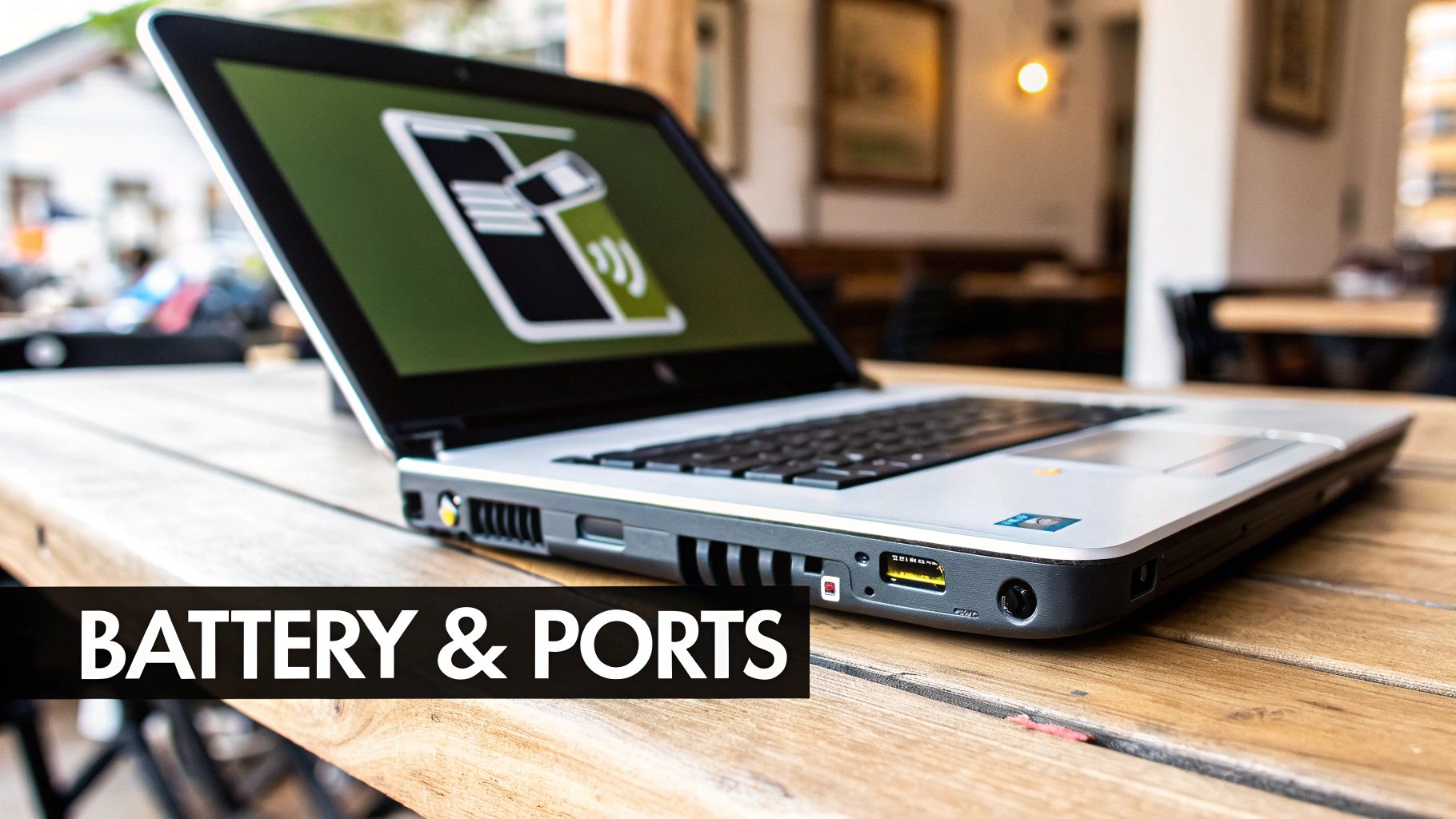
A laptop's spec sheet tells you what it can do, but its physical design dictates what it’s actually like to use. These are the things you’ll interact with every single day—the battery that gets you through a long meeting, the ports you need for a presentation, and the overall feel of the machine in your hands. This is where a good laptop becomes a great one.
Will It Actually Last All Day?
Don't be fooled by the manufacturer's advertised battery life. Those numbers are usually based on ideal, low-power tests. For a realistic picture, you need to dig into reviews that test endurance with real-world tasks like continuous web browsing or video streaming.
If you plan to be away from a power outlet for a full day of work or classes, aim for a machine that delivers 10+ hours of real-world use. The battery's capacity, measured in Watt-hours (Wh), is a good indicator—most fall between 50 Wh and 90 Wh. But remember, an efficient CPU can make a smaller battery go a surprisingly long way.
Don't Get Stuck in Dongle Hell
Your laptop's ports determine what you can connect without reaching for an adapter. Trust me, living the "dongle life" is a real pain. Think about the devices you plug in regularly—an external monitor, a mouse, a thumb drive. Lacking the right ports can turn a simple task into a daily frustration.
Here's a quick rundown of the connections that matter:
- USB-A: The classic rectangular port is still essential for countless accessories. Having at least one is a huge convenience for your mouse, keyboard, or older flash drives.
- USB-C / Thunderbolt: This modern, do-it-all port is the future. It handles charging, super-fast data transfers, and connecting high-resolution displays. Multiple USB-C ports, especially Thunderbolt-enabled ones, are a great sign of a modern machine.
- HDMI: If you give presentations or want to hook up to a TV, a dedicated HDMI port is the simplest way to do it. No fuss, no adapters.
- SD Card Reader: For photographers and videographers, this is a non-negotiable. A built-in reader saves you time and keeps a USB port free for something else.
Having a solid mix of ports just makes life easier. Of course, for files you don't need all the time, you can always offload them. Learning how to use cloud storage effectively can definitely reduce how often you need to plug in external hard drives.
A laptop's port selection should match your workflow, not force you to adapt to its limitations. Don't underestimate the simple convenience of plugging something in without searching for an adapter.
Judging a Laptop by Its Cover (and Keyboard)
Finally, how a laptop is built is about more than just aesthetics—it’s about durability and the day-to-day experience. The sturdiness of the hinge, the feel of the keyboard, and the responsiveness of the trackpad are what you'll notice most.
High-end laptops often use aluminum or magnesium alloys. These materials give them a premium, rigid feel without adding a ton of weight. More budget-friendly models will use plastic, which can still be perfectly durable but might have a bit more flex in the body and lid.
Pay close attention to the parts you touch most. A comfortable keyboard with decent key travel makes long typing sessions a breeze, and a precise, responsive trackpad makes navigating your work feel effortless. These are the things that truly shape your experience long after you've stopped thinking about the processor inside.
Setting Your Budget and Finding the Best Value
Now that you have a solid idea of the specs you need, let's get down to the brass tacks: your budget. Ultimately, choosing the right laptop is about finding that sweet spot where your needs, wants, and wallet all align. The great thing is, no matter your price point, the market today is filled with fantastic options.
Setting a realistic budget upfront is crucial. It keeps you from getting distracted by shiny features you’ll never use and prevents you from overspending. This isn't about finding the cheapest laptop, but about investing your money where it will actually make a difference in your day-to-day work.
Breaking Down the Price Tiers
Laptops generally fall into three main price buckets. Knowing what you can expect from each one helps you manage your expectations and recognize a genuinely good deal when you see it. Think of this as your roadmap.
Budget Laptops (Under $500): These are your workhorses for the basics: browsing, email, and word processing. You'll get enough power for light tasks, but expect compromises. Screens might be dimmer, the build will likely be plastic, and battery life will be just okay. They get the job done without any fuss.
Mid-Range Laptops ($500 - $1200): For most people, this is the sweet spot. You’ll see a major leap in both performance and build quality. We're talking faster processors, more RAM (8GB to 16GB is common), quick SSDs, and brighter, more vibrant displays. You also start seeing premium features like metal bodies and backlit keyboards.
Premium Laptops ($1200+): This is where you find the best of the best. You're paying for top-tier performance, incredible build quality, and innovative features. Expect the most powerful CPUs and GPUs, stunning high-resolution screens, impossibly thin designs, and fantastic battery life. This is the realm of creative professionals, power users, and anyone who simply wants the best tool for the job.
Where to Invest and Where to Save
Even with a firm budget, you'll have to make choices. For the same price, one laptop might have a faster chip while another has a beautiful, color-accurate screen. This is where your personal needs list from earlier becomes your North Star.
A writer should always put their money into an amazing keyboard before worrying about a powerful graphics card. A photo editor should do the complete opposite. Your daily workflow is what tells you where every dollar should go.
If you have a little wiggle room in your budget, the two smartest places to put your money are RAM and storage. Moving from 8GB to 16GB of RAM is a difference you will feel every single day, especially when multitasking. It's an upgrade that extends the useful life of your machine. Similarly, bumping a 256GB SSD up to 512GB will save you from the constant headache of juggling files down the road.
Where can you save? Don’t get too caught up in having the absolute latest-generation processor if last year's model is on a good sale. For most everyday tasks, the real-world performance gain is often negligible. Plus, as you work smarter, you’ll find that many of the best AI tools for productivity can offload some of the heavy lifting, making raw processing power slightly less critical. It’s all about putting your money where it counts for you.
Answering Your Final Laptop Questions
Even after you've narrowed down the specs, a few nagging questions can still hold you back. Let's walk through some of the most common dilemmas people face right before they buy, so you can feel completely confident in your final pick.
Mac vs. Windows: Which Is Right for Me?
Ah, the age-old question. Honestly, this boils down to your personal taste and what devices you already own.
Windows is all about choice. You'll find thousands of models from dozens of different brands, covering every possible price point and use case. If you're a PC gamer or love tinkering with your machine, the sheer variety and customization of Windows is tough to beat.
On the other hand, macOS is famous for its clean, user-friendly design and tight security. If you're already using an iPhone or iPad, the way MacBooks sync up effortlessly with the rest of the Apple ecosystem is a huge plus. The biggest catch? Make sure any specialized software you need for work or school is compatible before you commit.
Is an Extended Warranty a Smart Move or a Waste of Money?
This is a tricky one, and the answer really depends on how much you're spending.
For a high-end laptop that costs over $1500, adding a warranty that covers accidental damage is often a very smart investment. A cracked screen or liquid damage on a premium machine can easily cost a small fortune to fix. Think of it as peace of mind.
But for a more budget-friendly or mid-range laptop, the math isn't always so clear. The cost of the warranty itself might be close to what you'd pay for a major repair out-of-pocket, making it less of a good deal. Always check the details—most standard warranties don't cover things like battery life fading or accidental spills unless you pay for the upgraded plan.
Your laptop choice is also influenced by its underlying technology. You can learn more about how artificial intelligence works to understand the hardware needed for advanced tasks.
Do I Actually Need a Touchscreen or a 2-in-1?
A touchscreen or a laptop that can fold into a tablet is a "nice to have" for most people, but for some, it's an absolute game-changer.
Think about how you'll use it. If you're a student who prefers jotting down notes by hand, a digital artist who lives by their stylus, or a professional who gives interactive presentations, a 2-in-1 design is incredibly useful.
If your laptop time is mostly spent typing documents and browsing the web, a traditional clamshell design will serve you just fine—and you’ll often get more performance for your money.
At Simply Tech Today, we aim to make technology clear and simple. Check out our latest articles for more easy-to-understand guides and tech news at https://www.simplytechtoday.com.
Member discussion