
Boost Your Battery: how to extend laptop battery life with simple tips
If you're looking for the quickest, most effective ways to make your laptop battery last longer, you can usually boil it down to three things: turning down the screen brightness, switching on your OS power-saver mode, and shutting down apps you aren't using. Just doing these three things can often stretch your unplugged time by an hour or more, which is a game-changer when you're on the move.
Your Quick Guide to Longer Laptop Battery Life
It’s incredibly frustrating to feel chained to a power outlet, but you don't need to be a tech wizard to get more out of your battery. The biggest victories in battery conservation come from a few smart adjustments that take just a few seconds. These are the easy wins, the simple habits that make a real, noticeable difference.
Let's start with the most power-hungry part of your laptop: the screen. It’s a massive energy drain, sometimes responsible for up to 40% of the total power your laptop uses. I've seen it time and again—just knocking the brightness down from 100% to around 50% can give you an extra 30-50% of runtime. That’s a huge return for such a small change.
Start with the Basics
Beyond manually dimming the display, your operating system has a built-in "easy button" for power savings. Whether you're on Windows or macOS, there's a "Battery Saver" or "Low Power Mode" waiting for you. A single click tells your laptop to immediately dial back its performance, pause background tasks, and dim the screen for you. It's designed to squeeze every last bit of juice from the battery when you need it most.
These simple, high-impact tweaks are often all you need to get through a meeting or a long flight.
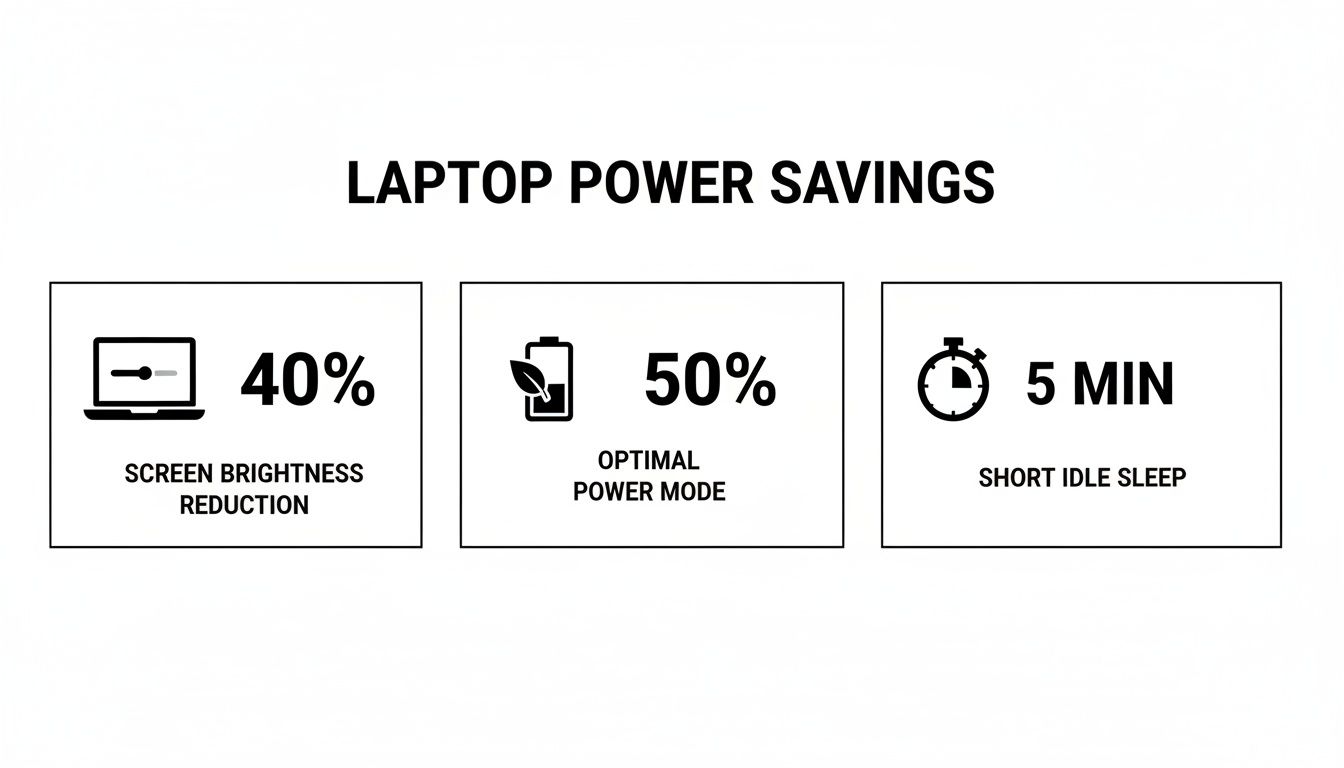
Finally, get into the habit of checking what's running behind the scenes. It's often the little things that add up. Cloud-syncing tools like Dropbox, chat apps, and browsers loaded with dozens of tabs are notorious for silently chipping away at your battery. Closing anything you don't need right now is an instant, free boost to your runtime. These are universal principles that apply to any device, and they're good to keep in mind when you're learning how to choose the right laptop for your needs down the road.
To give you a clearer picture, here’s a quick rundown of the easiest adjustments you can make right now and the kind of impact you can expect.
Quick Fixes for Immediate Battery Savings
| Tweak | Estimated Daily Gain | Effort Level |
|---|---|---|
| Reduce Screen Brightness to 50% | 30-60 minutes | Very Low |
| Enable OS Power-Saver Mode | 20-40 minutes | Very Low |
| Close Unused Background Apps | 15-30 minutes | Low |
| Turn Off Keyboard Backlight | 10-20 minutes | Very Low |
These small actions add up quickly. By combining just a few of them, you can easily reclaim a significant portion of your day without being plugged in.
Mastering Your OS Power Settings for Peak Efficiency
Your laptop's operating system has a ton of built-in tools for managing power, but let's be honest—the default settings are almost always a compromise, leaning toward performance instead of battery life. Digging into these power plans is one of the most impactful things you can do to squeeze more time out of a charge, and you don't have to install a single piece of software.
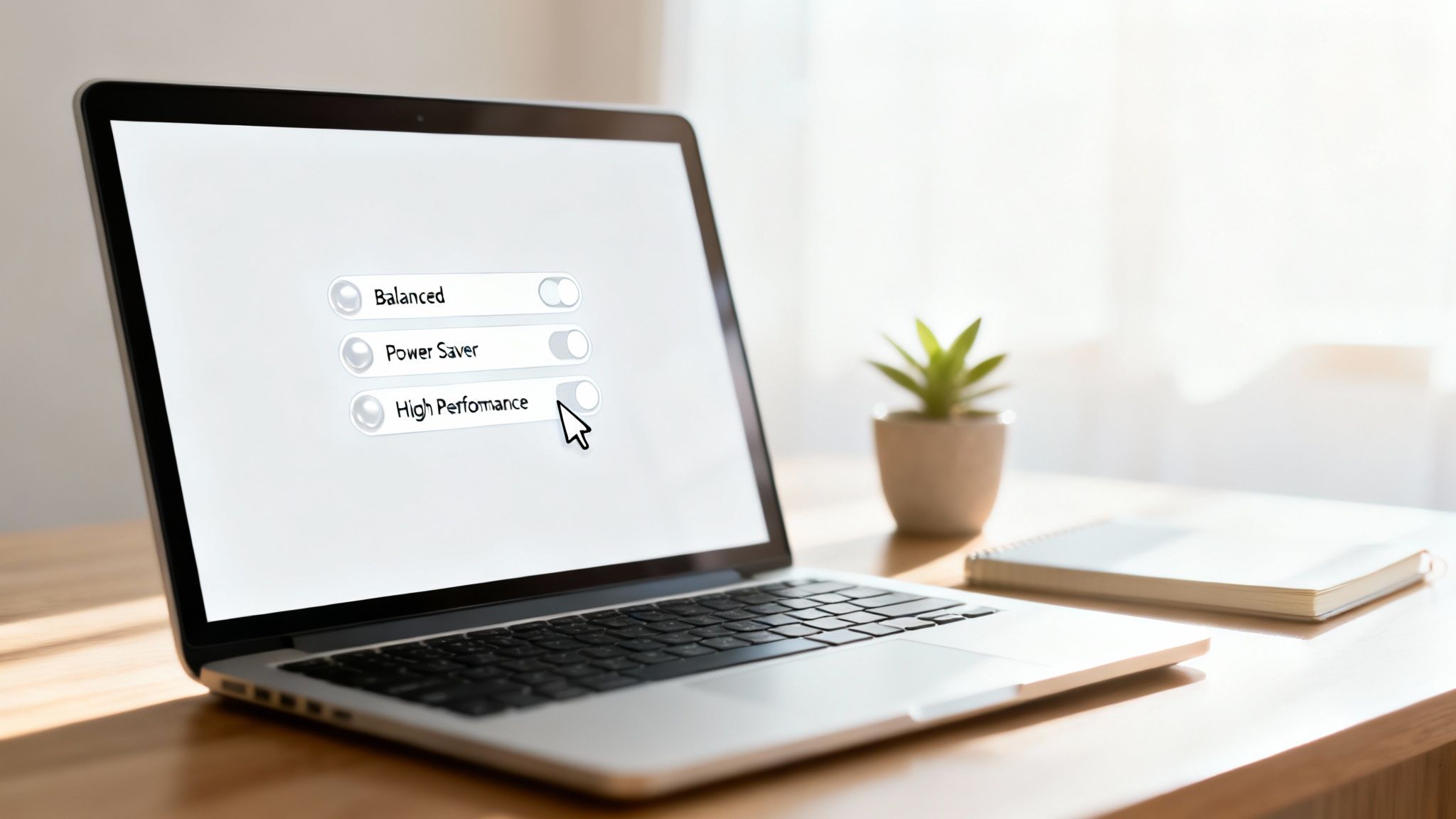
Think of these settings like different gears in a car. You wouldn't drive on the highway in first gear, right? In the same way, you don't need your laptop running in "High Performance" mode just to type up an email. Most of the time, your laptop is probably sitting on the "Balanced" setting, which is fine. But when you're far from an outlet and every minute matters, it's time to take the wheel.
Tweak Your Power Plan for Maximum Gain
For Windows users, the quickest win is the power slider. Just click the battery icon in your taskbar. You'll see options like Best performance, Balanced, and Best battery life. Just sliding it over to Best battery life tells your system to immediately dial back performance, dim the screen, and put background tasks on pause. I’ve seen this simple switch alone add a solid 20-40 minutes of runtime. Easy.
But you can get even more granular. I'm a big fan of creating custom power plans for specific situations. For instance, you could set up a "Coffee Shop Mode" that aggressively puts the hard drive to sleep after a few minutes of inactivity, caps the maximum processor state at 50%, and shortens the display-off timer. This level of control turns your laptop into a purpose-built, power-sipping machine.
You don't have to live with the factory defaults. Creating custom power plans for different scenarios—like a "Focus Mode" for writing or a "Presentation Mode" for meetings—gives you precise control over your battery consumption. It’s a game-changer.
MacOS Low Power Mode and Energy Saver
Apple users have a fantastic and simple tool called Low Power Mode. If you're using a recent version of macOS, it’s a one-click fix that immediately reduces your system's clock speed and display brightness, which makes a huge difference in power draw during normal use.
For example, enabling Low Power Mode also limits background network activity. This is incredibly helpful when you're on a spotty Wi-Fi connection, as it stops your machine from constantly wasting battery trying to find and maintain a strong signal. Of course, improving your connection helps, too; you can learn more about how to improve Wi-Fi signal strength in our other guide.
Toggling this on is one of the most effective things you can do when you're untethered from the wall. It's smartly designed to give you the longest possible runtime by managing performance for the things you do most, like browsing the web or working on documents.
Building Smart Charging Habits for Long-Term Battery Health
How you charge your laptop is every bit as important as how you use it on the go. A lot of the old "rules" you might have heard about batteries just don't apply anymore, and sticking to them can actually do more harm than good. Our goal here isn't just about squeezing out more time from today's charge; it's about making sure your battery can hold a strong charge for years to come.
I see this all the time: people push their batteries to the absolute limits. They routinely charge it all the way to 100% and leave it plugged in, or they let it drain completely to 0% before scrambling for an outlet. This cycle puts a ton of stress on the lithium-ion cells. Think of it like stretching a rubber band as far as it can go, over and over. Eventually, it just loses its snap. The same thing happens to your battery's ability to hold a charge.
This constant strain speeds up chemical degradation, which is the real reason a two-year-old laptop might only last half as long as it did out of the box. The good news is, you can slow this process way down just by building smarter habits.
Embrace the 20 to 80 Percent Rule
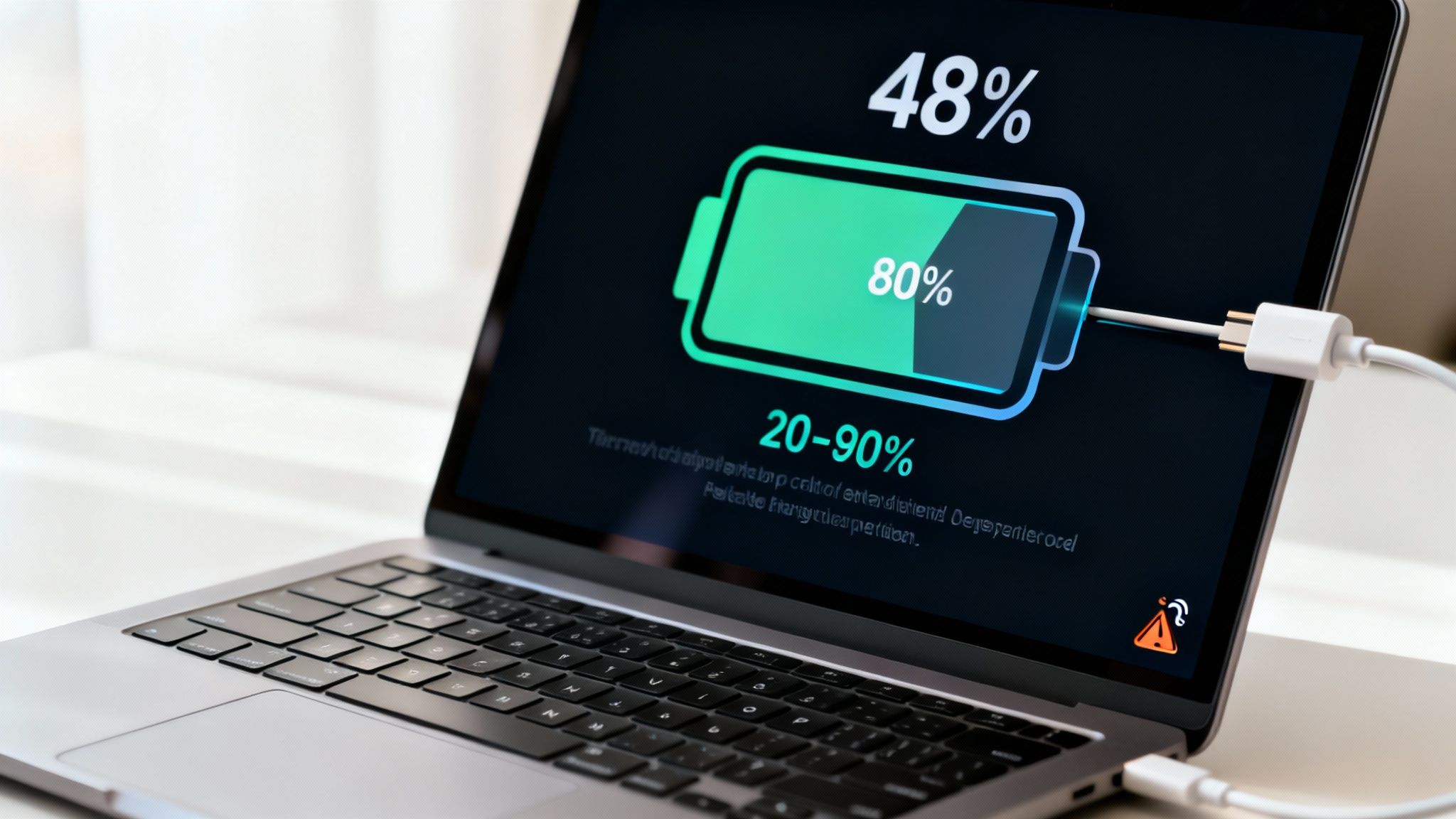
One of the single most effective things you can do for your battery's long-term health is to follow the "20-80 rule." The idea is incredibly simple: whenever possible, try to keep your battery's charge level between 20% and 80%. This is the "sweet spot" that minimizes stress on the battery's internal components, and it dramatically slows down the rate at which its capacity fades.
This isn't just an old wives' tale; it's backed by solid science. Sticking to the 20-80% range can actually boost your battery's usable lifespan by up to 50%. The lithium-ion batteries found in over 95% of laptops made since 2010 simply degrade fastest at the extremes—fully charged or fully depleted. Data shows these batteries are rated for about 300-1,000 charge cycles, but by keeping them in that 20-80% zone, you can preserve 90% of their capacity after 500 cycles, instead of watching it plummet to 70%.
The biggest takeaway here is to avoid the extremes. Don't leave your laptop sitting on the charger at 100% for days, and really try not to let it die completely. Small, frequent top-ups within that 20-80% range are so much healthier for your battery than long, full charge-and-discharge cycles.
Use Smart Charging Features
Thankfully, laptop manufacturers get this and have started building in tools to help us out. Most modern operating systems and firmware now have smart charging features that can automate this 80% limit for you, which is a game-changer.
- Windows: A lot of laptops, especially from brands like Dell, HP, and Lenovo, come with companion apps. Dig around in there for a "Conservation Mode" or "Battery Health Mode." This setting will stop charging once the battery hits a preset level, like 80%, even if it stays plugged in.
- macOS: Apple handles this with "Optimized Battery Charging." It cleverly learns your daily routine. If you typically charge your MacBook overnight, it will pause the charge at 80% and then finish topping it off to 100% right before you usually unplug in the morning.
These features are designed specifically to protect your battery from the stress of being held at a full charge. Turning them on is one of the easiest "set it and forget it" ways to extend your battery's lifespan. If you're someone who spends a lot of time plugged into a dock, these settings are an absolute must. Automating good habits is a powerful trick, much like discovering practical ways to reduce screen time to reclaim your focus.
Keep Your Laptop Cool
Finally, let’s talk about heat. Heat is the silent killer of laptop batteries. High temperatures speed up the chemical reactions inside the battery that cause it to degrade over time. Charging naturally generates some heat, so when you combine that with a hot environment, you're just asking for trouble.
A simple rule of thumb I always share is to never charge your laptop on a soft surface like a bed, couch, or pillow. Those materials are great insulators, which means they block the air vents and trap heat, causing the whole system to get dangerously warm.
Always charge on a hard, flat surface like a desk or table where air can circulate freely. If you ever notice your laptop getting unusually hot while charging, do it a favor: unplug it for a bit and let it cool down.
Hunting Down Power-Hungry Apps and Processes
Have you ever closed your laptop with a full charge, only to open it an hour later and find a huge chunk of your battery has vanished? The usual culprit is a rogue app or a hidden background process just chewing through your power.
Learning to be a bit of a battery detective is one of the quickest ways to get more life out of a single charge, and you don’t even have to change your habits. Your operating system already has all the tools you need—you just have to know where to look.
Using Your System Tools to Find the Culprits
On a Windows machine, your best friend is the Task Manager. The fastest way to pull it up is with the keyboard shortcut Ctrl + Shift + Esc.
Once it's open, you might need to click "More details" at the bottom. Look for the "Power usage" and "Power usage trend" columns. This view gives you a live, real-time look at which apps are drawing the most power right now.
For macOS users, the tool you're looking for is the Activity Monitor, which lives in your Utilities folder. Once you open it, click over to the "Energy" tab. This pane clearly shows the "Energy Impact" of every app and process, making it incredibly easy to spot the biggest drains.
I was once shocked to find a simple note-taking app consistently at the top of my list. As it turned out, a syncing feature had gotten stuck in a loop. A quick restart of the app fixed it instantly and gave me back a noticeable amount of battery life.
Taming Unnecessary Startup Programs
So many applications these days try to launch themselves automatically every time you turn on your laptop. While that’s handy for some things, having cloud clients, chat apps, and software updaters running from the get-go is a surefire way to drain your battery.
Here's how to stop them:
- On Windows: Open Task Manager (Ctrl + Shift + Esc) and click the "Startup" tab. You'll see every program that launches on boot. If you see something you don't need running all the time, just right-click it and hit Disable.
- On Mac: Go to System Settings > General > Login Items. Take a look at the apps under "Open at Login" and just remove anything you don’t need starting up immediately.
Cleaning up this list won't just save battery; it will make your computer start up a lot faster, too. Our guide on how to speed up computer performance dives deeper into tweaks like this.
Pro Tip: Your web browser is often the single biggest battery hog. Dozens of open tabs, especially ones with ads or auto-playing videos, can eat up a surprising amount of CPU power, which hits your battery hard.
A fantastic fix for this is to use a browser extension that automatically "snoozes" or "suspends" inactive tabs. These tools stop tabs from using resources until you click back on them. Making this one simple change can easily save you 15-30 minutes of battery life over a day of heavy browsing.
Hardware Upgrades and Maintenance That Boost Battery Life
Software tweaks will only get you so far. At a certain point, the biggest gains in battery life come from the hardware humming away inside your laptop. With a little bit of maintenance and a couple of strategic upgrades, you can dramatically change how long you can stay unplugged.
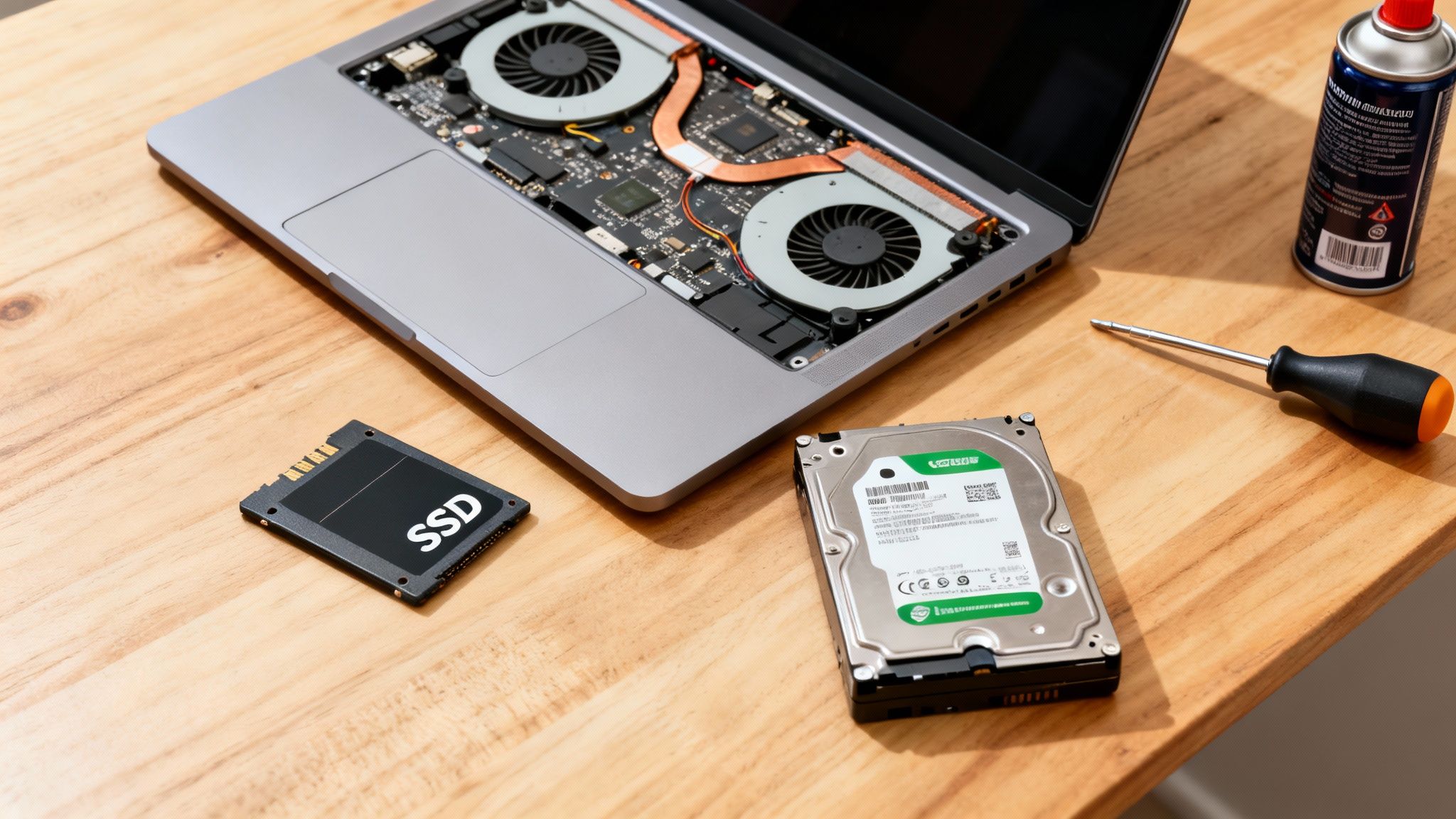
One of the most common power drains that people miss is heat. Over time, the fans inside your laptop get clogged with dust and lint, forcing them to spin faster and work harder just to keep things cool. All that extra effort eats up your battery. A quick, careful cleaning with a can of compressed air can make a surprising difference.
The Single Biggest Hardware Upgrade
If your laptop is still running on an old-school spinning hard disk drive (HDD), the most impactful upgrade you can possibly make is swapping it for a Solid-State Drive (SSD). Think about it: an HDD is a mechanical device with a platter that’s always spinning, constantly drawing power. An SSD, by contrast, has zero moving parts and uses way less energy.
Making the switch from an HDD to an SSD isn't just about making your laptop feel snappier—it can extend its usable battery life by a whopping 20-40%. A typical hard drive can pull 5-7 watts even when it’s just sitting idle, while an SSD often uses less than 1 watt. Real-world tests show that this simple swap can add an extra 1-2 hours of runtime per charge. That's a game-changer.
Consider a RAM Upgrade
Another smart hardware move is to add more Random Access Memory (RAM). When your laptop runs out of available RAM, it starts using a portion of your hard drive as "virtual memory." This process is incredibly slow and power-hungry, especially if you're still on an HDD.
By giving your system more RAM to work with, you cut down on its need to rely on that power-draining virtual memory. Your laptop can juggle more tasks at once without constantly having to access the storage drive, which saves a noticeable amount of battery.
This is especially true if you're the kind of person who has dozens of browser tabs open while running multiple applications. More RAM means smoother multitasking and less stress on your battery. It's fascinating how these physical changes make such a difference, much like the progress we're seeing in other areas of hardware, like the new generation of color e-ink screens.
Your Top Laptop Battery Questions, Answered
Even after you've made all the right tweaks, some questions always seem to pop up. The world of laptop batteries is full of old myths and confusing advice, so let's cut through the noise.
Here are straight answers to the most common things people ask, so you can stop guessing and start managing your battery with confidence.
Is It Bad to Leave My Laptop Plugged In All the Time?
This is the big one, and the short answer is: it’s not ideal. Modern laptops are smart enough to stop charging at 100%, so you don't have to worry about "overcharging" in the old sense. However, keeping the battery constantly topped off at 100% puts a lot of stress on its internal chemistry, especially when combined with the heat from the laptop itself. Over time, this stress permanently reduces how much of a charge it can hold.
The best habit is that 20-80% rule we talked about earlier. But what if you use your laptop as a desktop replacement? In that case, check your manufacturer’s software.
- Most major brands like Dell, Lenovo, and HP have a "conservation mode" or "battery health" setting.
- Flipping this on tells your laptop to stop charging at around 80%, which is a fantastic way to protect the battery during long sessions at your desk.
How Can I Check My Laptop's Battery Health?
Knowing where you stand is half the battle. Thankfully, both Windows and macOS have great built-in tools that give you a clear report card on your battery's long-term health, not just its current charge level.
If you're on a Windows machine, it's pretty straightforward:
- Open the Command Prompt as an administrator.
- Type
powercfg /batteryreportand hit Enter. - Windows will generate a detailed report as an HTML file and tell you where it's saved. Open it up, and you'll see your battery's original design capacity right next to its current full-charge capacity.
For MacBook users, it's even simpler. Just hold down the Option key and click the little battery icon in your menu bar. You’ll see a "Condition" status. "Normal" is great, but "Service Recommended" is a heads-up that it's starting to wear out.
This quick check is your best tool for seeing if your battery is aging gracefully or heading for an early retirement. Once a battery drops below 80% of its original capacity, you'll really start to feel the shorter runtime.
Does Turning Off Wi-Fi and Bluetooth Really Save That Much Battery?
It absolutely does. It might not seem like much, but your laptop’s wireless radios are constantly searching for networks and devices, even when you aren't connected. That constant scanning creates a slow, steady drain that really adds up over a few hours.
Think about it this way: if you're on a plane writing a report, you don't need Wi-Fi. Toggling on Airplane Mode is one of the easiest wins for extending your battery life. The same goes for Bluetooth—if you're not using your wireless mouse or headphones, switch it off. It’s a small habit that pays off.
When Is It Actually Time to Replace My Laptop Battery?
Ultimately, the right time to replace your battery is when it just can't keep up with your day anymore. Most laptop batteries are built for somewhere between 500 and 1000 charge cycles. After that, their ability to hold a charge drops off a cliff.
Here are the tell-tale signs that it’s time for a change:
- You’re lucky if you get an hour of unplugged use.
- Your computer flashes a "Service Battery" warning.
- The laptop dies suddenly, even when the meter says you have 20% or 30% left.
- You notice the laptop case is bulging. This means the battery is swelling, which is a serious safety risk. Get it looked at immediately.
At Simply Tech Today, our goal is to provide clear, practical tech advice that helps you get the most out of your devices. Explore more guides and tips at https://www.simplytechtoday.com.
Member discussion