
How to Factory Reset Android Phone: how to factory reset android phone safely
Thinking about a factory reset usually conjures up images of a drastic, last-ditch effort to fix a phone. In essence, that's what it is: a complete wipe of your personal data that returns the software to the state it was in when you first took it out of the box.
It’s the go-to solution for serious software glitches, a crucial step before selling your phone, and a powerful way to secure your data if you think you've been hacked.
Why and When to Factory Reset Your Android Phone
Before you hit that final button, it’s important to know exactly what a factory reset does—and whether it’s the right call for your current problem. Think of it as a digital deep clean. It gets rid of all the apps, photos, accounts, and custom settings you’ve accumulated. While it's incredibly effective, it's not always the first thing you should try for minor hiccups.
So, when is it actually the right move? There are a few key situations where a factory reset is not just a good idea, but an absolute necessity.
Preparing a Device for a New Owner
This is the number one reason people do it. If you're selling, trading in, or even just giving your phone to a family member, you need to wipe it clean. Just deleting your files doesn’t cut it.
A factory reset is the only way to be certain the next owner can’t stumble upon your Google account, saved passwords, or personal photos. With Android powering roughly 71.7% of mobile devices globally, a massive number of people need to do this correctly every single year. It’s just part of being a responsible device owner.
Resolving Persistent Software Problems
Ever had a phone that just won’t stop crashing? Or maybe it freezes constantly, or the battery drains in a few hours for no apparent reason. When a simple restart doesn't fix it, these kinds of deep-seated issues often point to corrupted software, app conflicts, or a system update that went wrong.
A factory reset can be a lifesaver here. By clearing everything out, it gives your device a completely fresh start and can bring its performance back to life.
Responding to a Security Breach
If you have a sneaking suspicion your phone has been hit with malware or a virus that your security apps can't seem to get rid of, a factory reset is your best line of defense. Wiping the device is often the most reliable way to eliminate malicious software that has dug its way deep into the system.
It's a critical move for taking back control and is a great first step when you're learning how to protect your privacy online after you've been targeted.
Your Pre-Reset Checklist: Don't Wipe Your Phone Without Doing This First
Jumping straight into a factory reset is a recipe for disaster. Think of it like moving out of your apartment without packing your boxes—you're guaranteed to lose something important. Before you even think about tapping that reset button, there are a few crucial things you need to do.
Taking a few minutes to prepare is the single most important part of this whole process. It's what separates a smooth, painless reset from a day filled with regret over lost photos, missing contacts, or worse, a bricked phone.
Not sure if a reset is even the right move? This quick flowchart can help you decide.
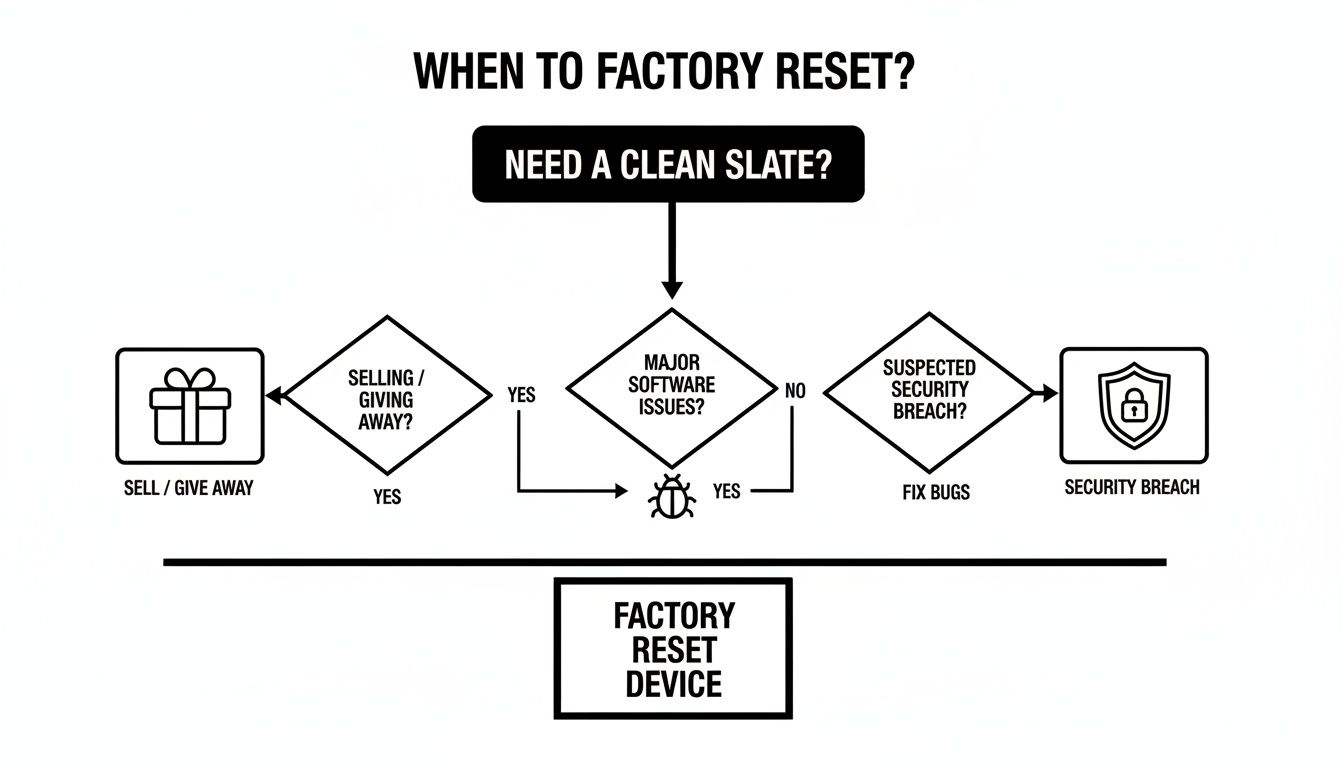
As you can see, a full reset is usually the best option when you're selling the device, trying to fix stubborn software glitches, or cleaning up after a security breach.
I've put together a simple table outlining the essential prep work. Follow these steps in order, and you'll protect your data and avoid getting locked out of your own device.
Essential Pre-Reset Checklist
| Action Item | Why It's Important | Quick Tip |
|---|---|---|
| Back Up Everything | A factory reset erases all personal data. Without a backup, your photos, contacts, and files are gone forever. | Use Google Photos for media and check that your contacts are synced to your Google account. Don't forget downloaded files! |
| Remove Your Google Account | This deactivates Factory Reset Protection (FRP), a security feature that can lock the phone to your account after a reset. | Go to Settings > Accounts, find your Google account, and tap "Remove account." This is a must if you're selling the phone. |
| Charge Your Phone | A reset can take a while. If the phone dies mid-process, it can corrupt the software and cause serious problems. | Make sure your phone has at least 70% battery or, better yet, keep it plugged in during the entire reset process. |
| Note Your Wi-Fi Password | After the reset, your phone will be like new and won't remember any of your Wi-Fi networks. | Just jot it down somewhere safe so you can get back online quickly during the initial setup. |
Let's break down a couple of these points in more detail because they are that important.
Back Up Everything That Matters
Your first job is to get a complete copy of your data safely off the phone. While most modern Androids have great cloud integration, you can't just assume everything is being saved automatically. It pays to be paranoid here.
- Photos and Videos: Double-check that Google Photos is set to back everything up. You can also play it safe by connecting your phone to a computer with a USB cable and dragging the files over manually.
- Contacts and Calendar: Make sure these are synced with your Google account. You can usually confirm this under
Settings > Google > Backup. - Apps and Their Data: Newer Android versions do a decent job of backing up app data and settings to Google Drive, which makes setting up the phone again much faster.
- The Forgotten Files: Don't forget about the random stuff—PDFs in your Downloads folder, music files, or critical codes from authenticator apps. Move them to a computer or cloud storage.
If you need a more detailed walkthrough, our guide on how to back up your phone's data covers all the bases.
Remove Your Google Account to Avoid FRP Lock
I can't stress this enough: this is the most critical step, especially if the phone is leaving your possession. Android's Factory Reset Protection (FRP) is a security feature designed to stop thieves from just wiping a stolen phone and using it.
If you reset the phone while your Google account is still signed in, FRP will demand your Google password during the setup process. This makes the phone a paperweight for anyone else.
To avoid this headache, just go to Settings > Accounts (sometimes called Users & accounts), tap on your Google account, and select "Remove account." This tells the phone you're authorizing the reset and deactivates FRP. It’s a simple step that prevents a massive problem.
The Three Proven Ways to Factory Reset Your Android
Knowing how to factory reset your Android phone isn't a one-size-fits-all deal. The right method really depends on the situation you're in. Is your phone working just fine? Is it stuck in a frustrating boot loop? Or worse, is it lost or stolen?
Don't worry, there's a specific approach for each scenario. Let's walk through the three most reliable ways to wipe your phone and get it back to its original state.
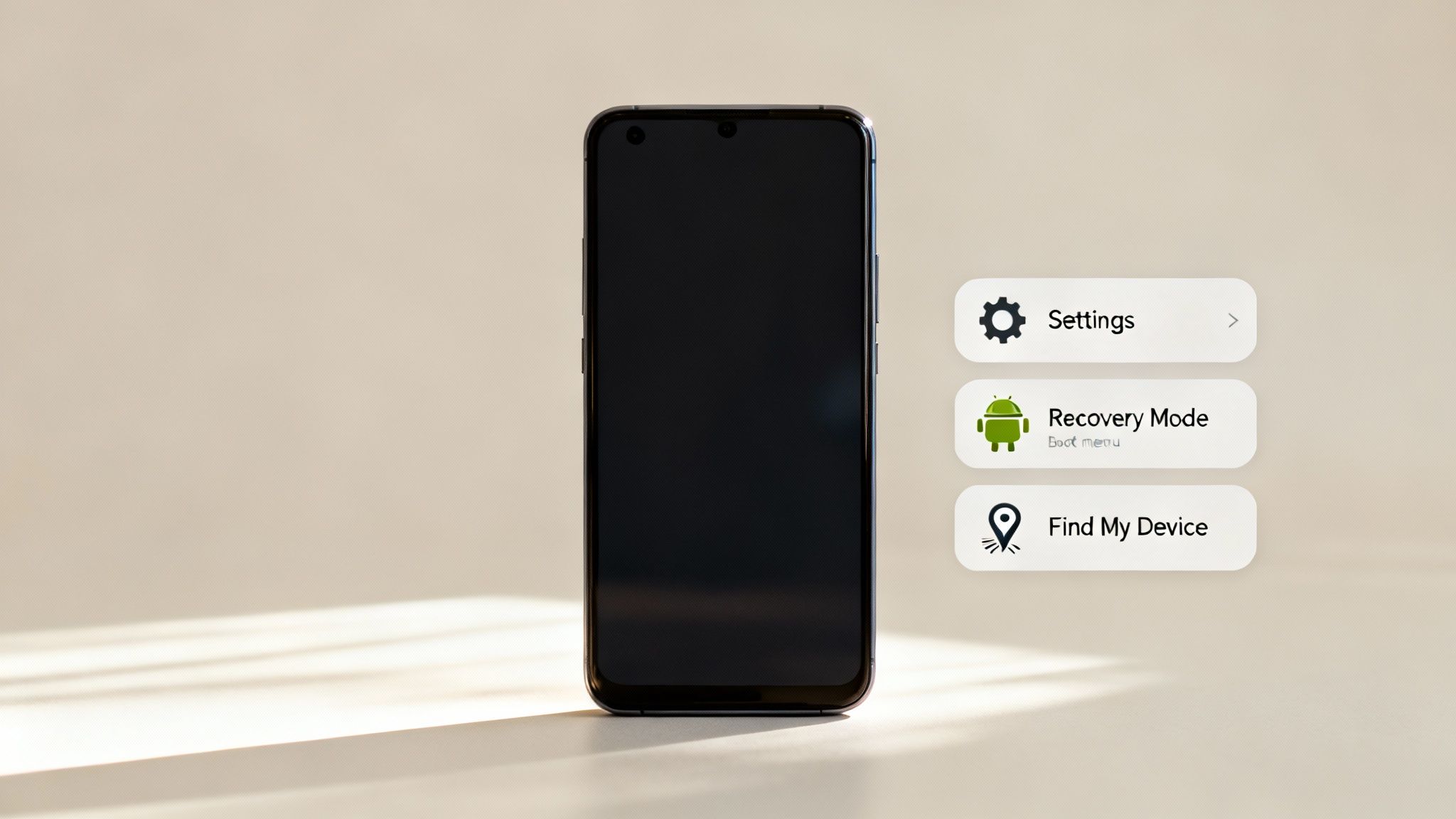
We’ll start with the everyday method through the Settings menu, then cover the more technical Recovery Mode for phones that won’t cooperate, and finally, the remote wipe for those worst-case scenarios.
Method 1: The Standard Reset Through the Settings Menu
This is the path 99% of people will take, and for good reason—it’s simple and built right into your phone's software. If you can turn your phone on and get to your apps, this is your method. It’s perfect for when you're getting ready to sell or trade in your device, or just want that clean-slate feeling.
While the exact labels might differ slightly between manufacturers, the path to get there is nearly universal.
- First, open your Settings app.
- Scroll until you see System or General Management.
- From there, look for an option like Reset or Backup and reset.
- Finally, tap Factory data reset or Erase all data (factory reset).
Your phone will then give you one last look at everything that's about to be deleted. This is your final chance to double-check your backups! You'll need to enter your PIN or password to confirm, and then the reset begins. After a few minutes, your phone will restart and greet you with the original setup screen, just like it was new.
A Quick Reminder: Before hitting that final button, make sure you've removed your Google account as we talked about earlier. And if you're jumping ship to an iPhone, it’s a good idea to see how to sign out of Apple ID too—properly signing out of accounts is a universal best practice.
Method 2: Using Recovery Mode When Your Phone Won’t Boot
So, what happens if your phone is completely unresponsive? Maybe it’s stuck on the startup logo or caught in an endless reboot cycle, a problem we call a "bootloop." When the main Android system won't load, Recovery Mode is your lifeline. It's a separate, low-level environment that lets you perform critical tasks, including a full factory reset.
Getting into Recovery Mode means pressing a specific combination of physical buttons while the phone is powered off.
- Most Samsung Phones: Hold down Volume Up + Bixby (if it has one) + Power.
- Google Pixel Phones: Hold down Volume Down + Power.
- OnePlus and Many Others: The common combo is Volume Down + Power. A quick search for your exact model will always give you the right key press.
Once you’re in, you’ll see a simple, text-based menu. The volume buttons are your up/down navigation, and the power button is your "enter" key. Just navigate to Wipe data/factory reset, select it, and confirm your choice. Once the process is finished, select Reboot system now, and your phone will restart, completely wiped clean.
Method 3: The Remote Wipe with Google’s Find My Device
This one is your emergency button for a lost or stolen phone. If you can’t get your device back, you can at least protect your data. As long as the phone is on, has an internet connection, and location services are enabled, you can erase it from anywhere using a web browser.
Here’s how to do it:
- On any computer or another device, go to android.com/find.
- Log in with the same Google account that’s on your missing phone.
- You’ll see a list of your devices; select the one you need to wipe.
- Click the Erase device option.
You will have to confirm the action, and be warned: this is permanent. Once you do this, you can no longer track the phone's location. Think of it as a last resort to protect your privacy when you know the phone is gone for good.
Setting Up Your Phone After the Reset
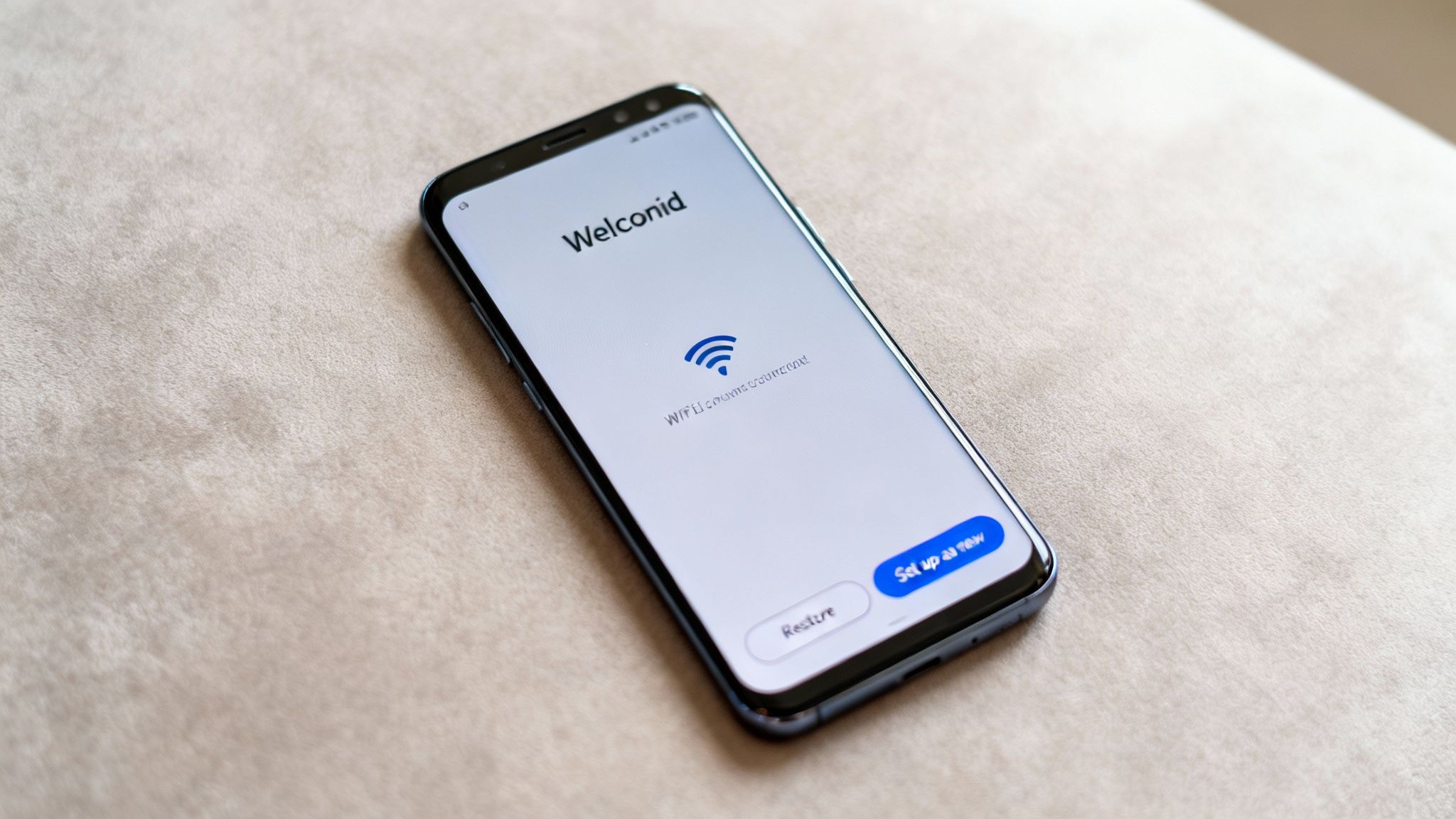
So, the factory reset is done. You're looking at that familiar "Welcome" screen, the same one you saw when you first pulled the phone out of its box. This is your clean slate, and the next few moves are all about making this device yours again.
First things first, you'll pick your language and get connected to a Wi-Fi network. Once you're online, Android will ask you to sign in with your Google account. This is a crucial step—it’s what tethers the phone back to your digital world, pulling in your contacts, calendar, and all the apps you’ve bought from the Play Store over the years.
To Restore or Start Fresh
After you’ve signed in, you'll hit a fork in the road: restore from a backup or set the phone up as new. The right choice here really depends on why you did the reset in the first place.
If you wiped your phone to squash a nasty bug—maybe it was lagging, crashing, or just acting strange—I almost always recommend choosing “Set up as new.” Why? Because restoring a backup can bring back the exact corrupted file or wonky app setting that was causing the headache. A clean start is the only way to be sure the problem is gone for good.
On the other hand, if you just reset the phone to get it ready to sell or because you were upgrading, restoring from a backup is a huge time-saver. It brings all your apps, data, and settings back in one go. If you are moving to a brand-new phone, our guide on how to transfer data to a new phone walks through making that switch as smooth as possible.
Rebuilding Your Digital Space
Decided to start fresh? Great. The next step is to manually rebuild your digital life on the device. It sounds like a chore, but honestly, it’s a golden opportunity to ditch the clutter and be more deliberate about what you install.
Here’s how I usually tackle it:
- Install the essentials first. I head straight to the Google Play Store and grab my "can't-live-without" apps—messaging, banking, social media, and anything for work.
- Get the settings right. Then, I’ll dive into the Settings menu to tweak the small things that make a big difference, like screen brightness, notification sounds, and dark mode. Setting up my preferred keyboard is always high on the list.
- Log into everything. One by one, I sign back into all my apps. This is where a good password manager becomes your best friend, turning a painful process into a few quick taps.
Taking the time to set things up manually pays off. You end up with a faster, cleaner, and more organized phone, free of the digital junk you didn't even realize you’d accumulated.
Troubleshooting Common Factory Reset Issues
Even a process that seems simple can throw a curveball. Trying to factory reset your Android phone and hitting a snag is frustrating, especially when the device is already acting up. Let's walk through some of the most common headaches you might encounter and how to solve them.
Most of the time, whether your phone refuses to start the reset or gets stuck mid-process, there's a way forward. It just takes a bit of patience and knowing the right steps.
Your Phone Is Stuck on the Startup Logo
This is a classic—the dreaded "bootloop." Your phone gets stuck on the Samsung, Google, or OnePlus logo and just keeps restarting. It’s incredibly annoying, but it usually just means the phone's software is corrupted and can't finish loading the operating system. Since you can't get into your phone, a reset from the Settings menu is off the table.
In this situation, your best friend is Recovery Mode. This special, pre-boot menu lets you perform a reset directly, bypassing the broken software.
- First, power the phone down completely. If it’s stuck in the loop, you may need to hold the power button for about 30 seconds to force it off.
- Next, use the specific button combo for your model (often Volume Down + Power) to boot into Recovery Mode.
- You'll see a simple, text-based menu. Use the volume keys to move down to Wipe data/factory reset and press the power button to confirm.
This direct approach almost always breaks the bootloop and gets your device working again.
The Dreaded Factory Reset Protection Lock
So you finished the reset, and you're feeling good. But during the setup process, the phone demands the password for a Google account you either don't recognize or can't remember. You've just run into Factory Reset Protection (FRP).
FRP is a security feature designed to make a stolen phone useless to a thief. It automatically kicks in if a reset is performed without first removing the primary Google account from the phone's settings.
There's no magic button here. The only legitimate way to get past the FRP lock is to enter the email and password for the Google account that was on the device before the reset. This is exactly why removing your account before selling a phone is so critical.
If you're locked out of your own phone, your only real move is to go through Google’s account recovery process on a computer or another device. Once you've successfully reset your password, you can use the new credentials to unlock your phone.
The Reset Process Fails or Freezes
Sometimes, you’ll kick off the reset, and it just hangs. It might show an error message and stop, or it could get stuck on a progress screen for hours. What gives?
This can happen for a few reasons: low battery, corrupted system files, or even a spotty internet connection if the phone is trying to verify something online. (For other network-related problems, you might find our guide on how to troubleshoot your internet connection helpful).
If a reset freezes up, your first step should be a hard reboot—hold the power button for 30 seconds. Before you try again, make sure your phone has at least 70% battery. I’d also recommend using Recovery Mode this time around, as it provides a more direct and reliable wipe.
Interestingly, while a standard factory reset is fine for most personal use, it's falling out of favor in professional circles. A report from security firm Blancco revealed that by Q3 2018, only 1% of their mobile processing clients used the standard Android reset. Over 70% had switched to more advanced data erasure software to guarantee no recoverable data was left behind.
Got Questions About Wiping Your Android? We’ve Got Answers.
Wiping your entire phone is a pretty big deal, so it's completely normal to have a few questions before you hit that final button. Think of this as your last-minute checklist to make sure you know exactly what you’re getting into.
Let's clear up some of the most common uncertainties I hear from people.
Does a Factory Reset Really Delete Everything?
Pretty much, yes. When you factory reset your phone, you're wiping everything from its internal storage. We’re talking apps, photos, text messages, your Wi-Fi passwords, custom settings—the lot. It goes back to the digital equivalent of how it was when you first took it out of the box.
But there are a couple of things it won't touch:
- Your SIM card: Any contacts you’ve specifically saved to your SIM will still be there.
- Your microSD card: The reset won't affect files on an external SD card. That said, I always recommend pulling it out beforehand, just to be on the safe side. You can never be too careful.
Will Resetting My Phone Roll Back Android Updates?
Nope. A factory reset won't downgrade your operating system. If you updated to Android 14 last week, your phone will still be running Android 14 after the reset is complete.
The process only erases your personal data and installed apps. The core system files, including all the security patches you've installed, are left intact. This is great because you get a fresh start without compromising on security.
Think of it this way: a factory reset cleans out all the furniture and personal clutter from a house. It doesn't tear down the foundation or replace the walls with older ones. Your current OS is the foundation—it stays.
Is There Any Way to Get My Data Back After a Reset?
On any modern Android phone, the answer is a hard no. This is because today's devices use strong file-based encryption by default. During a factory reset, the unique encryption keys that unlock your data are permanently destroyed.
Without those keys, your files are just a scrambled mess of unreadable code. It's a fantastic security feature that stops anyone from accessing your data, but it also means there's no turning back. This is exactly why getting your backup right is so critical.
What’s This “Factory Reset Protection” Thing?
Ah, Factory Reset Protection (FRP). This is a security feature that can really trip people up. If you reset a phone without first removing the Google account signed into it, FRP will activate. When the phone reboots, it will demand the username and password of that exact Google account before it can be set up again.
It's a brilliant anti-theft tool. But if you're the one doing the reset (especially to sell or give the phone away), it can be a real headache. To avoid locking yourself out, you absolutely must go to Settings > Accounts and manually remove your Google account before you initiate the reset.
At Simply Tech Today, we’re all about making technology simple and accessible. For more no-nonsense guides and practical tips, take a look at our latest articles at https://www.simplytechtoday.com.

Member discussion