
How to Fix Slow Internet Connection: how to fix slow internet connection fast
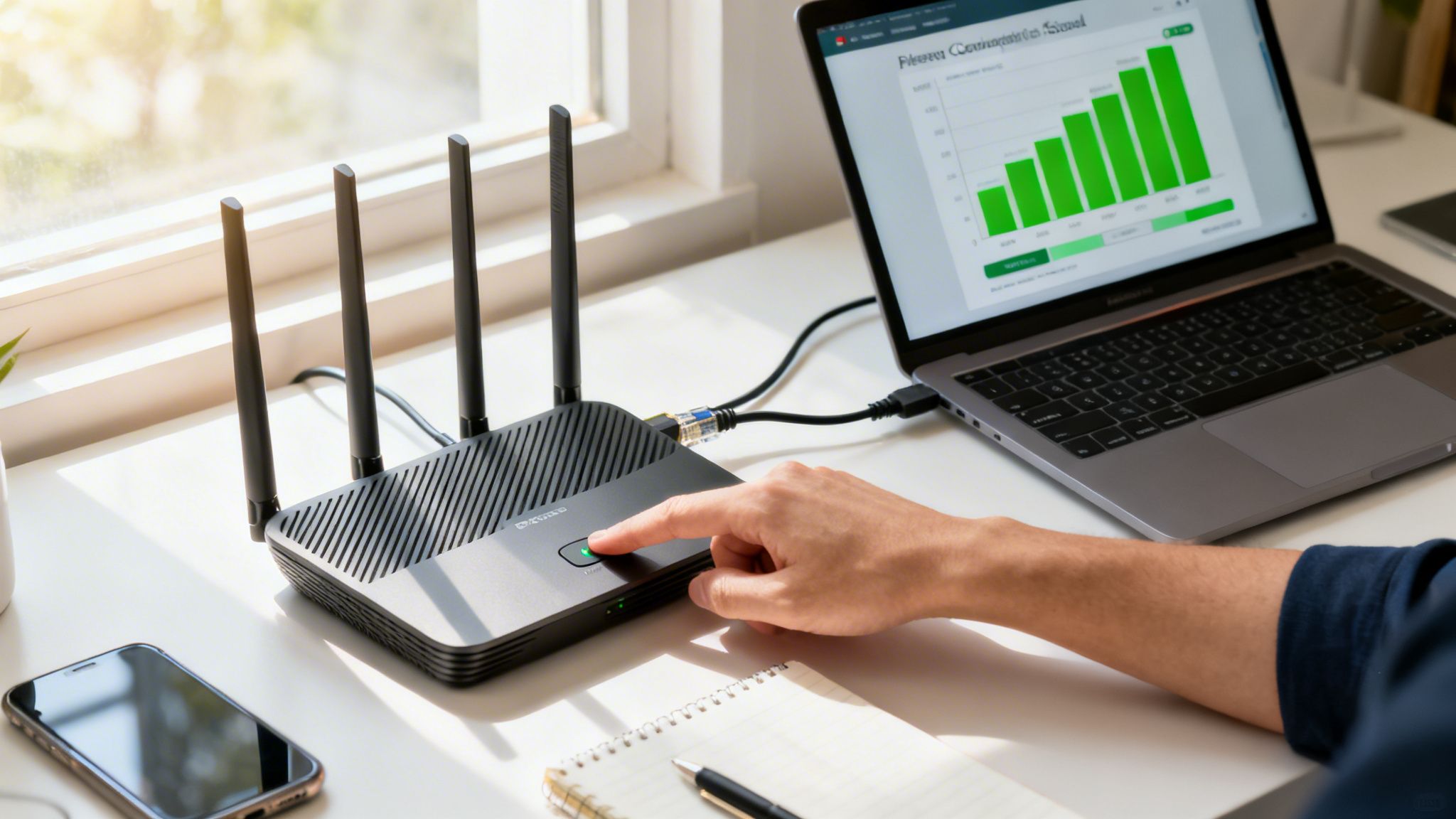
Before you spend an hour on the phone with your internet provider, let's figure out what's really going on. The first move is always the same: run a quick speed test and then do a simple wired vs. wireless comparison. This one-two punch cuts through the noise and tells you whether the problem is your Wi-Fi or the actual internet connection coming into your house.
Your First Move in Diagnosing a Slow Connection
We've all been there—staring at that spinning loading icon, feeling our patience wear thin. But jumping straight into random fixes is a great way to waste time. A smart diagnosis starts with data. Before you touch a single cable, you need a baseline. Head over to a trusted site like Speedtest.net or Fast.com and see what you're working with.
These tests will spit out three important numbers:
- Download Speed: This is how fast your device can pull down information from the internet. It’s the number that matters most for streaming Netflix, loading websites, and downloading files. If you're paying for 500 Mbps, this number should be in that ballpark.
- Upload Speed: This one measures how fast you can send information out. Think video calls, backing up photos to the cloud, or online gaming—that's all upload speed.
- Ping (or Latency): Measured in milliseconds (ms), this is your connection's reaction time. A low ping (under 50 ms) is what you want for snappy online gaming and clear video chats. A high ping is what causes that frustrating lag.
The Decisive Wired vs. Wireless Test
Once you have your Wi-Fi speed, it’s time for the most important diagnostic step you can take. Grab an Ethernet cable and plug a computer directly into one of the open LAN ports on the back of your router. Now, run the speed test again and put the two results side-by-side.
This single test answers the biggest question in internet troubleshooting: is the problem inside my house or outside?
The Bottom Line: If your wired speed is blazing fast but your Wi-Fi is sluggish, the problem is almost certainly your Wi-Fi setup. This could be anything from router placement to signal interference. If your wired speed is also slow, the issue is likely with your Internet Service Provider or the connection itself.
Sometimes it helps to have a quick reference for these initial steps. I've put together a small table to summarize the most effective first moves.
Quick Troubleshooting Checklist
| Action to Take | Why This Works | Estimated Time |
|---|---|---|
| Run a Wi-Fi Speed Test | Establishes a baseline for your current wireless performance. | 1-2 minutes |
| Run a Wired Speed Test | Isolates the problem by testing the connection directly from the source. | 3-5 minutes |
| Compare the Results | The difference tells you if the issue is your Wi-Fi or your ISP. | 1 minute |
Following this checklist helps you avoid guesswork and focus your efforts where they'll actually make a difference.
This flowchart maps out the thought process for that initial diagnosis.
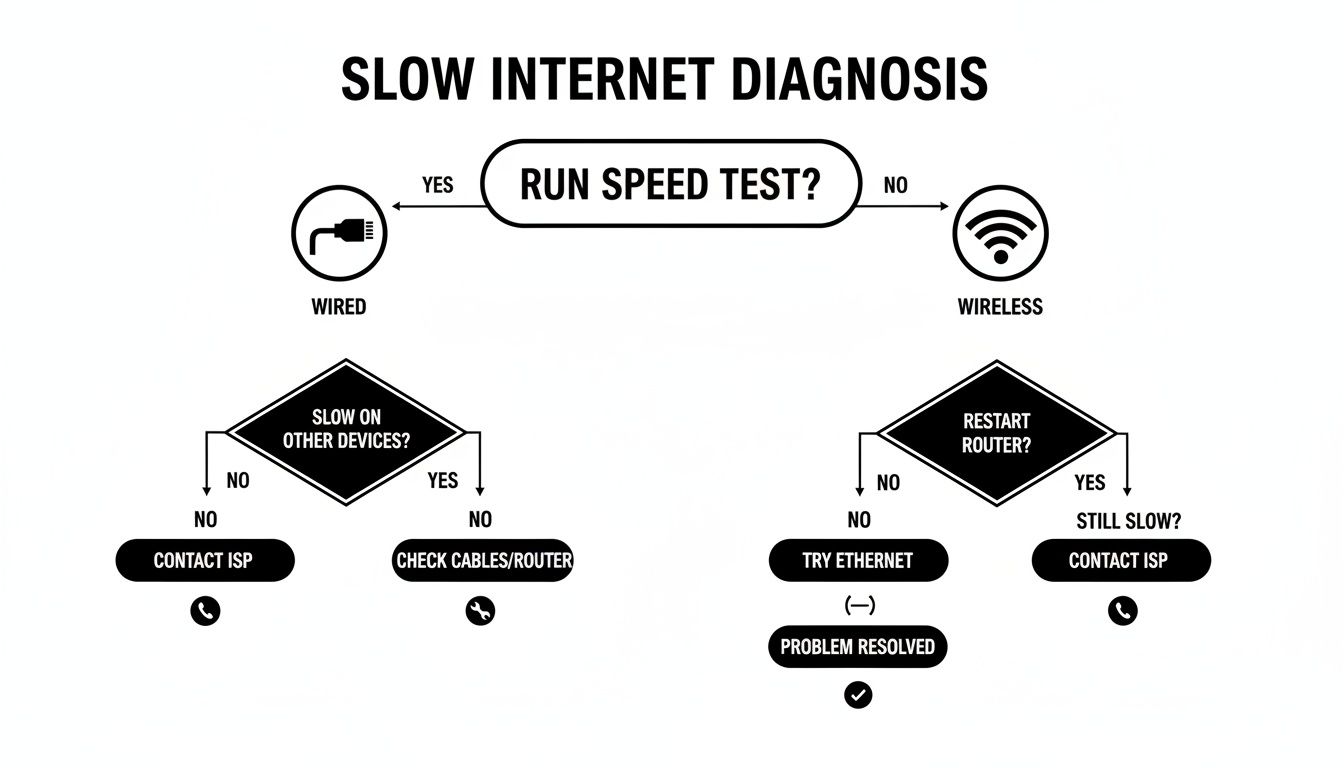
As you can see, comparing your wired and wireless speeds is the fork in the road that guides everything else. From here, you can dig into more specific solutions. For a deeper dive, you can learn more about how to troubleshoot internet connection issues in our detailed guide. Knowing where the problem starts is half the battle won.
Quick Fixes That Can Make a Huge Difference
Now that you have a better idea of what’s going on, let’s try a few simple but surprisingly effective solutions. I can’t tell you how many times a frustrating internet slowdown was solved in minutes with one of these tricks. These are the go-to first steps any IT pro would take, mainly because they work so often.
The All-Powerful Reboot
We'll start with the undisputed champion of tech fixes: a good old-fashioned restart. It sounds almost too simple, but power-cycling your gear is a powerhouse move. It clears out temporary glitches in memory, cools down overworked components, and flushes out software bugs that can bog down your connection over time.
Just pulling the plug and plugging it back in is the general idea, but doing it in the right order is key to forcing a clean reset.
- First, unplug the power cords for both your modem and your router.
- Now, wait for a full 60 seconds. This is crucial. It gives the internal components time to fully power down and clear their memory.
- Plug the modem back in first. Let it do its thing—the lights will blink for a few minutes before turning solid. You're waiting for the power, receive, send, and online lights to stabilize.
- Once the modem is fully back online, you can plug your router back in and wait for its lights to settle.
This sequence forces your modem to establish a brand-new, clean connection to your internet provider, which often wipes out whatever was causing the slowdown.
Change Your DNS Server
Think of the Domain Name System (DNS) as the internet's address book. When you type in a website, your computer asks a DNS server to look up the correct IP address. By default, you’re using your ISP's DNS, which can get congested and slow, especially when everyone in your neighborhood is online.
Switching to a fast, public DNS server is a fantastic trick. Top options like Cloudflare's 1.1.1.1 or Google's 8.8.8.8 are often much quicker. While this won't change your raw download speed, it can make websites start loading noticeably faster because that initial "lookup" happens in a flash.
A faster DNS response shaves milliseconds off every website you visit, every image that loads, and every ad that appears. Those tiny savings add up, making your whole browsing experience feel much snappier.
You can typically change this setting right in your computer’s network preferences or within your router’s admin settings.
Hunt Down Bandwidth Hogs
Sometimes the problem isn't your internet connection at all—it’s a program on your computer secretly eating up all your bandwidth. These background processes are notorious for slowing you down without you even realizing it.
Keep an eye out for these common culprits:
- Cloud Syncing: Services like Dropbox, Google Drive, or OneDrive can bring your connection to a crawl when they're syncing huge files.
- Automatic Updates: Think Windows Update, massive game downloads from Steam, or Adobe Creative Cloud updates running when you least expect it.
- Peer-to-Peer (P2P) Software: Torrent clients are designed to use as much upload and download bandwidth as they can get.
Pop open Task Manager (on Windows) or Activity Monitor (on macOS) and click on the "Network" column to sort by usage. If you see an app at the top that’s unexpectedly guzzling data, try closing it.
If it feels like your entire computer is sluggish, not just your web browser, the issue might be broader. In that case, it’s worth looking into how to speed up your computer's performance for a more comprehensive fix.
How to Optimize Your Wi-Fi Network

So, your direct, wired speed test came back looking great, but your Wi-Fi is still crawling at a snail's pace. Good news: you’ve found the bottleneck. The issue isn't the internet service your ISP is delivering; it's the wireless signal bouncing around inside your home.
This is a surprisingly common scenario. Many people don't realize that up to 75% of internet performance issues are caused by factors right inside their own walls, not their provider. Something as simple as placing your router next to a microwave can slash your signal strength by up to 30%. It’s a huge drop, but thankfully, you have a lot of control over your local network.
For a broader look at how speeds vary worldwide, you can find some fascinating data on Statista.com.
Find the Perfect Router Placement
Where you put your router is probably the single biggest factor for good Wi-Fi. It’s tempting to tuck it away in a cabinet or a corner office to hide the blinking lights, but that’s a recipe for a weak, unreliable signal.
The best strategy is to place it in a central, elevated location. Think of your Wi-Fi signal like a lightbulb—you want it high up in the middle of the room so its light reaches everywhere evenly. A high shelf in your main living area is often the perfect spot.
Switch to a Less Crowded Wi-Fi Channel
If you live in an apartment or a dense neighborhood, your router is essentially competing with dozens of others, all trying to talk over each other on the same frequencies. This digital shouting match is called channel interference, and it’s a notorious Wi-Fi speed killer.
You can use a Wi-Fi analyzer app (there are plenty for both phones and computers) to see which channels are the least congested in your area. Once you find a clearer channel, just log in to your router’s settings and manually switch over.
For the 2.4 GHz band, channels 1, 6, and 11 are the only non-overlapping options. Sticking to one of these is almost always your best bet to dodge interference from your neighbors' networks.
Use the Right Wi-Fi Band for Each Device
Most modern routers are "dual-band," meaning they broadcast on two different frequencies. Knowing when to use each one can make a world of difference.
- 2.4 GHz Band: This band has a longer range and is much better at getting through walls and other obstacles. It’s perfect for devices that are far from the router or don’t need blistering speeds, like smart speakers or a thermostat.
- 5 GHz Band: This one is all about speed. It offers a much faster connection but has a shorter range. You’ll want to reserve this band for your high-priority devices that are relatively close to the router, like your streaming TV, gaming console, or main work computer.
Separating your devices this way is like creating an express lane on the highway for your most important traffic.
Keep Your Router Firmware Updated
Just like your phone or computer, your router runs on its own software, known as firmware. And just like any other software, it needs occasional updates. These updates often contain critical security patches, bug fixes, and performance tweaks that can directly boost your internet speed.
Many newer routers handle updates automatically, but it’s still smart to log into your router's admin panel every now and then to check for a new version manually. This simple step ensures your hardware is running as efficiently and securely as possible. For more practical advice, check out our guide on how to improve your Wi-Fi signal strength.
Targeted Adjustments for Your Devices
So, your wired connection is blazing fast and you’ve already tweaked your Wi-Fi settings, but your MacBook is still crawling? Or maybe your Android phone takes forever to load a simple webpage? When one device is slow while others are fine, the problem is almost always with the device itself.
It's easy to blame the network, but often it's the machine in your hands causing its own bottleneck. Sneaky background processes and specific settings can hog all your bandwidth without you even realizing it. A few targeted tweaks on your computer or phone can usually clear up these frustrating, isolated slowdowns.
Let's dive into the specifics for the most common operating systems.
Fine-Tuning Your Windows PC
On a Windows PC, the number one bandwidth thief is usually a background process you never knew was running. This is where the Task Manager becomes your best friend.
Just press Ctrl + Shift + Esc to pop it open. Once you're in, click the "Network" column header. This neat little trick sorts every running process by how much internet it's currently using, putting the greediest ones right at the top.
Honestly, you might be shocked by what you find. I've seen things like OneDrive syncing a massive video folder or a game launcher like Steam downloading a 50 GB update in the background. If you spot an app eating up your connection for no good reason, just right-click it and hit "End task".
Windows Update is another classic offender. To stop it from derailing your work:
- Head to Settings > Update & Security > Windows Update.
- Click on "Advanced options".
- From here, you can pause updates for a while or set "Active Hours" to tell Windows when you're actually using the computer, so it doesn't decide to restart mid-presentation.
Optimizing Your macOS Experience
If you're on a Mac, Apple has a fantastic, but surprisingly hidden, tool called Wireless Diagnostics. The trick is to hold down the Option key while clicking the Wi-Fi symbol in your menu bar. You'll see an option appear: "Open Wireless Diagnostics." Click that and just follow the prompts.
The tool will scan your network for common headaches like signal interference or bad configurations and give you some solid, actionable advice. It’s the perfect first step for tackling any Mac-specific Wi-Fi issues.
Pro Tip: Don’t stop after the first report. Once the initial scan is done, go to the "Window" menu at the top of the screen and open the "Scan" tool. It will show you the best, least-congested Wi-Fi channels in your area. You can then log into your router and manually switch to one of those channels for a much more stable connection.
Boosting Your Mobile Devices
It happens to the best of us—your iPhone or Android gets stuck in a connectivity rut that even a restart can't fix. One of the most powerful moves you can make is to reset your network settings.
Don't worry, this won't touch your photos, apps, or contacts. It simply wipes your saved Wi-Fi passwords and Bluetooth connections, giving your device's network hardware a completely clean slate.
- On iOS: Go to Settings > General > Transfer or Reset iPhone > Reset > Reset Network Settings.
- On Android: The path is usually Settings > System > Reset options > Reset Wi--Fi, mobile & Bluetooth.
It's also a good idea to check which apps are using data in the background. Turning this off for apps that don't need constant access can make a real difference, saving both your data plan and battery while freeing up bandwidth for what you're actually doing. And if you're thinking about online privacy, you might want to look into what a VPN does and how it can secure your connection.
When It's Time to Call Your ISP or Upgrade Your Gear
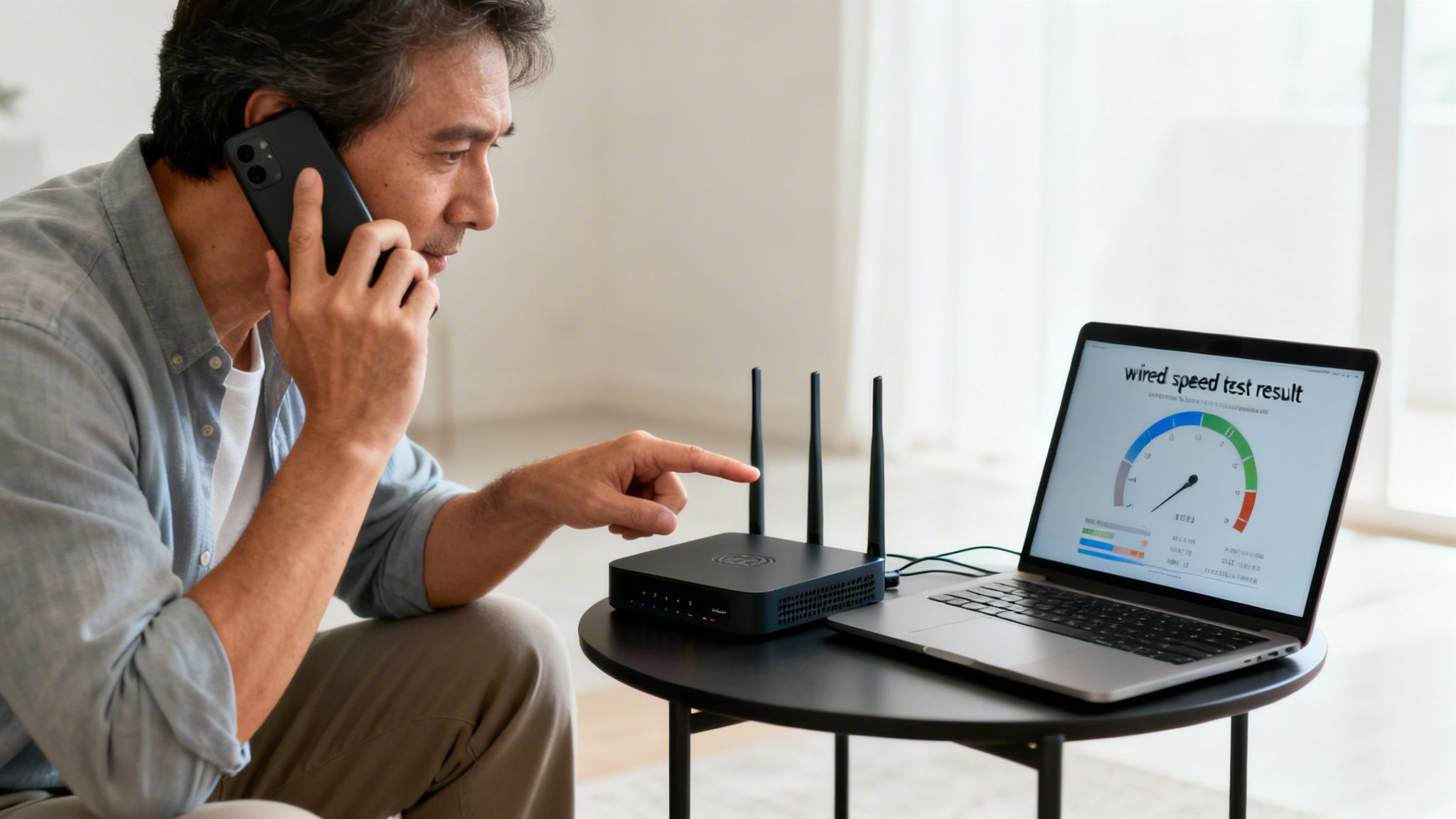
So, you’ve rebooted, repositioned, and tweaked everything you can think of, but your internet is still crawling. When you've exhausted all the fixes inside your own four walls, it’s time to start looking outward. The problem might not be with your setup, but with the service itself or the aging hardware trying to keep up.
This is the point where most people get frustrated, but knowing what to do next can save you a huge headache. It really comes down to two possibilities: calling your Internet Service Provider (ISP) or finally upgrading your gear.
Gearing Up for a Productive Call with Your ISP
Before you even think about dialing that number, you need to come prepared. Calling your ISP without any data is the fastest way to get stuck in a loop of "have you tried turning it off and on again?" A little prep work goes a long way.
Have this information ready before you pick up the phone:
- Your Direct-Wired Speed Test Results: This is your silver bullet. You want to be able to say, "I plugged my computer directly into the modem and I'm only getting X Mbps on a plan that's supposed to give me up to Y Mbps."
- A Log of the Problem: Keep a simple log of when the internet slows down. Is it every single evening around 8 PM? That's a classic sign of neighborhood network congestion that only they can investigate.
- The Steps You’ve Already Taken: Quickly let them know you've already power-cycled your gear, tested different devices, and ruled out Wi-Fi issues. This helps you skip the basic script and get to a technician who can actually check the line from their end.
Having your wired speed test results is critical. It proves the problem isn't your Wi-Fi and immediately shifts the focus from your home setup to the actual service they are delivering to your modem.
Is Your Old Equipment Holding You Back?
Sometimes, the blame doesn't lie with your ISP at all—it's your own gear. Technology evolves quickly. A modem or router that was considered top-of-the-line five years ago might now be the bottleneck that’s throttling your connection.
Every modem and router has a maximum speed it can handle. Find the model number (it's usually on a sticker on the bottom or back) and do a quick search for its specs. A common issue I see is someone using an old DOCSIS 2.0 modem, which tops out at around 38 Mbps, while they're paying for a 200 Mbps plan. You're paying for speed your hardware simply isn't capable of delivering.
Lastly, take a moment to consider how your needs have changed. Did you recently add a bunch of smart home gadgets? Did someone in the house start working from home full-time? Have your kids discovered the joys of online gaming? You might have just outgrown your current internet plan. Sometimes, upgrading to a faster tier is the simplest solution of all.
And remember, a secure network is often a faster one. You can learn more about how to secure your home network to make sure no uninvited devices are hogging your bandwidth.
Answering Your Lingering Questions About Slow Wi-Fi
Sometimes, even after you’ve restarted everything and checked all the boxes, your internet speed just doesn't make sense. You're not alone. Certain slowdowns follow predictable patterns that can be incredibly frustrating if you don't know what's causing them.
Let's dig into some of the most common head-scratchers I hear about all the time. Getting a handle on these can finally shed some light on what’s really going on with your network.
Why Does My Internet Grind to a Halt at Night?
If your internet gets sluggish around the same time every evening, you're almost certainly dealing with network congestion. Think of it like a highway during rush hour.
From about 7 PM to 11 PM, everyone in your neighborhood is jumping online. They're firing up Netflix, battling it out in online games, or catching up with family on video calls. All that activity creates a massive digital traffic jam on the local infrastructure your Internet Service Provider (ISP) has in place.
With so many people sharing the same "pipe," there's just less bandwidth to go around, and everyone's speed can take a hit.
You can't exactly ask your neighbors to log off, but you can work around it:
- Plan ahead: Schedule big downloads or system updates to run overnight when the network is quiet.
- Take control: Dig into your router’s Quality of Service (QoS) settings. This lets you tell your router which devices or activities (like your work laptop) should get priority when bandwidth is tight.
Is My VPN Killing My Internet Speed?
The short answer is yes, a Virtual Private Network (VPN) will almost always slow you down a bit. It’s the price you pay for the rock-solid privacy and security it offers. Your data is taking a longer journey—it has to be encrypted, sent to a remote server, and then forwarded to its final destination. Each step adds a tiny delay.
The real question is how much of a slowdown you'll see. It all comes down to the quality of your VPN, how far away its server is, and the level of encryption it's using. A top-tier VPN might only shave off a fraction of your speed, while a free one could easily cut it in half.
My advice? If speed is critical, invest in a VPN known for performance and always choose a server location that’s as close to you as possible.
How Do I Know If My ISP Is Throttling My Connection?
Throttling is when your ISP deliberately slows your internet for certain things, like video streaming, or after you've hit a data cap for the month. The classic tell-tale sign is a fantastic speed test result, immediately followed by endless buffering the second you try to watch a YouTube video. It’s maddening.
Here’s a simple experiment you can run to see if you're being throttled.
- Run a standard speed test to get a clear baseline of your current performance.
- Now, fire up a quality VPN and connect to a server near your location.
- With the VPN running, run the speed test again.
A VPN encrypts your traffic, making it impossible for your ISP to see what you're doing. If your internet speed is suddenly and significantly faster with the VPN on, that's a huge red flag. It strongly suggests your ISP is targeting and slowing down specific types of traffic on your line.
At Simply Tech Today, we believe that understanding technology shouldn't be complicated. Our goal is to provide clear, practical guides that help you solve problems and make the most of your devices. For more straightforward tech tips and news, visit us at https://www.simplytechtoday.com.

Member discussion