
How to Free Up Storage Space on Any Device

We’ve all been there—that dreaded “Storage Almost Full” notification pops up at the worst possible moment. But don’t worry, getting that space back is often easier than you think and usually comes down to tackling a few key culprits.
The quickest wins for reclaiming gigabytes are almost always the same: clearing system caches, nuking old downloads, and weeding out duplicate files. These are the silent space hogs, the digital clutter that piles up without you even realizing it.
So, Why Are Your Devices Always Out of Space?
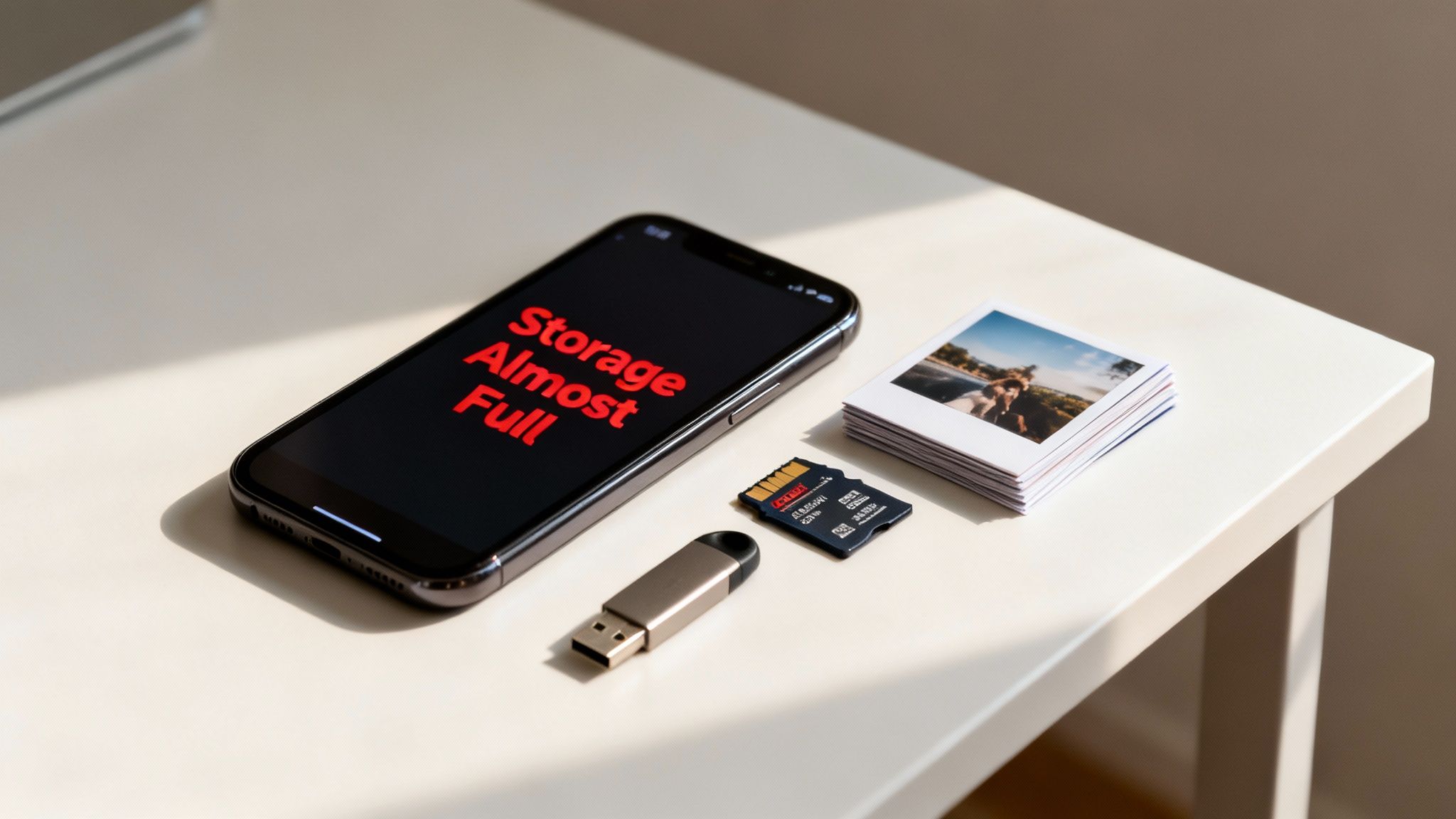
If you feel like you’re constantly fighting a losing battle with your device’s storage, you’re not just imagining it. The problem is simple: the amount and size of the data we handle every day has exploded. Think about it—high-resolution photos, 4K videos, and massive apps are now standard, and they all have an insatiable appetite for space.
The scale of this data generation is mind-boggling. By 2025, it's projected that the world will be creating 181 zettabytes of data every single year. That global trend has a very local impact, right on the device in your pocket or on your desk. This insight into the data explosion, highlighted by platforms like Spacelift.io, really puts into perspective why our storage fills up so fast.
The Biggest Storage Offenders
It’s not just the photos you see or the videos you shoot that are eating up your storage. A lot of the problem lies in the digital dust bunnies accumulating in the background. These are the main reasons you find yourself needing to free up space.
- Bloated App Caches: Every app, from Instagram to your favorite news reader, stores temporary data to load content faster. Over time, this cache can swell to gigabytes.
- Forgotten Downloads: Remember that PDF you downloaded for a meeting six months ago? Or that software installer you only needed once? They’re probably still wasting space in your Downloads folder.
- Duplicate Photos and Files: It’s incredibly easy to end up with multiple copies of the same photo or document, especially when sharing files between apps. Each one takes up room.
- Mysterious System Data: Operating systems generate tons of temporary files, logs, and updates that can build up, often lumped into a vague category like "System" or "Other."
One of the most effective strategies is to move large files you don’t need immediate access to. Getting a handle on how cloud storage works can be a game-changer, letting you offload huge files while still keeping them just a click away. It’s the perfect way to keep your device running lean and fast.
Quick Wins to Reclaim Gigabytes in Minutes
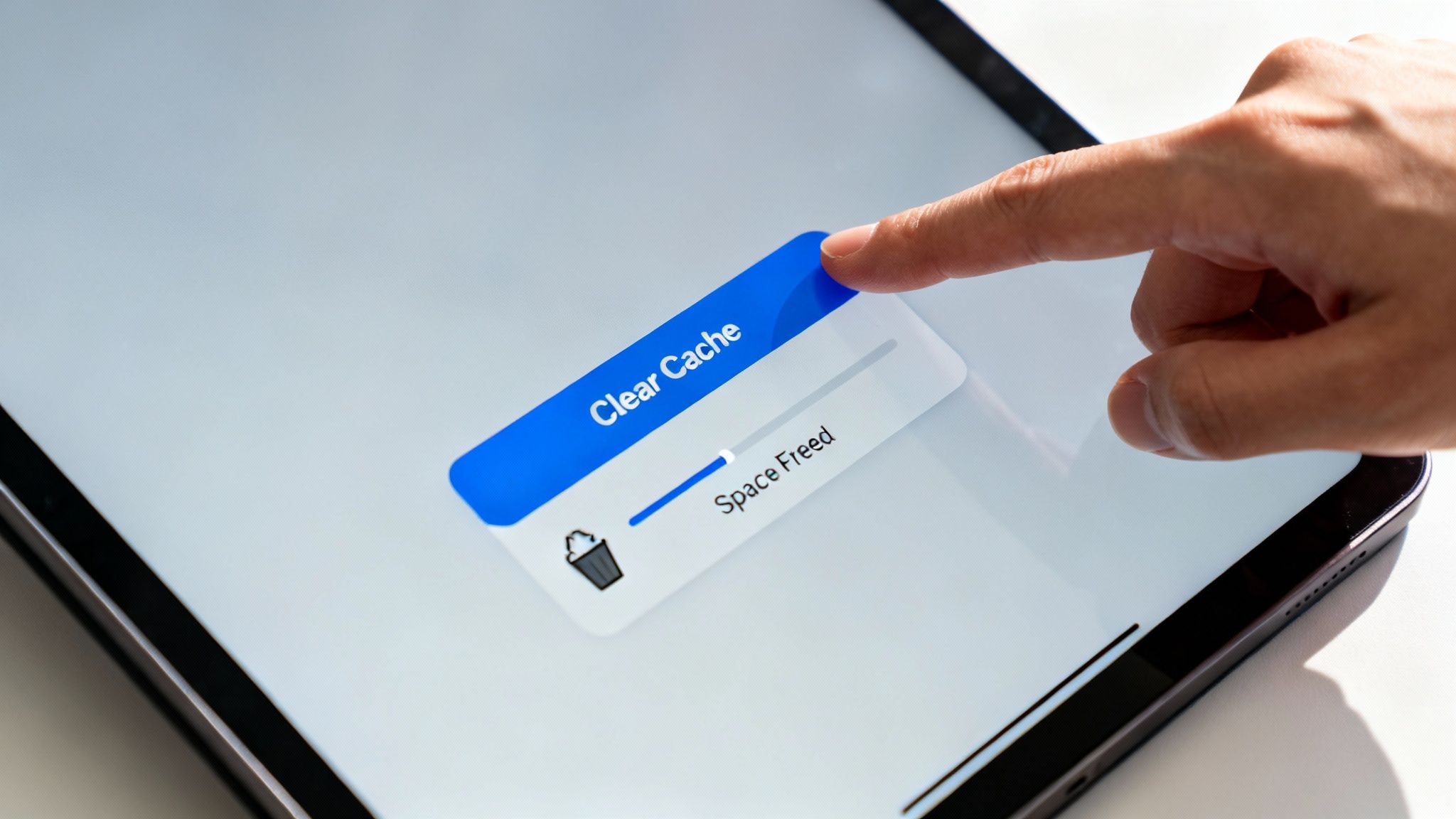
When you get that dreaded "Storage Almost Full" notification, you need space, and you need it now. The good news is that you don't always need to perform a deep, complex digital purge. A few targeted actions can make a huge difference in just a few minutes.
Think of these as the low-hanging fruit—the universal culprits you can tackle on just about any device for immediate relief. Let's start with one of the biggest, yet most invisible, storage hogs.
The Browser Cache and Downloads Folder
Your web browser is a major offender. Every single website you visit leaves behind a trail of temporary files—images, scripts, and other data—all designed to make future visits faster. This collection, known as the browser cache, can quietly balloon to several gigabytes over time. Clearing it is one of the fastest ways to reclaim a surprising chunk of storage without touching your precious bookmarks or passwords.
Next up is the infamous Downloads folder. For most of us, it’s a digital junk drawer, a graveyard for files we only needed once. Think about it: that PDF of last year's concert tickets, a software installer you used ages ago, or a random zip file you've long since forgotten about.
A quick pro-tip is to sort this folder by file size. It can be a real eye-opener. You’ll probably find old, multi-gigabyte files just sitting there, serving no purpose. Deleting these is a simple drag-and-drop that provides instant gratification as you watch your available space climb.
Don't forget the final step: actually emptying the Trash or Recycle Bin. The files you "delete" don't immediately disappear; they just get moved to this digital purgatory, still taking up valuable space. Make it a habit to empty it weekly to prevent this buildup.
Chat Apps and Quick Reference
Another easy win is hiding in your messaging apps. Those group chats, in particular, become massive repositories for countless photos, GIFs, and videos that you likely won't ever look at again. Most popular apps like WhatsApp or Telegram have a built-in storage manager that lets you bulk-delete old media from specific conversations. You can easily free up gigabytes you didn't even realize were gone.
Not only does clearing this clutter free up space, but it can also give your system a little boost. Our guide on how to speed up computer performance explains how a cleaner drive can contribute to a faster, more responsive device.
For a quick reference, here’s a breakdown of the usual suspects and what you can expect to gain by cleaning them up.
Instant Space Savers: Where to Look First
| Area to Clean | Typical Space Reclaimed (Mobile) | Typical Space Reclaimed (Desktop) | Action |
|---|---|---|---|
| Browser Cache | 500 MB – 2 GB | 1 GB – 5 GB | Clear temporary internet files in browser settings. |
| Downloads Folder | 1 GB – 5 GB+ | 5 GB – 20 GB+ | Sort by size and delete unneeded files. |
| Messaging Apps | 1 GB – 10 GB+ | 500 MB – 2 GB | Use the app's storage manager to clear old media. |
| Trash/Recycle Bin | Varies | Varies | Empty the bin after deleting files to finalize. |
This table just gives you a starting point. Your own results will vary, but focusing on these four areas is almost always the most efficient way to get immediate results when you're in a storage pinch.
Cleaning Up Your Smartphone Storage
Our phones are practically extensions of ourselves—they’re our cameras, our communicators, our entertainment consoles. It's no wonder they fill up so fast, but clearing out that digital clutter doesn’t have to be a chore. The real trick is knowing where to look and which tools to use for your specific device.
The amount of data we’re all creating is staggering. Projections show global data creation hitting a mind-boggling 181 zettabytes by 2025, and our phones are right at the center of that explosion. Think about it: the average iPhone user has around 80GB of apps alone, and nearly half of those are rarely even opened. You can dig into more of these data storage statistics on edgedelta.com. This just goes to show how much space is likely just sitting there, waiting to be reclaimed.
Smart Storage Management On Your iPhone
Apple has baked some incredibly useful tools right into iOS that let you see what’s eating your storage and do something about it. You really don't need a third-party app for this; everything you need is already in your settings.
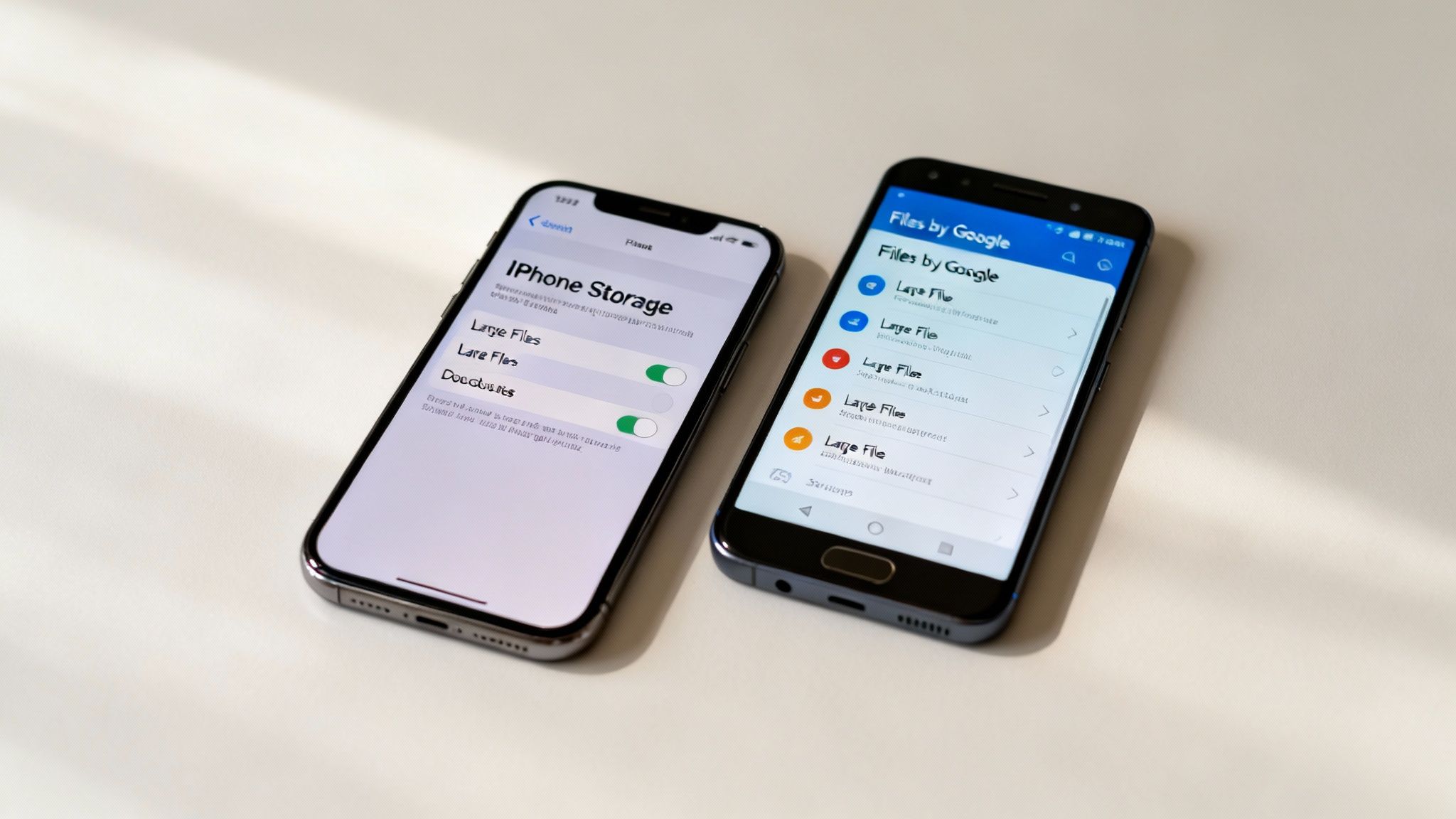
To see what's going on, head over to Settings > General > iPhone Storage. Think of this screen as your command center. It gives you a clear visual breakdown of your storage and even serves up personalized recommendations to help you make space.
Here are the most effective built-in tools you should be using:
- Offload Unused Apps: This is one of my favorite features. It removes the app itself but cleverly keeps all its documents and data. If you decide you need it again, you just tap the icon, it redownloads, and you're right back where you left off.
- Review Large Attachments: Your Messages app can become a black hole for storage, especially with years of photos and videos piling up. This tool gathers all the biggest files from your conversations into one convenient spot, so you can quickly scan and delete what you don't need anymore.
- Optimize Photos: This setting is a lifesaver. It keeps your full-resolution photos and videos safe in iCloud while leaving smaller, space-saving versions on your actual device. You can always download the originals whenever you have an internet connection.
It's always a good idea to have a solid backup before you start deleting heaps of photos and videos. Our guide on how to back up phone data walks you through the best ways to keep your memories safe.
Android Strategies For A Clutter-Free Device
The great thing about Android is its flexibility, but that can sometimes make hunting down storage hogs a little more complicated. With the right tools, though, you can easily find and get rid of junk files, duplicates, and oversized apps.
One of the best tools for this job is Google's very own Files by Google app. It's a smart storage manager that actively finds junk and suggests things you can remove to free up space.
Here’s how you can make the most of it, along with other Android features:
- Act on Smart Suggestions: The Files by Google app will present you with handy cards like "Junk files," "Duplicate files," "Memes," and "Large files." With just a few taps, you can clear out gigabytes of stuff you don't need.
- Clear Individual App Caches: While Android is pretty good at managing caches on its own, sometimes a single app—usually social media or a streaming service—can get out of control. Just go to Settings > Apps, pick the app that's causing trouble, and tap Storage & cache > Clear Cache.
- Use a MicroSD Card (If You Can): If your phone has a microSD slot, this is the easiest way to add more storage. You can set your camera to save new photos and videos directly to the card and even move existing media over to free up that precious internal memory.
By getting familiar with these platform-specific tools, you can turn the frustrating task of freeing up storage into a simple, manageable process.
How to Declutter Your Computer Hard Drive
When your computer’s hard drive starts to fill up, it’s not just an annoying pop-up. The whole system can slow to a crawl. Apps take forever to launch, saving a simple file feels like a chore, and your machine just feels sluggish. The good news is that both Windows and macOS have some fantastic built-in tools to help you reclaim that precious space, no third-party software needed.
Learning how to free up storage space is one of the best things you can do to keep your computer running smoothly. It’s surprisingly simple once you know where to look. Let’s dive into the specifics for each operating system.
Taming Your Storage on Windows
If you're on a Windows 10 or 11 machine, your first stop should be Storage Sense. Think of it as an automatic housekeeper for your PC. It’s designed to quietly clean up junk in the background, like temporary files and old items in your Recycle Bin, all on a schedule you control.
Getting it running is easy:
- Open your Settings app from the Start menu.
- Head into the System section, then click on Storage.
- Just flip the switch for Storage Sense to "On."
From there, you can click "Configure Storage Sense or run it now" to really dial in the settings. You could, for instance, tell it to automatically delete files from your Downloads folder if they've been sitting there for over 30 days, or empty the Recycle Bin every week. If you need space right away, hitting the "Clean now" button will give you an immediate boost.
Don't forget about the classic Disk Cleanup tool, either. This old-school utility is a powerhouse for digging up and removing old system files, especially leftover Windows installation files that can eat up dozens of gigabytes after an update. Just search for "Disk Cleanup" in your Start menu, pick your main drive (usually C:), and let it do its thing.
Optimizing Your Mac Storage
Over in the Mac world, Apple has a slick, centralized dashboard called Storage Management that makes the whole process incredibly straightforward. To get there, just click the Apple menu in the corner, choose About This Mac, and hit the Storage tab. From there, you'll see a "Manage" button.
This opens up a control panel with a few powerful, one-click recommendations to free up a ton of space:
- Store in iCloud: This is a game-changer. It offloads your Desktop, Documents, and full-resolution photos to iCloud, leaving behind smaller, optimized versions on your Mac to save local disk space.
- Optimize Storage: Perfect for movie buffs. This option automatically removes movies and TV shows from the Apple TV app once you've watched them, so you're not storing hours of video you've already seen.
- Reduce Clutter: This might be the most valuable tool of the bunch. It scans your entire drive and groups all your large files in one place, making it dead simple to spot that huge, forgotten video project from three years ago and delete it.
One pro tip: properly uninstalling applications is critical. On both Windows and macOS, just dragging an app icon to the Recycle Bin or Trash often leaves behind gigabytes of leftover settings files and caches. Always use the "Add or remove programs" feature on Windows or a dedicated uninstaller on a Mac.
Eventually, you'll hit a point where you've deleted all you can. Your remaining files are just too important to get rid of. When that happens, it’s time to move those large archives and media libraries to an external device. Our guide to the best external hard drives for backup can help you pick a reliable drive for long-term storage, keeping your computer's main drive lean, mean, and fast.
Building a Smarter Storage Strategy for the Long Term
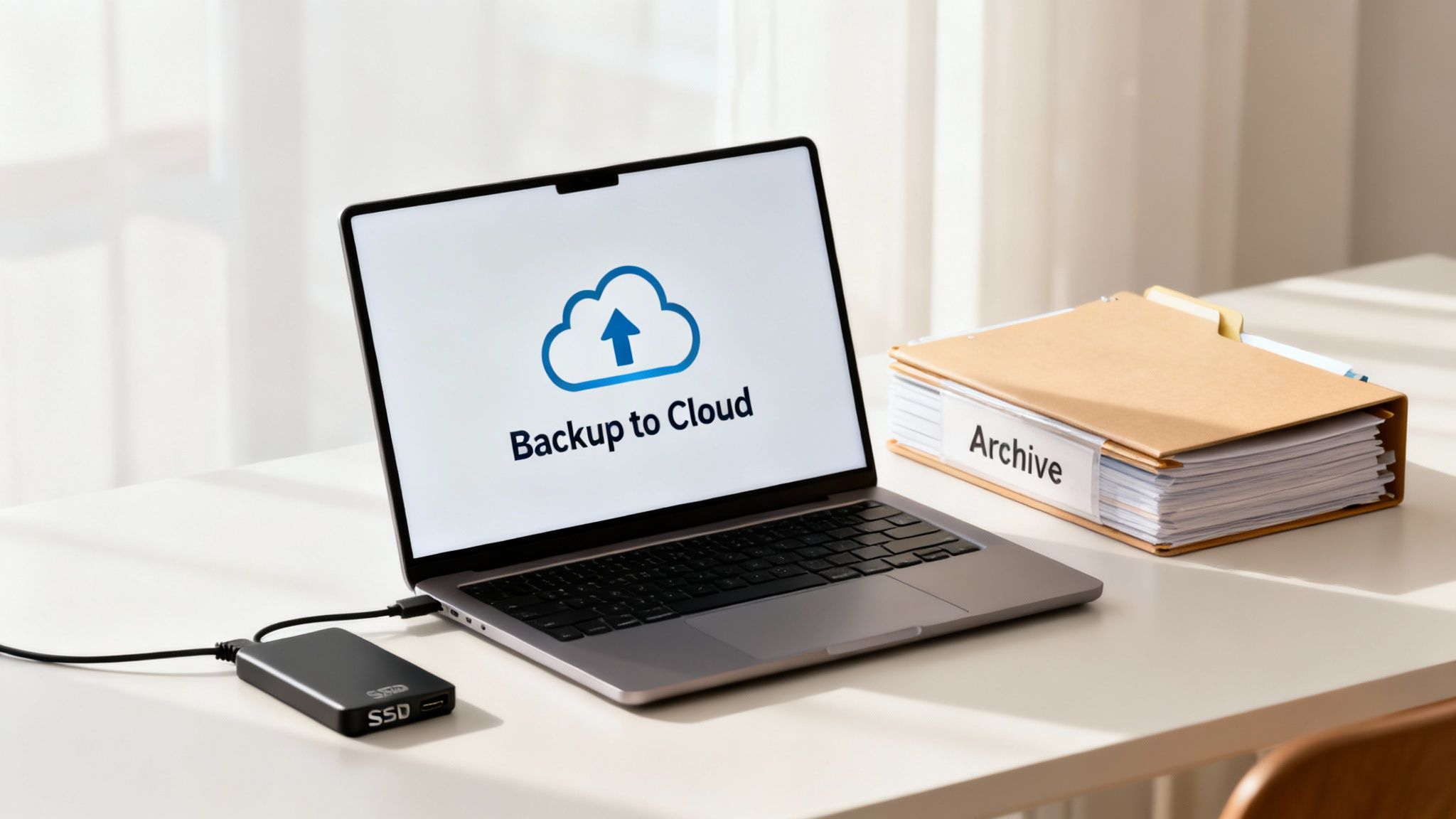
Just deleting files whenever you get that dreaded "Storage Almost Full" warning is like bailing water from a leaky boat. Sure, it helps for a moment, but you're not fixing the hole. To stop this cycle for good, you need to think differently—shifting from a reactive cleanup crew to a proactive storage manager.
The real game-changer is to stop seeing your device's internal drive as your primary storage container. Instead, think of it as your active workspace. Your archive, your library, your long-term memories—those belong somewhere else. By building a smart system that uses a mix of cloud services and external drives, you keep your main devices lean, fast, and ready for action.
This isn't just a neat trick; it's becoming a necessity. We're creating data at a staggering rate, with a 23-30% increase every year. Meanwhile, storage capacity is only growing by about 19.2%. That gap is exactly why our devices are constantly choking. Moving files off your primary device is the only sustainable way to stay ahead. You can dig into these trends over on Exploding Topics if you're curious.
Tapping Into the Cloud
Cloud storage has matured into an incredibly powerful tool for offloading files you don't need on your device 24/7. It's the perfect home for huge photo libraries, old work projects, and important documents you want to keep safe.
- Google Drive: An obvious choice if you're in the Google ecosystem. Its free tier is generous, and it’s perfect for collaborating on documents or backing up your Android phone.
- iCloud: If you're an Apple user, this is a no-brainer. The "Optimize Storage" feature is brilliant—it automatically keeps your photo library from eating up all your iPhone or Mac space.
- Dropbox: The reliable workhorse that plays nice with everything. It’s fantastic for syncing and sharing files across different operating systems, like from a Windows PC to a MacBook.
Getting the hang of https://www.simplytechtoday.com/how-to-use-cloud-storage/ is a key skill for managing your digital life today. Our guide breaks down how to choose the right one and get started.
A huge win for most people is moving their entire photo library to Google Photos or iCloud Photos and turning on the optimization setting. You can easily free up tens of gigabytes on your phone this way. The full-resolution originals stay safe in the cloud, while smaller, screen-friendly versions live on your device.
The Backup-and-Delete Workflow
What about those truly massive files? I'm talking about 4K video projects, huge design files, or full system backups. For that kind of heavy lifting, an external drive is still your best friend for speed and value. A classic external hard drive (HDD) gives you a ton of space for cheap, while a solid-state drive (SSD) offers blazing-fast speeds for archives you might need to access more often.
The process itself is wonderfully simple:
- Archive: Every so often, move big folders of completed projects or old media from your computer to the external drive.
- Verify: Do a quick spot-check. Open a few files from the external drive to make sure the transfer went smoothly.
- Delete: Once you've confirmed everything is safe, confidently delete the original files from your computer's internal storage.
Adopting this simple habit keeps your computer’s main drive clear for what you're working on now, which not only prevents storage warnings but can give your machine a noticeable performance boost.
Common Storage Questions Answered
Even after a good cleanup, you might still have a few questions rattling around. Let's dig into some of the most common things people wonder about when they're trying to reclaim their storage space. Getting these answers will help you feel more confident as you go.
Does Deleting Files Actually Make My Device Faster?
In a word, yes. It's not just a myth; clearing out space often gives your device a noticeable speed boost.
Think of your hard drive or SSD like a workspace. When it's nearly full, your operating system has no elbow room for the temporary files and virtual memory it needs to juggle tasks. This is the digital breathing room your computer relies on to run smoothly. By clearing at least 15-20% of your total storage, you give it that room back. You'll often see the results right away—apps load faster, and the whole system just feels more responsive.
What Is "System Data" and Why Is It Taking Up So Much Space?
Ah, the mysterious "System Data" or "Other" storage. It's a frustratingly vague bucket that holds all the digital odds and ends that don't fit into clean categories like "Apps" or "Photos." It’s a mix of things like:
- System caches
- Update files and logs
- Temporary data from your OS and apps
This category can really swell over time. Clearing your app and browser caches is a great starting point. Another big one? Deleting old message threads packed with years of photos and videos. You'd be surprised how much space those can occupy. Sometimes, a simple restart is enough to make the OS re-evaluate and shrink that number down.
Don’t panic if you see a huge chunk of System Data. You can't just delete the category itself, but by following the other cleanup steps in this guide, you'll chip away at the temporary files it contains, and you'll almost always see its size go down.
Are Third-Party Cleaning Apps Safe to Use?
This is a classic "it depends" situation. There are some excellent, reputable tools out there from well-known developers that are perfectly safe. The problem is, the market is also swimming with apps that are ineffective, overly aggressive, or, in the worst cases, outright malware. They promise one-click miracles but can sometimes cause more harm than good by deleting files your system actually needs.
Honestly, for most people, the storage management tools built right into Windows, macOS, iOS, and Android are your best bet. They were designed by the people who made the operating system, so they have the inside scoop on what’s safe to remove. If you do go for a third-party app, stick to official app stores or the developer's direct website and read the reviews first.
At Simply Tech Today, we believe that understanding your technology is the first step to mastering it. For more straightforward guides and practical tips, visit us at https://www.simplytechtoday.com.
Member discussion