
How to Improve WiFi Signal Strength for Faster Internet
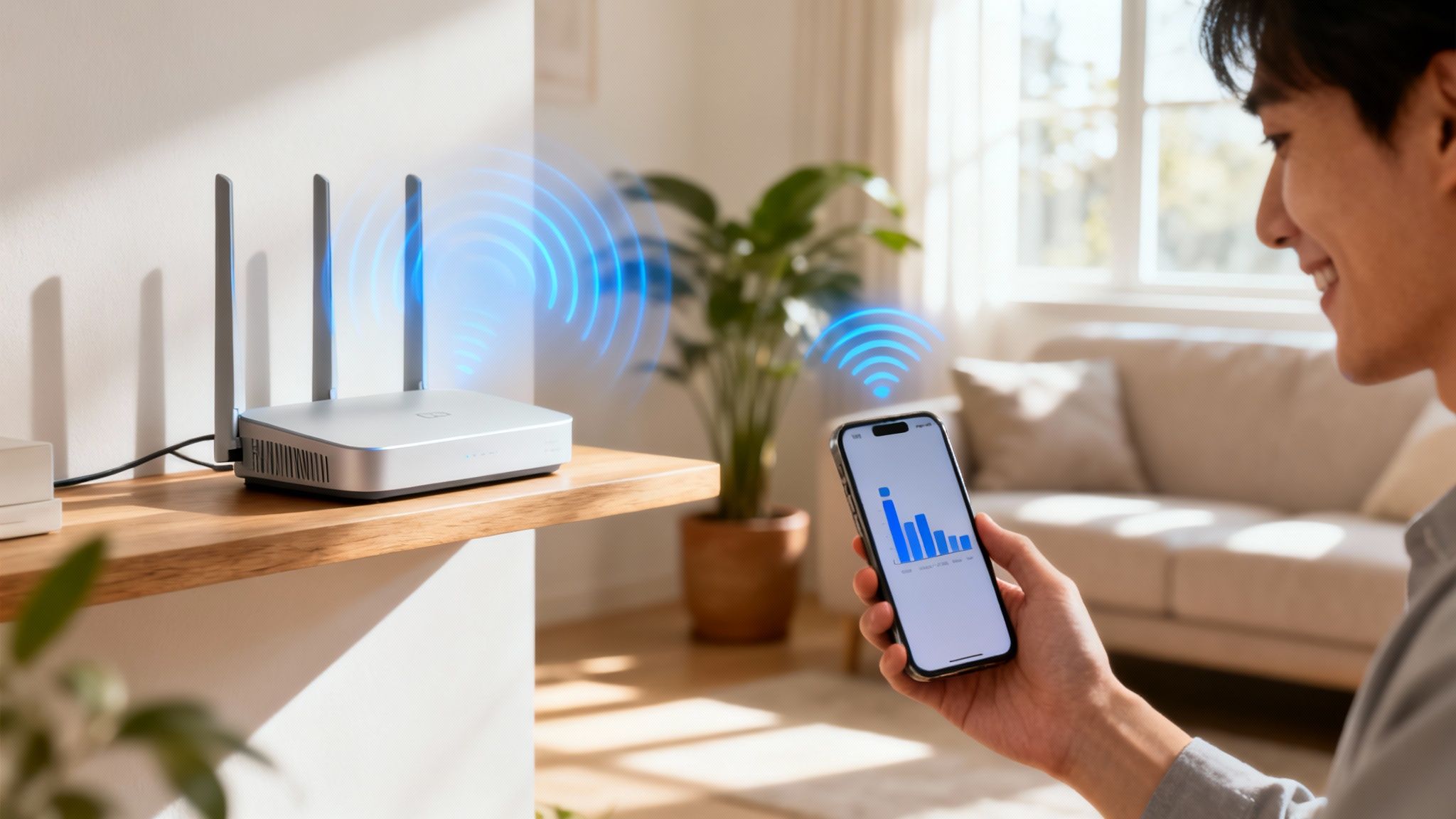
Tired of your video calls freezing and Netflix endlessly buffering? The fix might be simpler than you think. The secret to a stronger WiFi signal often comes down to three things: where you put your router, what's getting in its way, and what other gadgets are competing with it. Even a small change, like moving your router from the floor to a bookshelf, can dramatically boost your connection.
Decoding the Causes of a Weak WiFi Signal
Ever found yourself wondering why your WiFi is lightning-fast in the living room but crawls to a halt in the bedroom? It's not magic—it's physics. Your WiFi signal is just a radio wave, and like any wave, it can be blocked, absorbed, or scrambled by all sorts of things in your home. Pinpointing these culprits is the first real step to building a network you can rely on.
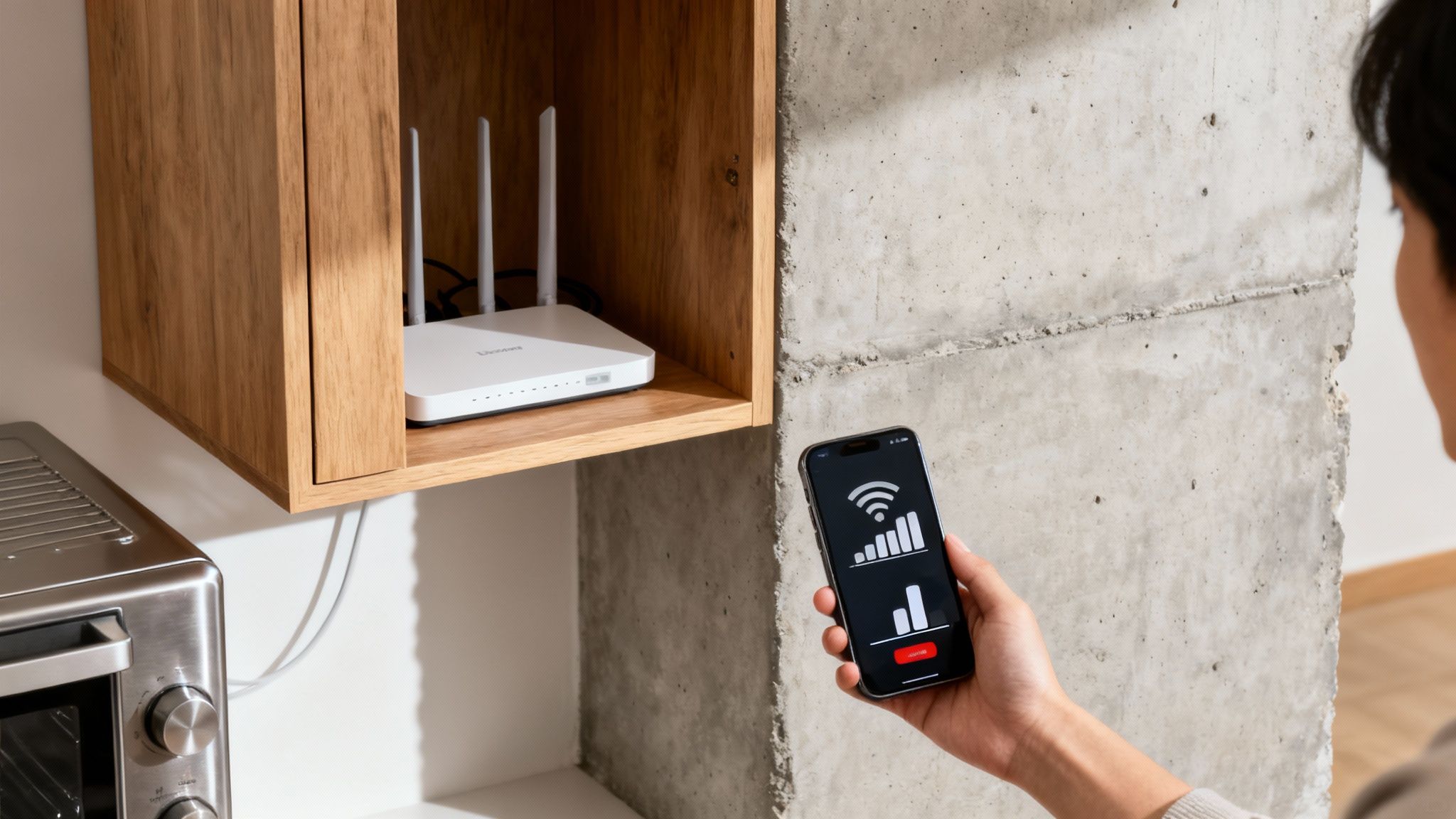
Before you blame your internet provider, take a look around. The journey to better WiFi starts with understanding the environment your signal has to fight through every day.
Physical Obstructions and Distance
More often than not, a weak signal is simply a matter of distance and physical barriers. WiFi waves have a tough time pushing through solid objects. I like to tell people to think of their router as a lightbulb—the more walls between you and the bulb, and the farther away you are, the weaker the light gets. Your WiFi works the same way.
Some of the worst offenders in any home are:
- Concrete and Brick: These dense materials are notorious signal killers, absorbing a huge amount of the wave's strength.
- Metal Appliances: Your refrigerator, stove, or even a large metal filing cabinet can act like a mirror, reflecting and scattering the signal.
- Water: It might sound strange, but large aquariums or even the pipes running through your walls can weaken your connection.
It's tempting to hide a router in a media cabinet or behind the couch to keep things tidy, but you're essentially putting it in a cage. You're smothering the signal before it has a chance to reach your devices. Sometimes, the problem isn't technical at all; it's just a bad spot. If a better location doesn't solve it, you might need to troubleshoot your internet connection to check for other issues.
Understanding WiFi Bands
Most modern routers broadcast on two different radio frequencies: 2.4 GHz and 5 GHz. Knowing which one to use for which device can make a huge difference.
The 2.4 GHz band is the long-distance runner. It reaches farther but delivers slower speeds. The 5 GHz band is the sprinter—it’s much faster but doesn't have the same range.
For a device like your smart TV that's streaming 4K video right next to the router, connecting to the 5 GHz band is a no-brainer. For a smartphone you use in the backyard, the 2.4 GHz band will give you a more stable, albeit slower, connection.
To give you a head start, I've put together a quick-reference table for the most common issues people face and the simplest ways to fix them.
Common WiFi Problems and Their Quick Fixes
This table breaks down frequent signal problems into easy-to-digest solutions you can try right now.
| Common Problem | Quick Fix Solution | Why It Works |
|---|---|---|
| Dead Zones in Certain Rooms | Move the router to a central, elevated location away from walls and obstructions. | Central placement allows the signal to radiate outward more evenly, reducing the impact of distance and barriers. |
| Slow Speeds on a Specific Device | Switch the device to the 5 GHz band if it's close to the router, or to 2.4 GHz if it's far away. | This matches the device's needs with the strengths of each frequency band—speed vs. range. |
| Intermittent Connection Drops | Move cordless phones, microwave ovens, and Bluetooth speakers away from your router. | These devices often use the same 2.4 GHz frequency and can create "noise" that disrupts your WiFi signal. |
| Overall Sluggish Performance | Unplug your router and modem, wait 30 seconds, and plug them back in. | A simple reboot clears the device's memory and can resolve temporary glitches or conflicts causing slowdowns. |
These small adjustments can often solve surprisingly big problems without costing you a dime or requiring a call to tech support.
Mastering Router Placement for Optimal Coverage
Finding the right spot for your router is hands down the most effective, no-cost change you can make to improve your Wi‑Fi. I always tell people to think of their router like a speaker; you wouldn't stuff it in a closet and expect the sound to fill the house, right? Your Wi‑Fi signal works the same way, radiating outwards in all directions.
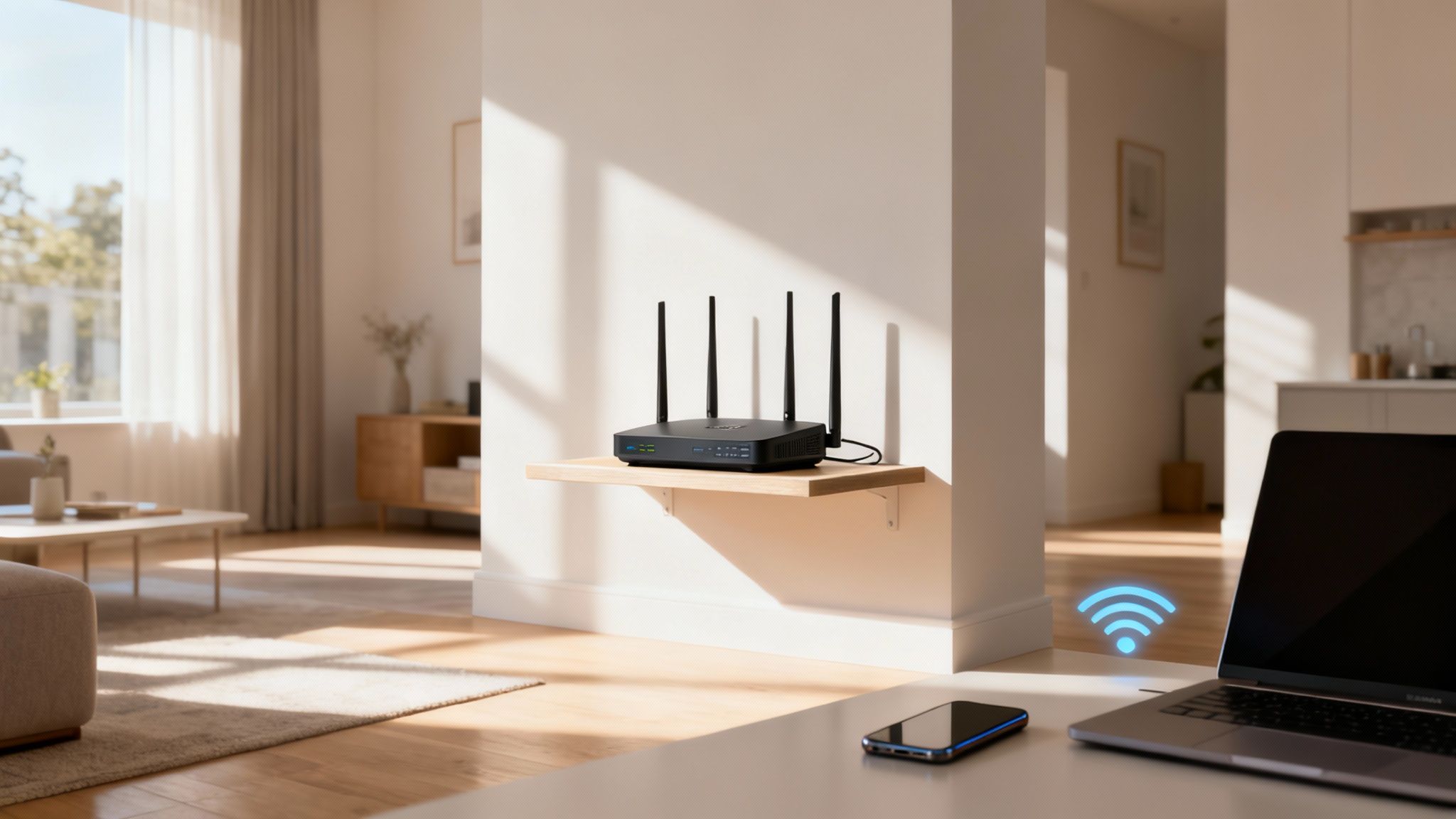
The goal is to find a central, elevated, and open location. This gives the signal the clearest possible path to all your devices. You'd be surprised how many connection headaches this one simple act of repositioning can solve.
Finding Your Wi-Fi Sweet Spot
Let's be honest, the ideal location is almost never where the technician first installed your internet. They usually pick the most convenient entry point, not the best spot for whole-home coverage. Start by thinking about the most central point in your home, especially considering where you use Wi‑Fi the most.
To really nail down the perfect spot, stick to these core principles:
- Go High: Get that router off the floor. Placing it on a bookshelf or mounting it on a wall—at least 3-5 feet high—helps the signal travel over furniture and other low-level obstacles.
- Stay Open: Avoid the temptation to tuck your router inside a cabinet, behind the TV, or in a closet. These enclosures act like boxes, muffling the signal before it even has a chance.
- Avoid Kitchens: From a Wi-Fi perspective, kitchens are a minefield of interference. Microwaves, refrigerators, and other big metal appliances can absorb and block your signal.
A central, elevated router placement isn't just a suggestion—it's a proven strategy. Tests show this simple change can cut down on frustrating dead zones by as much as 35%, making it a powerful first step in your troubleshooting process.
Making these adjustments helps you build a strong foundation for your network. It's especially crucial as you begin to set up a smart home and connect more devices that all need a stable signal to work properly.
How Your Home's Layout Changes Things
Where you live also dictates the best placement strategy. A single-story apartment has totally different needs than a multi-level house.
In a multi-story home, the best spot is often on the main floor, as close to the center of the house as you can get. Wi‑Fi signals actually radiate downwards more easily than they travel upwards, so this placement helps cover the main floor and the basement. If your router has adjustable antennas, try pointing one straight up for horizontal coverage and another sideways to push the signal to the floors above.
For a single-level apartment or home, the focus is purely on central placement. Find the halfway point between your most-used areas, like the living room and home office, to make sure the signal is distributed as evenly as possible. Just moving your router can amplify signal strength by up to 50%—a huge boost that shows just how much we rely on good connectivity these days.
Tweaking Your Router Settings for a Serious Performance Boost
Diving into your router’s settings can sound intimidating, but trust me, a couple of small changes in the admin panel can make a world of difference. You don't need to be a network engineer to do this. These tweaks are often the key to getting a more stable connection, especially if you've already tried moving your router around.
Think of your router as an air traffic controller for all the data flying around your home. Right now, all the planes might be trying to land on the same runway. With a few clicks, you can open up new runways and direct traffic more efficiently.
Hop on a Less Crowded Wi-Fi Channel
Your Wi-Fi signal operates on different channels, kind of like radio stations. If you and all your neighbors are tuned to the same channel, it creates a ton of interference and slows everyone down. This is a massive problem in places like apartment buildings or tightly packed neighborhoods where dozens of Wi-Fi networks are competing for airtime.
Most routers default to an "Auto" channel setting, but it's not always smart enough to pick the quietest one. By manually finding and switching to a less congested channel, you can often see an immediate improvement.
- See what's out there: Use a free tool like Wi-Fi Analyzer on an Android phone or a similar app on your computer. These will give you a clear picture of all the networks nearby and which channels they're hogging.
- Pick the best lane: For the older 2.4 GHz band, channels 1, 6, and 11 are your best bet because they are the only ones that don't overlap. Check your scan and pick whichever of those three has the least traffic. It's that simple.
- Use the 5 GHz fast lane: The newer 5 GHz band has way more channels, so congestion is rarely an issue. If your router and devices support it, making this your primary band is always a good call.
Seriously, this one change can be a game-changer. It can slash random disconnects and boost your speed, and it doesn't cost a dime.
Prioritize Your Most Important Devices with QoS
Ever been on a crucial video call when it suddenly freezes because someone else in the house started streaming a 4K movie? That's where Quality of Service (QoS) comes in. It’s a feature that lets you tell your router which devices or apps get to cut to the front of the line for internet bandwidth.
For example, you can flag your work laptop or your PlayStation 5 as a high-priority device. When the network gets busy, the router makes sure your video call or online match doesn't start lagging, giving you a smooth experience right when you need it.
This is a lifesaver for anyone working from home. You can make sure the best video conferencing software runs perfectly, even if the kids are gaming and streaming cartoons at the same time.
Most modern routers have a dead-simple QoS menu—often with a drag-and-drop interface—letting you set priorities in seconds. It’s an incredibly effective way to manage your home network without having to kick everyone else offline.
Deciding When to Upgrade Your WiFi Hardware
So you’ve moved your router, tweaked the channels, and even fiddled with the QoS settings, but your Wi-Fi still feels like it's crawling. If that sounds familiar, the problem might not be your settings—it could be the hardware itself. At a certain point, no amount of software tricks can make up for an outdated or underpowered router.
Think of it this way: your internet plan from your ISP is the water pressure coming into your house, but your router is the pipe system. If those pipes are old and narrow, you’ll never get the powerful flow you’re paying for, no matter how wide you open the tap. Aging hardware is a major bottleneck, especially in today's homes packed with smart speakers, TVs, phones, and laptops all competing for bandwidth.
When a Simple Boost Is All You Need
For a lot of homes, the problem isn't everywhere. Maybe the signal just dies in the upstairs bedroom, or you can't get a reliable connection on the back deck. In these situations, a complete network overhaul is probably overkill. This is where simpler, targeted solutions come in handy.
- WiFi Extenders: These are the classic, straightforward fix. You plug one in, it grabs your existing WiFi signal, and then rebroadcasts it to cover a dead zone. It’s a great choice for patching up a weak signal in a single room or a small, specific area.
- Powerline Adapters: This is a pretty clever alternative that turns your home’s electrical wiring into a network. You plug one adapter into an outlet near your router and connect it via an Ethernet cable, then plug the second adapter in the room with the weak signal. It's fantastic for getting a stable connection through thick concrete walls or floors that Wi-Fi signals struggle to penetrate.
These little gadgets are cost-effective and can solve minor coverage gaps quickly. Just be aware they aren't a perfect fix for every problem. Extenders often create a separate network name (which can be a pain to switch between) and their performance is limited by the strength of the signal they're receiving in the first place.
This decision tree gives you a good visual guide for what to try first when you run into common WiFi issues.
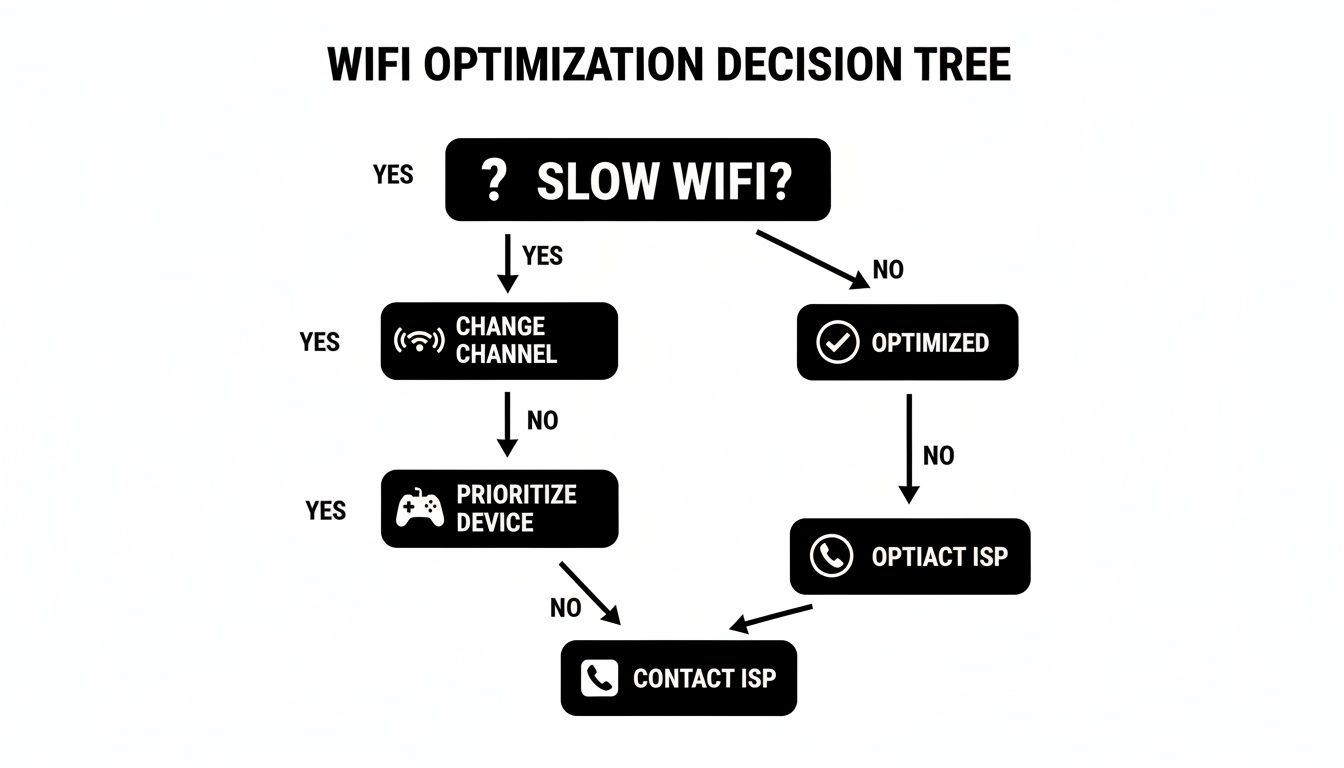
As you can see, simple software tweaks are the right place to start. But if those don't solve it, it’s time to look at the hardware.
The Case for a Complete Overhaul
If you’re struggling with patchy coverage across a larger house, or if your internet grinds to a halt the minute the kids get home and start streaming, it’s time to think bigger. This is where a modern router or a mesh system becomes the right investment. And before you blame the network entirely, remember that a slow computer can often masquerade as a slow internet connection. It’s worth taking a few minutes to how to speed up computer performance to rule that out.
A new WiFi 6 router is a massive leap forward. This standard was designed for the modern device-heavy home, incorporating tech like MU-MIMO (Multi-User, Multiple Input, Multiple Output) and beamforming to manage dozens of connections at once without breaking a sweat. Beamforming is especially cool—instead of just broadcasting a signal in all directions, it intelligently focuses the WiFi beam directly at your connected devices.
For total, seamless coverage in a multi-story or sprawling home, a mesh WiFi system is the gold standard. Instead of a single, central router trying to do all the work, a mesh system uses several "nodes" placed around your house. They all work together to create one large, unified network, so you can walk from the basement to the attic without ever dropping the connection.
The market for these solutions is booming for a reason—we all expect rock-solid connectivity everywhere in our homes now. In fact, studies show that swapping an old single-router setup for a modern mesh system can expand reliable coverage by 2-3 times. It’s not just a minor improvement; for many, it’s the difference between a frustrating network and one that just works.
Choosing Your WiFi Solution: Extender vs Mesh vs New Router
Trying to decide between these options can be confusing, so let's break it down. Each one solves a different kind of problem.
| Solution Type | Best For | Pros | Cons |
|---|---|---|---|
| WiFi Extender | Small, specific dead zones (1-2 rooms). Budget-conscious fixes. | Inexpensive, easy to set up. | Can cut speeds in half, may require a separate network name (SSID). |
| Mesh System | Large or multi-story homes with widespread weak spots. Seamless whole-home coverage. | Creates a single, unified network. Excellent coverage and performance. | Most expensive option. Can be overkill for smaller homes. |
| New Router | Aging or ISP-provided routers that are a bottleneck. Homes with many connected devices. | Access to new tech like WiFi 6. Better performance and security. | A single router can still have trouble covering a very large or complex layout. |
Ultimately, the right choice depends on the specific problems you're facing. If it's just one room, an extender is a smart, low-cost bet. But if your entire network feels slow and unreliable, a new router or a full mesh system will deliver the powerful, consistent performance you're looking for.
Building a Secure and Healthy Home Network
Think of your Wi-Fi signal as part of a larger ecosystem: your home network. Just like a garden, it needs a little upkeep to thrive. Keeping your network secure and healthy isn't just about fending off hackers; it directly impacts how well your Wi-Fi performs day-to-day. These simple habits are your best defense against both sluggish speeds and security headaches.
Leaving your Wi-Fi unprotected is like leaving your front door wide open. A neighbor could start streaming 4K movies on your dime, hogging all the bandwidth. Worse, someone with bad intentions could get in. A strong password is the lock on that door, and it's absolutely non-negotiable.
Lock Down Your Network Access
First things first, let's make sure your network is a fortress. Modern routers come with powerful security features, but you have to turn them on.
- Use WPA3 Security: If your router supports it, WPA3 is the way to go. It's the latest and greatest in Wi-Fi encryption, making it much harder for someone to guess your password and sneak onto your network. WPA2 is the next best thing if WPA3 isn't an option.
- Create a Complex Password: I know it's a pain, but a password like "password123" just won't cut it. Mix it up with uppercase letters, lowercase letters, numbers, and symbols. Aim for at least 12-16 characters. And please, don't use your dog's name or your birthday.
Locking down your Wi-Fi is a crucial first step. If you're interested in going deeper, our guide on how to protect your privacy online covers more ground beyond just your router. Taking a few minutes to do this ensures the only people using your internet are the ones you've invited.
Keep Your Router's Brain Updated
Every router runs on software called firmware. It’s the operating system that tells it how to work. Manufacturers are constantly finding bugs and security gaps, so they release updates to fix them. These updates often include performance tweaks that can actually make your Wi-Fi signal stronger and more reliable.
It's just like updating the apps on your phone—you get new features, better security, and smoother performance. An outdated router is an open invitation for trouble and is likely not running at its full potential. The good news? Most new routers can update themselves automatically. Dig into your settings and flip that switch on.
The newer Wi-Fi standards really show why updates matter. Wi-Fi 6 (also called 802.11ax), for example, is a game-changer. It's not just faster; it's designed to juggle four times more devices without breaking a sweat and slashes latency by a whopping 75%. It also comes standard with WPA3 security, a must-have in a world where we're all constantly hopping on and off different networks. To get a better sense of how things are evolving, you can explore the latest Wi-Fi statistics.
The Power of a Simple Reboot
It sounds almost too simple, but the classic "turn it off and on again" trick works wonders for a reason. Rebooting your router clears out its temporary memory (RAM), kills any buggy processes that are slowing it down, and gives it a fresh start. If your connection feels sluggish, this should be your first move. Making it a weekly habit is a great way to keep things running smoothly.
Answering Your Top Wi-Fi Signal Questions
Even after trying all the standard fixes, you might still have some nagging questions. That’s completely understandable—Wi-Fi can feel a bit like black magic sometimes, and there are a ton of myths floating around.
Let's clear the air and tackle some of the most common questions people ask when they're trying to get a better signal. Knowing the facts helps you stop guessing and start making smart choices.
Does Aluminum Foil Actually Boost a Wi-Fi Signal?
Ah, the old aluminum foil trick. This is probably one of the most enduring DIY hacks on the internet. While there’s a sliver of scientific truth to it—a carefully shaped reflector can redirect radio waves—it's a shot in the dark, at best.
Honestly, you’re just as likely to block the signal to other parts of your house as you are to help it. You're far better off focusing on proven solutions.
My Advice: Skip the kitchen foil. A much more reliable boost will always come from optimizing your router's placement or, if needed, getting a proper Wi-Fi extender built for the task.
Think about it: engineers pour thousands of hours into designing sophisticated antennas. A crumpled piece of foil just isn't going to outsmart them.
How Can I Tell if My Internet Provider Is the Problem?
It’s tempting to point the finger at your Internet Service Provider (ISP) whenever things slow down, but how can you be sure it's their fault? There’s a really simple way to find out for sure.
Grab an Ethernet cable and plug a computer directly into your modem—that’s the box your main internet line plugs into, not your router.
Run a speed test while you're hardwired. If the speeds are way below what you're paying for, the problem is likely on your provider's end. But if that wired connection is blazing fast while your Wi-Fi is still sluggish, the bottleneck is definitely somewhere inside your home network.
Will Too Many Devices Slow Down My Wi-Fi?
Yes, without a doubt. Every phone, laptop, smart TV, and smart lightbulb is competing for a piece of your Wi-Fi bandwidth. It's like a highway—the more cars you add, the more likely you are to get a traffic jam.
This is especially true with older routers, which just weren't designed for the modern smart home. When you have a dozen or more devices all trying to talk to the router at once, things can grind to a halt.
If your house is packed with gadgets, upgrading to a router with Wi-Fi 6 technology can be a game-changer. These newer models are specifically designed to manage dozens of connections at once, giving every device a smooth and stable connection.
At Simply Tech Today, our goal is to demystify technology and give you the practical knowledge you need. For more clear, easy-to-understand guides, visit our blog at https://www.simplytechtoday.com.
Member discussion