
How to Manage Email Overload and Finally Win Back Your Day

Taming an overflowing inbox isn't about finding a magic "Inbox Zero" button. It’s about shifting your entire approach from constantly reacting to every new message to proactively controlling the flow. The key is a simple, repeatable system: a quick triage method for making snap decisions, smart automation to handle the sorting for you, and dedicated time blocks for email so you aren't constantly being pulled away from your real work.
Why Your Inbox Is Overwhelming You

Let’s be real. Opening your email can feel like stepping into a digital hurricane of demands, newsletters, and so-called "urgent" requests. The problem isn’t just the sheer volume; it's the constant, nagging disruption. Every ping is another pull on your attention, another forced gear-shift for your brain.
This isn’t just a feeling—it’s a massive productivity killer. Some studies suggest the average professional spends a staggering 28% of their day just reading and answering emails. Think about that. More than a quarter of your workday is spent in your inbox. This constant barrage creates a vicious cycle of interruptions, making it nearly impossible to get into a state of deep focus. You can find more stats on this productivity drain over on the CloudHQ blog.
The Mental Cost of Constant Context Switching
Every time you pause your work to check an email, you're forcing your brain to "context switch." It has to drop what it was doing, process the new information, decide what to do with it, and then—hopefully—get back to the original task. That mental hop isn't free; it comes with a heavy cognitive tax.
This endless back-and-forth leads to some serious problems:
- Scattered Focus: Your attention gets shattered into a million tiny pieces. It becomes incredibly difficult to concentrate on complex projects that demand your full, uninterrupted brainpower.
- Sky-High Stress: That "always on" feeling, being mentally tethered to your inbox, is a direct line to anxiety and burnout. It's a huge reason people start looking for ways to reduce screen time and reclaim their mental space.
- Decision Fatigue: Every single email is a micro-decision. Reply now? Archive? Add to a to-do list? Delete? Making hundreds of these tiny choices all day long drains your mental battery.
Key Takeaway: The goal isn't just a tidy inbox. It's about drastically reducing the amount of mental energy your email demands, freeing you up to focus on the work that actually moves the needle.
Shift Your Mindset: From Reactive to Proactive
The first, most critical step is to stop letting your inbox function as a to-do list that anyone in the world can add to. You need to build a system that puts you in the driver's seat.
It all starts with a rapid triage framework. Think of it as your inbox's bouncer. By making a quick, decisive call on every message that comes in, you stop things from piling up and turning into a mountain of stress. This single habit is the foundation for a calmer, more organized digital life.
Here’s a simple framework I use to decide the fate of any email in about 10 seconds.
Your 10-Second Email Triage Guide
Use this framework to decide the fate of any email in seconds.
| Action | When to Use It | Real-World Example |
|---|---|---|
| Delete | The email is irrelevant, spam, or a notification you've already seen. | An automated "Your package has shipped!" email for an order you already tracked. A newsletter you never read. |
| Delegate | Someone else on your team is the right person to handle this. | A customer support query comes to you, but it should go to the support team. Forward it and archive. |
| Do | It will take less than two minutes to read, reply, and be done with it. | Your boss asks for a quick confirmation on a meeting time. Reply immediately and archive the conversation. |
| Defer | It requires more than two minutes of thought or a detailed response. | A client sends a project brief that you need to review carefully. Move it to a "To Reply" folder and add it to your task list. |
This simple "Four Ds" system—Delete, Delegate, Do, Defer—prevents your inbox from becoming a cluttered graveyard of good intentions. It forces an immediate decision, which is the secret to staying in control.
Create a Self-Sorting Email System
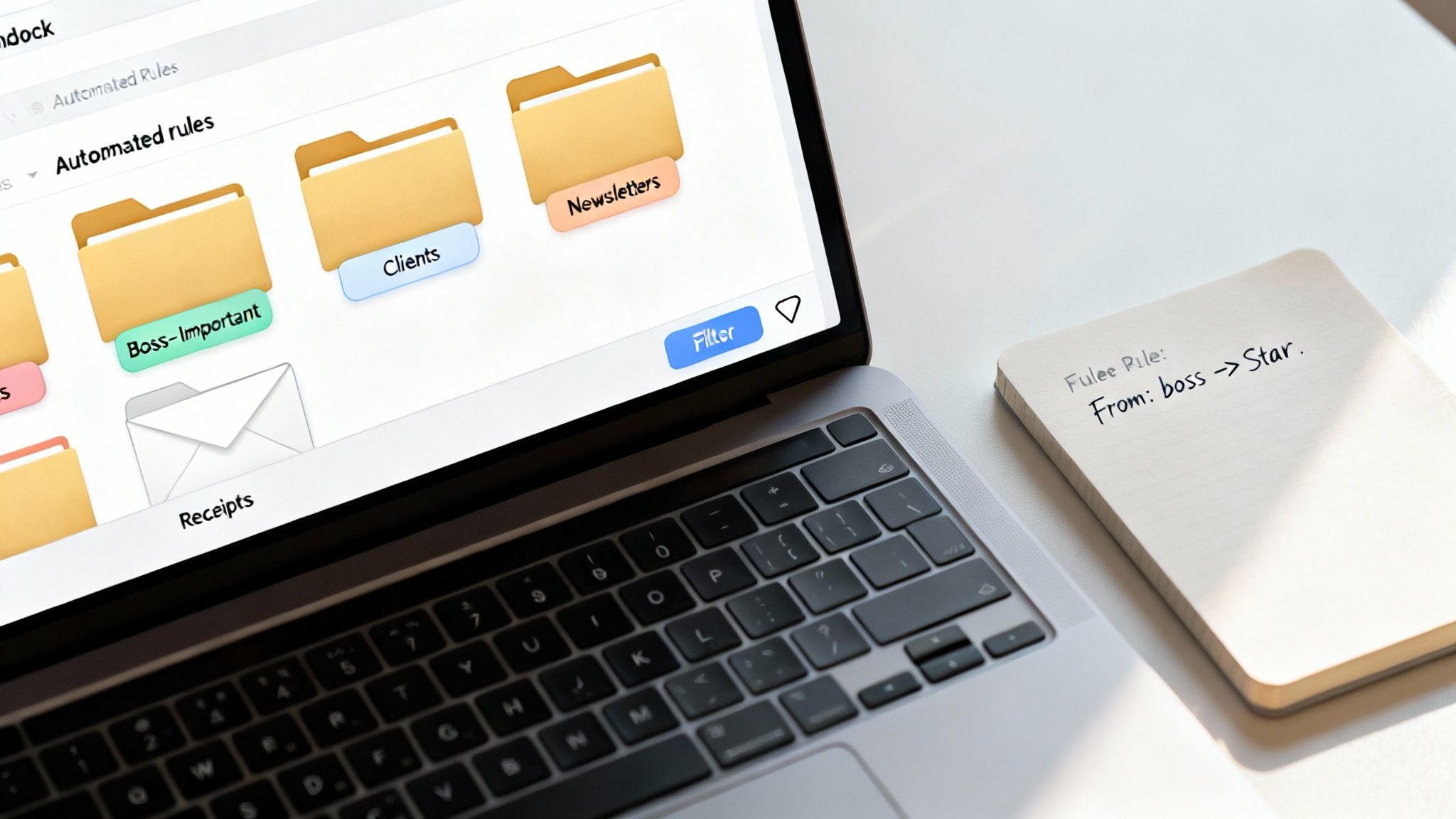
If you're still manually dragging every message into a folder, you're fighting a losing battle. The real secret to a calm, manageable inbox isn't about working harder—it's about making your email client do the heavy lifting for you.
Think of it as training a personal assistant. By setting up a few smart rules, you can teach your inbox to sort messages automatically before they ever get a chance to distract you. The goal is to make your primary inbox sacred ground, reserved only for the emails that genuinely need your immediate attention.
Build Your First Automated Filters
Let's start with the low-hanging fruit: newsletters, promotional emails, and those company-wide announcements. You might want to read them eventually, but they have no business interrupting your deep work.
A great first move is to create a filter that sends all newsletters to a dedicated "Reading" folder.
- In Gmail: Create a filter that looks for the word "unsubscribe" in the body of an email. Tell Gmail to "Skip the Inbox (Archive it)" and apply a "Newsletters" label. This catches almost everything.
- In Outlook: Set up a rule where the message body includes "unsubscribe." Have Outlook move it to a specific folder, maybe named "To Read," and automatically mark it as read.
This one small change can have a massive impact. Suddenly, dozens of notifications disappear from your main view, replaced by a curated reading list you can browse on your own terms. You decide when to engage, not the sender.
Getting a handle on these kinds of distractions is a huge step. If you want to dive deeper into this, we have a complete guide on how to automate repetitive tasks that can help streamline other parts of your digital life, too.
Prioritize Important Senders and Projects
Automation isn't just for hiding the unimportant stuff; it's a powerful tool for highlighting what matters most. With the right rules, you can make sure that emails from key people or about critical projects are impossible to miss.
For instance, let's say you're working with a crucial client, "Acme Corp," or you absolutely cannot miss an email from your manager. You can build rules to flag these messages instantly.
This is exactly what the filter creation window in Gmail is for. It lets you get super specific with your criteria.
As you can see, you can target emails from a specific person and tell your inbox exactly what to do with them, like automatically starring them or applying a label.
Here are a few high-impact rules I recommend setting up right away:
- Flag Your Manager: Create a filter for your boss's email address. Set the action to "Star it" and "Apply the label: Manager." This makes their emails visually pop.
- Organize by Project: If you're managing "Project Phoenix," set up a rule that moves any email with "Project Phoenix" in the subject line directly into a dedicated folder.
- Handle Financials: Automatically file away all those receipts and invoices. Create a filter for senders like Amazon, your accounting software, or your travel booking site. Have them skip the inbox and go straight to a "Receipts" or "Finance" folder.
This is how you create a truly self-sorting system. Urgent messages get flagged, project comms are pre-organized, and all the noise is filed away. You're no longer the inbox janitor—your system does the cleaning for you.
Adopt Strategic Email Batching Habits
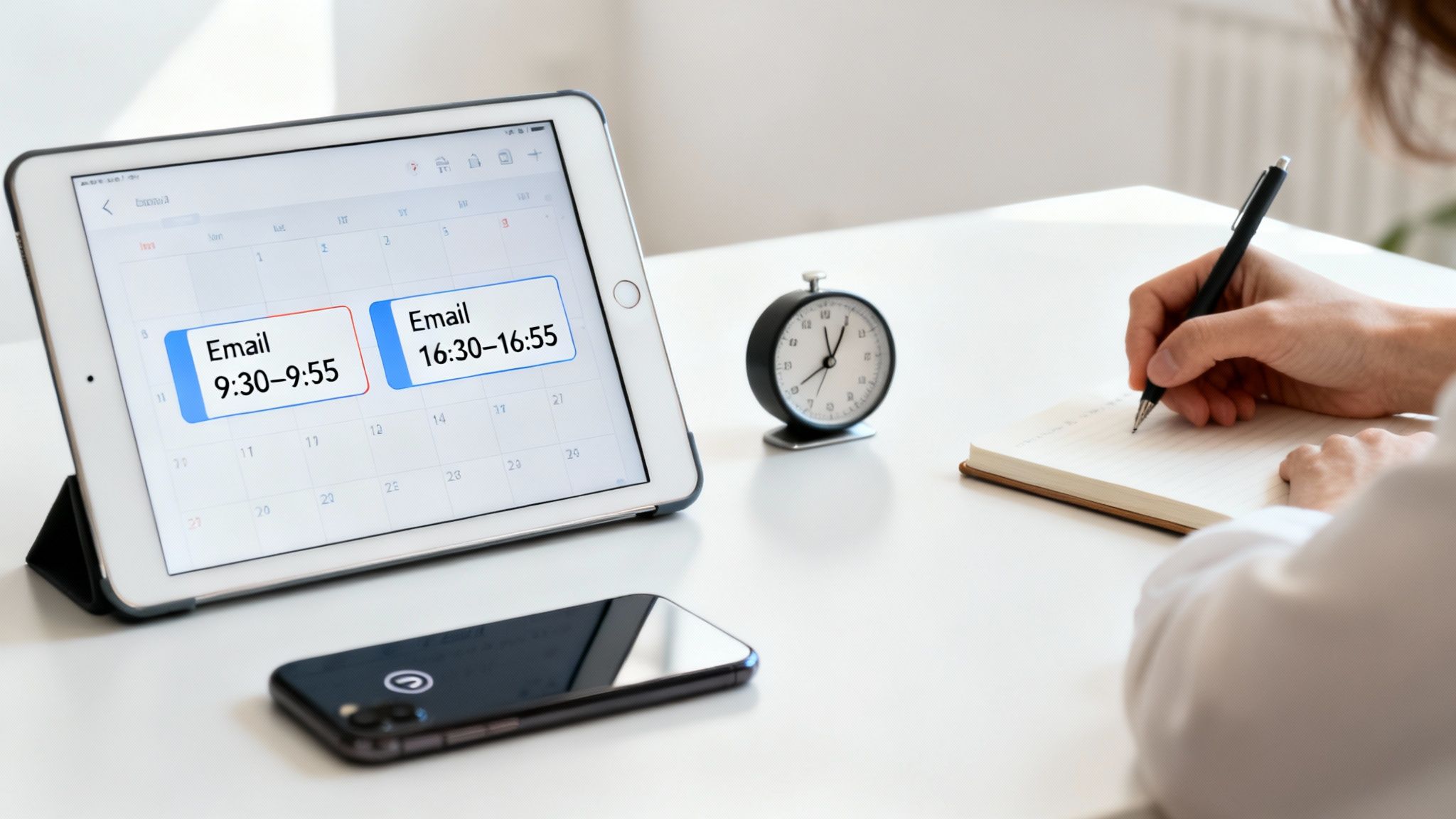
Let's be honest: that constant ping of a new email is a certified productivity killer. Each notification pulls you out of deep work and trains your brain to react to every little thing. The secret to breaking this cycle is to stop living in your inbox and start treating it like any other task on your to-do list.
This is where email batching comes in. Instead of reacting to emails as they arrive, you process them in focused, scheduled blocks of time. You decide when to open the inbox, not the other way around. This simple shift is crucial for reclaiming the long, uninterrupted stretches you need to tackle meaningful work.
Design Your Email Processing Schedule
The magic of batching lies in building a predictable routine. For most people, two dedicated email blocks a day are plenty to stay on top of everything without feeling overwhelmed.
Think about a rhythm that works for you. Maybe something like this:
- Morning Triage (25 minutes): Around 10:00 AM, after you’ve already knocked out a big task for the day. Use this time to clear out overnight messages—quick replies, deletions, and delegating anything that isn't yours.
- Afternoon Wrap-Up (25 minutes): Around 3:30 PM. This is your chance to handle anything new that’s come in and fire off any final replies before you call it a day.
This turns email from a constant, nagging distraction into a scheduled, manageable task. It’s no longer an emergency; it’s an appointment on your calendar. Beyond just feeling better, studies have shown batch processing can boost efficiency by as much as 20% by cutting down on decision fatigue. You can find more stats on email productivity over on CloudHQ's blog.
Pro Tip: Let your team know about your new system. A quick status message in Slack or Teams like, "Heads down on Project X—checking emails at 10 AM and 4 PM," sets clear expectations and frees you from the pressure to reply instantly.
Master Your Tools to Fit Your Schedule
Your email client is packed with features that can help you stick to your batching schedule. Instead of just letting messages pile up, use these tools to manage them on your own terms.
Gmail's Snooze Feature:
Ever see an email you know will take a while to answer, but you can't get to it right now? Don’t just leave it there to stare at you all day. Hit the "Snooze" button and tell it to pop back up at the start of your next email block. Your inbox stays clean, and you can focus on what's truly urgent right now.
Outlook's Delay Delivery:
Working late and clearing out your inbox is a great feeling, but sending emails at 10 PM creates an expectation that you're always on. This is where "Delay Delivery" is a game-changer. Write all your replies when it's convenient for you, but schedule them to send at 9:00 AM the next morning. It lets you clear your plate while still respecting everyone else's time.
By building these habits, you stop being a slave to your inbox. You start using it for what it is: a powerful tool that works for you, not against you.
Cut Down Reply Time with Smart Tools
If you're typing the same answers over and over again, you're doing more than just wasting time—you're burning precious mental energy on rote work. Think about it. How many times a day do you type out "Thanks, got it," or send a standard follow-up message? Each one might only take a minute, but they stack up fast.
The trick is to stop typing from scratch and start automating those common replies. Using built-in features and smart tools, you can turn a multi-step task into a single click. This isn't just a minor tweak; it's a core strategy for getting your inbox under control and reclaiming your focus for the emails that actually matter.
Use Your Email Client’s Built-in Templates
Most of us barely scratch the surface of what our email clients can do. Tucked away in the settings are some powerful, often-ignored features for saving and reusing text. You just have to know where to find them.
For Gmail users, it’s all about "Templates." This feature, which used to be called Canned Responses, is a lifesaver. You'll need to enable it in your advanced settings first. Once you do, you can compose a perfect reply, save it as a template, and then drop it into any new email with just a few clicks.
Outlook users have "Quick Parts." This works similarly, letting you save and reuse blocks of text. You can build a whole library of these, from a simple sign-off to a complex, multi-paragraph message with all the right formatting and links. It's incredibly handy for everything from sales outreach to common IT support answers.
Here’s how that plays out: A project manager I know sends out a weekly status report. Instead of starting from a blank slate, she has a template that includes the standard greeting and structure: "Hi Team, Here is this week's update on Project Phoenix..." All she has to do is insert the template, pop in the latest bullet points, and hit send. It saves her real time every single week.
Supercharge Your Workflow with Text Expanders
While built-in templates are a great first step, text expander apps take things to a whole new level. These tools aren't confined to your email client; they work everywhere on your computer. You set up short abbreviations, or "snippets," that instantly expand into longer blocks of text as you type them.
Imagine typing ;thanks and watching it immediately become: "Thank you for sending this over! I've received it and will get back to you within 24 hours if any action is needed on my end." That simple shortcut can save you from typing thousands of characters a day.
Some apps even go further, claiming to cut email time by as much as 50% by adding in AI-powered sorting and smart "send later" features. You can see some of the data behind these claims on CloudHQ's blog covering modern email tools.
If you want to dive deeper into automation, our guide on how to use AI tools is a great next step. By combining smart templates with a good text expander, you'll be amazed at how much time you can claw back from repetitive communication.
Build Your Proactive Inbox Defense
The best way to manage a chaotic inbox is to stop the flood of unnecessary email at the source. It’s one thing to sort the mail that arrives, but it’s far more effective to reduce the amount of mail you get in the first place. This is about going on the offensive against all that promotional clutter and junk mail that buries the important stuff.
Your first move? A ruthless unsubscribe blitz. Scroll through your inbox and be brutally honest with yourself. How many of those newsletters, brand updates, and promotional lists do you actually read? If you find yourself immediately deleting or archiving them on sight, it’s time to say goodbye.
The Great Unsubscribe Campaign
This isn't just a casual spring cleaning; it's a systematic purge. Every legitimate promotional email is legally required to include an unsubscribe link, though they often hide it in the fine print at the bottom. Find it and use it without mercy.
If you want to speed things up, a tool like Unroll.Me can be a game-changer. It scans your inbox, finds all your subscriptions, and gives you one master list. From there, you can mass-unsubscribe from dozens of senders in just a few clicks. What would have taken an hour becomes a quick, satisfying win.
Unsubscribing seems like a small step, but it’s the most powerful preventative measure you have. While the average unsubscribe rate across all campaigns is a tiny 0.20%, your personal rate should be much higher. Be aggressive. You can learn more about these email trends and their impact on list health at CloudHQ.
Train Your Email Client to Be Your Gatekeeper
Beyond unsubscribing, you have two more essential tools in your arsenal: Block Sender and Report Spam. These aren't just for deleting a single message—they're powerful commands that teach your email provider what you don't want to see.
- Block Sender: Perfect for those persistent marketers who ignore your unsubscribe requests or for any address you simply never want to hear from again.
- Report Spam: This is your go-to for anything that looks malicious, deceptive, or is outright junk. Reporting spam doesn't just help you; it helps your email service protect everyone else, too.
Using these features consistently trains your email algorithm. Over time, Gmail or Outlook gets much smarter about filtering out junk automatically, creating a defense system that’s personalized just for you. This kind of inbox hygiene is also a critical part of your digital security. You can learn more by reading our guide on email security best practices.
By taking these steps, you're not just cleaning up; you're building a smarter, more resilient inbox for the long haul.
Your Daily Blueprint for Inbox Control
All the strategies in the world won't help if you don't build them into a habit. Let's pull everything together into a practical, repeatable workflow that gives you lasting control over your inbox without letting it take over your day.
A good routine starts with being intentional. Instead of letting your inbox set the agenda for your morning, you need to set the agenda for your inbox. I've found that tackling my most important task first is a game-changer. Only then do I turn to email. This simple shift prevents the day's priorities from being derailed by other people's requests before I've even had my coffee.
If you're looking to build a more structured start to your day, our guide on creating a morning routine for productivity is a great place to start.
The Morning Triage Session
Your first email check-in of the day isn't about writing long, thoughtful replies. It's about sorting, quickly and ruthlessly.
Set a timer for 20-25 minutes. Your only job is to process every single new message using a simple framework. I personally like the "Four Ds" because they cover every possibility:
- Delete: Be aggressive. Junk, irrelevant notifications, FYIs you've already read—get them out of sight.
- Delegate: If someone else on your team should handle it, forward it immediately and get it off your plate.
- Do: If it takes less than two minutes to reply or complete the task, do it right now. Don't let it linger.
- Defer: Anything that needs more than two minutes of thought or work gets moved. Drag it to a dedicated "To-Reply" folder or apply a specific label.
This is the heart of the Inbox Zero philosophy. The goal isn't just an empty inbox; it's about making a decision on every email immediately instead of letting them pile up and cause stress. Two focused 20-minute blocks like this per day are often all it takes.
The Afternoon Response Block
Later in the day, maybe after lunch, schedule another 25-30 minute block. This is your time to work through the "Defer" pile you created in the morning.
Because you’ve already cleared out all the noise, you can give these more complex messages your full, undivided attention. This is also the perfect time to fire off those templates and canned responses for frequently asked questions, which makes the whole process feel incredibly efficient.
By the end of this session, your inbox should be clear, freeing up your mental energy to focus on wrapping up the day's most important work.
A huge part of making this work long-term is reducing what comes in to begin with. You need a good defense.
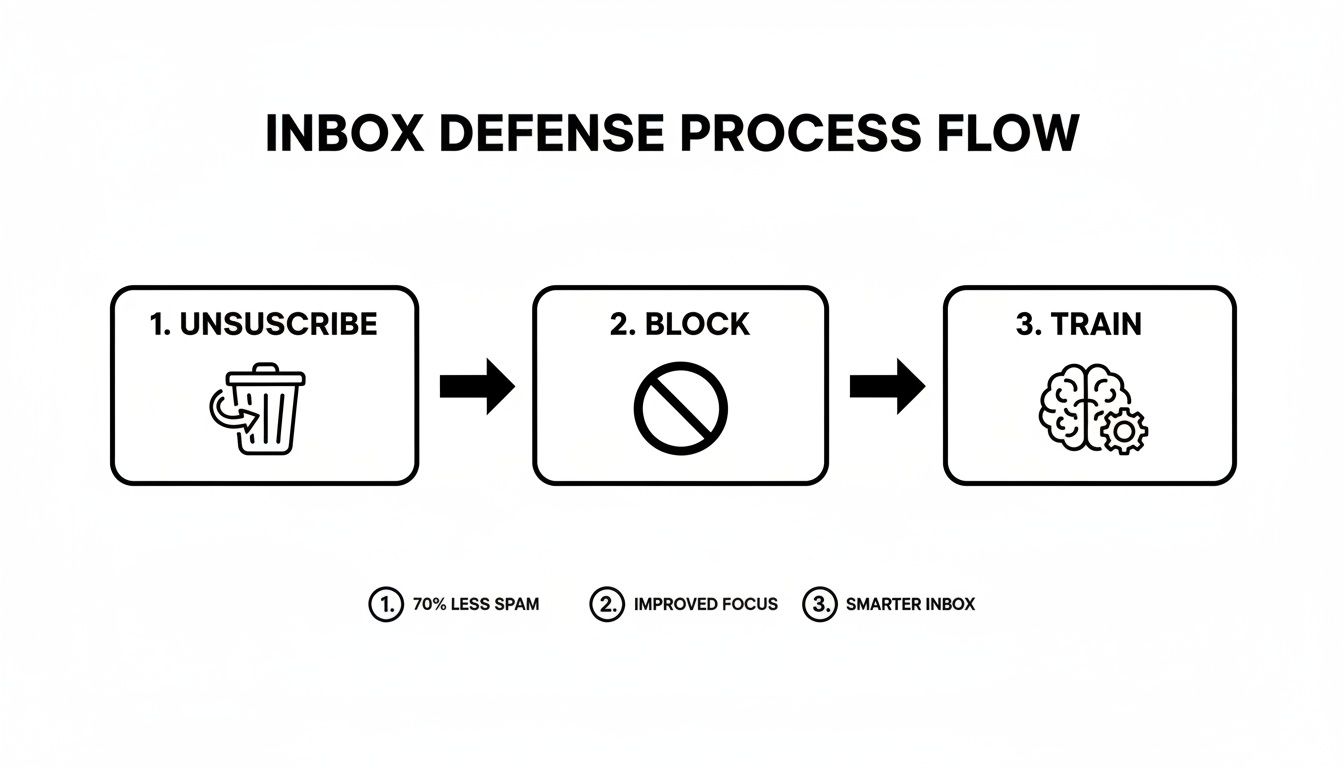
As you can see, proactively unsubscribing, blocking senders, and training your spam filter is the best offense you have against future clutter.
Real-World Example: A Freelancer's Setup
A freelance designer I know juggles projects for five different clients. She has automated rules that instantly file incoming emails from each client into a dedicated folder ("Client A," "Client B," etc.). Her morning triage is for clearing out general inquiries and admin. Her afternoon block is then reserved for providing detailed feedback on just the two most active projects, ensuring they get the focused attention they deserve.
Common Questions and Sticking Points
Even with a solid plan, you're bound to hit a few snags. It happens to everyone. Here are some of the most common questions that pop up when you start wrestling your inbox back into shape.
"What if I Miss Something Urgent While I'm Batching?"
This is probably the number one fear people have, but it’s rarely the catastrophic problem we imagine. The key is to set clear expectations upfront.
Let your team and key collaborators know your new rhythm. A simple, "Hey team, I'm now checking email at 10 AM and 3 PM to stay focused on deep work. If anything is a true, time-sensitive emergency, please call or send a quick Slack message." This gives them an outlet and respects everyone's time.
You'll quickly find that most "urgent" emails aren't really emergencies at all. People just use email as their default communication tool. By setting boundaries, you help train them to use the right channel for the right message.
"Is Inbox Zero Actually Realistic or Just a Myth?"
It depends on how you define it. If you think "Inbox Zero" means having a literally empty inbox every single day, then no, that’s not realistic for most people. And that’s perfectly fine.
The real spirit behind the movement isn't about the number 0. It’s about making a decision on every single email that comes in. Does it need a reply? Should it be archived? Does it go to a folder? Does it become a task?
The goal isn't an empty inbox; it's an empty mind. You should be able to close your email at the end of the day knowing that nothing important has been forgotten or lost in the shuffle. That's the real win.
"Help! I Just Got Back from Vacation and I'm Drowning."
Staring at a wall of 1,000+ emails after a week off is enough to make you wish you never left. Don't panic, and definitely don't try to read every single one.
First, do a quick sort by sender. This lets you bulk-delete all the newsletters, automated notifications, and promotional junk in seconds. Then, sort by subject to group conversations together and see which threads you can safely ignore or archive.
For anything older than a few days, consider a "bulk archive." The truth is, if something was genuinely critical, the person will have followed up or found another way to reach you. Be ruthless here. The goal is a quick reset, not a perfect, painstaking review of every message.
"I Have 10,000+ Unread Emails. Where Do I Even Begin?"
This is where you have to give yourself permission to start over. You're never going to get through that backlog, and the constant visual reminder is just a source of stress. It's time to declare email bankruptcy.
It sounds dramatic, but it’s incredibly effective. Simply create a new folder—call it "Old Inbox" or "Archive Pre-[Date]"—and drag every single email into it. Yes, all of them.
Boom. You now have a clean slate. From this moment on, you can apply your new triage and filtering system to all new emails that arrive. If you ever need to find an old message, you can just search that archive folder. This single move is a powerful mental reset that lets you move forward without being chained to the past.
At Simply Tech Today, we believe technology should make your life simpler, not more complicated. For more guides on productivity and digital wellness, check out our other articles at https://www.simplytechtoday.com.


Member discussion