
How to Organize Work Email and Take Back Your Day

Getting your work email under control isn't about some complicated, rigid system. It's really about creating a simple, repeatable process to deal with messages fast, sort things automatically, and build good habits so you're not constantly drowning. Think of it as a combination of a smart folder structure, some clever filters, and dedicated time slots for email, transforming your inbox from a nightmare into a genuine productivity tool.
Why Your Messy Inbox Is Secretly Killing Your Productivity
That inbox with a four-figure unread count isn't just an eyesore; it's a silent killer of focus and a major source of your daily stress. Before we dive into building a better system, it's worth understanding what that chaos is actually costing you. This isn't just about being tidy—it's about getting your mental energy back, making better decisions, and actually having a life outside of work.
When emails and notifications are constantly flooding in, you're forced into a reactive mode all day. This digital noise shatters your ability to concentrate on the work that actually matters, trapping you in a cycle of switching tasks, which just destroys your focus and the quality of what you produce.
The Real Price of Email Chaos
Think about the sheer amount of digital traffic we're all trying to direct. The typical professional gets around 121 emails every single day and sends out about 40. It’s no wonder we spend over five hours a week just trying to stay afloat. What's even crazier is that a massive 84% of us just leave our email open all day with notifications pinging away, leading to constant interruptions. That habit can easily cost you over 90 minutes a day just in the time it takes to get your head back in the game after each distraction. For a deeper dive, the folks at EmailToolTester.com have compiled some eye-opening workplace communication stats.
This constant digital tether creates some serious, though often hidden, problems:
- Decision Fatigue: Every single email forces a micro-decision: reply now, delete, file it away, or deal with it later? An inbox with hundreds of these tiny decisions drains your mental battery, leaving you with less capacity for the complex, important work you're actually paid to do.
- Missed Opportunities: How many times has an important deadline or a critical message gotten buried under a mountain of newsletters and "reply-all" chains? When your inbox is a mess, crucial information goes missing.
- Constant Stress and Burnout: An inbox that never gets to zero creates a nagging feeling that you're always behind. That anxiety doesn't just stop at 5 PM; it seeps into your personal time, making it impossible to ever truly disconnect.
The point here isn't just to achieve "inbox zero." It's to slash the mental energy email demands so you can pour that brainpower into work that actually moves the needle.
At the end of the day, organizing your email is a core productivity skill. When you build a system that works for you, you're the one setting the priorities, not your inbox. This proactive mindset can be boosted with other smart strategies, and it’s worth checking out some of the best AI tools for productivity to see how they can complement your new workflow.
The Four-Folder Method for Effortless Email Triage
Let’s be honest: most elaborate email folder systems are where good intentions go to die. We create dozens of nested folders for every project and client, only to forget they exist and let our inboxes spiral out of control anyway. If you really want to learn how to organize work email, the secret isn't more folders—it's fewer, smarter ones.
I'm a huge advocate for a lean, four-folder triage system. Its only purpose is to help you make rapid decisions, not to create a permanent, complex library.
The biggest mistake I see people make is using their inbox as a combined to-do list, reading list, and random archive. That’s a recipe for constant distraction and mental clutter. Your inbox should be a processing station, not a permanent residence. New mail arrives, you deal with it, and it moves out. Fast.
Your Four Core Folders
The entire system is built on just four simple destinations. Think of them less as filing cabinets and more as workflow stations.
- Inbox: This is a temporary landing zone. Nothing should live here for more than a few minutes. It's for new, unprocessed mail only.
- Action: This is for any email that requires a task taking more than two minutes. It's your real email to-do list.
- Awaiting: This is your follow-up file. It’s for messages where you've passed the baton and are now waiting for someone else to reply or act.
- Archive: This is the final stop for anything you've dealt with but might need to find later.
This approach is about reclaiming your focus. Every time you jump on a new email as it arrives, you shatter your concentration. The flowchart below perfectly illustrates this—batching your email processing is a productivity game-changer.
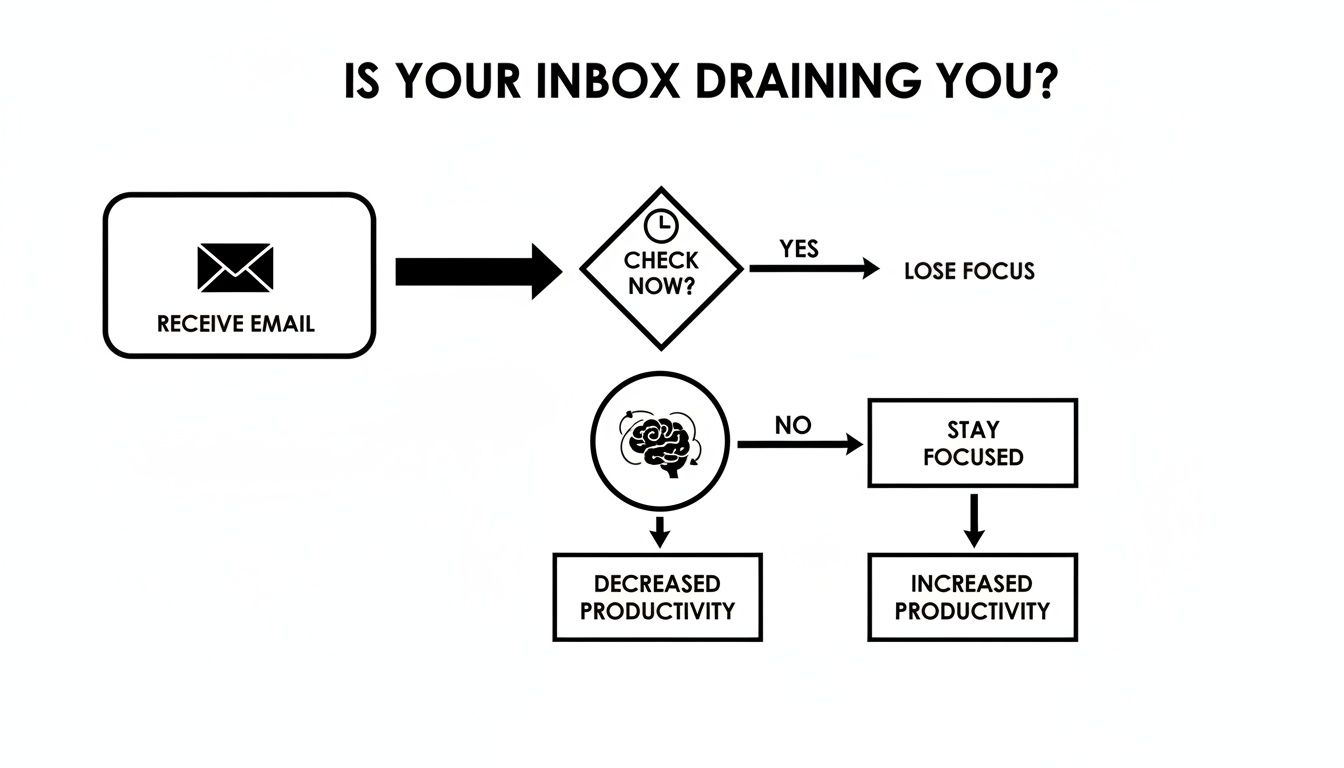
As you can see, reacting instantly pulls you out of deep work. A structured triage system like this one protects your most valuable asset: your attention.
Making Quick Decisions
Once the folders are set up, you need a mental script for processing each email. This is where the classic "4Ds" of email management come in. It’s a beautifully simple but powerful framework that stops emails from sitting around indefinitely.
Your goal is to touch each email only once. Make a decision, execute it, and move on. This single habit dramatically reduces the time you spend re-reading the same messages over and over.
Here’s how to apply this rapid-fire process.
Do It
If you can handle the email in less than two minutes, do it right then and there. A colleague asks if you can join a 3 p.m. call? Reply "Confirmed" and immediately archive it. Done. Don't let these tiny tasks linger and clog your inbox.
Delegate It
If the request is for someone else on your team, forward it to them right away. But here’s the pro move: after you forward it, move the original email into your "Awaiting" folder. Now you have a clean, simple list of things you need to follow up on, without it getting lost in your main inbox.
Defer It
For emails that need real work—like "Please review this 10-page project proposal"—don't let them sit in your inbox, staring at you and causing stress. Move them directly to your "Action" folder. This folder becomes a curated to-do list that you can tackle during a dedicated block of time, rather than letting it derail your current task.
Delete or Archive It
Is the email just a company-wide FYI, a newsletter you’ve skimmed, or a conversation that’s now finished? If you're positive you'll never need it again, just delete it. For everything else that's been handled, archive it. With today’s powerful search functions in Gmail and Outlook, a single archive is far more efficient than a dozen perfectly sorted but rarely used folders.
To make this even clearer, here's a quick-reference table summarizing the triage process.
The Four-Folder Email Triage Method
This table breaks down how to process incoming emails with ruthless efficiency to get you to the coveted state of Inbox Zero.
| Folder Name | Purpose | Example Email | Your Action |
|---|---|---|---|
| Action | For tasks that require more than 2 minutes of work. | "Can you review the attached Q3 financial report and provide feedback?" | Move the email to your "Action" folder and block time on your calendar to complete the review. |
| Awaiting | For emails where you are waiting on someone else's input or action. | "I've sent the client proposal. I'll let you know when they respond." | After delegating, move the email here. Scan this folder once a day to see what needs a follow-up. |
| Archive | For any email that has been handled and needs to be saved for reference. | A payment confirmation, a finalized project document, or a completed conversation. | Hit "Archive." Don't overthink it. Trust your search function to find it later if needed. |
| (Delete) | For emails with no future value. | A promotional email you don't need, an out-of-date notification, or spam. | Delete it without hesitation. Be ruthless in decluttering. |
By consistently applying this Do, Delegate, Defer, or Delete/Archive mindset, you turn email processing from a constant, draining chore into a quick, decisive routine.
Automate Your Inbox with Smart Rules and Filters
Having a neat folder system is a solid first step, but the real game-changer is when you stop sorting all those emails by hand. Your email client is more than just a mailbox; it’s a powerful assistant waiting for instructions. By setting up smart rules and filters, you can build a self-organizing inbox that clears out the daily clutter for you.
Think about it: instead of manually dragging project updates into a folder or archiving newsletters one by one, you can teach your email program to recognize and file them automatically. This isn't just for hiding junk mail. It’s about building a system that actively prioritizes what you see, ensuring only the most important messages demand your immediate attention.
Setting Up Your First Automated Rules
Getting started with rules (or "filters," as Gmail calls them) is surprisingly straightforward. The whole concept boils down to telling your email client to look for a specific trigger—like the sender, a word in the subject line, or even part of the email body—and then perform an action you’ve assigned.
Let’s say you get daily performance reports from an automated system. They’re important to keep, but they don't need to sit in your primary inbox. You can create a simple rule that says:
- If: An email comes from
reports@yourcompany.com... - Then: Mark it as read and move it directly to the "Reports" folder.
Just like that, you’ve eliminated a daily interruption. Now you can review those reports on your own terms. This is the first taste of reclaiming your focus.
Advanced Filtering Strategies for Gmail and Outlook
Once you get the hang of basic rules, you can create much more sophisticated workflows to triage emails before they even hit your inbox.
In Outlook, for instance, you can design rules that flag any email containing a specific project codename or a key client's name.
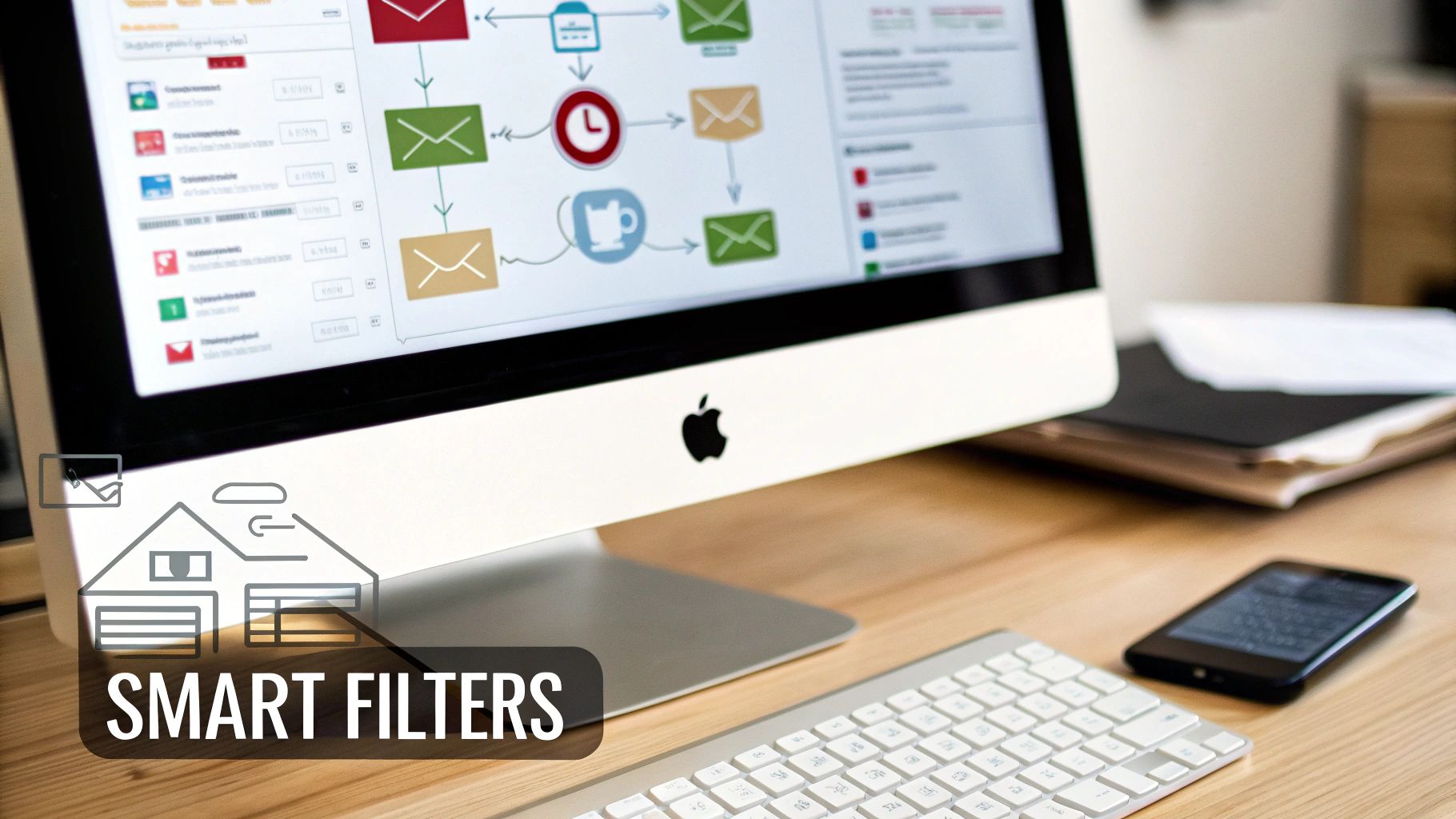
The rule creation wizard lets you stack conditions and actions, like moving an email to a specific folder and flagging it for follow-up. It's incredibly flexible.
Here are a few powerful rule ideas to get you started:
- Client VIP List: Create a rule for any email from your top five clients. The action? Star the message and maybe even mark it as important.
- Project Keyword Sorting: Set up a filter for emails with "[Project Titan]" in the subject line. The action? Automatically apply the "Project Titan" label or category.
- Meeting Invite Management: Make a rule that spots calendar invites from Zoom or Teams and moves them to a "Meetings" folder, keeping them out of your main view.
The ultimate goal of automation is to slash decision fatigue. The fewer manual sorting decisions you have to make, the more brainpower you have left for the work that actually matters. Every email your system handles for you is a productivity win.
As technology gets smarter, this kind of automation is becoming easier. Many email platforms are starting to use AI to suggest rules based on how you already handle your mail. Getting comfortable with how to use AI tools can open up even more ways to automate the boring, repetitive parts of your digital life.
By putting in a little time upfront to build these automations, you're creating a system that will pay you back with hours of saved time and a much clearer headspace every single week.
Building Habits That Keep Your Inbox Organized
You can set up the world's most brilliant folder system and craft automation rules worthy of an award, but none of it will stick if you don't tackle the root cause of the chaos: your habits. The real secret to organizing work email for good is shifting from a reactive state—where every new email ping derails your focus—to a proactive one where you are in charge.

The single most powerful habit I've ever adopted is email batching. Instead of letting your inbox interrupt you constantly, set aside specific blocks of time to deal with it. I suggest trying three 30-minute sessions a day: one in the morning, one after lunch, and a final sweep before you log off. This one change frees up huge chunks of your day for the deep, uninterrupted work that actually matters.
Embrace Decisive, Quick Actions
When you're in one of your scheduled email blocks, the name of the game is speed and decisiveness. A great rule of thumb here is the "two-minute rule." If you can read an email and fire off a reply in under two minutes, do it right then and there. Get it done, archive it, and move on. This simple trick prevents tiny tasks from snowballing into a massive, stress-inducing pile.
For anything that takes longer, it immediately gets moved to your "Action" folder. Your inbox should be a processing station, not a de facto to-do list.
Reclaim Your Focus and Set Boundaries
Let's be blunt: notifications are a productivity killer. You have to turn them off. All of them. On your desktop, on your phone, even on your smartwatch. Each little ping seems harmless, but research shows it can take over 20 minutes to get back into a state of deep focus after an interruption. If you're serious about getting things done, this is non-negotiable.
This constant connectivity has created what I call the "infinite workday," where the lines between professional and personal life completely disappear. A landmark study from Microsoft paints a stark picture: 40% of employees are checking work email before 6 AM, and almost a third are diving back in after 10 PM. This behavior is estimated to cost us 90 minutes of productivity every single day, just from recovering from email distractions.
Protecting your time isn't selfish; it's essential for high-quality work and long-term sustainability. Setting a clear "off-hours" policy for yourself—and communicating it to your team—is a powerful act of self-preservation.
These habits reinforce each other. You handle email efficiently during your designated slots, which in turn helps you protect your focus during work hours and your peace during personal time. Speaking of protection, securing your accounts is just as important. For more on that, take a look at our guide on how to use two-factor authentication.
Advanced Email Strategies for Power Users
Once you’ve got your folders and rules running smoothly, you can really start to level up your email game. These next few tactics are for anyone who wants to stop managing their inbox and start using it as a serious productivity tool. This is where you start saving hours, not just minutes.
Think about it: how many times a day do you type out a slightly different version of the same exact email? A project check-in, a reply to a common question, a weekly report summary—it all adds up. Each one burns mental energy and precious time that you could be using for something far more important.
Master Repetitive Tasks with Templates
Most email platforms have a built-in feature for this. In Gmail, you just have to enable "Templates" in the "Advanced" settings. In Outlook, it's called "My Templates." The idea is simple: instead of rewriting everything from scratch, you create a pre-written message and pop it into your email with a couple of clicks.
For someone managing projects, this is a lifesaver. You could build templates for:
- Weekly Status Updates: A structured email with placeholders for metrics and progress notes.
- Meeting Confirmations: Your standard message with the agenda and a link to the conference call.
- New Client Onboarding: A friendly welcome email outlining next steps and linking to key resources.
I've found that setting up just five templates for my most common replies saves a shocking amount of time. You're not just saving keystrokes; you're also cutting out the small decisions needed to compose each message, which keeps you focused on the deep work that matters.
Use Scheduled Send for Strategic Communication
"Schedule Send" is probably one of the most powerful and overlooked features in modern email. Its real magic is separating the act of writing an email from the act of sending it. This simple shift gives you incredible control over how others perceive your communication and helps protect your own time.
Picture this: you wrap up a big report at 10 PM. If you send it right then, it can create an expectation that you're always online and available for an immediate reply. Not a great precedent to set.
Instead, schedule it to land in your boss's inbox at 8:30 AM the next morning. It's a small change, but it makes you look professional and in control, not like you're frantically working late. It also lets you clear your head and move on to the next thing without waiting for a reply.
Manage Shared Inboxes and Mobile Access
Working on a team often means dealing with shared inboxes, like support@company.com or sales@company.com. Without a clear system, these can descend into chaos fast. The key is to establish clear ownership and a simple process.
- Assign Ownership: Use flags, categories, or even a simple "I got this" reply-all to show who is handling a specific email. No more crossed wires.
- Use Templates for Consistency: Make sure everyone on the team is speaking with one voice by creating a library of shared templates for common inquiries.
When you’re on your phone, the goal should be quick triage, not deep work. Use your mobile device to rapidly apply the "Do, Delegate, Defer, Delete" method. Swipe to archive things you've handled, or move urgent items to your "Action" folder for when you're back at a computer.
I highly recommend being ruthless with your mobile notifications. Turning off non-essential alerts is one of the best things you can do to avoid constant distraction. This kind of discipline is also a key component of good email security best practices.
Answering Your Biggest Work Email Questions
Even the most well-oiled system can hit a snag. Let's be honest, organizing your work email isn't a "set it and forget it" kind of deal—it's more like a practice you get better at over time.
Here are some of the most common questions I get, along with some practical advice for navigating those tricky situations.
So, How Many Folders Is Too Many?
I've seen it a hundred times: someone starts with good intentions and ends up with a folder structure so complex it’s impossible to use. It feels productive at first, but it quickly becomes a black hole where emails go to die.
The truth is, a simple system is a system you'll actually stick with.
Beyond those core triage folders we talked about (Action, Awaiting, Archive), you really don't need much more. I typically recommend a bare-bones setup:
- Projects: One main folder, with a sub-folder for each big project you're actively juggling.
- Clients: A single folder is usually enough, especially if you’re an account manager who needs to quickly reference client conversations.
- Reference: This is your spot for things like company policies, HR info, or team-wide resources you find yourself hunting for.
The real test is this: are you creating folders to find things later, or just for the sake of filing? If a quick search in your archive can pull up the email in seconds, you probably don't need a dedicated folder for it.
Try to keep your top-level folders to no more than 10-15. Any more than that, and the system starts working against you.
What’s the Best Way to Handle Emails I Need to Keep Forever?
This is a big one, especially for things like tax documents, signed contracts, or official performance reviews. While your email archive is great, it shouldn't be your permanent digital filing cabinet for critical records.
Think of your inbox as a temporary stop.
When an email lands with a crucial attachment—like that signed PDF or the final version of a report—get into the habit of saving it somewhere else immediately. Moving it to a secure, shared drive or cloud storage creates a single source of truth for your most important files. For a detailed walkthrough on this, check out our guide on how to use cloud storage.
Is Inbox Zero a Real Thing or Just a Myth?
It's absolutely real, but you might need to reframe what it means.
"Inbox Zero" isn't about having zero emails in your account. It means you've processed everything in your inbox, leaving it empty of decisions you still need to make. Every single message has been dealt with: replied to, archived, deleted, or moved to a task list.
Getting there consistently comes down to building the right habits, like batching your email time and killing those distracting notifications. It’s about treating your inbox as a to-do list to be cleared, not an endless stream of information. Don't beat yourself up if you don't hit it every single day, but use it as a north star to keep your email from becoming a source of anxiety.
At Simply Tech Today, we believe that mastering your digital tools is the key to unlocking a more focused and productive workday. For more guides that turn complex tech topics into simple, actionable advice, visit us at https://www.simplytechtoday.com.


Member discussion