
A Practical Guide on How to Protect Privacy Online

Let's get straight to it: the best way to start protecting your privacy online is with a few quick wins. First, get a good password manager so every account has a unique, strong password. Next, turn on two-factor authentication (2FA) everywhere possible. Finally, dive into your browser settings and block third-party cookies.
Doing just these three things builds a surprisingly strong foundation for your digital life.
Why Bother With Online Privacy? It's Not as Hard as You Think.
I get it. The whole idea of "digital privacy" sounds overwhelming. You're constantly bombarded with news about data breaches, confusing app permissions, and terms of service agreements that are pages long. It’s enough to make you want to throw your hands up and just accept that nothing is private anymore.
But here’s the thing: taking back control isn’t about becoming a cybersecurity guru overnight. It's about forming a few simple, smart habits that dramatically shrink your digital footprint.
This guide is designed to be your practical, no-nonsense playbook. We're going to skip the dense technical jargon and focus on what actually works. I want to show you how tiny bits of your data—like where you go, what you search for, and what you buy—are gathered and used in ways you probably never imagined.
What's Really Happening With Your Data
Every time you click, search, or shop, you're feeding a massive digital profile that companies use to target you with ads. This goes way beyond seeing an ad for a pair of sneakers you looked at last week. Today's sophisticated algorithms use this data to make shockingly accurate guesses about your income, your health, and even your political beliefs.
If you’ve ever wondered how these systems get so smart, it helps to understand a little about how artificial intelligence works. It's the engine that powers this behavioral prediction.
This constant tracking isn't just creepy; it's a security risk. A data leak from a simple online store could expose your email and password. From there, criminals can try that same combination on your bank account or primary email. This is exactly how a small privacy oversight snowballs into a nightmare like identity theft or financial fraud.
Taking control of your data isn't just about hiding from advertisers. It's about safeguarding your identity, protecting your finances, and preserving your ability to browse the web without being constantly monitored and profiled.
The Good News: You're Not in This Alone
Thankfully, the tide is starting to turn. Both people and governments are waking up to the critical importance of digital privacy, and new regulations are finally giving us more say over our own information.
Legislation like the General Data Protection Regulation (GDPR) in Europe has set a powerful new global standard for data rights, forcing companies to be more transparent.
This isn't just a European trend; it's a worldwide movement. As of early 2025, a staggering 79% of the world's population—that's 6.3 billion people across 144 countries—is now covered by data privacy laws. In the United States, 21 states have passed their own robust privacy legislation, cementing the idea that privacy is a fundamental right, not a luxury.
This guide will give you the tools and knowledge to use those rights and start building a more secure online life, right now.
Your 5-Minute Privacy Wins Quick Action Checklist
Ready to make a real difference in just a few minutes? Here are the most impactful first steps you can take. This quick-action checklist covers the foundational habits that will give you the biggest bang for your buck.
| Action Item | Why It's Critical | Time to Implement |
|---|---|---|
| Install a Password Manager | Ends password reuse, the #1 cause of account takeovers. | 5 minutes |
| Enable 2FA on Key Accounts | Adds a crucial security layer, stopping unauthorized logins. | 2 minutes per account |
| Block Third-Party Cookies | Stops advertisers from tracking you across different websites. | 1 minute |
| Review App Permissions | Prevents apps from accessing data they don't need (e.g., location). | 5 minutes |
| Use a Privacy-Focused Browser | Blocks trackers by default without you having to do anything. | 3 minutes |
Tackling even one or two of these items today will put you in a much stronger position than you were yesterday. Let's dive into how to get them done.
Building Your Digital Fortress with Stronger Accounts
Think of your online accounts as the front doors to your digital life. Behind them, you’ve got everything from private messages and photos to your bank details. So, locking them down properly is the single most important thing you can do for your privacy. We're going to move past the generic "use a strong password" advice and get a real system in place that makes top-tier security feel completely manageable.
The absolute biggest mistake I see people make is recycling the same password across different websites. I get it—it's a tempting shortcut. But it opens up a huge security hole. If a minor forum you signed up for years ago gets breached, criminals will take that leaked email and password and immediately try them on more valuable targets, like your email and banking accounts.
Why You Need a Password Manager
This is where a password manager comes in. It’s essentially a super-secure digital vault for all your logins. Instead of trying to remember dozens of different complex passwords, you only have to remember one: your master password. It’s the one key that unlocks all your other keys.
These tools do more than just store passwords. They’re brilliant at generating incredibly strong, random ones for every new account you create. We're talking about passwords like j9!pT&sK4@zV#qB—totally impossible for a human to memorize, but effortless for the software to create and fill in for you. This strategy is foundational, and you can dive deeper into the core ideas in our guide on the best practices for password security.
Getting started is surprisingly easy:
- Pick a reputable service: Look for well-known options like Bitwarden, 1Password, or Dashlane.
- Create a very strong master password: Make it long, memorable, and something you've never used anywhere else. This is the one password you absolutely must protect.
- Install the browser extension and mobile app: This is what lets the manager seamlessly save and fill your passwords as you browse.
Just start by adding the logins for your most critical accounts—your main email, your bank, maybe Amazon. You can add the rest over time.
Going Beyond Passwords with Two-Factor Authentication
Even the best password isn't foolproof; it can still get exposed in a data breach. That’s why we have two-factor authentication (2FA). It adds a second layer of security by demanding two separate pieces of proof to verify it’s really you. It’s like needing both a key and a PIN code to open a safe.
Usually, the first "factor" is something you know (your password), and the second is something you have (a temporary code from your phone). This one simple step can block over 99.9% of automated attacks, even if a hacker already has your password.
Key Takeaway: Enabling 2FA on your critical accounts isn't just a good idea—it's one of the most powerful moves you can make to prevent someone from hijacking your digital life.
Choosing the Right Kind of 2FA
Now, not all 2FA methods are created equal. When you go to turn it on, you’ll usually see a few different options. Knowing the pros and cons is key to making the right choice for your security.
| 2FA Method | How It Works | Security Level |
|---|---|---|
| SMS Text Message | A code is sent to your phone via text. | Good |
| Authenticator App | An app on your phone (like Google Authenticator or Authy) generates a time-sensitive code. | Better |
| Physical Security Key | A small hardware device (like a YubiKey) plugs into your computer to verify your identity. | Best |
While getting a code via SMS is far better than nothing, it has a known weakness: "SIM swapping." This is a scam where an attacker tricks your mobile provider into moving your phone number over to their phone, giving them your 2FA codes.
For that reason, using an authenticator app is a much safer bet. The codes are generated right on your device and never travel over the phone network, so they can’t be intercepted the same way. Setting one up takes only a minute and gives your security a massive boost.
Prioritize enabling 2FA on these accounts first:
- Your primary email account (this is the master key to resetting all your other passwords!)
- Banking and financial apps
- Social media accounts
- Your password manager
By taking these steps, you transform your accounts from easy targets into heavily fortified assets. It’s a foundational habit for anyone who is serious about protecting their privacy online.
Taking Control of Your Web Browser to Stop Trackers
Your web browser is your main gateway to the internet, but straight out of the box, it's often set up to let advertisers and data companies watch your every move. The good news is that taking just a few minutes to adjust its settings and add the right tools can turn it from a privacy liability into a powerful shield.
Think of it this way: your browser is constantly leaking little bits of information about you, mostly through third-party cookies. These are tiny files that websites use to remember who you are. While some are helpful (like keeping you logged into an account), others are designed to follow you from site to site, building a shockingly detailed profile of your interests, habits, and personal life.
Blocking these trackers is one of the most effective things you can do to reclaim your privacy. Modern browsers like Firefox and Brave already block many of them by default. Others, like Chrome, need you to flip a switch to enable this protection. It’s a simple change that makes a huge difference.
Adjusting Your Browser for Maximum Privacy
Diving into your browser's settings is easier than it sounds. You don’t need to be a tech wizard to make meaningful changes that stop invasive tracking. The goal is simply to tell your browser to be more skeptical of the data it sends and receives.
Here are the most important settings to look for:
- Block Third-Party Cookies: This is the big one. Find it in your privacy or security settings and turn it on. It’s the single best way to stop ad networks from following you across the web.
- Send a "Do Not Track" Request: I'll be honest, not all websites honor this. But it’s still worth enabling to signal your preference not to be tracked. Think of it as putting a "No Soliciting" sign on your digital front door.
- Control Site Permissions: Take a look at which websites you’ve allowed to access your location, microphone, or camera. Be ruthless and revoke any permissions that aren't absolutely essential.
These small adjustments work together to dramatically reduce the amount of personal data you broadcast as you browse. It’s like closing the blinds on your digital windows.
Supercharge Your Defense with Privacy Extensions
While tweaking browser settings gives you a great baseline, you can take your protection to the next level with specialized extensions. These free tools act like personal bodyguards, actively identifying and blocking trackers, ads, and malicious scripts in real-time.
Two of the most respected and effective extensions are:
- uBlock Origin: This is way more than just an ad blocker. It’s a wide-spectrum content blocker that stops trackers and malicious scripts from ever loading. As a bonus, it also makes web pages load noticeably faster.
- Privacy Badger: Developed by the digital rights experts at the Electronic Frontier Foundation, this extension automatically learns to block invisible trackers. It intelligently identifies domains that appear to be tracking you across multiple sites and tells your browser to stop loading content from them.
To help you decide what's best for you, here’s a quick comparison of some popular options.
Comparing Privacy-Focused Browsers and Extensions
Choosing the right tools for your needs can feel overwhelming, but this table breaks down some of the best browsers and extensions to help you get started.
| Tool | Primary Function | Best For | Ease of Use |
|---|---|---|---|
| Brave | Privacy-first web browser | Users who want strong, built-in protection without needing extensions. | Very Easy |
| Firefox | Customizable web browser | Users who want to fine-tune their privacy settings and choose their own add-ons. | Easy |
| uBlock Origin | Browser extension | Blocking a wide range of ads, trackers, and malicious scripts. A must-have for any browser. | Easy |
| Privacy Badger | Browser extension | Automatically identifying and blocking non-consensual third-party trackers. | Very Easy |
Ultimately, the best setup is the one you'll actually use. You can't go wrong starting with Firefox or Brave and adding uBlock Origin.
Understanding and Using a VPN
A Virtual Private Network (VPN) is another cornerstone of online privacy. Simply put, a VPN creates a secure, encrypted tunnel for your internet traffic. This shields your online activity from your Internet Service Provider (ISP) and makes it much safer to use public Wi-Fi.
Without a VPN, your ISP can see every single website you visit. With one, your traffic is scrambled, so all they can see is that you're connected to a VPN server—not what you're doing. It also hides your real IP address from websites, preventing them from pinpointing your physical location. This is especially critical on public Wi-Fi at a cafe or airport, which are often unsecured and ripe for snooping.
A trustworthy VPN is an essential tool. It ensures that your browsing habits remain your business, not your ISP's, and protects you from potential threats on insecure networks.
The rising tide of security threats makes tools like this more important than ever. Data breaches continue to pose serious risks, with 1,732 publicly disclosed incidents in just the first half of 2025. These aren't minor leaks; 44% of them include sensitive customer data like names and emails, directly impacting your privacy.
When choosing a VPN, always look for a service with a strict no-logs policy, which means they don’t keep records of your activity. A reputable provider will also use strong, modern encryption. While securing your browser is a huge step, pairing it with strong email security best practices creates a much more complete defense for your entire digital life.
Securing Your Personal Devices and Smart Home
Real online privacy goes way beyond your web browser. Your phone, your laptop, and even that smart speaker on the kitchen counter are all data-gathering machines. If you want to get serious about protecting your information, you have to extend your security mindset to the physical gadgets you use every single day.
Let’s be honest, your smartphone probably knows more about you than anyone else. It holds your private conversations, your photos, and a detailed map of everywhere you go. Unfortunately, many apps take advantage of this, asking for way more access than they actually need to do their job.
It’s time for an app permission audit. Dive into your phone’s settings and start questioning everything. Why does that simple game need access to your contacts? Does that weather app really need to use your microphone? If an app’s request feels shady, it probably is. Revoke anything that isn't absolutely critical for it to function.
Locking Down Your Smartphone
Beyond just app permissions, there are a few other settings that quietly leak your personal data. Constant location tracking is a big one, creating a log of your daily movements that can be incredibly revealing. You have the power to turn this off.
- Tweak Location Services: Go into your privacy settings and switch most of your apps to "While Using the App" or even "Never." The only things that might need constant access are tools like "Find My Device."
- Reset Your Ad Identifier: Your phone has a unique ID used to track you for advertising. Both iOS and Android let you reset this in your privacy settings. Doing it every so often breaks the data trail advertisers have on you, making it much harder for them to build a detailed profile.
These are small changes, but they make a huge difference. They stop your phone from being a 24/7 surveillance device that you willingly carry around.
Think of your devices as private spaces, not open books. Regularly auditing permissions and tracking settings is the digital equivalent of locking your doors and drawing the blinds at night.
Encrypting Your Computer Hard Drive
Your computer holds a lifetime of documents, financial records, photos, and emails. If your laptop gets stolen, the only thing preventing a thief from accessing all that information is full-disk encryption. Without it, they could simply pop out the hard drive and read everything like an open book.
Luckily, today’s operating systems make this incredibly easy to set up.
- On a Windows PC: The tool you're looking for is BitLocker. You can usually find it in the Control Panel. A few clicks and your entire drive is scrambled, completely unreadable without your password.
- On a Mac: Apple’s version is called FileVault. Head over to "Security & Privacy" in your System Settings to turn it on.
Enabling encryption is a set-it-and-forget-it task. You do it once, and your data is protected from that point forward. There's really no good reason not to have it on.
Taming Your Smart Home Gadgets
The explosion of smart speakers, cameras, and thermostats has brought a whole new set of privacy worries right into our living rooms. These devices, part of what’s called the Internet of Things (IoT), can be alarmingly insecure if you don't take a few precautions. In fact, many people aren’t even sure what the Internet of Things is or how much data these gadgets are collecting.
Smart speakers are built to be "always listening" for a wake word, but that convenience comes at a price. It’s a smart habit to go into your Amazon or Google account settings every so often and delete your voice command history.
Likewise, that security camera you bought could become a window for a stranger to peer into your home. The absolute most important thing to do with any new smart device—including your Wi-Fi router—is to change the default administrator password immediately. Hackers are constantly scanning the internet for devices still using lazy credentials like "admin" and "password."
By taking charge of your app permissions, encrypting your computer, and properly securing your smart home, you create layers of defense that protect your information no matter where it lives.
How to Erase Your Digital Footprint from the Web
Think about how long you've been online. Over the years, you've left a trail of digital breadcrumbs across the internet. Every forum you joined a decade ago, every newsletter you signed up for on a whim, and every online store you used once has created a small piece of your digital footprint.
Cleaning this up is one of the most effective things you can do for your privacy. It reduces the amount of your personal data that’s just sitting out there, waiting to be exposed in the next big data breach.
This whole process really comes down to two main efforts: hunting down and deleting old accounts you’ve completely forgotten about, and then tackling the shadowy world of data brokers.
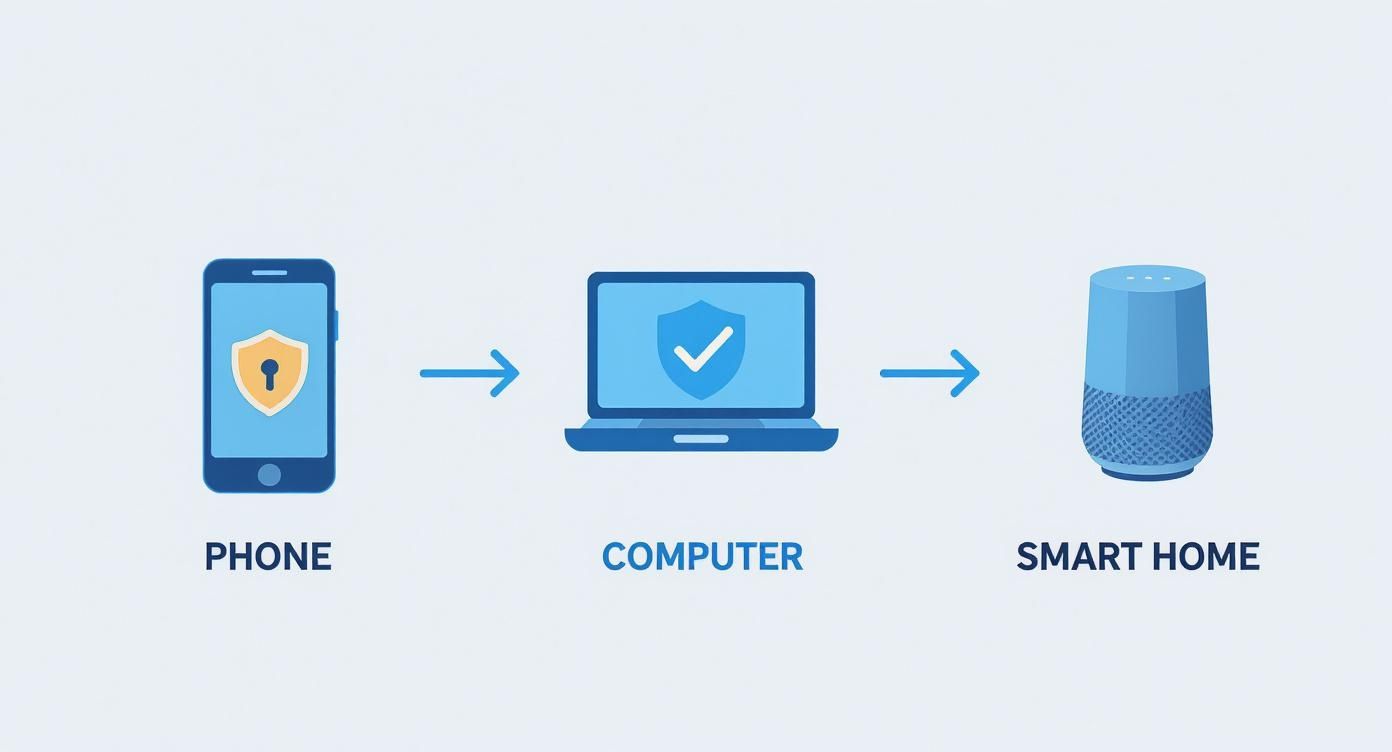
As you can see, securing your individual devices is the foundation. From there, we can expand to clean up the data that's scattered across the web.
Hunting Down and Deleting Old Accounts
First up is a bit of digital archaeology. The mission is to find all those long-abandoned accounts tied to your email address. Let's be honest, trying to remember every single site you've ever signed up for is a losing battle.
A much smarter way to do this is to use your email inbox as a map. Hop into your search bar and look for old welcome emails. I find that searching for terms like "confirm your account," "welcome to," or "new account" works wonders. You'll probably be shocked at how many services you've completely forgotten about.
Once you find an old account, the goal is to delete it entirely—not just unsubscribe from the marketing emails. Log in (you might need to reset the password) and look for the account settings, which are often buried under a "Privacy" or "Security" tab. If you can’t find a delete option, a quick web search for "[Service Name] delete account" usually gets you a direct link or step-by-step instructions.
Pro Tip: Some sites make it impossible to delete an account. If you run into this, do the next best thing. Scramble your personal information: change your name and bio to gibberish, and swap the email to a disposable one before you log out for the last time.
Confronting Data Brokers and Reclaiming Your Information
Deleting old accounts cleans up the data you knowingly shared. Data brokers are a different beast entirely.
These are companies that operate in the background, scraping, buying, and selling your personal information without you ever directly interacting with them. They pull data from public records, social media, your purchase history, and other sources to build incredibly detailed profiles on millions of people.
These profiles can include:
- Your full name and every address you've ever had
- Phone numbers and email addresses
- Your age and exact date of birth
- An estimate of your income and property value
- The names of your relatives
Having this information so easily accessible is a huge privacy risk. It's the fuel that powers those annoying spam calls, floods your mailbox with junk, and can even be used for sophisticated phishing attacks. The good news is, you have the right to tell them to remove it.
The Opt-Out Process and Automated Services
You can absolutely get your information off these sites, but I'll warn you: the process is intentionally tedious. You have to go to each data broker’s website one by one, hunt for their opt-out page (it's almost always buried in the footer), and fill out a removal request. With hundreds of these companies out there, it can feel like a full-time job.
Because doing this manually is so draining, several services have popped up to handle it for you. Companies like DeleteMe or Kanary automate the entire process. They send out removal requests on your behalf and then continuously monitor the sites to make sure your data stays gone.
Yes, they come with a subscription fee, but they can save you dozens of hours of frustrating work. It’s also important to remember that data management and security are closely linked, and understanding how cloud storage works can provide further insight into where your information is stored.
Your Online Privacy Questions Answered
As you start putting these new habits into practice, you're bound to have questions. That's totally normal. This last section is all about tackling some of the most common head-scratchers with straightforward, practical answers. Think of it as your quick-reference FAQ for navigating those "what if" moments.
Is Private Browsing Mode Enough to Protect My Privacy?
This is probably one of the biggest misconceptions out there. While "Incognito" or "Private Browsing" mode definitely has its uses, it’s not the magic invisibility cloak many people think it is.
Its real job is to keep your browsing activity off your local device. When you close the window, it forgets your history, cookies, and any info you typed into forms. This is perfect if you’re using a shared computer at a library or a friend's house and don't want the next person seeing what you looked up.
But here’s the catch: it does not hide your activity from your Internet Service Provider (ISP), your boss on a work network, or the websites you visit. They can still see your IP address and log your activity. For real privacy from prying eyes, you need to layer private browsing with other tools, like a solid VPN.
Do I Really Need a VPN if I Only Browse from Home?
Absolutely. It’s easy to feel like your home Wi-Fi is a secure fortress, but a VPN adds a crucial layer of privacy that your network simply can't provide on its own.
Without a VPN, your ISP has a front-row seat to every unencrypted website you visit. They can log this data and, in many places, are legally allowed to sell it to advertisers. A VPN encrypts your connection, essentially scrambling your online activity into unreadable code that your ISP can’t make sense of.
It also hides your real IP address, which stops websites from pinpointing your geographic location and linking your browsing habits directly to you. It's the best way to make sure your online life stays your own, even within the walls of your home.
Using a VPN at home isn't about hiding something sketchy. It's about establishing a basic right to privacy and preventing your personal data from being bought and sold like a product.
How Can I Safely Use Public Wi-Fi?
Hopping onto a public Wi-Fi network without protection is like shouting your credit card number across a crowded coffee shop. These networks are notoriously insecure, making them a playground for anyone looking to snoop on your data. Your single best defense here is a VPN.
Before you do anything on a public network—checking email, logging into social media, or even just casual browsing—connect to your VPN first. It creates a secure, encrypted tunnel for all your data to pass through. This means that even if a bad actor on the same network manages to intercept your traffic, all they'll see is gibberish.
Just follow this simple rule every time:
- Connect to the public Wi-Fi.
- Immediately launch and connect your VPN.
- Only then open your browser or any other apps.
Sticking to this sequence turns a high-risk connection into a much safer one.
What Is the Best Way to Protect My Children's Online Privacy?
Protecting a kid’s privacy online is a balancing act that requires a mix of technology and conversation. The tools are a great starting point, but they’re most effective when paired with trust and real-world education.
On the tech side, use the parental controls built into their devices, apps, and gaming consoles. These let you filter out inappropriate content, limit what data gets shared, and lock down invasive settings like location tracking. You can set sensible boundaries that evolve as they get older.
Even more important, though, is to just talk to them. Have open, non-judgmental chats about the risks of oversharing personal details like their full name, school, or where they live. Teach them to be skeptical of friend requests from strangers and to think twice before posting.
Ultimately, creating an environment where they feel comfortable coming to you with questions or when something feels "off" is the most powerful privacy tool you have. It builds the digital literacy and safe habits they'll need for the rest of their lives.
At Simply Tech Today, our goal is to provide clear, actionable advice that empowers you to use technology confidently and securely. For more guides and simple explanations of the tech that shapes our lives, visit us at https://www.simplytechtoday.com.

Member discussion