
How to Remove Apple Watch from iPhone the Right Way
Thinking about selling your Apple Watch, upgrading to a new model, or just trying to fix a stubborn issue? The best way to remove an Apple Watch from your iPhone is by using the Watch app itself. This process is surprisingly straightforward and handles all the important stuff for you, like backing up your data and removing security locks, getting it ready for whatever comes next.
Why Properly Unpairing Your Apple Watch Is a Big Deal
Disconnecting your Apple Watch is more than just turning off Bluetooth—it's about making a clean break. I like to think of it as properly moving out of an apartment. If you just walk away, the landlord (in this case, Apple) assumes you’re still there, and all your personal settings and security locks are left behind.
The official unpairing process is like the formal move-out inspection. It’s a step people often miss, especially when they're excited to set up a new device. It's a common task, too; a good 15-20% of Apple Watch users go through this each year for one reason or another.
Here’s why spending a minute to do it the right way saves you a world of trouble:
- It Backs Up Your Data: When you unpair through the Watch app, it automatically creates a fresh backup of your watch faces, settings, and health data on your iPhone. This is a lifesaver when you're setting up a new watch and want everything just the way you had it.
- It Removes Activation Lock: This is non-negotiable. Activation Lock is the anti-theft feature that links the watch to your Apple ID. If you don't unpair it correctly, the watch is basically a paperweight for the next person.
- It Protects Your Privacy: A proper reset wipes all your personal data from the device. This is a fundamental step in how to protect privacy online and keeps your information safe.
Taking these steps ensures the watch is genuinely ready for a new owner or a fresh start with you, preventing major headaches down the road.
The Best Way to Unpair: Using Your iPhone
When it's time to part ways with your Apple Watch—whether you're upgrading to a new model, selling your old one, or just trying to fix a stubborn glitch—the absolute best method is to use the Watch app on your iPhone. This is the official, Apple-approved way to do it, and for good reason. It’s designed to be a clean break that saves your data and removes all security ties.
The magic of this process happens when you keep your iPhone and Apple Watch close together. As you kick off the unpairing from your phone, the two devices talk to each other one last time. During this digital handshake, your iPhone automatically creates a fresh backup of your watch. This is a lifesaver. It saves your watch faces, settings, app layouts, and all that precious health and workout data.
Imagine you just got the latest Apple Watch. That backup means you can set it up as an exact clone of your old one, minus the hassle of starting from scratch.
Kicking Off the Unpairing Process
Ready to start? Grab your iPhone and open the Watch app.
- Make sure you’re on the "My Watch" tab.
- At the very top, tap "All Watches" to see your paired device(s).
- Find the watch you want to remove and tap the little info button—the "i" in a circle—next to it.
You'll land on a new screen where you’ll see the big red option: "Unpair Apple Watch." Go ahead and tap it. The app will ask you to confirm you really want to do this.
If you have a cellular model, you'll also get a choice to either keep or remove your cellular plan. Finally, to finalize everything and disable the anti-theft Activation Lock, you'll need to enter your Apple ID password. This is the final step that officially frees the watch from your account.
This handy flowchart lays out the two main routes you can take, depending on whether or not you have your iPhone with you.
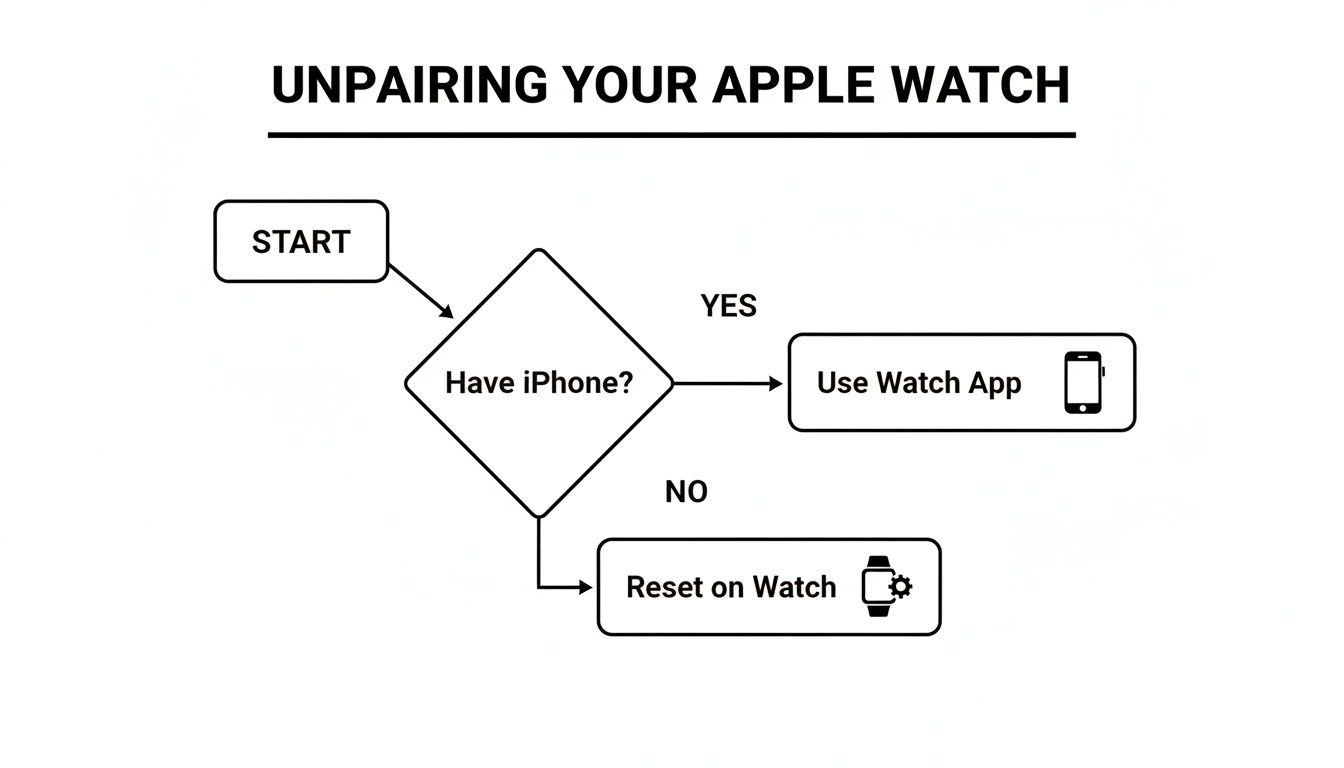
As you can see, starting with your iPhone is clearly the preferred path for a smooth, secure unpairing that includes that all-important backup. Having solid backup habits is key for all your devices, and you can get a full rundown by reading our guide on how to backup phone data.
Resetting Your Watch Without Your iPhone
So, what happens if your iPhone is lost, broken, or just not around? Don't worry, you can still wipe your Apple Watch. Think of this as your plan B for getting your watch reset when the standard unpairing method isn't an option.
You can trigger a full factory reset right from the watch's screen. The idea is a lot like how you might factory reset an Android phone to start fresh. It completely erases all your personal data, settings, and media, returning the watch to the state it was in when you first took it out of the box.
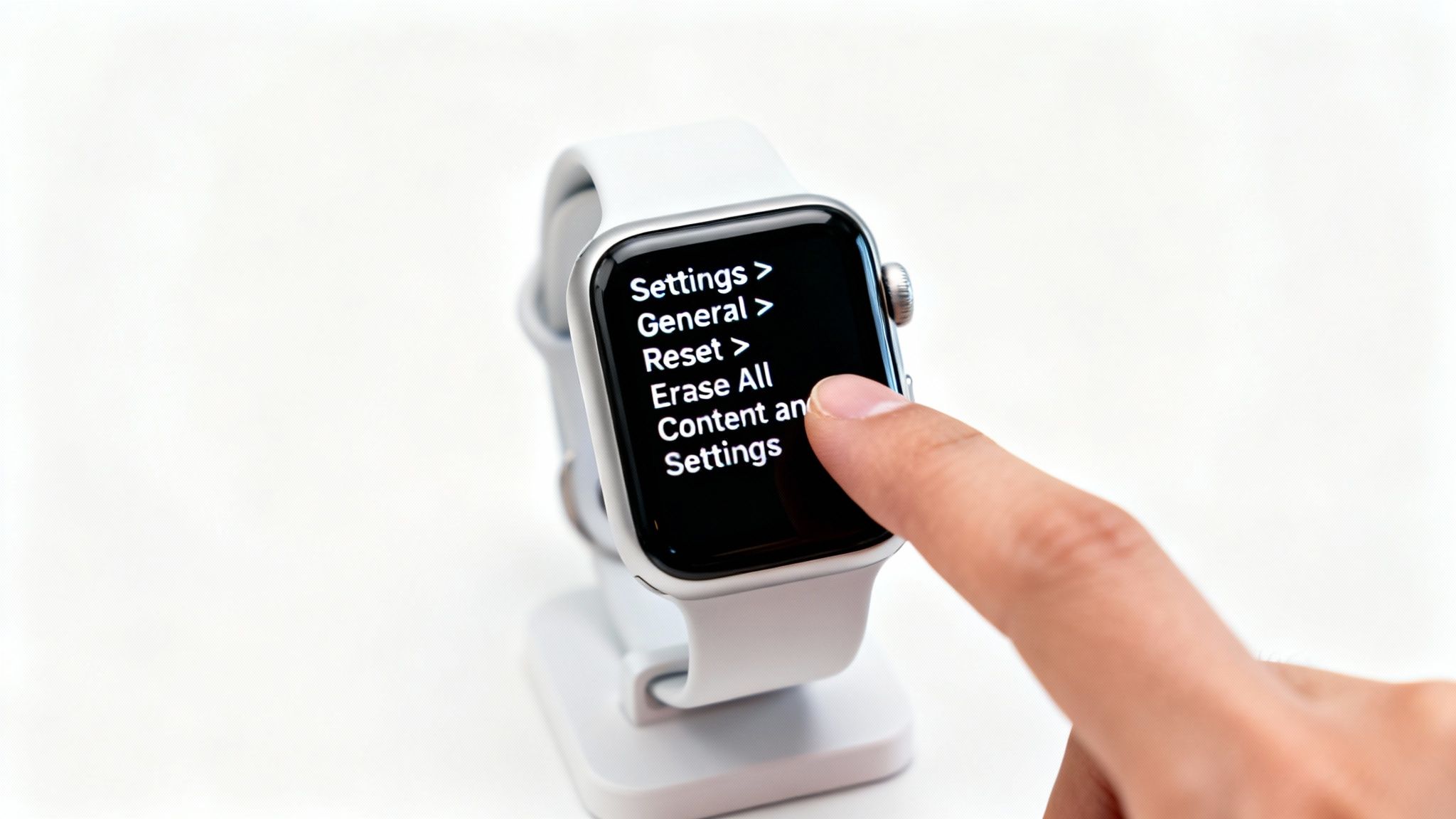
Ready to get it done? Just grab your watch and follow these steps:
- Press the Digital Crown to bring up your apps.
- Find and tap the Settings app (it looks like a little gear).
- Scroll down and go to General > Reset.
- Tap Erase All Content and Settings.
- If you have a passcode set up, you’ll need to punch that in.
Once you confirm, the watch will start wiping itself clean. This usually takes a few minutes, and when it’s finished, you'll see the classic "Welcome" screen, just like new.
The Activation Lock Catch
Now for the most important part of this process. When you erase your watch this way, there are two major things to remember: it does not create a backup, and it leaves Activation Lock turned on.
Activation Lock is Apple's security feature that tethers your watch to your Apple ID. It’s there to stop anyone else from using your watch if it’s ever lost or stolen. As long as it's active, the watch is basically a paperweight to a new user.
This is a huge deal if you’re planning to sell or give the watch away. Even with all the data wiped, it's still digitally locked to your account. To truly free it up for someone else, you have one more step. You'll need to get on a computer, head over to iCloud.com, sign in with your Apple ID, find your watch under "Find Devices," and manually remove it from your account. That’s the final move that makes it ready for a new owner.
Tying Up Loose Ends: Removing the Watch from Your Apple ID and Find My
Even when you follow all the right steps to unpair your Apple Watch, it can sometimes leave a digital footprint in your Apple ID account. This is a crucial final check, especially if you're selling or giving the watch away. Think of it as a final digital cleanup to sever every last tie.
This step is absolutely essential for disabling Activation Lock, Apple's powerful anti-theft feature. I’ve seen it happen many times: someone forgets to do this, and the watch becomes a paperweight for the next owner, who gets completely stuck at the setup screen. Taking a minute to do this now saves a lot of headaches later.
The Final Account Checkup
You’ll need to do this part from a web browser, not an app on your phone.
- Head over to iCloud.com on a computer or tablet.
- Sign in with the same Apple ID you used on the watch.
- Look for the "Find Devices" app icon and click it. You might have to click on your name in the top-right corner first, depending on your view.
- From the "All Devices" list that appears, find and select your Apple Watch.
- The last step is to click "Remove from Account".
This action permanently breaks the connection between that specific watch and your Apple ID. It’s the definitive way to confirm the device is free, clear, and truly ready for a new owner without any lingering ties to your data or location.
Doing this also helps keep your device list clean and manageable. If you want to learn more about keeping your account tidy and secure, check out our guide on how to sign out of an Apple ID on all your different devices.
What About My Cellular Plan After Unpairing?
So, you have a cellular Apple Watch? Don't forget this crucial step. A lot of people assume that unpairing their watch automatically kills the data plan. Unfortunately, that's not how it works, and you could get stuck with a monthly bill for a watch you aren't even using anymore.
When you go through the unpairing steps in the Watch app, you’ll hit a screen with two very important options: Keep Plan or Remove Plan. What you choose here really depends on what you're doing next.
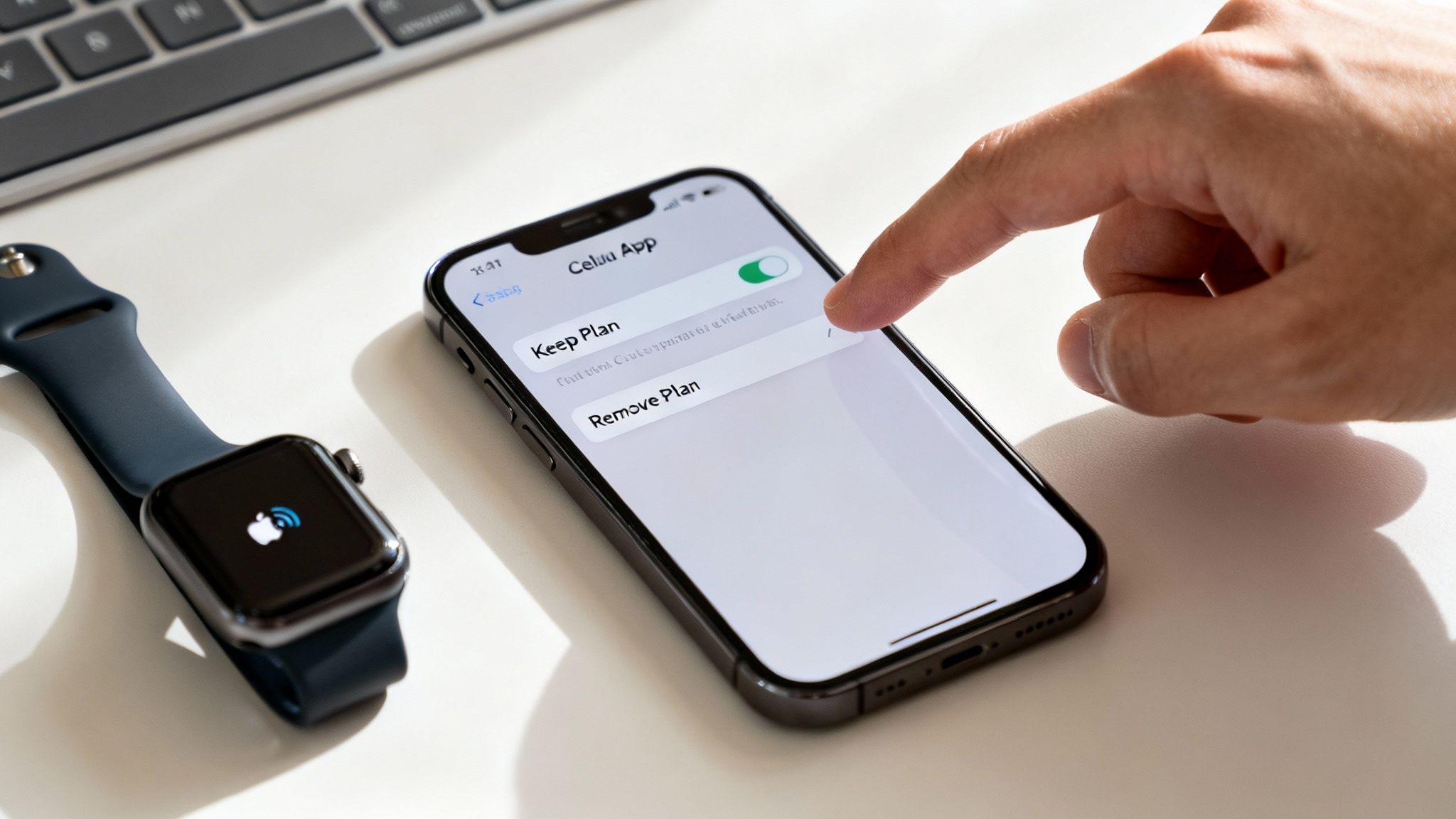
Keep It or Ditch It?
Making the right call here will save you a headache later. It's pretty straightforward.
- Go with "Keep Plan" if: You're just swapping out your old cellular Apple Watch for a new one. This choice essentially tells your carrier to hold the plan for you, making it a breeze to activate on your new watch.
- Go with "Remove Plan" if: You're selling the watch, passing it down to a family member, or just don't want a cellular watch anymore. This is the option that tells your carrier to cancel the line.
Even after you tap "Remove Plan," I always recommend calling your carrier to double-check. It's a quick call that gives you peace of mind, confirming the line is officially closed so no surprise bills show up.
Getting this right is just as important as knowing how to transfer data to a new phone when you're upgrading your gear. A smooth transition is all about handling the details.
Got Questions? We've Got Answers
Even with the best instructions, a few lingering questions can pop up when you're getting ready to unpair your Apple Watch. Let's walk through some of the most common ones I hear, so you can feel totally confident in the process.
What Happens to My Health Data When I Unpair?
This is probably the biggest worry for most people, but I have good news. When you unpair using the Watch app on your iPhone, the first thing it does is create a complete backup of your watch. That backup includes all your activity history, workouts, custom faces, and settings you've spent time perfecting.
That backup lives safely on your iPhone, ready and waiting for your next Apple Watch. The key thing to remember, though, is if you erase the watch directly from the watch itself (because you don't have your phone), no backup is created. That data will be gone for good from the device.
Can I Pair My Watch Again After I Unpair It?
Absolutely. Unpairing is really just a fancy way of saying "reset." As soon as the unpairing process finishes, your Apple Watch goes right back to its original factory settings, showing the "Welcome" screen just like it did out of the box. It's immediately ready to be paired again, either with the same iPhone or a brand new one.
Pro Tip: When you set it up again, you'll get a choice: restore from that backup it just made, or set it up as a completely new watch.
I Already Sold My Watch and Forgot to Unpair It—Now What?
Don't panic! It happens more often than you'd think, but you can sort this out remotely. You don't even need the watch physically with you to remove the security lock.
Here's what you do:
- Grab a computer and head over to iCloud.com. Sign in with your Apple ID.
- Once you're in, open the "Find Devices" app.
- Find your Apple Watch in the list of devices and select it.
- First, click "Erase This Device." This wipes all your personal data from it.
- After the erase is done, you'll see a new option. Click "Remove from Account."
That last step is the crucial one. It removes the Activation Lock, freeing up the watch so the new owner can set it up without hitting a wall.
At Simply Tech Today, our goal is to provide clear, straightforward guides that make technology accessible to everyone. For more tips and how-tos, visit our blog at https://www.simplytechtoday.com.
Member discussion