
How to Secure Home Network: A Practical Guide
Think of your home network as the digital front door to your life. It's not just about the Wi-Fi signal; it's the gateway connecting your computers, phones, smart TVs, and even your refrigerator. Leaving that door unlocked is an invitation for trouble.
Your Digital Front Door: Why Home Network Security Matters
I get it—the thought of securing a home network can seem a bit technical and intimidating. But the risks of doing nothing are very real and, frankly, pretty scary.
Imagine someone guessing your easy-to-crack Wi-Fi password. Suddenly, they're on your network, potentially snooping on your browsing, grabbing your banking logins, or accessing personal files. Or what if a known security flaw in your router’s old software lets a stranger tap into your smart security cameras? That’s a massive privacy invasion.
Understanding the Everyday Risks
The threat isn't always some mastermind hacker in a dark room targeting you specifically. More often than not, it's automated bots constantly scanning neighborhoods for easy targets—networks still using the default password printed on the router, like "admin" or "password." A 2024 report showed that a staggering over 60% of cyberattacks on home networks simply exploit weak or default login details.
And it's not just about your computers and phones anymore. Every smart device you add—from lightbulbs to speakers—creates another potential entry point. These devices make up what's known as the Internet of Things, and each one is a new door that needs a lock.
My goal here isn't to scare you, but to show you just how critical these simple security steps are. A few small changes can make a massive difference in protecting your family's privacy and data.
If you're short on time, this quick infographic highlights the biggest security wins you can get in just a few minutes.
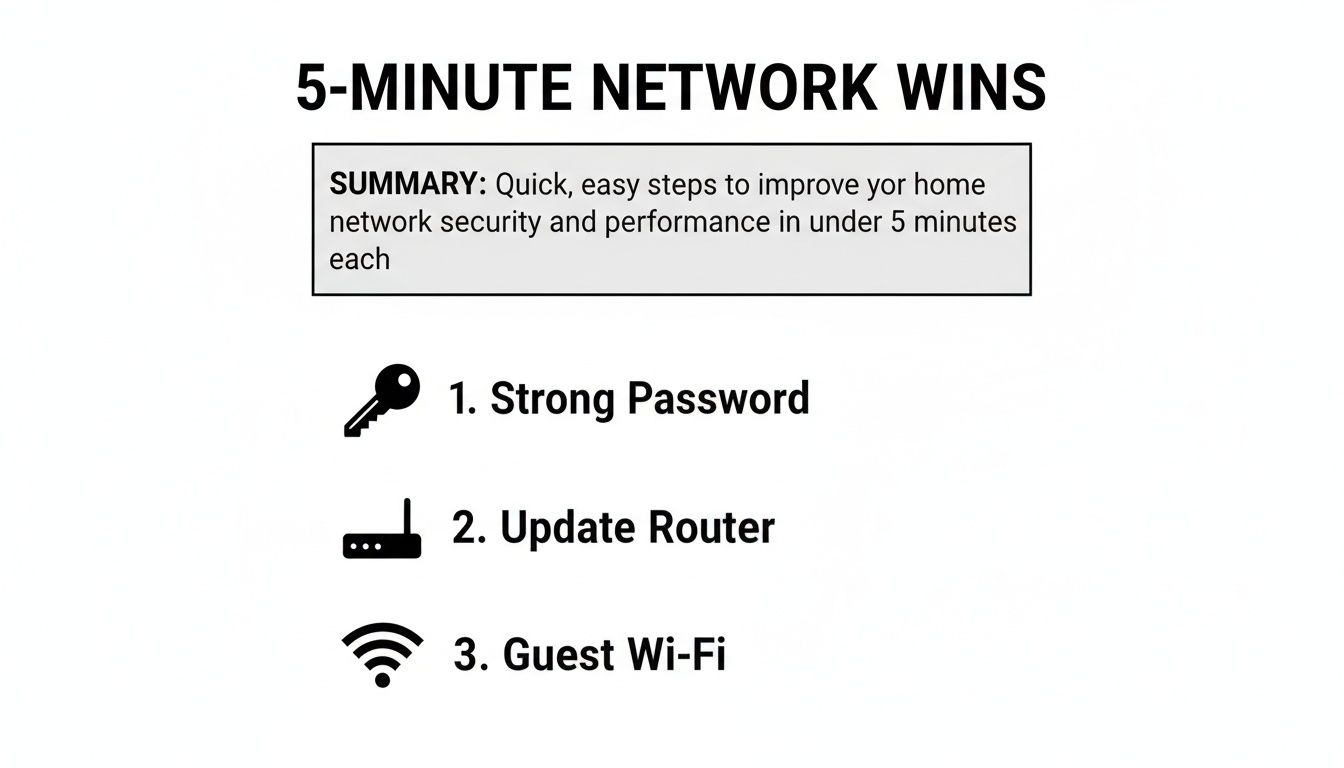
These three actions—using a strong password, keeping your router's software updated, and setting up a separate network for guests—are the absolute bedrock of a secure digital home.
Your 5-Minute Network Security Wins
Feeling overwhelmed? Don't be. Here are a few incredibly impactful actions you can take right now, most of which take less time than brewing a cup of coffee.
| Security Action | Why It's Critical | Time to Complete |
|---|---|---|
| Change Router Admin Login | Prevents anyone from using the default "admin/password" to take over your settings. | 2 Minutes |
| Set a Strong Wi-Fi Password | This is the main lock on your network's front door, stopping neighbors and hackers. | 1 Minute |
| Enable WPA3/WPA2 Encryption | Scrambles your data so even if someone intercepts it, they can't read it. | 1 Minute |
| Turn On Auto-Updates | Ensures your router gets security patches automatically to fix new vulnerabilities. | 1 Minute |
Tackling just these four items puts you miles ahead of most home networks. They are the most effective, high-impact changes you can make to immediately boost your security.
Securing Your Router: Your First Line Of Defense
Your router is the digital gatekeeper for every device on your network. Yet most arrive with settings optimized for quick setup, not security. Taking charge of this device is the single most crucial step to protect your home Wi-Fi.
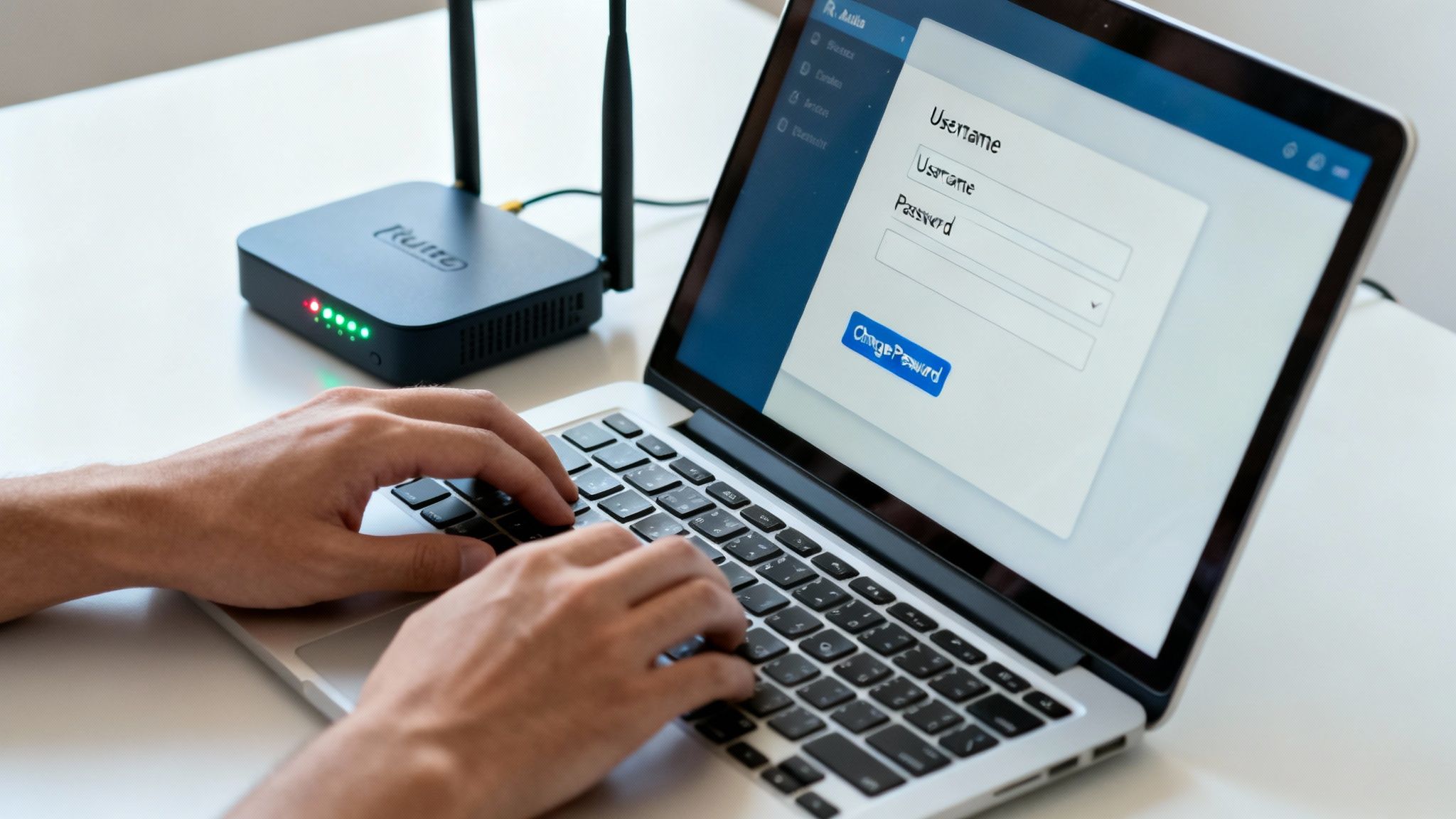
Before anything else, swap out those factory admin/password credentials. Leaving them in place is like hiding your house key under the welcome mat.
- Open a browser and enter one of the common IPs: 192.168.0.1 or 192.168.1.1
- Log in with the default username and password
- Create a new, complex admin account and retire the old one
Update Your Router’s Firmware
Firmware is essentially your router’s operating system, and it needs regular patches. Manufacturers release updates to seal off exploits that hackers love to exploit.
Many models include an automatic updates option. Flicking this switch means you can stop worrying about manual checks and let your router stay current on its own.
83% of home routers had unpatched security vulnerabilities, according to the American Consumer Institute.
Change The Default Network Name
Your Wi-Fi’s SSID (Service Set Identifier) often defaults to something generic like “NETGEAR24” or “Linksys_Home.” Renaming it delivers quick wins:
- Removes the router brand clue, making targeted attacks harder
- Helps guests spot and connect to your correct network
This tweak won’t stop a dedicated hacker, but it’s basic security hygiene. For additional performance gains, see our guide on how to improve Wi-Fi signal strength.
Locking down your admin login, firmware and network name lays a strong foundation. From here, every other defense—encryption, firewalls, guest segments—builds on that core.
5. Encrypt Your Wi-Fi and Create Separate Networks
Once you’ve locked down your router’s login, it’s time to secure the airwaves. This is about scrambling your wireless signal so no one can eavesdrop and building digital walls inside your network to contain potential threats. It's one of the most effective things you can do to protect your data.
Choose the Strongest Encryption Your Router Offers
Wi-Fi encryption is the magic that turns your wireless data into unreadable code for anyone without the password. When you log into your router's admin panel, look for a "Wireless" or "Security" section. You'll see options with "WPA" in the name, which stands for Wi-Fi Protected Access.
Here’s what you need to know:
- WPA3 (Wi-Fi Protected Access 3): This is the current gold standard. If your router and your main devices (like your phone and laptop) support it, use it. WPA3 offers far better protection against hackers trying to guess your password with brute-force attacks.
- WPA2 (Wi-Fi Protected Access 2): For years, this was the go-to for home Wi-Fi and it's still quite secure, especially with a strong password. If you have older gadgets that can't connect with WPA3, WPA2 is the next best choice. Avoid older options like WEP or the original WPA, as they are notoriously easy to crack.
Enabling WPA3 is about more than just setting a password. It activates a powerful security protocol that makes it exponentially harder for anyone to break into your network, even if they're physically nearby trying to capture your Wi-Fi signals.
Put Guests and Smart Devices on Their Own Networks
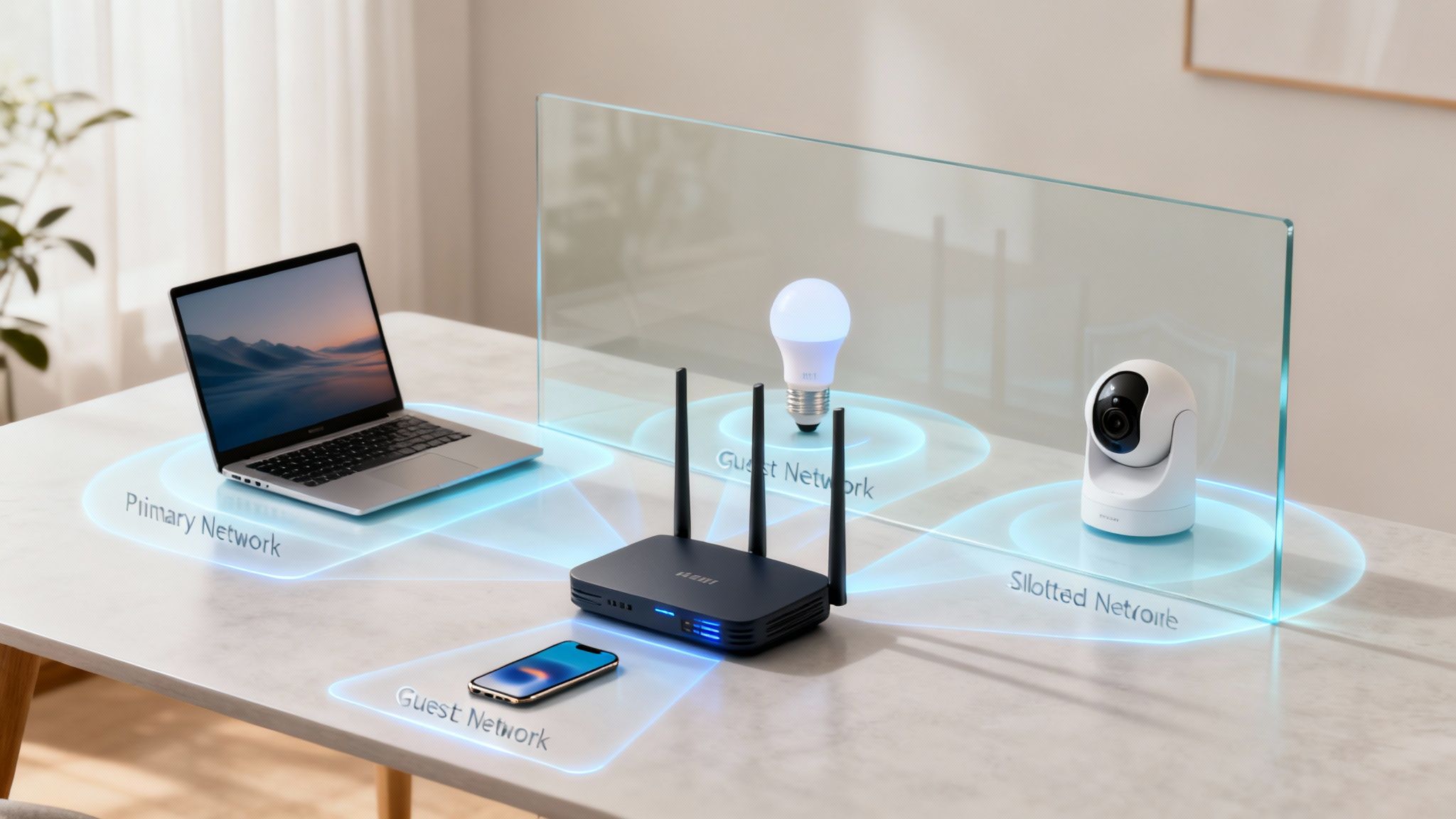
One of the savviest moves you can make is to split up your network. Think of it like having a separate guesthouse—visitors can stay, but they don't get a key to the main house. Most modern routers make this easy by letting you create a guest network.
A guest network gives visitors internet access but walls them off from your personal computers, printers, and network storage. If a friend's phone has malware on it, that threat stays isolated on the guest network and can't jump over to infect your laptop.
This is also the perfect strategy for all your smart home gadgets. Research shows the average smart home can be targeted by over 12,000 hacking attempts a week, as attackers look for weak links in smart cameras, speakers, and even lightbulbs.
By creating a separate, dedicated network just for these Internet of Things (IoT) devices, you create a digital quarantine zone. If a hacker manages to compromise your smart thermostat, they’ll be trapped on the IoT network, unable to access the sensitive financial documents on your main computer. You can discover more insights about these cybersecurity statistics on Varonis.com.
Building these internal walls is a foundational part of modern home security. This principle of compartmentalization is a key theme in digital safety, which we explore further in our guide on how to protect your privacy online.
Disabling Risky Features for Better Security
Sometimes, the very features designed to make our lives easier can leave a digital backdoor wide open. Convenience doesn't always equal security, and two perfect examples are Wi-Fi Protected Setup (WPS) and Universal Plug and Play (UPnP). Turning them off is one of the quickest, highest-impact changes you can make to secure your home network.
Think of WPS as that little button on your router that lets you connect a new device without fumbling with the password. Sounds handy, right? The problem is that older versions have a massive security flaw. Attackers can use brute-force tools to guess the WPS PIN in just a few hours, completely bypassing your carefully crafted Wi-Fi password. It's an open invitation for trouble.
Then there's UPnP, another feature that puts convenience first. It allows devices like your smart TV, security cameras, or gaming console to automatically open a path through your router's firewall to the internet. This "plug and play" functionality is great until a malware-infected device decides to open a port for a hacker, creating a direct line into your home network without you ever knowing.
Shutting Down UPnP and WPS
The good news is that turning these features off is usually pretty simple. You’ll need to log into your router's admin panel and poke around a bit.
- To disable WPS: Head to the "Wireless" or "Advanced Wireless" section. You're looking for an option explicitly called "Wi-Fi Protected Setup" or just "WPS". Switch it off.
- To disable UPnP: This setting is often tucked away under "Advanced," "WAN," or "NAT Forwarding." Find the toggle for Universal Plug and Play and make sure it's turned off.
These two tweaks instantly close off vulnerabilities that automated hacking tools are constantly scanning the internet for. While you're in there, double-check that your router's firewall is enabled. It’s your network's first line of defense, blocking unwanted traffic from the outside world.
The threat isn't just theoretical. UPnP is a common vulnerability exploited in 22% of edge device attacks, a number that has shot up eightfold year-over-year.
Automated attacks are on the rise, and home routers are a prime target. In fact, DDoS attacks jumped 46% in 2024, often fueled by botnets of compromised home routers. Disabling UPnP helps prevent your devices from being drafted into one of these digital armies. You can dig deeper into these IoT hacking statistics at DeepStrike.io.
Why This Matters for Your Smart Home
This is especially critical if you have a smart home. Every new smart bulb, speaker, or camera adds another potential entry point. You want to be the one deciding what talks to the internet, not an automated protocol.
For more on getting your devices connected the right way, check out our guide on how to set up a smart home. By taking control and manually managing access only when necessary, you get all the benefits of a connected home without the unnecessary risk.
Beyond the Router: Your Digital Habits and Devices
Okay, so your router is locked down tight. That’s a massive step, but it's only half the battle. True network security is a team sport, and every single device you connect to your Wi-Fi is a player. Your daily digital habits matter just as much as your router settings.
Think of it this way: your network is like a fortress. You've just reinforced the main gate (the router), but what about all the individual doors and windows (your devices and passwords)? A weak password or an old, un-updated smartphone can be the unlocked window an intruder uses to get inside. It's time to secure those, too.
Ditch Bad Password Habits for Good
Let's be honest, we've all done it: using the same password for multiple websites. It’s the single biggest security mistake you can make. When one of those sites gets breached—and it happens constantly—hackers take that leaked email and password combination and run with it, trying it on your bank, your email, and your social media. It's a tactic called "credential stuffing," and it works surprisingly well.
Trying to invent and memorize a unique, complex password for every single online account is a recipe for failure. Nobody can do that. This is precisely why a password manager isn't just a neat tool; it's essential.
- It’s your personal code generator: A manager creates incredibly strong passwords, like
J&7x!qR9@zP*4wB#, that a human could never guess or remember. - It’s your digital memory: You just have to remember one strong "master password" to access your entire vault of logins.
- It fills in the blanks securely: It automatically and safely fills in your credentials on websites, which helps protect you from malicious software that logs your keystrokes.
Seriously, getting a password manager is one of the most impactful security upgrades you can make. If you want to go deeper on this, check out our guide on the best practices for password security.
Treat Software Updates Like a Priority
Those update notifications on your phone and computer aren't just about getting a new look or a few extra features. They are, first and foremost, security patches. When a company like Apple or Microsoft pushes out an update, it’s often to fix a critical security hole that hackers have just discovered.
An unpatched device is an open door on your network. A single outdated phone or laptop can compromise your entire home's security, regardless of how secure your router is.
This isn’t just about your main computer. You need to keep everything that connects to your Wi-Fi up to date:
- Your Computers: Set both Windows and macOS to install updates automatically.
- Phones and Tablets: Don't put off those iOS and Android system updates. Install them.
- Smart "Things": From your smart TV to your security cameras and smart speakers, open their companion apps every now and then to check for firmware updates.
Making updates a routine is one of the easiest and most effective ways to slam the door on potential threats.
Add a Cloak of Privacy with a VPN
A Virtual Private Network (VPN) is another fantastic tool to have in your security arsenal. It acts like a secure, encrypted tunnel for all your internet traffic. This means everything you do online is hidden from your Internet Service Provider (ISP) and anyone else who might be snooping.
Most people think of VPNs for use on public Wi-Fi at coffee shops, but they're incredibly valuable at home, too. A VPN stops your ISP from logging every website you visit and selling that data. It can also help you get around frustrating regional content blocks on streaming services. It’s a simple app that adds a powerful layer of privacy to your digital life.
Learn to Spot the Scams
Ultimately, you are the final line of defense. A huge portion of cyberattacks start not with a fancy technical hack, but with a simple trick: a phishing attempt. This could be a sneaky email, text, or social media message designed to fool you into clicking a malicious link or giving away your password.
Get into the habit of being a little skeptical. If a message seems urgent or too good to be true, it probably is. Always hover your mouse over links in emails to see the actual web address before you click. And never, ever enter your password on a website you reached from an unsolicited message. Honing your scam-spotting skills is a superpower in today's world.
Frequently Asked Questions
Even with the best plan, questions pop up. Let's walk through some of the most common ones I hear from people trying to lock down their home network. This should help clear up any lingering doubts and get you on the right track.
How Can I Tell If My Home Network Has Been Hacked?
There are a few classic tell-tale signs that something is wrong. The most obvious one is often a sudden, dramatic slowdown of your internet for no apparent reason. If an unauthorized device is piggybacking on your connection, it's eating up your bandwidth.
Another big red flag is spotting devices you don’t recognize on your network list. You can usually find this list by logging into your router's web interface or checking its mobile app. Also, be on the lookout for strange browser behavior, like being redirected to sketchy websites or getting bombarded with pop-up ads. If you suspect a breach, the first thing you should do is change your Wi-Fi password and your router’s admin password immediately, then reboot every single device connected to your network.
Is WPA2 Encryption Still Safe Enough to Use?
For most homes, WPA2 is still a decent line of defense, but only if you use it with an incredibly long and complex password. It does have some known vulnerabilities, and a skilled attacker could eventually crack it, but it’s generally enough to stop casual intruders.
That said, if your router and devices support WPA3, you should switch to it without hesitation. WPA3 closes the security gaps found in WPA2 and offers much stronger protection against password-guessing attacks. Think of it this way: WPA2 is a solid deadbolt, but WPA3 is a modern smart lock with extra reinforcements. When it’s time to buy a new router, make sure WPA3 is a non-negotiable feature.
Choosing WPA3 isn't just a minor setting change; it's a significant upgrade that future-proofs your network's security against the next wave of cyber threats.
Do I Really Need a VPN at Home?
A VPN isn't strictly necessary for basic security, but it's a huge step up for your privacy. Your Internet Service Provider (ISP) can see every website you visit, and that data is often logged and sold to advertisers. A VPN encrypts all your traffic, essentially making it gibberish to your ISP or anyone else snooping around.
It's particularly useful if you're handling sensitive work files from home or just prefer to keep your online habits to yourself. A VPN basically throws a digital privacy cloak over your entire connection, shielding your activities from prying eyes.
Should I Replace My Old Router for Better Security?
If your router is more than five or six years old, it's definitely time to think about an upgrade. The biggest problem with old hardware is that manufacturers eventually stop releasing firmware updates for it. This means any new security flaws that are discovered will never be patched, leaving your network permanently exposed.
On top of that, older routers just can't keep up. They lack support for modern security standards like WPA3, often don't have automatic update features, and their built-in firewalls are less sophisticated. Investing in a new router is a relatively small price to pay for a massive improvement in both security and performance. It's one of the most effective upgrades you can make for your digital life.
Member discussion