
How to Sign Out of Apple ID on Any Device a Complete Guide
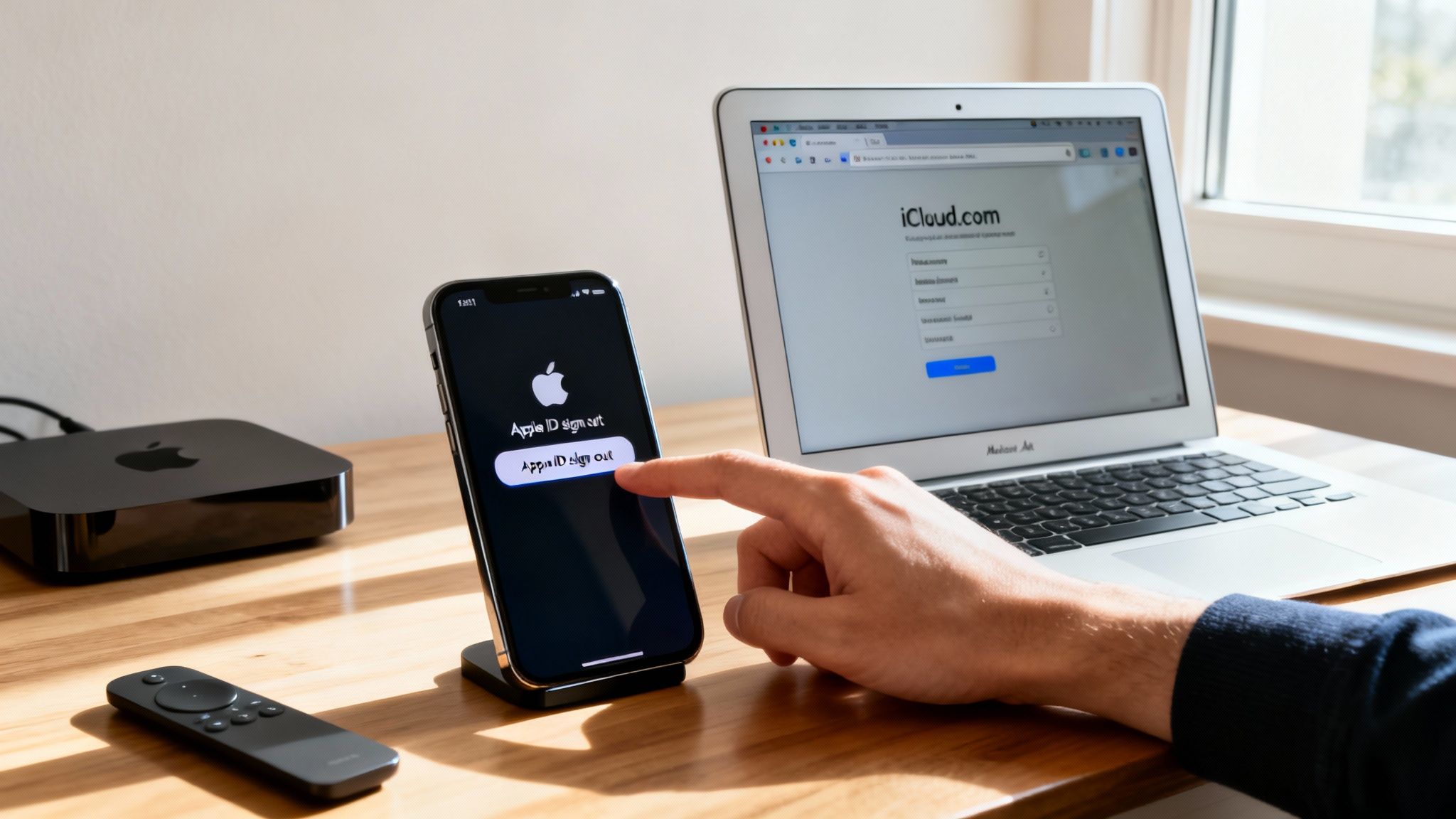
Before you go looking for that sign-out button, let's talk about why you'd even need to. It's not something you do every day, but knowing how to sign out of your Apple ID is a crucial bit of tech know-how for keeping your data safe and your devices running smoothly.
Why You Might Need to Sign Out of Your Apple ID

Figuring out the right time to sign out of your Apple ID is key to preventing headaches down the road. It’s a simple action, but it has a big impact on your data and security, so getting the context right is important.
By far, the most common reason is when you're getting ready to sell, trade in, or even just give away an old iPhone or Mac. You absolutely have to sign out first. This wipes your personal data from the device and, just as importantly, turns off Find My. If you don't, the new owner could be locked out by Activation Lock, and your data remains vulnerable.
Once you’ve signed out and are ready to move to your new gadget, our guide on how to transfer data to a new phone walks you through the next steps.
Troubleshooting and Account Management
Sometimes, things just get weird. Maybe your iCloud Drive won't sync, iMessage is stuck, or the App Store is acting up. While a simple restart is always the first thing to try, signing out of your Apple ID and signing back in is the next best step. Think of it as a hard reset for your connection to Apple's servers, which often fixes stubborn glitches.
Key Takeaway: Signing out is not the same as turning off a specific service. Disabling iCloud Photos only stops photo syncing, but signing out of your Apple ID disconnects your entire account from the device, affecting all integrated services.
Finally, what if you're using a shared device? A family iPad or a work Mac are perfect examples. You'd sign out of your account so someone else can sign in with theirs. This keeps your personal photos, messages, app purchases, and everything else completely separate from the other person's account. Each scenario is different, but the process is designed to protect your digital life.
Understanding What Happens When You Log Out
Signing out of your Apple ID isn't like logging out of a website—it’s more like unplugging your device from the entire Apple ecosystem. Knowing what to expect can save you from the shock of seeing your data and services suddenly vanish.
The biggest and most immediate change involves security and convenience. Instantly, core features like Find My, iMessage, and Apple Pay are disabled. This means Activation Lock is turned off, and you can no longer track your device if it gets lost. Your iMessage and FaceTime history, if you had them synced with iCloud, also become inaccessible on that device until you sign back in.
Impact on iCloud Data and Services
When you sign out, you sever the connection to iCloud, which means data syncing stops cold. Any new photos you snap, contacts you save, or calendar appointments you create will stay siloed on that device and won't update across your other Apple gear.
This is exactly why preparing ahead of time is so critical. Without a recent sync or backup, you risk creating data islands that are a headache to merge later on. Before you go any further, it's a smart move to review a guide on how to back up your phone data to make sure nothing important is left behind.
Key Insight: Your data isn't deleted from Apple's servers when you sign out. It's just that your device can't access or update it anymore. Signing back in will restore the connection and resync everything.
It’s also wild how fast this all happens. The moment you confirm you want to sign out, roughly half of your critical services are disabled within 30 seconds. This rapid disconnection really highlights how deeply your Apple ID is woven into the fabric of your device.
Unfortunately, many people skip the backup step, which leads to data loss in an estimated 30-40% of account-related support cases. If you want a visual walkthrough of these service interruptions, you can learn more about what happens when you sign out on YouTube.
Finally, you'll lose immediate access to any downloaded Apple Music tracks and App Store purchases tied to that ID. Without the Apple ID signed in, your device simply can't verify that you own them.
How to Sign Out on Your iPhone or iPad
Signing out of your Apple ID on an iPhone or iPad is a pretty simple process, but there’s one step that often trips people up. Don't worry, it's all handled right within your Settings app.
First things first, open up Settings and tap on your name right at the top. This is your Apple ID command center. From here, just scroll all the way to the bottom until you see the Sign Out button in red.
Go ahead and tap it. You'll almost certainly be asked for your Apple ID password to disable Find My, which is a standard security step.
The Most Important Choice You'll Make
After you pop in your password, you’ll hit a screen that’s really important. It asks if you want to keep a copy of certain iCloud data—like your contacts, calendars, and Safari data—on this specific device.
This is where I see a lot of people pause. There's a common fear that signing out completely wipes your device. In fact, some studies have shown that 60-70% of users think signing out deletes everything permanently. The reality is much simpler: you can choose to leave a local copy on the device. It just won't sync with iCloud anymore until you sign back in.
This flowchart gives you a great visual breakdown of what to expect when you sign out, from which services get cut off to how your data is handled.

The main takeaway is that signing out severs the connection to key services like Find My and stops all iCloud syncing in its tracks.
So, when should you keep a copy? Here's my rule of thumb:
- Keep a copy if you're just troubleshooting and plan to sign right back in. Your data will be waiting for you, making the process much smoother.
- Don't keep a copy if you're selling the device or giving it away. You're going to erase it completely in the next step anyway, so there's no point in leaving any personal data behind.
After toggling your choices, tap Sign Out in the top-right corner one last time. It might take a minute or two for your device to process everything, but once it’s done, you're officially logged out.
Pro Tip: Is the 'Sign Out' button greyed out and unclickable? This is almost always caused by Screen Time restrictions. We’ll get into that fix later on. In the meantime, keeping your account secure is always a good idea, so take a look at our guide on how to use two factor authentication.
Signing Out on a Mac and Other Devices
Your Apple ID isn't just tied to your iPhone. It's the key to your digital life across all your Apple gear, including your Mac, Apple TV, and even the web. Knowing how to sign out on each one is crucial for security and when you're ready to pass a device on. The process for each is a little different, but thankfully, just as straightforward.
On your Mac, the experience is quite similar to iOS, but the sign-out option lives in a different spot. Head over to System Settings (or what used to be called System Preferences on older macOS versions). From there, click your name at the top of the sidebar and simply scroll all the way down. You'll see the Sign Out button right at the bottom.
Just as with an iPhone, your Mac will give you the option to keep a local copy of your iCloud data, like your Contacts and Calendars. This is a handy feature that touches on the fundamentals of how cloud storage works, giving you an offline backup of key information.
Managing Other Apple Devices
Don't forget about your other gadgets. If you're selling an Apple TV or just moving it to a guest room, you'll want to log your account out to protect your purchases and personal data.
- On your Apple TV, open up the Settings app.
- Next, go to Users and Accounts and select your profile.
- Scroll down to the bottom and choose Remove User from Apple TV.
This simple action severs the connection to your account, revoking access to all your purchased movies, TV shows, Apple Arcade progress, and more.
One of the most overlooked security steps is signing out of iCloud.com, especially if you’ve checked your email or files on a public or shared computer. It’s a tiny habit that makes a huge difference. Just click your name in the top-right corner and hit "Sign Out" before you walk away.
To make things even easier, I've put together a quick reference table. It's a simple guide to help you find the sign-out option, no matter which device you're using.
Apple ID Sign-Out Locations by Device
| Device/Platform | Where to Find the Sign-Out Option |
|---|---|
| Mac | System Settings > [Your Name] > Sign Out |
| Apple TV | Settings > Users and Accounts > [Your Name] > Remove User from TV |
| iCloud.com | Click your profile name in the top-right corner, then select Sign Out |
Knowing exactly where to go on each device puts you in full control of your account security. It’s a simple set of steps that ensures your personal data stays personal.
What To Do When You Can’t Sign Out of Your Apple ID
It’s a moment of pure frustration: you’re trying to sign out of your Apple ID, but the button is greyed out. Taunting you. Stuck.
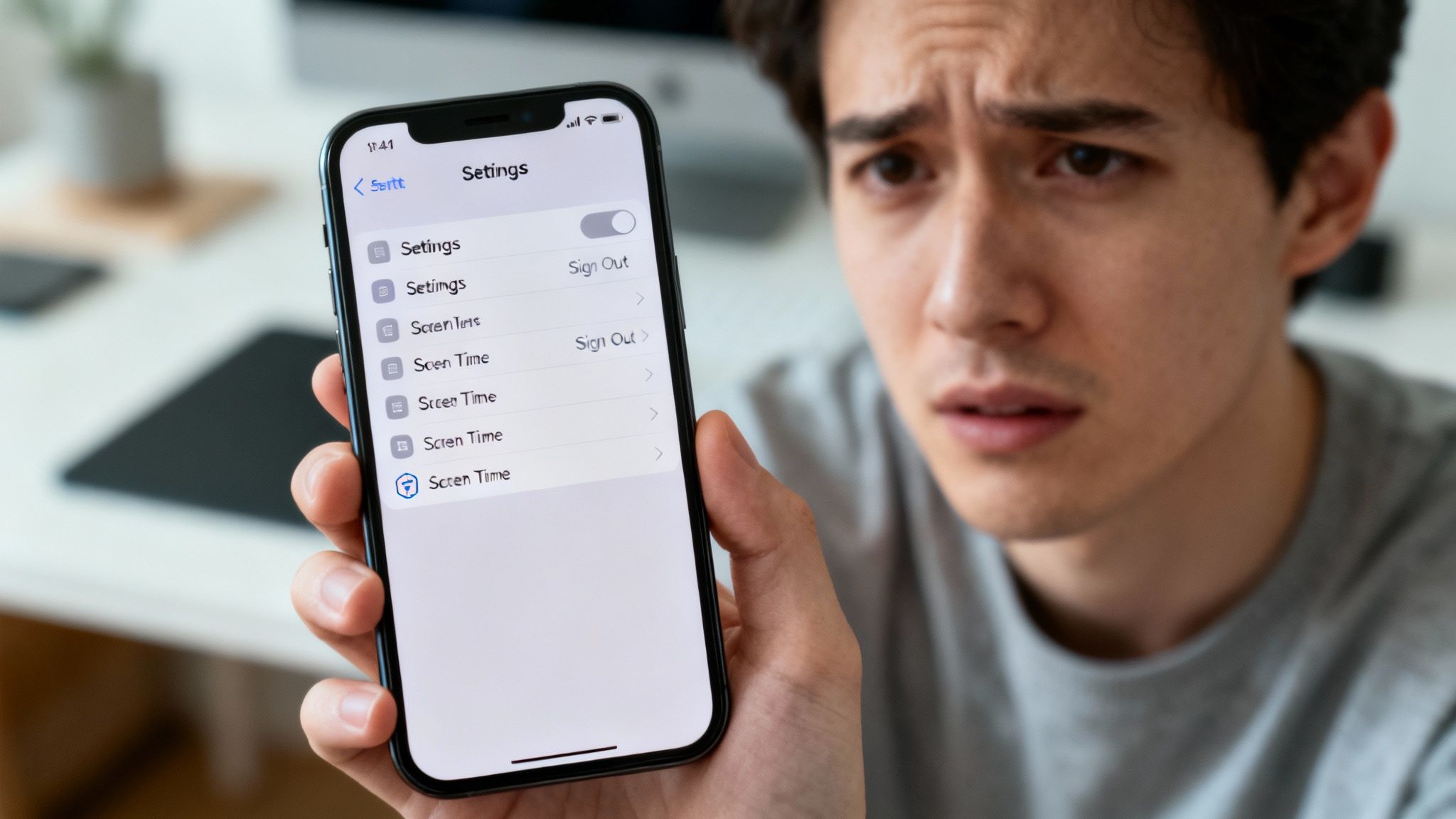
Before you throw your phone across the room, take a breath. This isn't a bug. It’s almost always a security feature doing its job a little too well, and the usual suspect is Screen Time.
When Content & Privacy Restrictions are enabled, your device deliberately locks down key account settings. The whole point is to stop unauthorized changes, but it can also trip you up when you're the one trying to make the change. If you're stuck wondering how to sign out of your Apple ID because the option is disabled, this is the first place you should look.
I've seen this happen countless times, and based on what I've seen in user discussions about sign out issues, a good 15-20% of people run into a roadblock when trying to sign out. The top reason? Screen Time. It accounts for at least half of these cases. A smaller number of people are blocked by Mobile Device Management (MDM) software from their job or school.
Check Your Screen Time Settings
Let's fix this. All you need to do is pop into your Screen Time settings and flip a switch. It’s a quick fix that almost always gets the job done.
Here’s what to do:
- Open up Settings and head to Screen Time.
- Tap on Content & Privacy Restrictions.
- Scroll down until you see the "Allow Changes" section and look for Account Changes.
- If it’s set to "Don't Allow," tap it and change it back to Allow.
That's it. Go back to your Apple ID settings screen, and you should find the "Sign Out" button is now active and clickable. This little toggle is there so parents or IT admins can have final say over a device, but it’s easy to forget it’s been turned on.
Another Potential Blocker: Is your iPhone or Mac a work or school device? It might have a management profile (often called MDM) installed. These profiles give an organization control and can easily block you from signing out. In this scenario, you'll have to reach out to your IT department and ask them to remove the profile before you can proceed.
Common Questions About Signing Out of Your Apple ID
When you're about to sign out of your Apple ID, a few "what if" questions are bound to pop up. It's totally normal—you're dealing with your personal data and expensive gear, so you want to be sure.
Let's clear up some of the most common concerns I hear all the time.
Will I Lose Everything If I Sign Out?
The short answer is no, you won't lose your data permanently. Everything tied to your account—like your photos, contacts, and notes—stays safe and sound in iCloud.
When you sign out, your device simply stops syncing with the cloud. For instance, your full-resolution iCloud Photos will be removed from the device to free up space, but they'll all come flooding back the moment you sign back in.
Bonus tip: When you sign out, your iPhone will actually ask if you want to keep a local copy of your contacts and calendars. It's a nice little safety net.
What's the Difference Between Signing Out and Just Turning Off iCloud?
This is a great question. Think of it like the electricity in your house.
Turning off a single iCloud service, like iCloud Photos, is like flipping a single light switch off. The rest of the house still has power. You’re still logged in for everything else—the App Store, iMessage, Find My, you name it.
Signing out of your Apple ID entirely is like throwing the main breaker. It cuts the connection between your entire device and your account, turning off every integrated service at once. It’s a complete log-off.
Is Signing Out Good Enough Before I Sell My Phone?
Definitely not. Signing out is an essential first step, but it's not the last one. While it correctly removes the Activation Lock and unlinks Find My, all of your personal data is still sitting right there on the device. Your apps, downloaded photos, and old messages are all still present.
The Most Important Step: After you've signed out, you absolutely must perform a full factory reset. You do this by going to Settings > General > Transfer or Reset iPhone > Erase All Content and Settings. This is the only way to securely wipe your information and make the device truly ready for a new owner.
Skipping this step is a huge privacy risk. On that note, a strong password is your first line of defense for your Apple ID; we cover all the details in our guide on the best practices for password security.
At Simply Tech Today, we break down complex topics into simple, actionable advice. Find more clear, practical guides on our site. https://www.simplytechtoday.com
Member discussion