
How to Speed Up Computer Performance A Practical Guide

If your computer feels like it’s wading through mud, don't immediately assume you need an expensive upgrade. The most common culprits behind a sluggish machine are software-related, and you can often get a major speed boost for free with just a few minutes of digital housekeeping.
Let's start with the basics: we'll tackle the uninvited guests that launch at startup, hunt down the resource-hungry processes running in the background, and perform a quick check for malware. These simple actions are the low-hanging fruit of computer optimization and can make a world of difference.
Tame Your Startup Programs
Remember all those apps you installed? Many of them sneakily set themselves to launch the moment you turn on your computer. While your antivirus is essential, do you really need Spotify, Discord, and your printer’s utility software running before you’ve even opened your web browser?
Each one of these programs eats up a slice of your computer’s memory and processing power, leading to frustratingly long boot times. Trimming this list is one of the quickest, most satisfying ways to get an immediate performance win.
Hunt Down Resource Hogs
Once your computer is up and running, there's a whole world of invisible tasks whirring away in the background. Some are critical, but others are just... there. These background processes can be notorious resource hogs, secretly slowing everything down.
Using your computer’s built-in tools (like Task Manager on Windows or Activity Monitor on macOS), you can play detective. You'll find out exactly what’s consuming all that memory (RAM) and processing power (CPU) and put a stop to anything that doesn't need to be running.
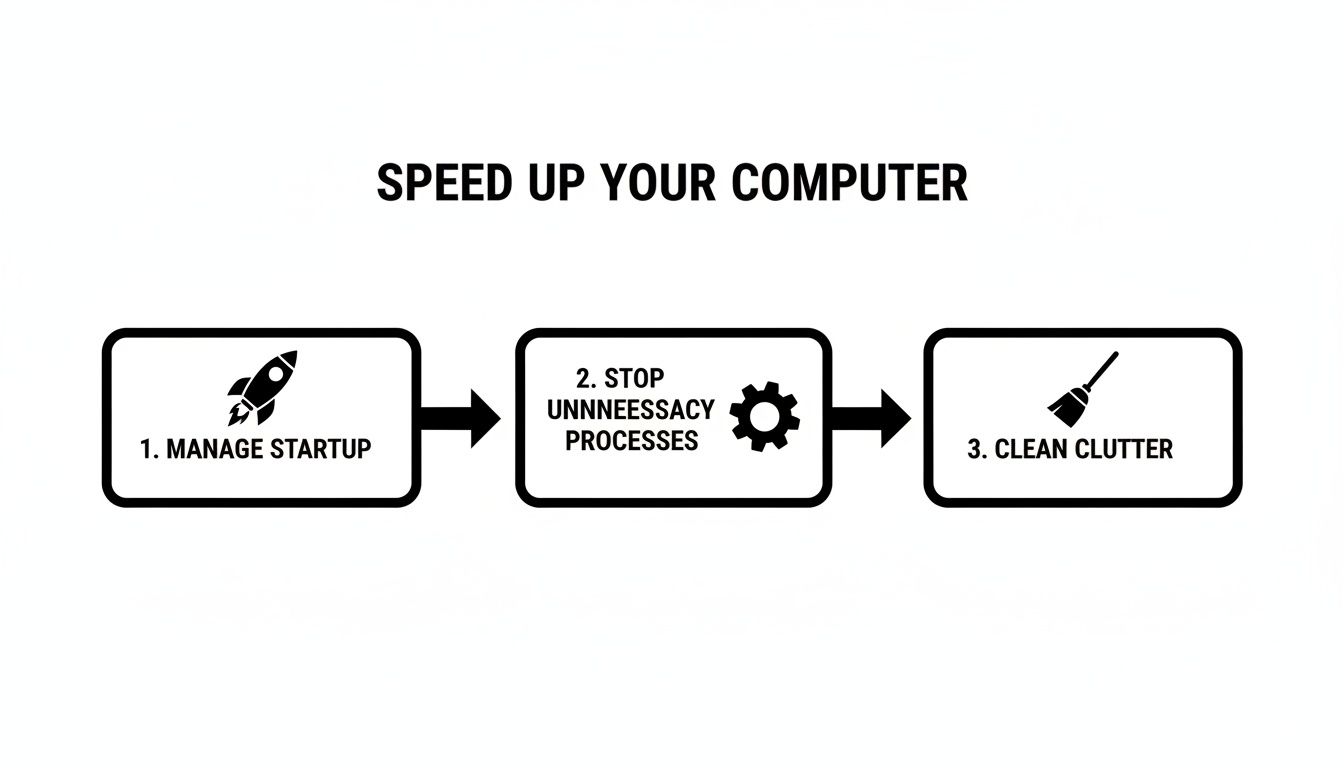
This simple three-step approach—managing startup apps, stopping unnecessary processes, and cleaning up clutter—is your foundation for a faster machine.
A Quick Word of Caution: Be careful what you disable. If you see a process and don't recognize the name, a quick web search will tell you if it's a critical system function or just a leftover piece of software. Accidentally closing the wrong task can make your system unstable. And if you ever find yourself in a situation where you've deleted something important, don't panic; you can learn more from our guide on how to restore deleted files on Linux.
Quick Fixes Impact vs Effort
To help you prioritize, here’s a quick breakdown of where you'll get the most bang for your buck with these initial software fixes.
| Quick Fix | Potential Impact | Estimated Time | Effort Level |
|---|---|---|---|
| Disable Startup Apps | High | 5-10 minutes | Low |
| End Background Processes | Medium | 5-10 minutes | Low |
| Run a Malware Scan | Medium to High | 15-60 minutes | Low |
As you can see, you can make a significant dent in your computer's performance issues in under an hour without much technical skill. These steps are all about reclaiming resources that are being wasted in the background.
Tuning Your Operating System for Peak Speed
Your computer's default settings are usually a one-size-fits-all compromise, designed to look good right out of the box. But all those slick animations and transparent windows come at a cost, eating up system resources that could be making your machine run faster. With a few smart tweaks, you can tell your computer to prioritize raw speed over eye candy.
Think about it: every time you open a menu or switch between windows, fancy visual effects require your graphics card and processor to do extra work. On a high-end gaming rig, you might not notice. On an older laptop, however, that extra work can cause frustrating stutters and lag. Luckily, both Windows and macOS have built-in options to dial back the flair for a much snappier feel.
Windows Visuals and Power Settings
If you're on a Windows machine, toning down the visual effects is one of the quickest performance wins you can get. Just search for "Adjust the appearance and performance of Windows" in the Start Menu. In the window that pops up, choosing "Adjust for best performance" will instantly turn off all the non-essential animations. It might look a little plainer, but you'll feel the difference.
Another setting that’s often overlooked is the power plan. Most computers, especially laptops, are set to a "Balanced" plan by default to save energy.
You can change this by searching for "Choose a power plan" in the Start Menu. Switching to "High performance" tells your PC to stop holding back and run your processor at full tilt. This one change can make your entire system feel more responsive, particularly when you're running demanding software.
Pro Tip: The "High performance" setting is fantastic for getting work done, but it does use more electricity and will drain your laptop's battery much faster. I usually switch to it only when I'm plugged into a power outlet and need that extra oomph for gaming or video editing.
Mac Login Items and Transparency Effects
For those on a Mac, you can get similar speed boosts by targeting a couple of key areas. One of the biggest culprits for a slow startup is the long list of apps that load automatically when you log in. Head over to System Settings > General > Login Items to see what’s launching behind the scenes.
Simply remove any apps you don't need from the "Open at Login" list. A shorter list means a faster boot time and fewer programs bogging things down from the moment you start.
macOS also relies heavily on transparency and motion effects for its modern look. While they look nice, they can put a strain on older Macs. You can easily turn them off to free up some graphical horsepower.
- Reduce Motion: Go to
System Settings > Accessibility > Displayand check the box for "Reduce motion." This swaps the zooming animations for a much quicker cross-fade effect. - Reduce Transparency: In that same
Displaymenu, turn on "Reduce transparency." This makes things like the menu bar and sidebars solid and opaque, which is much easier for your Mac to render.
Making these adjustments might seem small, but together they can make your Mac feel noticeably more responsive.
The Bigger Picture of OS Optimization
These OS-level tweaks are a great start, but sometimes the operating system itself is the real bottleneck. With the Windows 10 end-of-support deadline looming on October 14, 2025, there's a good reason many are looking to upgrade. A modern OS like Windows 11 on newer hardware often brings 20-50% better processing speeds, more RAM, and fast SSDs that can drop boot times from a minute-plus to under 10 seconds.
Newer systems running Windows 11 also manage resources more efficiently, which can lower CPU usage by up to 30% when your computer is idle. This shows how staying current can give you an inherent performance lift. You can find more details on this trend and its impact on PC performance in this analysis of the Windows 10 refresh cycle on petri.com.
Ultimately, fine-tuning your OS is about making intentional choices to favor speed. Whether you’re disabling animations or switching power plans, you’re telling your computer to focus its resources on what matters most—getting your tasks done quickly.
Winning the War on Digital Clutter
Over time, your computer can start to feel like a digital attic, slowly filling up with forgotten files, old programs, and countless temporary items. This isn't just a matter of being disorganized—all that clutter actively chews up disk space and processing power, creating a constant drag on your system's performance.
Think about all the software you've installed over the years. Some you used once for a specific project, while others might be "bloatware" that came pre-installed. Even when you're not using them, these programs can take up valuable storage and run background services that quietly siphon away your computer's resources. The first, and often most satisfying, step is to evict these unwanted digital tenants.
Declutter Your Applications
First things first, let's take a look at everything you have installed. On a Windows machine, you'll find this list under "Add or remove programs." If you're on a Mac, just open your "Applications" folder. Now, scroll through that list and be honest with yourself: "When was the last time I actually used this?"
If the answer is "months ago" or "I have no idea what this even is," it's time for it to go. Be ruthless! You can always reinstall a program if you find you need it again down the road. Getting rid of just a few bulky applications, like old games or hefty creative software suites, can instantly free up gigabytes of precious space. This not only gives your system more breathing room but also cuts down on those sneaky background processes.
For larger files you need to keep but don't access daily, moving them off your main drive is a smart move. You can learn more about how to use cloud storage to safely archive your data without it bogging down your computer.
Deep Cleaning Your Disk Drive
Beyond just uninstalling programs, your computer is constantly creating temporary files, cache, and system logs that rarely get cleaned up on their own. This hidden junk can accumulate surprisingly fast, making a real dent in your PC's speed. Thankfully, both Windows and macOS have excellent built-in tools to tackle this job.
For Windows Users: The Disk Cleanup tool is your best friend here. Just search for it in the Start Menu, select your main drive (usually C:), and let it do a quick scan. Here’s a pro tip: after the initial scan, click the "Clean up system files" button. This unlocks a deeper scan that can find massive space-wasters like old Windows update files, which can often hog 10-20 GB of space.
For Mac Users: Apple has a similar feature baked right into the OS. Head to the
Apple menu > About This Mac > Storage > Manage.... You'll see a set of recommendations, including an option to "Reduce Clutter." This feature helps you quickly spot and delete large files and old documents you might have forgotten about. It’s a super simple way to find the biggest culprits.
A clean drive isn't just about having more room for new files. When a drive gets too full, especially a traditional spinning hard drive (HDD), it struggles to find open space to save new information. This leads to slower performance. As a rule of thumb, always try to keep at least 15-20% of your drive free for optimal speed.
Streamline Your Web Browser
Chances are, your web browser is the application you use most. It's also a major potential source of slowdowns. Every browser extension you install, from coupon finders to grammar checkers, uses a little bit of memory and CPU power. With a dozen of them running at once, your browser can start to feel sluggish, no matter how fast your computer is.
Take five minutes to review your extensions. Do you really need that GIF search tool running on every single tab? Disable or completely remove anything you don't use on a regular basis.
Finally, give your browser's cache and cookies a good cleaning. While the cache is meant to speed up loading times for sites you visit often, it can become bloated or corrupted over time. Clearing it out can fix weird loading problems and make your browser feel snappy again. This kind of regular digital housekeeping is a simple but powerful habit for keeping your computer fast.
High-Impact Hardware Upgrades That Actually Work
When you’ve squeezed every last bit of performance out of software tweaks, it’s time to look under the hood. The idea of popping open your computer case might sound intimidating, but a couple of key hardware upgrades can make a night-and-day difference. These aren't just minor bumps in speed; they're the kind of changes that can make a five-year-old machine feel brand new again.
We're going to focus on the two biggest culprits behind a sluggish system: your memory (RAM) and your main storage drive. Upgrading these directly tackles the physical bottlenecks that cause everything from slow multitasking to agonizingly long load times.
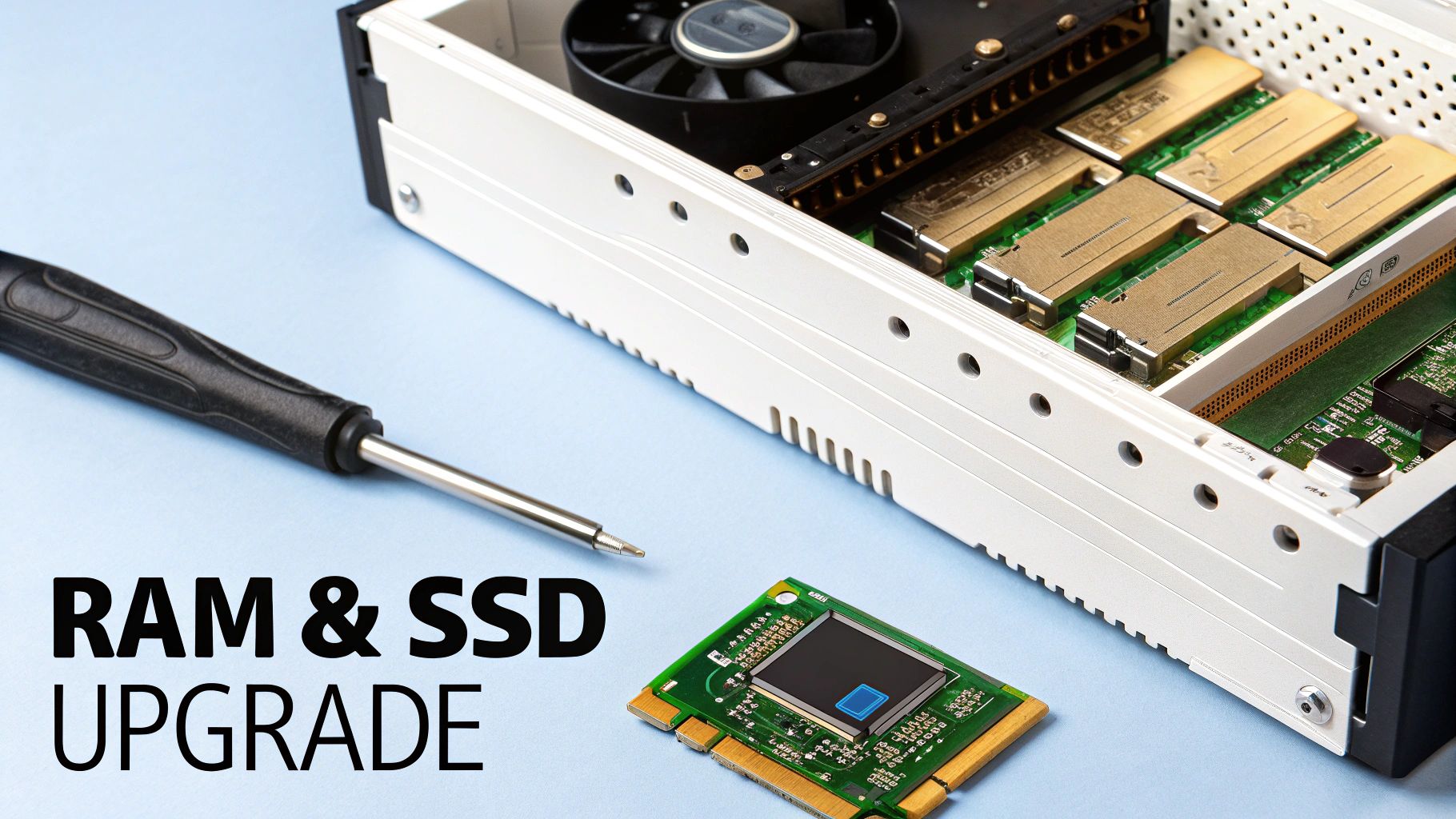
Adding More RAM for Smoother Multitasking
Think of RAM (Random Access Memory) as your computer's countertop space. Every app, browser tab, and file you open takes up a spot on that counter for easy access. When you run out of space, your computer has to start shuffling things to a much slower "storage closet"—a piece of your main drive called a page file. That constant shuffling is what causes your machine to stutter and lag when you're trying to do too much at once.
If you’re the kind of person who lives with dozens of browser tabs open while juggling spreadsheets and other programs, a RAM upgrade will be a revelation. That frustrating pause when you switch between applications will just… vanish.
Here’s a quick rundown on how much RAM you probably need:
- 8 GB: This is the absolute minimum for modern computing. It’s fine for light use, but you'll feel the slowdowns if you multitask.
- 16 GB: The sweet spot for most people. This gives you plenty of breathing room for office work, heavy web browsing, and even some gaming or photo editing.
- 32 GB or more: This is for the power users—video editors, 3D artists, and anyone working with massive datasets that eat up memory.
Before you buy anything, you have to check what type and amount of RAM your computer supports. A quick search for your computer model on the manufacturer’s website should give you all the details. For more on picking the right components, our guide on how to choose the right laptop has some great pointers.
The Ultimate Upgrade: Swapping to a Solid-State Drive
If you only do one hardware upgrade, make it this one. Replacing an old, mechanical Hard Disk Drive (HDD) with a modern Solid-State Drive (SSD) is the single most dramatic improvement you can make.
An HDD is like a tiny record player, with a physical spinning disk and a needle (read/write head) that has to move around to find your data. An SSD has no moving parts at all; it uses flash memory, like a giant, super-fast USB stick. This allows it to access data almost instantly.
The difference is staggering. Your computer will boot up in seconds, not minutes. Programs will snap open. Even saving a large file will feel noticeably quicker.
The jump from an HDD to an SSD isn't just an improvement; it's a total transformation. It's the closest you can get to that "new computer" feeling without actually buying one.
Modern SSDs can read and write data 5-10 times faster than old-school hard drives, with some high-end models hitting speeds over 7,000 MB/s. This single upgrade can cut your boot time by 70-80% and make your applications launch around 50% faster. It makes every single thing you do on your computer feel snappier.
Deciding between these upgrades often comes down to budget and how much effort you want to put in. This table breaks down the typical costs and benefits.
Hardware Upgrade Cost vs. Performance Gain
| Upgrade | Estimated Cost | Difficulty | Primary Performance Benefit |
|---|---|---|---|
| RAM Upgrade | $30 - $100 | Easy | Eliminates stuttering when multitasking; keeps more apps running smoothly. |
| SSD Upgrade | $40 - $150+ | Moderate | Drastically faster boot times; instant-feeling application launches. |
Ultimately, both upgrades offer a fantastic return. An SSD gives you that instant, system-wide responsiveness, while more RAM lets you do more things at once without slowing down. For an older machine, doing both can truly bring it back to life.
Future-Proofing Your PC for Lasting Speed
So, you've cleaned up the digital dust bunnies and tweaked your settings. That's a great start. But keeping your computer fast isn't a one-and-done job; it's about building good habits and keeping an eye on where technology is headed. This way, your machine stays zippy for years, not just for a few weeks after a tune-up.
A huge piece of this long-term strategy is keeping your system's drivers updated. Think of drivers as translators that let your hardware—your graphics card, Wi-Fi chip, printer—communicate properly with your operating system. When those translators are using an outdated dictionary, things get lost in translation. The result? Glitches, crashes, and a system that feels sluggish.
Why Driver Updates Are So Important
If you do any gaming, video editing, or design work, your graphics card driver is the most critical one to keep fresh. NVIDIA, AMD, and Intel are always pushing out new updates, and they’re not just for squashing bugs. These updates often pack some serious performance gains. Honestly, installing a new driver can sometimes feel like you just got a free hardware upgrade.
Here’s a quick look at what these updates really do for you:
- Better Performance: New drivers are often optimized for the latest games and creative software, which can mean higher frame rates and a much smoother experience.
- Greater Stability: They patch known bugs that cause frustrating crashes or system-wide freezes.
- New Features: Sometimes, a driver update unlocks new capabilities in your hardware, giving you access to new tools or more efficient ways of working.
Thankfully, you don't have to hunt these down manually. Most graphics card makers have their own software (like NVIDIA GeForce Experience or AMD Software) that simplifies everything. You can set it up to alert you when a new driver is ready, turning what used to be a chore into a simple one-click update.
Getting Ready for the Next Wave of Performance
While good maintenance is key, the tech world is also in the middle of a big shift that’s changing what "fast" even means. The latest and greatest machines are now "AI-powered PCs," built from the ground up with special hardware to handle modern, intelligent software much more efficiently.
These new computers come with a Neural Processing Unit, or NPU. You can think of it as a specialized brain that sits next to your main CPU and graphics card. Its only job is to run AI tasks—like real-time video effects, advanced photo editing, or instant language translation—without bogging down the rest of your system or killing your battery life.
Key Insight: By handing off all the AI work to the NPU, your main processor is free to focus on everything else. This makes the entire computer feel incredibly responsive, especially when you're multitasking or using AI-heavy apps.
This isn't just a minor tweak; it's a fundamental change in how computers work. Upgrading to an AI-powered PC can give you a massive performance boost, with some people seeing tasks like video rendering speed up by 2-3x. These specialized machines are quickly becoming the new normal, with analysts expecting them to make up 31% of all PC shipments by 2025. You can see more on this trend in this deep dive into the AI-fueled PC market on itpro.com.
Having this kind of AI power right on your device is a game-changer for getting things done. Instead of relying on a slow cloud service to transcribe a meeting, your laptop’s NPU can handle it almost instantly. To get a better sense of how this impacts daily work, check out our guide to the best AI tools for productivity. This leap in local processing power is what truly sets modern machines apart, making them ready for the next generation of software.
Answering Your Biggest Performance Questions
Even after you've gone through all the steps to clean up your computer, you might still have a few nagging questions. Are you doing enough? How often should you be running these scans? And at what point do you just give up and buy a new machine?
Let's tackle some of the most common questions I hear. We'll move past the "how-to" and get into the practical, real-world stuff—like how often you really need to do this and what to do when the usual tricks don't work.
How Often Should I Run These Maintenance Tasks?
The key is consistency, not obsession. You don't need to be running tune-ups every single day. For most people, setting aside a little time once a month is the perfect rhythm for keeping things in good shape.
Here’s what a good monthly check-up looks like:
- Run a full malware scan. This is your best defense against sneaky programs that eat up resources behind the scenes.
- Clear your browser cache and data. Your web browser is probably your most-used app, and it can get bogged down by old files pretty quickly.
- Use a disk cleanup tool. This is like taking out the trash, getting rid of temporary files and other system junk that piles up.
If you’re still rocking a traditional spinning hard drive (an HDD), it's a good idea to defragment it every one to three months. But if you have a modern Solid-State Drive (SSD), don't bother—they have a built-in feature called TRIM that handles this automatically.
For other tasks, like pruning your startup programs or uninstalling software you no longer use, every few months is plenty. Or just do it whenever you start to feel things getting sluggish again.
Will Adding More RAM Always Make My Computer Faster?
This is a classic, and the answer is a very firm "it depends." More RAM is only a game-changer if your computer is actually running out of it.
Think of it this way: if you're a heavy multitasker—someone who keeps dozens of browser tabs open while juggling a spreadsheet and a music app—your system might be struggling for memory.
Before you buy anything, do a little detective work. On Windows, open Task Manager (Ctrl+Shift+Esc), or on a Mac, open Activity Monitor. Keep an eye on your memory usage during a typical day. If that meter is constantly slammed, hitting 90% or more, then yes, a RAM upgrade will feel like a massive improvement.
However, if you've got 16GB of RAM and rarely use more than half of it, jumping to 32GB will make absolutely no noticeable difference in your day-to-day use. The real bottleneck is probably your storage drive or your processor.
Should I Upgrade My Old Computer or Buy a New One?
This decision really comes down to the age and the guts of your machine. If your computer is less than five to seven years old, a few strategic upgrades can be an incredibly smart and cost-effective move.
An SSD upgrade offers the single biggest performance return on your investment. It’s the closest you can get to that “new computer” feeling without actually buying one.
If your machine still chugs along with an old mechanical hard drive, swapping it out for a modern SSD will feel like night and day. Pair that with a RAM upgrade, and you can easily breathe a few more years of life into an otherwise capable computer.
But there is a point of diminishing returns. If your processor (CPU) is ancient, your motherboard can't support faster parts, or your operating system no longer gets critical security updates, it's time to stop throwing money at it. In that case, your upgrade budget is much better spent on a new computer.
Can Overheating Cause My Computer to Slow Down?
Absolutely. In fact, it's one of the most common—and overlooked—reasons for bad performance. Modern processors have a built-in safety feature: when they get too hot, they automatically slow themselves down to prevent permanent damage. This is called thermal throttling.
You'll feel this as sudden stuttering or lag, especially when you're doing something intensive like gaming, editing video, or even just sitting on a long video call. The culprit is almost always dust and lint clogging up the internal fans and heat sinks, which traps heat and prevents proper airflow.
The fix is usually pretty simple: carefully clean out the inside of your computer with a can of compressed air. For laptops, make sure the vents aren't being smothered by a blanket or your lap. Using a laptop cooling pad can also make a huge difference.
Remember, a little physical cleaning is just as important as all the digital decluttering. As you manage your physical and digital storage, you might also be interested in how modern solutions are changing the game. To understand more, check out our guide on how cloud storage works and its benefits.
At Simply Tech Today, we believe that understanding your technology is the first step to making it work better for you. Our goal is to provide clear, practical advice that empowers you to make confident choices every day. Visit us for more easy-to-digest guides and insights at https://www.simplytechtoday.com.
Member discussion