
Quick Guide: how to transfer photos to new phone
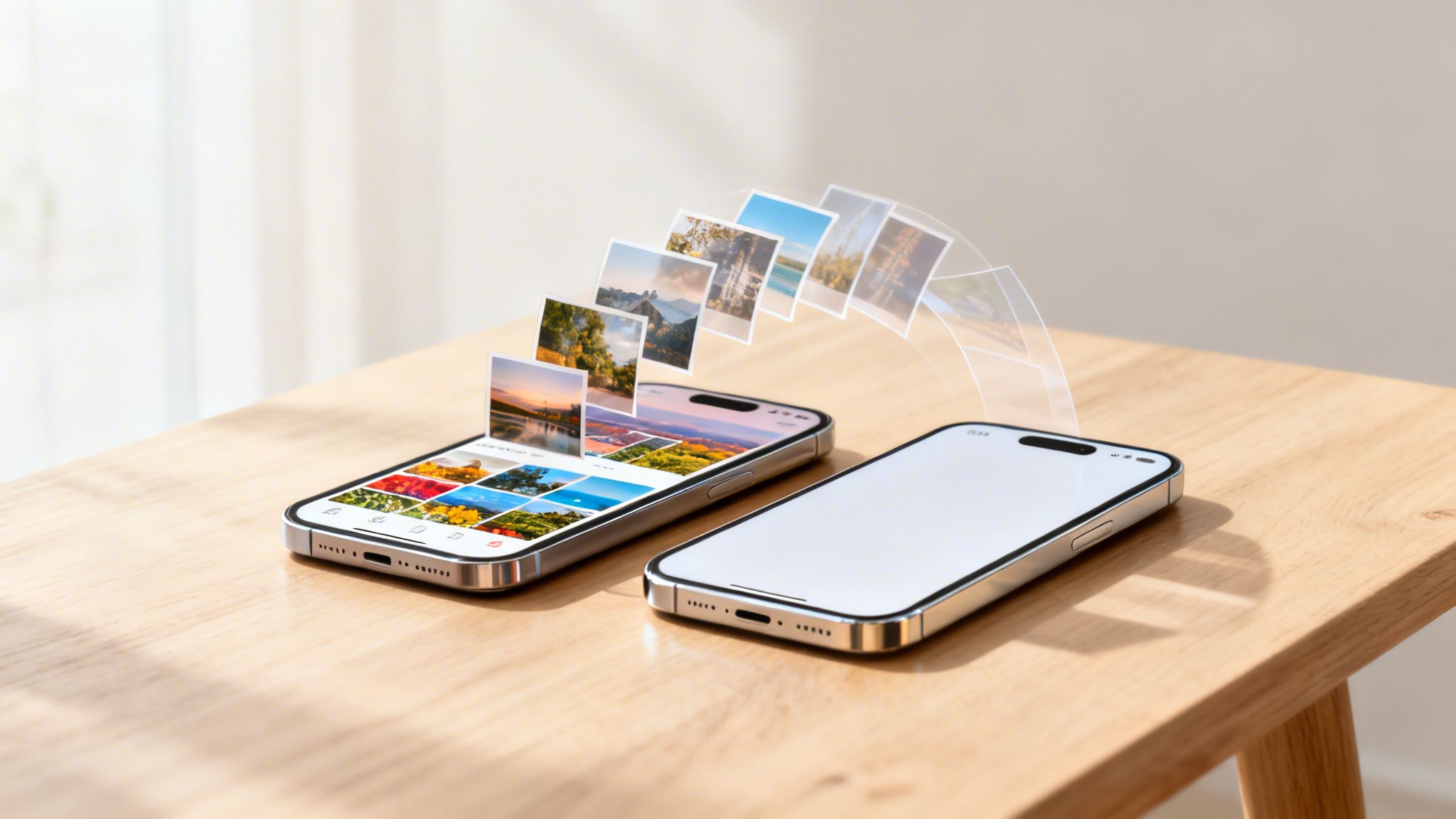
Moving your photos from an old phone to a new one is often the first thing you want to do. Let's be honest, it's the most important part. The best way to transfer photos to a new phone really boils down to what kind of phones you have. Modern tools like Apple's Quick Start or Google Account sync can get the job done in minutes. If you're switching sides—say, from Android to iPhone—apps like 'Move to iOS' or a cloud service like Google Photos will be your best friends.
Preparing for a Flawless Photo Transfer
The thrill of unboxing a new phone is real. But if you dive straight into the transfer process without a little prep work, you could be setting yourself up for a major headache. Taking a few minutes to get organized first can save you hours of frustration later. Think of it as setting the stage for a smooth, stress-free move.
This isn't just a friendly suggestion; it's a practical must-do. With an estimated 1.25 billion smartphones expected to ship globally in 2025, countless people are tackling this exact challenge. The market for photo transfer apps is already valued at a whopping $328 million in 2025, which shows just how many of us are trying to bring our precious memories along for the ride.
Declutter Your Photo Library First
Before you move a single photo, take the opportunity to do some digital spring cleaning. We all have them: blurry shots, a dozen duplicates of the same sunset, screenshots you don't need anymore, and memes that were funny two years ago. Moving all that digital junk just clogs up your shiny new phone and makes the transfer take forever.
Set aside 30 minutes to scroll through your gallery and be ruthless. Delete what you don't need. This one step can slash the amount of data you have to move, making any transfer method faster and more reliable.
Create a Secure Backup
This part is non-negotiable. Seriously. Technology can be fickle, and a transfer can fail right in the middle, potentially corrupting or even deleting your photos for good. A full backup is your ultimate safety net.
I always tell people to follow the 3-2-1 backup rule: Keep three copies of your data, on two different types of storage, with at least one copy stored off-site. For your photos, that could be one copy on your phone, a second on your laptop, and a third in the cloud.
Before you start anything, make sure your entire photo library is safely backed up. If you're not sure how, our guide on how to back up phone data walks you through it. This way, no matter what happens, your memories are protected.
Check Storage on Both Phones
Last but not least, do a quick storage check. See how much space your photos are taking up on your old phone, then make sure your new device has enough room. One of the most common and easily avoidable issues is a transfer failing because the new phone ran out of space.
Knowing your numbers ahead of time helps you decide if you need to delete more photos or maybe opt for a cloud-based solution that doesn't store every single picture directly on the device.
Transferring Between iPhones or Androids
So, you've got a shiny new phone but you're sticking with the same operating system. That's great news, because you're in for a smooth ride. Both Apple and Google have poured a ton of effort into making this exact transition feel effortless. The whole idea is to make your new phone feel familiar the moment you turn it on, with every last photo right where it belongs.
These built-in tools are designed to be incredibly intuitive, cutting out most of the tedious manual work. With the global smartphone market expected to reach $502.89 billion by 2032, it's clear that millions of people are upgrading their phones every year. For them, moving photos is one of the first and most important things to get right. You can see just how massive these market shifts are over at intelmarketresearch.com.
Before we dive into the specific methods, it's helpful to see your options at a glance.
Built-In Transfer Methods at a Glance
This table breaks down the native tools you can use to move your photos when staying within the Apple or Android ecosystem.
| Method | Best For | Speed | Requirements |
|---|---|---|---|
| Apple Quick Start | A complete, direct phone-to-phone data transfer for a new iPhone setup. | Fast (often under 30 mins) | Both iPhones on iOS 11+, Wi-Fi, and Bluetooth. |
| iCloud Photos | Users already invested in the Apple ecosystem who want an automatic, continuous sync. | Depends on internet speed; initial download can be slow. | Sufficient iCloud storage, Wi-Fi, Apple ID. |
| Google Account Restore | A simple, cloud-based restore for users who back up their device to Google. | Relies on internet speed; can take time for large libraries. | Google Account, Google Photos backup enabled, Wi-Fi. |
| Manufacturer Apps | Users staying with the same brand (e.g., Samsung to Samsung) for the fastest, most complete transfer. | Very Fast | Both phones from the same manufacturer, Wi-Fi. |
Each of these has its place, and the best one for you really depends on your specific situation and how you already manage your photos.
Moving Photos Between iPhones
For anyone in the Apple world, the tight integration between devices is a huge plus. If you're going from an old iPhone to a new one, you have two fantastic, no-fuss options.
Apple’s Quick Start Feature
Quick Start feels like a bit of magic. If your old and new iPhones are both running iOS 11 or later, all you have to do is place them next to each other. This kicks off a direct, device-to-device transfer that moves everything over.
Here’s the rundown:
- Set your new iPhone right beside your old one.
- The Quick Start screen will pop up on your old phone, asking to set up the new one.
- A cool swirling animation appears on your new iPhone—just scan it with your old iPhone's camera.
- From there, follow the on-screen prompts. It will copy over all your data, including your full-resolution photos and videos.
This method is incredibly fast. I've seen it move a library of over 10,000 photos in less than 30 minutes. If you're starting from scratch, our complete guide on how to set up a new iPhone walks you through every step.
Using iCloud Photos for a Seamless Sync
If you're already using iCloud Photos, the process is even simpler—because there isn't one. It’s completely automatic. iCloud Photos keeps your entire library safe in the cloud and syncs it across all your Apple devices.
The beauty of iCloud is that it's a "set it and forget it" solution. Once enabled, every photo you take is automatically uploaded. When you sign into your Apple ID on your new iPhone, your entire photo library will begin downloading from the cloud without you needing to do anything.
Just make sure it's actually turned on. On your old phone, head to Settings > [Your Name] > iCloud > Photos and confirm that "Sync this iPhone" is toggled on.
Moving Photos Between Androids
The Android ecosystem is just as good at handling device-to-device transfers. Between Google’s own tools and the apps provided by phone makers, getting your photo library moved is a piece of cake.
Google Account Backup and Restore
For most people, the easiest path is just using their Google Account. When you first set up your new Android phone, it will prompt you to sign in and ask if you want to restore data from a previous device.
Just select your most recent backup. Your new phone will then pull down your apps, contacts, settings, and—most importantly—all your photos, as long as you use Google Photos. It's a hands-off way to get everything migrated while you grab a coffee.
Manufacturer-Specific Transfer Apps
Most Android phone makers have their own powerful transfer tools, which often give you more control and a faster result. These apps are brilliant because they usually preserve the exact folder structure of your gallery, including any albums you've created.
- Samsung Smart Switch: This is the gold standard if you're a Samsung user. You can transfer wirelessly or, for even faster speeds, with a USB-C cable. It moves everything—photos, messages, home screen layouts, even your alarms.
- Xiaomi Mi Mover: Staying in the Xiaomi family? Mi Mover creates a private Wi-Fi hotspot between the two phones for a blazing-fast and direct transfer of your files.
- OnePlus Clone Phone: Similarly, OnePlus has a dedicated app that uses a simple QR code to pair your devices and quickly migrate your entire photo collection.
Using one of these dedicated apps is often quicker than a cloud restore and gives you confidence that all your carefully organized albums will look exactly the same on your new phone.
Crossing the Aisle: Moving Photos Between Android and iPhone
So, you're making the switch—jumping from Android to iPhone, or the other way around. This is the moment many people brace for a headache, picturing a complicated, messy transfer. But honestly, it's not nearly as painful as it used to be. Both Apple and Google have put a ton of work into making this process surprisingly smooth.
Let's cut through the confusion and walk through the best ways to get your photo library from one ecosystem to the other. We'll cover the official, built-in tools first and then touch on some great alternatives for those unique situations.
This flowchart gives you a quick visual guide for the best path to take, depending on your specific phone situation.
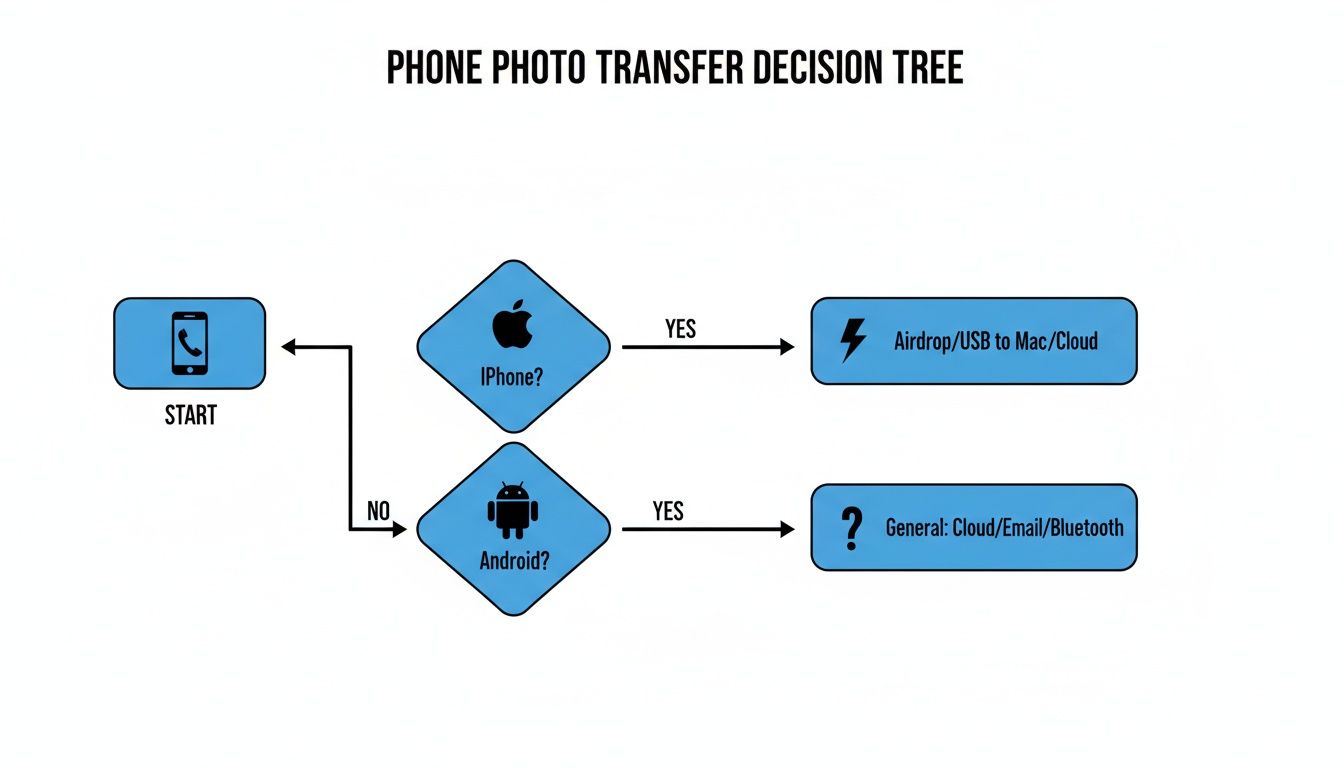
The main thing to remember is that both platforms now have dedicated solutions designed to make this as painless as possible.
From Android to a New iPhone
If you’re moving your life from an Android device to a brand-new iPhone, Apple has a dedicated app just for you. It’s called Move to iOS, and you can grab it for free from the Google Play Store on your old Android phone.
The entire process is built right into the initial setup of your new iPhone. Here’s how it works:
- Get Ready: First, download the Move to iOS app on your Android. It’s also a good idea to plug both phones into a charger and make sure they’re on the same Wi-Fi network before you start.
- Start the Transfer: As you’re setting up your new iPhone, you’ll hit an "Apps & Data" screen. This is the crucial step—make sure you select the "From Android" option.
- Get the Code: Your iPhone will then generate a one-time code, which can be either six or ten digits long.
- Pair the Phones: Now, open the Move to iOS app on your Android. Agree to the terms and then punch in the code from your iPhone. This creates a secure, temporary Wi-Fi link directly between the two devices.
- Pick Your Photos: A "Transfer Data" screen will pop up on your Android. Just check the box for "Camera Roll" (and anything else you want to bring over) and hit "Continue."
From there, just let them do their thing. It’s really important not to use either phone until the progress bar on your iPhone is complete.
This method is incredibly effective for most people. If you're weighing the differences between the two operating systems, our detailed look at the pros and cons of Android vs. iPhone can offer some extra insight.
From iPhone to a New Android
Going the other way? Moving from an iPhone to a new Android is just as simple these days. Google has streamlined its "Switch to Android" feature, building it directly into the setup process.
You can do this wirelessly, but I always recommend using a physical cable if you can. A Lightning to USB-C cable is your best friend here, as it makes the transfer faster and far more reliable.
Here’s a quick rundown of the cabled method:
- When you’re setting up your new Android, it will ask if you want to copy data and prompt you to connect your old iPhone.
- Plug the cable into both phones. You’ll need to tap "Trust" on your iPhone to allow the connection.
- Your Android will then walk you through selecting what you want to copy—photos, videos, contacts, and even your calendar.
- Once you start the transfer, you’ll be surprised at how fast it is. A direct cable connection can move a huge photo library in a fraction of the time it would take over Wi-Fi.
Pro Tip: Seriously, use a cable. It's faster and sidesteps any potential Wi-Fi glitches that might cause a wireless transfer to hang or fail completely. It's the most foolproof way to go.
If you don't have the right cable, the wireless method is still a solid backup. It generally works by having you back up your photos from your iPhone to Google Photos first. Then, during the Android setup, your new phone simply signs into your Google Account and downloads everything from the cloud.
Using Third-Party Apps as a Bridge
Sometimes the official methods just don’t work for your situation. Maybe you’ve already finished setting up your new phone, or you only need to transfer a handful of specific albums. In these cases, third-party apps can be a real lifesaver.
Plenty of apps available on both the App Store and Google Play are designed to act as a bridge between the two ecosystems. They usually pair your phones over your local Wi-Fi and let you select and send files directly. While they can work wonders, always stick to well-known apps with strong, positive reviews to ensure your photos and personal data are kept safe.
Moving Your Memories: Using a Computer or the Cloud
Sometimes, the easiest way to get photos from your old phone to your new one doesn't involve connecting them to each other at all. Think of a computer or a cloud service as a helpful middleman. This approach works no matter what kind of phones you have—iPhone to Android, Android to Android, it makes no difference. It’s the go-to strategy when you want full control and guaranteed compatibility.
And a lot of people are making this switch. With global smartphone shipments expected to hit 1.25 billion units by 2025, countless users are facing the challenge of migrating years of photos. For many, this isn't a small detail—it's a huge source of stress. In fact, research shows that nearly 40% of people switching phones worry most about losing their data in the process. Thankfully, these universal methods are designed to take that worry away. If you're curious about the market trends, you can read more about global smartphone shipment trends on counterpointresearch.com.
Your Photos' Best Friend: Cloud Storage
Cloud storage services are brilliant for this task. Instead of a direct transfer, you just upload your photo library from your old phone to the cloud, then download it onto your new one. It's a clean, simple solution that sidesteps any compatibility issues between brands.
Google Photos is a fantastic choice here, and for good reason. It’s smart, it organizes everything for you, and it can back up your photos automatically without you having to lift a finger.
Getting started with Google Photos is straightforward:
- First, install the Google Photos app on your old phone and log in.
- Head into the settings and turn on "Backup." You'll have a choice: "High quality" gives you unlimited free storage for slightly compressed images, while "Original quality" saves the full-resolution files but uses up your Google Account storage.
- Now, just let it run. This can take a while, especially for large libraries, so I recommend keeping your phone plugged in and connected to Wi-Fi.
- Once it's done, install Google Photos on your new phone and sign in. All your memories will be right there, ready to go.
Pro Tip: Using a service like Google Photos is a win-win. You're not just moving photos to your new phone; you're creating a secure, independent backup. If you ever lose or break a device, your pictures are safe.
While Google Photos is a crowd favorite, it’s not the only game in town. Services like Dropbox and OneDrive are also excellent options, each with its own perks.
| Cloud Service | Free Storage | Best Feature | Ideal For |
|---|---|---|---|
| Google Photos | 15 GB (shared) | AI-powered search and organization | Seamless, automated backups and easy sharing. |
| Dropbox | 2 GB | File synchronization and version history | Users who also need to manage documents and other file types. |
| OneDrive | 5 GB | Deep integration with Windows and Office 365 | People heavily invested in the Microsoft ecosystem. |
If you're just getting started with this idea, we have a complete guide that explains how to use cloud storage from the ground up.
The Old-School Way: Using Your PC or Mac
For those of us who prefer a more hands-on, offline approach, using a computer is a rock-solid method. It gives you absolute control over your files and is a lifesaver for massive photo libraries where a cloud upload would take forever. As a bonus, you get a permanent local backup on your computer.
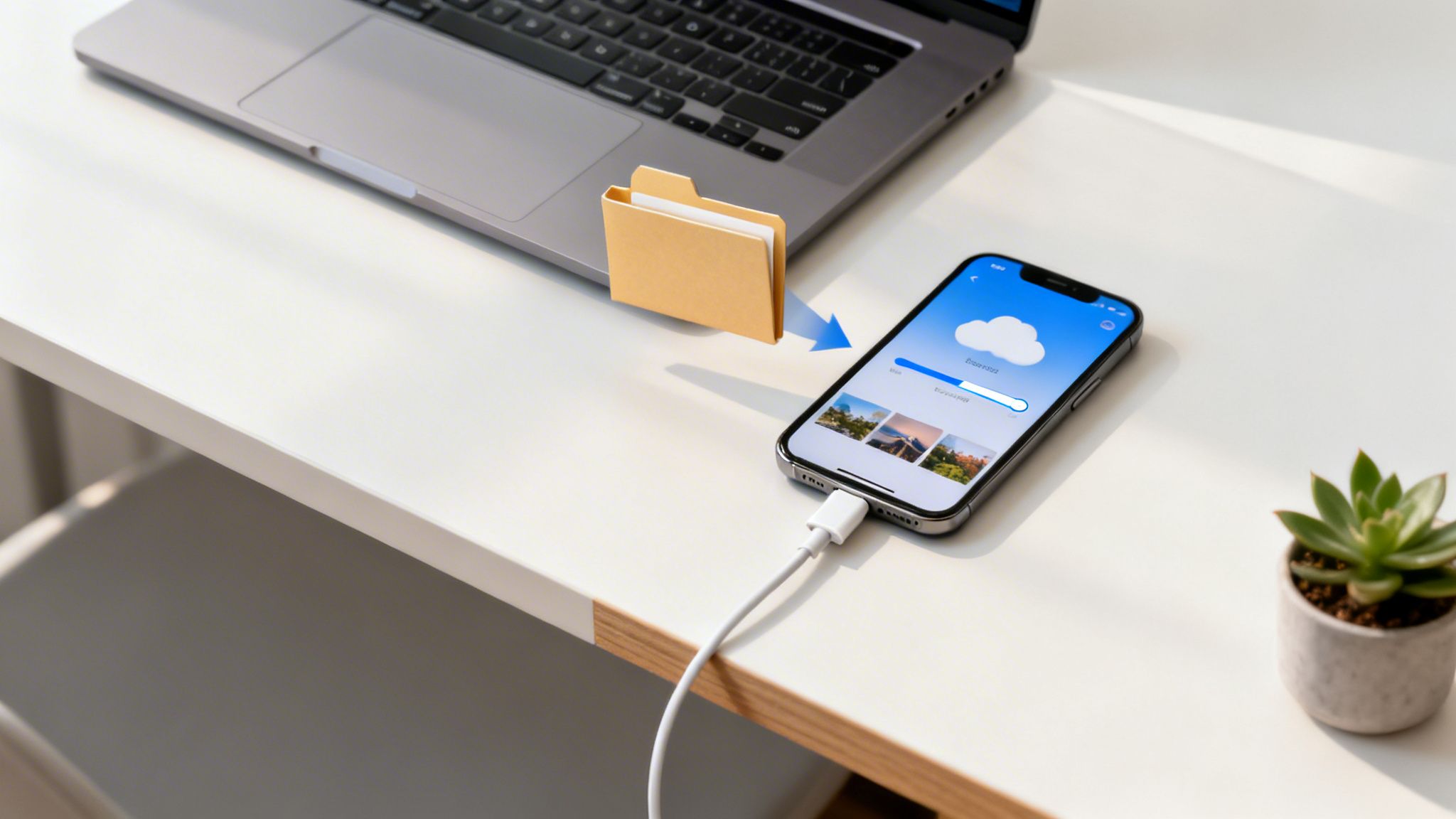
The process is simple: copy photos from the old phone to your computer, then copy them from the computer to your new phone.
Getting Your Photos Copied Over
Grab your USB cable and connect your old phone to your computer.
For Android phones: After connecting, pull down the notification bar on your phone and tap the USB notification. Change the mode to "File Transfer" (sometimes called "MTP"). Your phone should now appear as a drive in Windows File Explorer or on your Mac's desktop. If you're on a Mac, you'll need the free Android File Transfer tool. Just find the
DCIMfolder—that's where your photos live—and drag it onto your computer's desktop or into a folder.For iPhones: On a Windows PC, your iPhone will show up in File Explorer, and you can access the
DCIMfolder just like with an Android. If you're on a Mac, connecting your iPhone will usually open the Photos app automatically, which will then prompt you to import your pictures.
Once everything is safely copied to your computer, you can disconnect your old phone. Now, connect your new phone and just reverse the process—drag the photo folder from your computer to the right spot on your new device. It’s a direct, reliable transfer that keeps every photo in its original quality, no internet connection needed.
Troubleshooting Common Photo Transfer Problems
Even with the best plans, technology can throw a curveball. A transfer that seemed to be humming along can suddenly stall, or you might finish the whole process only to find a chunk of your favorite photos missing. Don’t panic—most of these issues are common and have surprisingly simple fixes.
This section is your go-to guide for those frustrating snags. We’ll walk through the most frequent hiccups and give you clear, actionable steps to get your photo transfer back on track.
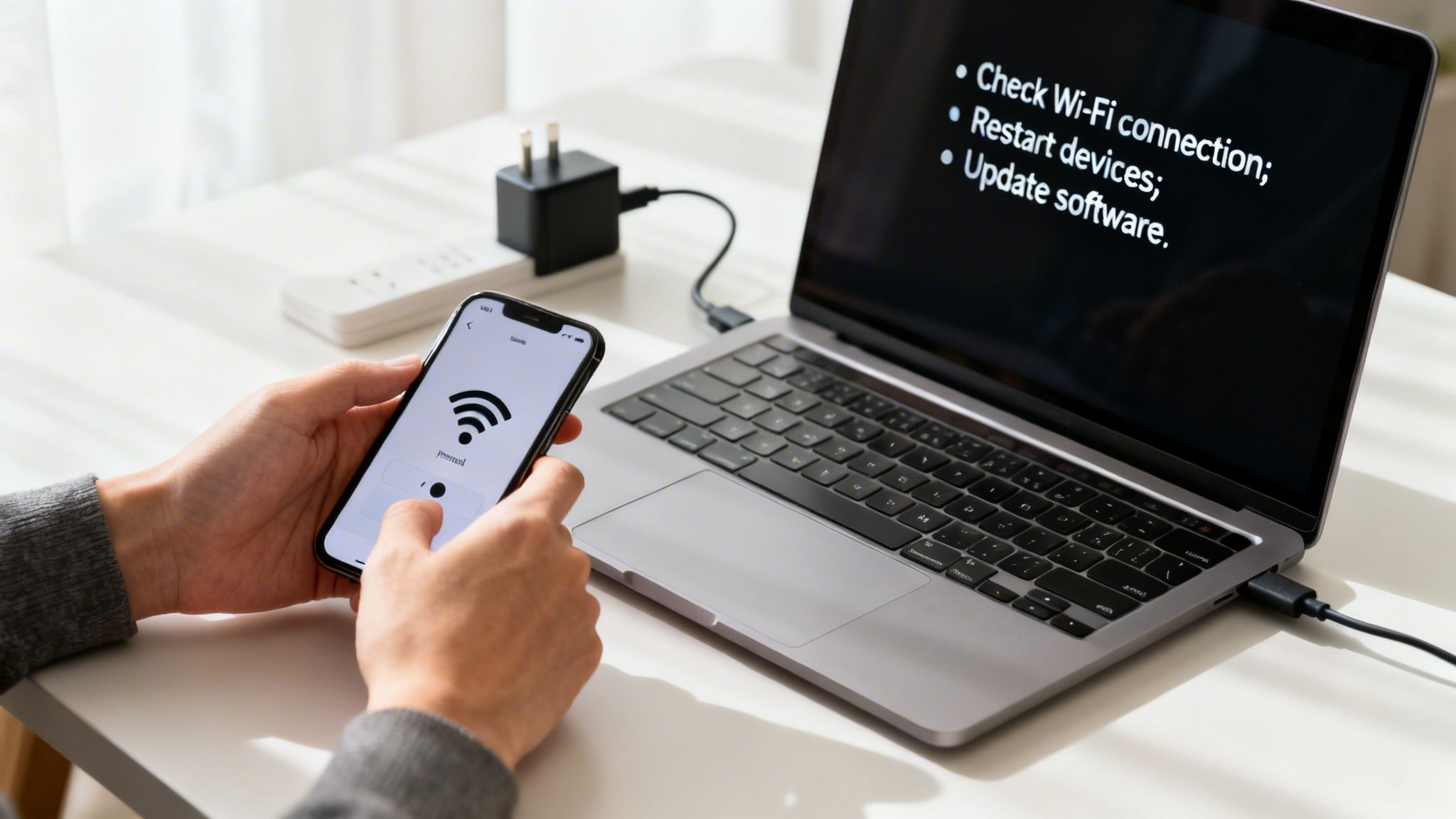
Why Is My Transfer Stuck or Failing?
There's nothing more nerve-wracking than watching a progress bar sit stubbornly at 42% for twenty minutes. When a transfer gets stuck or fails completely, it’s almost always due to one of a few usual suspects.
Before you pull your hair out and restart everything, run through this quick mental checklist:
- Check Your Wi-Fi Connection: This is the number one culprit. A weak or unstable Wi-Fi signal will bring any wireless transfer to a screeching halt. Try moving your phones closer to your router or connecting to a different, more stable network.
- Plug In Both Phones: Direct transfer methods like Apple's Quick Start are power-hungry. If either phone’s battery dips too low, the process will pause or fail entirely to protect the device. Keep them both on the charger.
- Verify Your Storage: Did you remember to check the available space on your new phone? A transfer will stop dead if the destination device runs out of room. If you find yourself in this situation, you might need to learn how to free up storage space before trying again.
These three simple checks solve the problem more often than not. Hitting these points first can save you a ton of time and frustration.
Help, My Photos or Videos Are Missing!
So the transfer finishes, and you excitedly open your new gallery, only to realize that your vacation album from last summer is nowhere to be found. When photos or videos don't make the jump, there are a few potential reasons why.
First, double-check your folders. Sometimes photos aren't "missing" so much as they're just organized differently on the new device. Poke around in different albums or use the search function in your photos app for a specific date or location.
If they’re truly gone, it might be an issue with incompatible file formats. For instance, if you're moving from an iPhone that saves images as HEIC files to an older Android that can't read them, those files might not have copied over. This is less common with modern phones, but it still happens.
Pro Tip: Using a cloud service like Google Photos as a middleman is a great way to prevent this. It automatically handles file conversions behind the scenes, ensuring all your pictures and videos are accessible on your new device, regardless of their original format.
Fixing Connection and Permission Errors
Sometimes the problem isn't the transfer itself but getting it started in the first place. If your phones can't seem to "see" each other, or if an app claims it can't access your photos, it’s usually a simple settings issue you can fix in a minute.
When you're dealing with a transfer headache, it's easy to overlook the basics. The table below covers the most common transfer errors I see and the first thing you should always try.
Quick Fixes for Common Photo Transfer Errors
| Problem | Likely Cause | Quick Solution |
|---|---|---|
| Stuck Progress Bar | Weak Wi-Fi signal or low battery on one of the phones. | Move closer to your router and plug both phones into a power source. |
| Transfer Fails Immediately | Insufficient storage space on the new phone. | Check available storage. Delete unneeded files or apps to make room. |
| Devices Can't Find Each Other | Bluetooth or Wi-Fi is turned off; phones are too far apart. | Ensure both Wi-Fi and Bluetooth are on. Keep devices within a few feet of each other. |
| "Permission Denied" Error | The transfer app lacks access to your photo library. | Go into your old phone's settings and grant the app full photo access. |
| Some Photos Are Missing | Incompatible file format (e.g., HEIC on an old Android). | Try transferring a small batch or use a cloud service that converts files. |
Running through these quick checks will solve the vast majority of transfer issues without the need for a deep dive into complex settings.
When Your Phones Can’t Find Each Other
If you’re using a direct wireless method like Quick Start, both phones need to have Bluetooth and Wi-Fi enabled. Make sure neither device is in Airplane Mode. It’s also never a bad idea to restart both phones—the classic "turn it off and on again" trick often resets buggy connections.
Resolving App Permission Problems
When you use an app like Move to iOS or a cloud service, it needs your explicit permission to access your photo library. If you accidentally tapped "Deny" during setup, the app simply can't see or transfer your files.
It's an easy fix. Just dive into your old phone’s settings:
- On an iPhone, navigate to Settings > Privacy & Security > Photos. Find the app you're using and switch its access to "Full Access."
- On an Android device, head to Settings > Apps, find the app in question, tap on "Permissions," and make sure it has access to your "Files and media" or "Photos and videos."
By working through these common issues one by one, you can quickly figure out what's holding up your transfer and get all your memories moved over safely.
Got More Questions? We’ve Got Answers.
Even with the best guides, there are always a few nagging questions that pop up right when you’re about to start. Let's tackle some of the most common ones I hear from people moving their photo libraries to a new phone.
Will My Carefully Organized Photo Albums Transfer Over?
This is a big one, especially if you've spent years sorting photos into albums like "Family Vacation 2023" or "Weekend Projects." The short answer is usually yes, but it really hinges on the method you choose.
- Native Transfer Tools: If you're using a tool made for your phone's ecosystem, like Apple's Quick Start or Samsung's Smart Switch, you're in luck. These are designed to clone your old phone, so they do an excellent job of keeping your album structures, folders, and even the photo order intact.
- Cloud Services: Services like Google Photos are also fantastic for this. Your albums live in your Google account, not just on your phone. When you sign in on the new device, everything should appear exactly as you left it.
- Manual PC Transfer: This is where you can run into trouble. When you drag and drop the
DCIMfolder from your phone to a computer, you're just moving the raw image files. The album information is often metadata stored by your gallery app, and that doesn't always come along for the ride.
Bottom line: If preserving your albums is non-negotiable, stick with an official tool like Quick Start or a robust cloud service.
How Long Is This Photo Transfer Going to Take?
Patience is a virtue, but nobody wants to wait all day. The time it takes can swing wildly from a few minutes to a few hours, depending on two things: the sheer size of your photo library and the speed of your connection.
A direct cable connection is almost always the undisputed champion of speed, capable of moving gigabytes of data in just a few minutes. A strong, stable Wi-Fi connection is a very close second. The slowest route, by far, is syncing over a weak or spotty internet connection—for a huge library, that could easily take overnight.
As a general rule of thumb, I tell people to budget about 30 minutes for every 10,000 photos when using a solid wireless method like Quick Start. If you're dealing with a massive library of over 50,000 photos, do yourself a favor and use a cable. It will save you a ton of time.
Will My Photos Lose Quality in the Transfer?
You definitely don't want your crisp, beautiful memories arriving on your new phone looking pixelated or compressed. The great news is that most modern transfer methods are "lossless," meaning they move the original, full-quality file without messing with it.
Here’s how it breaks down:
- Direct transfers (think cables, Quick Start, AirDrop, or manufacturer apps) always move the original files. No compression, no quality loss. Your photos will look exactly the same.
- Cloud services can be a little different because they often give you a choice. Google Photos, for instance, lets you back up in "Original quality" (which is what you want) or "Storage saver" (which applies some compression). For a transfer, always pick the full-quality option.
Manual transfers via a computer are also perfectly safe for quality, since you’re just making a direct copy of the files themselves.
What Should I Do with the Photos on My Old Phone Now?
Once you've swiped through your gallery and confirmed every last photo and video has made it safely to its new home, it's time to deal with the old device. But hold on—don't just start deleting.
First, verify your backup. Seriously. Make sure the new phone has all the photos and that you have a separate, secure backup somewhere else, like in the cloud or on a hard drive. Once you've confirmed that, you can confidently perform a full factory reset on the old phone. This securely erases all your personal data, making it safe to sell, trade in, or recycle.
At Simply Tech Today, our mission is to make technology clear and straightforward. For more practical guides and tech advice that just makes sense, visit us at https://www.simplytechtoday.com.
Member discussion