
How to Troubleshoot Internet Connection The Practical Guide

When your internet goes down, the urge to panic or immediately call your provider is strong. But hold off. As someone who's dealt with this more times than I can count, I can tell you that the simplest fixes are, by far, the most common.
Let's start with the basics—the quick-win troubleshooting steps that solve the vast majority of home and small office network problems. These are the go-to moves that can get you back online in minutes.
The Magic of a Full Reboot
It’s the oldest cliché in tech support for a reason: "Have you tried turning it off and on again?" It works. Your modem and router are essentially tiny, dedicated computers, and just like any computer, they can get bogged down over time. A proper reboot clears out temporary glitches and lets them establish a fresh, clean connection.
But the way you do it matters. Don't just pull the plug for a second and jam it back in. There’s a sequence that gives you the best shot at success.
- First, unplug the power cords from both your modem and your router.
- Now, walk away. Grab a coffee. Wait a full 30-60 seconds. This is the critical part—it allows the internal capacitors to fully discharge, clearing any lingering problematic code from the memory.
- Plug the modem back in first. Wait for its lights to settle. You're typically looking for solid green or blue lights for Power, Receive, Send, and Online.
- Only after the modem is fully booted and online, plug the router back in. Let it do its thing until its lights are stable.
This methodical power cycle is shockingly effective. I’ve seen estimates from telecom insiders that suggest this one trick resolves 70-80% of all home network support calls, often before a customer even needs to speak to an agent.
Wiggle the Wires: Check Your Physical Connections
Before you assume the problem is digital, make sure it isn’t physical. A loose cable is an incredibly common—and often overlooked—culprit. It happens all the time, especially if the hardware is in a high-traffic area.
Go to your modem and router and give every cable a firm push into its port. An Ethernet cable should give you a satisfying "click" to let you know it's securely locked in. Check the coaxial cable that screws into the modem from the wall jack, too. Make sure it's finger-tight.
While you're down there, do a quick visual scan of the cables. Look for any obvious damage, like frays, sharp kinks, or signs that a pet might have used it as a chew toy. It's also a good moment to confirm that your power strip is switched on and working. Sometimes the simplest answer is the right one.
Pro Tip: A sluggish computer can often masquerade as a slow internet connection. If your connection seems slow rather than completely down, it's worth making sure your PC is running optimally. For tips on that, check out our guide on how to speed up computer performance.
To sum up these first critical steps, here's a quick checklist of what to do first, every single time.
Initial Troubleshooting Checklist
| Action | Why It Works | Typical Success Rate |
|---|---|---|
| Perform a Full Reboot | Clears temporary memory (RAM) in your modem and router, forcing a fresh connection to your ISP. | Very High (70-80%) |
| Check Cable Connections | Ensures that a physical disconnect isn't the root cause. Cables can easily become loose over time. | High |
| Confirm Power | Verifies that the devices are receiving power and that the power strip or outlet is functioning correctly. | Moderate |
These three actions should always be your first line of defense. They are fast, easy, and have an incredibly high success rate for resolving the most common internet headaches.
Pinpointing the Problem: Is It Just You or the ISP?
So, the classic "turn it off and on again" trick didn't work. Don't worry, that happens. Now it’s time to put on your detective hat and figure out where the connection is actually failing. Is the problem with a single device, your entire home network, or is it a wider issue with your internet service provider (ISP)?
The first thing to do is try to isolate the problem. If your laptop can't get online, grab your smartphone. Can it connect to your Wi-Fi? If your phone connects just fine but your laptop won’t, you've already narrowed down the problem to that specific computer.
But what if nothing can connect to the Wi-Fi? That’s a big clue. It points to a problem with either your router or the internet service itself. This one simple test saves you from a world of frustration trying to fix settings on a device that isn't even the problem.
Go Straight to the Source
The most direct way to test your connection is to take Wi-Fi out of the equation entirely. This single step can instantly tell you if the issue is with your wireless signal or the actual internet service coming into your home. Grab an Ethernet cable and plug a computer directly into one of the LAN ports on the back of your router or modem.
If you can get online with a wired connection, then congratulations—your internet service is working. The culprit is almost certainly somewhere within your Wi-Fi network, and we can work on that. But if even a direct Ethernet connection doesn't get you online, the problem is likely outside your house, pointing to an issue with your ISP.
It can be really helpful to have a basic mental model of how your data gets from your devices to the internet and back. For a deeper look into how information is managed and accessed over the web, this guide on how cloud storage works is a great read.
This simple flowchart is a great visual for these first diagnostic steps.
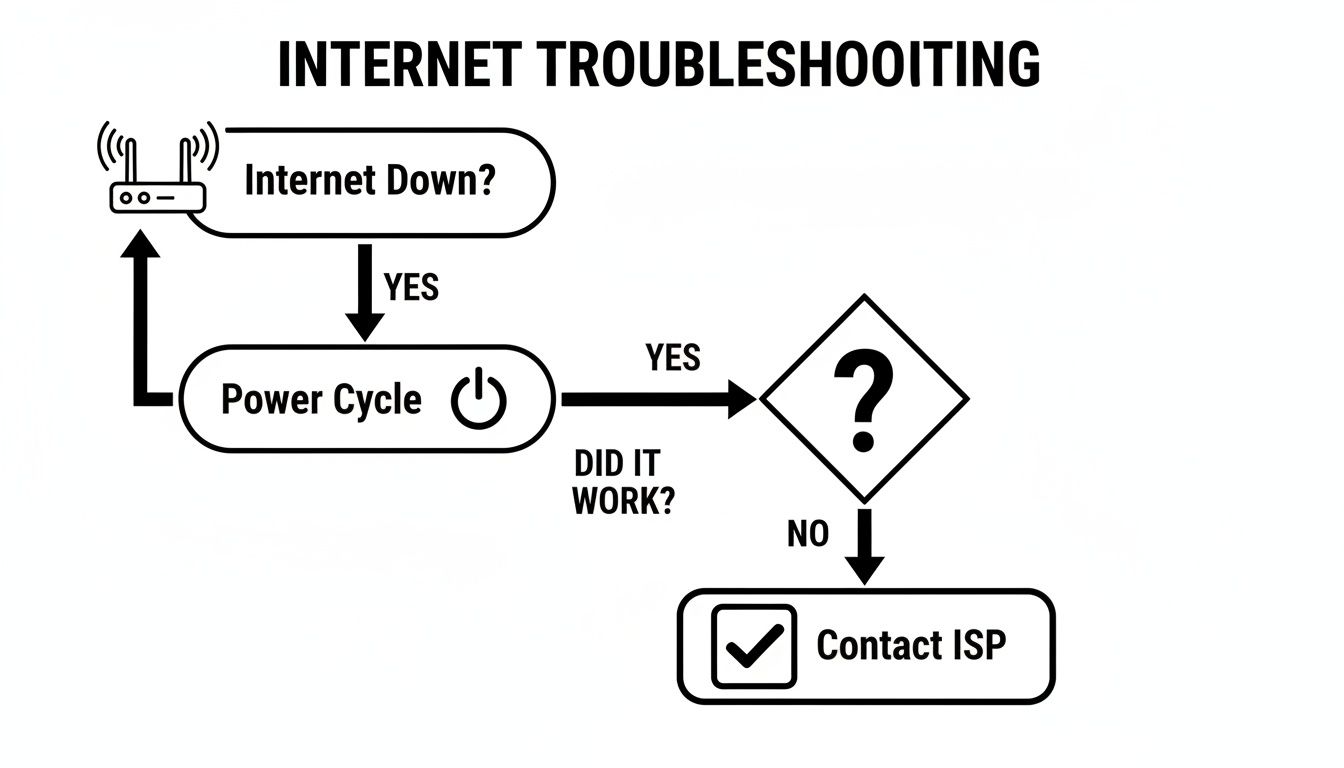
As you can see, a full power cycle is always the right place to start before you dive deeper.
Check Your Speed and Stability
Sometimes the internet isn't completely down, it's just painfully slow. If web pages are taking forever to load or your video stream is constantly buffering, running a speed test is your next move. It gives you hard numbers for your current download and upload speeds, which you can compare against what you're actually paying for.
To get the most reliable results, there's a right way to do it:
- Go Wired: Always run the test on a computer plugged directly into your router with an Ethernet cable. Wi-Fi speeds can vary wildly depending on where you are in the house, so it won’t give you a true picture of the service you're receiving.
- Close Everything: Shut down any video streams, online games, big downloads, or other programs that are eating up bandwidth in the background. You want the test to have the connection all to itself.
- Test Multiple Times: Run the test at different times of the day. You might find that your connection grinds to a halt in the evenings when everyone in your neighborhood gets home and starts streaming.
If your tests consistently come back with speeds far below what your plan promises (a good rule of thumb is less than 80% of the advertised speed), you now have solid evidence. This data is exactly what you need to have a productive conversation when you call your ISP for help.
Fine-Tuning Your Wi-Fi for a Rock-Solid Connection
So, you plugged a laptop directly into your router, and the internet works perfectly. But the moment you walk away and rely on Wi-Fi, everything grinds to a halt. This is a classic scenario, and it tells you the problem isn't with your internet service provider—it’s your local Wi-Fi signal.
A weak, congested, or obstructed signal can feel identical to a full-blown internet outage. You’ll get endless buffering on videos, dropped video calls, and web pages that refuse to load. The good news is that improving your Wi-Fi signal is often the most impactful fix you can make.
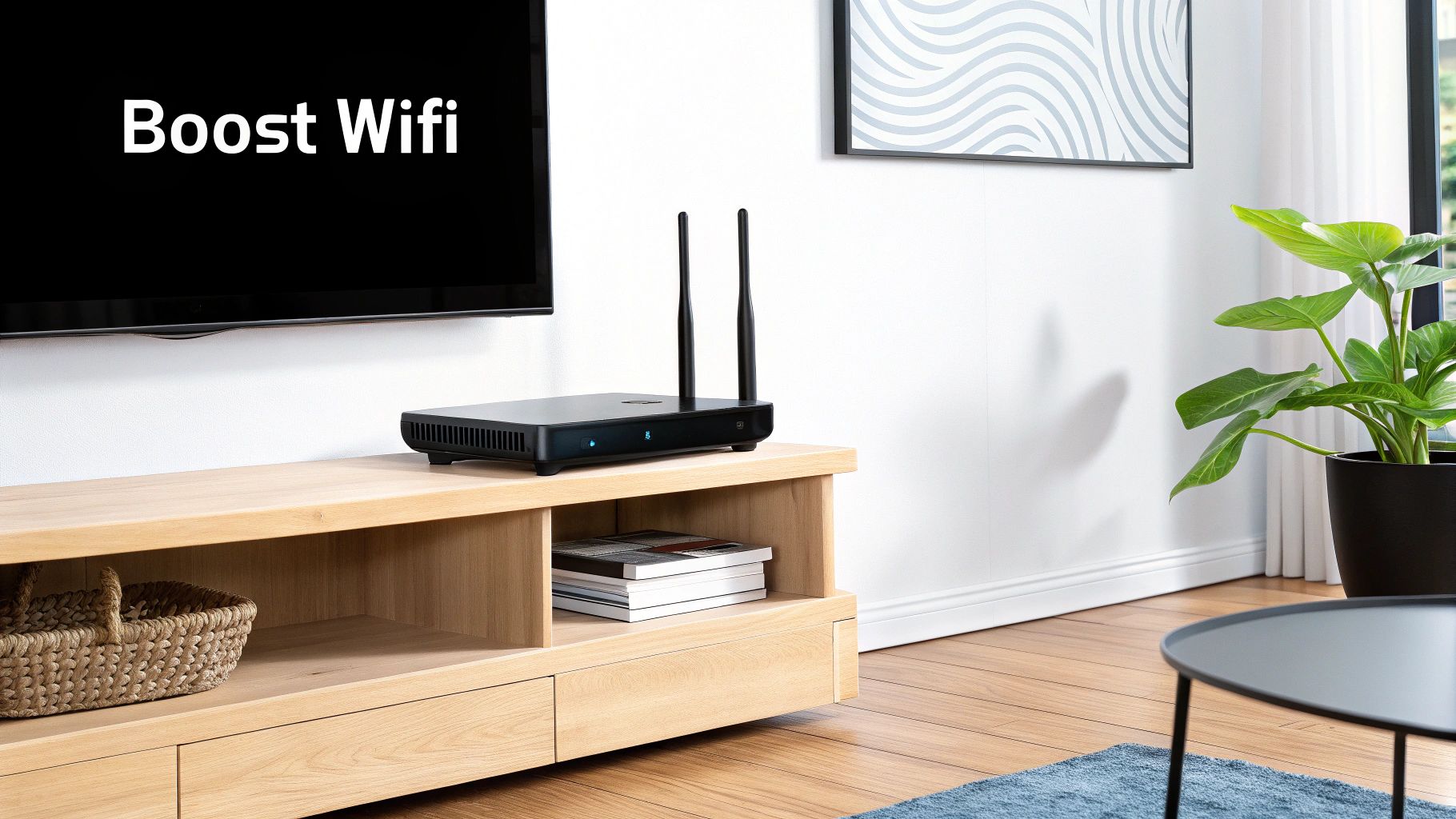
First things first, let's talk about where your router lives. Wi-Fi signals are just radio waves, and they get weaker as they pass through obstacles. Think of your router as a lamp; you wouldn't stick it in a closet and expect it to light up the whole house. The same logic applies here.
The ideal spot is central, elevated, and out in the open. Placing it on a high shelf in a main living area is a fantastic start. Getting your router out from behind the TV or from inside a cabinet can make a night-and-day difference in signal strength and stability.
Winning the Fight Against Signal Interference
It's not just walls and furniture that block your signal. Your router is constantly competing with a whole host of other electronic devices that can muddy the airwaves and cause frustrating slowdowns.
I’ve seen some strange sources of interference over the years, but a few common culprits show up time and again:
- Microwave Ovens: When that popcorn is popping, it’s blasting out interference on the 2.4 GHz frequency—the same one your Wi-Fi uses.
- Bluetooth Devices: Your wireless speakers, headphones, and keyboards can all create a bit of traffic congestion on that same 2.4 GHz band.
- Cordless Phones: This is an old one, but older cordless phone systems are notorious for disrupting Wi-Fi signals.
- Your Neighbors' Wi-Fi: If you live in an apartment or a dense neighborhood, your router is screaming for attention in a crowded room full of other networks.
A strong Wi-Fi network is the foundation of a modern connected home. As you add more devices, from smart speakers to security cameras, a stable connection becomes even more critical. Getting this right is a key first step if you're looking into how to set up your smart home.
Picking the Right Lane: 2.4 GHz vs. 5 GHz
Nearly every router sold today is "dual-band," which is just a fancy way of saying it broadcasts two separate networks: one on the 2.4 GHz frequency and another on the 5 GHz frequency. Knowing which one to use is crucial for getting the best performance.
| Wi-Fi Band | Key Characteristics | Best For |
|---|---|---|
| 2.4 GHz | Travels farther and is better at penetrating solid objects like walls. | Devices that are far from the router or for basic tasks like browsing and checking email. |
| 5 GHz | Offers much faster speeds and is far less prone to interference from other gadgets. | High-bandwidth activities like 4K streaming, video conferencing, and online gaming on devices that are relatively close to the router. |
Here’s my rule of thumb: connect your most important, speed-hungry devices to the 5 GHz network whenever you can. That means your work laptop, your main TV's streaming stick, and your gaming console should all be on the 5 GHz band.
Leave the slower, more crowded 2.4 GHz band for smart home gadgets, phones, and other devices that are farther away or don't need top-tier speed. This simple bit of network management can work wonders for your overall internet experience.
Diving Deeper with Intermediate Network Diagnostics

Alright, so the quick fixes didn't work. That’s frustrating, but it usually means the problem isn’t something simple like a loose cable. It's time to roll up our sleeves and look under the hood of your network.
Don't worry, you don't need to be a network engineer for this part. We're just going to poke around in your router's settings and look at a few things that can uncover those sneaky, persistent issues that a simple reboot won't solve.
A Quick Tour of Your Router's Admin Panel
Your router is the command center for your entire home network. It has a built-in webpage, usually called an "admin panel" or "dashboard," that lets you see exactly what's going on. Getting into this panel is your next big step.
To get there, open a web browser and type in your router's address. It's almost always 192.168.1.1 or 192.168.0.1. You'll need a username and password, which you can usually find on a sticker right on the router itself.
Once you’re in, the first thing I always check is the connected devices list. This shows every single phone, laptop, smart TV, and gadget currently on your network. If you spot a device you don't recognize, it could be a neighbor slowing you down by piggybacking on your connection.
Key Insight: The device list isn't just for security. It helps you understand how much demand is being placed on your network. Seeing a dozen devices connected when you thought there were only a few explains why your speeds might be suffering.
The admin panel is also a goldmine of diagnostic info. You can find network logs and check Wi-Fi signal strength, which can give you clues if the router itself is struggling. Getting comfortable in these settings is a powerful troubleshooting skill, especially when juggling multiple devices; if you're curious about what modern hardware can handle, our guide on how to choose the right laptop offers some great perspective.
Understanding the Role of DNS
Think of the Domain Name System (DNS) as the internet's phonebook. When you type google.com into your browser, DNS is the service that looks up that friendly name and translates it into a computer-readable IP address. Your internet provider assigns you a DNS server by default, but frankly, it's often not the best one.
Sometimes, slow-loading websites or "page not found" errors have nothing to do with your actual internet speed. The real culprit is a slow or unreliable DNS server.
One of the most effective tricks in the book is switching to a different public DNS provider. It's like trading in an old, tattered phonebook for a lightning-fast digital directory. It's a small change that can make your day-to-day browsing feel noticeably snappier.
Popular DNS Providers for Better Performance
If you're ready to make the switch, a few trusted public DNS services stand out from the rest. They are free, reliable, and can often improve both your speed and security.
| Provider | Primary DNS | Secondary DNS | Key Benefit |
|---|---|---|---|
| Cloudflare | 1.1.1.1 | 1.0.0.1 | Focuses heavily on privacy and is often one of the fastest options available. |
| 8.8.8.8 | 8.8.4.4 | Known for its extreme reliability and security features. | |
| OpenDNS | 208.67.222.222 | 208.67.220.220 | Offers optional content filtering, making it a great choice for families. |
Changing your DNS settings is usually done in your router's admin panel or directly on your device. For most people, Cloudflare or Google are fantastic starting points that provide an immediate boost.
How to Effectively Contact Your Internet Provider
So, you’ve done it all. You’ve rebooted everything, unplugged and replugged every cable, and confirmed the problem isn’t just your Wi-Fi. It’s time to make the call to your Internet Service Provider (ISP).
Let's be honest, this call can be a real headache. But if you go into it prepared, you can turn a potentially long, frustrating experience into a quick, productive one.
The trick is to politely show the support agent you’ve already done your homework. This helps you skip past their standard script—"have you tried turning it off and on again?"—and get straight to the heart of the matter. Having your info ready is the single best way to make the call go smoothly.
Before you even pick up the phone, get everything you need in one place. You’ll thank yourself later when you’re not digging for an account number while listening to hold music.
- Your Account Number: It’s almost always on your bill. Have it front and center.
- A Quick Summary of Your Steps: Be ready to say something like, "Hi, I've already power-cycled my modem and router, checked all the physical cables, and even tested a direct Ethernet connection, which also isn't working."
- Device Details: Jot down the model numbers of your modem and router.
- Speed Test Results: If slowness is the problem, data is your best friend. Being able to say, "I'm paying for 400 Mbps, but a wired speed test is only giving me 35 Mbps" is far more effective than just saying "my internet is slow."
Asking the Right Questions to Get Real Answers
Once you're talking to a real person and have explained what you've already tried, your next move is to ask smart, targeted questions. This is how you figure out if the problem is inside your house or part of a bigger issue on their end.
Start with the most obvious one: "Can you confirm if there are any known service outages in my area?" This is the fastest way to learn if the problem is completely out of your control. If there’s a big outage, all you can do is wait it out.
If there are no outages, bring the focus to the connection coming into your home. A great follow-up is, "Could you check the signal levels to my modem from your side? Are they looking normal?"
This question is a game-changer. The support agent can see the data flowing (or not flowing) to your equipment in real time. If they report poor signal strength or high error rates, you've confirmed the issue is on their side of the network, likely requiring a technician visit.
Finally, if they still suspect the problem is on your end despite your tests, ask one more thing: "Could you try reprovisioning my modem from your end?" This is a remote reset that forces the modem to re-establish its connection with their network. It's a simple step for them that can sometimes clear up stubborn communication glitches.
Having this playbook ready turns you from a frustrated caller into an active partner in getting your internet back online.
Got Questions? Here Are Some Common Internet Mysteries, Solved.
Even after you've run through all the steps, some internet problems can still leave you scratching your head. I've been there. Let's tackle a few of the most persistent questions I hear all the time with some straight-up, practical answers.
"Why Does My Internet Keep Dropping Out?"
Ah, the random disconnect. It's easily one of the most maddening issues because it’s so unpredictable. More often than not, these intermittent drops are caused by Wi-Fi interference, a modem or router that's running too hot, or a flaky signal coming from your internet provider.
Before you spend an hour on hold, do a quick physical check. Is your router stuffed in a cabinet or buried behind a stack of books? Give it some breathing room. Overheating is a common culprit. Also, take a look around for other electronics. Things like microwaves, cordless phone bases, and even some baby monitors can interfere with your Wi--Fi signal.
If you've moved the router and the problem sticks around, the issue might be outside your home. It could be the physical line itself, and that's when you'll need to get your ISP on the phone to have them run a line quality test from their end.
A stable connection isn’t just about avoiding buffering during a movie; it's a key part of your digital security. A choppy, unreliable network can open you up to certain risks. Once your connection is solid, learning how to protect your privacy online is a great way to build on that foundation.
"Is It True That Too Many Devices Slow Down My Internet?"
Yes, 100%. Every single device you connect—your laptop, your phone, your smart TV, your kid's tablet, even that new Wi-Fi-enabled coffee maker—is taking a piece of the internet pie.
Think of your bandwidth as a single water pipe. The more faucets you turn on at once, the less pressure each one gets.
If you have a couple of people streaming 4K video, someone on a Zoom call, and another person downloading a huge game, you're going to feel it. That's network congestion, and it's a real bottleneck. The fix is often upgrading to a newer router built to handle dozens of devices or bumping up your internet plan to get a bigger "pipe" from your provider.
"What's the Real Difference Between a Modem and a Router?"
It's a super common point of confusion, especially since internet providers love to hand out all-in-one combo units. But they do two totally separate jobs.
The Modem: Think of the modem as the translator. It connects to the physical cable coming into your house from your ISP and converts that signal into a usable internet connection. It only has one job: bring the internet into your home.
The Router: This is the traffic cop for your home network. It takes that single connection from the modem and shares it wirelessly (and via Ethernet ports) with all of your different devices. It creates your private Wi-Fi network and makes sure data goes to the right place.
So, the modem brings the internet in, and the router sends it out to all your gadgets.
At Simply Tech Today, our mission is to make technology simple and accessible for everyone. If you're looking for more clear-cut advice without the confusing jargon, come see us at https://www.simplytechtoday.com.


Member discussion