
How to Unsend a Text Message on iPhone and Android
We’ve all been there. That split-second of pure panic right after your finger taps “send.” Your stomach does a little flip.
Maybe you just fired off a rant about your boss to your boss. Or sent a deeply personal message meant for your partner to the family group chat. That immediate, ice-cold wave of regret is a feeling just about everyone with a smartphone knows well.
It’s in these moments that the ability to unsend a message feels less like a feature and more like a lifeline. It’s our digital “do-over,” giving us a crucial second chance to prevent a simple mistake from turning into a full-blown crisis.
Why The Unsend Button Is Now Essential
The big players in tech have caught on to this universal need. Apple, for example, finally gave us the 'Undo Send' feature with iOS 16, offering a very tight two-minute window to pull a message back from the brink.
This isn't just about convenience; it's a direct response to the lightning speed of modern communication. Think about it: 5.9 billion people around the globe are texting. A staggering 98% of those texts are opened, with most being read within just three minutes. That leaves you with an incredibly small margin for error.
The unsend feature is your digital emergency brake. It’s a vital tool for navigating the high-speed, high-stakes traffic of our daily conversations and keeping control over your own words.
This guide is your roadmap to mastering the art of the message recall. We'll break down exactly how to unsend a text on all the major platforms you use every day.
We’ll cover:
- How long you really have to unsend a message on each app
- The exact steps for both iPhone and Android users
- What to do when you’ve missed the window and unsending isn’t an option
Of course, if you find yourself constantly sending and unsending messages, it might be a sign you’re a little too plugged in. Taking a step back and exploring some ways to reduce screen time could be a game-changer.
But for now, let's focus on becoming a pro at the digital takedown.
Know Your Window of Opportunity
We've all been there—that heart-stopping moment right after you hit "send" and immediately wish you could take it back. That’s where the magic of "unsend" comes in, but this magic trick has a time limit.
Every app that lets you recall a message has a strict, unforgiving deadline. Your success depends entirely on acting fast, and knowing the rules for each app is the difference between a clean getaway and a permanent digital footprint.
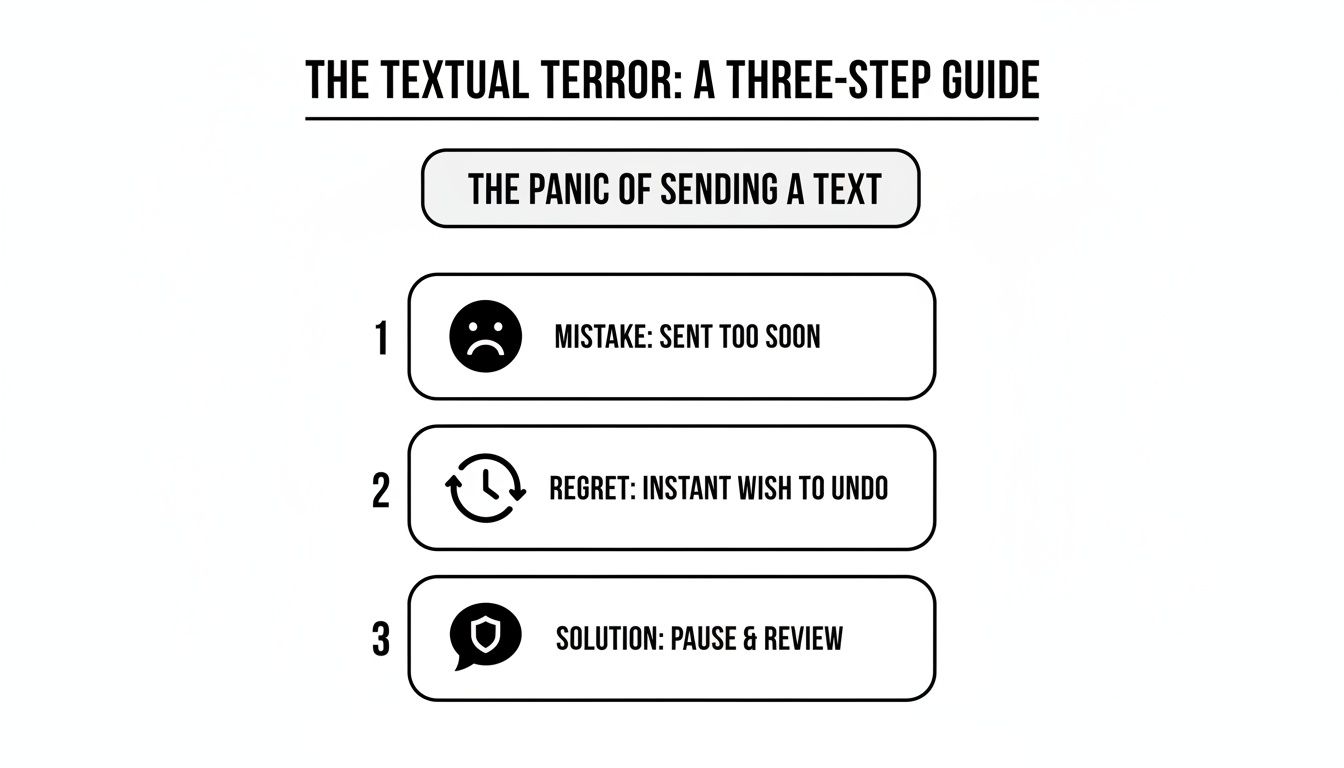
This simple infographic captures that rollercoaster of emotions perfectly, showing how unsending a message can be the ultimate escape hatch.
Comparing Unsend Time Limits and Rules
The time you have to act changes wildly from one app to another. With iMessage, for example, you get a tiny two-minute window. It’s incredibly short, demanding an almost instant reaction. If you miss it, your only recourse is to edit the message or just own it.
On the other hand, some apps are far more generous. WhatsApp gives you over two days to use its "Delete for Everyone" feature. Telegram is even more forgiving, offering a full 48 hours to make a message disappear from the conversation as if it never happened.
Think of it like this: each app has its own countdown clock. The first step to successfully recalling a message is knowing exactly how much time you have to work with.
To make it easier, I've put together a quick-reference table that breaks down the timeframes and other crucial details for the most popular messaging apps.
Messaging App Unsend Time Limits and Requirements
This table is a handy guide to the unsend features across different platforms. It highlights not just how long you have, but also the specific conditions that need to be met for it to work.
| Messaging App | Time Limit to Unsend | Key Requirements & Notes |
|---|---|---|
| iMessage | 2 minutes | Both you and the recipient must be using iMessage on iOS 16 or newer. Doesn't work for green-bubble SMS texts. |
| Google Messages | Typically 15 minutes | This only applies to modern RCS chats. The old-school SMS/MMS messages are permanent once sent. |
| Up to 2 days | Using "Delete for Everyone" will leave a "This message was deleted" notification in the chat for everyone to see. | |
| Messenger | No time limit | The previous 10-minute limit is gone. Now you can unsend anytime, but it leaves a "message unsent" note behind. |
| Telegram | 48 hours | Offers a true delete—it can be removed from the recipient's device without leaving any trace or notification. |
Keep in mind, unsending isn't a guarantee the message wasn't seen. A quick glance at a notification preview is all it takes. While it’s a powerful tool, it's no replacement for thinking before you type.
And speaking of digital trails, losing your phone can mean losing your entire message history. It’s always a good idea to know how to backup phone data to make sure your important conversations are safe, no matter what happens.
Unsending Texts in iMessage on Your iPhone
We’ve all been there. The second you hit "send," a wave of panic washes over you. Wrong person, embarrassing typo, or just a bad idea sent in haste. For iPhone users, Apple's 'Undo Send' feature, which rolled out with iOS 16, is a real game-changer. It’s like having a tiny, digital rewind button.
But there's a catch, and it's a big one. You have to be quick.
You only get a two-minute window to take back what you said. Once those 120 seconds are up, that message is out there for good.
How to Unsend an iMessage in the Heat of the Moment
The process itself is incredibly simple, but when you're panicking, you need it to be second nature.
Let’s say you just fired off a text complaining about your boss... to your boss. Don't freeze. Here's exactly what to do:
- Find the message bubble you want to recall.
- Press and hold it until a small menu pops up.
- Tap 'Undo Send'.
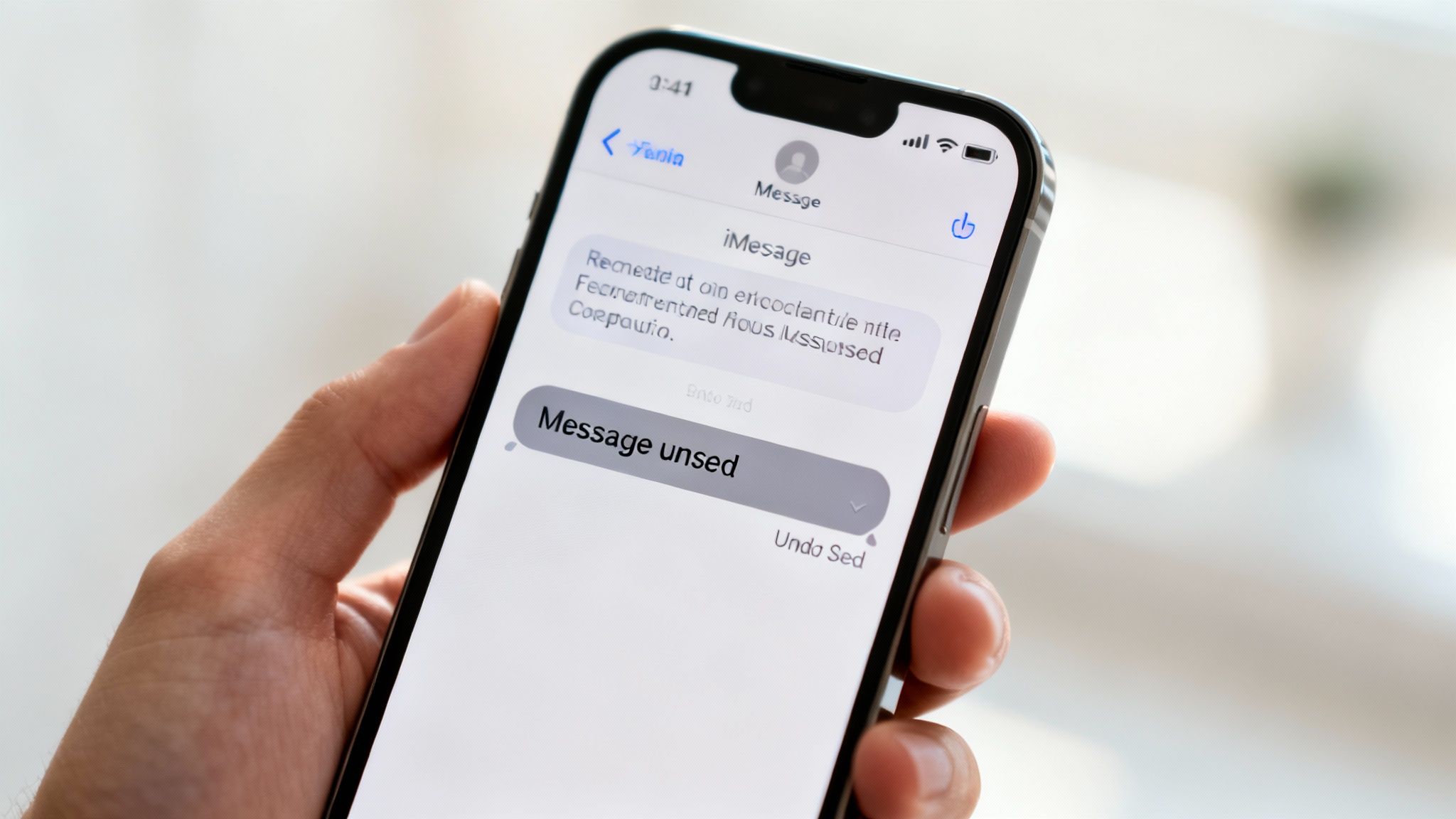
That’s it. The message will vanish with a neat little animation, replaced by a status update that says, "You unsent a message." The other person will see that same notification on their end, but your original text is gone.
This is what it looks like in action—a simple tap is all that stands between you and sweet relief.
A Few Big "Ifs" to Keep in Mind
This handy feature has some serious limitations you need to know about. Its success depends entirely on what software everyone is using.
For 'Undo Send' to work, both you and your recipient must be:
- Using iMessage (the classic blue bubbles).
- Running iOS 16 or newer.
What happens if they're on an older version of iOS? The original message stays right where it is. Even worse, they'll get a follow-up text saying you tried to unsend something, which can sometimes draw even more attention to your mistake.
Remember, this is an iMessage-only feature. It has absolutely no effect on standard SMS messages—the green bubbles. Once you send a green bubble text, it’s final.
The Smarter Alternative: Editing Your Message
Often, you don’t need to completely erase a message; you just need to fix a glaring typo. In these cases, editing is a much better, and less dramatic, option.
iMessage gives you a more generous 15-minute window to make corrections, and you can edit a single message up to five times.
Just long-press the message, but this time, tap 'Edit'. Make your changes, hit the blue checkmark, and you’re done. The message will update for everyone and show a small "Edited" label, so the other person knows a change was made. It's the perfect tool for fixing those pesky autocorrect fails without the drama of a full recall.
Recalling Messages on Android with Google Messages
For Android users, messaging can feel a bit like the Wild West. Unlike Apple's walled garden, you're dealing with a mix of technologies. But when you need to pull back a message sent in haste, the process is surprisingly straightforward—as long as you're using Google Messages and have the right feature enabled. It all boils down to one acronym: RCS.
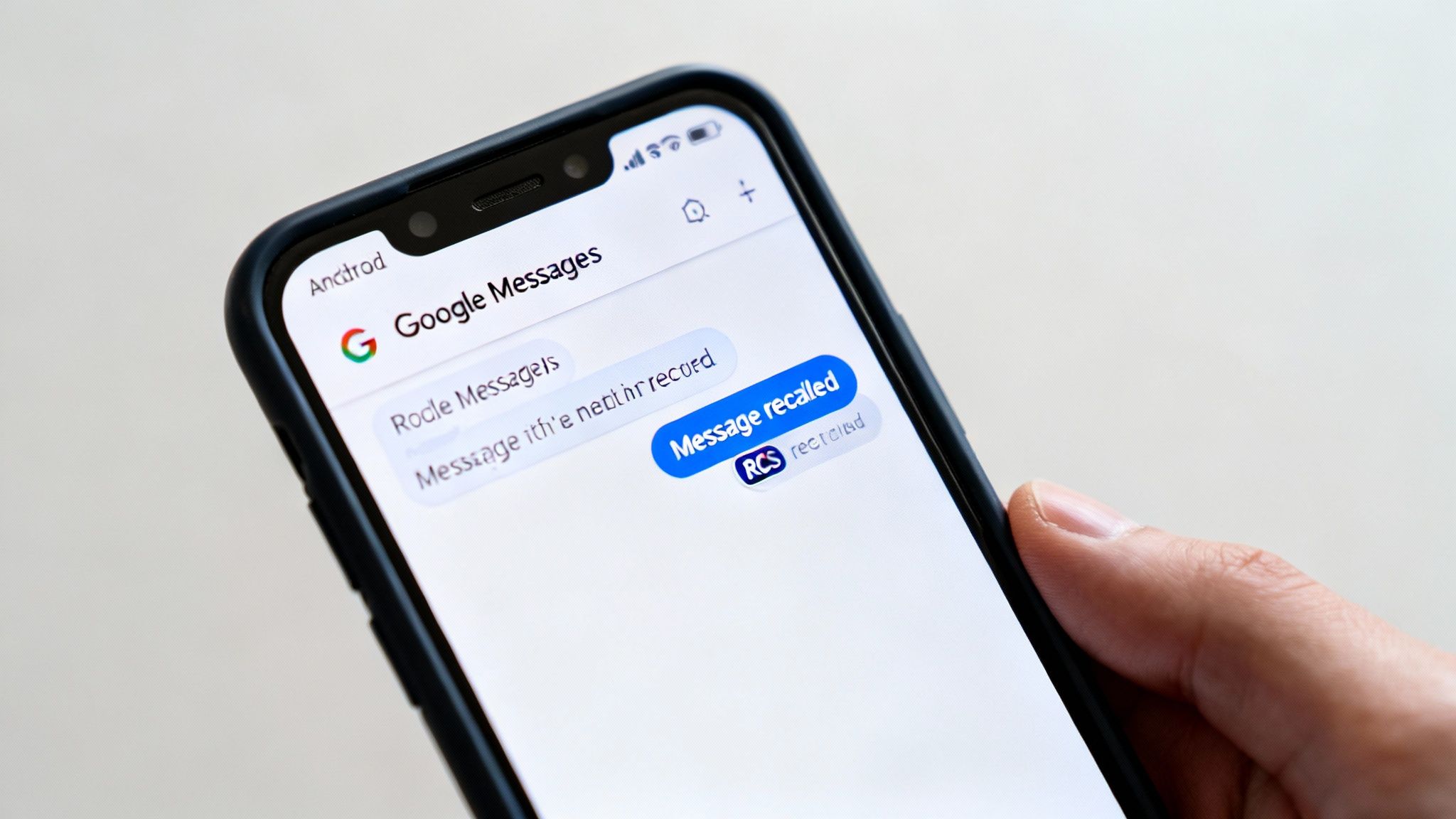
Think of Rich Communication Services (RCS) as the engine that powers modern chat features on Android, like typing indicators, read receipts, and—crucially—the ability to unsend something. If you're in an RCS chat, you've got a safety net. If your phone falls back to the old-school SMS/MMS standard (often indicated by a different-colored text bubble), that message is set in stone the second you hit send.
Why RCS Chats Are a Game-Changer
RCS is essentially Android’s answer to iMessage. It routes your messages over the internet instead of just your cellular network, which is what allows a server to step in and retract a message after it’s been sent. Without an active RCS chat, that unsend option simply won't exist.
So, how do you know if you're using it?
- Check the send button: Before you type, look at the send icon. If it has a little chat bubble symbol, RCS is active. An icon with "SMS" means you're on the old network.
- Look for modern features: Can you see when the other person is typing? That’s a dead giveaway you're in an RCS conversation.
- Peek at the details: Dig into the conversation’s settings. You can usually find a line confirming the chat is using RCS.
This protocol doesn't just enable the unsend feature; it also brings end-to-end encryption to your one-on-one chats, which is a huge privacy win. It’s a similar principle to how other digital data is secured—if you want to learn more, you can read about how cloud storage works and see how encryption keeps your files safe.
How to Unsend a Message on Android
Let's say you just texted the details for a surprise party directly to the guest of honor. That familiar stomach-dropping feeling sets in. Don't panic! As long as you're in an RCS chat, you’ve got a short window—about 15 minutes—to fix it.
Here's how to do some quick damage control:
- Find the message you need to take back.
- Press and hold the message bubble until a menu pops up at the top.
- Tap the little trash can icon.
- A confirmation box will appear, asking if you want to delete the message and confirming it will be "deleted for everyone."
- Hit "Delete" to make it disappear.
The message will vanish from the chat, replaced by a small note saying, "You deleted a message." Much like with iMessage, the other person will know you retracted something, but they won't see what it was.
It's a transparent system. The embarrassing text is gone, but the ghost of it remains. This is a key difference from apps like Telegram, which can make a message disappear without a trace.
Remember, if the person on the other end doesn’t have RCS enabled, or if a spotty data connection forces your phone to send a standard SMS, the option to "delete for everyone" won't even show up. Your only choice then is to delete it from your own phone, which unfortunately does nothing to change what they see on their screen.
Taking Back Texts on WhatsApp and Messenger
Let's be real—most of our daily chatter happens outside of our phone's default texting app. We're juggling conversations on platforms like WhatsApp and Facebook Messenger, where the rules for recalling a message are a completely different ballgame. Knowing how to unsend a text in these apps is crucial, especially since their time limits are often far more forgiving.
First up is WhatsApp, which gives you a surprisingly long leash. If you fire off a message you instantly regret, you have a little over two days to pull it back.
How to Use WhatsApp’s "Delete for Everyone"
Picture this: you accidentally send a screenshot of a private conversation to the wrong group chat. It's a classic digital nightmare. This is where WhatsApp’s “Delete for Everyone” feature becomes your best friend.
The fix is refreshingly simple and works the same way whether you're on an iPhone or an Android device.
- Just find the message and long-press it.
- A menu will pop up. Look for the trash can icon and tap it.
- You’ll get three choices: "Delete for Everyone," "Delete for Me," and "Cancel."
- Hit "Delete for Everyone," and the message will vanish from every single phone in that chat.
It's an incredibly useful tool, but it’s not a magic trick. When you delete a message for everyone, it gets replaced by a little placeholder that says, "This message was deleted." So while the content is gone, everyone knows you removed something. It’s a small price to pay for damage control.
Unsending a Message in Facebook Messenger
Messenger has also seriously stepped up its unsend game. It used to have a ridiculously tight 10-minute window, but thankfully, that's a thing of the past. Now, you can unsend a message pretty much whenever you want, whether it’s been ten seconds or ten days.
The process is almost a carbon copy of WhatsApp's:
- Press and hold the message you want to erase.
- From the menu that slides up, tap "Unsend."
- Confirm you really want to do it, and poof—it's gone for everyone.
Similar to WhatsApp, Messenger leaves a small footprint. A line of text will show up confirming that a message was unsent. It signals that you removed something, but it keeps the original content under wraps.
Look, both apps leave a little calling card behind, but that's a million times better than leaving a cringey or incorrect message out there forever. It turns a potential catastrophe into a footnote.
Telegram: The Undisputed King of Unsending
When it comes to retracting messages, nobody does it better than Telegram. It’s in a class of its own. Not only do you get a generous 48-hour window to unsend something, but it does it with complete stealth.
On Telegram, when you go to delete a message, you get an option to "also delete for [recipient's name]." Check that box, and the message disappears from the conversation without leaving any trace behind. No "this message was deleted" notification, no nothing. It’s as if you never sent it in the first place.
This makes Telegram’s unsend feature the most powerful and discreet one you’ll find, giving you total control over the conversation.
How Unsending a Text Can Be a Security Tool
We usually think of unsending a text as a way to fix a typo or take back something sent to the wrong person. But it's more than that—it's actually a surprisingly useful digital security tool.
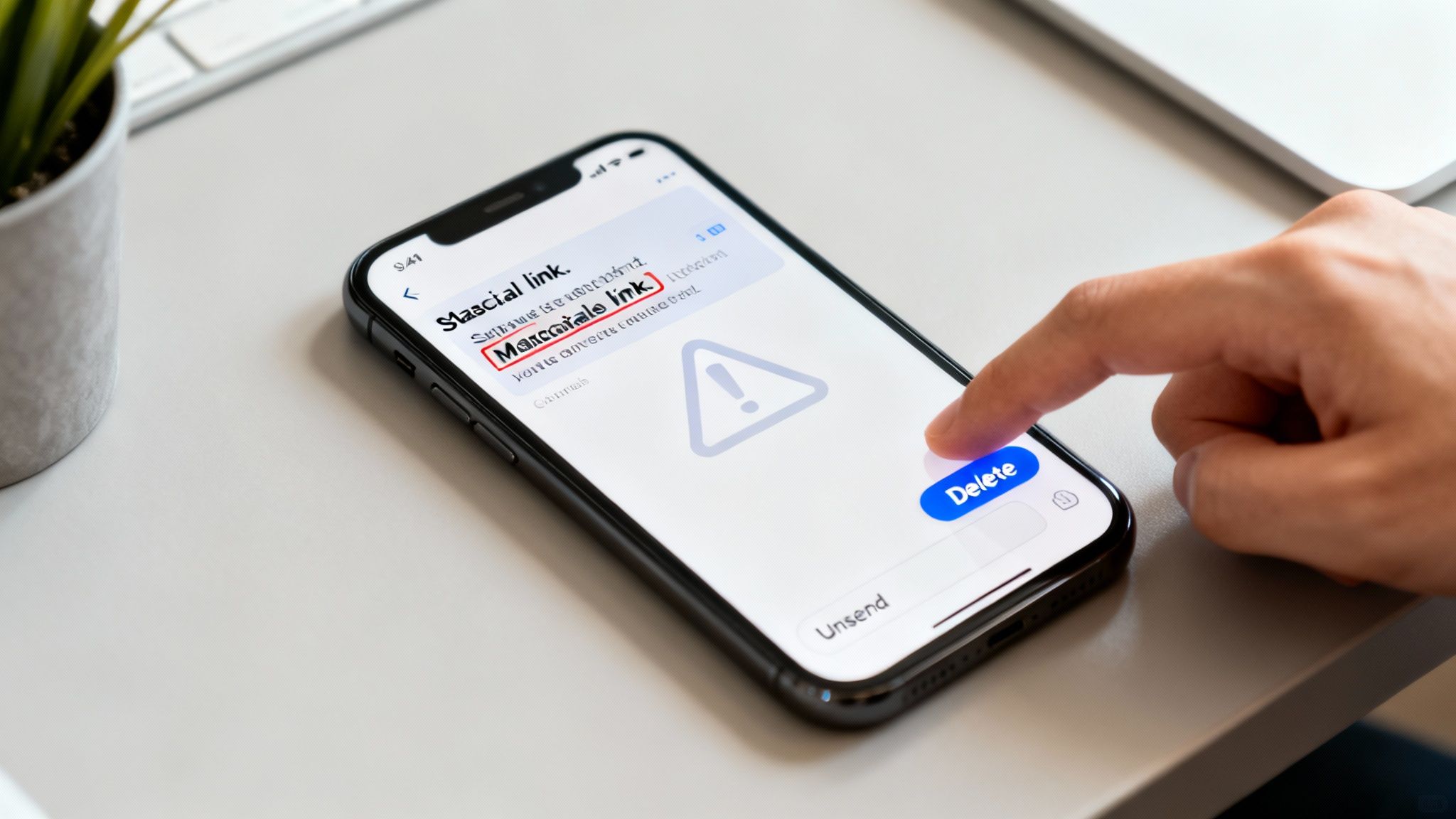
Think about this scenario: You get a text that looks like it's from your bank, complete with a link. You’re busy, distracted, and you tap it before that little voice in your head screams, "Wait, that looks suspicious!" That momentary lapse is exactly what scammers are counting on.
This kind of text-based scam, often called smishing, is exploding because we inherently trust the texts we receive. The numbers are pretty shocking. In 2024 alone, these scams have cost Americans $470 million, and global losses are on track to hit $101 billion by 2025. Knowing how to quickly unsend or delete a message after you've accidentally clicked on a malicious link can be your first line of defense.
Protecting Your Personal Information
When you immediately recall that message, you might prevent malware from fully activating on your device. It also stops the scammer from getting a confirmation that your phone number is active and that you're a potential target for more attacks. That one simple action could be the difference between them getting your personal data or moving on to someone else.
Think of recalling a message as an emergency stop button. It's a quick, decisive action that can prevent a momentary mistake from spiraling into a full-blown security breach.
Of course, reacting is good, but being proactive is even better. The best defense is a strong one. For a serious upgrade to your online security, take a look at our guide on how to use two-factor authentication. It adds a powerful layer of protection that makes it incredibly difficult for scammers to get into your accounts, even if they have your password.
Your Top Questions About Unsending Messages Answered
Even when you know the steps, the nitty-gritty details of unsending messages can be tricky. Every app has its own little quirks. Let’s break down some of the most common questions people have when they're staring at a sent message and wishing they could take it back.
Do They Know I Unsenta Message?
Let's get the big one out of the way first. In nearly every case, the answer is a resounding yes.
When you unsend a message on platforms like iMessage, WhatsApp, or Google Messages, the app doesn't just silently erase it. Instead, it leaves a little tombstone message in its place, something like, "[Your Name] unsent a message." The actual content is gone, but the evidence of your action remains. It’s a built-in transparency feature, for better or worse.
What Happens if I Miss the Time Limit?
If you try to unsend a message after the window has closed, the option just won't be there. It’s a hard and fast rule. For instance, that 'Undo Send' button in iMessage is only available for two minutes—after that, it's gone for good. You can still delete the message from your own phone, but it will stay right where it is on their screen.
This all comes down to the technology behind the message.
The ability to unsend a text is a feature of modern, internet-based messaging like RCS and iMessage. Old-school SMS messages—the classic "green bubble" texts—are sent through carrier networks and are final. Once you hit send, there's no pulling it back.
This kind of user control is becoming more and more important, especially as a way to fight back against fraud. With messaging in emerging markets growing by 25% year-over-year, features like unsending are no longer just a convenience; they're a security tool.
In fact, research from Juniper suggests consumer losses from mobile messaging fraud are expected to drop, partly thanks to user-level controls like this. You can read more about these mobile fraud trends to get the full picture.
Knowing these details is one part of the puzzle. The other is taking bigger steps to lock down your digital life. For a deeper dive, check out our guide on how to protect your privacy online.
At Simply Tech Today, we break down complex topics into clear, practical advice. For more easy-to-understand guides and tech insights, visit us at https://www.simplytechtoday.com.
Member discussion