
A Practical Guide on How to Use Cloud Storage

At its heart, using cloud storage is pretty simple. You sign up for a service, get their apps on your devices, and then start moving your files over to their secure online servers. That's the gist of it. This simple process creates a digital safety net, making sure your important documents and memories are always within reach, no matter where you are or what device you're using.
Why Cloud Storage Is More Than a Digital Filing Cabinet
We’ve all had that heart-stopping moment when a computer crashes or a phone goes missing, taking irreplaceable photos with it. This is exactly why cloud storage isn't just a nerdy tech thing—it's become an essential part of modern life. It's so much more than an online folder; it’s a secure, accessible vault for everything you can't afford to lose.
Instead of your files being stuck on one physical device, they live securely online, ready for you whenever you need them. This fundamental shift from local to cloud solves a ton of everyday headaches.
It’s Not Just About Backups
The real magic happens when you start thinking beyond just saving copies of files. Cloud storage opens up smarter ways to manage your digital world.
- Access Files from Anywhere: Picture this: you start working on a document on your laptop at the office, make a few tweaks on your phone during your commute, and then put the finishing touches on it from your tablet at home. Your files are always the most current version, everywhere.
- Share and Collaborate Easily: Forget emailing attachments back and forth. You can share an entire folder of vacation photos with your family with a single link. Or, you can work on a project proposal with colleagues in real time, controlling who can view, comment on, or edit the document. It makes teamwork so much smoother.
- Set It and Forget It: Most services have automatic backups that just work in the background. You can set your phone’s camera roll to sync new photos the moment you take them, so you never have to worry about losing those memories.
The key is to shift your mindset from "my files are on my computer" to "my files are available everywhere." Once you make that mental switch, you'll see how useful it is for everything from personal organization to professional projects.
This isn't just a niche trend; it's a massive global shift. The cloud storage market was recently valued at USD 132.03 billion and is expected to explode to USD 639.40 billion by 2032. The boom in remote work really kicked this into high gear, as people needed access to their data from anywhere. You can dive deeper into these cloud storage market trends to see just how fast things are growing.
Ultimately, getting comfortable with cloud storage is about giving yourself freedom and security. It’s your best defense against device failure and turns your static files into dynamic, shareable assets.
How To Pick the Right Cloud Storage for You
https://www.youtube.com/embed/4jObJHanLcQ
Trying to choose a cloud storage provider can feel like you're staring at a wall of nearly identical options. They all promise to keep your files safe and accessible, but the differences are in the details. The secret isn’t finding the one "best" service, but the one that actually fits how you live and work.
Think about what you really need. Are you a student who just needs a reliable spot for essays and presentations? Maybe you're a freelance photographer juggling terabytes of high-resolution images. A small business owner, on the other hand, will probably care more about collaboration tools than anything else. Each of these scenarios points to a different ideal solution.
What Really Matters When You're Choosing
Before you sign up, take a moment to think about a few key things. It’s about more than just how much free space you get; it’s about how the service will fit into your daily routine.
- Storage Space vs. Price: Most services give you a free starting point, usually between 5GB and 15GB. That's plenty for documents, but it vanishes fast once you start adding photos and videos. Look at the paid plans and see how much storage you get for your money. You want something that can grow with you.
- Your Tech Ecosystem: How well does the service play with the gadgets and apps you already own? If you're all-in on Apple, iCloud is woven directly into macOS and iOS. Likewise, Google Drive is a natural fit for Android and Chromebooks.
- Security and Privacy: Every major provider encrypts your files, which is a great start. But you should also look for essential security features like two-factor authentication (2FA). If you’re handling truly sensitive data, some services even offer "zero-knowledge" encryption, which means not even the provider can peek at your files.
Think of it like picking a car. You wouldn't buy a two-seater sports car to haul furniture, and you wouldn't get a giant moving truck for your daily commute. Your cloud storage should match the job you need it to do.
This simple flowchart gets to the heart of the matter: if you’ve ever worried about losing your important files, cloud storage is the logical next step.
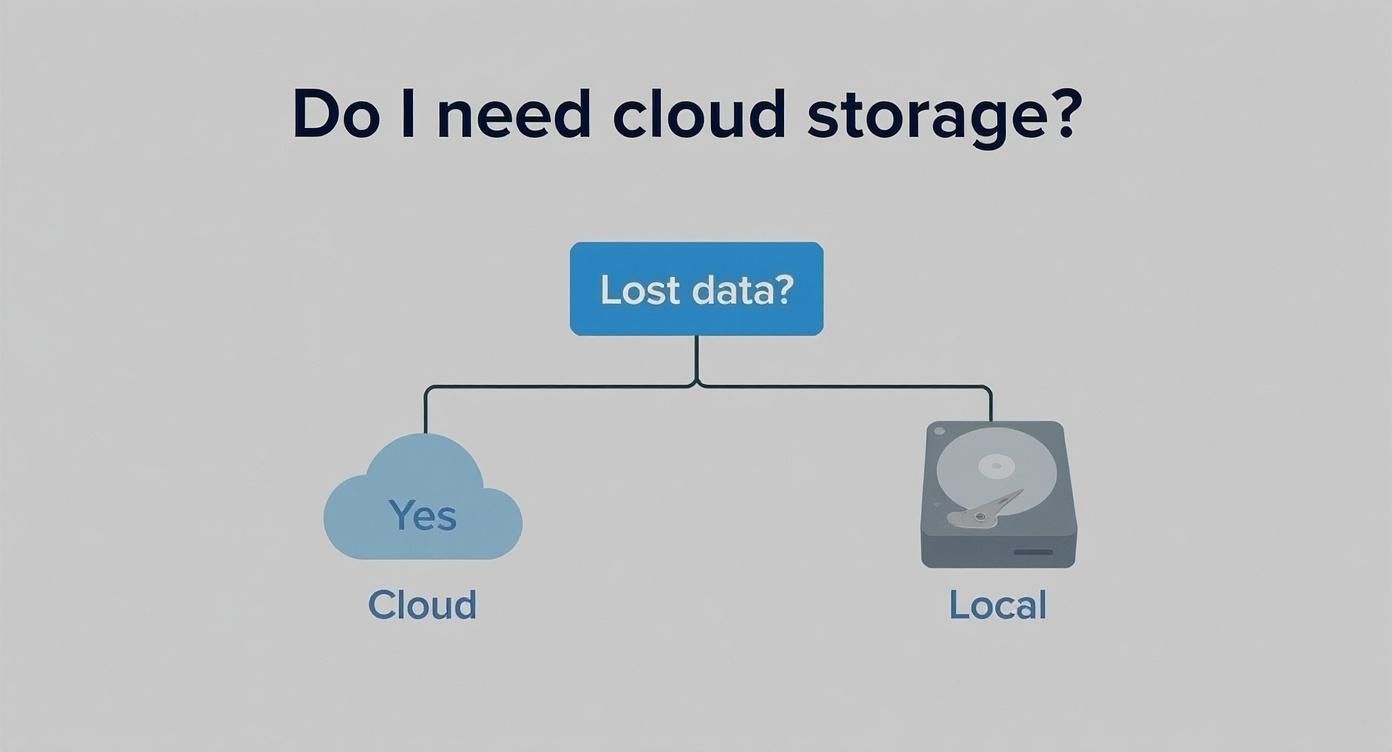
At its core, the risk of data loss is the main reason people turn to cloud solutions—for security, convenience, and peace of mind.
Comparing Popular Cloud Storage Providers
To help you see the differences more clearly, let's put the big names side-by-side. This quick comparison should give you a good starting point, especially if you're new to cloud storage.
| Provider | Free Storage | Starting Price (Paid) | Best For |
|---|---|---|---|
| Google Drive | 15 GB | $1.99/month for 100 GB | General-purpose use, Android users, and anyone collaborating in Google Workspace (Docs, Sheets). |
| Microsoft OneDrive | 5 GB | $1.99/month for 100 GB | Windows users and deep integration with Microsoft 365 (Word, Excel, PowerPoint). |
| Apple iCloud | 5 GB | $0.99/month for 50 GB | Apple device users who want seamless syncing of photos, backups, and documents across their ecosystem. |
| Dropbox | 2 GB | $9.99/month for 2 TB | Professionals and teams who need powerful file syncing, version history, and tons of third-party app integrations. |
Ultimately, the best choice really hinges on your digital life. An iPhone user will probably find iCloud's convenience unbeatable, while someone who lives in Google Docs will feel right at home with Google Drive.
Don’t be afraid to take a few for a test drive. Sign up for the free tiers from Microsoft OneDrive or Dropbox and see which one feels the most natural to you.
Getting Your Files into the Cloud
So, you’ve picked a cloud storage provider. Great! Now for the fun part: moving your files from your computer and phone into their new home online. Don't worry, this is way easier than it sounds, and once you get it set up, you'll have your files everywhere you need them.
First things first, you'll need an account. This is usually just a quick sign-up with an email and a strong password. After that, the real magic happens when you install the desktop and mobile apps. These little apps are what create a seamless bridge between your devices and your online storage.
Simple Ways to Upload Your Files
Getting files into the cloud isn't some complex technical hurdle. These services are built for everyone, offering a few different ways to get your files uploaded, whether it's a single photo or a massive project folder.
On your computer, the desktop app is your best friend. It creates a special folder that acts like any other folder on your machine—you might see one named "Dropbox," "OneDrive," or "Google Drive." Anything you put in there gets whisked away to the cloud automatically.
The easiest way I’ve found to get started is with a simple drag-and-drop. Just open your cloud folder and pull files right into it from your desktop or another folder. It really is that simple.
Of course, you can always just log in to the provider's website. This is handy for quick, one-off uploads, especially if you're borrowing a friend's computer and don't want to install any software.
Staying Organized from the Start
I know it’s tempting to just dump everything into the main folder, but trust me, you'll regret it later. A little bit of organization now will save you a massive headache down the line. Think about how you already organize files on your computer and try to mirror that structure in the cloud.
Here’s a simple system I recommend to people:
- Create Top-Level Folders: Start with the big buckets of your life. Think "Work," "Personal," "Photos," and "Finances."
- Use Subfolders: Drill down from there. Inside "Photos," you could have "2023 Vacation" or "Family Events." Inside "Work," you might have a folder for each client or project.
- Be Consistent with Naming: A file named "Project-Proposal-Draft-Nov2023.docx" is a thousand times more useful than "doc1_final_final.docx." A consistent naming scheme is a game-changer.
Putting in this small effort turns your cloud storage from a digital junk drawer into a library where you can actually find what you're looking for.
Manual Uploads Versus Automatic Syncing
This is a crucial concept to grasp: the difference between just uploading a file and truly syncing it.
A manual upload is a one-time thing. You pick a file, send it to the cloud, and that version is now saved online. If you edit the original file on your computer an hour later, the one in the cloud doesn't change. You’d have to upload it again.
Automatic syncing, on the other hand, is the always-on connection that the desktop app provides. When a file is in your synced folder, the app is constantly watching. Edit a spreadsheet? It updates in the cloud. Add a new photo? It appears online in seconds. Delete a file? It's gone from the cloud, too. This is what you want for active projects and important documents that are always changing.
Getting your files into the cloud is one thing, but the real magic happens when you start sharing them. This is where cloud storage goes from being a simple digital filing cabinet to a powerful hub for teamwork and staying connected.
Forget attaching massive files to emails and creating a confusing trail of different versions. With cloud storage, you send a single, simple link. That link always points to the most current version of your file, whether it's a project proposal, a family video, or a set of photos. It’s cleaner, way more efficient, and you stay in the driver's seat.
Getting a Handle on Sharing Permissions
When you share a file or folder, you don't just send it out into the wild. You get to be the gatekeeper, deciding exactly what the other person can do. This is all handled through permissions, and knowing your way around them is crucial for sharing with confidence.
Most services boil it down to three main levels of access:
- Viewer: This is your "look but don't touch" setting. People can see the file, but they can't change, comment on, or delete it. It's perfect for sharing a finished report or a photo album with your cousins.
- Commenter: This is great for feedback. A commenter can view the file and leave notes or suggestions in the margins without actually changing your original work. Think of it as the digital equivalent of using sticky notes.
- Editor: This grants the keys to the kingdom. An editor can make direct changes, add or remove content, and sometimes even re-share the file with others. Only give this level of access to people you trust to collaborate on a project.
From experience, the single biggest mistake people make is handing out "Editor" access when "Viewer" would have done the job. My advice? Always start with the most restrictive permission possible. It’s the safest approach, and you can always grant more access later if the situation changes.
Adding Extra Locks to Your Shared Links
For files that contain sensitive information, you’ll want to dial up the security. Most cloud platforms offer advanced features that ensure only the right people can get in, and only for as long as you want them to.
One of my favorite tools is setting an expiration date. If you’re sending a contract proposal to a potential client, you can set the link to expire in a week. Problem solved. Another fantastic feature is password protection. You can lock a shared link with a password, which you can then send to the recipient separately (like in a text message) for an added layer of security.
This kind of control is becoming essential. By 2025, it’s estimated that the world will be storing a mind-boggling 200 zettabytes of data, and nearly half of that will be in the cloud. That’s a massive jump from just 25% back in 2015. You can read up on these data storage projections to see just how central cloud storage has become. By taking a few moments to understand permissions and security, you can collaborate with ease and keep your private information private.
Keeping Your Files Safe: Smart Security and Backup Habits
Your cloud storage is home to some of your most important files, so protecting it should be a top priority. It's not just about stopping hackers; it's also about making sure an accidental coffee spill on your laptop doesn't wipe out years of work or memories. Thankfully, getting this right is easier than you think.
The absolute first thing you should do is turn on two-factor authentication (2FA). Seriously, stop reading and go do this now if you haven’t. It’s the digital equivalent of adding a deadbolt to your front door. Even if a thief gets your key (your password), they can't get inside without the second code, which is usually sent straight to your phone. It’s a simple toggle in your security settings that makes a massive difference.
You should also know about data encryption. This might sound super technical, but it's a security feature that works for you behind the scenes. Your cloud provider scrambles your files into unreadable code, protecting them on their servers. So, in the rare case of a data breach on their end, your files are just a bunch of gibberish to anyone who shouldn't see them. All the big names do this automatically, which is a great baseline of security.
Put Your Backups on Autopilot
Real data security is about protecting your files from everything—including yourself and your clumsy hardware. This is where automation is a game-changer. Don't rely on remembering to drag and drop important files; set it up once and let your cloud service do the heavy lifting for you.
Your phone is the perfect place to start. Every major cloud storage app has a feature to automatically back up your photos and videos.
- Dive into the app's settings and look for "Camera Uploads" or a similar "Backup" option.
- Flip the switch to turn it on. You can usually choose to upload over Wi-Fi only to avoid draining your mobile data.
- Relax. Now, every picture you snap is automatically whisked away to the safety of the cloud.
This one setting is a lifesaver. If your phone ever gets lost, stolen, or broken, your memories are still safe and sound.
Make the Sync Folder Your Computer's Safety Net
For your computer, the desktop sync folder is your best friend. Think of it as a magic folder. Anything you save in it—work documents, tax returns, that novel you’re writing—is automatically copied to your cloud account and all your other connected devices.
My personal rule is simple: if I'd be devastated to lose a file, it lives in my cloud sync folder. No exceptions. This little habit has saved my bacon more than once after a sudden hard drive crash.
It's a strategy that businesses have embraced on a massive scale. Global enterprise spending on cloud infrastructure recently hit USD 107 billion in a single quarter, which is a 28% increase from the year before. This huge investment shows just how much trust is being placed in the cloud to keep data safe and accessible. You can read more about this trend in cloud spending to see why it's the standard for modern data management. By taking a cue from the pros and using these automated tools, you can bring that same level of rock-solid reliability to your own digital life.
Got Questions? Let's Clear Things Up
Once you start using cloud storage, a few common questions almost always come up. It's totally normal to wonder about things like security, what happens when you hit your storage limit, or how to get to your files when you're offline. Let's tackle some of the most frequent head-scratchers.
Think of this as your quick-reference guide. We'll get these final hurdles cleared so you can feel confident you're making the most of your new digital filing cabinet.
Is My Personal Stuff Actually Safe in the Cloud?
This is the big one, and the short answer is yes—cloud storage is remarkably safe, but your own security habits play the starring role. The big providers like Google, Apple, and Microsoft use powerful encryption to scramble your data on their servers, making it gibberish to anyone without the right key.
But that security only goes so far without your help. To really lock things down, you absolutely have to:
- Turn on two-factor authentication (2FA). Seriously, this is the single best thing you can do to stop someone from getting into your account, even if they steal your password.
- Create a strong, unique password. Don't recycle the same password you use for your social media or shopping sites.
- Watch your sharing permissions. Be deliberate about who you grant "editor" access to. It's easy to forget who can change or delete a document you shared months ago.
For those with highly sensitive documents—think legal contracts or financial records—some services offer "zero-knowledge" encryption. This is an even higher level of security where not even the provider can decrypt your files. You, and only you, hold the key.
The way I see it, the cloud company builds the impregnable bank vault, but you're in charge of the keys. A strong password and 2FA are like having a unique key and a secret PIN that only you know.
What Happens When I Inevitably Run Out of Free Space?
Don't worry, it happens to everyone. Hitting your free storage limit is practically a rite of passage. Your provider will start sending you friendly (and then less-friendly) reminders as you get close. Once you're full, you won't be able to upload anything new. Some services, like Google Drive, will even block incoming emails to your linked Gmail account.
The good news is that all your existing files are completely safe and accessible. You just can't add more. From here, you have two clear paths forward:
- Do some digital house-cleaning. Take a look through your drive and delete what you no longer need. You'd be surprised how many old, massive video files or duplicate photo albums are just sitting there taking up space.
- Upgrade your plan. For just a few dollars a month, most services offer a massive storage boost. Jumping up to 100GB or more is usually very affordable and can save you a lot of headaches.
Can I Get to My Files If My Internet Goes Out?
You sure can. This is a huge concern for anyone who travels or has spotty Wi-Fi at home, but the solution is built right in. It's called offline access.
Using the desktop or mobile app for your service, you can simply mark specific files or entire folders to be "available offline." The app then downloads a copy directly onto your device's hard drive.
This means you can open, edit, and save those documents on a plane, in a coffee shop with no Wi-Fi, or during an internet outage. The moment your device reconnects to the internet, the app seamlessly syncs all the changes you made back up to the cloud, making sure the version everywhere is the latest one.
At Simply Tech Today, we believe technology should be easy. Our mission is to cut through the jargon and provide clear, practical advice you can use every day. To stay on top of the latest tips and guides, see what else we're writing about at https://www.simplytechtoday.com.
Member discussion