
How to Use Two Factor Authentication to Protect Your Digital Life

Two-factor authentication is just a fancy way of saying you need a second piece of proof to log in, not just your password. Think of it this way: your password is what you know, and the second factor is something you have—like a one-time code that pops up on your phone.
That simple one-two punch is hands down one of the most powerful ways to lock down your digital life.
Understanding Two-Factor Authentication and Why It Matters
Imagine every online account you own has a digital front door. For a long time, we've all just used a single lock on that door: the password. But what happens when someone makes a copy of that key?
Data breaches happen all the time, and once a password is out there, cybercriminals will try it on every account you have. This is where two-factor authentication, or 2FA, comes in. It’s the deadbolt on your digital door.
Even if a hacker steals your password, they can't get past the deadbolt without that second key. This is usually a temporary, six-digit code from an app on your phone or a text message. Without your physical device in their hand, that stolen password is completely worthless. It's a surprisingly simple security upgrade that takes an account from vulnerable to Fort Knox.
The Modern Security Standard
Setting up 2FA isn't just for tech gurus anymore; it's a basic, essential step for anyone who uses the internet. The few minutes it takes to set it up pays off with a massive boost in security.
In fact, almost every major service you use—from Google and Apple to your bank—now strongly recommends it, and some even require it. This isn't just about protecting a single email account. It's about protecting your entire digital footprint. A single compromised login can start a domino effect, giving attackers a path to your money, personal photos, and social media profiles.
Taking a moment to enable 2FA is a proactive move that can save you a world of headache later. For more practical advice, check out our guide on how to protect your privacy online.
A Growing Global Trend
The push for stronger login security isn't just a suggestion; it's a global movement. More and more people are catching on. User adoption of multi-factor authentication (which includes 2FA) is expected to hit around 70% of users by early 2025.
This isn't just a statistic; it shows a real shift in how we think about security and its power to stop common threats like phishing scams and password theft. The trend is especially strong in the Asia-Pacific region, where the number of people using it jumped from 61% to 68% in a single year. You can learn more about these secure sign-in trends and see how people worldwide are embracing this critical security layer.
Choosing the Right 2FA Method for You
So, you're ready to add two-factor authentication to your accounts. That’s a fantastic first step. But which method should you choose? It’s not a one-size-fits-all situation. The best option for you boils down to a classic trade-off: security versus convenience.
Before we dive into the how, let's talk about the what. Understanding your options—from simple text messages to high-tech physical keys—will help you pick a method you'll actually stick with.
SMS Text Message Codes
This is probably the most familiar option. When you try to log in, a service like Google or your bank shoots a one-time code to your phone via text message. You type it in, and you're in. Simple.
- The Good: It's incredibly easy to set up and use. You already have a phone and know how to get texts, so there's nothing new to install or learn.
- The Bad: Unfortunately, this is the least secure method. Scammers have gotten very good at a trick called SIM swapping. They convince your cell phone provider to transfer your number to a phone they control, and just like that, they start getting your 2FA codes.
Bottom line? Using SMS for 2FA is a whole lot better than nothing. But if a service offers a more secure option, I strongly recommend you use it.
Authenticator Apps
Here's where your security really gets a boost. An authenticator app on your phone—think Google Authenticator, Microsoft Authenticator, or Authy—generates a fresh six-digit code every 30 seconds.
Setup is a breeze. You just scan a QR code on the website you want to protect. From then on, whenever you need to log in, you just open the app and grab the current code. Because the code is generated right on your device and never sent over a network, it sidesteps the whole SIM swapping vulnerability.
I often tell people that an authenticator app hits the sweet spot. It offers a massive security upgrade over SMS without making you carry around another gadget. For most of us, this is the perfect balance of safety and practicality.
Hardware Security Keys
If you're looking for the Fort Knox of account security, look no further than a physical hardware key. These are small devices, usually the size of a USB stick, made by companies like Yubico. You simply plug it into your computer or tap it on your phone to approve a login.
What makes them so powerful? They are virtually immune to phishing and remote attacks. A hacker can't trick you into giving up a code because there is no code. They would need to physically steal the key from you to get into your account.
While biometric methods like FaceID make up 17% of multi-factor usage, physical keys already account for a solid 5% and are quickly gaining traction among those who want ironclad security. The proof is in the data from a detailed multi-factor authentication report.
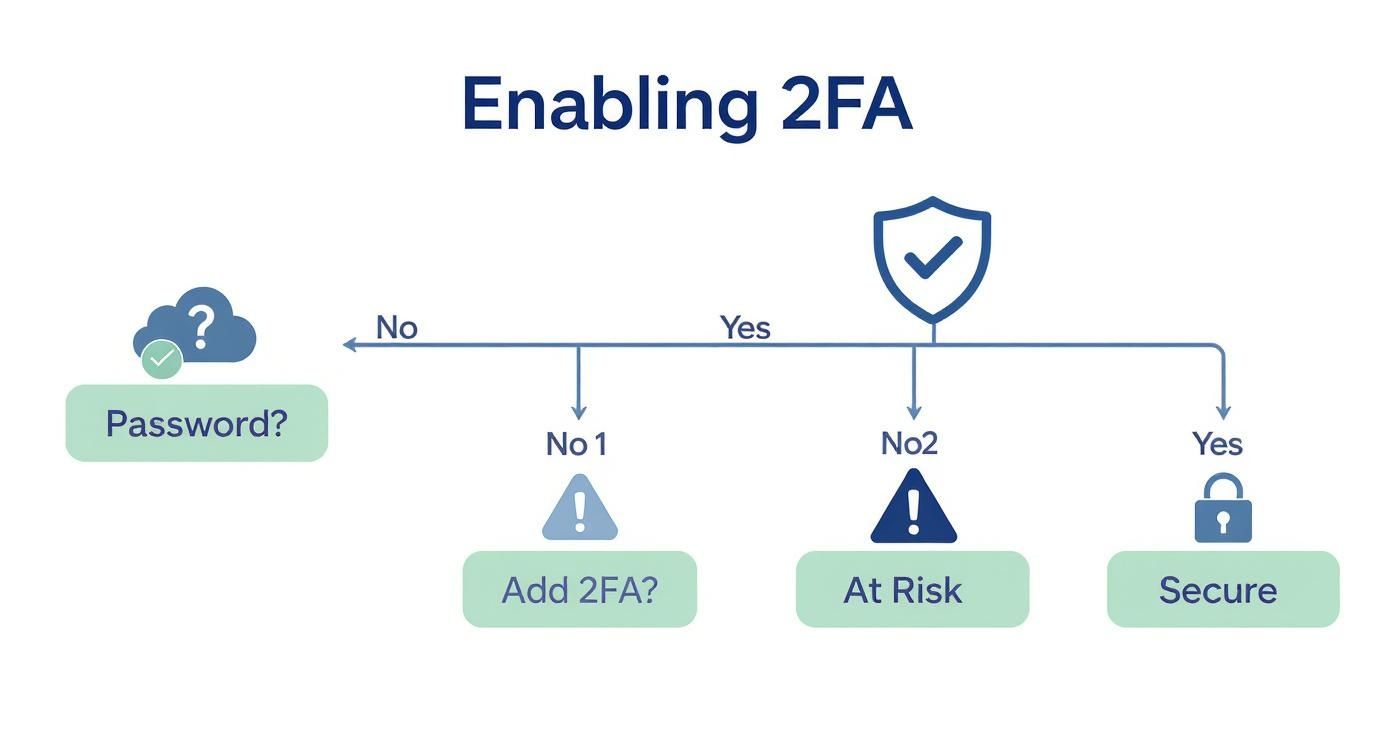
This flowchart really spells it out. A password alone is a weak link, but adding that second layer of authentication is the proven way to lock down your digital life. Of course, this all builds on a strong foundation, so make sure you're following the best practices for password security as well.
Comparing 2FA Authentication Methods
Still weighing your options? This table breaks down the key differences to help you decide which method fits your lifestyle and security needs.
| Method | How It Works | Pros | Cons |
|---|---|---|---|
| SMS/Text Message | A 6-digit code is sent to your phone via text. | Extremely easy to set up and use; no extra apps needed. | Vulnerable to SIM swapping attacks; least secure option. |
| Authenticator App | An app on your phone generates a new code every 30 seconds. | Much more secure than SMS; works offline. | Requires installing an app; can be a hassle if you lose your phone. |
| Hardware Key | A physical USB or NFC device you plug in or tap. | The most secure method available; immune to phishing. | Costs money to buy; you have to carry it with you. |
Ultimately, the choice is yours. Moving from just a password to any of these 2FA methods is a huge win for your personal security.
Securing Your Most Important Accounts with 2FA
Alright, you get the why—now for the how. Instead of just giving you a generic checklist, let's get our hands dirty and walk through setting up two-factor authentication on the accounts that probably run your digital life. My goal here is to show you exactly where to click, making this feel less like a technical chore and more like you're finally putting proper locks on your digital front doors.
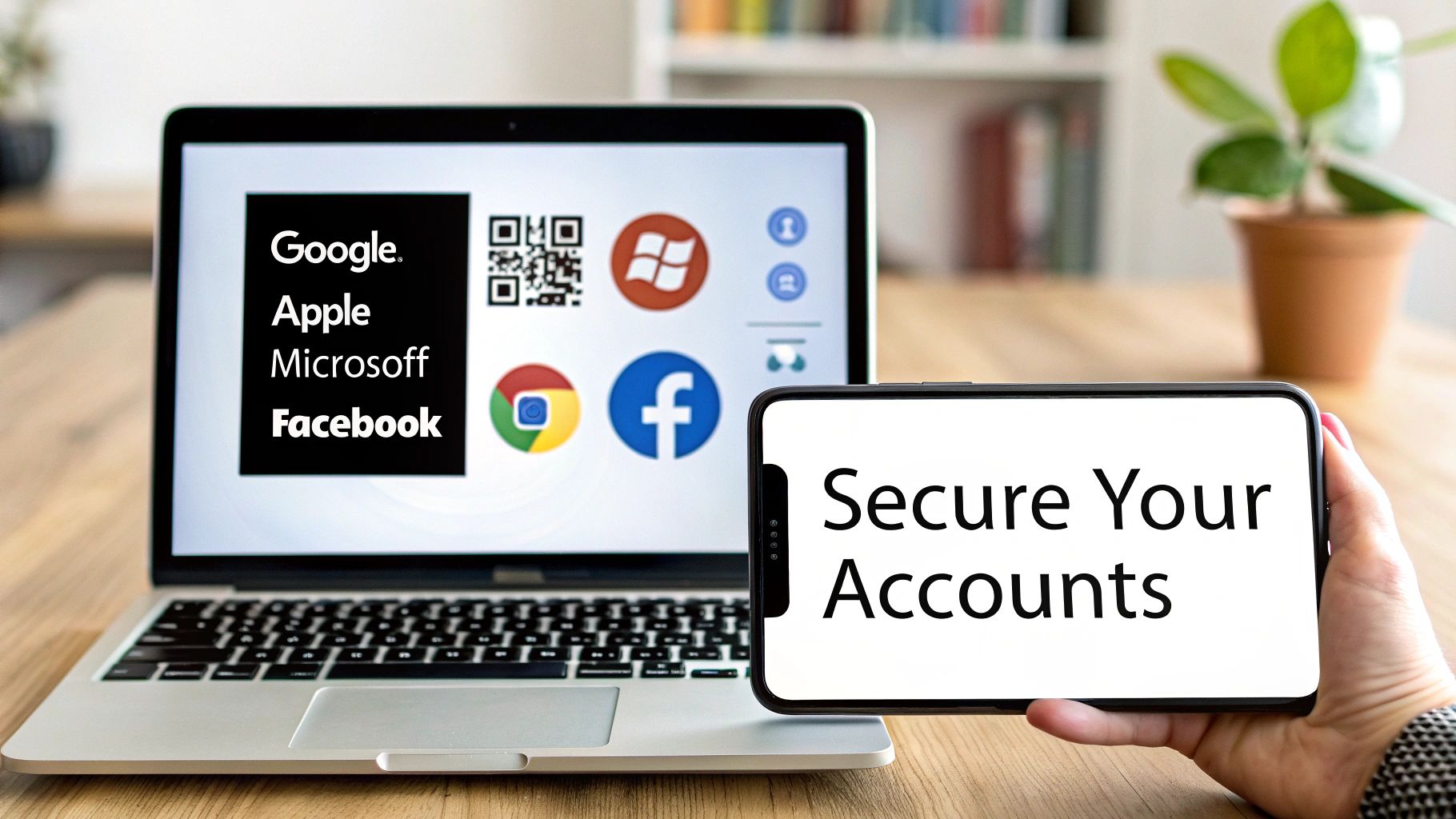
Think of this as your personal guide to fortifying the four pillars of your online world: Google, Apple, Microsoft, and Facebook.
Your Google Account
Let's face it, your Google account is the master key. It's your email, your documents, your photos, maybe even your saved passwords. Securing this one is non-negotiable. Google calls its system 2-Step Verification, and they make it pretty painless to turn on.
First, head to your main Google Account page. On the left, you’ll see a "Security" tab—click that. Inside, look for a box labeled "How you sign in to Google" and you'll find the 2-Step Verification option. The first step will probably ask you to confirm your phone number, which is a good starting point.
Pro Tip: Once your phone number is linked, don't stop there. I strongly recommend adding an authenticator app as your main 2FA method. Google will show you a QR code right on the screen. Just open your authenticator app, hit the plus (+) sign, and scan the code with your phone's camera. It takes less than 10 seconds.
Your Apple ID
If you're in the Apple ecosystem, your Apple ID is everything. It's your gateway to your iPhone, your App Store purchases, and all that data stored in iCloud. Apple has baked its Two-Factor Authentication deep into its operating systems, which makes it feel seamless.
It's easiest to set this up right from your iPhone or iPad:
- Open up Settings and tap your name at the very top.
- From there, navigate to "Sign-In & Security".
- You’ll see "Two-Factor Authentication"—tap it and follow the on-screen instructions.
On a Mac, you'll find the same setting in System Settings by clicking your name and then going to Sign-In & Security. Apple’s preferred method is to use your other Apple devices as authenticators; a code just magically pops up on your iPad or Mac when you try to sign in somewhere new. Super convenient. You can also add a trusted phone number as a fallback.
Your Microsoft Account
From Windows and Office 365 to Xbox and OneDrive, your Microsoft account is the hub for a ton of important stuff. Given the sensitive work and personal files many of us keep there, locking it down with two-step verification is a must.
Start by logging into your Microsoft account on the web and finding the "Security" dashboard. From there, click on "Advanced security options." You'll see a section for "Additional security," which is where you can flip the switch to turn on two-step verification.
Microsoft has its own authenticator app that’s really slick. Instead of making you type in a six-digit code, it often sends a simple "approve" or "deny" push notification to your phone. It’s a great, low-friction option. Of course, this helps protect all your connected services, especially email. For a much deeper dive, check out our guide on email security best practices to fully bulletproof your inbox.
Your Facebook Profile
Facebook holds a detailed record of our lives, friendships, and personal moments. Protecting it isn't just about privacy; it's about safeguarding your online identity.
Here's where to find the 2FA settings:
- On a computer: Click your profile picture, then go to Settings & Privacy > Settings > Security and Login.
- On your phone: Tap the menu icon (☰), scroll down to Settings & Privacy > Settings > Password and Security.
Look for the "Two-Factor Authentication" heading to get started. Facebook will offer you a few choices: an authenticator app, a text message (SMS), or a physical security key. As we've covered, an authenticator app is a significantly more secure choice than SMS.
After you scan the QR code to link your account, Facebook will offer you a set of recovery codes. This is critical. Do not skip this part. Save these codes somewhere safe and offline—like a printed copy in a file cabinet or a password manager. If you ever lose your phone, these codes are your only lifeline to get back in.
Smart Strategies for Managing Your 2FA Recovery Options
You did it. You set up two-factor authentication, and your accounts are now way more secure. That’s a huge win, but don’t celebrate just yet. There's one more crucial step people almost always forget: creating a safety net.
Think about it—what happens if you lose your phone? Or if it gets stolen, or just decides to stop working one day? If that phone has your only authenticator app, you could be completely locked out of your own accounts. Permanently.
This is where having solid recovery options comes in. A little planning before disaster strikes can turn a full-blown digital crisis into a minor hiccup. You're essentially giving yourself a spare key, just in case.
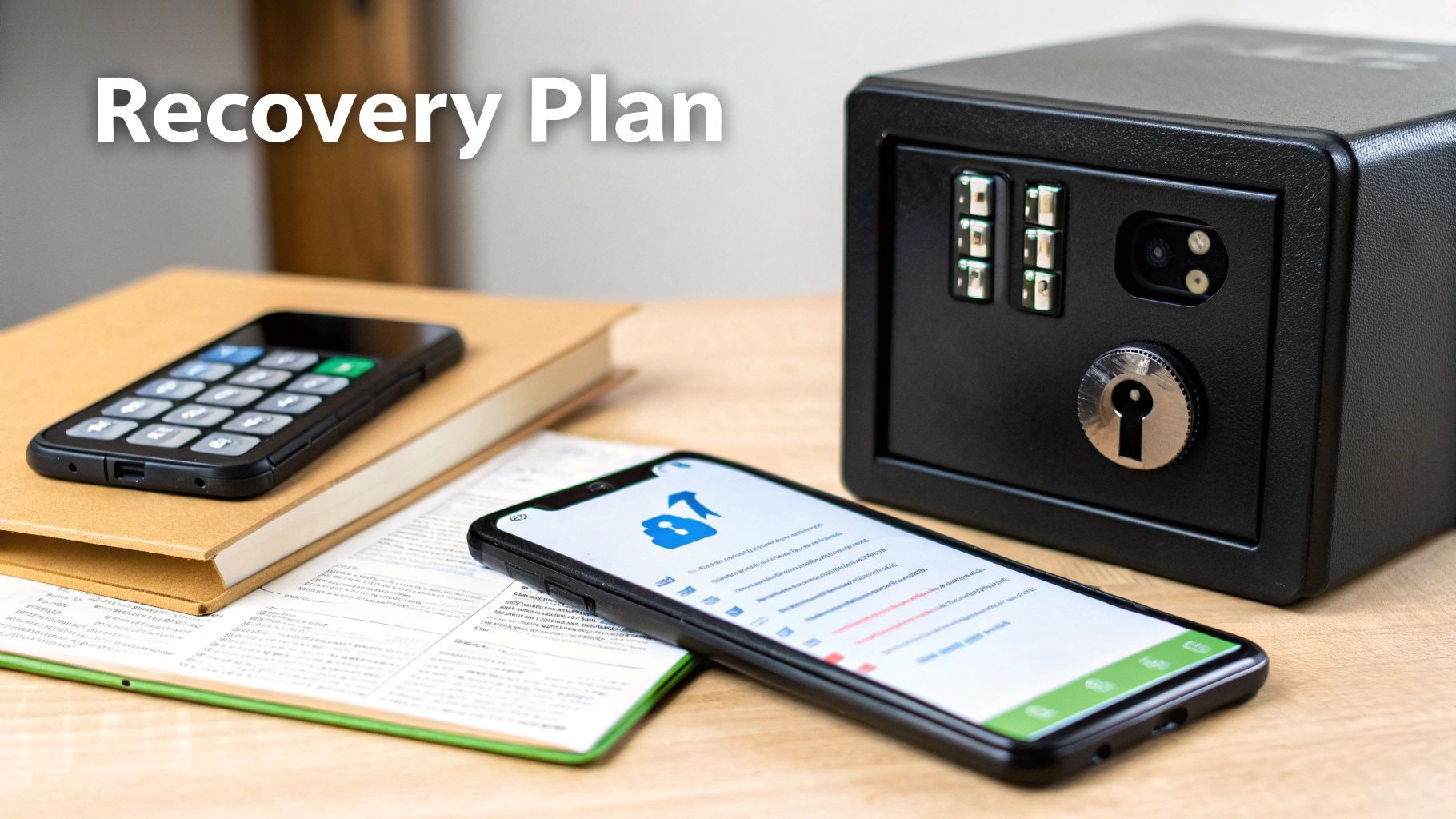
Master Your Backup Codes
The first time you enable 2FA on services like Google or Facebook, you'll almost always be prompted to save a list of backup codes. Don't just click past this screen. These codes are your skeleton keys—single-use lifelines that get you back in when your main 2FA method fails.
So, what should you do with them? The absolute worst thing you can do is save a screenshot of them on the same phone you use for authentication. That completely defeats the purpose.
Instead, store them somewhere safe, secure, and totally separate from your phone.
- Print Them Out: This is surprisingly effective. Just print the list of codes and tuck it away in a locked desk drawer, a fireproof safe, or even a safe deposit box. Old school, but it works.
- Save to a Password Manager: Most top-tier password managers let you store secure notes along with your login info. This is a perfect spot for your backup codes, keeping them encrypted and available on other trusted devices.
- Store in a Secure Digital Vault: If you're comfortable with cloud services, you can save the codes in an encrypted file. If you go this route, check out our guide on how to use cloud storage safely for sensitive files.
Build a Multi-Layered Recovery System
Backup codes are your first line of defense, but they shouldn't be your only one. The best security plans have layers. Most services let you add multiple recovery methods, creating a much more robust safety net that can handle whatever life throws at you.
The goal is to give your future self several ways to prove your identity when you're in a tight spot. Never rely on a single point of failure; if your phone is your only 2FA device and also your only recovery method, you're taking a huge risk.
For your most important accounts, try to set up a few of these additional layers:
- A Secondary Phone Number: Add a trusted partner’s number or even a work phone to your account. This gives you another place to receive an SMS code if you can’t get to your primary phone.
- A Hardware Security Key: A physical key like a YubiKey is a fantastic backup. You can keep it on your keychain or in a safe place at home, ready to go in an emergency.
- Another Trusted Device: For ecosystems like Apple or Google, you can often approve a new sign-in from another device that’s already logged in, like your iPad or laptop.
By combining these options, you build a resilient recovery plan. Losing your phone will still be a pain, but it won’t mean losing access to your entire digital life.
Solving Common 2FA Annoyances
Switching on two-factor authentication is a huge step up for your security, but that doesn't mean it's always a perfectly smooth ride. We’ve all been there—frustrating little hiccups can pop up at the worst times. The good news is that most of these common problems have surprisingly simple fixes.
Knowing what to do ahead of time can turn a moment of sheer panic into a quick, confident fix.
One of the most common complaints I hear is about an authenticator app code being rejected, even when you know you’ve typed it in correctly. You're staring at the six digits, the little timer is ticking down, and the website just keeps saying, "Invalid code." It’s enough to make you want to throw your phone across the room.
Believe it or not, this problem almost always comes down to one tiny detail: your phone’s clock has drifted out of sync with the official world time. Since those six-digit codes are time-based (they change every 30-60 seconds), even a slight difference between your phone's clock and the server's clock will cause a mismatch.
Fixing Time Sync Issues
Thankfully, the solution is incredibly easy. You don't have to fiddle with setting the time manually; you just need to tell your phone to sync up automatically with network time.
- On an Android device: Head over to Settings > System > Date & time. Just make sure the toggle for "Set time automatically" is switched on.
- On an iPhone: Go to Settings > General > Date & Time. You'll see a switch for "Set Automatically"—make sure it’s green.
Once you’ve done that, the rejected code problem should vanish immediately. It's a simple flick of a switch that solves a massive headache and gets you back on track.
Moving 2FA to a New Phone
Getting a new phone is exciting, but it often comes with a dose of anxiety: "How do I move all my 2FA accounts without locking myself out of everything?" A few years ago, this was a legitimately painful, account-by-account process. Today, things are much, much simpler.
Modern authenticator apps like Google Authenticator and Microsoft Authenticator have built-in export features. In the app's settings, you’ll find an option like "Transfer accounts" or "Export accounts." Tapping this generates a special QR code on your old phone's screen.
All you have to do is install the same app on your new phone and use its "Import" function to scan that QR code. In a matter of seconds, all your accounts are securely moved over.
My biggest piece of advice: Always, always complete this transfer process before you wipe or trade in your old phone. Forgetting this step is one of the fastest ways to get permanently locked out of your accounts.
The push for 2FA is growing because it works. By 2024, an estimated 67% of companies had implemented 2FA across their systems, a big jump from 56% in 2022. This growth is led by trusted providers like RSA SecurID, which holds a market share of 30.53%. You can discover more insights about these 2FA statistics to see just how widespread this security measure has become.
As a final tip, some authenticator apps offer a cloud backup feature. This is an excellent safety net, and you can learn more about securing your data by reading about how cloud storage works. These backups can automatically restore your 2FA accounts when you log into the app on a new device, giving you one less thing to worry about.
Got Questions About 2FA? We've Got Answers.
As you start using two-factor authentication, a few questions are bound to come up. It's totally normal. Here are some quick, no-nonsense answers to the things people ask us most often.
Is 2FA Completely Foolproof?
While 2FA is a massive security upgrade, it's not a silver bullet. A really determined scammer might try to trick you into sharing your 2FA code through a sophisticated phishing attack. But for the vast majority of threats out there—the automated, everyday stuff—2FA is an incredibly effective roadblock.
Keep in mind, using an authenticator app or a physical security key is worlds more secure than getting codes by text message. It makes you a much, much harder target.
Can I Use Just One Authenticator App For Everything?
Yes, and you absolutely should! This is one of the best parts about using an authenticator app. You can use a single app—like Google Authenticator, Microsoft Authenticator, or Authy—to handle the codes for all your different accounts.
There's no need to juggle separate apps for Google, Facebook, your bank, and your gaming accounts. They can all live in one secure, organized place, which makes staying safe a whole lot easier.
The single biggest mistake I see people make is getting a new phone and wiping the old one before dealing with their 2FA. It's an easy way to lock yourself out of everything. Always, always transfer your authenticator accounts first.
What Do I Need To Do Before I Get A New Phone?
This is a big one, so pay close attention. Before you even think about resetting your old phone, you must move your 2FA accounts to your new device.
Thankfully, most modern authenticator apps have a built-in export or transfer function. You’ll typically open the app on your old phone, find the transfer option, and it will show a special QR code on the screen. Then, you just install the same app on your new phone and use its camera to scan that code. Boom—all your accounts are moved over. If you forget this step, you're in for a world of headaches.
At Simply Tech Today, our goal is to make digital security straightforward. We write guides with clear, practical advice to help you protect your online life, minus the confusing tech-speak. For more easy-to-follow tips, check us out at https://www.simplytechtoday.com.


Member discussion