
Screen Mirroring iPhone to Samsung TV The Ultimate Guide
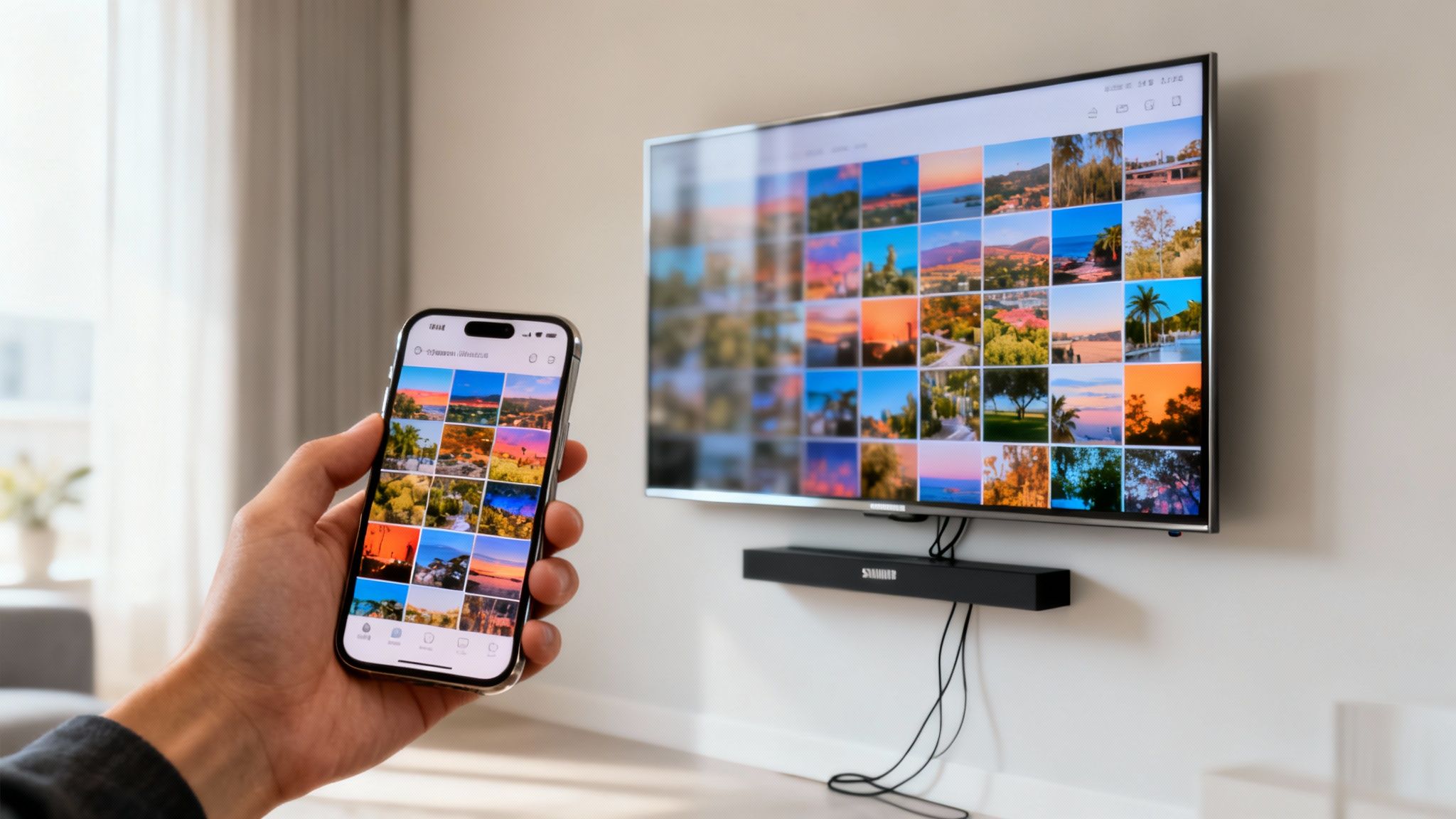
Tired of huddling around a tiny iPhone screen to show off your latest photos or stream a video? Getting that content onto your big Samsung TV is probably easier than you think. The go-to method for most people is screen mirroring from your iPhone to your Samsung TV using Apple's own AirPlay feature.
If you have a fairly recent Samsung TV (think 2018 or newer), this is a completely wireless process that you can get running in under a minute.
Your Quick Guide to iPhone and Samsung TV Mirroring
Gone are the days when you needed a tangled mess of cables or clunky third-party apps just to get your phone's screen on your TV. Today's smart TVs, especially Samsung's lineup, are built to play nice with other devices, creating a truly connected home.
This kind of device-to-device communication is at the heart of the modern smart home. If you're curious about the bigger picture of how all these gadgets talk to each other, you can learn more about the Internet of Things in our detailed guide. But for now, all you need to know is that your iPhone and TV can speak the same wireless language.
Choosing Your Connection Path
So, how do you get started? The single most important factor is the age of your Samsung TV. This one detail will determine the best way to connect.
This decision tree breaks it down into two main paths.
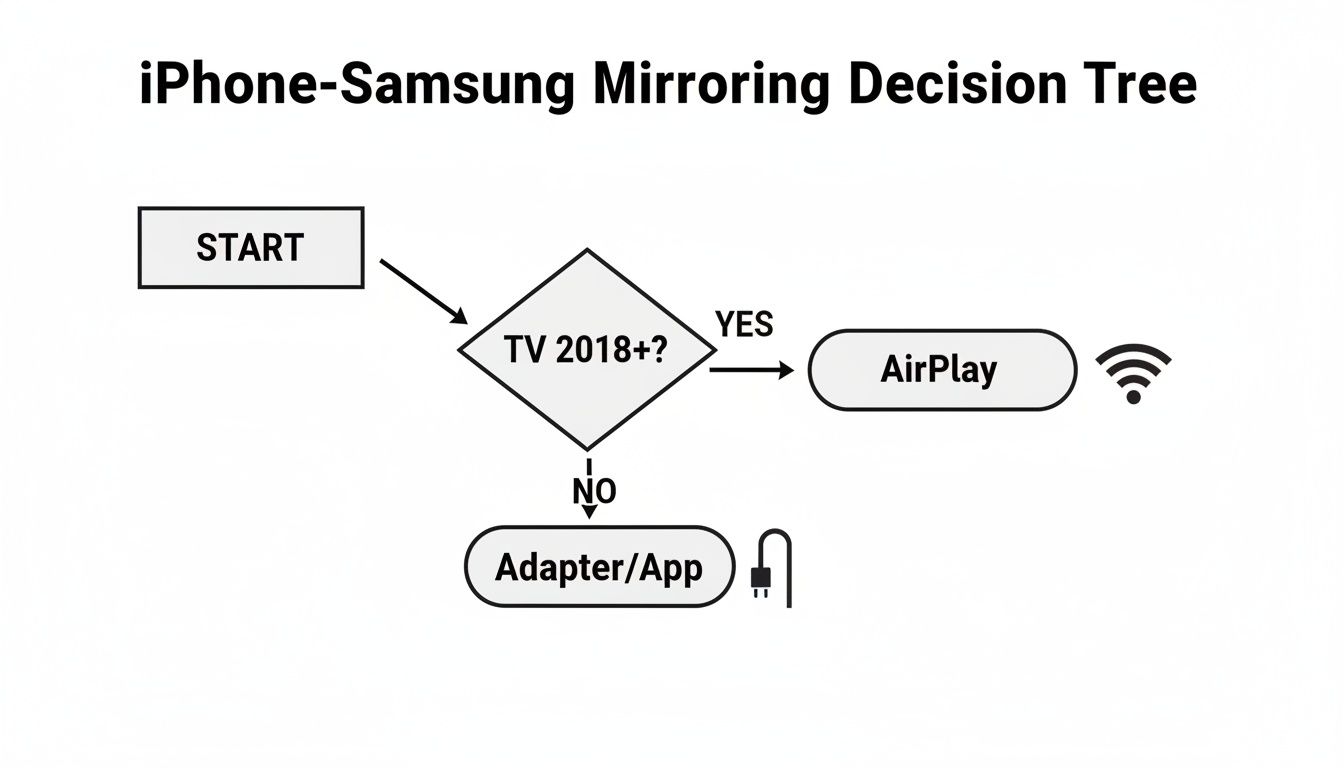
As you can see, if you've got a recent TV model, you're in luck. The built-in AirPlay feature offers a clean, wireless, and headache-free solution. If your TV is a bit older, don't worry—you still have solid options, they just require an extra step or two.
Quick Compatibility Check For Your Devices
Use this table to quickly figure out which screen mirroring method is right for your setup. It's a simple way to confirm the best path forward based on your specific TV model.
| Your Samsung TV Model Year | Recommended Mirroring Method | Key Requirement |
|---|---|---|
| 2018 to Present | AirPlay (Built-in) | TV and iPhone must be connected to the same Wi-Fi network. |
| Pre-2018 | Third-Party App | Download a mirroring app from the App Store and the Samsung TV App Store. |
| Any Model Year | Wired Adapter | A Lightning to Digital AV Adapter and an HDMI cable are needed for a physical connection. |
This simple check can save you a ton of guesswork. Once you know your TV's age, you know exactly what tools you'll need (or won't need!) to get everything connected.
The Rise of Built-In Compatibility
The real game-changer here was Samsung's decision to embrace Apple's AirPlay 2 protocol. Starting in 2018, Samsung began integrating this technology directly into its smart TV lineup. This was a huge deal. It meant that millions of new TVs could suddenly communicate natively with iPhones, iPads, and Macs right out of the box, no extra hardware needed.
Key Takeaway: Before you do anything else, find your Samsung TV's model year. This single piece of information points you to the correct method and saves you a world of frustration. If it’s a 2018 model or newer, you’re just a few taps away from seeing your iPhone on the big screen.
Seamless Mirroring with AirPlay: The Built-In Solution
If you own a Samsung TV from 2018 or later, you’re in luck. The best tool for the job, AirPlay, is already built right in. This is Apple's own wireless technology, and it's designed to create a rock-solid connection between your iPhone and your TV without any extra apps or gadgets. Think of it as a direct, invisible link.
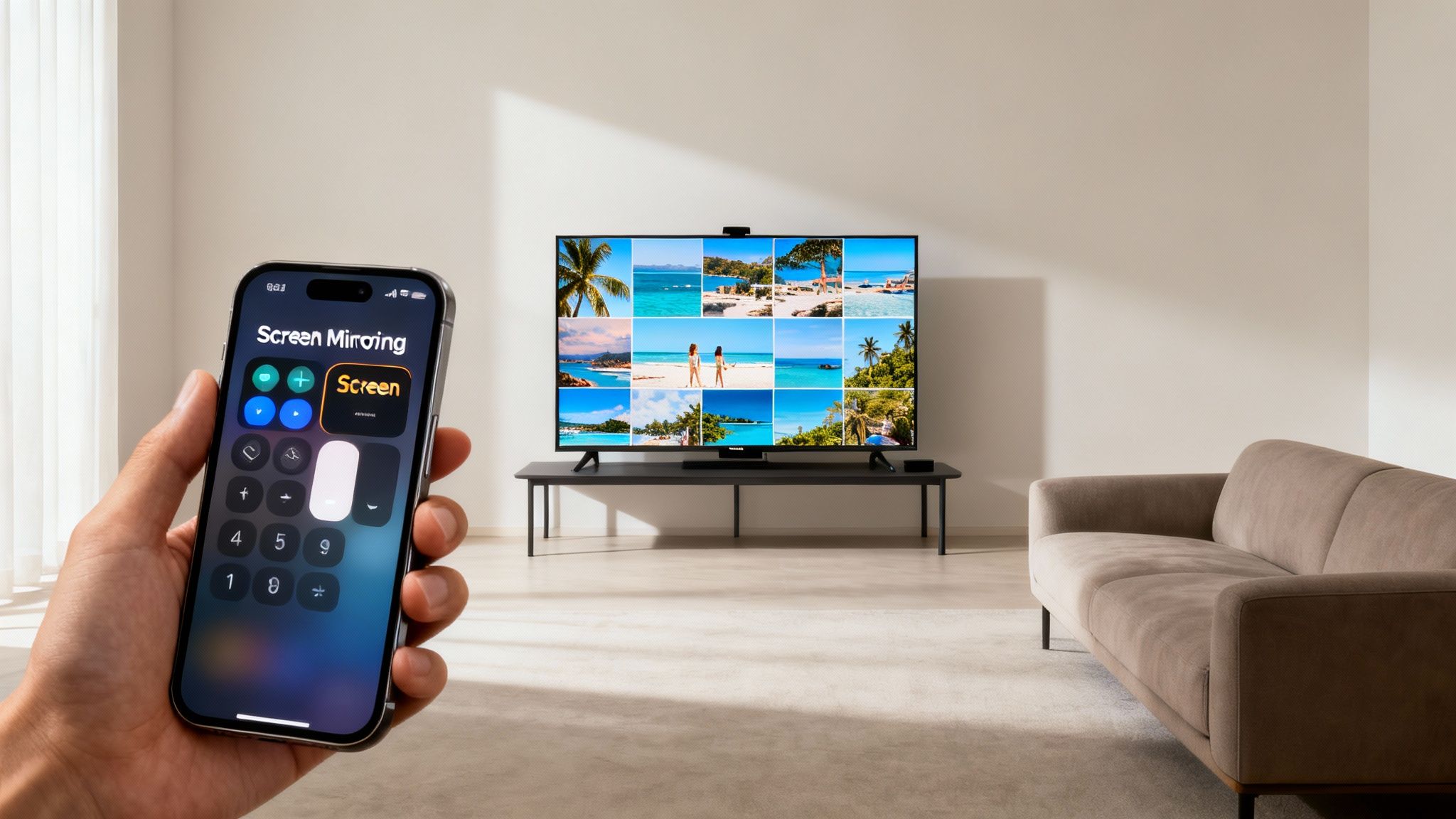
Using AirPlay to screen mirror your iPhone to a Samsung TV is incredibly simple. For instance, imagine you just got back from a trip and want to share your photos with the family. Instead of everyone huddling around a small phone screen, you can have your entire gallery displayed on the big screen in a matter of seconds.
Getting Your Devices Ready
Before you can start mirroring, there are two crucial things you need to check. Nailing these simple prep steps will prevent most of the common hiccups people run into and ensure you get a stable connection.
First, your iPhone and Samsung TV must be on the exact same Wi-Fi network. This is non-negotiable, as it’s how the two devices find each other. While this is standard in the 70-80% of households with multiple connected gadgets, it’s always the first thing I tell people to verify if they have trouble.
Second, you'll want to confirm that AirPlay is actually turned on in your TV’s settings. It’s usually enabled by default, but it never hurts to check.
- Grab your Samsung remote and go to Settings.
- Navigate to General (sometimes called All Settings).
- Look for Apple AirPlay Settings.
- Just make sure the AirPlay toggle is set to On.
With those two steps out of the way, you're all set to connect.
Kicking Off Screen Mirroring from Your iPhone
Once your devices are prepped and on the same network, the rest of the magic happens right on your iPhone. Everything is handled through the Control Center, which is your shortcut hub for all kinds of useful tools.
Getting to your Control Center is easy:
- For iPhones with Face ID (iPhone X and newer): Swipe down from the top-right corner of your screen.
- For iPhones with a Home button: Swipe up from the very bottom edge of the screen.
In the Control Center, find the Screen Mirroring button—it's the one with two overlapping rectangles. Tap it. Your iPhone will immediately start looking for any AirPlay-ready devices nearby. A list should pop up, and you’ll see the name of your Samsung TV (like "Living Room TV" or whatever you've named it).
Pro Tip: If you don't see your TV in the list, the oldest trick in the book often works best: restart both your iPhone and your TV. This simple step forces them to refresh their network connections and usually solves the problem. You might also find helpful tips in our guide covering what to do if you can't sign out of your Apple ID, as account glitches can sometimes cause weird connectivity issues.
All you have to do now is tap your TV's name in the list. The very first time you connect, a four-digit code will probably appear on your TV screen. Type that code into your iPhone when prompted to authorize the connection. That’s it! Your iPhone screen is now mirrored directly to your Samsung TV.
What About Older Samsung TVs Without AirPlay?
Got a Samsung TV from before 2018? If so, you've probably noticed it doesn't have AirPlay built-in. Don't worry, you're not out of luck. While you can't use Apple's slick, integrated solution, a couple of solid workarounds will get your iPhone's screen onto your TV in no time.
You're basically looking at two paths here: a wireless one using a third-party app or a super-stable wired connection using an adapter. Both get the job done when it comes to screen mirroring from your iPhone to your Samsung TV.
Go Wireless With a Third-Party App
The App Store is your best friend here. It’s full of apps designed to bridge the gap between your iPhone and your older Samsung Smart TV. They typically work by having you install an app on your phone, which then finds and communicates with your TV over your home Wi-Fi network.
Before you download the first app you see, here’s what I look for to avoid headaches:
- Good Ratings and Real Reviews: This is non-negotiable. User feedback is the truest test of an app's quality. I always look for recent comments on stability and how easy it was to set up.
- Low Latency (Lag): Latency is that annoying delay between what you do on your phone and when it shows up on the TV. For videos or presentations, you want this to be as minimal as possible.
- HD Streaming: Make sure the app supports at least 720p, though 1080p is ideal. There's no point in mirroring to a beautiful TV if the image is going to be blurry.
Setup is usually a breeze. Just download your chosen app, make sure both devices are on the same Wi-Fi, and follow the app's instructions to find your TV. It's a great way to give older tech a new lease on life, similar to how people integrate existing gadgets when they learn how to set up a smart home.
Take the Wired Route: A Lightning to Digital AV Adapter
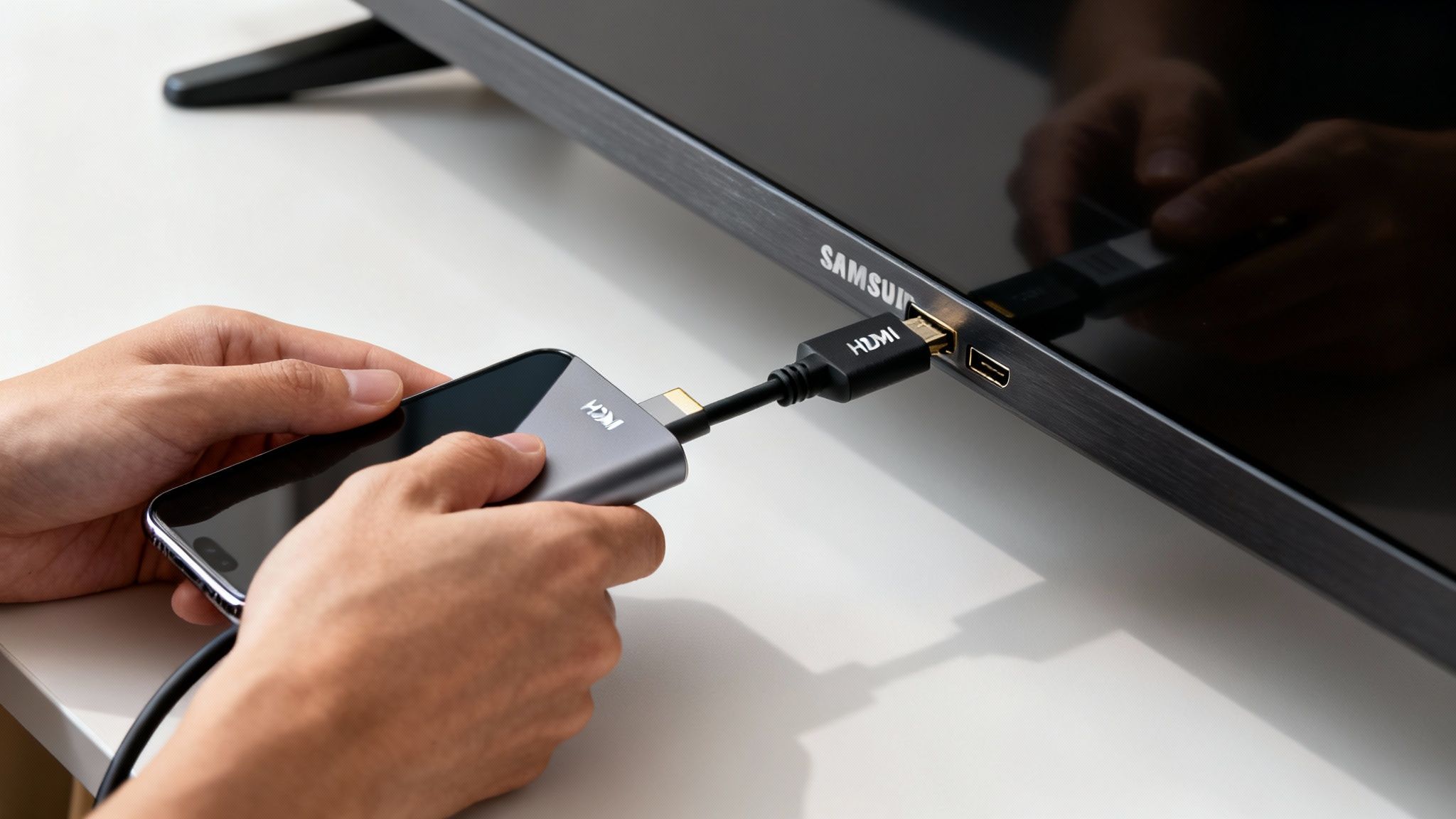
If you want a connection that's completely bomb-proof and not at the mercy of a spotty Wi-Fi signal, nothing beats a cable. For this, Apple’s official Lightning to Digital AV Adapter is the way to go. It's a simple little dongle that plugs into your iPhone and gives you an HDMI port.
This approach is dead simple and delivers the absolute best performance you can get.
Why Go Wired? A direct cable connection gives you a zero-lag, pixel-perfect mirror of your screen. It's my top recommendation for fast-paced gaming or for that critical business presentation where a dropped connection simply isn't an option.
Getting it running couldn't be easier.
- First, plug the Lightning to Digital AV Adapter into your iPhone.
- Next, connect a standard HDMI cable from the adapter to an open HDMI port on your Samsung TV.
- Finally, grab your TV remote and switch the input source to the HDMI port you just used.
That’s it. Your iPhone screen will pop up on the TV instantly. No Wi-Fi passwords, no network scanning, just a perfect connection. This is a lifesaver when you're in a place with congested Wi-Fi, ensuring your screen mirroring from iPhone to Samsung TV works flawlessly every single time.
Troubleshooting Common Screen Mirroring Issues
Even with the best tech, sometimes you hit a snag getting your devices to cooperate. When screen mirroring from your iPhone to your Samsung TV doesn't work right away, don't get frustrated. Most of the time, it's one of a few common issues that are surprisingly easy to fix.
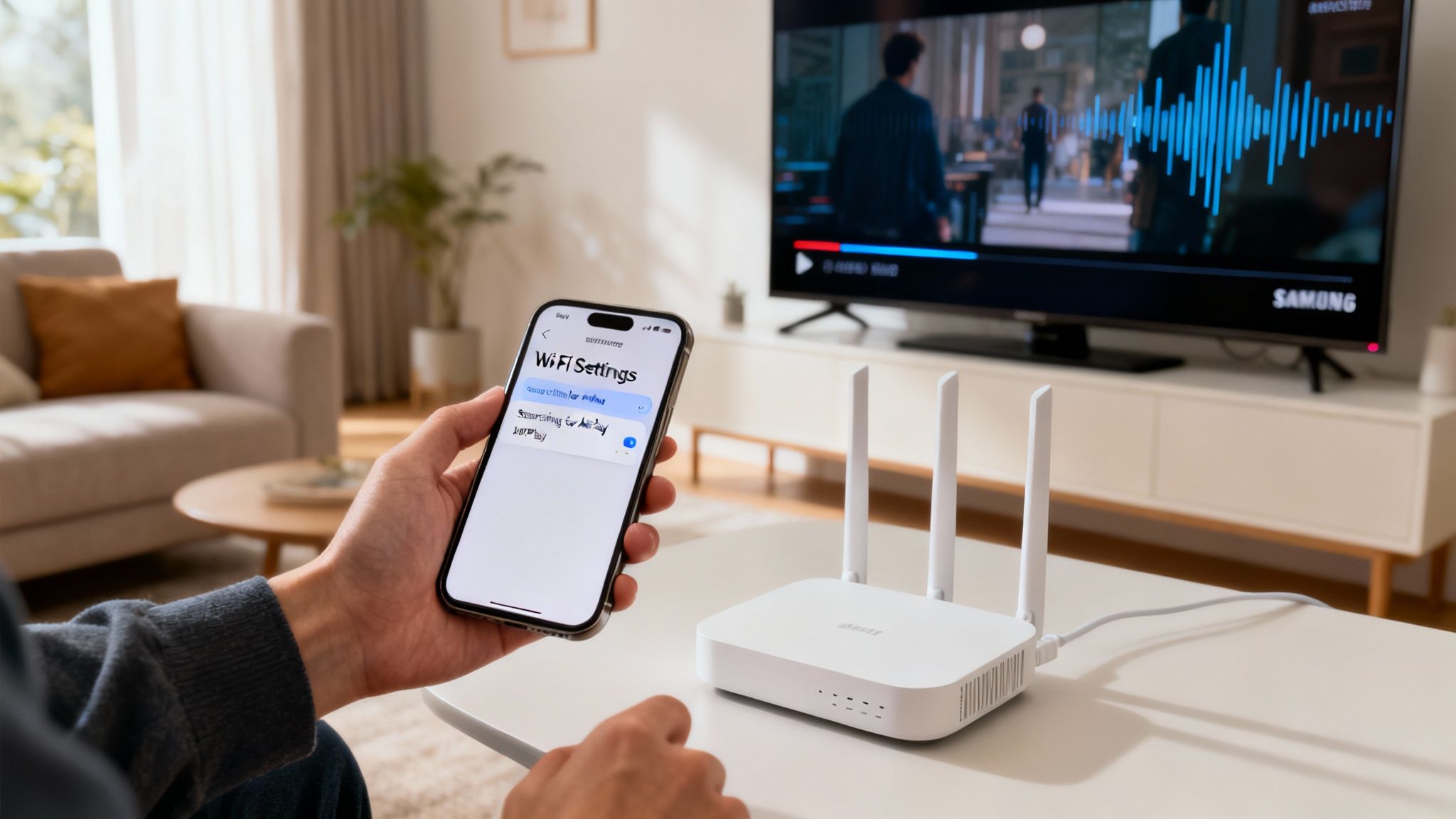
Often, the problem is just a simple communication breakdown between your phone, your TV, and your router. Let's walk through the most frequent hiccups and get you back to streaming.
Why Your Samsung TV Is Not Showing Up
This is by far the most common problem people run into. You swipe down to the Control Center, tap the Screen Mirroring button, and... nothing. Your TV is nowhere on the list. Before you start diving deep into complex settings, run through this quick mental checklist first.
Check Your Wi-Fi Connection: This is the number one culprit. Your iPhone and Samsung TV must be on the exact same Wi-Fi network. It’s an easy detail to miss, especially if you have a dual-band router broadcasting separate 2.4GHz and 5GHz networks. Double-check that both devices are connected to the same one.
Verify AirPlay is Enabled: Sometimes settings get toggled off by accident, maybe after a software update. On your Samsung TV, navigate to Settings > General > Apple AirPlay Settings and just make sure AirPlay is switched on.
Perform a Simple Restart: I know, I know—it's a cliché for a reason. A quick "soft reset" can clear out temporary network glitches that are causing the problem. Power down your iPhone, your Samsung TV, and your Wi-Fi router. Give it about 30 seconds, then turn everything back on, starting with the router first.
Honestly, these three steps solve this particular issue over 90% of the time. It’s usually just a simple network handshake that needs a little nudge.
How to Fix Choppy or Lagging Video
Okay, so you’re connected, but the video is stuttering and the audio is completely out of sync. This is almost always a Wi-Fi performance problem. A weak or congested signal just can't handle the amount of data required for smooth mirroring.
Your goal here is to reduce network interference and boost your signal strength.
Key Insight: Screen mirroring is a high-bandwidth activity. Think of it like trying to drive a sports car on a crowded city street during rush hour—for a smooth ride, you need to clear the traffic.
First, try moving your iPhone and your Wi-Fi router closer to each other. Physical distance and obstacles like thick walls or even a microwave can seriously degrade the signal. If you have the option, switching to your router's 5GHz band can also provide a faster, less congested connection. For more in-depth advice, our complete guide explains how to improve your Wi-Fi signal strength for better performance across all your devices.
Also, be sure to close any unnecessary apps running in the background on your iPhone. Pausing large downloads or other streaming activities on your network can free up a ton of valuable bandwidth, helping ensure your screen mirroring from iPhone to Samsung TV is as smooth as possible.
Solutions To Common Screen Mirroring Issues
Sometimes you just need a quick-reference guide. Here’s a table to help you quickly diagnose and solve the most frequent issues you might face.
| Problem | Likely Cause | Quick Solution |
|---|---|---|
| TV not appearing in the AirPlay list | Devices are on different Wi-Fi networks. | Connect your iPhone and Samsung TV to the exact same Wi-Fi network (e.g., "HomeWiFi-5G"). |
| Connection drops intermittently | Weak Wi-Fi signal or interference. | Move your router closer to the TV, or switch to a less crowded 5GHz Wi-Fi band if available. |
| Video is choppy or lagging | Insufficient network bandwidth. | Pause other high-bandwidth activities on your network, like large downloads or 4K streaming on other devices. |
| AirPlay option is missing entirely | AirPlay is disabled on the TV. | Go to your TV's Settings > General > Apple AirPlay Settings and ensure it's turned on. |
| A black screen appears on the TV | HDCP copy protection issue. | This usually happens with streaming apps. Try mirroring your phone's screen first, then open the app. |
This table should cover most of the bumps in the road. If you’ve tried these fixes and are still stuck, a firmware update for your TV or a software update for your iPhone might be the next step.
Pro Tips for a Flawless Mirroring Experience
Getting your iPhone screen up on your Samsung TV is one thing, but making it a smooth, high-quality experience is another. A few simple tweaks can be the difference between a stuttering, pixelated mess and a crystal-clear stream. It all comes down to a few key details: your Wi-Fi health, how you handle the screen format, and keeping interruptions at bay.
The absolute number one factor for a good mirroring session is your Wi-Fi network. Seriously, don't overlook this. Pushing your entire phone screen over the air is a demanding job, and a weak or congested network will immediately show its cracks with lag and low quality.
Before you settle in for a long mirroring session, it's a great habit to quickly lighten the load on your network. Pause that big game download on your PC, tell the kids to take a break from 4K streaming in the other room, and maybe even disconnect a few smart devices you aren't using. Think of your Wi-Fi bandwidth like a highway—you want to clear out the traffic to give your mirroring signal a wide-open fast lane.
Optimizing Your Wi-Fi for Streaming
If you’re still seeing some stutter or delays, a few quick network adjustments can make a world of difference.
- Get Closer: Signal strength drops off with distance. If you can, try to have your iPhone and TV in the same room as your router, or at least as close as is practical.
- Hop on the 5GHz Band: Most modern routers offer both 2.4GHz and 5GHz networks. The 5GHz band is your best friend for streaming; it's faster and usually has less interference from other devices.
- Cut Down on Interference: Your microwave, cordless phones, and even your neighbor's router can mess with your signal. Try to position your router away from other major electronics to give it some breathing room.
Managing Screen Size and Notifications
So, you're connected, but your vertical iPhone screen is sitting in the middle of your widescreen TV with giant black bars on the sides. Don't worry, that’s totally normal. It’s just a mismatch between the aspect ratios of your phone and the TV.
Most Samsung TVs let you fix this pretty easily. Grab your remote and look for a button labeled P.SIZE or Aspect Ratio. If you don't see one, dive into your TV’s Picture Settings menu. You’ll usually find options like "Zoom" or "Fit to Screen" that stretch the image to fill the display, which is perfect when you flip your phone sideways to watch a video.
The other thing that can ruin the moment? Interruptions. Every single text, call, or calendar reminder that pops up on your phone will be broadcast on the big screen for all to see. To avoid sharing your private messages during a movie night or a business presentation, just flip on Do Not Disturb or a custom Focus mode on your iPhone before you start mirroring. This keeps your private alerts private without killing the connection.
And if you find your Apple account settings are causing any strange conflicts, our guide on how to sign out of your Apple ID can sometimes help clear up unexpected issues.
Got Questions? We’ve Got Answers
Getting your iPhone's screen up on your Samsung TV is usually straightforward, but a few common questions always pop up. It’s one thing to get it working, but it’s another to understand the little quirks of the technology.
Let's walk through some of the things people often ask after they get started. Knowing the answers will help you get the most out of screen mirroring, whether you're sharing family photos or streaming a movie.
Can I Still Use My Phone While It’s Mirroring?
You absolutely can, but you have to be mindful of one very important detail: screen mirroring shows everything on your iPhone's display. Whatever you see on your phone, everyone looking at the TV sees it too.
That means every text message notification, every app you switch to, even that accidental swipe into your camera roll—it’s all going on the big screen. This is great for showing someone how to use an app, but not so great if you're trying to watch a movie while discreetly answering a work email.
Pro Tip: If you want to multitask, look for the "Cast" icon instead of mirroring. Apps like YouTube and Netflix let you cast the video directly to the TV. This sends the stream to your TV and frees up your phone, so you can text, browse, or even lock the screen without interrupting the show.
Why Is There a Lag Between My Phone and the TV?
That slight delay you're seeing is called latency. It's a natural part of any wireless video connection. Think of it as the travel time it takes for the video signal to be captured on your phone, compressed, sent over your Wi-Fi, and then unpacked and displayed by your TV.
While a small amount of lag is normal, a significant or distracting delay usually points to a weak wireless connection. Here are a few things I always try first to tighten things up:
- Boost Your Wi-Fi: If you can, connect your devices to a 5GHz Wi-Fi band, which is typically faster and less crowded. Simply moving closer to your router can also make a huge difference.
- Clear the Airwaves: Is someone else in the house downloading a huge file or streaming 4K video? Pausing other heavy internet traffic on your network can free up bandwidth for mirroring.
- The Classic Reboot: It sounds simple, but turning your iPhone, TV, and router off and on again is often the quickest fix for mysterious lag issues.
For things that demand perfect timing, like gaming, nothing beats a direct connection. A wired Lightning to Digital AV Adapter will give you a virtually lag-free experience.
Do I Have to Install an App on My Samsung TV?
For most people these days, no app is needed! If you bought a Samsung Smart TV anytime from 2018 or later, it already has AirPlay built right in. You don’t have to download or install a single thing on the TV side.
The exception is for older Samsung models. If your TV is from before 2018 and doesn't support AirPlay, you'll need a little help. The most common solution is to download a third-party receiver app from the Samsung App Store onto your TV. This app will then work with a partner app on your iPhone to create the connection.
At Simply Tech Today, we believe technology should be easy to understand and use. For more straightforward guides and tech tips, explore our other articles at https://www.simplytechtoday.com.
Member discussion