
Transfer Contacts to New Phone: The Easy Way

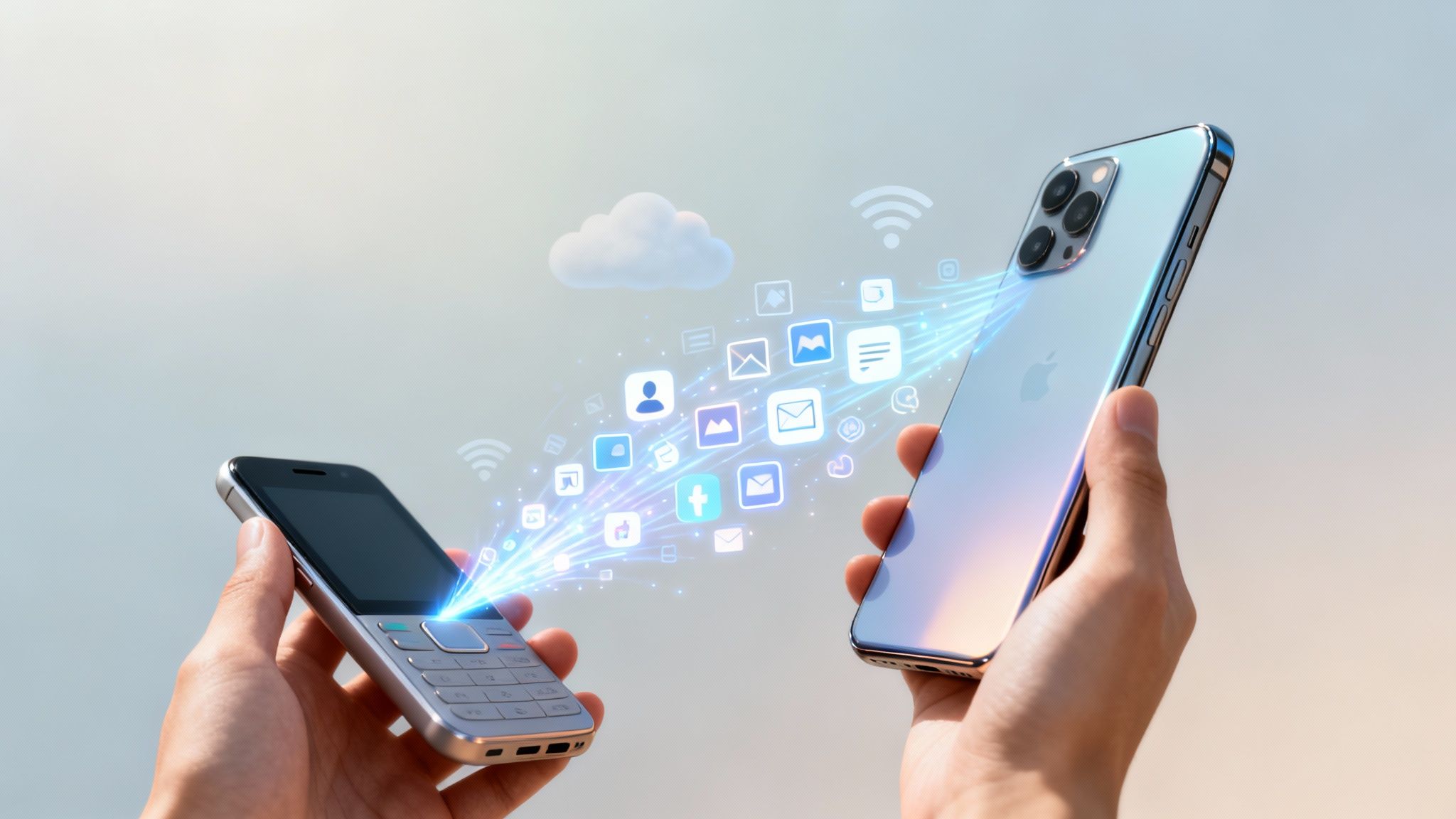
Getting a new phone is exciting, but let's be honest—the idea of moving all your contacts can feel like a chore. The absolute fastest and simplest way to transfer contacts to a new phone is by using a cloud service like Google Contacts or iCloud. It’s a set-it-and-forget-it approach that keeps everything in sync automatically.
Your Game Plan for a Flawless Contact Transfer
Before you dive in, it helps to have a clear plan. Picking the right strategy from the start will save you a ton of time and prevent the classic headache of missing numbers or ending up with a mess of duplicate entries. Your best bet really depends on what kind of phones you're dealing with—are you sticking with Apple, moving from a Samsung to a Pixel, or jumping from iOS to Android?
Generally, you have three main routes: syncing with the cloud, using a phone maker’s dedicated app, or doing a manual export. Each one has its pros and cons. Cloud syncing is hands-down the easiest for most people. Manufacturer tools, like Samsung Smart Switch, are fantastic because they move almost everything—photos, messages, and apps—in one go.
Choosing Your Transfer Method
Manual methods, like exporting your contacts to a VCF file (think of it as a universal digital business card) or even using your SIM card, give you an offline backup and complete control. The SIM card method is a bit old-school and limited; it usually just saves a name and one phone number. A VCF export, on the other hand, is a really solid and reliable way to back up your entire address book.
To make it even easier, this decision tree can help you instantly figure out which path is right for your situation.

As you can see, for most people, cloud services are the most direct route. But if you’re staying within the same brand ecosystem, the manufacturer's own tools are often the most comprehensive option.
Here’s a quick breakdown to help you compare the most common methods at a glance.
Contact Transfer Methods at a Glance
| Method | Best For | Difficulty | Requirements |
|---|---|---|---|
| Cloud Sync (Google/iCloud) | All users, especially those switching between operating systems. | Easy | Google or Apple ID, stable internet connection. |
| Manufacturer Apps | Users staying with the same brand (e.g., Samsung to Samsung). | Easy | Brand-specific app, Wi-Fi or USB cable. |
| VCF File Export | Creating a universal, offline backup or for manual transfers. | Medium | Email or cloud storage to move the file. |
| SIM Card | A quick, basic transfer of names and numbers only. | Easy | Physical SIM card with contacts saved on it. |
Ultimately, the best method is the one that fits your specific needs and comfort level. Cloud sync is usually the winner for simplicity and reliability.
Preparing for a Smooth Transition
No matter which path you take, a little prep work makes a huge difference. Before you start anything, take a few minutes to clean up your current contact list. It’s the perfect time to merge duplicates, get rid of old numbers you don’t need, and make sure everyone’s info is up to date.
Here’s a pro tip: Make sure your contacts are actually being saved to your Google or iCloud account, not just to your phone's internal storage or SIM card. Locally saved contacts won't sync, and they’re the ones that always get left behind.
It’s also a really good idea to do a full backup of your old phone before you begin. If you need help with that, our guide on how to backup phone data covers everything you need to know. A good backup is your safety net, ensuring none of your important information gets lost along the way.
Using Google and iCloud for Automatic Syncing

Honestly, when you need to transfer contacts to a new phone, letting the cloud do the heavy lifting is by far the smartest way to go. It’s a set-it-and-forget-it approach that keeps your address book perfectly aligned across all your gadgets. For just about everyone, this will mean using a Google Account (for Android) or Apple's iCloud (for iPhone).
Think of it as having a master copy of your address book stored safely online. Every time you add a new number or update an email on your phone, that change is instantly saved to the cloud. When you power on your new phone and sign in, it just pulls down that master list. Everything appears exactly where it should be.
Verifying Your Sync Settings on Android
Before you say goodbye to your old Android, take a minute to confirm your contacts are actually being backed up to Google. I’ve seen it happen countless times: people assume everything is syncing, only to discover half their contacts were saved locally to the phone or SIM card. Those contacts go nowhere.
Pop open your phone's main Settings app. You're looking for a section called Accounts or Users & accounts. Tap that, then find and select your primary Google Account.
You’ll see a list of Google services—Calendar, Drive, and so on. Find Contacts and make sure the switch next to it is turned on. You can usually tap it to see when it last synced. If it was just a few minutes ago, you’re golden.
- Forcing a sync: If you want to be extra sure, look for a "Sync now" option in the account menu. Give it a tap to push the very latest version of your contacts to the cloud.
- The ultimate check: Log into contacts.google.com on a web browser. If your full, up-to-date address book is sitting there, you are 100% ready for the new phone.
One common tripwire is having contacts from both a work and a personal account on one phone. Always double-check that you're syncing the right account—the one that actually holds all the numbers you want to move.
Activating Cloud Sync on Your New Phone
Once you've confirmed your contacts are safe in the cloud, the hard part is over.
During the setup process on your new phone, it will ask you to sign in with your Google or Apple ID. This is the crucial step that connects the device to your online address book.
On a new Android, just use the same Google Account from your old phone. That's it. The phone will start pulling down your data in the background, and your contacts will begin to appear in the Contacts app within minutes.
For a new iPhone, the process is just as smooth. Sign in with your Apple ID during setup, make sure iCloud Contacts is enabled in your settings, and all your contacts will be downloaded from the cloud. It's a key part of what makes the Apple ecosystem work so well. To get a better handle on this, our guide on how to use cloud storage offers a much deeper look.
Handling Common Syncing Problems
Even with a system as solid as cloud syncing, hiccups can occur. The two issues I see most often are missing contacts and a sudden flood of duplicates.
If some contacts didn't show up, the most likely reason is they were never synced from the old phone. They were probably saved to the device's internal memory or the SIM card. You'll have to go back to the old phone, find those stragglers, and change where they are saved—to your Google or iCloud account.
Duplicate contacts are another classic. This usually happens if you've synced multiple accounts or imported a backup file on top of an active cloud sync. Thankfully, cleaning this up is straightforward.
- For Google Contacts: Head to contacts.google.com on a computer and find the Merge & fix option on the left. Google is brilliant at spotting duplicates and will let you merge them with a single click.
- For iCloud: If you have a Mac, open the Contacts app and go to the Card menu. From there, select "Look for Duplicates." This handy tool will find and merge any redundant entries across all your iCloud-connected devices.
Moving Contacts Between iPhone and Android

Making the jump between iOS and Android used to be a real headache, but thankfully, those days are pretty much over. The long-standing rivalry between Apple and Google has actually benefited us, leading to much simpler ways to switch teams without nuking your address book.
The secret is to use the cloud accounts you're already logged into. Your Google Account is the heart of any Android phone, and your Apple ID is essential for an iPhone. These accounts are the perfect bridge for your contacts.
Going From an iPhone to a New Android
If you're ditching your iPhone for a new Android, your Google Account is about to become your best friend. The process is surprisingly straightforward because iOS plays nicely with Google services.
First, grab your old iPhone and head into Settings. Scroll down to Contacts, tap on Accounts, and then hit Add Account. You'll see a list of options—just choose Google.
Sign in with the exact same Google Account you'll be using on your new Android. After you sign in, you’ll see a few toggles. Make sure the one for Contacts is flipped on. That's it. Your iPhone will start pushing your entire contact list up to Google's servers.
Want to be absolutely sure it worked? Pop open a web browser on your computer and go to
contacts.google.com. If you see your iPhone contacts there, you’re golden.
Now, when you fire up your new Android for the first time and sign in with that Google Account, all those contacts will automatically sync right to your phone. No cables, no third-party apps, just a little bit of cloud magic.
Switching From an Android to a New iPhone
Moving from Android to iPhone works a bit differently. The most bulletproof way I’ve found is to export your contacts from Google and then import them directly into iCloud using a universal file format called a vCard.
Start on your computer. Log into your Google Account and navigate to Google Contacts. Look for the Export option on the left-hand menu and give it a click.
A little box will pop up. Make sure you've selected all your contacts, and under the "Export as" section, choose vCard (for iOS Contacts). This creates a single .vcf file containing everyone in your address book and saves it to your computer.
Next, open a new browser tab and head over to iCloud.com. Sign in with your Apple ID and open the Contacts web app.
Look for the small gear icon in the bottom-left corner. Click it and select Import vCard. All you have to do is find the .vcf file you just downloaded from Google, and iCloud will instantly populate your account with all your contacts.
- The final touch: On your new iPhone, go to Settings > [Your Name] > iCloud and double-check that the Contacts toggle is switched on. Your contacts will sync from the cloud down to your device.
This file-based transfer is a key piece of the puzzle when you switch phones. For a complete walkthrough on moving everything else, our guide on how to transfer data to a new phone has you covered.
What About Third-Party Apps?
A quick search on any app store will show you dozens of apps promising to make this transfer even easier. While a few are legitimate, I’ve found that many are just filled with ads or are completely unnecessary. The cloud methods we just covered are free, totally secure, and you're in control the entire time.
That said, if you're looking for a more all-in-one solution that also handles photos, messages, and calendars, stick with the official tools from the manufacturers themselves.
| Transfer Type | Recommended Official Tool |
|---|---|
| Android to iPhone | Apple's Move to iOS app (find it on Google Play) |
| iPhone to Samsung | Samsung's Smart Switch app (available on the App Store) |
| iPhone to Pixel | Google's built-in Quick Switch Adapter (a simple cable transfer) |
Using the tools built by Apple, Samsung, or Google is always your safest bet if you prefer an app-based approach. They're designed to handle the migration securely and are far more comprehensive than just moving contacts.
The smartphone market is more competitive than ever, with 1.25 billion units shipped globally last year—the highest level since 2021. This fierce competition forces companies to make the setup process smoother. After all, they know an easy switch is crucial for winning you over, making it less likely you'll feel locked into just one ecosystem.
Using Manufacturer Tools Like Samsung Smart Switch
Cloud syncing is great for keeping things up-to-date in the background, but sometimes you just want a more direct, all-in-one method to transfer contacts to a new phone. This is where the tools built by phone makers themselves really shine. Companies have poured a ton of resources into creating apps that make switching to their phones feel effortless.
Samsung’s Smart Switch is probably the most famous of these, and for good reason. It’s less of an app and more of a digital moving service for your entire phone. It doesn't just grab your contacts; it can pack up your messages, call history, photos, calendar, and even app data, then neatly unpack it all onto your new Galaxy.
How Samsung Smart Switch Works
Smart Switch gives you two ways to get your phones talking: wirelessly over Wi-Fi or by connecting them with a USB-C cable. Personally, I always go for the cable if I can. It's faster, way more reliable, and you don't have to worry about a spotty Wi-Fi connection messing things up halfway through, especially if you're moving gigs of photos and videos.
The process itself is refreshingly simple.
- Get the app ready: You'll need Smart Switch on both phones. It's already on new Samsung devices, but you'll have to download it from the Google Play Store or Apple's App Store for your old one.
- Link them up: Open the app on both devices, tell one it's sending and the other it's receiving, and pick your connection method (cable or wireless).
- Choose what to move: Once they’re connected, you'll see a checklist of everything that can be transferred. You can either select everything for a full clone or just cherry-pick the important stuff like your contacts and messages.
- Start the transfer: Hit go, and the app takes care of the rest. It even gives you a time estimate so you’re not left guessing.
This screenshot from Samsung shows just how clean and straightforward the interface is.
The design makes it obvious that you can pull everything from your old phone, no matter if it’s an Android or an iPhone.
The real magic of Smart Switch is its ability to play nice with other platforms. It’s built to pull data from any Android phone or even an iPhone, making it a very compelling reason to jump into the Samsung ecosystem.
Other Manufacturer Tools to Know
Samsung isn't the only one doing this. Most major brands have their own version of a transfer tool, all designed to make the setup process as smooth as possible and keep you loyal to their brand.
- Google's "Switch to Android": If you're moving to a Pixel or another phone running stock Android, Google's built-in setup is fantastic. It often uses a simple cable (the "Quick Switch Adapter") to pull data right from an old Android or iPhone during the initial setup.
- OnePlus Clone Phone: OnePlus users have the Clone Phone app. It works a lot like Smart Switch by creating a direct link between the two phones to copy over your contacts, media, and apps.
- Xiaomi Mi Mover: For anyone switching to a Xiaomi, Redmi, or POCO device, Mi Mover is the go-to tool for a quick and easy data migration.
These apps are a direct result of a super-competitive market. While global smartphone shipments have settled around 1.17 to 1.2 billion units per year, overall revenue is expected to skyrocket from $802.1 billion in 2024 to $1,615.6 billion by 2034. According to research from Astute Analytica, this growth shows that manufacturers are focusing on premium services—like powerful transfer apps—to win customers over and build loyalty.
When to Use a Manufacturer App
So, when does reaching for an app like Smart Switch make the most sense? It’s the perfect choice if you're upgrading within the same brand (e.g., Samsung to Samsung) or moving to a brand that offers a dedicated tool for your old phone's OS.
It's also the best bet for anyone who wants a "one-and-done" transfer that brings over everything, not just the contacts. The guided, step-by-step nature of these apps makes the whole process feel much less intimidating than trying to do it all manually. For instance, if you're moving to an iPhone, a guided process is a lifesaver. We cover that whole experience in our guide on how to set up a new iPhone.
Ultimately, these tools are built for simplicity, helping your new device feel like your own from the moment you power it on.
Manual Transfers With VCF Files and SIM Cards

Sometimes, relying on the cloud just isn't in the cards. Maybe you’ve got a weak internet connection, or you’re just someone who prefers to keep their data in their own hands. In those moments, knowing how to transfer contacts to a new phone the old-fashioned way is a lifesaver.
The two classic methods are using your SIM card or exporting your address book to a VCF (Virtual Contact File), also known as a vCard. Honestly, though, only one of these is truly practical today. Let's start with the SIM card method: it’s a bit of a dinosaur.
A SIM card can usually only hold a name and one phone number per contact. That’s it. All the other good stuff—email addresses, multiple phone numbers, birthdays, photos—gets left in the dust. I only recommend using the SIM method as an absolute last resort for the most basic transfers.
The Power of a VCF File Export
This is where the real magic happens for manual transfers. A VCF is a universal format that bundles your entire address book into a single, neat file. Crucially, it preserves all the important details you've saved over the years.
Think of it as a digital stack of business cards, all perfectly organized and ready to move. The best part? This method works on pretty much any device you can think of—iPhone, Android, even a desktop computer. It’s the ultimate failsafe.
The process is simple: export the VCF file from your old phone and then import it onto your new one.
This approach gives you total control. You aren't depending on a company's servers or an internet connection. The VCF file is a physical backup you own, which you can save on a USB drive, email to yourself, or store on your computer.
How to Create and Send Your VCF File
Making a VCF file is usually pretty simple and done right from your phone's Contacts app. While the exact menu names might differ a bit between phones, the general idea is the same.
On most Android devices, you’ll open your Contacts app, find the menu (usually three dots or lines), and look for an "Import/Export" or "Manage contacts" option. From there, just choose to export your contacts to a .vcf file, and it will save to your phone’s storage.
For iPhone users, the easiest route is often to sync your contacts with iCloud first. Then, you can log into iCloud.com on a computer and export the VCF file directly from there.
Once you have the file, getting it to your new phone is easy. You’ve got a few options:
- Email it to yourself: This is my go-to. Just attach the VCF to an email and open it on the new phone.
- Use Bluetooth: If both phones are next to each other, you can beam the file over directly.
- Save it to cloud storage: Pop the file into Google Drive or Dropbox, then download it on your new device.
Importing Contacts on Your New Phone
With the VCF file on your new phone, you’re on the home stretch.
Find the file—it'll likely be in your email attachments or your "Downloads" folder—and just tap on it. Your phone will immediately recognize it and ask if you want to import the contacts.
Confirm the action, and in a few seconds, your entire address book will appear, complete with all the details. It's a clean, direct process that works without any special software or cloud accounts.
Once everyone is in your new phone, you might want to organize them into groups. Our guide on how to create contact groups on an iPhone can walk you through the next steps.
Got Questions About Moving Your Contacts? We've Got Answers.
Even with a solid plan, moving your address book to a new phone can bring up some last-minute questions. It happens to everyone. Let's walk through some of the most common issues people run into, so you can handle them like a pro.
Will Everything Transfer? Like, Everything?
This is probably the biggest worry, and thankfully, the answer is usually yes—as long as you use the right method.
When you rely on a cloud service like Google Contacts or iCloud, or a dedicated tool like Samsung Smart Switch, you're in good shape. These methods are built to move the whole shebang: multiple phone numbers, email addresses, birthdays, street addresses, and even those little notes you added to a contact.
The one method to be wary of is the old-school SIM card transfer. A SIM card can generally only hold a name and one phone number per contact. All that other rich information gets left behind. It’s a last resort for a reason.
Help! Now I Have a Bunch of Duplicate Contacts.
Seeing double in your new contacts list is super common, especially if you, say, synced with Google and imported a VCF file just to be safe. Don't worry, it's an easy fix. The trick is to clean it up from a central place, preferably a computer where you can see everything clearly.
- On Google Contacts: The cleanup tool here is fantastic. Just log into
contacts.google.comon a web browser. Look for the "Merge & fix" option in the left-hand menu. Google does the heavy lifting, finds all the duplicates, and lets you merge them with a single click. - On iCloud: If you're in the Apple ecosystem, the process is just as slick on a Mac. Open the Contacts app, head up to the "Card" menu at the top of your screen, and select "Look for Duplicates." It'll find them and offer to merge them for you.
My best advice? Tidy up your contacts after the transfer is totally finished. Pick one source of truth (like your Google account), clean it up there, and let those changes sync out to your other devices. Trying to delete duplicates on both phones at once can lead to a bigger mess.
Why Are Some of My Contacts Missing?
Fired up the new phone and a few key people are MIA? Nine times out of ten, this happens because the missing contacts weren't saved to your main cloud account in the first place.
It's easy to accidentally save a new contact directly to the phone's internal storage ("Phone") or even the SIM card. Contacts saved locally like this are invisible to your cloud account and get left behind when you switch phones.
To solve this, you'll need to grab your old device. Open its Contacts app and find a setting to filter which contacts you're viewing (it might be under a "Contacts to display" or similar menu). Check the "Phone" and "SIM" storage locations, find the missing people, and export them or move them to your Google or iCloud account.
Can I Transfer My Contacts Without an Internet Connection?
You absolutely can. While cloud syncing is the most hands-off approach, it's not your only option. For a completely offline transfer, exporting your contacts as a VCF (vCard) file is the way to go.
You can generate this VCF file on your old phone and then get it to your new one a couple of different ways:
- Bluetooth: Simply send the file directly from the old phone to the new one.
- A computer and USB cable: The classic method. Copy the VCF file to your computer, then plug in your new phone and drag the file over.
Once the VCF file is on your new phone, all you have to do is tap on it. The system's Contacts app will immediately recognize it and ask if you want to import the entire address book. It's a reliable, offline-friendly method that puts you in complete control.
Here at Simply Tech Today, we believe technology should be easy. For more straightforward guides and tips to help you get the most out of your devices, check out our latest articles at https://www.simplytechtoday.com.
Member discussion