
How to Transfer Data to New Android Devices in 2026

You've opened the box, signed in, and reached the part where the new Android phone promises to copy everything from the old one. The transfer begins, a few apps appear, and then the progress seems to stop. Later, you discover that some messages are missing, a banking app wants fresh verification, and your authenticator codes stayed behind.
That experience is common because transferring data to a new Android phone isn't one operation. Google's setup wizard combines direct device transfer, Google Account restoration, Play Store downloads, and app-specific recovery. It handles a lot, but it doesn't control every app's private data or login system. The safest approach is to use the built-in flow, prepare both phones, and treat the result as a migration that needs checking rather than a perfect clone.
What Modern Android Data Transfer Actually Looks Like
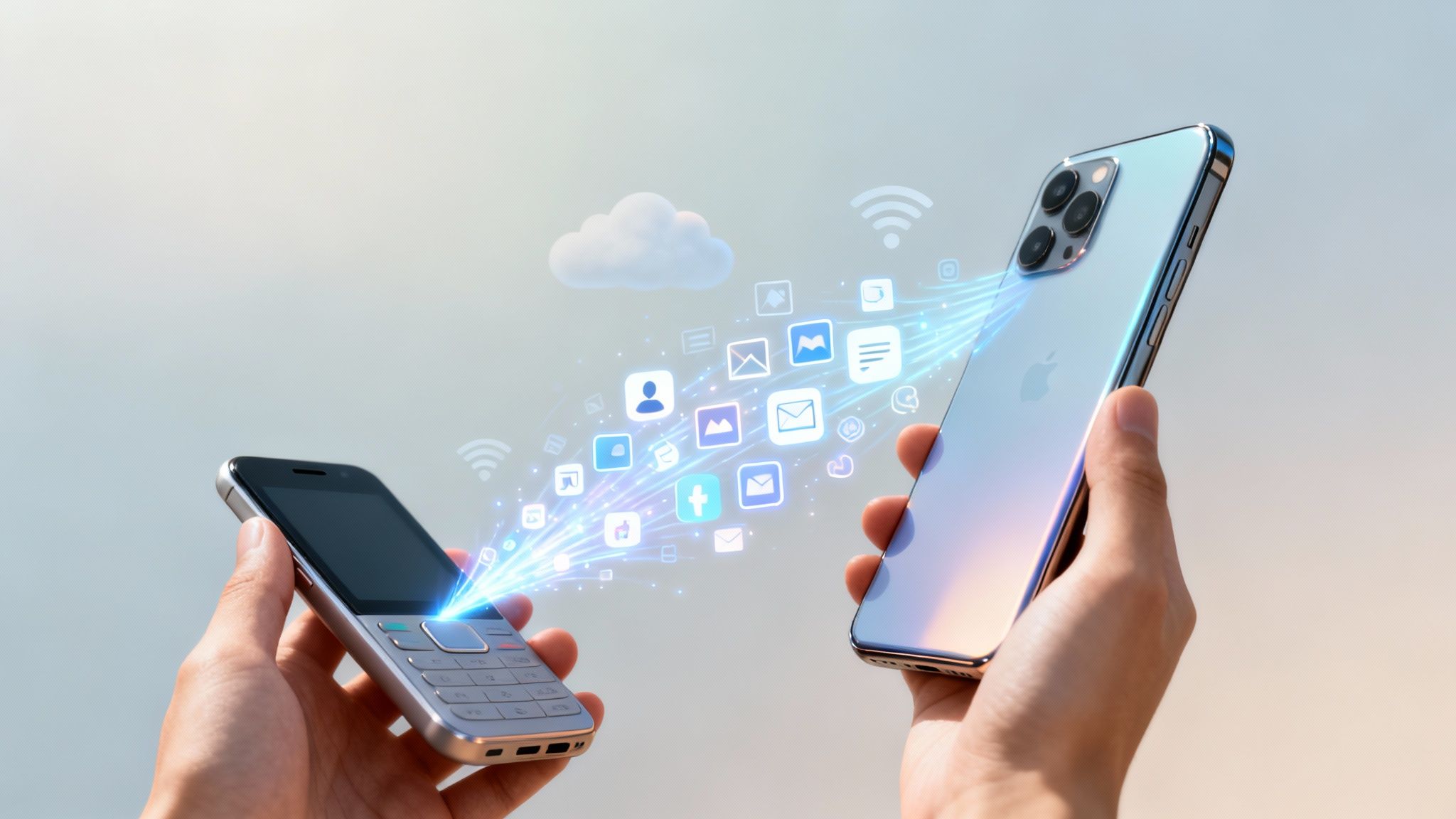
A modern Android migration starts during setup on the new phone. Google's current flow guides you through SIM activation, account sign-in, connection to the old device, selection of the content to copy, and restoration on the new device. Depending on the phones and transfer method, the process can include photos, videos, contacts, messages, calendar data, Google Account details, passwords, Wi-Fi credentials, and eSIM information (Google's Android transfer guide).
That sounds like a complete handoff, but the result is layered. Contacts and Google-synced information may return through the account. Apps may download again from Google Play. Direct transfer can move local items that aren't already in the cloud. A messaging app, authenticator, password manager, or financial app can still require its own backup and sign-in process.

The three paths available during setup
- USB-C transfer: A wired connection moves data directly between the phones. It avoids some wireless pairing problems and is usually the first option I'd choose when the cable is compatible and both devices have the required ports.
- Wireless transfer: The phones connect during setup without a physical cable. It's convenient, but Wi-Fi pairing, battery level, interference, and device compatibility can affect the process.
- Cloud restore: Google restores backed-up information through your account. This is valuable when the old phone isn't available, but it can't recover anything that never reached the backup or that an app doesn't support.
Google's newer migration flow is broader than older Android-to-Android moves, but it still isn't a byte-for-byte copy. WhatsApp or Signal histories, authenticator tokens, secure app storage, and in-app sessions may need manual handling. A successful transfer gets the new phone usable. Verification gets it trustworthy.
Preparing Both Phones Before You Start
Preparation prevents more failures than repeated restarts. Keep the old phone unlocked and available, make sure the new phone has enough free space, and don't begin the migration while either device is nearly out of battery.
Start on the old phone by opening its Google backup settings and confirming that a recent backup has completed. Open Google Photos and check that pending items have finished syncing. Photos stored only on the old device won't appear because you signed in on the new one. You should also update important apps before starting, especially messaging, password, finance, and authentication apps.
Use this phone data backup guide for a broader pre-switch checklist. If email is part of the move, review account settings before wiping anything. Instructions for Gmail and Outlook on Android can help you confirm whether messages are syncing through the account or stored in a way that needs separate attention.

A practical pre-transfer check
- Charge both phones: A transfer can run for a long time, and a device that powers down halfway through may leave an incomplete restore.
- Use the same Wi-Fi network: Google's wireless setup expects both devices to communicate during onboarding. A stable connection is more important than chasing a particular network band.
- Keep the old phone's screen lock available: The setup wizard may ask for the old phone's PIN, pattern, or password. Don't remove security controls unless a specific manufacturer instruction requires it.
- Locate a suitable USB-C cable: A charging cable isn't always a data cable. If the wired path fails to detect the old phone, try a known data-capable cable rather than repeatedly restarting setup.
- Check storage: Compare the old phone's occupied storage with the new phone's available space. Leave room for the operating system, restored apps, and later updates.
- Record special recovery details: Save authenticator recovery codes, confirm password-manager access, and complete backup steps inside messaging apps before the transfer begins.
Google says the transfer is intended to happen during initial setup and may not be available afterward. Its guidance also notes that restore compatibility works when both devices use the same Android version or when the new phone runs a later version, and the complete restore can take up to 24 hours, depending on what's being restored (Google's Android transfer instructions).
Running the Built-In Android Transfer During Setup
Turn on the new phone and follow the setup wizard until you reach Copy apps and data or similar wording. Choose to copy from an old device, then keep the old phone nearby. The labels can vary by manufacturer, but the sequence is recognizable: connect the phones, verify the connection, select content, and let Android begin the copy and restoration process.

The cable route
Connect the phones with a USB-C data cable when the setup wizard asks how you want to connect. Open the old phone, approve the connection, and review the categories shown on the new phone. Select the items you need, such as apps, contacts, messages, call history, device settings, and locally stored photos.
A cable is the better first choice when the phones are close together and the connection is recognized. It reduces dependence on wireless pairing, but it doesn't override app restrictions. If an app doesn't support restoration of its private data, a cable won't necessarily force that data across.
The wireless route
Choose the wireless option when you don't have a suitable cable or when the devices support a guided wireless connection. The old phone may show a prompt, QR code, or verification request. Follow the on-screen instructions rather than leaving setup to search indefinitely.
Google's help guidance highlights practical requirements such as keeping both devices charged, connected appropriately, and available during the initial setup. It also lists problems including QR scan failures, storage shortages, missing app prompts, pairing issues, lengthy stalls, battery loss, and text-message delivery problems (Google's Android transfer troubleshooting).
What the progress screen means
The first phase may copy local content. The next phase can restore account data, download apps, and rebuild settings. A home screen that appears before every app is ready doesn't mean the process has finished. Open the Play Store and check for pending downloads, then leave the new phone connected to power and Wi-Fi while background restoration continues.
If you need carrier service during setup, handle the SIM or eSIM step carefully. Carrier activation can be separate from personal-data transfer, so use the provider's instructions or these eSIM transfer instructions before assuming the mobile line moved correctly. A detailed new Android phone setup guide can help with the remaining onboarding tasks.
Choosing Between Manufacturer Tools and Third-Party Options
Google's built-in flow is the sensible baseline for most cross-brand Android moves. A manufacturer utility can be more useful when both phones come from the same brand because it understands that company's launcher, settings, and proprietary apps.
| Tool Name | Best For | Transfers App Data | iPhone Support | Cost | Reliability Rating |
|---|---|---|---|---|---|
| Google Android transfer | Cross-brand Android migrations | Partial, depending on app support | Limited, through supported migration paths | Included | Strong baseline |
| Samsung Smart Switch | Samsung-to-Samsung moves | Broader for Samsung-specific content, still app-dependent | Supported for selected data | Included | Strong for compatible Samsung devices |
| OnePlus Clone Phone | OnePlus device moves | Varies by app and device | Limited | Included | Useful within supported models |
| Xiaomi Mi Mover | Xiaomi device moves | Varies by app and device | Limited | Included | Useful within supported models |
| Motorola migration tools | Motorola device moves | Varies by app and device | Limited | Included | Useful within supported models |
| MobileTrans or Dr.Fone | Narrow recovery or selective transfer cases | Depends on the product and data type | Varies | May involve subscriptions or paid features | Case-specific |
Samsung Smart Switch can be worth using for a Samsung-to-Samsung move because manufacturer-specific layouts and content may be outside Google's normal restore scope. OnePlus, Xiaomi, and Motorola tools follow the same general logic. They can improve same-brand coverage, but they don't guarantee that private third-party app databases, banking sessions, or authentication tokens will transfer.
For an iPhone-to-Android move, Apple's platform boundaries limit what any migration tool can extract. Google's supported switch process can move selected information, but individual apps still control their own data and account recovery. Follow a focused guide to switching from iPhone to Android before erasing the iPhone, particularly if message history, photos, or app purchases matter.
Third-party desktop programs can help with a documented gap, such as selective SMS handling, but they add another party to a sensitive process. Check what the software can access, how it stores data, and whether payment is required before installing it. Use manufacturer software for same-brand advantages, Google for the general Android path, and third-party tools only when you can name the exact problem they solve.
Understanding What Transfers and What Does Not

A new phone can show the familiar wallpaper and app icons while important records are still missing. Google's restore guidance separates account-backed information from data controlled by individual apps. System settings and Wi-Fi credentials often return through the standard process, while SMS, call logs, and app-specific content require closer checking (Google's Android restore guidance).
The transfer success-rate chart presents the practical pattern: system settings and Wi-Fi passwords tend to restore more reliably than third-party app data. Texts, call logs, banking apps, and other protected content may not return unless the relevant backup or in-app transfer method was used. Treat these figures as an illustration of uneven coverage, not a guarantee for your phones.
The three practical risk levels
More dependable: Google Account contacts, calendar data, many system settings, Wi-Fi credentials, and Google Photos items that have already synchronized. These usually come from the account or the standard migration flow.
Conditional: Third-party app data, SMS, MMS, call logs, launcher layouts, and device-specific settings. Results depend on the Android version, backup configuration, manufacturer utility, launcher, and developer support.
Manual by default: Banking sessions, authenticator tokens, secure-folder material, sensitive credentials, and chat histories that require an in-app backup. Android's app sandbox prevents the transfer tool from freely copying private databases unless the app supports backup or migration.
Before switching, open each high-risk app and check for its own backup, export, or transfer setting. Messaging apps commonly use separate restore instructions, while authentication apps may require an export process or recovery code. Keep a separate contacts export available by following this contact transfer guide.
A restored home screen proves very little. Open the accounts and apps that would cause the most trouble if they locked you out, then verify photos, messages, contacts, call history, and authenticator access before wiping the old phone. The transfer wizard moves the platform's supported data. It cannot replace an app's own recovery system.
Fixing Common Transfer Failures and Stuck Processes
A stalled transfer rarely means the new phone needs an immediate factory reset. First identify the step that failed, then change one condition at a time so you know what fixed it.
Wireless transfer stops moving
A frozen progress indicator usually points to a disrupted connection, low battery, or a problem with one item in the transfer queue. Stop the session, restart both phones, and try again from the copy-data screen if it is still available. If the wireless connection remains unreliable, a USB-C data cable can provide a more stable path, provided the cable supports data rather than charging only. Airplane mode can also clear a persistent pairing state, but turn Wi-Fi back on before retrying.
If the same connection trouble affects other devices or services, follow this guide to mobile hotspot problems. Do not leave a stalled process running until either phone loses power.
Setup hangs while preparing data
On the old phone, open Settings, select Apps, find Google Play Services, choose Storage, and clear its cache. Install pending system and app updates, then retry. Clear only the cache unless Google's troubleshooting guidance specifically calls for removing stored account data or taking a more destructive step.
Apps appear but won't open
A home-screen icon can appear before its Play Store installation finishes. Open Google Play, inspect the pending queue, and reinstall any app that remains stuck. The app may also require a fresh sign-in because its private session data did not transfer.
Messages are missing
Check the old phone's messaging app for a completed backup and confirm that the new phone uses a compatible restore method. Samsung users moving between compatible Galaxy devices may have another route through Smart Switch. Otherwise, restore messages from the app's supported backup instead of repeatedly running the general Android transfer.
Account verification loops
Repeatedly entering the same Google Account details rarely resolves a verification loop. Sign in through a browser, handle any security alert or verification request, then return to the new phone. If setup is already complete, the transfer wizard may require a factory reset to run again. Use that reset only after confirming that the new phone has no data you still need, and preserve any partial restore before starting over.
Post-Transfer Verification and Security Checklist
Keep the old phone until the new one passes a deliberate audit. Open Google Contacts and Calendar, check Drive files, review Google Photos, and compare important records with the old device. Test banking apps, password managers, and authenticator apps, since these often require fresh sign-ins or recovery steps after a partial restore.
Make a test call, send a text, and briefly turn off Wi-Fi to confirm that the SIM or eSIM and mobile data work. If the eSIM did not appear, follow the carrier's activation process or these eSIM transfer instructions. Open WhatsApp, Signal, and other messaging platforms to confirm that each app's own restore finished.
Before erasing the old phone
- Confirm authentication: Test two-factor recovery methods and password-manager access.
- Check sensitive applications: Re-enter banking credentials only through official apps.
- Verify carrier service: Test calls, messages, and mobile data without Wi-Fi.
- Review device security: Confirm screen lock, biometrics, backup, and Find My Device.
- Inspect private content: Check secure folders, downloads, recordings, documents, and app-specific media.
- Remove the old account before reset: Sign out and disable protection features so the next owner does not face an activation lock.
Treat the old phone as your safety copy until every check passes. For business-focused guidance on protecting information during device changes, see data security for SMBs in Indiana.
Tech Today offers practical guides for Android setup, backups, account management, and troubleshooting, including steps official transfer wizards often leave unclear. Visit Simply Tech Today before wiping the old phone.


Member discussion