
Where Is the Home Button on iPhone: Your 2026 Guide

It depends on your iPhone model. Older iPhones have a physical Home button at the bottom center of the front screen, while newer iPhones use a swipe-up gesture or an on-screen button instead.
That's why this question can feel strangely confusing. You might be holding an older iPhone and just need a quick refresher on what the button does, or you might be using a newer iPhone, staring at the screen, and wondering why the familiar button seems to have vanished.
Both situations are normal. Apple changed the iPhone over time, and the Home button went from being the center of almost everything you did to something many newer models no longer have.
Why Your iPhone Might Not Have a Home Button
A lot of people search for where is the Home button on iPhone when they've just switched devices. The old phone had a clear circular button on the front. The new one doesn't. That can make even simple tasks, like going back to the Home screen, feel harder than they should.
Apple's guidance now separates iPhones into two broad experiences. Some older models still use a physical Home button. Newer models use a swipe-up or bottom-bar gesture instead, as explained in this Be Connected guide on using the Home button on an iPhone.

Two common reasons people ask this
Some readers are using an older iPhone they haven't touched in a while. They remember the button, but not exactly where it is or what it does beyond “go home.”
Others are using a newer Face ID iPhone and expecting to find a hardware button that isn't there. In that case, the actual question isn't where the button is. It's how to get the same result without one.
Practical rule: If your iPhone has a full-screen front with no circular button below the display, you're using Apple's newer gesture system.
That shift is part of a broader smartphone design change away from front-mounted hardware navigation. If you're also comparing how different phone designs handle navigation, this overview of Android vs iPhone pros and cons gives useful context.
What changed over time
On older iPhones, the Home button was the anchor point. You pressed it to leave apps, access the phone, and move around the interface.
On newer iPhones, Apple replaced that with gestures and software controls. So the button didn't move somewhere else. On many models, Apple removed the physical button and replaced its job with swipes and accessibility tools.
Which iPhone Models Have a Physical Home Button
If your iPhone has a Home button, it's located at the bottom center on the front of the device, directly below the screen. On classic models, it looks like the round button you probably remember right away.
For people asking the literal version of where is the Home button on iPhone, that's the direct answer. If you look at the lower front bezel and see a circular button area, that's it. If the front is all screen, you don't have a physical Home button.
A quick way to tell without knowing the model name
Use this simple check:
- Circular button below the display: You have a physical Home button.
- No button, edge-to-edge screen look: You use gestures instead.
- Fingerprint access via the front button: That's also a sign you have a Home button model.
This becomes especially helpful if you inherited a phone, bought a used device, or don't remember whether it's an SE, an older standard iPhone, or a newer Face ID model.
iPhone models and Home button status
| iPhone Model / Generation | Has Physical Home Button? |
|---|---|
| Older classic iPhone models with Touch ID on the front | Yes |
| iPhone SE models with the classic front-button design | Yes |
| Newer Face ID iPhones with all-screen fronts | No |
That table stays broad on purpose. Apple's official support guidance confirms the bigger distinction that matters in daily use: some iPhones have a Home button for Touch ID and navigation, while newer generations do not. If you're comparing different phone generations side by side, a phone comparison site can make visual differences much easier to spot.
If your phone unlocks with Face ID and has no circular front button, stop searching the frame of the device. There isn't a hidden Home button waiting to be found.
One detail that confuses people
Some people say “physical” Home button even when they mean the front Home control in general. That matters because older iPhones had an actual front-mounted button, while newer ones may only offer a software substitute like AssistiveTouch.
So if your search came from habit, you're not wrong. You're just asking a question that now has two different answers depending on the model in your hand.
Mastering Your Physical Home Button Functions
If your iPhone does have a Home button, it's more than a location marker. It's one of the main controls on the device.
Apple says that on iPhones with a physical Home button, it's used to gain access to the device and make purchases with Touch ID, a single press returns you to the Home screen, and a double press opens the App Switcher in Apple's iPhone button guide.

Single press
Press the Home button once when you're inside an app. Your iPhone takes you back to the Home screen.
That's the most basic and most used function. If you ever feel lost in an app, one press is the quickest reset.
Double press
Press the button twice in a row. That opens the App Switcher, where you can see recently used apps and move between them.
This is handy when you're copying something from Notes into Messages, switching from Safari to Mail, or bouncing between a map and a calendar event.
Press and hold
On many older iPhone setups, pressing and holding the Home button can trigger Siri. If yours responds that way, that's normal behavior for a Home button iPhone.
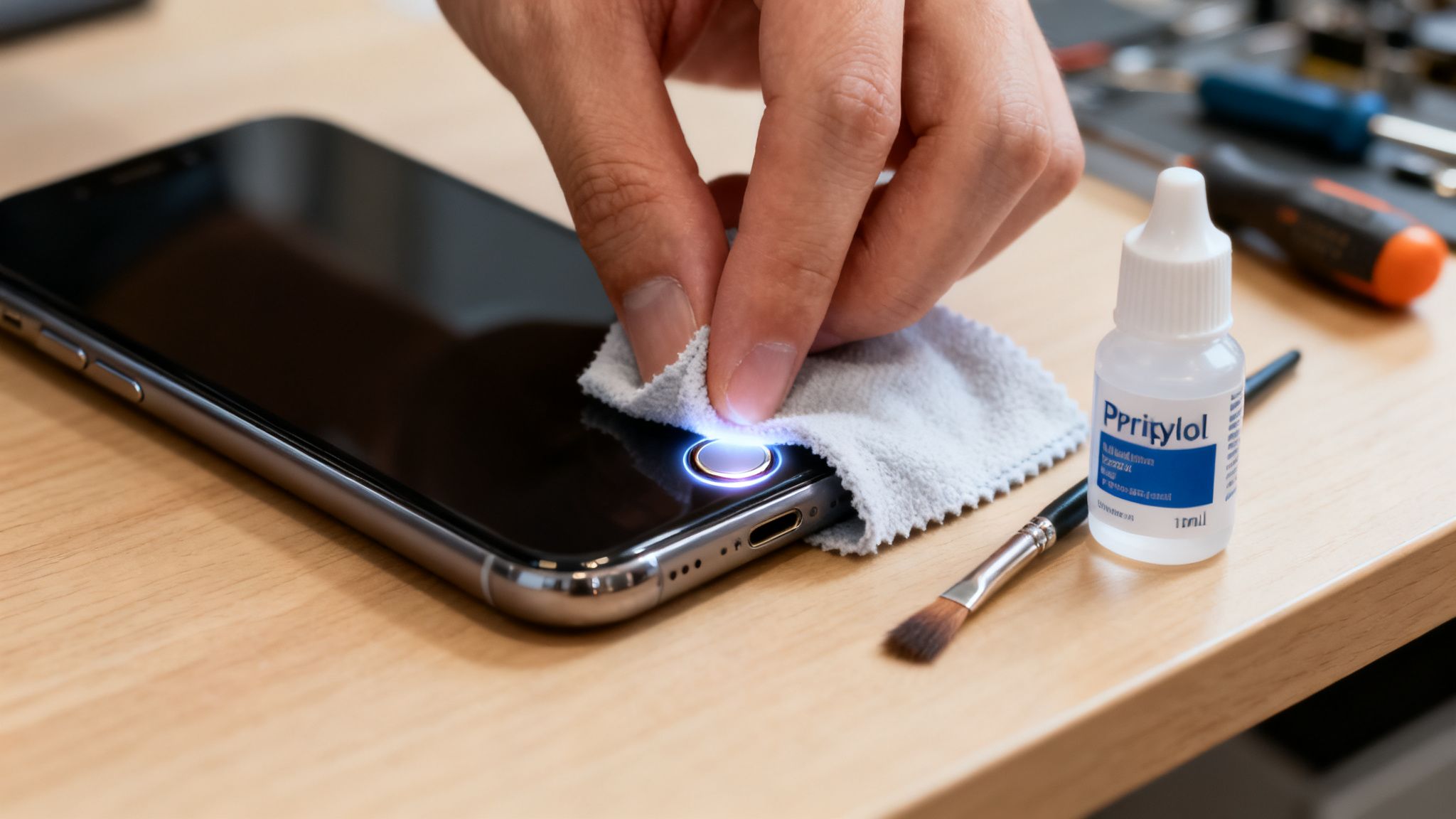
If your button isn't responding properly, don't force it or keep pressing harder. It may be smarter to use a software workaround first. This guide on a Home button not working walks through practical next steps.
Touch ID and purchases
The Home button also plays a security role on supported models. If your iPhone uses Touch ID, that front button helps open the phone and approve purchases.
A good way to think about it is this: on older iPhones, the Home button is both a navigation control and an identity check point.
That's why it feels so central on older devices. It isn't just for leaving apps. It's tied into how the phone recognizes you and confirms actions.
How to Navigate iPhones Without a Home Button
You pick up a newer iPhone, look for the familiar button under the screen, and realize there is nothing to press. That moment confuses two kinds of people more than anyone else. People coming back to an older iPhone habit expect a physical shortcut, and people using a newer model need to learn the software version of that same idea.
On newer iPhones, Apple replaced the button with gestures. The bottom edge of the screen now does the job the old button used to do. If you want background on that design shift, this overview of the iPhone's shift away from the Home button shows how Apple changed the interface over time.
The main replacement gesture
To go Home, place your finger at the bottom of the screen and swipe up.
That motion is the closest match to a single Home button press on older iPhones. It works like closing the app you are looking at and returning to your main starting point.
Other gestures that replace old Home button habits
Once you learn the first swipe, the rest starts to click. The same bottom area controls several familiar actions:
- Go to the Home screen: Swipe up from the bottom edge.
- Open the App Switcher: Swipe up from the bottom and pause for a moment.
- Move between recent apps: Swipe left or right along the bottom bar.
For older iPhone users, this helps to remember: one quick upward swipe replaces the old press, and a swipe with a short pause replaces the old double press. For newer iPhone users, the key lesson is that the screen itself has become the button.
The tricky part is that gestures are invisible until your hands learn them.
That is why a buttonless iPhone can feel awkward at first, especially during the first day or two. If you use your phone for sketching, notes, or tapping small controls, an iphone stylus can make gesture-based use feel more precise.
Swipe up for Home. Swipe up and pause for multitasking. That one motion is the key to most of the new navigation system.
If you want the phone to feel easier to use day to day, you can also rearrange apps and shortcuts with this guide on how to customize the Home screen on iPhone.
Adding a Virtual Home Button with AssistiveTouch
If you're using a newer iPhone and you miss the old button, the best fix is AssistiveTouch. This is Apple's on-screen accessibility control that can act like a software version of the Home button.
For iPhones without a physical Home button, AssistiveTouch can be enabled from Settings > Accessibility > Touch, and the floating button can be set so a single tap performs the Home action, as shown in this AssistiveTouch walkthrough.

How to turn it on
Follow these steps on your iPhone:
- Open Settings.
- Tap Accessibility.
- Tap Touch.
- Tap AssistiveTouch.
- Turn AssistiveTouch on.
A movable on-screen button will appear. You can drag it to the side if it's covering something.
How to make it act like the old Home button
After turning it on, customize the actions so the floating button feels familiar:
- Stay inside AssistiveTouch settings.
- Find the action settings for Single-Tap, Double-Tap, or Long Press.
- Set Single-Tap to Home.
That setup gives you the closest match to the old one-press Home button behavior.
A useful custom setup
Some people like to go further:
- Single-Tap: Home
- Double-Tap: App Switcher
- Long Press: Another shortcut you use often
That arrangement recreates some of the old logic of a physical button while keeping the flexibility of software controls.
If you're still getting your phone configured after an upgrade, this guide on how to set up a new iPhone pairs well with AssistiveTouch setup.
The floating button isn't just for accessibility needs. It's also a comfort feature for anyone who prefers the older iPhone feel.
Frequently Asked Questions About the Home Button
Can I add a real physical Home button to a newer iPhone
No. Newer iPhones without a front Home button don't have a hidden hardware option you can turn on later.
Apple's current documentation shows the Home button is no longer universal, and users who want a similar function can use AssistiveTouch with actions like Single-Tap = Home in this Apple guidance summary on modern iPhone navigation.
What if my old Home button is broken
Use AssistiveTouch as a practical workaround. It gives you an on-screen control for Home without depending on the damaged hardware button.
If you think the problem may need repair, this ultimate iPhone repair guide is a useful starting point for understanding your options.
How do I go Home on a Face ID iPhone
Swipe up from the bottom of the screen. That replaces the old single press.
If that still feels awkward, turn on AssistiveTouch and set Single-Tap to Home so you get a visible button again.
Does the Home button still matter today
Yes, but mostly in two different ways. On older iPhones, it's still the front control you press. On newer iPhones, the idea of “Home” still matters, but the action is handled by gestures or software instead of hardware.
Why do search results make this sound simpler than it is
Because the question sounds like a location question, but often it's really a navigation question. Many people don't want to know where the button sits. They want to know how to do Home-button tasks on an iPhone that no longer has one.
If you like clear, no-jargon help like this, Simply Tech Today is worth bookmarking. It's a friendly place to get practical tech explanations, everyday troubleshooting tips, and simple guides that make phones, apps, and new features easier to understand.
Member discussion