
Why Is My Laptop Running Slow? 6 Fixes You Can Try Now

Your laptop usually doesn't turn slow all at once. First it hesitates opening a file. Then browser tabs pause for a beat. After that, typing feels delayed, the fan gets louder, and even simple tasks start to feel heavier than they should.
That's the point where the question often arises: why is my laptop running slow when it hasn't had anything dramatic done to it. In practice, the answer is usually less mysterious than it feels. A handful of common issues cause most slowdowns, and the best way to fix them is in order, starting with the easiest wins before moving into hardware or repair decisions.
The All-Too-Familiar Grind of a Slow Laptop
A slow laptop wears you down in small ways first. You click something twice because the first click didn't seem to register. You wait for a document to open. You switch between tabs and the whole machine stutters. After a while, you stop expecting speed and start planning around delay.
That's what makes laptop slowdowns so frustrating. The machine still works, technically. It just gets in your way all day. For students, that means wasted study time. For work, it means broken focus and tasks that should take minutes stretching much longer.

A good troubleshooting process matters because random fixes rarely help. Restarting might buy you a little time, but if the problem is startup clutter, an old hard drive, or overheating, the slowdown comes right back. If you want a broader checklist to diagnose a slow computer, that resource is useful alongside the steps below.
What usually works first
The fastest path is to tackle the likely causes in this order:
- Start with software clutter: Too many apps launching with Windows or macOS can drag performance down before you even open anything.
- Check available space: If your drive is packed, the operating system loses room to breathe. If you need help with that piece, this guide on freeing up storage space is a solid companion.
- Look at hardware limits: Old storage and low memory can turn everyday multitasking into a crawl.
- Watch for heat: A laptop that gets hot often slows itself down to protect the processor.
- Run health checks: Malware and damaged system files can cause sudden or stubborn lag.
Slow laptops feel complicated, but the fix is often simple once you identify the first bottleneck instead of guessing.
Taming Background Apps and Startup Bloat
The first place I'd investigate on almost any slow laptop is the processes operating in the background. Many systems are busy before you even open Chrome, Word, Zoom, or anything else you care about.

Studies show that a typical laptop has 15 to 20 unnecessary applications running at startup, which can consume up to 30% of total CPU capacity and 40% of available RAM before the user even opens a single program. Disabling these can immediately improve responsiveness.
What to check on Windows
Windows gives you the tools you need.
- Press Ctrl + Shift + Esc to open Task Manager.
- Click the Startup tab.
- Look for apps you don't need launching every time the laptop turns on.
- Disable non-essential items such as music apps, chat tools you rarely use, game launchers, duplicate cloud sync clients, and vendor utilities you never open.
You can also stay in Task Manager and sort the Processes tab by CPU, Memory, or Disk. That often exposes the troublemaker. I regularly see cloud sync, browser helpers, update agents, and manufacturer utilities eating resources all day.
What to check on macOS
On a Mac, open Activity Monitor from the Utilities folder. Sort by CPU and Memory to see what's doing the most work. Then check Login Items in system settings and remove anything that doesn't need to start every time you sign in.
If part of the problem is old software you no longer use, this walkthrough on how to delete an app off Mac can help clean things up properly.
Practical rule: If you don't need an app the moment your laptop starts, it probably shouldn't launch at startup.
Bloatware is often the hidden drain
Preinstalled software deserves special attention. A lot of laptops ship with trial antivirus suites, updater tools, support assistants, syncing utilities, and branded system helpers. Some are harmless. Some never stop running.
A quick way to consider:
| Area to inspect | What it often includes | What to do |
|---|---|---|
| Startup apps | Music clients, cloud tools, chat apps | Disable auto-launch |
| Background processes | Updaters, sync agents, vendor utilities | End task temporarily, then uninstall if unneeded |
| Installed apps list | Trials, duplicate utilities, old programs | Remove what you don't use |
Don't go wild and disable everything. Leave core system items alone, especially anything clearly tied to Windows, Apple, graphics drivers, input devices, or security software you actively use. The goal isn't a bare machine. The goal is to stop wasting memory and CPU on software that adds nothing to your day.
Identifying Your Biggest Hardware Bottleneck
If startup cleanup helped only a little, the next question is hardware. Laptops feel slow for different reasons, but one bottleneck shows up again and again: not enough RAM paired with an old hard disk drive.

When memory fills up, the operating system borrows space from the storage drive as temporary working room. That's called virtual memory, and it's much less painful on a solid state drive than on an old mechanical drive.
When RAM is maxed out, operating systems use the storage drive as virtual memory. On an aging Hard Disk Drive (HDD), this can reduce overall system throughput by over 90% compared to a Solid State Drive (SSD), increasing boot times from 30 seconds to over 5 minutes.
How to see what you're working with
You don't need to open the laptop right away.
On Windows:
- Check memory pressure: Open Task Manager and look at the Performance tab. If memory stays near full during normal work, that's a clue.
- Check drive type: In many systems, Device Manager or system information can reveal whether you have an HDD or SSD.
- Check the processor too: If you're unsure what CPU is inside your laptop, this guide on how to check CPU details makes that part easy.
On macOS, Activity Monitor can show memory pressure, and system information will identify storage hardware.
Why HDD systems feel especially bad
A processor can still be decent and a laptop can still feel awful if the storage is the weak link. That's because modern operating systems constantly read and write little bits of data in the background. Indexing, updates, browser caching, app launches, and swap activity all hit the drive.
An SSD handles that kind of mixed activity much better. An HDD has to physically move to read and write data. Once you add low memory to the mix, the machine starts swapping constantly and everything piles up.
If your laptop freezes while disk activity stays pinned and basic apps take forever to open, storage is often the real problem, not the processor.
What upgrade matters most
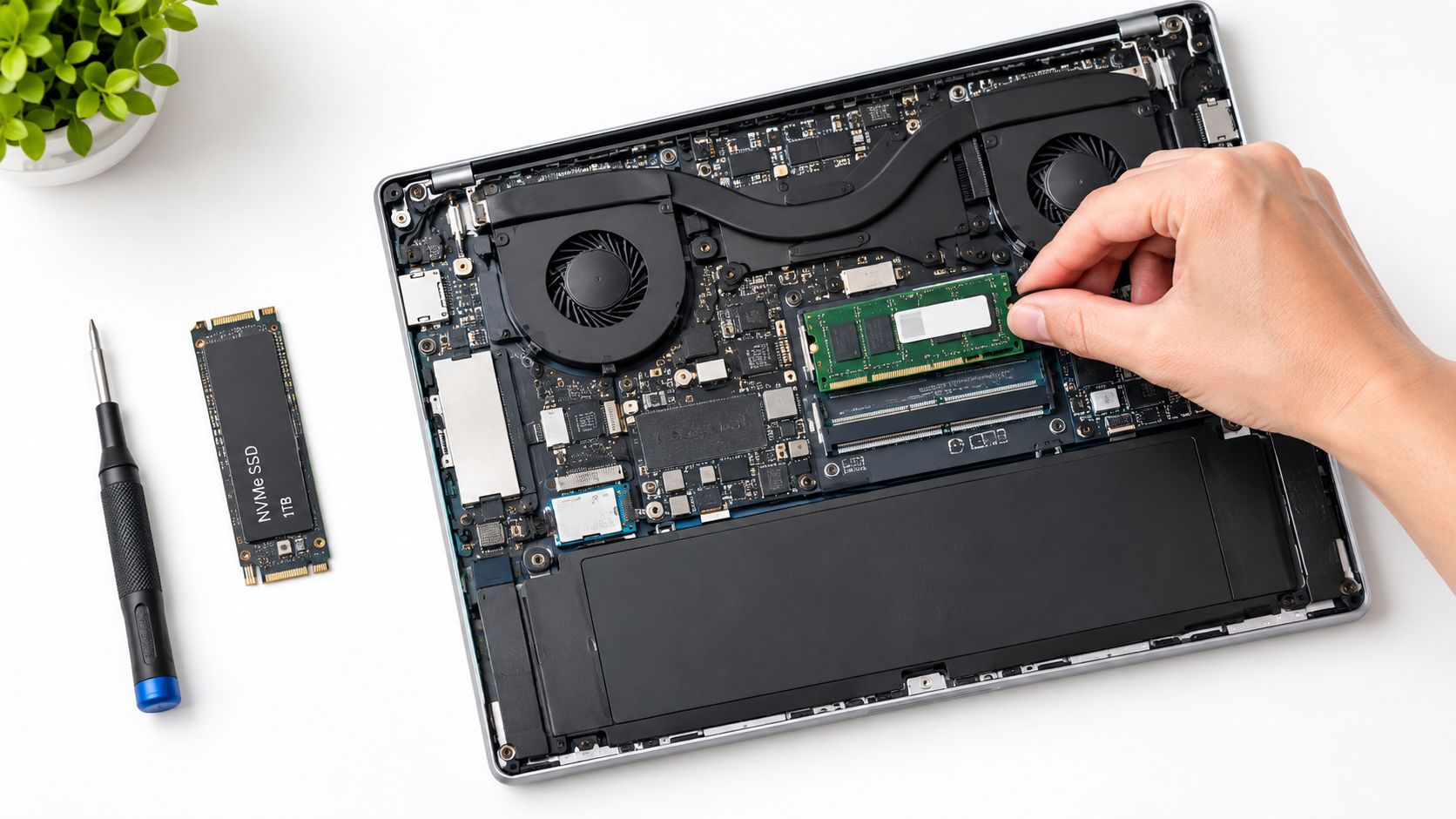
If you have an HDD, replacing it with a 2.5-inch SATA SSD is often the most dramatic single improvement on an older laptop. If your laptop also has very little memory, upgrade the RAM at the same time if the machine allows it. The pairing matters.
Here's the practical trade-off:
- SSD only: Great if the current drive is the clear problem, but limited if memory is still too tight.
- RAM only: Helps multitasking, but won't fully solve the pain of an old HDD.
- SSD plus more RAM: Best route when both storage and memory are holding the system back.
That combination is especially important on older devices. If the laptop keeps dumping memory to storage because RAM is too low, you're not just dealing with poor performance. You're also putting more wear on the drive than necessary.
Checking for Overheating and Performance Throttling
Some laptops feel fine at idle and then turn sluggish the moment you start doing real work. That pattern usually points to heat, not a lack of raw specs.

Processors protect themselves. When temperatures climb too high, the system cuts performance so the chip doesn't overheat. That's called thermal throttling. It feels like your laptop suddenly lost power, but it is attempting to protect itself.
How to check temperatures safely
Use a monitoring tool like HWMonitor or CoreTemp and watch what happens at idle and under load. A healthy target is to keep idle temperatures below 45°C and load temperatures under 85°C. If your readings stay above that range, heat is likely dragging performance down.
When a laptop slows under load, the primary culprit is often thermal throttling. Monitoring CPU temperatures and cleaning clogged fans and vents has a success rate exceeding 75% for restoring performance. Also, switching from 'Power Saver' to 'High Performance' mode can boost benchmark scores by up to 40% according to this thermal throttling and performance guide.
The fixes that usually help
Start simple:
- Clean the vents: Use compressed air on intake and exhaust openings. Hold the can upright and use short bursts.
- Use a hard surface: Beds, blankets, and laps can block airflow.
- Listen to the fan: If it's constantly loud during light work, airflow or heat buildup deserves attention.
- Check the power plan: On Windows, switch from Power Saver to High Performance if your laptop is stuck in a restrictive mode.
If you need a step-by-step cleanup process, this guide on fixing laptop overheating is worth keeping open while you work.
Heat-related slowdowns are sneaky because the laptop may look fine on paper. The issue isn't the chip you bought. It's the temperature the chip is being forced to run at.
One caution with storage upgrades and cleanup tools: SSDs don't need old-style defragmentation the way HDDs do. That's a common point of confusion, and it's worth checking your drive optimization settings if you've changed storage recently.
Scanning for Malware and Corrupt System Files
If the slowdown felt sudden, or if the laptop still drags after the more common fixes, run a system health check. During this, you look for software that shouldn't be there and Windows files that may no longer be intact.
Malware can use processor time, memory, and disk activity without making itself obvious. The built-in Windows Security tools are a good place to start. Run a full scan, not just a quick one, and let it finish. If you already use another trusted antivirus product, do the same there, but avoid piling on multiple real-time antivirus tools because they can create their own performance problems.
Check free space first
Your operating system needs breathing room to update, cache, and manage virtual memory. For your operating system to function properly, you must ensure at least 15% free disk space to prevent slowdowns. Running out of space can halt system updates, prevent virtual memory usage, and cause applications to crash, as Lenovo notes in its guide to slow laptop causes and fixes.
A nearly full drive can make a laptop feel broken even when nothing is technically failing.
Run Windows file repair tools
On Windows, open Command Prompt as administrator and run:
- sfc /scannow
- Then, if needed, run the DISM repair commands afterward
System File Checker looks for damaged or missing Windows files and repairs what it can. If the machine has been crashing, freezing, or acting strangely after updates, this can help restore normal behavior.
What the results mean
Here's a simple way to read what you find:
| Check | Good result | Problem sign |
|---|---|---|
| Malware scan | No threats found | Active threats or repeated detections |
| Disk space | Comfortable free space | Drive almost full |
| SFC scan | No integrity violations | Corrupt files found or unrepaired files |
Don't skip the full scan just because you “don't visit sketchy sites.” Malicious downloads, browser extensions, and bundled installers catch people in ordinary use cases all the time.
If malware is found and removed, restart and test the laptop before changing anything else. If system file repair finds damage, give Windows a clean reboot and see whether startup, app launches, or general responsiveness improve.
Deciding When to Fix Versus When to Upgrade
There's a point where troubleshooting stops being practical. If you've cleaned up startup junk, confirmed the drive situation, checked temperatures, and run system health tools, you usually know whether the laptop has a fixable bottleneck or whether it's old enough that every task feels like work.
A repair makes sense when the issue is clear and the solution is targeted. A laptop with too many startup apps, a clogged cooling path, or an obvious HDD bottleneck is often worth saving. Those problems have direct fixes, and the result can be a machine that feels usable again without a full replacement.
A simple decision filter
Ask yourself three things:
- Is the slowdown tied to one clear cause: If yes, fix that first.
- Can the laptop still meet your needs after the fix: Web browsing and documents are different from video editing or gaming.
- Are you comfortable doing the work: If the next step means opening the chassis and you'd rather not, labor costs may change the equation.
If the hardware is old but you only need basic tasks, you might not need a brand-new machine. In some cases, repurposing an older system with a lighter setup can stretch its life. This overview of Chrome OS on an old laptop is one example of that approach.
The wrong move is sinking time into random tweaks without a diagnosis. The right move is matching the fix to the actual bottleneck. Once you do that, the decision gets much easier.
If you like practical, plain-English tech help like this, visit Simply Tech Today for more straightforward guides on fixing devices, understanding everyday tech problems, and making smarter upgrade decisions without the jargon.
Member discussion