
WiFi Not Working on My Phone: A Practical Fix Guide

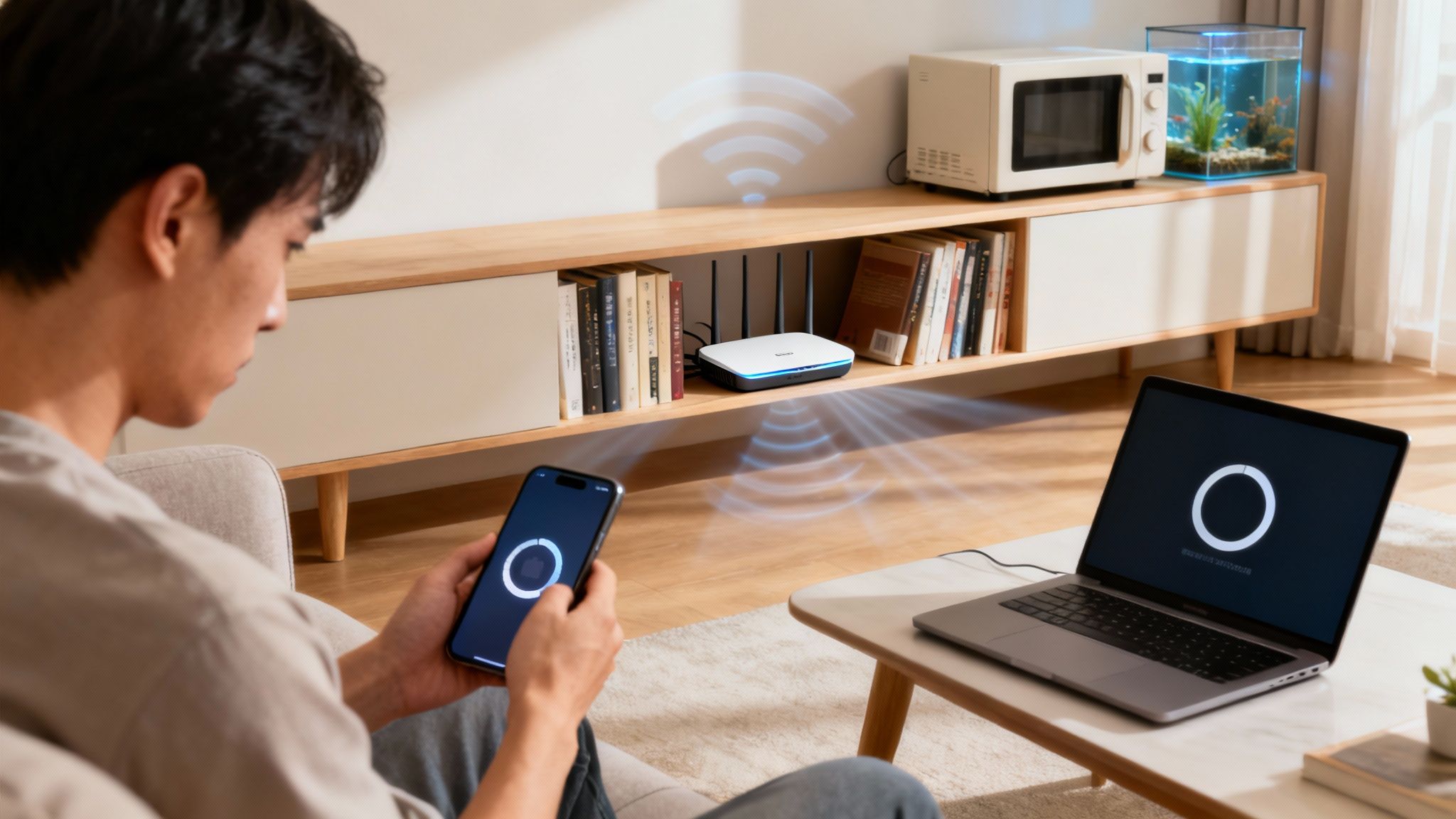
You're staring at your phone, the WiFi icon looks wrong, and nothing loads. Maybe the browser spins forever. Maybe apps work on mobile data but stall the second you switch back to WiFi. Don't start by resetting everything on the phone. First, prove whether the problem follows the phone or stays with the network, because that one test saves a lot of pointless tapping and a lot of bad guesses.
Why Your Phone WiFi Stops Working in the First Place
The phrase wifi not working on my phone sounds like one problem, but it usually hides several. A phone can fail because of the handset, the router, the ISP, the room you're standing in, or an app that's interfering with the connection. Google's Android help treats this as a layered problem, which is why it tells users to switch between WiFi and mobile data, check the signal indicators, move closer to the router if the bars are weak, and reboot the router by unplugging it for 30 seconds and waiting another 30 seconds after reconnecting (Google Android support).
That's the right mindset. Start by proving where the failure lives.
Start with the phone versus network test
The fastest way to avoid nonsense fixes is to isolate the fault. Try your phone on a different WiFi network, then try another device on your home network. Google's Fi help page recommends both checks before deeper resets, because they split the problem cleanly. If your phone fails everywhere, the issue follows the handset. If other devices fail too, the router or ISP is the likely suspect (Google Fi support).
Practical rule: if you haven't done the two-device test yet, you don't know enough to reset anything.
This is why the common “just factory reset it” advice is lazy. A healthy phone can look broken when the router is weak, misconfigured, or too far away. Google's guidance makes the point that a missing or weak WiFi indicator can mean the device is out of range, not defective (Google Fi support).

If you want a quick companion read for a similar symptom, this guide on WiFi connected but no internet access is worth keeping open in another tab. The point is the same, connection status and usable internet are not always the same thing.
Quick Fixes You Can Try in Under a Minute
Don't waste time in menus yet. Do the fast checks first, then test after each one. The order matters. Start by isolating the phone from the network, because a bad router can make a healthy phone look broken, and that's the mistake that sends people into pointless resets. Verizon and Google both put these basics near the top of their troubleshooting flow for a reason, they work when the issue is just a stuck connection state (Verizon WiFi troubleshooting, Google Android support).
Use the shortest reset first
Toggle WiFi off and on.
This refreshes the radio without touching saved networks. If the phone got stuck mid-handshake, this is often enough.Turn Airplane mode on for 10 seconds, then turn it off.
Google uses this step in its guidance because it clears out temporary connection glitches without changing your saved settings (Google Android support).Restart the phone.
Use this when the radio toggle does nothing. It clears out a stale network state in the operating system, but it will not fix a dead router or an outage from your provider.Move closer to the router.
If the WiFi bars are weak or missing, distance may be the whole problem. Test in the same room as the router before you blame the phone. That quick check separates a range issue from a real connection fault (Google Android support).
The mistake I see all the time is doing all four at once, then forgetting which one helped. Try them in order. Check after each step.
If WiFi starts working after a basic toggle, stop there. Don't keep digging just because the fix felt too easy.
If none of that changes anything, skip the phone-side guessing and test the network itself. A stale DNS response can also make a connection look half-dead, so a quick read on how to clear DNS cache is useful when the phone connects but loads nothing or loads the wrong thing. If you need a separate troubleshooting reference, keep reliable internet for China expats handy for related connection failures.

Forget the Network and Reconnect the Right Way
A stale saved network causes more trouble than people expect. The phone hangs on to the password, the security settings, and the old connection state, then keeps trying to reuse them after the router has changed. That is why forgetting the network is one of the first fixes worth trying, because it wipes the bad profile before you reconnect.
Forget it once, then rejoin cleanly
On Android, open your WiFi settings, tap the saved network, and choose Forget. On Samsung phones, the option usually lives under Connections, not in some buried menu, so go straight there and save time.
On iPhone, open Settings, tap Wi-Fi, tap the network name, then choose Forget This Network. That clears the saved profile and forces the phone to build the connection again from scratch.
Rejoin the network manually after that. Skip autofill if it keeps giving you trouble. Type the password again, choose the right band if your router splits 2.4 GHz and 5 GHz into separate names, and look for a captive portal sign-in page on hotel, café, or guest networks. If the page never shows up, the phone may say it is connected while the internet is still blocked.
A lot of “it connects but won't work” cases come from stale network profiles or login pages that never got accepted. If you need a practical follow-up for shared-device setup headaches, this guide on sharing a WiFi password on iPhone is worth keeping open.
For readers dealing with roaming, guest networks, or authentication weirdness, reliable internet for China expats is a solid example of how network authentication problems can look like ordinary WiFi failure when they are something else.
My rule: if one saved network keeps failing but other WiFi networks work, forget that profile before you touch anything more aggressive.
That one move fixes a lot of stubborn cases without wiping the rest of the phone. It also takes far less time than a full network reset.
When the Router or ISP Is the Real Problem
This is the part most guides gloss over. They keep pushing phone resets, but the better move is to isolate the problem first. Use your phone on a different WiFi network, then use a different device on your home network. That tells you fast whether the failure follows the phone or stays with the house.
If your phone works on a coffee shop network but fails at home, stop blaming the handset. The router, its placement, or your ISP is the likely culprit. If your laptop, tablet, or smart TV also fails on the same home network, the case against the router gets even stronger.
A router reboot is worth doing early. Google's router procedure is simple, unplug the router, wait about 15 to 30 seconds, reconnect it, and then give the lights a few minutes to normalize. Verizon gives a similar recovery path, starting with a full power cycle of the phone and network gear before deeper steps like network removal or reset.
If the phone says it is connected to WiFi but nothing loads, the problem may be upstream of the wireless link itself. That usually points to the internet path, not the phone. In other words, the phone may be talking to the router just fine while the router is not getting out to the web.
Router placement matters more than people admit. A unit stuffed in a corner, hidden behind furniture, or competing with other electronics can leave one room unusable even while the rest of the house works. Channel congestion and interference can do the same thing.
If you want to check the router side properly, use how to check router settings after you run the phone-vs-network test.
What each result means
| Test result | Likely cause | Next move |
|---|---|---|
| Phone works on other WiFi, home network fails for multiple devices | Router, placement, or ISP | Reboot router, check ISP, inspect home layout |
| Phone fails on every WiFi network | Phone settings, app conflict, or hardware | Forget network, reset network settings, try Safe Mode |
| Other devices work, but this phone doesn't | Phone-specific issue | Focus on the handset, not the router |
| WiFi connects but internet still doesn't load | ISP, captive portal, or router internet path | Contact ISP, confirm sign-in pages, restart modem |
If you are thinking beyond a single flaky home connection, internet redundancy options is a useful way to plan for backup access.
Advanced Fixes That Actually Work
If the problem follows the phone across different WiFi networks, stop blaming the router and move to the handset itself. Start with a network reset, because it clears the broken settings that survive the usual quick fixes. It also wipes saved WiFi passwords and Bluetooth pairings, so you will need to reconnect accessories and re-enter passwords afterward.
Reset the network stack, then test again
On iPhone, go to Settings > General > Transfer or Reset [device] > Reset > Reset Network Settings. On Android, the path sits in system reset settings, and Samsung puts the equivalent under its own reset menu structure. The exact labels change by brand, but the goal stays the same, clear the network stack and let the phone rebuild it from scratch.
Do this after the phone has failed on more than one network. That is the line where a network reset makes sense.
Practical rule: a network reset is a repair tool, not a guess. Use it when the evidence says the problem lives on the handset.
Safe Mode is the next move if a recent app may be interfering. Google recommends using Safe Mode to rule out third-party software, then uninstalling suspect apps one by one if connectivity comes back (Google Fi support). On iPhone, VPN and security tools can block WiFi until they are removed or disabled, as noted in Apple network troubleshooting.
Check updates before you go further. A phone running old software, or a router stuck on outdated firmware, can trigger strange connection behavior. If both devices are asking for updates, finish those first.
A factory reset belongs at the end of the list, not near the top. If the phone still cannot join any WiFi after a network reset, Safe Mode testing, and updates, the problem starts to look like a real device fault instead of a settings issue.
If you want one last reference before handing it off, a plain-English guide to troubleshooting internet connection problems can help you separate phone trouble from network trouble.
For a broader backup plan, internet redundancy options are worth looking at if one flaky connection would throw off your whole day.
When to Stop Troubleshooting and Call for Help
Start with the phone-vs-network test. If your phone connects to other WiFi networks but fails at home, the router or ISP is the problem. If the same phone fails on every network, stop blaming the router and focus on the handset. If WiFi connects but nothing loads on any device after a router reboot, call the ISP. If the trouble started right after a drop or water exposure, the phone needs service, not another reset. For a plain-English checklist that helps separate device trouble from network trouble, use how to troubleshoot internet connection.
| Symptom | Likely cause | Next action |
|---|---|---|
| No internet on any device after router reboot | ISP or modem failure | Call the ISP |
| Phone fails on every WiFi network | Phone settings or hardware | Contact the phone manufacturer |
| WiFi connects, but pages never load | Captive portal, ISP issue, or router path problem | Retry sign-in, then call ISP |
| Problem started after physical damage | Hardware fault | Get the phone checked |
| Another device also fails at home | Router or ISP | Troubleshoot the network, not the phone |
If the phone is clearly the issue and you do not want to keep guessing, a repair shop can tell you whether it is software, antenna damage, or something deeper. In that situation, get your mobile phone fixed is the right next step instead of another endless reboot cycle.
Test first, reset second, and escalate when the failure follows the device or the network. Blind resets waste time and hide the real fault.
If you want plain-English help that cuts through the usual tech support fog, Simply Tech Today breaks down connectivity problems, device settings, and real-world fixes in a way that is easy to act on. Visit the site when you want straightforward troubleshooting that tells you what to try first and what to skip.
Member discussion