
How to Handle Data Transfer from Android to iPhone

You've got a new iPhone on the table, an Android phone full of years of conversations, photos, notes, accounts, and app data, and one question that matters more than the setup animation: what's going to be missing when the move finishes?
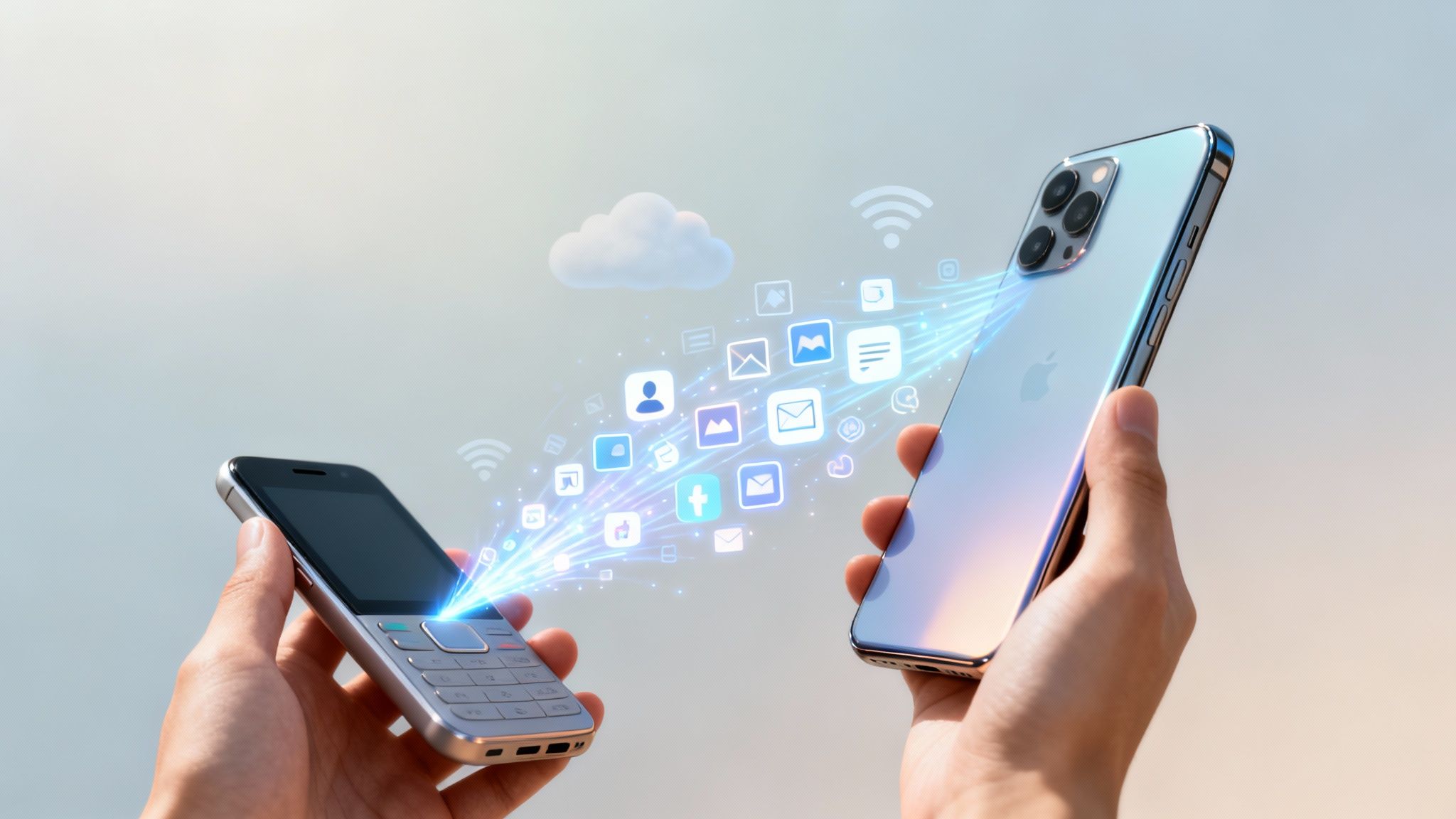
The official data transfer from Android to iPhone process is far more capable than it used to be. Apple's current workflow can move contacts, SMS and message history, photos, videos, albums, files, folders, mail accounts, calendars, call history, bookmarks, accessibility settings, display settings, Voice Memos, and WhatsApp messages and media. It also supports a QR-based transfer route, eSIM migration during setup, and a USB-C cable option for faster wired transfers, according to Apple's official Move to iOS instructions.
That doesn't mean every transfer ends neatly. Progress bars freeze, WhatsApp media arrives in unexpected places, and a successful-looking migration can still leave behind app logins or a handful of important files. The reliable approach is to plan the move, choose the right method, and verify the result before erasing the old phone.
The Moment You Decide to Switch
It's Saturday morning. Your Android phone is lying on the table with a loose battery connection, a frayed charging cable, or a screen crack that has finally become impossible to ignore. Beside it, a sealed iPhone waits in its box.
Maybe the reason is practical. The battery has become stubborn, the camera no longer feels dependable, or a repair costs more than the phone seems worth. Maybe a friend sent you a set of photos that looked better on an iPhone, or you've found an iOS app you can't use on Android. Sometimes the decision is less dramatic. You're ready for a different phone and don't want another year of workarounds.
Then the hesitation arrives. Your Android device contains years of message threads, voice notes, family photos, saved contacts, calendar appointments, email accounts, and app logins. Google Photos may have become the family archive. WhatsApp may contain conversations you refer to more often than you expect. A switch isn't just a hardware purchase. It's a small relocation.
Apple's transfer tools have evolved from a basic cable-free setup into a broader handset-to-handset migration system. The current process is designed to move much more than contacts and camera photos, including message history, WhatsApp content, files, folders, call history, and settings that affect accessibility and display. That broader coverage makes the move less intimidating, but it also creates more ways for a partial transfer to look complete.
If you're still choosing the replacement phone, a practical comparison of cheap iPhone deals UK can help you decide whether a new or used model makes sense. It's also useful to understand the wider Android vs iPhone pros and cons before treating migration as the only decision.
The aim here isn't to sell you on Apple. It's to make the messy part less mysterious, especially when the first attempt doesn't work.
What to Do Before Touching Either Phone
Preparation prevents more failed transfers than clever troubleshooting does. Before you open Move to iOS, make both phones boringly ready: charge them, update them, remove distractions, and confirm that the iPhone can hold what you're bringing over.

Make the connection predictable
Charge both devices to at least 80 percent before starting. A long migration can fail if one phone shuts down, enters a protective mode, or stops maintaining its connection. Keep both phones plugged in throughout the transfer, even if the battery indicators look healthy.
Use a strong private Wi-Fi network that both phones can access reliably. Home Wi-Fi is preferable to hotel, café, airport, or other networks that use sign-in pages, device isolation, or aggressive power management. Keep the phones close together and avoid switching either device to cellular data during the process.
A damaged USB-C port or worn OTG adapter can create intermittent contact on Android phones, particularly on devices that have spent years being charged in pockets or bags. If you're using a cable, inspect both ends first. A connection that feels loose is a poor foundation for a large migration.
Remove the common interruptions
Update the Move to iOS app on Android before you begin, and install available operating-system updates if they can be completed without disrupting your schedule. Pause automatic app updates, close demanding apps, and disable battery saver modes that restrict background activity or wireless radios.
Check the iPhone's available storage against the Android phone's actual content, not just the amount of storage currently used. Large video libraries and downloaded files can make the payload much bigger than expected. If space is tight, move oversized media to a computer or cloud service first.
You can use this phone backup guide to create an independent safety copy before changing anything. Also review the Apple Account and iCloud storage you'll use after setup. A transfer can succeed while later backups fail because the new iPhone has nowhere to store its ongoing backup.
Practical rule: Never erase the Android phone until you've opened the important conversations, checked recent photos, and confirmed that contacts and calendars are present on the iPhone.
Remove unnecessary screen-lock complications only if your device allows it safely, and sign out of accounts that you know will conflict with a fresh setup. Don't delete the original data yet. The old phone is your verification tool when the new one raises questions.
Choosing the Right Transfer Method
No single method handles every category equally well. The best choice depends on whether the iPhone is still at its initial setup screen, whether your photo library is large, and whether chat history matters more than convenience.
Apple's Move to iOS app is the main choice for a brand-new or freshly erased iPhone. It's the broadest first-setup route and can transfer core personal data such as contacts, messages, WhatsApp content, photos, videos, email accounts, favorite apps, and call history, as described on Apple's switch-to-iPhone page. Its limitation is important: it's tied to the setup process. If the iPhone is already configured, you'll generally need to erase it to use the full migration path.
Google account sync works well for contacts, calendars, and mail that already live inside Google services. It's the wrong choice if you expect it to recreate SMS conversations, local notes, app settings, or an entire Android home screen. It's continuity, not a complete device clone.
Google Photos is often the cleanest option for a large image library. Install it on the iPhone, sign in to the same Google Account, and let the library become available there. That avoids forcing every photo through the setup transfer, but it won't automatically recreate Apple Photos albums or place every item into local iPhone storage.
An iCloud backup is useful after the iPhone exists as an Apple device, but it isn't a magic Android backup reader. It can preserve your new iPhone state and Apple services going forward, while Android content still needs to arrive through Move to iOS, Google services, or manual file copying.
A wired connection is worth considering for a large payload or unreliable wireless environment. Apple now offers a USB-C cable option for faster transfers, while the exact cable and adapter depend on the ports on both devices. Wired transfer can improve throughput, but it won't fix incompatible app data or a damaged port.
| Method | Best For | Limits |
|---|---|---|
| Move to iOS | Full migration during first iPhone setup | Requires the setup workflow, and some app data still needs separate handling |
| Google Account sync | Contacts, calendars, and mail | Doesn't recreate most local device data or SMS conversations |
| Google Photos | Large photo and video libraries | Albums and local storage organization may differ on iPhone |
| iCloud | Backups after the iPhone is configured | Doesn't directly read a complete Android backup |
| Wired transfer | Larger moves or unstable Wi-Fi | Needs compatible, reliable cables and ports |
| Dedicated chat migration | WhatsApp and other app-specific conversations | Each app has its own rules and unsupported data |
If you want a broader checklist for moving content between devices, this guide to how to transfer data to a new phone helps separate general files from platform-specific data. Treat WhatsApp, Signal, and similar services as their own projects rather than assuming the main transfer will preserve every conversation perfectly.
Running the Full Move to iOS Setup
The safest time to run Move to iOS is during the iPhone's initial setup. Turn on the iPhone, choose your language and region, then continue until the screen offering to transfer data from another device appears. Select Move Data from Android.
On the Android phone, install Apple's Move to iOS app from Google Play. Open it, accept the requested permissions, and follow the prompts until it asks for the code shown on the iPhone. Enter the code, then let the Android phone join the temporary private connection created for the transfer.

Read the selection screen carefully
Move to iOS shows individual categories, not a guarantee that every item on the Android phone will be copied. Depending on the devices and software involved, you may see:
- Google Account information, followed by sign-in checks on the iPhone.
- Contacts, which still need a manual spot check.
- Message history, covering supported SMS and related content.
- Photos and videos, including camera media and supported albums.
- Bookmarks, mail accounts, and calendars.
- Files and folders, which may appear in different locations on iPhone.
- WhatsApp messages and media, where interruptions or compatibility limits can leave gaps.
- Call history and Voice Memos, where supported by the workflow.
Select the categories you need. Keep an item selected even if you plan to use Google Photos or account sync later. A second copy gives you a way to compare results when an album, contact, or local folder does not appear where expected.
The process may also display a Choose Your Apps screen. It can identify free apps from Google Play that have iPhone versions available in the App Store. App availability does not carry over paid purchases, private app databases, saved game progress, or all app-specific settings. Expect to sign in again, and check whether an app uses a different account system on iOS.
Let the transfer finish without interference
Keep both phones plugged in, close together, and awake. Avoid calls, other apps, screen locks, network changes, and system updates while the loading bar is active. The time estimate can shift as the phones count photos, videos, messages, and files, so a long pause does not automatically mean the transfer has failed.
Wait for the iPhone to report that the move is complete, then wait for the Android app to finish as well. A completed copy stage confirms that the process ended, not that every app recreated its previous state.
Before resetting the Android phone, inspect contacts, recent messages, key photos, calendars, downloaded files, and any app that stores information locally. Compare the most important items with the original device while it is still available. The earlier Apple instructions cover the setup prompts if you need to check a step again. Keep the Android phone untouched until those checks pass, because a partial transfer can look finished while individual categories or app records are missing.
Moving WhatsApp, Chats, and Media Separately
WhatsApp deserves its own checklist because chat history carries context that ordinary files don't. A photo in a camera folder is replaceable from a backup. A voice note inside a long family conversation may be much harder to reconstruct if the migration breaks.
Update WhatsApp on both devices before starting. On Android, create a fresh Google Drive backup and confirm that it completes. During the iPhone setup and WhatsApp activation flow, use the same phone number, install the current iPhone version, and look for the prompt to move chats to iOS.
The supported transfer can preserve text messages, photos, videos, voice notes, and group memberships. It doesn't mean every WhatsApp record becomes identical on iPhone. Call history, status posts, payment history, and certain encryption-related session details aren't treated like ordinary chat content.

Give media a separate inspection
Some WhatsApp photos can appear in the iPhone's Recents view rather than in a clearly labeled WhatsApp album. That's not automatically evidence of data loss, but it can make the result look fragmented. Other users encounter incomplete media, grey placeholders, or chats that open without their expected attachments when the move was interrupted or the apps were outdated.
If your photo library needs its own strategy, use this practical guide on how to transfer photos to a new phone rather than relying on WhatsApp to serve as your photo archive. Keep the Android phone available until you've checked recent conversations with images, videos, and voice notes.
Signal and Telegram also have their own migration or export approaches, and their rules differ from WhatsApp. Don't assume that a successful Move to iOS run will import their private databases. Check each app's official in-app transfer or export option before deleting the source device.
For Google Drive users, account handling can become confusing after the move. Keep the Android backup intact until the iPhone copy is verified, then review the Google Account connection before enabling an iCloud backup routine. The goal isn't to remove a useful backup prematurely. It's to avoid believing that an Android cloud backup automatically becomes an iPhone-native backup.
Open a recent WhatsApp conversation with media before you trust the migration. A chat list can look healthy while individual attachments remain unavailable.
When Transfers Fail or Leave Gaps Behind
A frozen progress bar is the most visible failure, but silent omissions are more dangerous. The phones may stop because one screen sleeps, Wi-Fi weakens, cellular data takes over, an automatic update interrupts the Android app, or a battery saver restricts the background connection.
Partial results need a different diagnosis. Contacts may arrive while photos don't. Photos may transfer while videos are absent. Calendars or notes may appear incomplete because the relevant account wasn't added, or because the iPhone is using a different Apple Account from the one you expected. WhatsApp can show missing chat history, login challenges, or greyed-out media even when the general migration finished.
Apple Community discussions include an anecdotal report that Apple Support described cross-platform migration as difficult and relayed an internal failure estimate of about 50%, but that figure isn't a formal published benchmark. It should be treated as user-reported context, not a guarantee of what will happen to your transfer. The same discussions describe transfers getting stuck near the end even with small data selections. Apple's community troubleshooting discussion is useful for seeing the kinds of problems users report.
| Symptom | Likely Cause | Fix |
|---|---|---|
| Progress bar stops | Sleep mode, weak connection, or background restrictions | Keep both phones awake and plugged in, then retry on a stable private network |
| Contacts arrive but photos don't | Storage pressure or a failed media phase | Check iPhone storage, reduce oversized media, and repeat the transfer |
| Videos are missing | Unsupported file handling or interrupted media copying | Keep the Android originals and copy large videos separately |
| WhatsApp chats look empty | Wrong number, outdated app, or incomplete dedicated migration | Update WhatsApp, verify the number, and repeat its transfer path |
| Media appears as grey placeholders | Attachments didn't complete or the app lost access to them | Reconnect the source backup and inspect individual conversations |
| Transfer fails repeatedly | Old software, battery saver, or a damaged cable or port | Update both systems, disable power restrictions, and test another cable |
| Setup completed with major omissions | The iPhone wasn't freshly reset or categories were skipped | Back up the iPhone, erase it, and restart Move to iOS |
Use a ranked recovery sequence
First, restart both devices and repeat the preparation steps. Update the operating systems and Move to iOS, turn off battery-saving restrictions, keep displays awake, and free at least 4 GB on the Android phone before trying again. That space can give the app room to stage temporary files, though it won't solve an iPhone that lacks enough final storage.
If the iPhone has already completed setup and the missing content matters, back up anything new, erase the iPhone, and restart from the Move Data from Android screen. This is disruptive, but it restores the official first-setup path. For valuable files on a damaged or failing source phone, a specialist service such as data recovery for Perth locals may be more appropriate than repeated transfer attempts.
Some content doesn't have a clean working path. Certain app databases, unsupported message formats, and older call or SMS records may need screenshots, exports, or manual preservation before you retire the Android phone. Don't confuse “the setup finished” with “the old phone is safe to erase.”
Settling Into Your New iPhone After the Move
The first couple of days on iOS are an audit period. Open Contacts and search for people you message often. Check a recent photo and an older album, inspect timestamps, play a few transferred videos, and confirm that email and calendar events sync from the accounts you use.
Sign in to App Store purchases and reinstall anything that wasn't automatically offered. Open WhatsApp on the web again if you use linked devices, then test iMessage and FaceTime with your correct phone number. If friends still see green messages or calls route incorrectly, review the number and Apple Account settings rather than assuming the migration failed.
Notifications rarely match Android defaults. Review them app by app, then set your preferred browser and mail apps in iPhone settings. These small changes don't indicate a bad transfer. They're normal adjustments when two operating systems organize permissions, alerts, and defaults differently.
Use this guide to setting up a new iPhone for the remaining account and device checks. Once the important content is confirmed, create a simple maintenance loop:
- Turn on regular iCloud backups.
- Enable Find My before the phone leaves the house.
- Review Apple Account two-factor authentication and trusted numbers.
- Keep the old Android powered on until you've checked anything you can't easily recreate.
A successful switch isn't the moment the progress bar disappears. It's when your contacts, conversations, photos, accounts, and daily routines work without needing the old phone beside you.
Tech Today publishes practical guides for device setup, data transfers, account management, and everyday troubleshooting. Visit Simply Tech Today for straightforward help before your next phone move, especially when the official setup path leaves questions unanswered.


Member discussion