
How to Setup New iPhone from Android in 2026
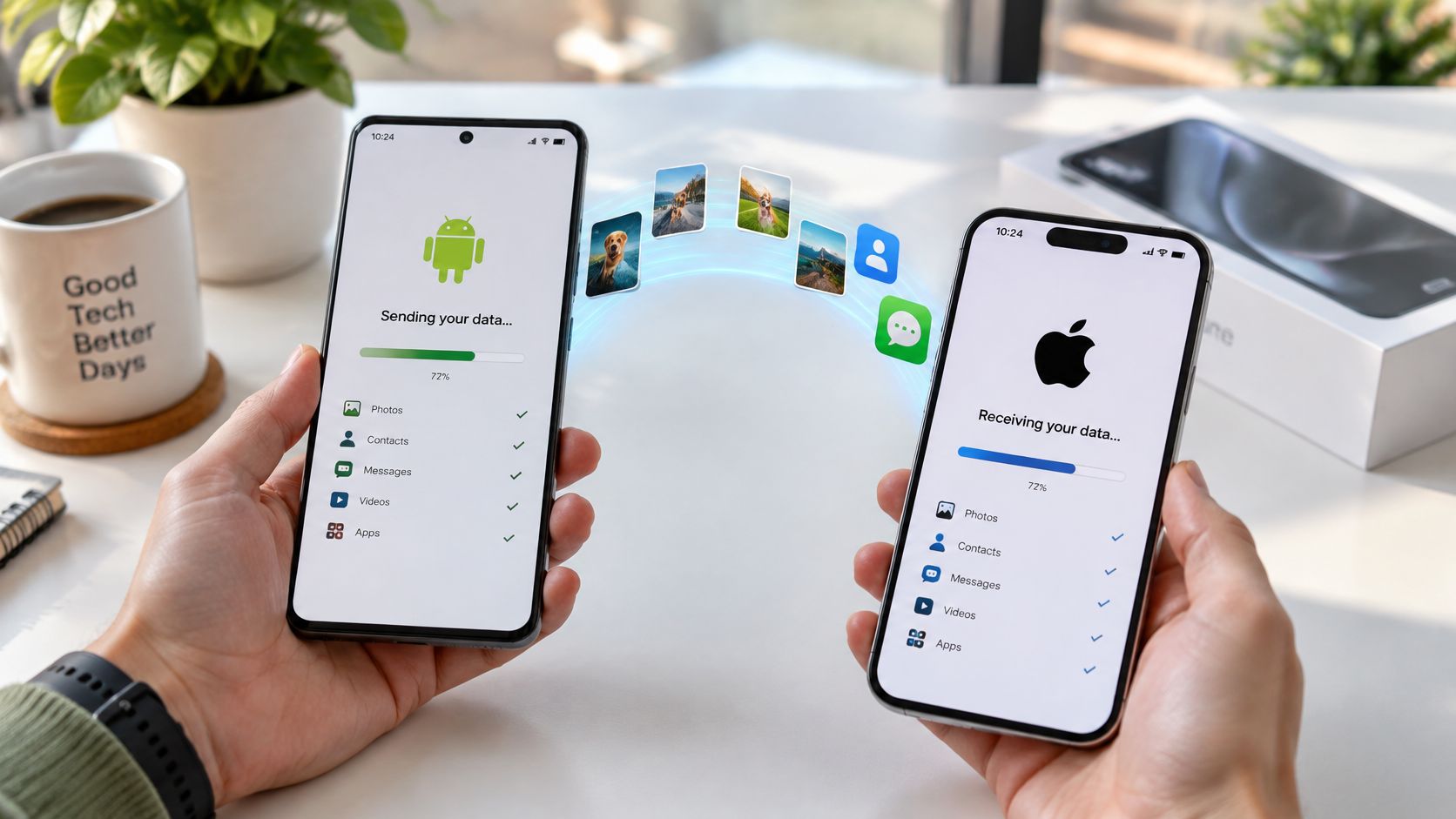
Your new iPhone is out of its box, but your Android phone still holds your photos, conversations, passwords, and working mobile number. It's tempting to tap through the welcome screens and sort out the transfer afterward. That's the choice most likely to create extra work.
Learning how to set up a new iPhone from Android starts with separating three jobs: copying your information, signing into your apps, and activating your phone number. Finish each deliberately, and keep the Android phone intact until the iPhone works for everyday life.
What Moves from Android to a New iPhone
Move to iOS is a migration tool, not a complete clone of your Android phone. During initial iPhone setup, it can copy supported information, including contacts, messages, call history, calendars, locally stored photos and videos, audio files, and email account settings. It won't reproduce every app, permission, download, or signed-in session.
That distinction matters when something appears missing. An empty Gmail app may need a sign-in rather than another transfer. A missing Android-only app needs an alternative. A phone that shows all your photographs but can't receive calls needs attention from your carrier, not another photo import.
What moves from Android and what you rebuild
Use this table to mark each category as copy during setup, sign in afterward, or carrier job.
| Content | Move to iOS | If it does not come across |
|---|---|---|
| Contacts | Yes | Export a vCard or sign into the Google account |
| SMS messages | Yes | Old Android texts remain on Android if not transferred; they aren't iMessage history |
| Call history | Yes | There's no standard later bulk-import option after setup |
| Calendars | Yes | Sign into Google or the calendar app |
| Photos and videos | Camera-roll content, yes | Use Google Photos, a cable, or a computer for items left in cloud albums |
| Audio files | Yes, supported unprotected files | DRM-protected music and streaming libraries need the app and a sign-in |
| Email accounts | Account settings | Sign in again; the mailbox itself stays with the provider |
| Apps | Some related data and supported app matching | Reinstall from the App Store; paid apps may need repurchasing, and Android-only apps need alternatives |
| WhatsApp chats and media | Requires WhatsApp's dedicated transfer flow, not an ordinary file copy | Follow WhatsApp's Android-to-iPhone migration prompts before wiping Android |
| Phone number and eSIM | Not guaranteed | Move a compatible physical SIM, or use carrier transfer or a QR code |
Separate stored files from account access
Start at the top of the table. Contacts, texts, calls, and calendars are information you should check after copying. For photographs, distinguish files stored on Android from pictures you can see only because Google Photos retrieves them from your account.
If your photo library is spread across devices and cloud storage, this guide to transferring photos to a new phone can help you choose a route without importing the same collection twice.
Email and apps work differently. Signing into the same Google account can restore access to mail and synced calendars without copying the mailbox itself. App passwords, banking approvals, and protected downloads may require separate authentication.
Practical rule: Seeing an app icon doesn't prove its contents or account access transferred.
For a broader preparation checklist, Used Mobiles 4 U explains how to transfer your data safely before retiring an old handset. Decide which categories you need before beginning the iPhone's setup screens, especially if messages or app-specific history matter more to you than photographs.
Prepare Both Phones and Run Move to iOS
Prepare Android first, while it still has your accounts, files, and working service. Don't rush through iPhone setup to reach the Home Screen. That can close the transfer window before you've used it.
Apple's Android-to-iPhone transfer instructions place Move to iOS within initial setup and say to keep both devices nearby and connected to power until the iPhone's progress bar finishes. If setup is already complete, Apple's choices are to erase the iPhone and begin again or transfer information manually.
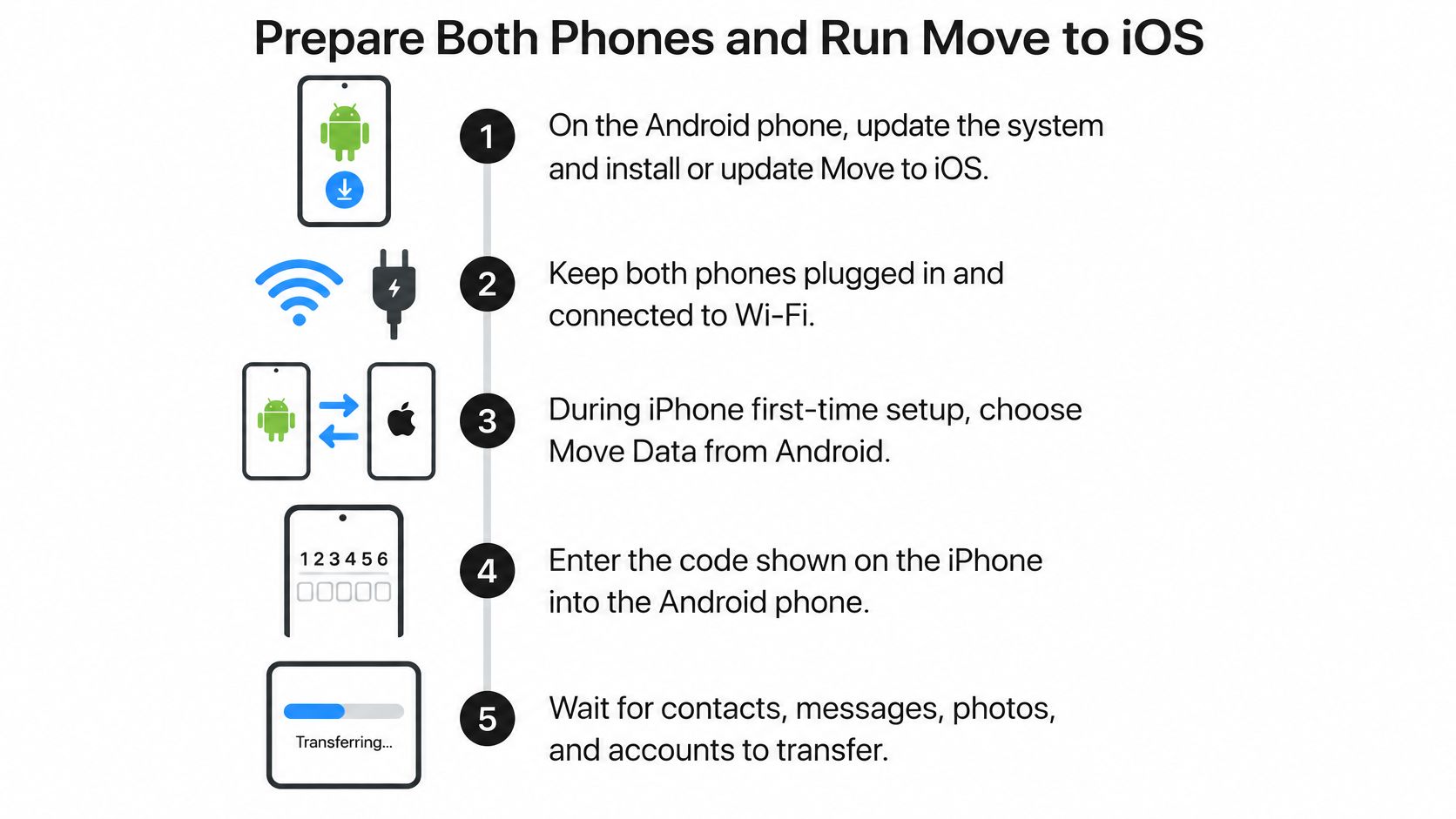
Keep the overall sequence in view while you prepare:
Prepare Android before touching the transfer screen
Update the transfer tools. Check Android's system-update settings, then install or update Move to iOS from the Google Play Store. Finish any required restart before connecting the phones.
Check storage and remove clutter. Open Android's storage settings and look at photos, videos, downloads, and large folders. Compare what you intend to transfer with the iPhone's available capacity, leaving room for apps and future use. Archive unwanted videos rather than deleting anything you haven't backed up.
Connect both phones to power. Choose somewhere they can remain undisturbed. Don't start while you need the Android phone for navigation, calls, or work.
Remove connection interruptions. Turn Wi-Fi on. Temporarily disable your VPN, battery restrictions for Move to iOS, and features that automatically switch from Wi-Fi to mobile data. Android manufacturers use different names for these settings, so search Settings for battery optimization, adaptive connectivity, or automatic network switching.
Check account access. Confirm you know your Google, WhatsApp, and carrier credentials. Open your password manager and check how you'll approve sign-ins from the iPhone. A password stored only inside an Android app won't help if you erase that app's only working session.
Prepare the mobile plan separately. If you use eSIM, ask the carrier whether this Android-to-iPhone combination supports transfer. Get any required account PIN or activation instructions before starting.
A separate copy of important Android files gives you another recovery route. If you'd like an offline safety copy, follow the steps for an Android phone backup to a PC before migration.
For example, a Downloads folder might contain school assignments or scanned documents you've forgotten about. Open it and inspect the files rather than assuming every important item lives in your camera roll.
Run the transfer during iPhone setup
Start the iPhone and follow the welcome screens until you reach the option to transfer apps and data. Choose Move Data from Android, or the equivalent From Android option shown on your device.
Open Move to iOS on Android. Accept the requested terms and permissions needed for the transfer. Keep the app in the foreground.
Enter the code displayed on the iPhone. Follow the prompts to join the temporary connection between the devices. This connection is for migration, so don't abandon it because Android reports that it doesn't provide normal internet access.
Choose your content deliberately. Select the supported categories you want, including message history if it matters to you. Follow any dedicated WhatsApp preparation prompts if you're moving those chats.
Use a cable when appropriate. Compatible devices can use a direct USB-C connection for faster transfer. Use a suitable data cable, not a cable intended only for charging, and follow any USB permission prompts.
Leave both phones alone. Don't open another Android app or answer a call during the copy. Watch the iPhone's progress indicator rather than treating Android's completion message as permission to disconnect.
Finish the iPhone prompts. Once copying has ended, continue with your Apple Account, passcode, Face ID where available, and remaining network settings. App downloads and sign-ins may still need attention after you reach the Home Screen.
The temporary wireless connection can feel unfamiliar because it isn't both phones using your home internet. Keep the devices close and allow Move to iOS to manage the connection rather than repeatedly changing Wi-Fi networks yourself.
Plan for an uninterrupted wait
Computerworld's Android-to-iPhone switching guide gives a field estimate of approximately 10 minutes per 500 MB, but that isn't an Apple-guaranteed benchmark; file types, device performance, and connection conditions affect the actual duration. Don't turn that estimate into a deadline or assume the transfer has failed because your library takes longer.
A camera roll full of video needs more patience than a small collection of contacts and calendars. Set aside a period when you don't need either handset, and avoid repeatedly interrupting a transfer that's still progressing.
The finish line is the completed progress bar on the iPhone, not a completion message on Android.
Once you reach the Home Screen, resist the urge to reset the old phone immediately. The copying stage may be finished while app authentication and mobile-service activation remain unfinished.
If You Already Finished iPhone Setup
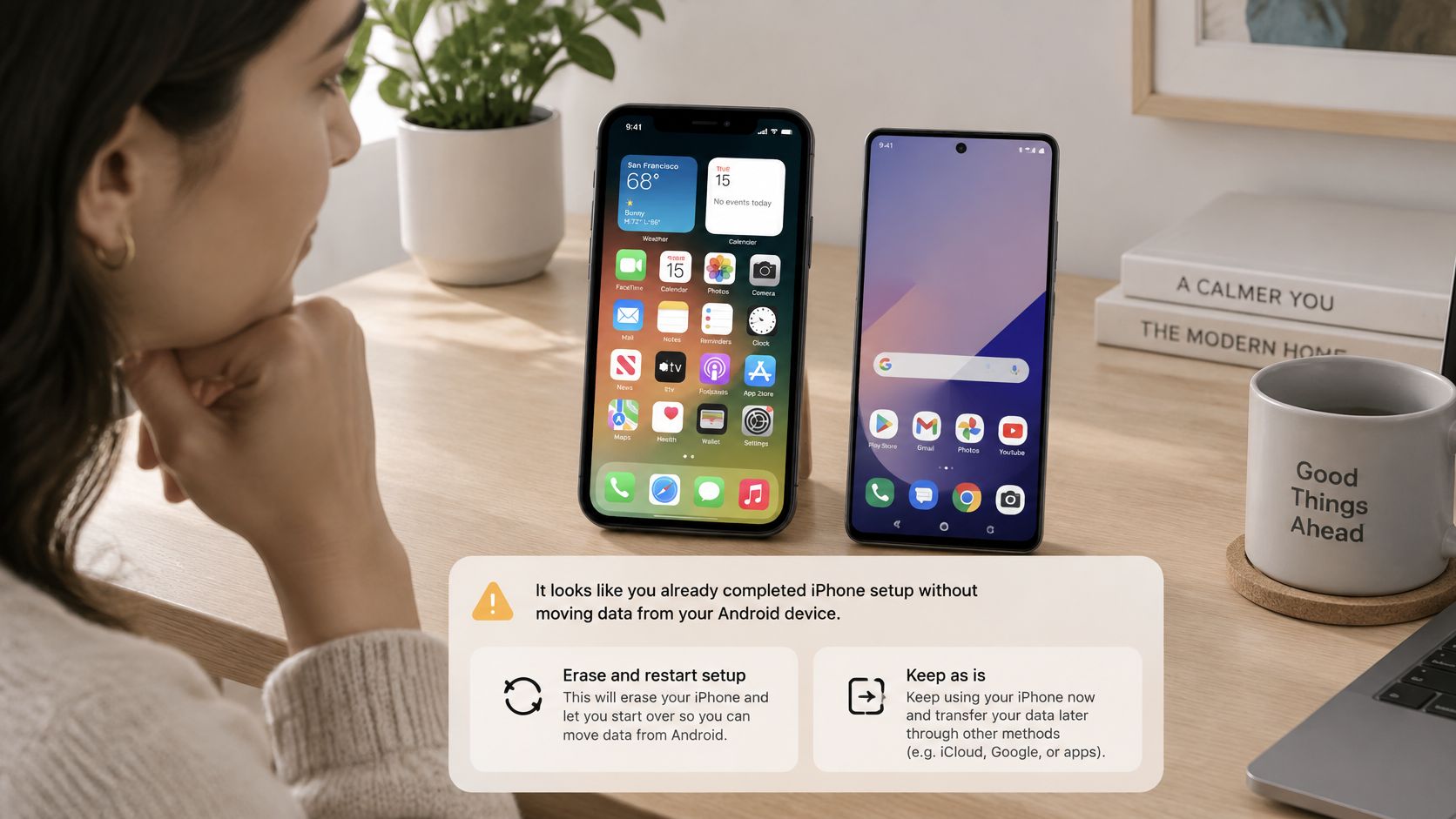
You're on the Home Screen, you've signed into apps, and you've realized your old conversations aren't there. Opening Move to iOS on Android won't turn the configured iPhone into a ready transfer destination.
Apple's iPhone transfer guide describes the choice plainly: erase the iPhone and repeat setup, or move content manually. The better choice depends on what you've already created on the iPhone, not just what failed to arrive from Android.
Decide what an erase would cost you
Before opening the reset settings, check for:
- New conversations: Messages received since activating the iPhone.
- New photographs: Pictures and videos taken on the iPhone rather than copied from Android.
- Saved work: Downloads, notes, voice recordings, and documents created during setup.
- Account approvals: Banking access, authenticator registrations, or app sessions you'd need to establish again.
If there's nothing valuable on that list, restarting can be the cleaner route. Preserve anything you do need, then use Settings, General, Transfer or Reset iPhone, and Erase All Content and Settings. Read the prompts carefully, particularly any choice concerning your cellular plan.
If the list contains irreplaceable messages or files, don't assume a backup makes everything simple. An iPhone backup and an Android migration aren't a guaranteed merge operation. Confirm how you'll retrieve the new items before erasing anything.
Say you've already received appointment details by text and photographed a receipt. Starting again to recover old Android contacts could create more work than signing into Google and keeping the iPhone as it is.
Keep the iPhone and fill only the gaps
First identify what's missing. Search for a familiar contact, an older photograph, and a calendar event before importing entire collections.
For missing Google contacts and calendars, sign into the same account and enable the relevant synchronization settings. For photographs, choose Google Photos access or a deliberate file transfer. Move documents and unprotected music in manageable folders so you can verify each batch.
WhatsApp needs particular care. Its supported migration route may require a fresh setup state, so don't treat chat history as something you can always add later to an active installation. Preserve the original chats while checking the available migration prompts.
Starting over is technically tidy, but practically worse when it destroys information you've just created.
Repeated imports can create duplicate contacts and photographs. Review duplicate suggestions in Contacts where available, and don't import the same vCard again just because synchronization hasn't appeared instantly.
Manual transfer won't reconstruct app data that the developer neither exports nor syncs. If you decide a restart is justified, use the new iPhone setup guide to prepare before erasing.
Erase only an iPhone that still has nothing you would miss.
Fix a Failed Transfer or a Dead Number
A successful photo transfer doesn't prove your mobile number works. Treat a silent phone as an activation problem first, particularly if calls and verification texts still reach Android.
Apple's Android-to-iPhone eSIM guidance says direct transfer requires supported devices, software, and participating carriers; when automatic transfer isn't supported, carrier activation or a QR code may be necessary. A carrier-free iPhone doesn't make every carrier's eSIM transfer process available.
Restore calls and texts before troubleshooting files
- Physical SIM: If your iPhone has a compatible SIM tray and supports the plan, move the SIM when you're ready to activate service. An iPhone without a physical tray needs a carrier-supported eSIM route instead.
- eSIM: Follow direct-transfer prompts only when your carrier and devices support them. Otherwise, request the carrier's QR code, app-based activation, or store assistance.
- Carrier lock: Check Settings, General, About, and the carrier-lock information. If the phone is locked to another carrier, resolve that restriction before repeatedly attempting activation.
- Dual SIM and roaming: Confirm which number is moving, which line should handle calls and mobile data, and whether activation is available while you're abroad.
- Verification: Place an outgoing call, receive an incoming call, and receive a fresh SMS on the iPhone.
Keep Android charged and connected while you resolve access. A completed number transfer may deactivate its old cellular line, so keeping the handset doesn't guarantee it can still receive SMS. It can nevertheless preserve app sessions, account approvals, and the information you need to contact support.
If activation is unclear, use the eSIM transfer troubleshooting guide to distinguish a plan-transfer problem from a handset setting.
Transfer problems and the fix that matches
Match the symptom to its cause before choosing a remedy. A slow copy, a disconnected session, and an unsupported app transfer require different actions.
| What you see | Usual cause | What to do |
|---|---|---|
| Android says complete, iPhone bar still moving | Android has finished its side first | Keep both plugged in until the iPhone bar ends |
| Code screen or link keeps dropping | VPN, battery optimization, or Wi-Fi switching interrupts the connection | Turn those off, stay close, and retry, or use compatible USB-C |
| Copy runs for hours | Large photo and video library | Allow more time; archive unwanted files before retrying or use a compatible cable |
| Calls and SMS never arrive | eSIM or carrier plan hasn't activated correctly | Use carrier transfer, a QR code, or a compatible physical SIM; preserve Android access |
| Duplicate contacts or photos | The same information was imported twice | Review and merge duplicates; don't import the same file again |
| WhatsApp chats or media missing | The dedicated WhatsApp migration wasn't completed | Preserve Android chats and follow WhatsApp's supported transfer process before resetting Android |
If a transfer stops, note the exact error before restarting the phones. Check available storage and remove connection interruptions, then retry deliberately rather than changing several unrelated settings.
Don't erase a partly configured iPhone just to test whether it fixes cellular service. Carrier support can investigate the plan without requiring you to sacrifice new photographs or conversations.
Confirm the Data Then Keep Android Handy
Your iPhone is ready when daily tasks work, not when the transfer animation ends. Open the information you care about and test it. A thumbnail, an app icon, or a contact name alone doesn't prove the underlying content is usable.
Keep Android beside you during this check. It gives you something to compare against and preserves access to files or accounts that may need another export.
Check real examples, not just totals
Work through this verification pass in order:
- Contacts: Compare the rough size of the address book and search for familiar people, including someone added recently. Open their entries and check the phone numbers.
- Messages: Open an old text thread and scroll through it. Confirm that it's the conversation you expected, not just a newly created thread.
- Call history: Look for a recent call you recognize.
- Calendar: Open an upcoming event and inspect its date, time, and account.
- Photographs: Find an older picture you care about, open it fully, and play a video. Don't check only the newest images.
- WhatsApp: If you migrated it, open a meaningful conversation and inspect its photographs or other media.
- Account access: Sign into an email or banking app and complete its required authentication.
- Mobile service: Make a call and receive a fresh SMS verification code on the iPhone.
If names are missing but photographs and messages look right, troubleshoot contacts rather than repeating the whole migration. The guide to transferring contacts to a new phone can help you distinguish account synchronization from a file import.
Retire Android only after normal use succeeds
Keep the old handset charged, logged in, and unwiped while you use the iPhone normally. Wait until your carrier confirms any unresolved activation issue and you've tested the accounts you depend on.
There's no universal waiting period that proves a migration is safe. Your own checks matter more than a calendar deadline, especially if you rarely open an authenticator, school app, or banking account.
Before selling or giving away Android, preserve any remaining files and remove its Google account through Settings, then perform the factory reset. Removing the account before the reset helps avoid leaving the next owner facing account-verification restrictions.
Before retirement: Check what you would lose if Android stopped working today.
Put the Android phone in a drawer, still charged and able to provide account approvals where available, until the iPhone has made a call, received a text, and opened the photographs you wanted to keep.
For more plain-language help with phone setup, account access, and everyday troubleshooting, visit Simply Tech Today. Use its practical guides to resolve the specific transfer or connectivity issue you're facing before erasing either phone.


Member discussion