
Siri Is Not Working? How to Fix It Step by Step
You ask Siri to set a timer while your hands are full, and nothing happens. You try again, louder. Then you press the side button, and Siri either wakes up immediately or leaves you staring at the screen.
When Siri is not working, the useful question isn't whether to reset your phone. It's whether Siri can't hear you, can't connect, or can't perform that particular request. Start with tests that separate those problems, and save disruptive fixes for a fault you can reproduce.
Match Your Symptom to the Likely Cause
No response, wrong words, and a missing feature are different problems. Siri relies on the microphone, activation settings, operating system, network services, and supported languages working together. A failure in any of those layers can look like the same unhelpful silence.
Siri also isn't identical across devices. CNBC's history of Siri describes its integration into the iPhone and later expansion to other device categories, which is why you shouldn't assume a setting or capability on one product exists on another.
Siri symptoms, likely layers and first tests
| Symptom | Likely layer | First test |
|---|---|---|
| Button works, voice does not | Voice activation or microphone access | Turn Hey Siri off, then on, and repeat voice training |
| Neither button nor voice responds | Siri disabled, no connection or VPN | Check the Siri toggle and Wi-Fi or cellular data |
| Wrong words in the transcript | Blocked microphone or noisy room | Run a quiet-room test with five short commands |
| Timers work, weather and web answers fail | Internet access | Load a web page to confirm connectivity |
| Siri missing from Settings after restart | VPN interference | Check VPN settings |
| Option missing from the menu | Language, region or device support | Compare device, language and region requirements |
Treat the table as a starting point, not a hardware diagnosis. A blocked microphone and an incorrect audio input can produce similar symptoms, but they need different fixes.
Practical rule: Change one thing, repeat the same request, and record what changed. Otherwise, you won't know which fix mattered.
Also distinguish Siri failing from an app closing after Siri opens it. If that's the actual symptom, investigate why an app keeps crashing rather than resetting the entire assistant.
How to Run the Five-Minute Activation Check
Use this as a short diagnostic routine, not a promise that every fault will be fixed within the time in the heading. Keep the device open during the initial tests so you're not mixing activation trouble with restrictions on what can happen while locked.
Apple's Siri troubleshooting guide recommends checking connectivity, reviewing Siri activation settings, repeating voice setup, and checking VPN settings if Siri remains missing after a restart. The important distinction is activation versus audio input: opening Siri successfully doesn't prove that it can hear your request.
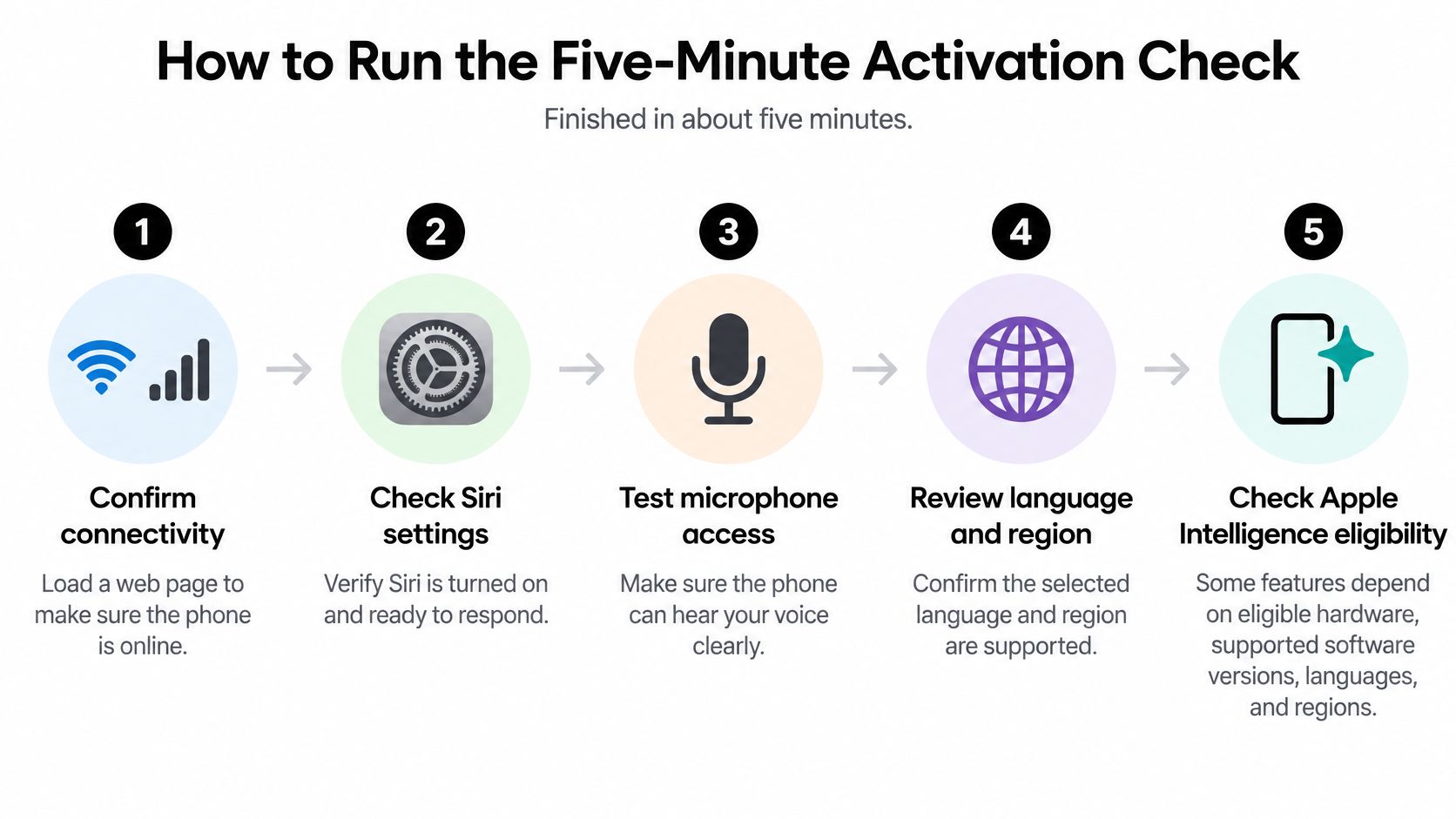
Test connection, activation and audio separately
Confirm the device is online. Open a browser and load a fresh web page over Wi-Fi or cellular data, rather than relying on the connection icon. If it won't load, resolve that connection problem before judging Siri's online responses.
Repeat voice activation setup. Open Settings > Siri, or Apple Intelligence & Siri, then find Talk & Type to Siri; wording can differ with software version. Turn voice activation off and back on, then complete the spoken training prompts in your normal voice.
Try the physical button. Invoke Siri with the side or Home button, as appropriate for your device, and make a simple request. If this works but the wake phrase doesn't, concentrate on voice activation and recognition rather than treating Siri as completely unavailable.
Compare typing with speaking. Use Type to Siri, enabling it if necessary, and type the same request you've been saying aloud. A successful typed answer paired with failed speech points toward the audio path, although it doesn't by itself prove physical microphone damage.
Check the selected microphone on Mac. Open the sound input settings, select the microphone you intend to use, and raise its input volume if needed. Speak while watching the input indicator, especially if a display, headset, or dock has recently changed your audio setup.
Investigate a missing settings entry. Restart the device, then inspect VPN settings if Siri still doesn't appear. On a managed work or school device, ask the administrator before changing a required VPN configuration.
Recognize a useful result
Success means voice activation and button activation both respond, and equivalent spoken and typed requests produce comparable results. Don't demand identical wording from Siri; look for the same completed action.
If typing works but speech doesn't, stop changing network settings. If neither path works, write down the exact message or behavior before moving on, including whether Siri opens, spins without answering, or never appears.
Which Requests Need the Internet and Why Noise Matters
A working timer doesn't prove your internet connection is healthy. Britannica's Siri overview explains that certain requests can run offline beginning with iOS 15, while online information and server-dependent actions still need connectivity.
Use that distinction to choose a meaningful test. Asking for weather when you're offline tests a different dependency from asking the device to start a timer.
Which Siri requests need the internet
| Request type | Needs internet? | Check first |
|---|---|---|
| Timers, alarms and device controls | Usually no for supported on-device requests | Microphone and recognition |
| Weather, web searches and maps | Yes for current information and online results | Wi-Fi or cellular data |
| Location-based answers | Yes | Location Services and connection |
| Third-party app actions | Required for server-dependent app actions | Network access and app permissions |
| Requests that fail only in noise | Noise alone doesn't create an internet requirement | Distance, obstruction and Bluetooth audio routing |
If online requests fail away from Wi-Fi, troubleshoot cellular data not working before changing Siri preferences.
Separate hearing from completing the task
An older benchmark of common requests, reported by TechRadar, found 89% word recognition in quiet conditions versus 83% on a noisy street, while correct task completion was 68% and 62%, respectively. Those historical results aren't a prediction for your current phone, but the distinction is useful: hearing the words and executing the instruction are separate stages.
Try five short commands in a quiet room, then repeat the same commands near ordinary household noise. For each attempt, note:
- Activation: Did Siri wake up?
- Recognition: Did the displayed words match what you said?
- Execution: Did Siri perform the intended action?
Move closer, remove anything covering the microphone opening, and disconnect Bluetooth headphones for a direct phone-microphone comparison. Don't push tools into microphone openings or use liquid to clear them.
Correct words with an incorrect action call for a different investigation from missing or garbled words.
If you deliberately disabled wake-word listening for privacy, button activation may be the behavior you want. RDE Technologies' guidance on how to manage always-listening device settings can help you review that choice without enabling listening everywhere unnecessarily.
Tell a Real Fault From an Apple Intelligence Limit
Classic Siri working doesn't guarantee every Apple Intelligence feature is available. You might be able to set alarms or place calls while a more advanced capability is absent. That's not enough evidence to diagnose a broken microphone or damaged phone.
Apple's Apple Intelligence requirements tie availability to eligible hardware, supported software, languages, and regions. Installing an operating-system update alone therefore doesn't establish that your device supports every advertised feature.
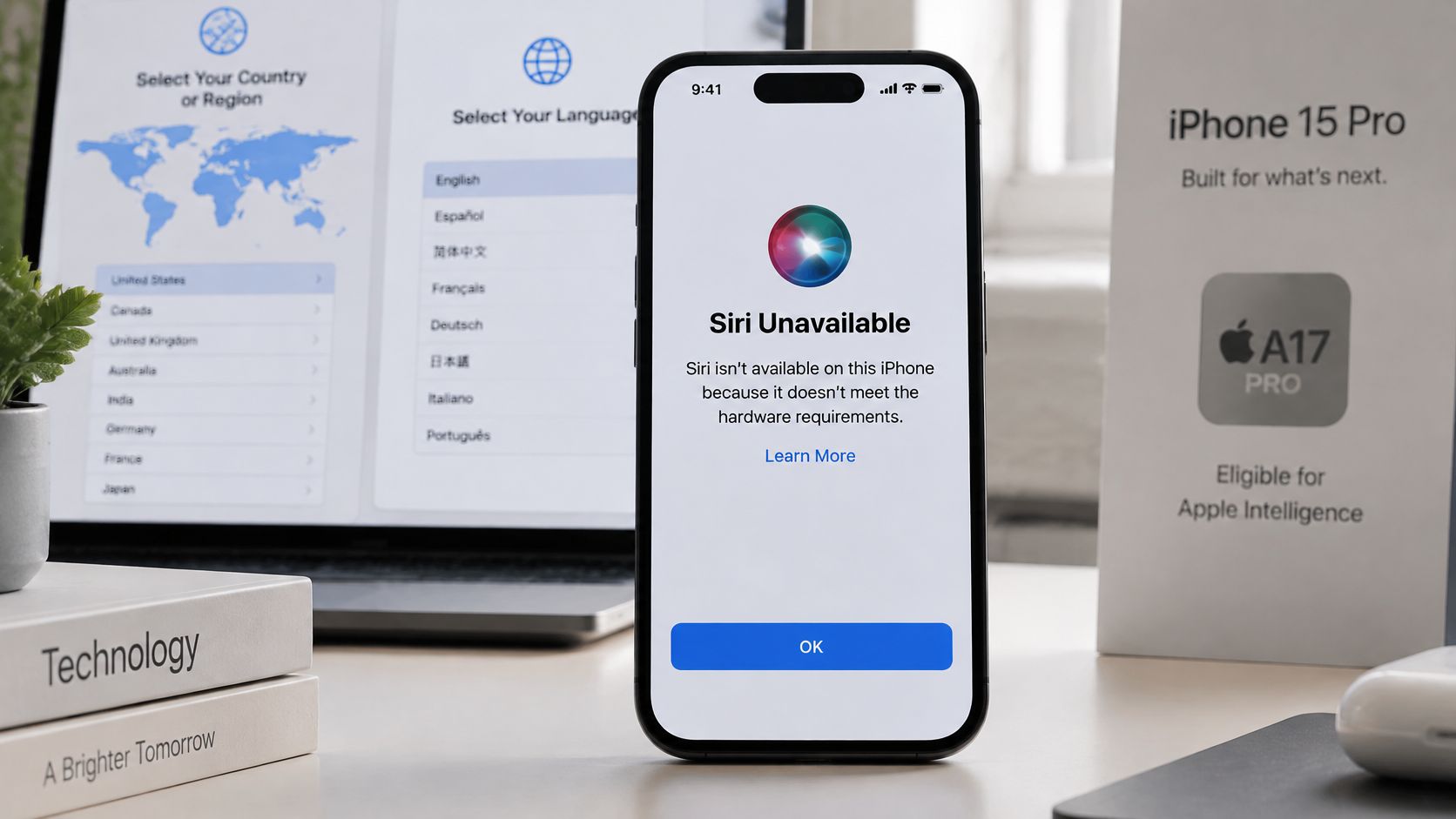
Check the particular feature, not just the Siri name
Before trying another reset, answer these questions:
- Hardware eligibility: Is your exact device model supported for the feature you're attempting?
- Language match: Does the device language match the Siri language where that feature requires it?
- Regional availability: Is the capability available in your region, rather than merely shown in a demonstration?
- Software installation: Did the required update finish installing, or was it only downloaded?
- Limit message: Does the screen explicitly mention a usage limit or temporary unavailability?
Don't assume that any unexplained failure is a usage cap. A limit message is evidence; a slow response by itself isn't. Record the wording and identify which feature produced it before deciding whether waiting will help.
Compare an ordinary command with the advanced task you want. If the ordinary command succeeds and the advanced option is absent, eligibility is a more productive investigation than repeated voice training.
A new phone also doesn't necessarily include a menu item with the wording you saw online. Check the documented feature name and requirements rather than hunting for a particular promotional label.
For background on the distinction between recognizing a request and generating a more complex response, this explanation of how artificial intelligence works provides useful context. The practical decision remains simple: a reset can correct settings, but it can't create hardware or regional eligibility.
Check Siri on Mac, Apple Watch and HomePod
When Siri fails on another device, test the same request there and on your iPhone. Keep the wording and network conditions as similar as possible. A device-specific failure gives you a narrower place to investigate.
Check the device that actually receives the request
- Mac: Open System Settings, find Siri, and confirm it's enabled. Under Sound > Input, check that your intended microphone responds when you speak, especially if a headset or external display is connected.
- iPad: Repeat the activation controls using the Siri settings available in iPadOS. Test directly on the iPad rather than assuming successful iPhone setup proves the tablet is configured correctly.
- Apple Watch: Check Siri settings on the watch and verify its available connection. A nearby paired iPhone is a useful troubleshooting condition, but don't assume every watch request always requires that phone connection; capabilities differ by model and connectivity.
- HomePod: Open the Home app and inspect the speaker's settings and network status. For personal requests, review the recognized user and Apple Account setup rather than signing out indiscriminately.
Comparison test: A timer succeeding on the iPhone but failing on the nearby speaker points toward that speaker's setup, not an automatic need to reset the phone.
Watch which device lights up when you speak. You may be addressing the phone while a nearby HomePod receives the wake phrase, making the response seem missing or misplaced.
If you're deciding whether another speaker better fits your household, compare ecosystem and account requirements in this smart speaker comparison. Replacing hardware isn't the first fix for a configuration problem.
Reset Siri and Update Your Device in Order
Escalate by disruption, not frustration. Before any reset, save a note of the failing request and the current result. Repeat that exact test after each change.
Start with reversible fixes
Restart the device. This interrupts what you're doing but doesn't erase your settings or personal content. Shut it down fully, turn it back on, and test before changing anything else.
Install a supported pending update. Allow for download, installation, and restart, and back up important content first. Follow this guide to updating phone software if you're unsure whether an update installed.
Reset network settings only for broader connection trouble. Have Wi-Fi credentials and any required network setup details ready, because you'll need to reconnect afterward. Don't use this reset just because Siri misheard a name.
Reserve broad resets for persistent faults
Reset All Settings, where available, is more disruptive to preferences even though it doesn't erase your personal content. Read the confirmation screen carefully and expect to reconfigure affected settings afterward.
A backup-based restore is a last software step, not routine Siri maintenance. Confirm that you have a usable current backup and understand the erase-and-restore process before proceeding; restoring the same configuration can also bring a settings-related problem back.
Keep a short list of what each attempt changed. A result such as “typed requests still work, spoken requests still fail” is more useful than “tried everything.”
Stop resetting if other recording functions also capture poor or missing sound. Software resets can't repair a damaged microphone, and further disruption won't make that diagnosis clearer.
Decide When to Contact Apple Support
Contact Apple Support when a supported device still fails after controlled activation, connection, and audio tests, and reasonable software troubleshooting hasn't changed the result. You don't have to erase a phone before asking for help, especially when there's visible damage or a suspected hardware fault.
Bring evidence that narrows the diagnosis
Prepare a short note with:
- Device details: The model, installed operating-system version, and relevant accessories.
- Language and region: Both device and Siri language settings, plus the configured region.
- Exact symptom: Whether Siri fails to open, transcribes incorrectly, displays an error, or can't complete a particular action.
- Comparison results: What happened with button activation, typing, quiet-room speech, and speech in noise.
- Changes already attempted: Restarts, updates, resets, and whether any produced even a temporary improvement.
Mention water exposure, impact damage, or poor recordings in other apps early. Those details justify hardware checks more directly than a long list of unsuccessful Siri commands.
If the same request fails across devices, tell support whether they share a network, account, or third-party app. That pattern can suggest a shared service or configuration issue, but it doesn't prove an outage.
You can contact Apple through the Apple Support app, the Apple Support website, or an Apple Store appointment. A local settings correction may be quick; a repair or service-side investigation can take longer, and repeated resets won't shorten that process.
A successful button-activated request confirms that at least that request can run, not that every online Siri service is healthy. Run the activation check today, preserve the results, and escalate when those results point beyond a simple setting.
Tech Today offers plain-language troubleshooting guides and practical explanations of device features, connectivity, and privacy settings. Visit Simply Tech Today for help understanding your next tech problem and choosing a fix without unnecessary resets.
Member discussion