
Change Desktop Background on Any Device Quickly
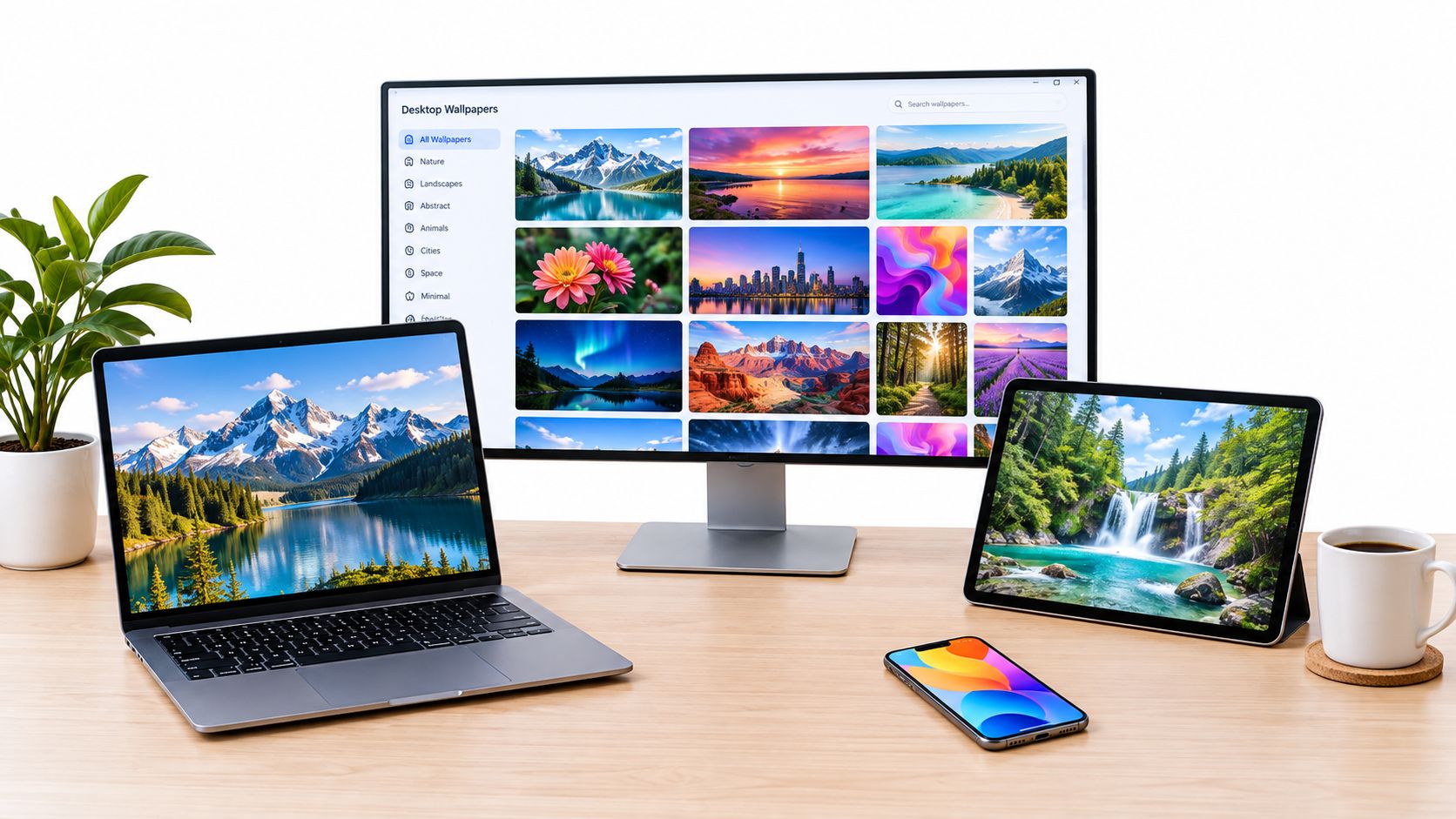
You're staring at the same plain desktop every day, and it's doing nothing for you. A change desktop background update takes seconds, but it can make a laptop feel more like yours, especially when you open it between meetings, classes, or late-night work. If the screen feels dull or distracting, a better wallpaper can help the whole device feel calmer and easier to use, especially if you also care about reducing visual clutter and eye fatigue, as discussed in this practical guide to reduce eye strain.
Desktop backgrounds started as a technical novelty and turned into a normal part of personal computing. The X Window System supported image-like backgrounds in 1985, Microsoft added wallpaper customization in Windows 3.0 in 1990, and Mac OS 8 brought arbitrary desktop pictures to Macs in 1997, a useful reminder that a simple setting became standard over time wallpaper history). That matters because the “default” look on your screen is only the starting point, not the limit.
Practical rule: if you see your desktop all day, treat the background like part of the workspace, not just decoration.
A background that matches your taste can make icons easier to spot, reduce visual noise, and make the whole device feel more intentional. That's especially true now, when wallpaper trends are leaning toward calmer visuals, softer neutrals, and nature-inspired textures instead of loud, busy art 2026 wallpaper trends. The best part is that you don't need to be technical to do this well.
Why Changing Your Desktop Background Matters More Than You Think
The desktop is one of the few screens you see repeatedly without choosing to. Every time you minimize a window, close an app, or log back in, that image is there, affecting how the device feels. A busy wallpaper can compete with icons and windows, while a clean one can make the screen feel more organized and less tiring.
That's why a quick change desktop background tweak is more than a cosmetic move. A personal image can make a borrowed work laptop feel familiar, turn a school device into something easier to live with, or replace a default picture you've seen too many times. The best choices usually aren't dramatic, they're readable, calm, and sized correctly for the screen.
Windows, macOS, Linux, and ChromeOS all let you do this in a few clicks. The menus look different, but the goal is the same, get the right image up fast without stretching it into something ugly. If you've ever opened a beautiful photo only to see it cropped badly, the problem usually isn't the wallpaper itself, it's the fit or resolution.
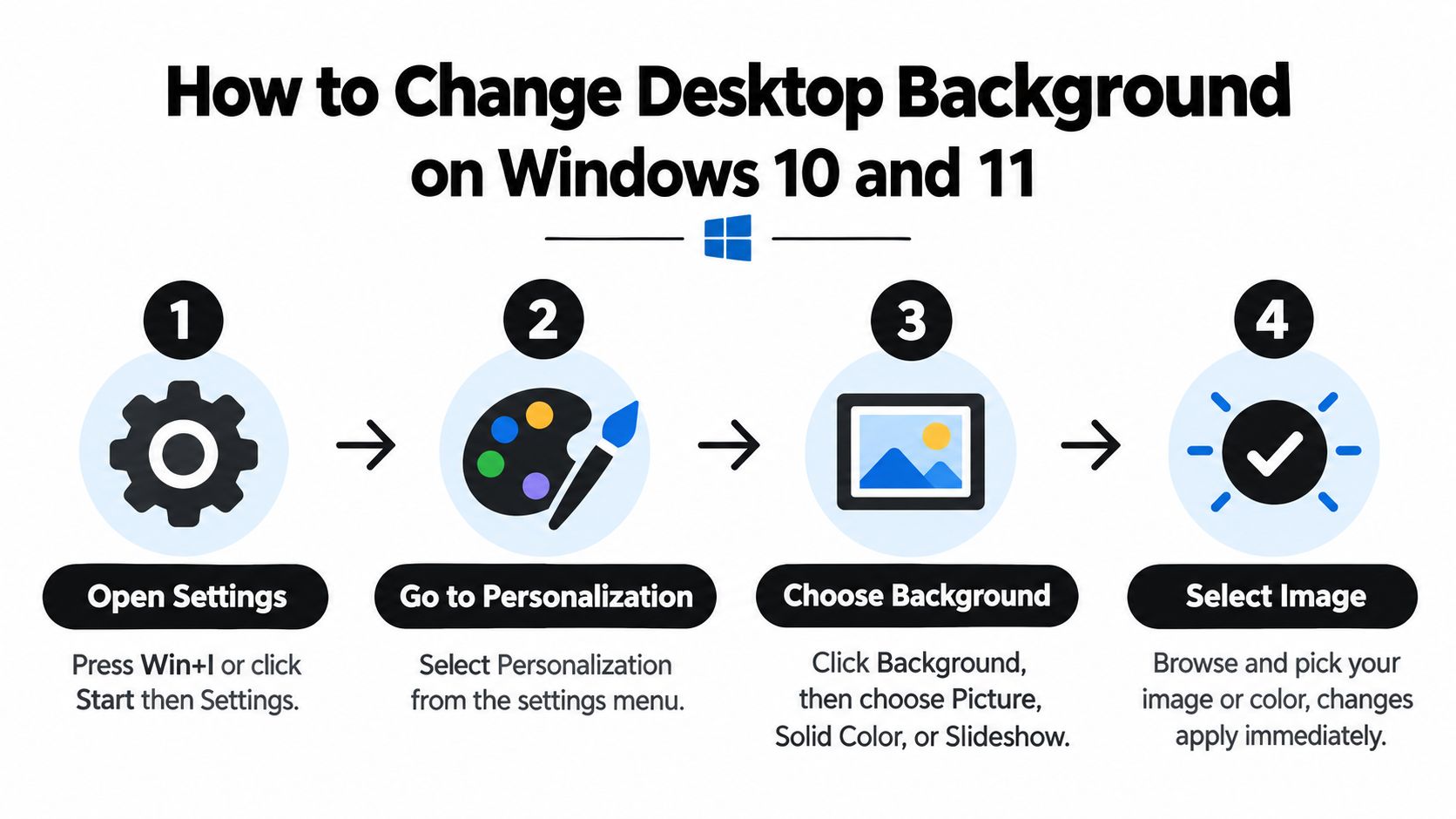
The pages below focus on the fastest path for each major system, plus the image choices that save you from blur, cropping, or clutter. If your desktop already feels overloaded, the settings here can help you bring it back to something simpler and easier to read. On Windows 10 and 11, the path is especially fast once you know where to click.
How to Change Desktop Background on Windows 10 and Windows 11
A Windows desktop can change from distracting to comfortable in under two minutes. Open Settings, select Personalization, then choose Background. Windows offers Picture, Solid color, and Slideshow, so you can use one image, a quiet color, or a rotating folder of photos. For Microsoft's menu path and available settings, see Windows background settings.
If the right image is already open, skip the Settings route. Right-click the image file and select Set as desktop background. In the Photos app, open the three-dot menu, choose Set as, then Background. This shortcut is useful when you have just downloaded a picture and want to apply it immediately.
Use Settings when you need more control, such as a plain background for concentration or a consistent appearance across a shared PC, work computer, or multi-monitor desk.
Pick the right fit mode
Windows includes Fill, Fit, Stretch, Tile, Center, and Span. The best choice depends on the image's shape and your display. A square photo behaves differently from a wide image on an ultrawide monitor or dual-screen setup.
Fill enlarges the image until the display has no empty space, but it may crop the edges. Fit shows the complete image and can leave borders. Stretch fills the display by changing the image's proportions, so faces and buildings may look distorted. Tile repeats a small image, while Center displays it at its original size. Span lets one wide image flow across multiple monitors. For planning a multi-screen arrangement, this best dual-monitor guide offers a useful setup reference.
Choose the fit mode that preserves the focal point of the image while filling the display. If a person's face or a key subject sits near an edge, Fill may cut it off, making Fit the clearer option.
For a slideshow, select the folder containing the source images and set the rotation interval in Windows' background controls. Keep the files available in that folder, because moved or deleted images can interrupt the rotation. Managed Windows devices can also use an http/https image URL for desktop background policies, with jpg, jpeg, and png supported in that workflow. Personal computers usually need only a picture, color, or local slideshow.
How to Change Desktop Background on macOS Without Hassle
If your Mac starts the day with a distracting image, you can replace it in under two minutes. Open Apple menu > System Settings > Wallpaper. This panel manages both the desktop picture and screen-saver behavior, so you can adjust related choices in one place Mac wallpaper settings. If the image is already open in Finder or Safari, Control-click or right-click it and choose Use Image as Desktop Wallpaper or Set Desktop Picture.
That shortcut applies a downloaded or online photo immediately. It is useful when you want a quick change and do not need to organize the file first.
Check the image shape and fit
A photo can look excellent in a browser yet feel awkward across your desktop. If its resolution or aspect ratio differs from your display, macOS may enlarge it, soften fine detail, or crop the edges. An image with high resolution and a shape close to your screen usually keeps faces, text, trees, and other focal details clearer on both Retina and non-Retina displays.
macOS may offer fit choices such as filling the screen, fitting the whole image, or centering it, depending on the wallpaper and system version. Filling the screen removes empty borders but can trim the sides. Fitting the complete image preserves the composition but may leave space around it. Choose the option that keeps the main subject visible, especially if it sits near an edge.
For readability, select a calm background rather than a crowded collage. A clean scene, simple gradient, or soft close-up leaves icons easier to find and text easier to read. A dedicated photo storage guide is a useful companion if you need a better way to keep wallpaper files organized.
Some Macs also offer dynamic wallpapers that change with the time of day. They can add variety without requiring a slideshow, but they still depend on a suitable resolution and aspect ratio. If the source image is blurry or poorly framed, movement will not correct the crop. Keep the original file available when using iCloud or another sync service, so you do not accidentally select a compressed preview instead of the full-quality image.
How to Change Desktop Background on Ubuntu Linux and ChromeOS
Linux desktops give you a few paths, depending on the desktop environment. On Ubuntu with GNOME, you can usually right-click the desktop and choose Change Background, or open Settings > Appearance > Background and add a picture from there. Other Linux environments may place the wallpaper choice under display or appearance settings, so the label can vary even when the idea is the same.
ChromeOS keeps it simple. Right-click the desktop and choose Set wallpaper, or open Settings > Personalization if you prefer the settings route. Chromebooks often group wallpaper options by theme or category, which makes browsing easier if you want a ready-made look instead of uploading your own file ChromeOS on an old laptop.
| System | Fastest Path | Key Option |
|---|---|---|
| Ubuntu and similar Linux desktops | Right-click desktop, then Change Background | Appearance or Background |
| ChromeOS | Right-click desktop, then Set wallpaper | Wallpaper categories |
| Windows 10 and 11 | Settings > Personalization > Background | Picture, Solid color, Slideshow |
| macOS | System Settings > Wallpaper | Desktop picture and screen saver |
If you switch between systems often, the naming changes are what usually trip people up. The idea stays the same, but the menu labels don't. On Linux, the exact wording depends on the desktop environment, so a menu called Appearance on one machine may appear under a different heading on another.
Choosing the Right Image Size Sources and Dynamic Options
A good wallpaper should suit the screen, remain sharp, and leave icons easy to read. Start with the display's shape and resolution. For example, a 1920x1080 monitor usually looks clearest with a 1920x1080 image or a larger one. A smaller file may become blurry when the system enlarges it. Choose a simple composition, soft neutrals, or natural textures when you want the desktop to stay calm and readable.
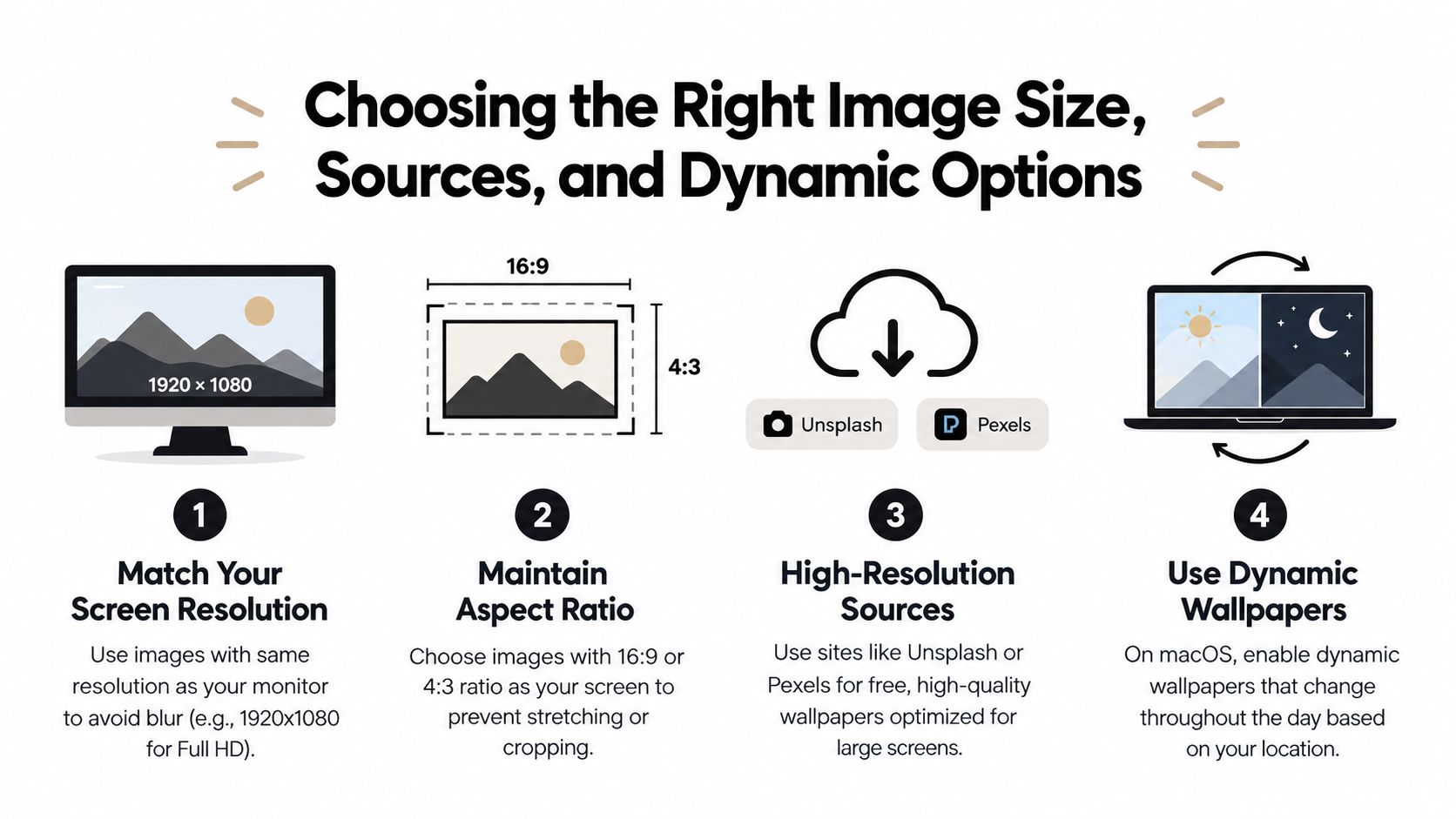
Static, slideshow, or dynamic
A static wallpaper uses one image, loads quickly, and gives you the most control. A slideshow rotates images from a folder, adding variety without manual changes. Keep those files in one stable folder, because moving, renaming, or deleting them can interrupt the rotation.
Dynamic wallpapers change automatically, often according to the time of day. macOS can use this approach for gradual visual changes, while Windows offers slideshow-style rotation and, in some builds, Spotlight-style backgrounds. These options add movement, but a busy sequence can make icons harder to find. Select images with similar brightness and uncluttered areas behind your shortcuts. For more creative directions, browse unique AI wallpaper ideas.
Where to look for good wallpaper images
Free photo libraries such as Unsplash and Pexels offer strong starting points, especially for large monitors. Look for images with a clear focal point, enough empty space for desktop icons, and a crop that matches your screen. Check the usage terms before sharing an image or using it for commercial work.
Keep a small wallpaper folder so changing pictures takes seconds. If your collection grows, these photo storage tips can help you organize files and avoid filling the computer with duplicate downloads.
Choose a wallpaper like a phone case. It should fit the device, preserve readability, and reflect your taste without getting in the way.
Troubleshooting Common Issues and Final Checklist
If the wallpaper will not apply, start with the file itself. Windows supports common formats such as jpg, jpeg, and png, which are usually the safest choices on everyday devices. If the image still does not appear, download a fresh copy to a local folder rather than selecting a cloud preview or temporary file.
A blurry or stretched background usually points to a mismatch between the image shape and the screen. Revisit the fit options on Windows, or select a higher-resolution image on macOS so the computer does not need to enlarge missing detail. The right fit mode works like choosing the correct frame: filling the screen may crop edges, while fitting the whole image may leave empty space.
For a slideshow that stops changing, check that every image remains in its original folder. Moving, renaming, or deleting that folder can break the rotation. Dynamic backgrounds can also make icons harder to read, so choose calm images with clear areas behind shortcuts.
Greyed-out settings often mean a work or school policy controls the desktop. The device owner may have restricted background changes by design, even though the computer is operating normally. If large image folders are filling the drive, use this guide to free up storage space before adding more files.
Use this final checklist:
- Match the screen shape: Choose an image that suits the display, rather than forcing an awkward crop.
- Use the right file type: Start with common formats the system accepts cleanly.
- Match resolution: Pick an image detailed enough for the monitor.
- Check the source folder: Keep slideshow files together in one stable location.
- Protect readability: Select uncluttered visuals that leave icons easy to see.
- Test the fit mode: Check how fill, fit, stretch, or center changes the result.
- Refresh occasionally: Replace a background when your workspace starts to feel stale.
For more practical help with everyday settings, visit Simply Tech Today for clear technology guides.


Member discussion