
Bluetooth Not Connecting to Car: Troubleshooting Checklist
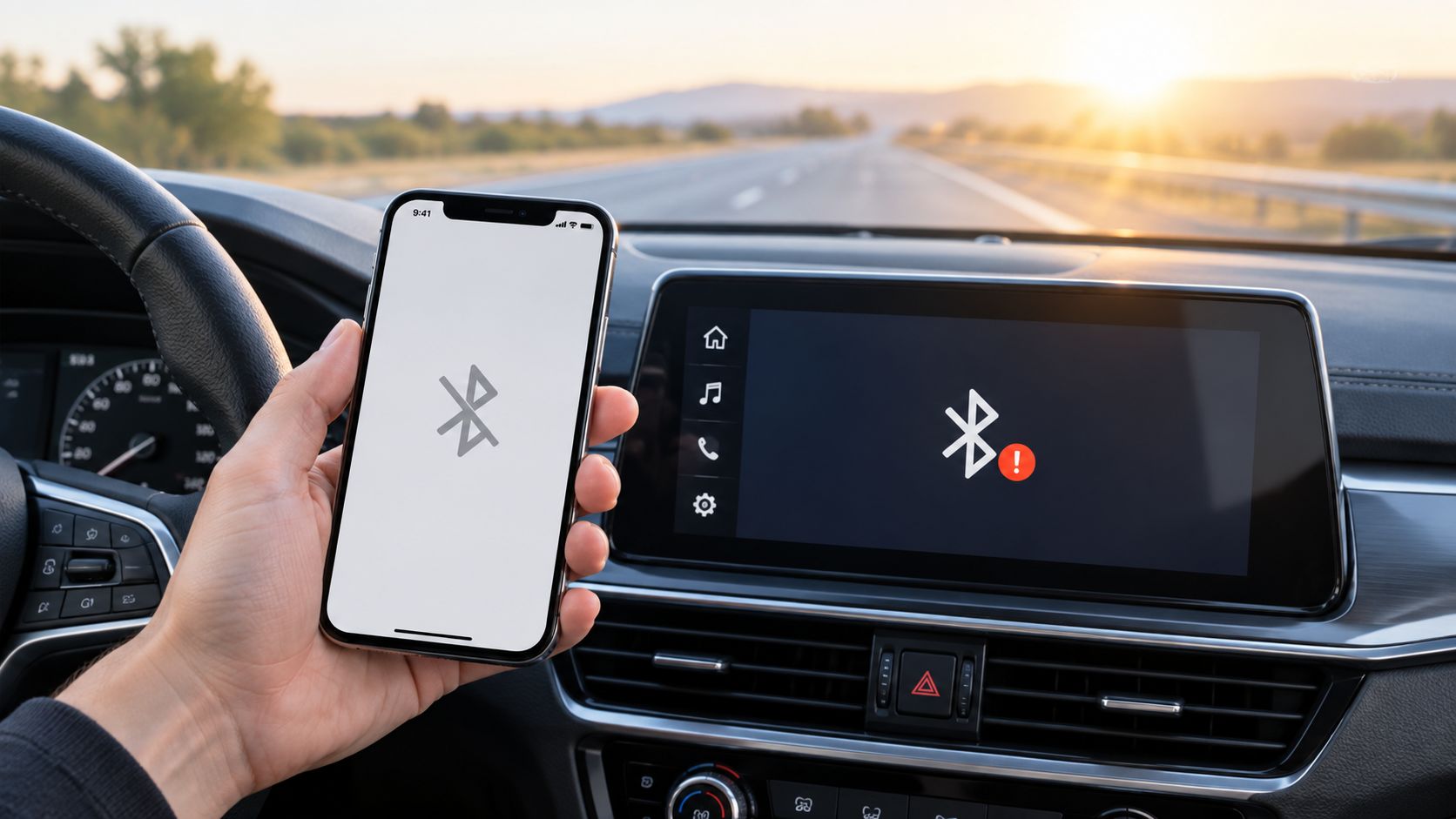
You slide into the driver's seat, start the engine, and wait for your phone to appear on the dashboard. Nothing happens. You tap Bluetooth, try to reconnect, and see the same old device name sitting there without a working connection.
When Bluetooth isn't connecting to your car, the failure usually has a cause you can isolate. The phone may have a damaged pairing profile, the car may have too many saved devices, or the infotainment system may be using older software that doesn't cooperate with a newer handset. The fastest fix comes from identifying which of those three problems you're dealing with instead of repeating the same restart advice.
Why Bluetooth Pairing Fails in the First Place
Bluetooth in cars is older technology than many drivers realize. Bluetooth was developed in 1994, launched as a wireless standard in 1998, and began appearing in production vehicles around 2001 and 2002, according to this history of Bluetooth in cars. Many vehicles on the road still use infotainment hardware designed before modern smartphones became common.
That age difference matters. A newer phone expects current Bluetooth behavior, updated security handling, and compatible profiles for calls, contacts, and media. An older head unit may support only a narrower set of functions, retain outdated pairing records, or struggle when several devices compete for the same connection.
The four failure patterns
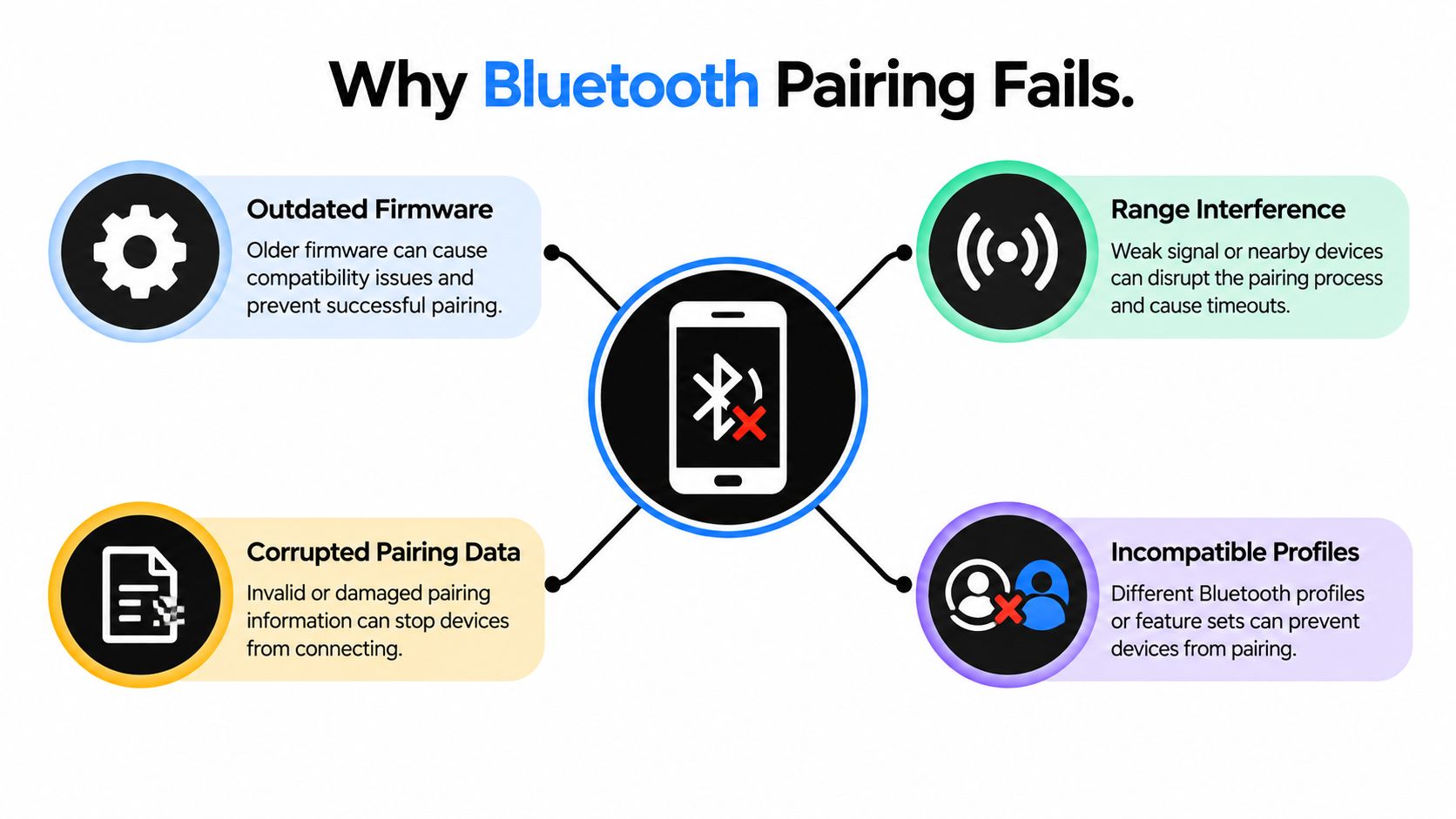
Most cases fall into one of these categories:
- The phone isn't visible: Airplane mode, privacy controls, or a temporary operating-system fault can prevent discovery.
- The car remembers too much: A full device list or duplicate entry can block a new phone.
- The saved profile is damaged: The phone and car may both show the other device, but neither can complete authentication.
- The software speaks a different dialect: Older Bluetooth profiles may support basic calls while failing with newer media or contact features.
Industry survey data reflects this distinction. Among owners who experienced a Bluetooth pairing or connectivity problem, 55% said the vehicle wouldn't recognize their phone, while 31% said the phone wouldn't automatically connect when entering the car, as reported in automotive Bluetooth troubleshooting coverage. Those are recognition and reconnect problems, not proof that Bluetooth has disappeared from the vehicle.
Before changing hardware, identify the symptom. A phone that never appears in the car points toward discovery or compatibility. A phone that pairs but doesn't reconnect points toward saved profiles, startup timing, or power settings. If you're also learning how a vehicle's keyless electronics work, this guide to smart key systems provides useful background on a separate wireless system that drivers often confuse with Bluetooth.
For a broader overview of common wireless failures, see this Bluetooth connectivity troubleshooting guide.
Starting with the Simplest Fixes First
Start with a clean restart, not a factory reset. Temporary Bluetooth services can get stuck after a phone update, a failed connection attempt, or a change between headphones, a smartwatch, and the car.
Restart the phone completely. Don't just turn Bluetooth off and back on. After the phone boots, leave it accessible and open its Bluetooth settings so the car can detect it during the next pairing attempt.
Then restart the infotainment system. The method depends on the vehicle. Some systems offer a Reboot or Restart system option under settings. Others restart when you hold the audio power button, sometimes together with a volume or menu button. If the screen remains active after the engine is turned off, lock the vehicle, leave it for several minutes, and then start it again. Consult the vehicle manual if the button combination isn't obvious.
Practical rule: A restart clears a temporary state. It doesn't repair a damaged saved pairing, so don't keep repeating it if the same failure returns.
Before pairing, check the conditions that make the phone discoverable:
- Airplane mode: Turn it off. Some phones allow Bluetooth in airplane mode, but the setting can still interfere with a clean discovery attempt.
- Power-saving mode: Disable it temporarily. Battery restrictions can limit background Bluetooth behavior and auto-reconnect.
- Hotspot or tethering: Turn it off while pairing. A phone running a hotspot is managing another wireless service that can complicate troubleshooting.
- Distance: Keep the phone inside the cabin, close to the dashboard, during setup.
- Pairing mode: Open the car's Bluetooth menu and choose Add phone, Pair new device, or the equivalent command. Merely opening the general Bluetooth screen may not make the head unit discoverable.
Don't pair while driving or while another phone is actively using the car's audio connection. Turn off nearby earbuds and smartwatches for the test, then try again with only the target phone available.
If the phone recently installed an operating-system update, check this phone software update guide before troubleshooting deeper. An available patch can address Bluetooth behavior, but updating alone won't remove a corrupted pairing record.
When One Phone Connects but Another Does Not
When your partner's phone connects instantly and yours doesn't, the car probably isn't completely broken. The working phone proves that the head unit can advertise Bluetooth, accept a pairing request, and produce at least some audio or call connection. Focus on what differs between the two phones.
The problem phone may have a corrupted record for that specific vehicle. It may also be using permissions that prevent contacts, call history, or media access from completing the setup. On Android, location permission can affect device discovery on some versions and manufacturers. On iPhone, Bluetooth access for individual apps can be restricted in privacy settings, which can affect related features even after the main pairing appears successful.
Use a controlled comparison
Remove the problem phone from the car's active connection list, then test it somewhere else. Another vehicle is useful, but a different Bluetooth accessory, such as a speaker, can also reveal whether the phone's radio is functioning.
The results point in different directions:
| Test result | Likely direction |
|---|---|
| The phone connects to other accessories but not this car | Vehicle memory, profile compatibility, or head-unit software |
| The phone fails with several Bluetooth accessories | Phone settings, operating system, or phone hardware |
| Another phone connects to the car, but yours never appears | Phone discovery or compatibility issue |
| Your phone pairs but loses calls or media | Profile permissions, supported features, or software mismatch |
| The phone works after deleting both records | Stale pairing data was the main blocker |
The comparison needs to be clean. Don't test while the other phone remains connected, because some head units automatically prioritize the first device they find. Disable Bluetooth on the working phone, clear the problem phone's old car record, and place the car in genuine pairing mode.
Check permissions after pairing
A connection can look successful while important functions remain unavailable. Open the phone's Bluetooth device details and check whether calls, contacts, and media audio are enabled. If the car asks for permission to access contacts or call history, accept it if you want hands-free calling and caller identification.
Android users can review this Android versus iPhone comparison when platform-specific behavior is unclear, but the practical test remains the same. Pair the phone with another accessory, then test the vehicle with Bluetooth isolated to one handset.
If one phone works and another doesn't, don't condemn the car until the failing phone has passed a second-device test.
A phone update can also alter privacy permissions or reset background behavior. Recheck those settings after an update instead of assuming the previous pairing configuration survived unchanged.
Clearing Stored Devices and Starting Fresh
A car's paired-device list is easy to ignore because it lives inside the infotainment system, not inside the phone. Older head units often have limited memory, and stale entries can prevent a new phone from being accepted. Duplicate names make the situation worse, especially after a phone has been renamed or restored from backup.
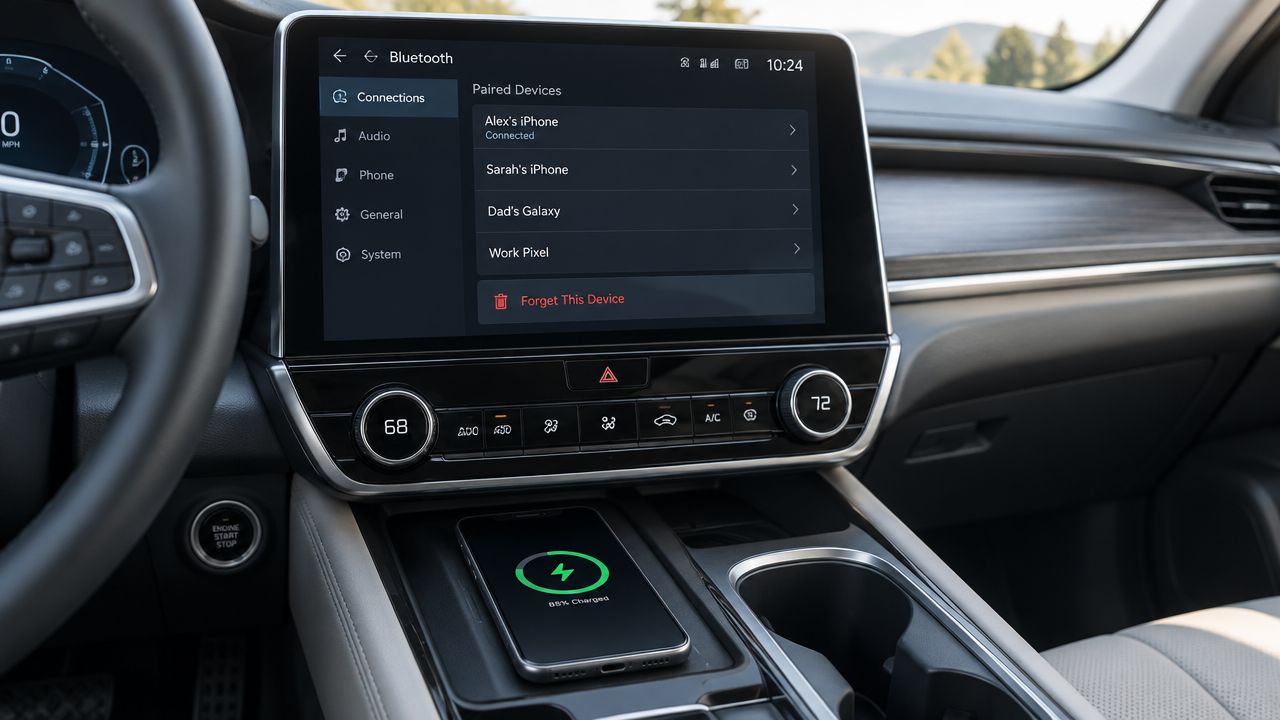
Start on the car. Open Phone, Bluetooth, or Connections, then find Paired devices, Known devices, or Device management. Delete phones that no longer belong in the vehicle, including old handsets from previous owners. If the menu offers Delete all devices, use it when several entries look duplicated or the system keeps looping during connection attempts.
Remove both sides of the old relationship
Deleting the phone only from the car isn't enough. On the phone, open Bluetooth settings, tap the vehicle name, and choose Forget, Unpair, or Remove device. The wording differs between Android and iPhone, but the purpose is identical. Both devices must stop trusting the old record before they can create a clean one.
Use this order:
- Erase the car's old phone entries: Remove unused devices and duplicates.
- Forget the vehicle on the phone: Delete the car from Bluetooth settings.
- Restart both systems: This clears active connection sessions left behind after deletion.
- Enter pairing mode in the car: Choose the command that searches for a new phone.
- Pair from the phone: Select the exact vehicle name shown by the head unit.
- Confirm the matching code: Accept the same code on both screens.
- Approve permissions: Allow calls, contacts, and media if those functions are required.
A successful fresh pairing has clear signs. The car should show the phone as connected, not merely saved. The phone should show the vehicle as an active device, and the infotainment screen should offer the expected call and media options.
Don't restore several devices at once. Pair the problem phone first, test a call and an audio track while parked, then add other phones individually. If the system works immediately after a complete cleanup, the old list was the likely cause.
Android Auto and Apple CarPlay add another layer because the wired or wireless projection system can maintain its own relationship with the phone. Bluetooth may be active while projection fails, or projection may prompt you to approve the phone again. For a practical overview of car setup options, use this guide to installing Bluetooth in a car, then follow the vehicle manufacturer's instructions for its specific interface.
Bluetooth Version Differences That Actually Matter
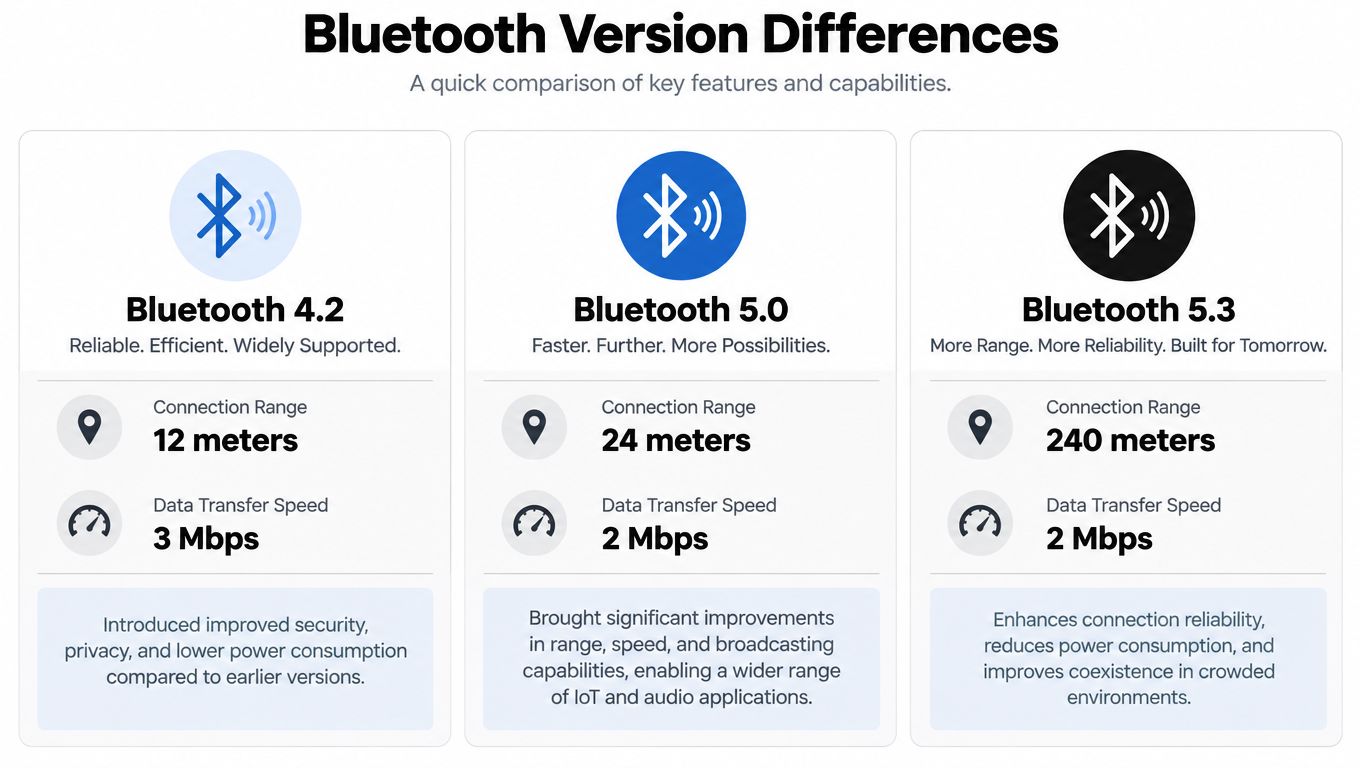
A newer phone can still fail with an older car. Bluetooth version numbers indicate capabilities, but pairing also depends on compatible profiles, firmware, authentication behavior, and audio support. The head unit may discover a phone yet fail when establishing hands-free calls or media playback.
That distinction explains why one phone connects while another does not. The working phone may use connection behavior the car recognizes, while the failing phone exposes a profile or security difference that outdated factory software handles poorly. If the vehicle has never received an infotainment update, software mismatch becomes more plausible than a failed phone radio.
What the evidence suggests
A published summary citing a J.D. Power Connected Car Study estimate reports that nearly 73% of drivers report at least one failed pairing attempt per month. It also reports that 55% of owners with Bluetooth issues said the car didn't recognize the phone, while 31% said the phone didn't auto-connect on entry. These figures appear in this Bluetooth pairing guide, so treat them as reported findings rather than universal failure rates.
The same guide references an aftermarket test report that attributed a majority of failures in vehicles aged seven or more years to protocol mismatch. Another test compared disconnect rates of 41% on Bluetooth 2.1 systems with 3% after upgrading to Bluetooth 5.0. Those results illustrate how compatibility can affect reliability, but they do not prove that a version upgrade will solve a particular car's problem.
| Situation | What an update can change | What it can't change |
|---|---|---|
| Factory firmware update exists | Pairing logic, profile support, reconnect behavior | A physically limited Bluetooth module |
| Phone software patch is available | Compatibility and background connection handling | Unsupported car profiles |
| The car supports current hands-free and media profiles | Stability after clean pairing | A full or corrupted device list |
| The head unit has obsolete hardware | Usually very little | The module's built-in capabilities |
Check the manufacturer's support page with the exact model year and infotainment version. Some updates install through USB, while others require dealer equipment. Do not install firmware intended for another head unit, even when the vehicle model looks similar.
For cross-device diagnosis, this Bluetooth troubleshooting guide for Windows 10 applies the same practical method: isolate the device, remove stale records, and verify compatibility before blaming the vehicle's Bluetooth hardware.
Knowing When to Seek Dealer or Professional Help
Professional help makes sense when the failure survives a controlled test. If several phones fail to pair, the car's Bluetooth menu disappears, or the system stopped working immediately after an infotainment update, the fault may sit inside the head unit rather than in your phone's settings.
Persistent auto-reconnect failure deserves attention too. A phone can pair successfully during a stationary setup and still fail every time you enter the vehicle. That pattern may involve the infotainment system waking too slowly, a damaged user profile, power-saving behavior, or software that doesn't retain the preferred device correctly.
Bring useful evidence
A dealer or qualified car-audio technician can work faster when you provide specific observations:
- Vehicle details: Record the model year, infotainment version, and whether the system is factory-installed or aftermarket.
- Phone results: List the phone models and operating-system versions you tested.
- Exact symptoms: Note whether the phone isn't discovered, pairing fails, calls work without music, or reconnection fails after the car starts.
- Recent changes: Mention phone updates, vehicle firmware updates, battery replacement, or a recent reset.
- Repeatable timing: Record whether the failure happens only on startup, after another phone connects, or every time.
A technician needs the failure pattern, not just the message “Bluetooth doesn't work.”
Ask whether a manufacturer firmware update exists before paying for a replacement module. If the car uses an outdated factory system with no supported update, an aftermarket Bluetooth adapter or modern head unit may be more practical than repeated resets. The trade-off is that an adapter may provide audio but not fully reproduce factory steering-wheel controls, contact syncing, or integrated display behavior.
Don't keep factory-resetting the entire vehicle if the problem is isolated to one phone. Conversely, don't replace the phone when multiple devices fail under the same conditions. The phone-versus-car comparison, followed by a complete device-list cleanup, gives you the evidence needed to choose the right repair path.
Simply Tech Today offers practical guides for Bluetooth pairing, phone settings, software updates, and adding wireless audio to older cars. Visit Simply Tech Today to find clear troubleshooting steps before you spend money on a replacement or dealer visit.

Member discussion