
Connecting AirPods to TV Without the Headaches
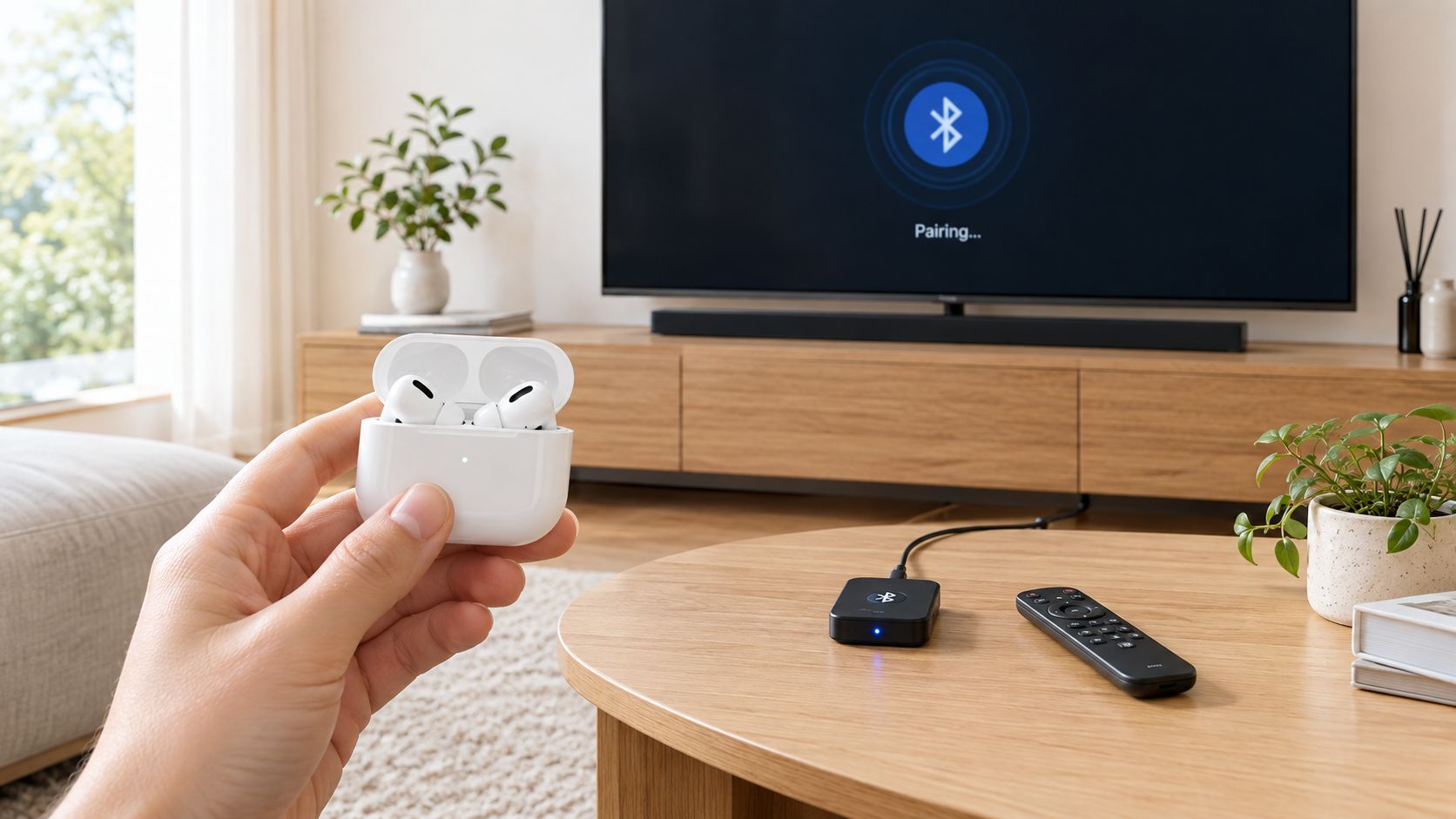
The room is dark, your partner is asleep, and even the television's lowest volume setting feels too loud. You open the AirPods case because private listening seems like the easy answer. Sometimes it is. Other times, the audio connects perfectly but arrives just late enough to make every presenter look dubbed.
That distinction matters. Connecting AirPods to a TV is usually a pairing problem for only a few minutes, but it can become a latency problem for the entire film. The right setup depends on whether you own an Apple TV, a Bluetooth-ready smart TV, or an older set that needs an external transmitter.
Three Ways to Get Your AirPods On the TV
There are three practical routes, and they don't offer the same experience.
The cleanest option is an Apple TV HD or Apple TV 4K. Apple documents AirPods and compatible Beats as native Bluetooth audio devices on Apple TV, with the connection managed through tvOS rather than a separate adapter. Users signed in with the same Apple Account can route Apple TV audio to their headphones, and Apple places the pairing controls under Settings > Remotes and Devices > Bluetooth. Apple TV HD launched in 2015, which makes that the practical milestone for mainstream Apple TV support under the current guidance. (Apple's Apple TV Bluetooth instructions)
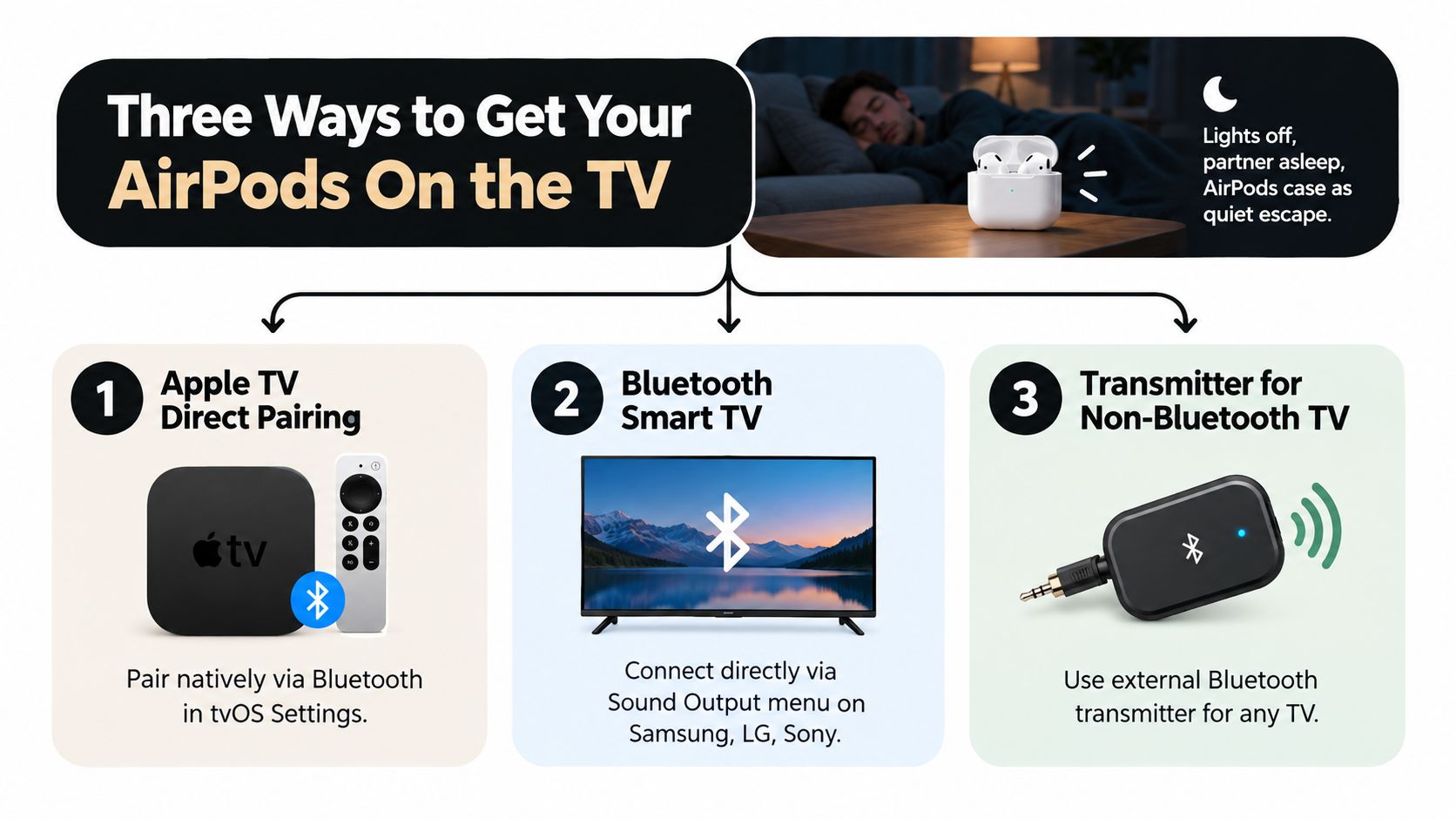
The second path is a smart TV with built-in Bluetooth. Samsung, LG, Sony, Hisense, and Vizio sets generally place this under sound output or speaker settings, but the labels and behavior vary. One television may reconnect to the AirPods automatically. Another may list the earbuds under saved devices but continue using its internal speakers after a restart. Pairing is direct, but the TV controls the audio processing, and that's where lip-sync quality can become unpredictable.
The third route is an external Bluetooth transmitter. This is the answer for an older plasma, a basic television, or a wall-mounted display with no Bluetooth audio option. The transmitter takes sound from an optical, 3.5 mm, or RCA output and sends it wirelessly to the AirPods. It adds another device and another potential delay source, but it can be more flexible than replacing a working television.
The practical choice: Pick Apple TV for the most integrated Apple experience, the TV's Bluetooth menu for convenience, and a transmitter when the television itself has no useful wireless-audio path.
Pairing success doesn't guarantee a good viewing experience. Dialogue sync, audio format, and the TV's own processing determine whether the quiet late-night setup feels natural or distracting.
Pairing AirPods With Apple TV the Right Way
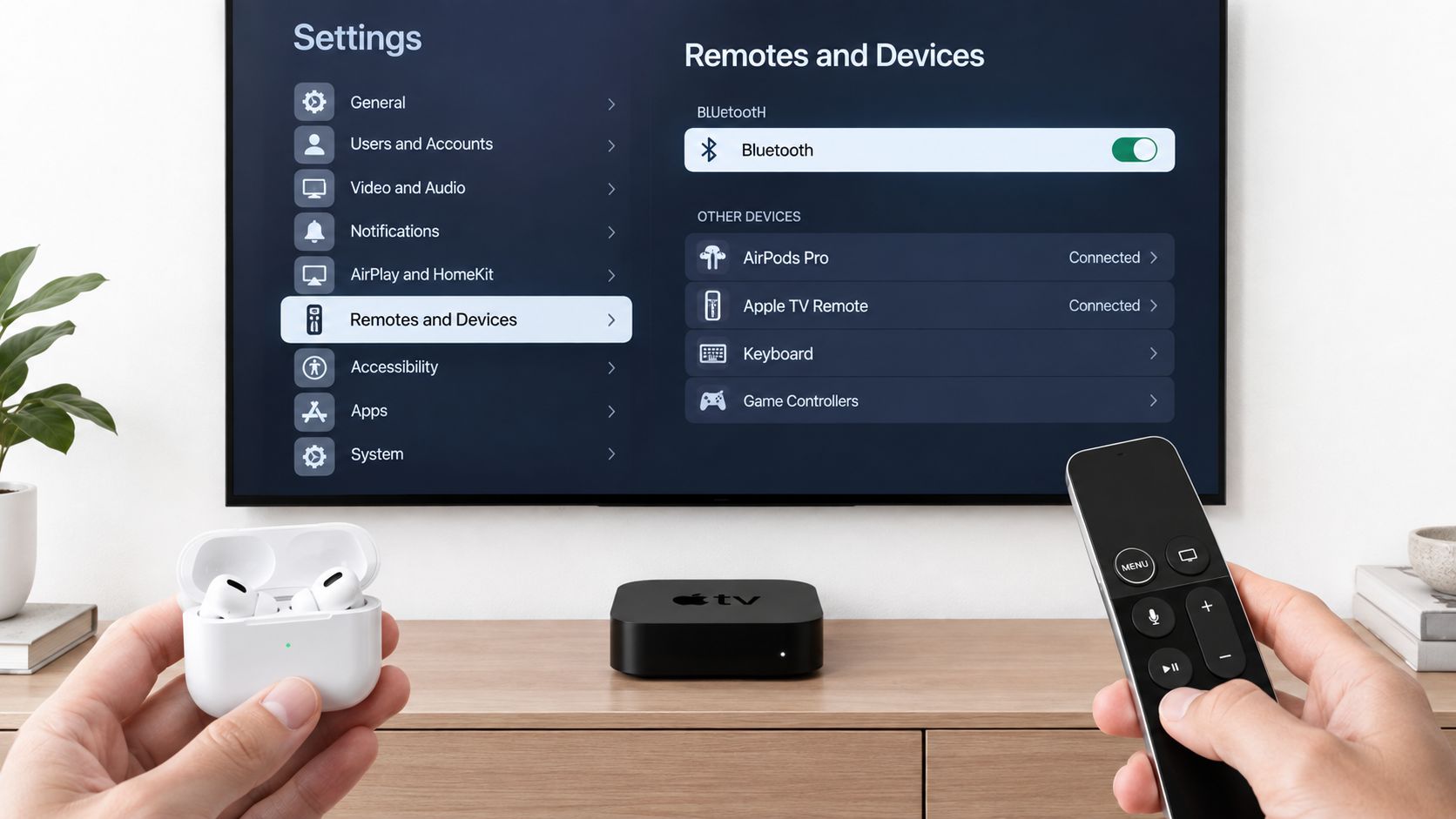
If the video looks right but dialogue arrives late in your ears, start by checking the Apple TV route before blaming the AirPods. Apple TV usually offers the cleanest setup because tvOS provides a dedicated Bluetooth pairing workflow. Update tvOS, keep the case near the Apple TV, and confirm that you have an Apple TV HD or Apple TV 4K running the latest tvOS, as described in Apple's Apple TV setup guide.
Use the tvOS Bluetooth menu
Open Settings on Apple TV, choose Remotes and Devices, select Bluetooth, and leave the device list open.
Place both AirPods in their case and open the lid. Hold the case setup button for about five seconds, until the status light flashes white. The flashing light puts the AirPods into pairing mode. Select them when they appear.
The account relationship can cause more confusion than the button sequence. Apple says AirPods can connect through the Apple ecosystem when the Apple TV and AirPods use the same Apple Account. If the accounts differ, tvOS may not offer the quick connection, or it may keep sending sound to another available device. Check the Apple TV account before resetting the AirPods or repeating the pairing steps.
Confirm the audio route
After pairing, play a familiar programme and open the Apple TV audio controls. Select the AirPods as the active output manually. A completed Bluetooth pairing does not always change the current audio route, so the television may show the picture while its speakers, rather than the AirPods, handle sound.
For shared viewing, Apple TV supports up to two pairs of compatible AirPods or Beats. Both listeners still use the same Apple TV audio processing, so this feature does not remove latency or lip-sync problems caused by the source, television, or output chain. It does avoid the extra hardware required by a splitter or second transmitter. Apple's AirPods pairing documentation covers the broader pairing behavior.
On Apple TV 4K, signed-in users can often reach connected audio devices through Control Center. Use the full Bluetooth menu for the first setup. It shows whether the AirPods are discoverable, paired, or only remembered, which makes it easier to identify whether the delay starts with pairing, audio routing, or the television's processing.
Connecting AirPods to a Bluetooth Smart TV
A Samsung television provides a useful model for most smart-TV pairing menus. The exact wording differs, but the logic is similar: find the TV's sound output selector, open its Bluetooth device list, and add the AirPods as a new speaker.
Find the TV's speaker list
On a Samsung set, open Settings, choose Sound, select Sound Output, and then open Bluetooth Speaker List. LG may use a Bluetooth or wireless speaker option under Sound Out. Sony commonly places wireless speaker selection under sound settings, while other brands may put it under an audio accessories submenu. If you're comparing display options before buying, a guide to choosing a compact 32-inch TV can help you check features such as Bluetooth support rather than assuming every smart set includes it.
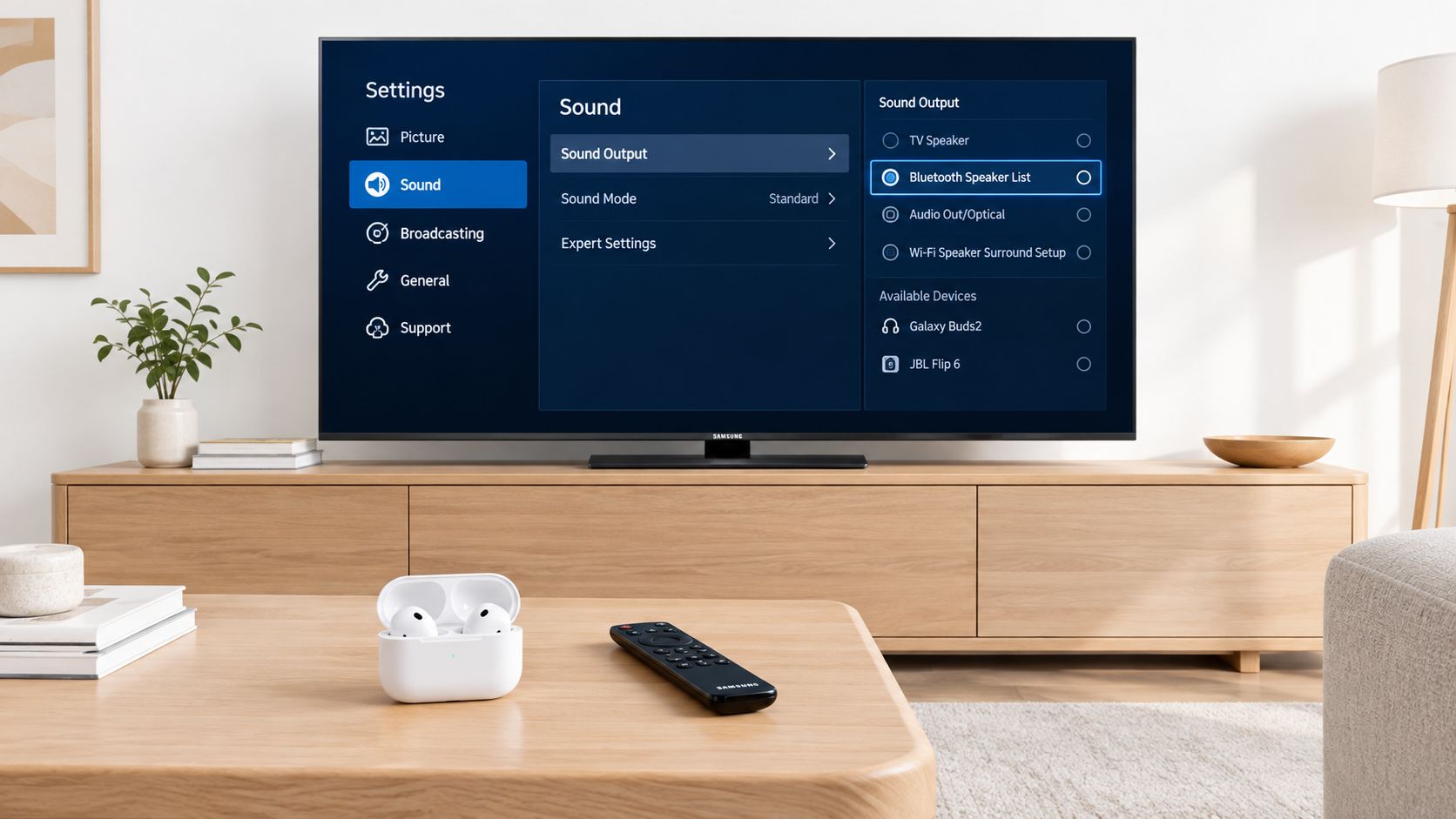
Open the AirPods case with the earbuds still inside. Hold the case setup button until the light flashes white, then choose Add New Device if the television shows only previously paired speakers. That extra selection is easy to miss. A saved-device list isn't always a discovery screen, so the AirPods may remain invisible until the TV starts searching.
Test the route before settling in
After selecting the AirPods, play a known app, such as a programme you've already watched. Listen for the audio and check the TV's output indicator if the interface provides one. The television should switch away from its internal speakers, but some models revert to the built-in speakers after a restart or input change. If that happens, return to Sound Output and select the AirPods again.
The TV's Bluetooth menu is convenient, but it gives you less control than Apple TV over the complete audio chain. Firmware, picture processing, Bluetooth implementation, and audio format handling all vary by manufacturer. The same earbuds can feel acceptably synchronized on one television and noticeably late on another.
For broader Bluetooth troubleshooting principles, the Bluetooth laptop connection guide is useful because the same discovery, pairing, and saved-device behavior appears across many consumer devices. It won't replace the TV's own menu instructions, but it can clarify why a device that's already paired elsewhere may not appear during a new scan.
Using AirPods With a TV That Has No Bluetooth
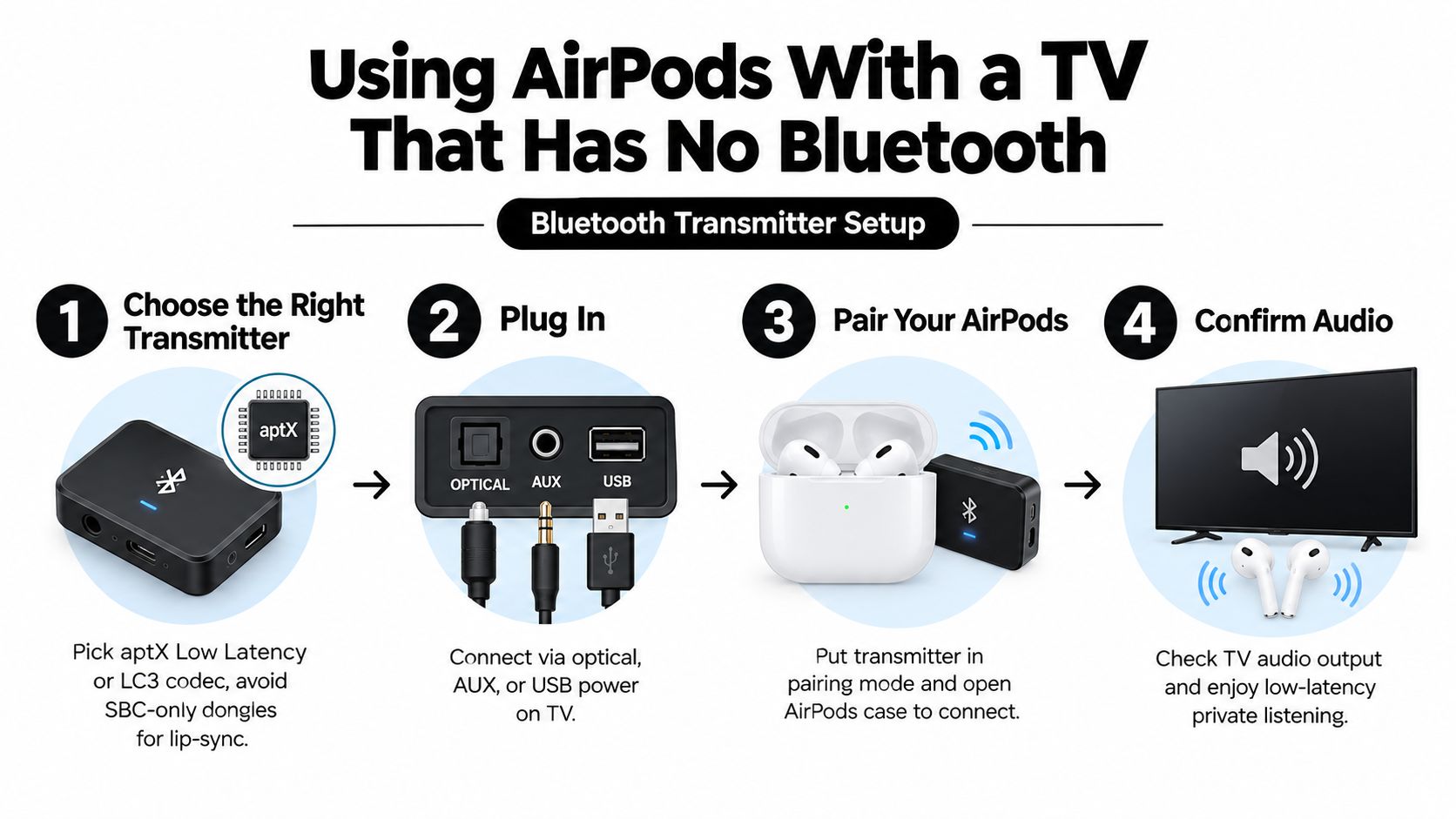
An older television can still send sound to AirPods. A Bluetooth transmitter adds that wireless route, but it also introduces another possible source of lip-sync delay. The transmitter's input, output format, processing, and measured latency all affect whether speech matches the picture.
Choose the hardware around the ports
Inspect the back or side of the television before buying a transmitter. Optical output usually provides the cleanest digital connection. A 3.5 mm headphone output is straightforward, while RCA needs the correct left-and-right cable. Some transmitters use USB only for power, so a TV's USB port may not carry audio.
Codec labels need careful reading. AirPods models including AirPods 2, AirPods 3, AirPods Pro, AirPods Pro 2 with Lightning, and AirPods Max use Apple's AAC Bluetooth codec, and Bluetooth connections are not lossless. A transmitter advertising aptX Low Latency or LC3 may still offer useful processing or compatibility features, but the AirPods do not automatically accept every codec listed on its packaging. The codec label alone cannot predict lip sync. End-to-end delay is the more useful test.
For background on the signal path, this guide to analog and digital audio explains why the TV's output type matters before the transmitter receives anything.
Pair the transmitter, then fix the TV output
Power the transmitter, connect it to the selected output, and hold its pairing button until the indicator enters pairing mode. Open the AirPods case with the earbuds inside, place it close to the transmitter, and wait for pairing to complete. Then set the television's audio output to that connection and choose PCM stereo if the menu provides it.
PCM can stop the transmitter from receiving an incompatible surround format. Check whether the TV mutes its internal speakers when the headphone output becomes active. If speech consistently arrives early or late, use the transmitter's lip-sync control, if available. If the delay changes between apps, the TV's processing may be contributing rather than the AirPods themselves.
A transmitter adds a box, cable, and another conversion stage, so it is not automatically better than direct Bluetooth. Its advantage is control: it gives a Bluetooth-free television a workable audio route and may offer delay settings that the TV lacks. Test a familiar dialogue scene before settling on the setup.
Audio Delay and Lip Sync: What to Really Expect
A news presenter's mouth moves, then the words arrive a fraction later. The AirPods may be connected correctly. Delay can enter through the television's picture processing, Bluetooth buffering, the transmitter, or the AirPods, so “connected” does not mean synchronized.
Apple distinguishes ordinary Bluetooth audio from the higher-performance wireless audio path used by newer AirPods with Apple Vision Pro. A television's standard Bluetooth connection does not use that Vision Pro protocol. Apple also states that the relevant AirPods models use AAC over Bluetooth and that Bluetooth audio is not lossless. (Apple's explanation of AirPods wireless audio)
Independent coverage commonly places Bluetooth TV latency around 80 to 200 milliseconds, while some transmitter setups are reported around 150 to 250 milliseconds. (Technical discussion of AirPods and Samsung TV latency) These ranges do not predict every setup, but they show why lip sync can remain visible after pairing succeeds.
Match the connection to the content
| Connection Method | Typical Latency | Best Suited For |
|---|---|---|
| TV or Apple TV Bluetooth | Often noticeable, depending on the device chain | Films, series, and casual viewing |
| External transmitter | Varies with the transmitter and TV output | Older TVs and private listening |
| TV speakers or wired audio | Generally avoids Bluetooth buffering | Lip-sync-critical viewing and gaming |
Films and ordinary drama can remain watchable with some delay, particularly if the television applies compensation. Live sports exposes the mismatch sooner because faces, commentary, and rapid movement provide immediate visual reference points. Rhythm games and reaction-heavy games are less forgiving, since sound must match an action rather than accompany speech.
The AirPods are not automatically the source of the problem. After the Bluetooth handshake completes, the television's picture and audio pipeline or an external transmitter may contribute more delay. Try the TV's game or low-latency picture mode, set digital audio output to PCM stereo, and use optical output where available to reduce unnecessary processing. These changes cannot remove every Bluetooth limitation, but they can eliminate buffering introduced by the TV.
For broader context on how wireless systems handle these trade-offs, read this wireless connectivity solutions overview. Test a familiar dialogue scene, then compare the result with TV speakers or wired audio. That comparison usually identifies whether the AirPods, the television, or the connection method is responsible.
Quick Fixes When AirPods Will Not Pair
A dark case can mimic a TV software fault. Charge the case, leave both earbuds inside, and open the lid or press the setup button to confirm that the status light responds. Apple recommends checking the accessory's charge, restarting it, and keeping previously paired devices nearby during connection attempts. Follow Apple's Bluetooth connection troubleshooting before changing TV settings.
Remove competing connections
An iPhone beside the television may claim the AirPods before the TV completes its Bluetooth handshake. Turn Bluetooth off temporarily on nearby devices, or remove the AirPods from the device that keeps reconnecting to them. Put the earbuds back into pairing mode, then start a fresh scan from the TV.
On Apple TV, confirm that the AirPods use the same Apple Account as the television. Check the active audio output as well. A HomePod or another AirPlay speaker may be selected, leaving the AirPods apparently connected while the programme plays elsewhere.
Reset the pairing state
Delete the failed AirPods entry from the TV's Bluetooth list before scanning again. Samsung and LG sets may place Bluetooth audio under a secondary sound or expert menu, so search the sound settings instead of relying only on the general device page.
A clean reset often beats repeated tapping: restart the television, close the AirPods case, and begin discovery again while other Bluetooth devices remain quiet.
If the AirPods still do not appear, hold the setup button until the indicator changes from amber to white, then pair them as a new accessory. If an earlier connection remains stuck, remove the accessory from its saved device list and follow Apple's AirPods reset instructions.
With a transmitter, place it close to the AirPods for the initial pairing. Return it to its intended position afterward and test a familiar dialogue scene. A successful connection with late speech points away from the earbuds. Check the TV's output format, processing mode, and audio-delay control instead of repeating the pairing steps. If the AirPods drop out or never appear, work through this guide to resolving Bluetooth connectivity issues.
Choosing the Setup That Fits Your Living Room
Start with the source of the delay, then choose the connection method. The room layout matters for comfort, but lip-sync depends mainly on the TV's processing, the Bluetooth audio chain, and the AirPods.
| TV Setup | Recommended Path | Typical Latency | Budget | Best For |
|---|---|---|---|---|
| Apple TV HD or Apple TV 4K | Native tvOS Bluetooth pairing | Depends on the Bluetooth audio chain | Existing Apple TV hardware | Apple ecosystem users and shared listening |
| Recent Bluetooth smart TV | TV sound output menu | Varies by television | No extra device if Bluetooth is built in | Films and casual private listening |
| Older or Bluetooth-locked TV | Optical, AUX, or RCA transmitter | Depends on transmitter and TV processing | Requires an external transmitter | TVs that lack wireless audio |
An Apple TV already handling your streaming apps is usually the cleanest option. Pair the AirPods through tvOS, especially if shared listening with compatible AirPods or Beats matters. The TV remains the likely source of trouble when speech arrives late through every connected headset or speaker.
A smart TV with a reliable Bluetooth speaker menu avoids another box. Check whether its audio settings offer delay adjustment, passthrough, or processing modes. If dialogue is synchronized through the built-in speakers but late in the AirPods, investigate the TV's Bluetooth implementation or processing before replacing the earbuds.
Older plasmas and monitors with only optical, AUX, or RCA outputs need a transmitter. Choose one based on demonstrated latency behavior and available output controls, not packaging claims. A transmitter can introduce delay of its own, while optical output may still pass through the television's audio processing.
Gamers and live-sports viewers should test a familiar scene before committing. Film and series viewing can tolerate some delay, particularly when the TV includes an audio-delay control. A comfortable distance and sensible screen height will not correct latency, but this guide to the best sofa and TV placement can reduce neck strain and awkward viewing angles while you tune the sound.
If you are still choosing hardware, this guide to choosing a compact 32-inch TV helps you confirm Bluetooth support before buying. Check the TV's ports and output settings first, then test another source before blaming the AirPods. The right setup matches your equipment and tolerance for delay, not the longest feature list.
Member discussion