
Data Transfer USB C: Speeds, Cables, and What to Expect
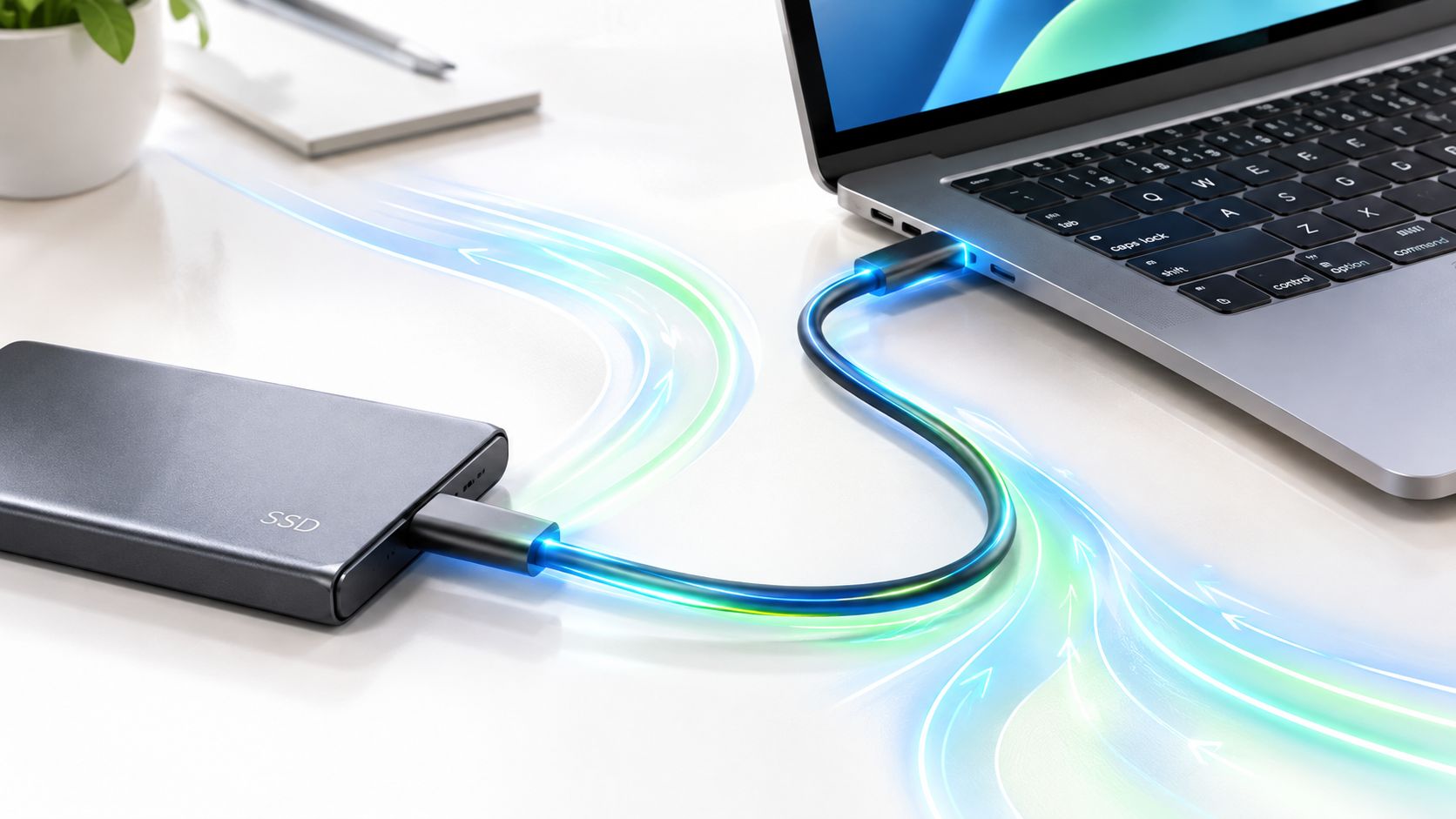
You plug your phone into your laptop with a USB-C cable and start copying photos. The progress bar barely moves. Then you connect a different USB-C cable to an external SSD, and the same laptop transfers a much larger folder far more quickly. Both cables fit the same oval-shaped port, so what changed?
The answer is hidden behind the connector. USB-C describes the shape of the plug and port, not the data-transfer speed. The actual result depends on the USB or Thunderbolt protocol, the port on the host device, the cable, and the controller inside the connected device. Once you identify the slowest part of that chain, confusing USB-C performance becomes much easier to diagnose.
Why Two USB-C Devices Can Feel So Different
A USB-C port on a phone may be designed mainly for charging and basic file transfers. A USB-C port on a laptop may support a faster USB 3.2 mode, display output, or USB4. An external SSD may also support a high-speed protocol, but it can't use that capability if the laptop port or cable offers a slower connection.
That's why a phone-to-laptop transfer can crawl while an SSD connected to the same laptop feels responsive. The phone, its internal storage controller, the phone's USB implementation, the cable, and the laptop port all participate in the transfer. The connection performs according to the slowest compatible link, not the most impressive specification printed on one device.
Practical rule: Treat USB-C as the road surface and the USB protocol as the number of lanes. The oval shape alone doesn't tell you how wide the road is.
The range is surprisingly broad. USB 2.0 standardized 480 Mbps, while USB 3.2 can operate at 5 Gbps, 10 Gbps, or 20 Gbps, and USB4 version 1 reaches 40 Gbps, according to the USB evolution overview from Texas Instruments. A newer USB4 version 2 can reach 80 Gbps symmetrically or use an asymmetric mode reaching 120 Gbps, depending on the implementation and traffic direction.
The same principle applies beyond storage. A USB-C connection used for a monitor, dock, webcam, SD card reader, or external drive may share bandwidth with other devices. If you're troubleshooting a MacBook setup, it also helps to understand how storage accessories interact with available ports, as explained in this guide to the SD card slot on a MacBook Pro.
Before replacing a perfectly good SSD, check three layers: the host port, the cable, and the connected device. Their labels and specifications reveal which part is limiting the transfer.
The USB Speed Ladder From 2.0 to USB4
Think of USB standards as lanes on a road. More lanes can move more traffic, but a vehicle still travels through the narrowest section it encounters. A fast SSD connected through a slow cable doesn't become faster because the SSD has a premium label.
The USB-IF documentation on USB 3.2 defines three commonly discussed USB 3.2 speed tiers. Earlier USB branding can make those tiers look more complicated than they are, so focus on the actual speed description whenever possible.
Start with USB 2.0
USB 2.0 reaches 480 Mbps. It can handle ordinary documents, contacts, and occasional photo transfers, but large folders take patience. You might think of it as a narrow city road, suitable for light traffic but easy to congest when you send a large media library.
A USB-C port that only implements USB 2.0 still looks like USB-C. The connector doesn't expand the underlying data lanes.
Move to the everyday USB 3.2 tiers
USB 3.2 Gen 1 reaches 5 Gbps, making it a practical match for routine external storage, phone backups, and accessories. USB 3.2 Gen 2 reaches 10 Gbps, giving compatible phones, laptops, and SSD enclosures more room for large files.
The “Gen” labels refer to the signaling speed, not the connector. A USB-C cable may fit a 10 Gbps port while carrying data at a slower rate if the cable itself doesn't support the required mode.
Understand Gen 2x2
USB 3.2 Gen 2x2 reaches 20 Gbps by using two 10 Gbps lanes in parallel, as described in the USB-IF material linked above. The “2x2” portion matters because it explains where the extra capacity comes from.
Picture a two-lane highway. A Gen 2 connection uses one 10 Gbps lane. Gen 2x2 uses two compatible lanes together. Both devices and the cable must support that arrangement, so just seeing USB-C on both ends isn't enough.
Finish with USB4
USB4 version 1 raises the ceiling to 40 Gbps, while USB4 version 2 supports 80 Gbps symmetric operation and 120 Gbps asymmetric operation in supported configurations, according to the Texas Instruments USB history reference cited earlier. USB4 also works more like a shared tunnel, allowing data and other traffic such as display signals to use the connection according to the needs of the setup.
That shared capacity matters when an external SSD, monitor, and peripherals all connect through one dock. For a simpler backup routine, compare the port and cable with the drive's requirement before paying for a higher tier. A guide to the best external hard drives for backup can help you think about the storage device and the connection together.
| Standard | Max Speed | Typical Use Case |
|---|---|---|
| USB 2.0 | 480 Mbps | Basic phone transfers, keyboards, mice, and documents |
| USB 3.2 Gen 1 | 5 Gbps | Everyday external drives and general file copying |
| USB 3.2 Gen 2 | 10 Gbps | Faster phones, SSD enclosures, and laptop storage |
| USB 3.2 Gen 2x2 | 20 Gbps | Compatible high-speed external SSD setups |
| USB4 version 1 | 40 Gbps | High-performance storage, docks, and displays |
| USB4 version 2 | 80 Gbps symmetric, 120 Gbps asymmetric | Supported next-generation high-bandwidth setups |
The useful question isn't “Is this USB-C?” Ask instead, “Which USB speed tier does each part of my setup support?”
Where Thunderbolt Fits Into the Picture
At a store counter, two laptops can show the same USB-C-shaped port while one handles a fast dock and the other supports only basic accessories. The oval connector identifies the physical shape. Thunderbolt identifies a more tightly defined set of performance and compatibility requirements behind that shape.
Thunderbolt operates through the same USB-C connector but follows stricter certification requirements for bandwidth and features. Thunderbolt 3 and Thunderbolt 4 commonly operate at 40 Gbps, as reflected in the USB-C and Thunderbolt comparison from HP. Certification also sets expectations for interoperability that ordinary USB-C hardware may not provide. A USB-C port can support storage, displays, charging, or peripherals in different combinations, depending on the device.
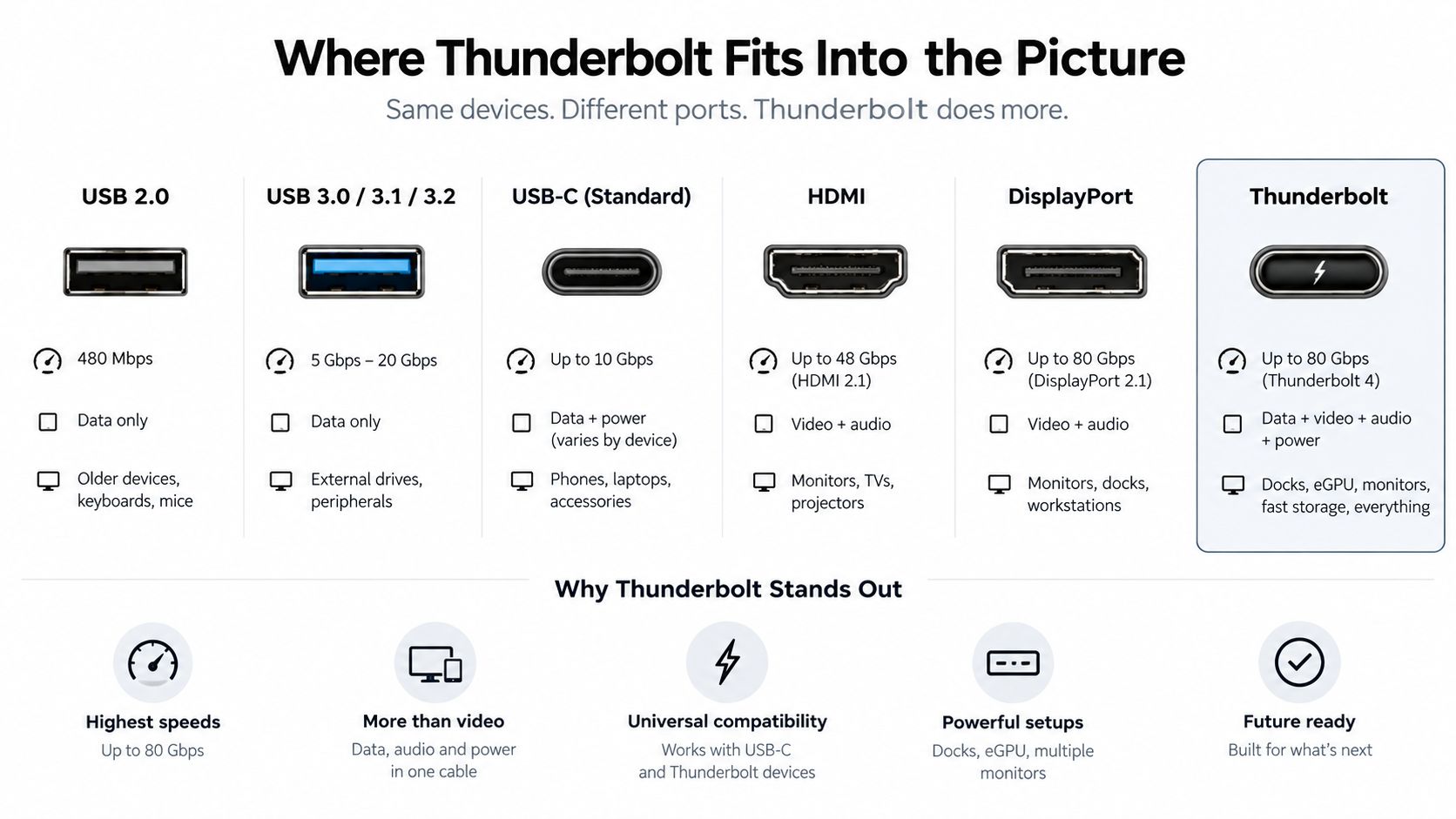
USB4 and Thunderbolt overlap
USB4 and Thunderbolt may feel similar during a simple file copy because both support high-bandwidth USB-C setups. The result still depends on the host port, connected device, and cable. A USB4 label does not automatically include every Thunderbolt feature, while a Thunderbolt-capable port may offer capabilities that a basic USB4 port does not.
The difference matters more in a workstation. One dock can connect storage, displays, networking, audio, and input devices through a single cable. Those signals use the connection's available capacity together, so activity from one device can affect another. The Black Box explanation of USB 3.2 and newer USB connectivity provides further context on how newer USB connections handle multiple types of traffic.
When Thunderbolt earns its place
Thunderbolt fits workflows that combine several demanding peripherals, such as an external SSD, advanced dock, multiple displays, or specialized expansion hardware. Its defined requirements make compatibility easier to assess before you buy.
For a keyboard, mouse, or basic flash drive, a Thunderbolt connection may offer little practical difference. A laptop dock handling displays, fast storage, and other peripherals is a stronger use case. If you are adding a camera, check the computer's port specification first, then compare it with this guide to an external webcam for a MacBook.
Look beside the USB-C oval for a lightning-bolt icon, which usually identifies a Thunderbolt port. Confirm the marking in the device documentation, since manufacturers do not always place symbols in the same location.
How to Read a Cable and Spot the Slowest Link
Cables cause many USB-C surprises because they often look nearly identical. One may support high-speed data, another may be intended mainly for charging, and a third may support only a slower USB mode. The plug shape tells you whether it fits. It doesn't tell you what the cable can carry.
Start with the cable itself. Look for an explicit marking such as USB 3.2 Gen 2, 10 Gbps, or USB4. If the packaging lists only charging wattage and says nothing about data speed, don't assume it supports the fastest mode available from the laptop or phone.
Follow the chain
Use this sequence when checking a real setup:
Read the host port specification. A laptop may have several USB-C ports with different capabilities. The manufacturer's technical specifications are more reliable than the port shape.
Check the device controller. An external SSD rated for 10 Gbps still depends on the enclosure and its controller. A phone may have USB-C but support a lower data tier.
Inspect the cable marking. A cable limited to USB 2.0 can hold back a faster laptop and drive.
Check intermediate hardware. Hubs, adapters, docks, and monitor ports become additional links. Each one must support the mode you want.
Consider a laptop port rated for 10 Gbps and an external drive rated for 10 Gbps. If the cable supports only 480 Mbps, the cable is the bottleneck. Replacing the drive won't solve the problem because the slow section sits between the two capable devices.
The fastest component doesn't set the transfer rate. The slowest compatible component does.
Charging markings aren't data markings
A cable can advertise strong charging support without offering the same level of data performance. USB-C can carry up to 100W of power while transferring data, but the cable and host need matching power and data capabilities for the complete result, according to the Black Box guidance linked earlier.
Some cables use e-marker chips to identify their power and capability information to compatible devices. These chips matter especially for cables designed for higher-power charging or advanced USB-C operation. Their presence doesn't remove the need to check the stated data speed, though. A cable can be suitable for charging while still being the wrong choice for a fast SSD.
| Cable Marking | Maximum Data Speed | Typical Use |
|---|---|---|
| USB 2.0 | 480 Mbps | Charging, basic synchronization, and small file transfers |
| USB 3.2 Gen 1 | 5 Gbps | General external storage and routine backups |
| USB 3.2 Gen 2 | 10 Gbps | Faster phones and SSD enclosures |
| USB 3.2 Gen 2x2 | 20 Gbps | Compatible two-lane SSD connections |
| USB4 | Up to the supported USB4 tier | High-bandwidth storage, docks, and displays |
For a practical phone workflow, compare the cable with the steps in this guide to file transfer from a phone to a PC. The key habit is simple: never judge the complete loop by looking at only one end.
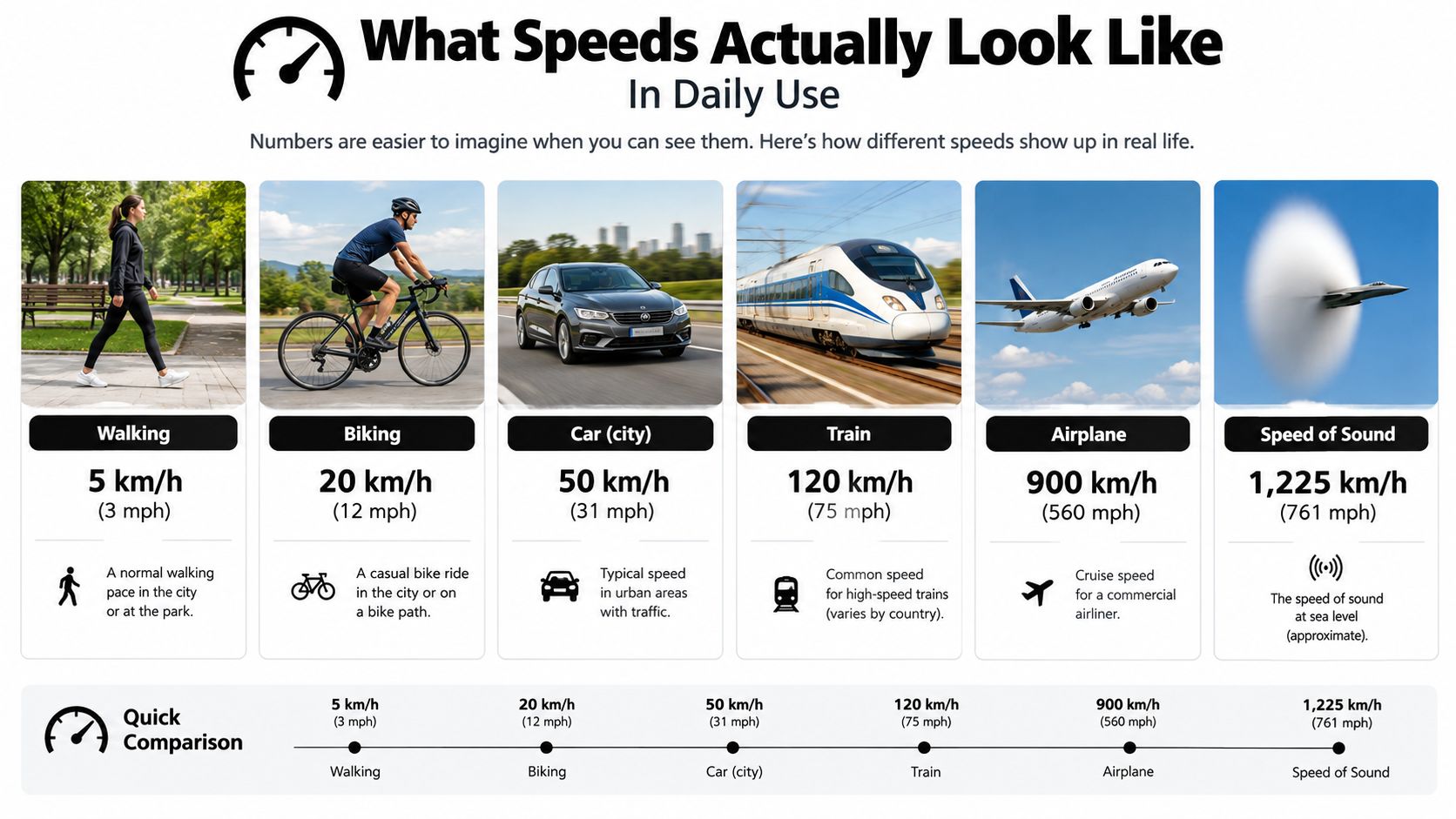
What Speeds Actually Look Like in Daily Use
A transfer-rate label becomes meaningful when you attach it to a task. Copying a large folder of RAW photos from a phone to a laptop can feel slow over USB 2.0 because the connection moves data through a narrow path. The same folder can finish much sooner over USB 3.2 when the phone, computer, and cable support that tier. The difference is easiest to notice with large files, where the connection stays busy instead of completing each small document almost instantly.
USB4 raises the possible ceiling for compatible systems. It does not turn every phone into a high-speed storage device, though. A phone built with a USB 2.0 data connection still transfers slowly when connected to a USB4 laptop, even with a premium cable.
Three ordinary transfer scenarios
Backing up a phone: A phone backup may contain photos, videos, and app files, so the wait depends on both the amount and size of the data. A laptop rated for 10 Gbps cannot make a phone with a slower USB implementation copy at that rate. Check the phone's specifications before buying another expensive cable.
Moving a game installation between SSDs: Large game folders make waiting time easy to notice. A compatible fast SSD and enclosure can move the files quickly, while a lower-tier hub can make the same copy take much longer. A direct connection is often the clearest way to compare the drive's performance.
Pushing video footage to an external drive: Video files can keep a transfer running for a long time. A fast SSD may write quickly inside its enclosure, yet a laptop with only 10 Gbps USB 3.2 can leave that drive waiting for data. The enclosure, host port, and cable determine how quickly footage reaches the drive.
For guidance that covers safe handling and privacy as well as speed, Finchum Fixes IT secure data discusses secure transfers for business users. Backups, device trust, and the destination deserve attention alongside the transfer time.
Read the result as a loop
The same cable can produce different results with different devices. A 10 Gbps cable plugged into a 5 Gbps phone runs at the phone's lower capability, not the cable's maximum. Connect it to a compatible 10 Gbps SSD and laptop, and the transfer can finish faster because the connected equipment supports the same tier.
For a practical photo workflow, use this guide to transferring photos to a flash drive while checking the phone, computer, drive, and cable. The time shown during a copy reflects the entire route, not the USB-C shape alone.
Why USB-C Alone Does Not Promise Speed
Two USB-C ports can look identical while hiding very different hardware. One may provide USB 2.0 at 480 Mbps, another may support USB 3.2 at 10 Gbps, and a third may support Thunderbolt at 40 Gbps, based on the USB-C comparison and USB evolution references cited earlier. The opening is the same, but the electronics and protocol are not.
This is why shopping by connector name creates disappointment. “USB-C” can tell you that the plug is reversible and physically compatible with a USB-C port. It doesn't promise a particular data rate, charging level, display function, or Thunderbolt capability.
The cable has the same problem. Two USB-C cords may have the same length, color, and connectors, yet one may support only basic data or charging while the other supports a faster USB mode. Product listings that say “USB-C cable” without an explicit data speed leave an important question unanswered.
Use the slowest-link test
Before you expect a transfer rate, identify the lowest-rated part:
- Port: What USB or Thunderbolt protocol does the computer or phone support?
- Cable: Does the cable list a matching data speed?
- Device: Can the SSD, phone, camera, or dock operate at that tier?
- Adapter: Does a hub or monitor introduce a slower section?
If one answer is unclear, assume the connection needs investigation rather than assuming the highest advertised number applies. The port is only an entry point. The host, cable, device, and any intermediate hardware decide what data-transfer mode the system can negotiate.
That quick mental test works at a store counter too. Turn the package over, find the explicit speed, and compare it with the device specification before you pay for a cable whose connector merely happens to fit.
Choosing the Right Cable and Port Every Time
At a store counter, a cable can look right and still be the wrong choice. Start with the task, then choose the cable and port combination that can handle it. The USB-C shape only tells you that the plug fits. It does not tell you how quickly files will move, how much power the cable can carry, or whether displays will work.
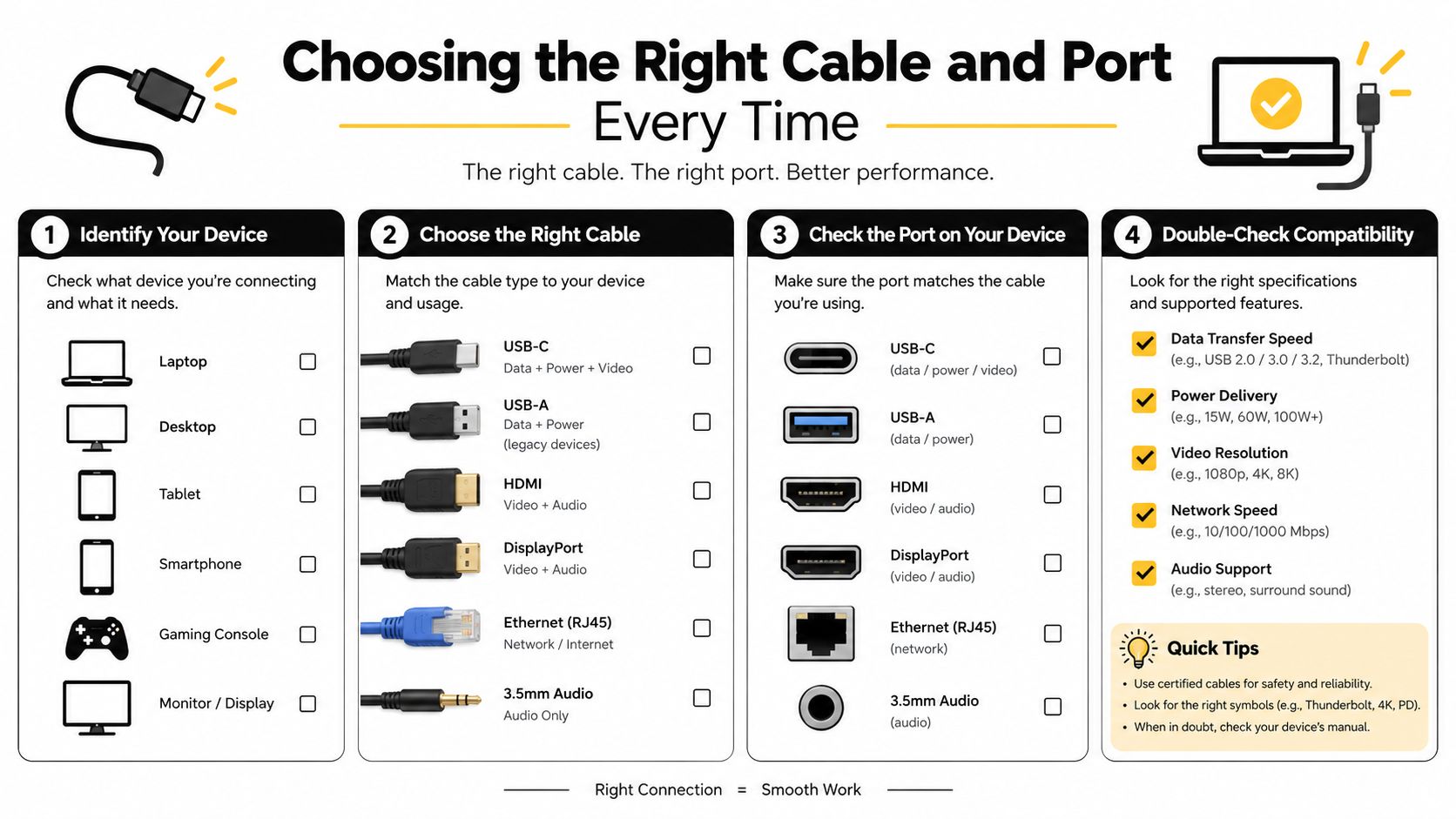
Use this decision tree:
If you mainly need charging, choose a cable that clearly states its charging capability. Basic data support may be enough if you will not copy large files.
If you back up a phone, look for an explicit data speed. “Fast charge” describes power, not file-transfer performance. Check the phone's specification, then choose a cable that supports at least that data mode.
If you connect an external SSD, match the cable's stated data rating with the SSD enclosure and computer port. A faster-rated cable can preserve the available performance, but it cannot make a slower port or drive operate faster.
If you use a dock for storage and displays, choose a cable and dock that state the required USB4 or Thunderbolt support. The connector may fit several devices while the complete setup supports only the features shared by all of them.
If you need high-power charging while transferring data, select a cable with clear power information and suitable e-marker support. USB-C can carry up to 100W while moving data, but the charger, computer, cable, and connected device must support the required power and data capabilities.
Black Box's USB-C connectivity reference
Long passive cables can be more restrictive at higher speeds. A short, clearly rated cable is often the safer choice for sustained SSD transfers or demanding docks. Avoid no-name cables when dependable charging or repeated file transfers matter. A lower price does not help if the cable becomes the slowest link.
For a refurbished phone, check the exact model's USB-C data capability. Two phones with the same connector can behave differently. A directory of top deals on USB-C iPhones-1 can help you compare models, but verify the technical specification before buying.
A final store-counter test is simple: name the job, read the cable's data and power markings, and check the device specifications. If you are adding a hub, monitor, or adapter, treat that device as part of the route and confirm that it supports the feature you need. The slowest part sets the result.
Tech Today offers approachable guides for device setup, file transfers, connectivity, and everyday troubleshooting. Visit Simply Tech Today for practical explanations before your next cable or storage purchase.
Member discussion