
How to Update LG Smart TV: A Complete 2026 Guide
You press the power button, settle in for a show, and your LG Smart TV suddenly displays a software notification. Or perhaps an app has stopped loading, the menus feel sluggish, and you've decided it's time to check for an update. The process is usually straightforward, but the correct instructions depend on the webOS or NetCast generation running on your TV.
The safest approach is to identify that generation first. Once you know which menu your TV uses, you can choose an over-the-air update, enable automatic updates, or install the exact firmware package from a USB drive without guessing.
Which LG Smart TV Update Path Applies to You
Updating an LG Smart TV is simple once you know which software generation you're using. The model year can help, but the menu layout and webOS version matter more than the screen size or remote style. LG has shipped webOS on every LG Smart TV since 2014, and its support instructions separate update routes by generation. LG's webOS overview documents this multi-generation approach.
Start by pressing the Settings or gear button on the remote. Then look for the menu language your TV uses:
- Newer webOS televisions, including webOS 5.0 and later models, generally place the update controls under Settings → All Settings → Support → Software Update. On some newer layouts, you may first open About This TV inside the Support area.
- Older webOS televisions, including webOS 4.5 and earlier, commonly use Settings → All Settings → General → About This TV → Check for Updates.
- NetCast-era televisions use an older Smart or Home button route before you reach the software update command. The labels may look noticeably different from current LG menus.
The important detail is that two TVs with the same display size can use different instructions. A 55-inch set doesn't automatically follow the same path as another 55-inch set, because LG used different software platforms and menu designs across its product generations.
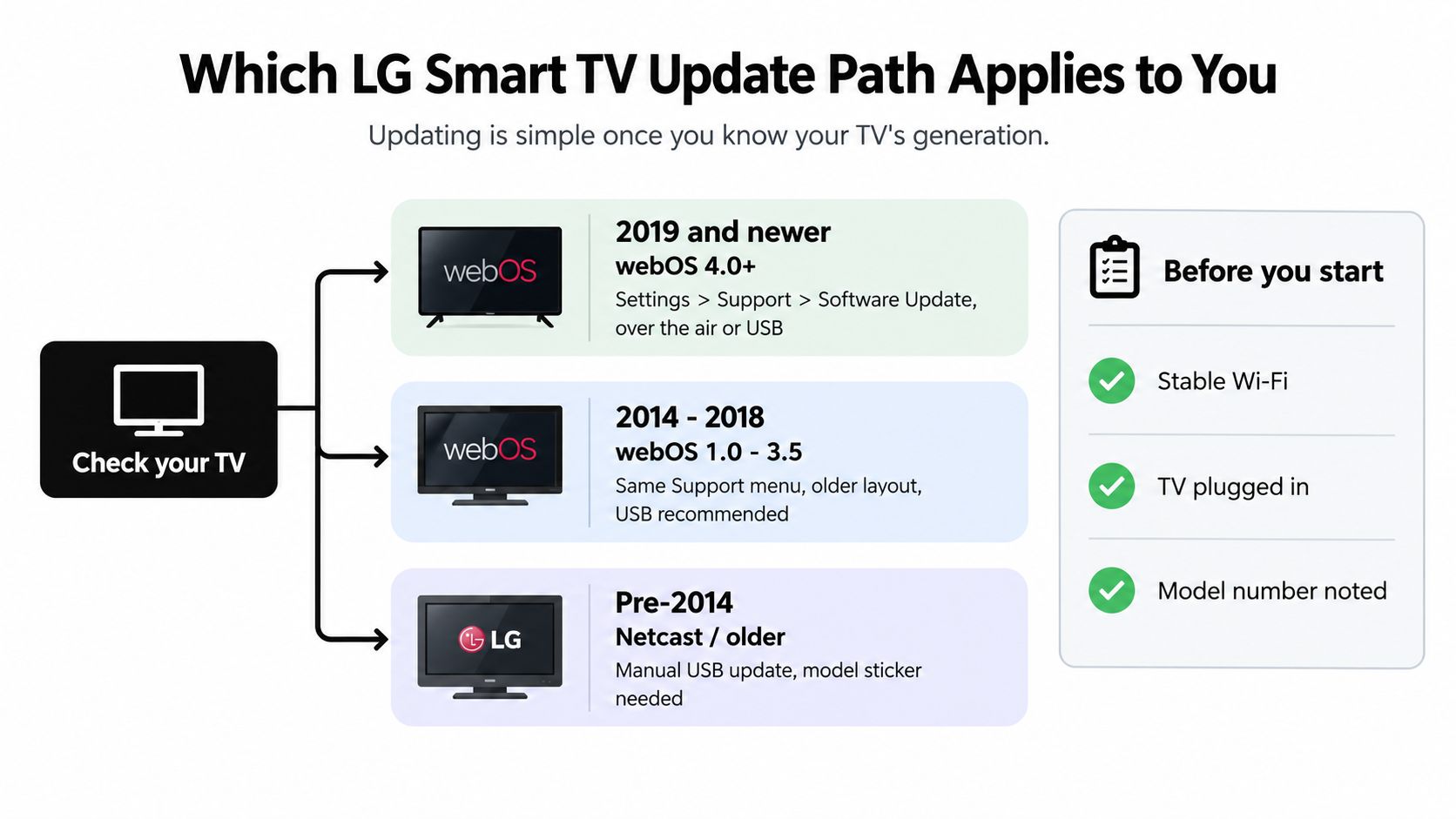
Practical rule: Don't download firmware until you've confirmed the TV's exact model number and identified the menu path it uses.
If you're also connecting other devices around the home, this smart home device compatibility guide can help you think through how the television fits into your wider setup. For the update itself, choose the matching branch above, then use the corresponding instructions below. You won't need to try every method.
Updating Your LG Smart TV Over the Air
An over-the-air update is the best first choice when your TV has a stable internet connection. It lets the television find the firmware intended for its model and install it through the built-in software controls.
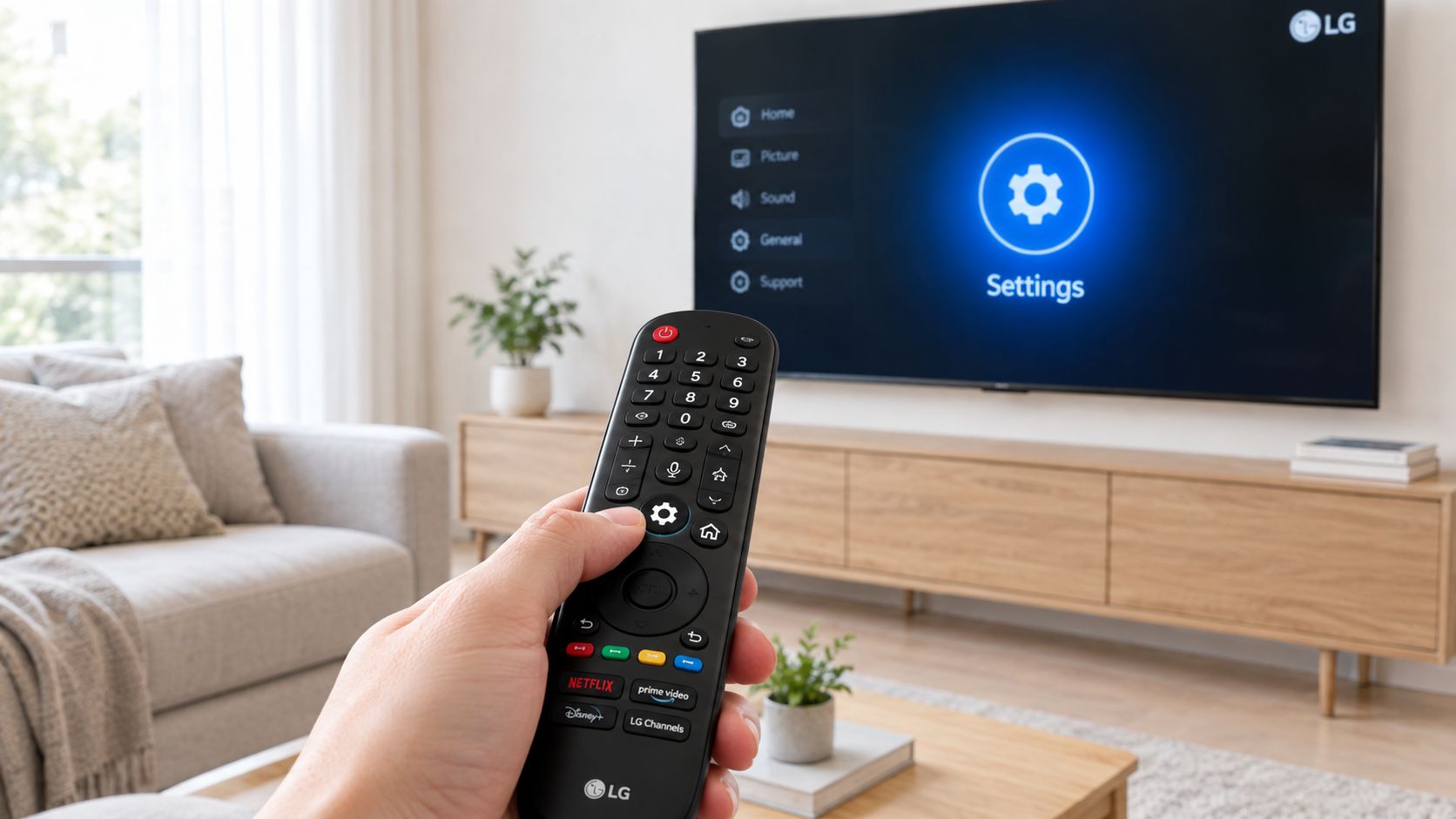
Press the gear button on the Magic Remote, open All Settings, and locate the update menu. On newer sets, open Support → Software Update → Check for Updates. On older webOS models, look under General → About This TV → Check for Updates instead. LG's official update instructions confirm that the menu differs by generation, so a missing option doesn't necessarily indicate a fault.
Your TV must be connected through Wi-Fi or wired Ethernet. If the television isn't online yet, use a reliable network connection first. Readers who need help with the wireless portion can follow this guide on how to connect TV wirelessly, which explains the connection process in accessible terms.
When the TV finds an available package, read the prompt and approve the installation. Keep the television plugged in and powered as instructed. Don't unplug it or switch off the outlet while the firmware is being written, because interrupting that process can leave the TV unable to complete the installation.
A normal update may show a progress indicator, restart the television, or briefly display a blank screen during the reboot. Your installed apps and personal settings should remain in place during a standard firmware refresh. Once the home screen returns, open About This TV again and note the displayed software version. That gives you a useful reference if an app or setting behaves differently afterward.
If the TV says no update is available, that can mean LG hasn't released a newer package for your exact model or region. It doesn't automatically mean the update function is broken.
Turning On Automatic Updates
Automatic updates reduce the need to remember manual checks. Open All Settings, then choose Support → Software Update on newer webOS televisions. Look for the Auto Update switch and turn it on. On older models, the same control may appear under General → About This TV.
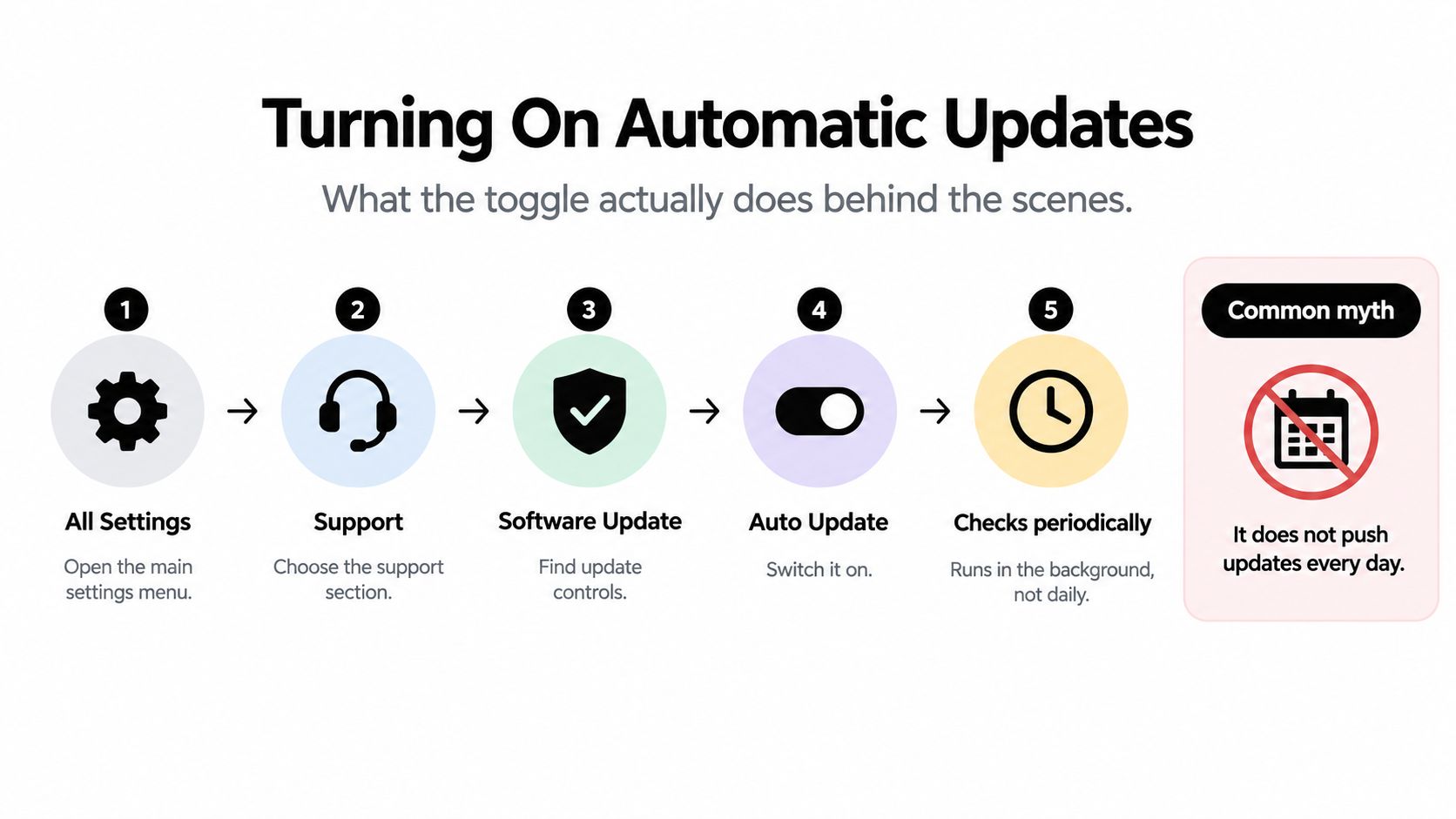
The toggle doesn't mean LG installs every release the instant it becomes available. The TV checks periodically while it has network access, often while it remains in standby or a quick-start state. When it finds suitable firmware, it can download the package in the background and complete the installation during a later power-on cycle.
That behavior explains why two televisions in the same home might update at different times. Their standby settings, network availability, model eligibility, and regional rollout can differ. Automatic updating is convenient, but it isn't a guarantee that every television will receive a package immediately.
Confirming an automatic update
Open About This TV after the television has had time to remain connected. Compare the displayed version with the release information listed on LG's support page for your exact model. Always search by model before treating a release note as applicable, because LG firmware is model-specific.
Leave Quick Start enabled if you want background checks to work as smoothly as possible. If you disable it or regularly cut power at the wall, the TV may have fewer opportunities to check for software and you'll need to return to the manual update screen.
For a broader explanation of keeping connected devices current, see this guide to how to update phone software. The principle is similar, but the menu names and installation behavior differ on a television.
Updating LG Smart TV Firmware Using a USB Drive
USB updating is useful when the TV can't connect to the internet, the network check repeatedly fails, or the set doesn't support the online route. It's also a practical fallback for older televisions that still accept manual firmware packages.
Find the exact model before downloading
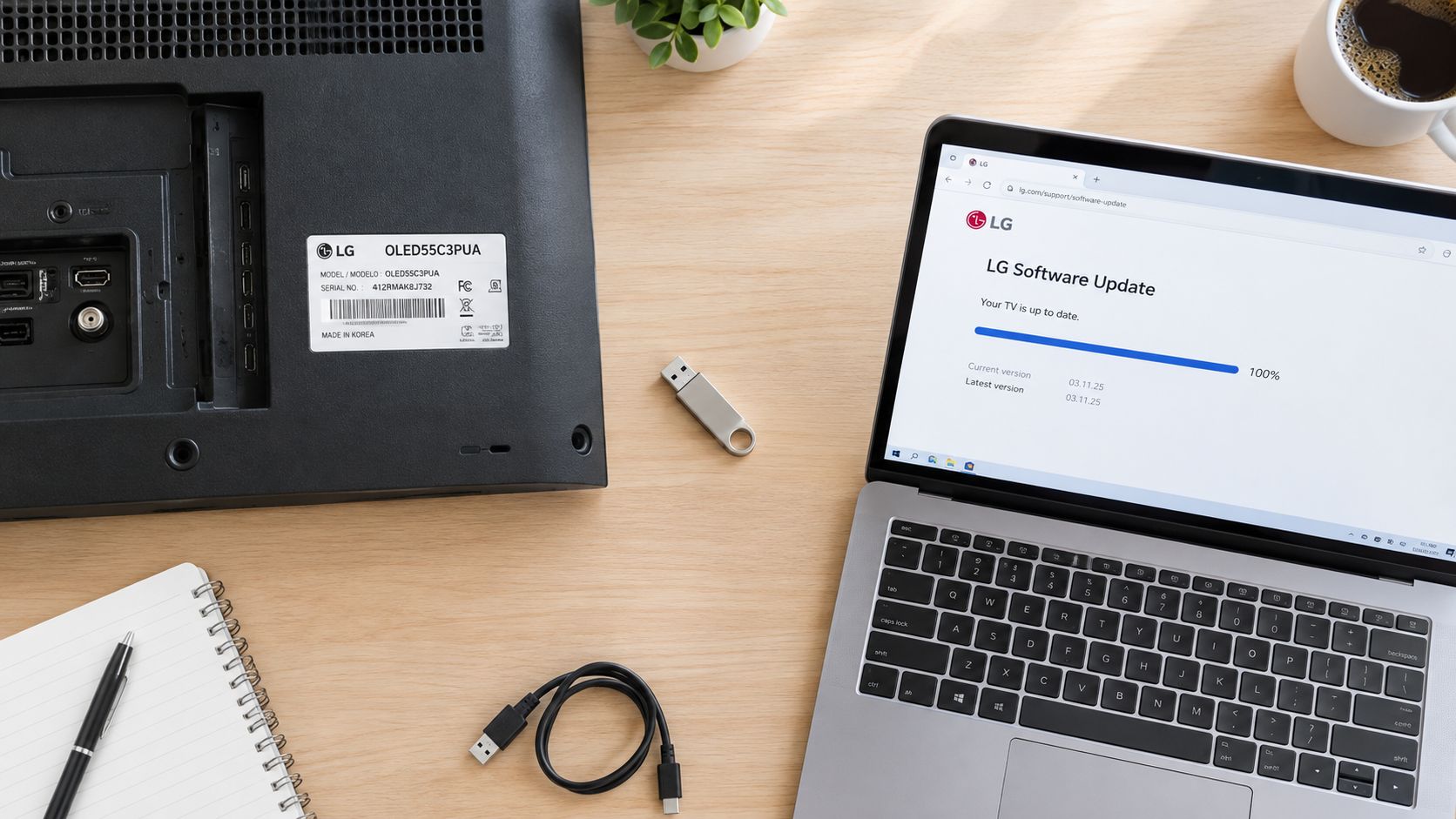
Look for the model label on the back of the television, or open Settings → General → About This TV if the screen still responds. Write the model down exactly, including letters and suffixes. LG's support workflow begins with a model search because a visually similar television can require a different firmware file.
Open LG's support site, search for that model, and download the matching software package. LG's instructions require the compressed download to be extracted before the firmware is copied to the drive. Don't rename the resulting firmware file.
Prepare a USB flash drive and create a folder named LG_DTV at the drive's root level. “Root level” means the folder sits directly on the USB drive, not inside another folder. Place the extracted .epk file inside that folder, then safely eject the drive. LG's USB guidance confirms that both the folder name and file location must match the required structure.
Start the installation on the TV
Insert the prepared drive into a USB port on the television. Wait for the TV to detect it and display the update confirmation. If no prompt appears, open the appropriate About This TV or software update menu and look for the manual update option.
Approve the installation only after confirming the model shown on screen. Keep the television connected to power, and don't remove the USB drive until the process has finished and the TV has restarted.
Common causes of rejection include:
- Wrong folder location: The file is at the drive root instead of inside LG_DTV.
- Incorrect extraction: The compressed package remains untouched, or the wrong contents were copied.
- Unsupported drive format: The drive isn't prepared in a format the TV can read, such as FAT32.
- Wrong firmware: The package belongs to a similar-looking model rather than the exact television.
- Interrupted detection: The drive was removed before the on-screen confirmation appeared.
The same care applies to any removable-storage task. This guide on how to transfer photos to a flash drive explains the basic folder and safe-ejection habits that also help here. After the TV reboots, return to About This TV and verify the new software version.
Updating LG Smart TV Apps
TV firmware and TV apps are separate. Firmware updates change the operating system and device-level functions, while app updates refresh individual services such as streaming players, games, and utilities.
Press the Home button on the Magic Remote and open the LG Content Store. Find My Apps to view installed applications. An app with an update indicator can usually be refreshed on its own, or you can choose Update All when that option is available.
When an app update isn't enough
If one app crashes, refuses to open, or shows a strange error after a system update, try removing it from My Apps and installing it again from the Content Store. A fresh installation can replace damaged local files that a routine patch leaves behind.
An LG account can make it easier to manage app lists across compatible LG televisions in the same household. It doesn't turn every app into a system component, though. Some pre-installed services are tied more closely to the television's firmware and may not offer an independent update option. In that situation, updating the TV software is the relevant fix.
Don't assume a firmware update automatically updates every app, and don't assume an app update can repair a system-level problem. If the television's menus, network controls, or built-in functions are affected, return to the firmware path for your webOS generation. For app-specific maintenance, this guide to how to check for app updates provides a useful general reference.
Troubleshooting When an LG Smart TV Update Fails
An update failure doesn't mean the television is broken. Start with the symptom, then test the most likely cause instead of repeating the same installation attempt.
| Symptom | Likely Cause | First Fix to Try |
|---|---|---|
| No update available when you expect one | The TV has the wrong model details, date, time, or region settings | Check General → Time and Date, then confirm the model and region under About This TV |
| Download stops or repeatedly drops | Unstable Wi-Fi or a network that restricts the TV | Run the network diagnosis and use wired Ethernet if available |
| USB firmware isn't detected | Incorrect folder structure, file type, drive format, or model package | Recheck LG_DTV, confirm the drive format, and download the package again |
| The TV loops during reboot | The installation or restart didn't complete cleanly | Disconnect power for a full reset cycle, then allow the TV to boot before trying again |
| An app fails after the update | Damaged app data or an app compatibility problem | Remove and reinstall the individual app |
If the check returns No Update Available, verify the television's clock first. Incorrect date or time settings can interfere with network services. Then confirm the model number and region. LG blocks firmware intended for a different model, and a region mismatch can prevent the expected package from appearing.
A stalled download usually deserves a network test before a factory reset. Move from Wi-Fi to Ethernet when possible, and check whether the TV is connected to a guest network that isolates devices or limits large downloads. Restarting the router can help, but it won't correct an incorrect model selection.
For a USB rejection, inspect the drive on a computer. The LG_DTV folder must be at the root, the extracted firmware must be inside it, and the package must match the exact model. If those details are correct, try downloading the file again or using another flash drive. LG's firmware update guidance offers additional context for handling firmware packages.
Before a factory reset: Try the correct generation menu, a verified network connection, and a model-matched USB package. A reset erases personal configuration and should be a last resort.
If the TV appears stuck in a reboot loop, unplug it, hold the physical power button briefly to discharge remaining power, and let it start normally before attempting another update. Don't keep forcing new installations while the previous state is unclear.
Keeping Your LG Smart TV Healthy After the Update
A few habits make future updates less stressful:
- Keep it connected: Let the television remain connected to a stable network when it isn't being used, so background checks have an opportunity to run.
- Restart occasionally: A deliberate restart is healthier than leaving the TV in standby indefinitely.
- Remove unused apps: Clearing applications you no longer use can reduce clutter and make troubleshooting easier.
- Check the version: Revisit About This TV from time to time so you know which software build is installed.
- Protect the update cycle: Keep the TV plugged in and leave the USB drive connected until an active installation has completely finished.
LG's webOS Re:New program adds a longer support commitment for eligible televisions purchased in the 2023 model year and later. LG says the program provides software updates and version upgrades for five years after purchase, with public materials describing four upgrades across that period and a total of five webOS versions including the version installed at purchase. Eligibility varies by model tier and region, so confirm your television on LG's webOS Re:New information.
That commitment turns updating from a one-time repair into an ongoing maintenance routine. Check the software occasionally, keep the network available, and use the generation-specific menu instead of guessing.
If your LG TV is still confusing you, Simply Tech Today offers clear, practical guides for device setup, app maintenance, connectivity, and everyday troubleshooting. Visit the site when you need a plain-language explanation before changing settings or downloading software.
Member discussion