
Free Up Android Storage: Step-by-Step Guide for 2026
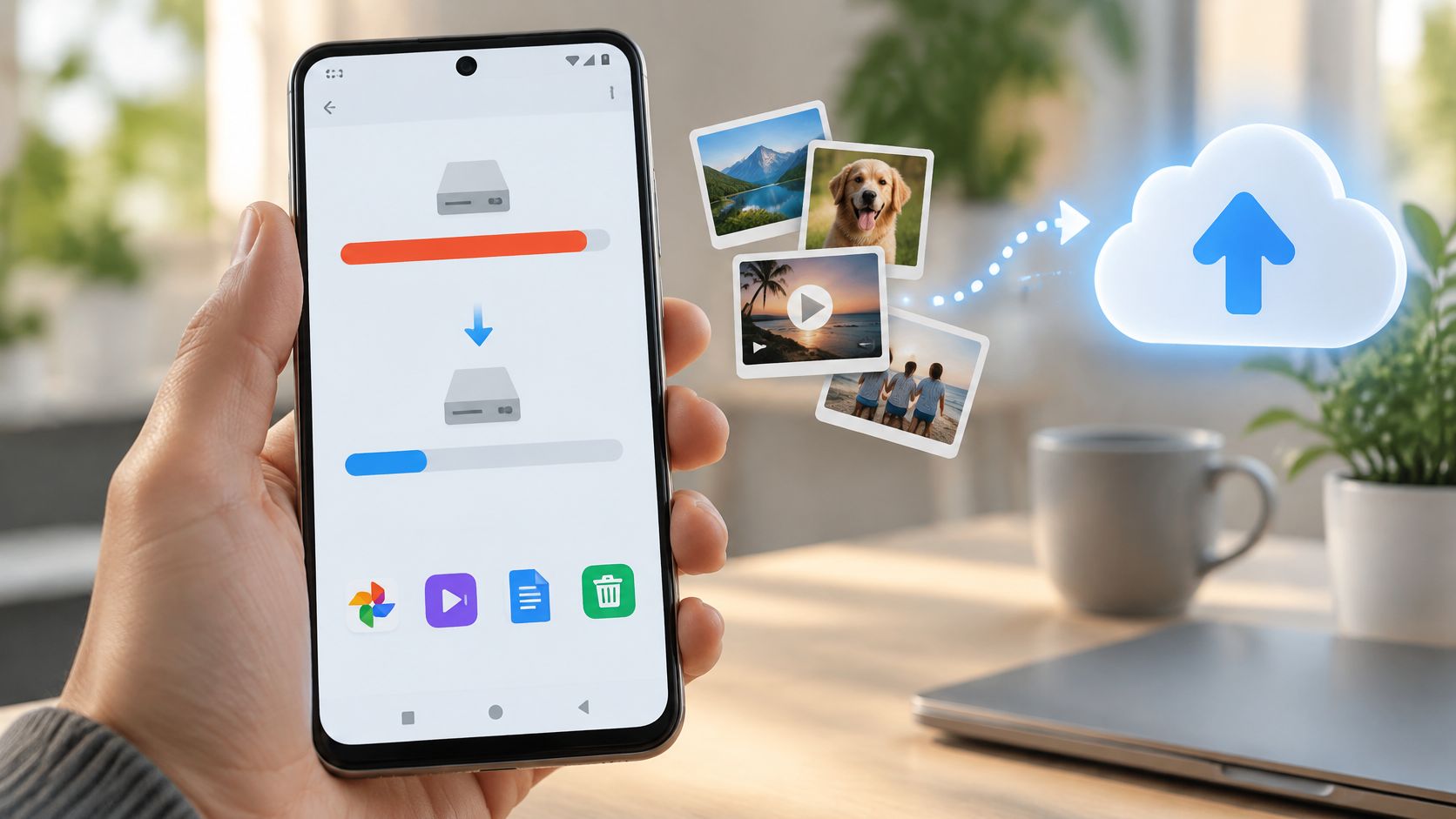
You're trying to take a photo, update an app, or download a ticket, and your phone says there's no room. You haven't installed anything lately, so deleting a few pictures feels like the only option.
You can free up Android storage without starting with your important photos. The safer approach is to identify what's growing, remove content you can replace, and choose carefully between clearing cache, deleting app data, archiving, and uninstalling. Those actions aren't interchangeable.
Find Out What Is Using Your Storage
Other and System aren't folders you can empty just like that. They're storage categories, and their labels don't tell you which files are safe to remove. Other can include unclassified app files and temporary content; System includes Android components your phone needs.
Open Settings > Storage. On some Samsung phones, you'll find Storage under Device care or Battery and device care. If the menu looks different, search Settings for “storage.”
Write down the used space and available space before touching anything. That's your baseline. Storage capacity is also different from the working memory apps use, so freeing space isn't the same operation as closing background apps.
Storage categories and their safe first actions
| Category | What It Holds | Safe First Action |
|---|---|---|
| Apps | Installed programs and their data | Uninstall apps you no longer use |
| Images and videos | Photos and clips in the camera and gallery | Confirm backup, then remove duplicates |
| Downloads | Files saved from browsers, email and chat | Delete old installers and duplicate files |
| Audio | Music, podcasts and downloaded tracks | Remove offline tracks you no longer play |
| Documents | PDFs, spreadsheets and saved files | Sort by size and check cloud copies first |
| Other | Leftover cache and unclassified files | Clear caches app by app, not all at once |
| System | Android itself and system updates | Nothing to delete; recheck after cleanup |
Start with Apps, sorting by size where that option exists. Open the largest entries and distinguish the installed program from its stored data. An app you barely use deserves attention before a smaller app you need daily.
For images and videos, check backup status before reviewing duplicates. For audio and documents, look for replaceable offline copies rather than deleting entire folders.
Turn the breakdown into a short action list
Check Downloads for old APK installers. Deleting an installer doesn't uninstall the app it installed; if you still sideload apps, XX7 Game Apk's guide to installing APK files on Android safely explains the separate installation process.
Write down your largest categories and a specific action for each, such as removing watched videos or uninstalling an abandoned game. If your main complaint is lag rather than a storage warning, use the separate guide to speeding up an Android phone instead of assuming every slowdown needs file deletion.
How to Use Free Up Space to Clear Junk Files
Start with the phone's built-in cleanup tools, not a cleaner that promises to erase everything automatically. Google's Android storage guidance recommends reviewing storage, removing unnecessary content, and using available cleanup controls.
Menu labels differ between phones. Free up space may open Files by Google, while another manufacturer may show its own cleanup screen.
Review before confirming
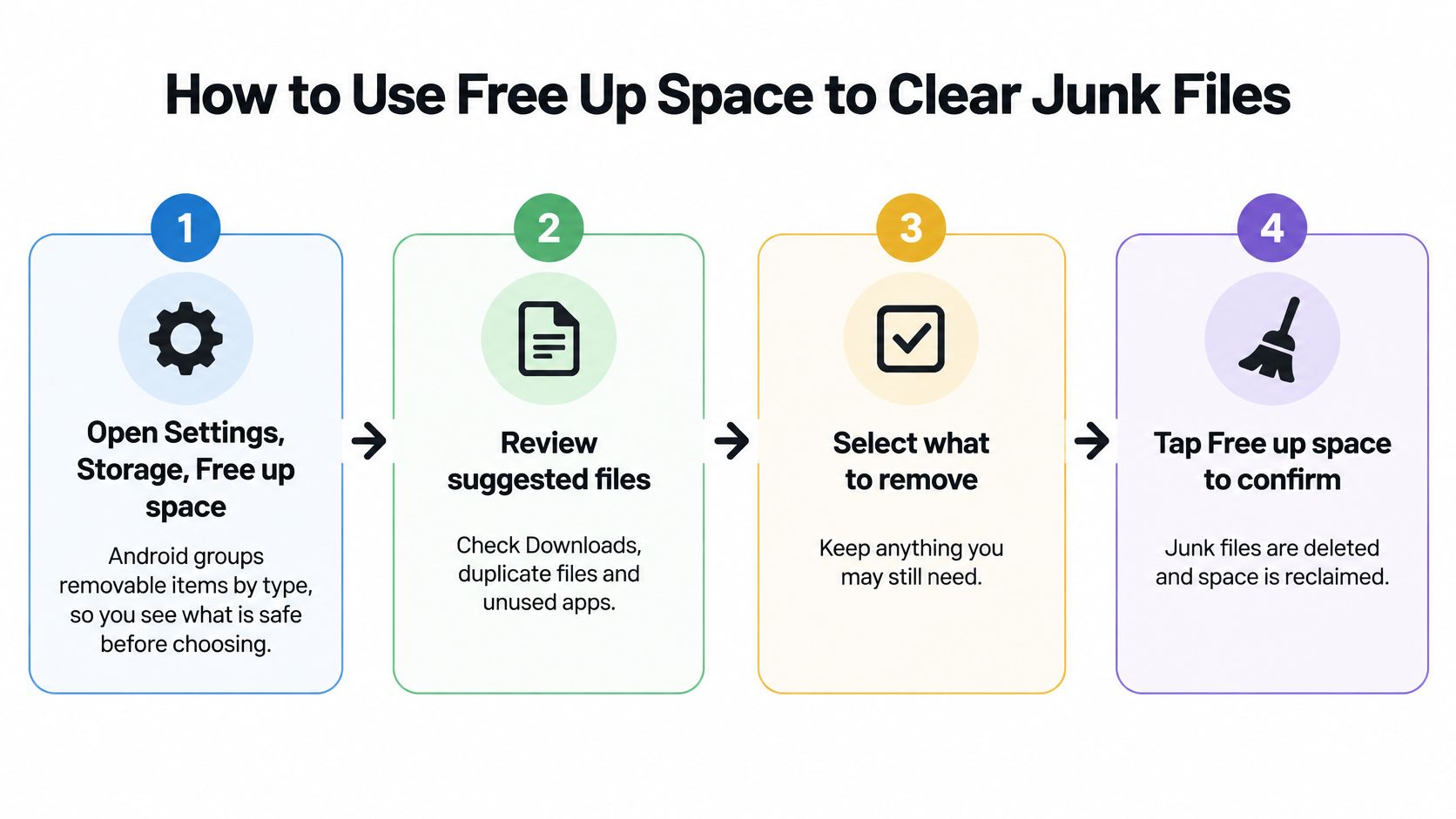
Open Settings > Storage > Free up space. If that button isn't available, open Files by Google and look for cleanup suggestions. Use the categories to identify removable content rather than browsing unfamiliar system folders.
Review Downloads, large files, duplicate suggestions, and unused apps where offered. Compare the space each group occupies, but don't treat a suggestion as permission to delete everything inside it.
Select files you recognize. Old installers, duplicate attachments, and screenshots you no longer need are reasonable candidates. Open anything ambiguous, especially documents with generic filenames.
Confirm the removal using the button your phone displays, such as Move to Trash or Free up space. Read the confirmation because some actions are reversible through Trash and others aren't.
Check Trash in the app that handled the deletion. Restore anything selected accidentally, then empty it when you're certain. Files retained in a local Trash folder may continue occupying storage.
Return to Settings > Storage and compare available space with your baseline. Allow the screen to refresh before concluding that the cleanup failed.
Practical rule: A cleanup suggestion identifies a candidate, not a disposable file. You still decide whether you need it.
Don't delete a whole Downloads folder just because its contents are old. It may hold a signed form, a saved ticket, or a document that never reached cloud storage.
Smart Storage, where available, can automatically remove backed-up photos and videos when storage runs low. Enable it only after checking the backup account and confirming that uploads have completed. Automatic removal is useful for replaceable local copies, but it shouldn't substitute for knowing where your originals are stored.
Clear Cache and Data Without Losing Logins
The expensive mistake is tapping Clear storage when you meant Clear cache. The buttons can sit close together, but they do very different jobs.
Cache contains temporary material an app can rebuild, such as thumbnails and preloaded images. App data includes persistent information such as settings, databases, account state, and downloaded content. Android's data-storage documentation distinguishes persistent files from cache and describes the scoped-storage restrictions introduced with Android 10.
Cache versus data: what each cleanup action removes
| Action | What It Removes | Effect on Logins and Settings |
|---|---|---|
| Clear cache | Temporary files the app can rebuild | Usually none; the space may fill again |
| Clear storage | Cache plus logins, settings and offline data | Signs you out and resets app settings |
| Delete a download | One file in Downloads or Files | Only that file; check cloud sync first |
Use the least disruptive action first
Before clearing app storage, protect irreplaceable photos and documents, remove recognizable downloads, and uninstall apps you don't need. Reserve cache clearing for apps whose temporary files occupy an unusually large share of their storage.
Open Settings > Apps > See all apps, choose the app, and tap Storage & cache or Storage. Select Clear cache, then check the app's storage total again. Leave Clear storage alone unless you deliberately want to reset that app.
For a browser, the app-level button and the browser's own deletion menu aren't identical. Follow the guide to clearing browser cache if you want to remove cached web content without accidentally selecting cookies, browsing history, or saved site data.
Clearing cache is a targeted cleanup. Clearing storage is an app reset.
Before choosing the reset, make sure you know your password, can complete any sign-in verification, and have exported locally stored content. A cloud-connected app may restore much of its information after sign-in, but don't assume an unsynced draft, recording, or game save will return.
Generic cleaner apps aren't a reliable workaround for private app storage. Modern Android restricts cross-app access, so a cleaner can't legitimately inspect and erase every app's private files. Use Android's own storage controls and the app's internal settings instead of granting broad permissions to chase a larger cleanup number.
Archive, Uninstall or Stop Large Apps From Growing
You clear a podcast app on Monday and it is full again by Friday. The temporary files were not what kept growing. New episodes kept saving because the offline rule was still on.
Archiving, uninstalling, and stopping downloads free different parts of an app. Choose by what you still need: the program, temporary files, or saved content that comes back on its own.
Sort the Apps list by size and read the largest entries before you remove anything. A heavy install needs a different decision from a modest app holding a large offline library.
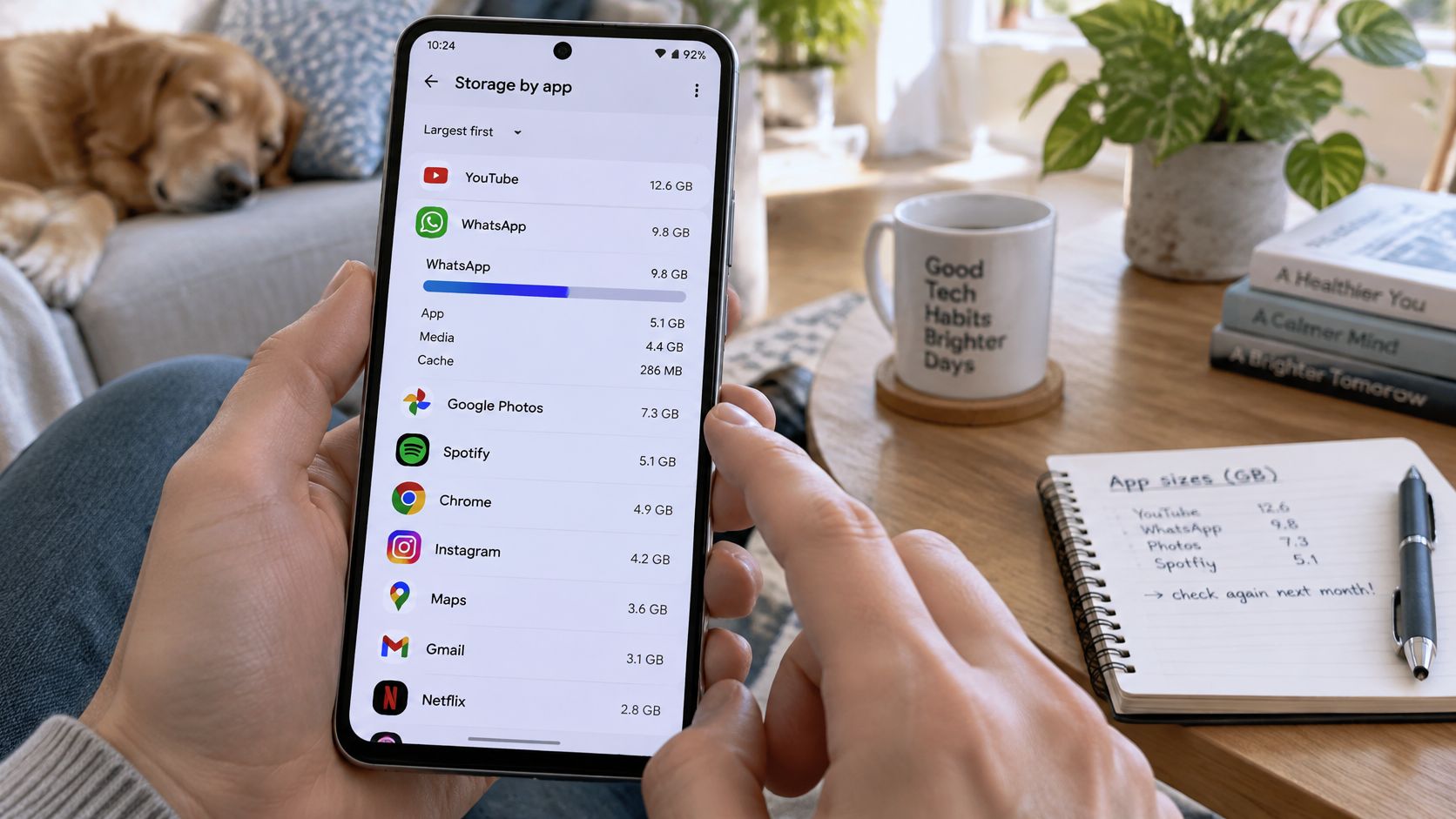
Android's feature documentation describes operating-system support for app archiving in Android 15, removing app software and temporary files while retaining user data for restoration.
Archive, uninstall and offline settings compared
| Option | What It Frees | What You Keep |
|---|---|---|
| Uninstall | App program, cache and private files | Only data that is synced to the cloud |
| Archive on supported devices | Program and temporary files | Icon and user data; permissions and notifications are removed |
| Turn off offline downloads | Stops new offline content from growing | Existing downloads stay until you delete them |
The uninstall row covers the app's private files. Documents or media you already exported into shared folders can remain, so check those folders rather than assuming uninstalling removes every related file.
Match the option to how you use the app
Archive an occasionally needed app when you want its user data later. Confirm that your phone and app store offer Archive. Availability is not universal. Do not archive an app you count on for alerts. Archived apps stop notifications and lose permissions.
Uninstall an abandoned app when you do not need its local state. Confirm sync or export first, then follow the guide to deleting apps on Android for the removal method that fits your phone.
For a trip, leave the apps you will open installed and test them before you go. Bringing an archived app back requires a download, so archiving is a poor choice for something you may need without a connection.
Then inspect the apps that grow in ordinary use. In music, video, podcast, maps, and messaging apps, review automatic downloads, offline collections, and media-saving settings, and remove downloads you no longer want. Archiving will not fix a problem made of retained user data. Clearing temporary files only buys a few days if a download rule is still adding more.
Move Photos, Videos and Music to an SD Card or Cloud
A phone full of holiday videos needs a different fix from a phone full of unused apps. If you want to keep the media, relocate verified copies rather than hunting for more things to delete.
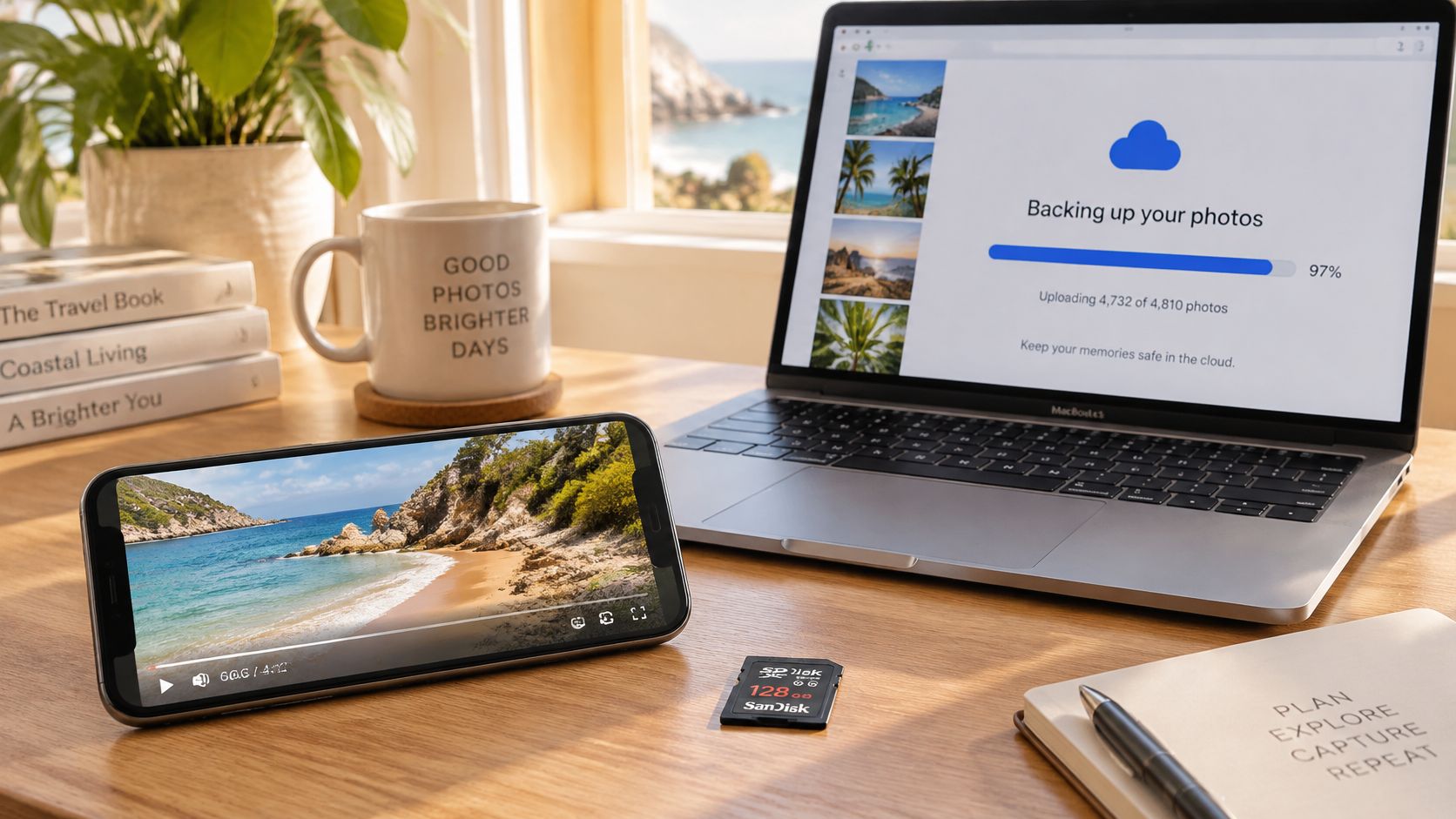
Cloud storage offers access across devices but requires connectivity for files you no longer keep locally. An SD card can keep media available offline, provided your phone supports one.
Copy, verify, then remove
Confirm backup has finished. In Google Photos, check the signed-in account and backup status. Use the guide to using Google Photos if you're unsure which folders are included.
Copy older videos and large personal music collections to your chosen destination. For subscription-service downloads, use the service's own storage settings rather than trying to move protected files through a file manager.
Open the destination copies. Play videos and inspect photos, ideally from another device for cloud backups. A filename appearing in a list isn't enough to confirm a usable copy.
Remove only the phone copies you intended to replace. In a synchronized photo app, use the device-space removal option and read its confirmation, because ordinary deletion can also affect the cloud library.
Keep recent photos and anything you'll need without internet access on the phone. A cloud-only library is inconvenient when you need a document or video somewhere with no signal.
Check how your phone uses the card
Open Settings > Storage and select the SD card entry. A portable card generally serves as separate file storage; an adopted card is formatted and encrypted for use more like internal storage.
The Android Open Source Project's adoptable-storage documentation explains that Android 6.0 introduced adoptable storage and that app developers must indicate support before eligible apps can use it. Manufacturer support, card performance, and app compatibility still matter.
An SD card adds capacity, but it isn't automatically a replacement for internal storage or a separate backup.
Don't format a card containing your only copies. Once the transfer is complete, recheck Android's Storage screen and let its totals refresh.
Decide Whether a Factory Reset Is Worth It
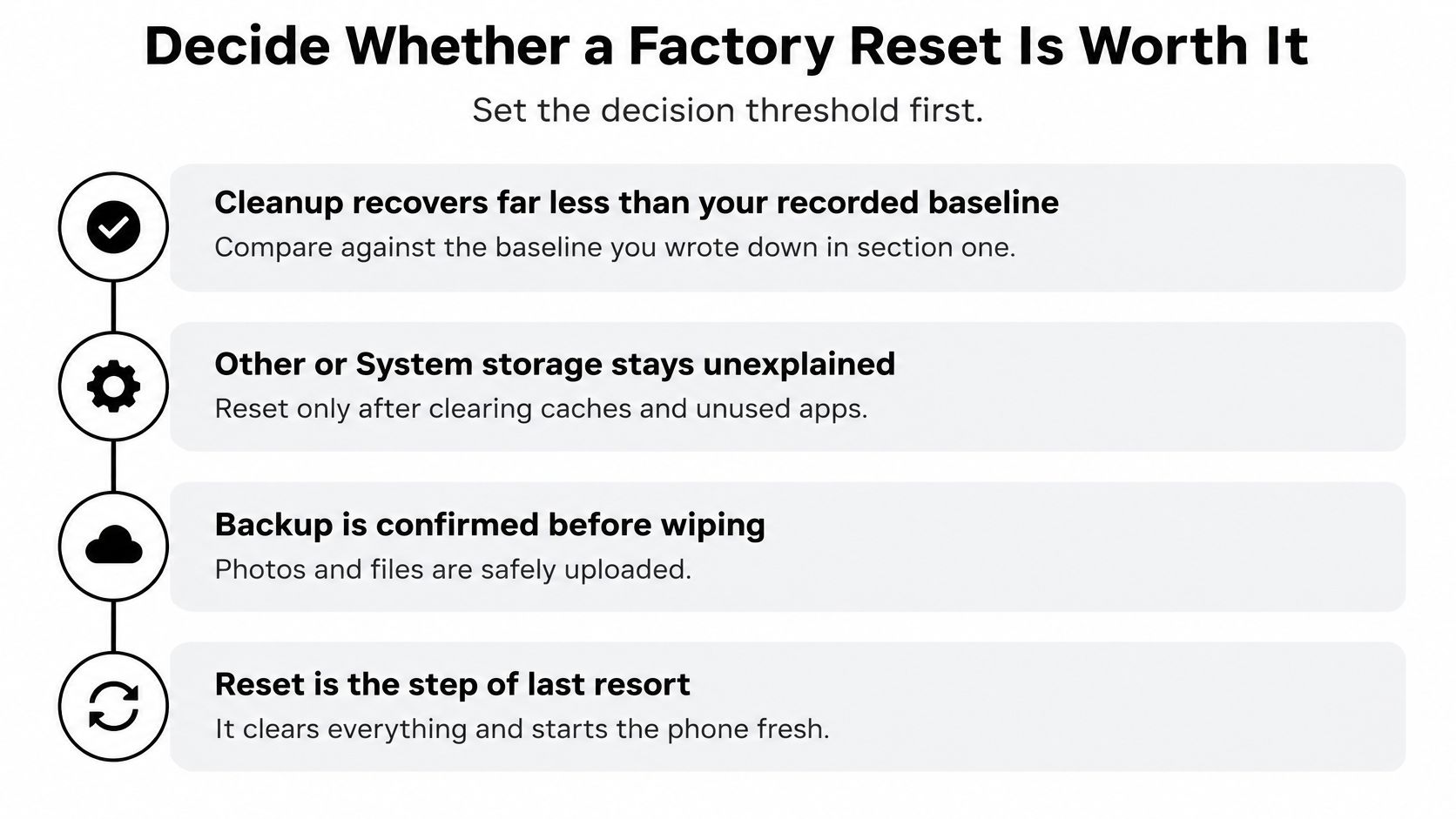
A factory reset is a last resort for unresolved storage trouble, not routine maintenance. Consider it when targeted cleanup and measurement still leave substantial unexplained usage, particularly if the phone also has persistent software problems. A large System category alone isn't sufficient reason to wipe the device.
Compare the space you expected to reclaim with what remains available after a restart and normal app use. Your original free-space baseline measures improvement; it doesn't tell you how much Android should occupy.
Diagnose the return of missing space
Android's StorageManager documentation describes cache accounting and storage-management controls. For practical diagnosis, record the largest apps and available space before and after each change, then allow the storage index to update.
If space disappears again, inspect the app that grew rather than repeating a blanket cleanup. Remove unused map or language packs, reduce messaging-media retention, and check whether a service has resumed downloading content.
Don't manually delete Android/data or Android/obb folders unless the app or system explicitly provides that option. Unfamiliar folder names aren't evidence that their contents are disposable.
Prepare for a reset without losing essentials
Before using the guide to factory resetting an Android phone, complete this checklist:
- Verify backup completion. Check the device-backup status and independently confirm that important photos and files are accessible.
- Protect local-only information. Export contacts where needed, save recordings and documents, and check apps with unsynced content.
- Prepare account access. Confirm passwords, recovery methods, and access to sign-in verification before erasing the phone.
- Allow time and power. Connect a charger and leave room in your schedule for setup, downloads, and account recovery.
A reset removes local data; it doesn't increase the phone's physical capacity. Restoring the same apps and offline libraries can recreate the same storage pressure.
If you proceed, restore selectively instead of immediately downloading every old app and media collection. Set a monthly storage reminder so you can spot a growing app before another warning interrupts you.
Tech Today offers straightforward technology guides, from setting up a new iPhone from Android to updating an LG Smart TV. Visit Simply Tech Today for practical help with device setup and everyday troubleshooting, and use that same check-before-you-change approach to keep your phone's storage under control.
Member discussion