
How to Block a Text Number on Android: Step by Step
Your phone buzzes again with a parcel-fee demand, an unwanted sales message, or a text from someone you don't want to hear from. You delete the conversation, but another message arrives. Deleting a text isn't the same as blocking its sender.
Learning how to block a text number on Android starts with identifying the app that received it. Google Messages, Samsung Messages, and your Phone app don't always put their blocking controls in the same place. Choose the right control, decide whether reporting is appropriate, and check the result before you clear the conversation.
Pick the Right Menu for Your Phone
Blocking paths by Android messaging app
| App | Block path | Blocks calls too | Unblock path |
|---|---|---|---|
| Google Messages | Touch and hold the conversation, select Block, confirm OK | Use the Phone app to confirm call blocking separately | Spam and blocked, select the conversation, unblock |
| Samsung Messages | Open the conversation, three-dot menu, Details, Block, where offered | Check the Phone app's blocked list too | Messages settings, Block numbers or Block numbers and spam, remove the number |
| Phone app on most Android phones | Recents, tap the number or its details, Block or report spam | Yes, this is the call-blocking control | Phone settings, Blocked numbers, remove the number |
| Carrier app | Open the app's spam protection or blocking controls | Only if the selected feature includes call blocking | Open the carrier app's blocked list or account controls and remove the entry |
Start by checking your default texting app, rather than assuming a Samsung phone uses Samsung Messages. Open Settings > Apps > Default apps > SMS app. The selected app determines which messaging instructions apply.
Menu labels change between manufacturers and software versions. A conversation menu might show Details, People and options, Block number, or Block and report spam. Treat the table as a route to the control, not a promise that every button will have identical wording.
Text blocking and call blocking aren't interchangeable
Android apps can share some blocking controls, but you shouldn't assume that a number blocked in a messaging app can no longer call. Equally, a carrier feature advertised as call protection might not filter texts.
Practical rule: Start in the app where the unwanted contact arrives. When someone both calls and texts, verify blocking in both the messaging app and Phone app.
Also distinguish blocking from muting notifications. Muting can quiet a conversation while leaving incoming messages in your inbox, which is useful for a busy group but not the same as rejecting an unwanted sender. If you only need fewer alerts from legitimate contacts, adjust your Android notification settings instead.
Block a Number in Google Messages Step by Step
Google documents this blocking route for Android 7.0 and later in its Google Messages blocking guide. Check that you're opening Google Messages, especially if your phone has another messaging app installed.
Block from the conversation list
- Open Messages and locate the conversation. Match the sender's number, not just a familiar-looking display name. You don't need to follow a link or download an attachment to block it.
- Touch and hold the conversation. Keep your finger on the thread until it becomes selected. This lets you act from the inbox without opening the message itself.
- Select Block and confirm with OK. Read the confirmation carefully. If reporting is also offered, decide whether you want to submit a spam report rather than accepting it automatically.
- Check Spam and blocked. Open the profile or navigation menu and look for Spam and blocked. The blocked conversation should no longer sit among your ordinary inbox conversations.
The visual below summarizes the route. Use the controls displayed on your phone if their placement differs.
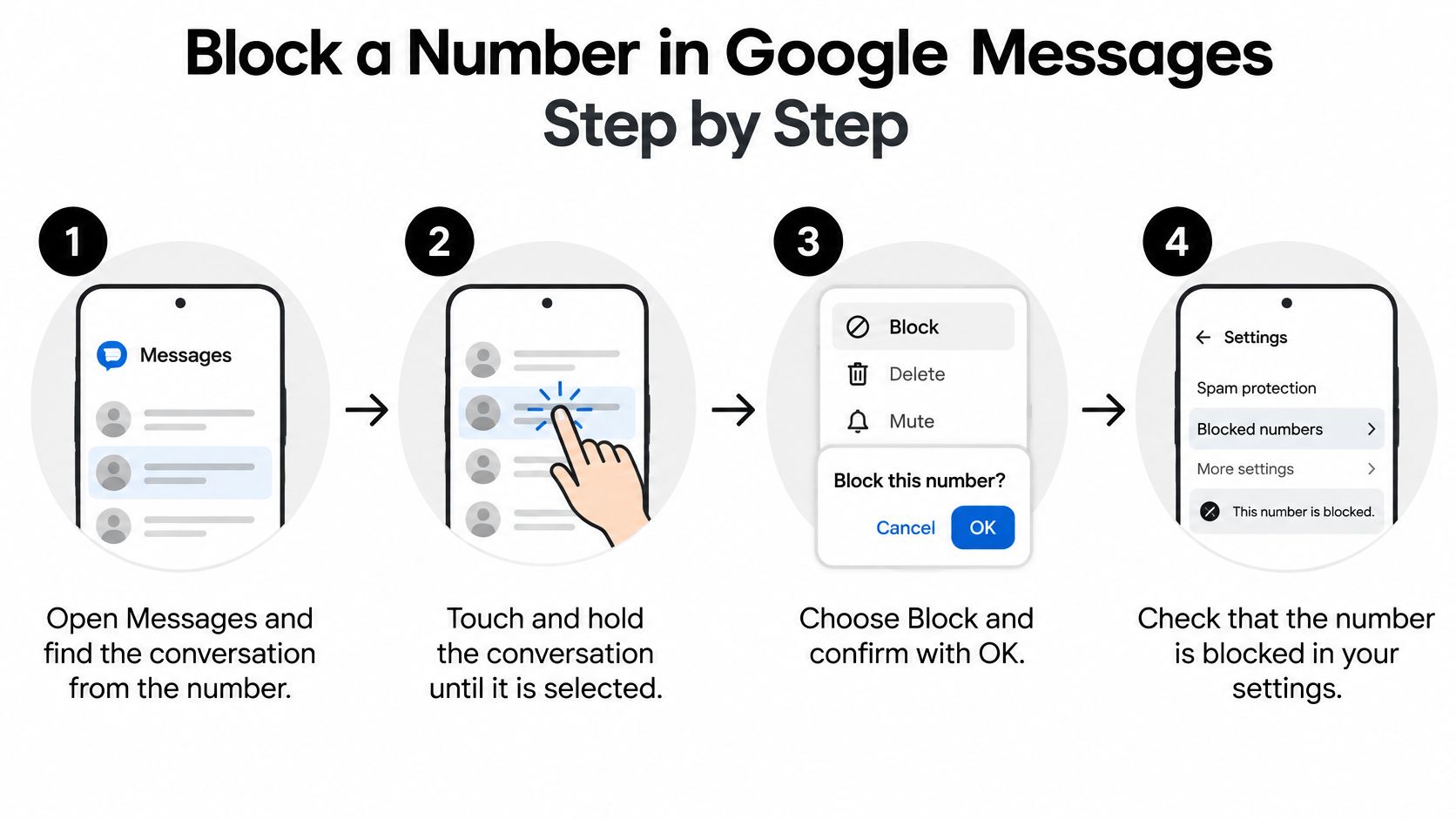
Blocking creates an ongoing sender filter. It is not just a method to remove the message you have already received, so deleting the thread afterward does not make the block effective.
Use conversation details or undo a mistake
If you've already opened the conversation, tap its three-dot menu, open Details, and select the blocking option. Some versions expose the block option directly or use a different details label. Read the number shown in the confirmation before accepting.
To reverse the action, open Spam and blocked, select the conversation, and tap Unblock. The conversation returns to the Messages home screen. This is the appropriate route when you've blocked a legitimate sender by mistake, rather than saving that sender under a new contact name.
Keep these common slips in mind:
- Group messages need separate attention. Blocking or leaving a group conversation isn't necessarily the same as blocking an individual participant's direct messages. Open that person's separate thread when that's the problem.
- Contact names aren't the target. If someone appears under duplicate contact entries, inspect the actual number. Renaming or deleting a contact doesn't establish a block.
- A changed number is a different sender. Check the full number before assuming the existing block has failed.
For a controlled test, temporarily block a trusted friend's number with their permission, then ask them to send a text. Check whether it stays out of your main inbox, inspect Spam and blocked, and unblock your friend afterward. Don't contact an unwanted sender to ask whether your block worked.
Block Calls and Texts on Samsung and Other Phones
Samsung Messages and Google Messages are different apps, even when they're installed on the same Samsung phone. Use the app name shown under your default SMS settings to avoid searching for a menu your current app doesn't have.
In Samsung Messages, open the unwanted conversation and tap the three-dot menu. Look for Details > Block, or a direct Block number option. Confirm the displayed number rather than relying on the conversation title.
Samsung's menu layout changes with One UI and app versions. To review or undo the block, open the Messages menu, enter Settings, and look for Block numbers or Block numbers and spam. Remove the relevant number from that list when you want to allow messages again.
If the menu on your screen doesn't match an instruction, look for the control's purpose, such as blocking a number, rather than repeatedly searching for an exact label.
Handle the call side in the Phone app
Open Phone > Recents, then tap the number, its information icon, or the call-details entry. Choose Block or Block/report spam and confirm. Avoid tapping the call button next to the entry, which can dial the sender instead.
The review list is usually under Phone > Settings > Blocked numbers. Some phones connect this list with messaging controls, while others expose blocking differently. Inspect the entry rather than assuming both apps have synchronized.
For additional call-specific settings, including unwanted callers that don't leave texts, follow the guide to blocking spam calls on Android.
Use carrier controls for the right job
Carrier apps and account pages may offer spam screening, call rejection, or messaging protection. Open the feature description and check whether it covers calls, texts, or both before turning it on. Review any permissions or subscription terms shown during setup.
Say a robocaller leaves a missed call and follows it with a text asking you to call back. Rejecting the call entry alone isn't a useful verification of text filtering. Block the call through Phone, handle the message through your texting app, and inspect the relevant lists.
When a number reaches you both ways, verify both routes. That's more dependable than judging success from whether the phone happens to stay quiet afterward.
Block Only or Block and Report
Block only, block and report, or unblock
| Action | What happens | Content sent to Google | Best for |
|---|---|---|---|
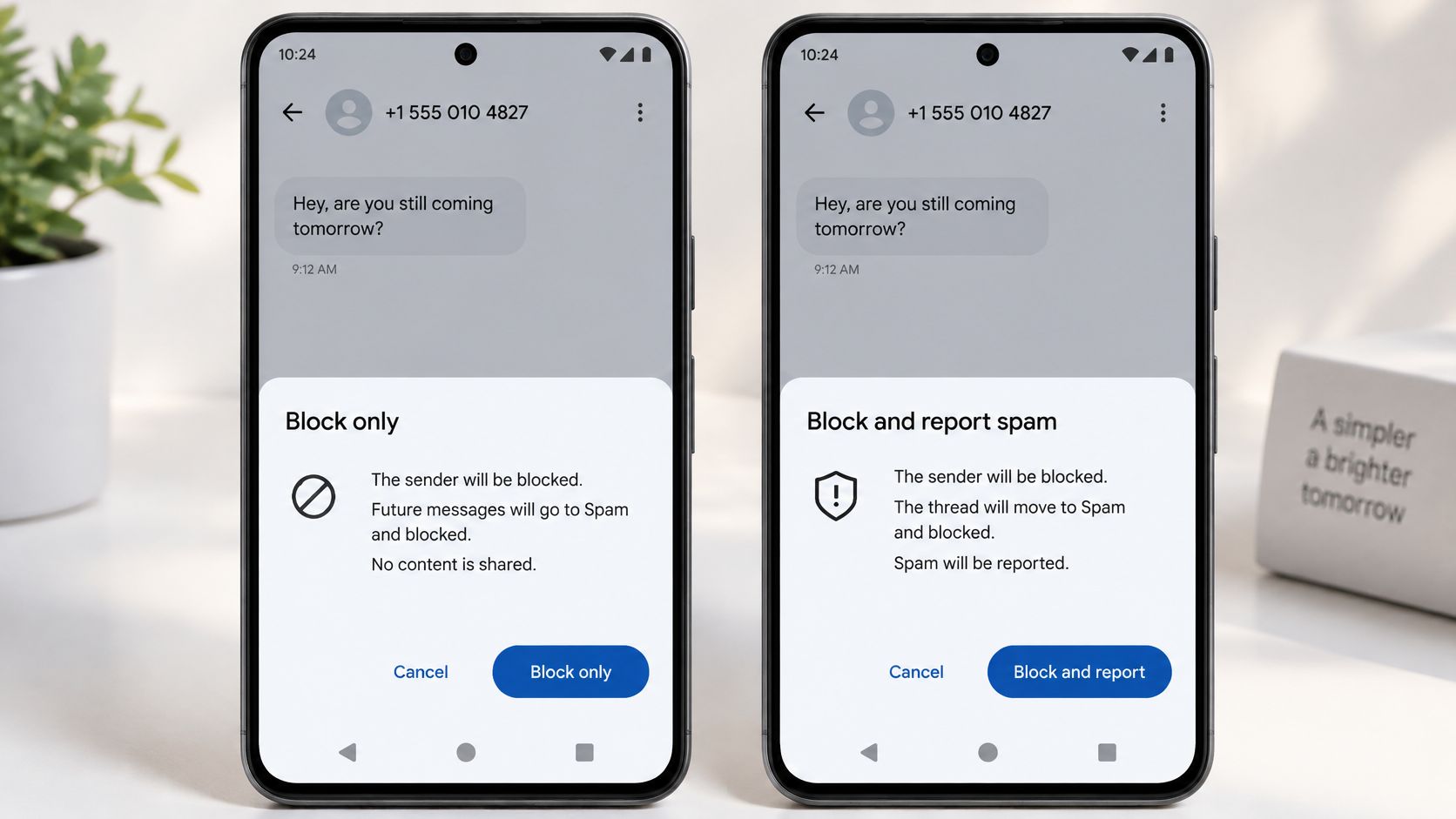
| Block only | Sender blocked; unwanted messages are filtered from the main inbox | No message content submitted as a spam report | Personal disputes and private contacts |
| Block and report spam | Sender blocked; thread moved to Spam and blocked | Recent incoming message content, as described below | Scams, phishing, and unwanted marketing blasts |
| Unblock | Conversation returns to the home screen | No spam report created by unblocking | Reversing a mistaken block |
When you report a conversation, Google receives a copy of the last 10 incoming messages from that sender, according to Google's spam-reporting documentation. That makes reporting a separate privacy decision, not just a stronger-looking block button.
The choices below may appear together in a confirmation dialog. Read the reporting checkbox or button before you confirm.
Choose based on the content and sender
A fake bank message demanding a security code is a good candidate for report and block. Reporting contributes information to spam detection, while blocking removes that sender from your normal message flow. Don't reply with the code or use the message's link to check your account.
An ex-colleague sending unwanted personal messages presents a different choice. Block only can stop the contact without submitting the conversation's contents for spam analysis. Consider that narrower option when a thread contains private family, workplace, or medical information.
Google also uses on-device machine-learning models to recognize known spam patterns from unknown senders. Suspected spam can be hidden or prevented from reaching you without a manual report, so finding a thread in the spam area doesn't necessarily mean you reported it yourself.
Privacy choice: Report a scam when you're comfortable sharing the relevant incoming messages. Block alone when your goal is simply to end private contact.
Blocking doesn't undo information you've already disclosed. If you've shared account credentials or personal details, take the appropriate identity-theft prevention steps as well.
Don't tap links or reply before deciding. A message claiming urgency doesn't require engagement: inspect the sender, choose the narrower or broader action deliberately, and leave the suspicious content untouched.
Handle Spam Campaigns and Rotating Numbers
The parcel-fee text disappears, then another arrives from a different number. That doesn't necessarily mean your block failed. It may mean the sender has changed the number being used.
Blocking a number isn't blocking an entire campaign. A Google Messages help discussion about mass blocking and reporting documents the practical limitation: users can bulk-delete conversations, but there isn't an equivalent bulk spam-reporting control described there. Treat deleting and reporting as different tasks.
Work through a scam wave without engaging
- Leave links and attachments alone. You don't need to visit the supposed delivery page to establish that the message is unwanted.
- Report and block suspicious threads individually. Use the conversation-selection menu where possible. Decide whether each report's content-sharing trade-off is acceptable.
- Clear unwanted conversations in a batch afterward. Bulk deletion tidies the inbox; it doesn't submit the reports you skipped.
- Check spam protection. In Google Messages, open the profile menu, then Messages settings > Spam protection, where available, and enable it.
- Use your carrier's reporting channel. Check the carrier's app or official support instructions for its supported forwarding destination. Don't forward private messages to an address found in the suspicious text.
- Escalate persistent unwanted traffic. Ask your carrier which message-filtering options apply to your line and whether any account-level action is appropriate.
Say you receive repeated fake parcel-fee messages from changing numbers. You might report representative suspicious threads, then bulk-delete the remaining clutter. That's a manageable cleanup choice, but the deleted threads haven't also been reported, and neither action guarantees the campaign will end.
Check the sender without trusting the result blindly
If you want another clue before deciding, you can check suspicious numbers with BubblyPhone. Treat a lookup as supporting context, not proof that an unlisted number is safe or that a displayed caller identity is genuine.
RCS messaging can also connect Android and iPhone users. Use the conversation's blocking controls whether its details identify it as RCS, SMS, or MMS, and verify the result rather than assuming the transport label changes your protection.
For persistent targeted harassment, a separate contact number may help you compartmentalize access. Before making that change, consider account recovery and trusted contacts using this guide to getting another phone number.
You can reduce exposure to a campaign, not guarantee its shutdown from your handset. Combine reporting, filtering, and carrier assistance instead of relying on an ever-growing list of blocked numbers alone.
Confirm the Block Is Working Before You Move On
A missing conversation is useful evidence, but it isn't the whole check. You want to confirm that you selected the right sender, used the right control, and didn't mute or delete the thread.
Use a trusted person or a spare line for testing. Never ask a harassing sender to contact you again, and don't unblock them just to run an experiment.
Run this verification checklist
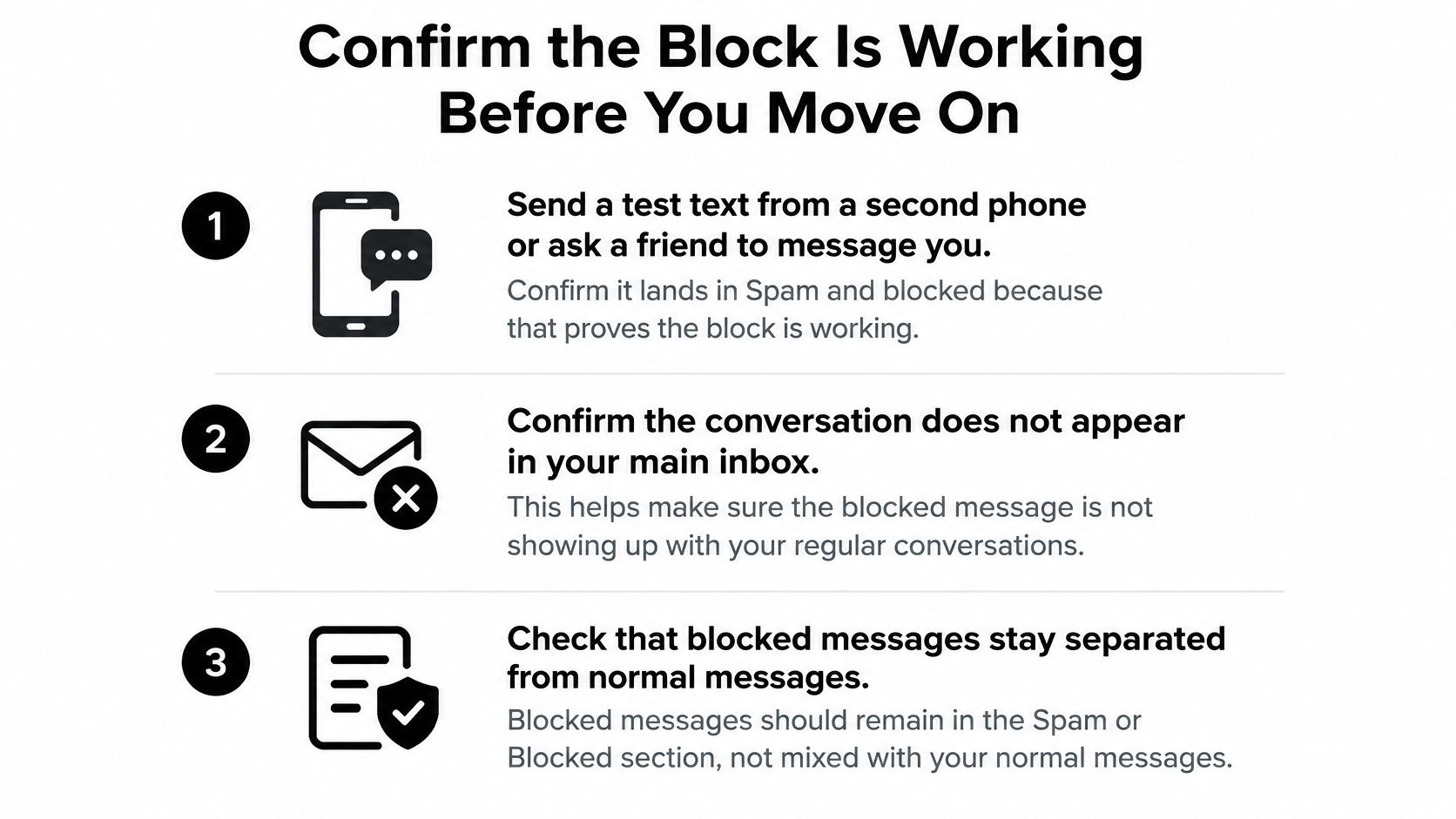
- Test texting with a controlled number. Temporarily block a trusted test sender, then have them message you. Confirm the message doesn't appear in your normal inbox and inspect Spam and blocked if the app retains it there. The key result is that it doesn't return as an ordinary incoming conversation.
- Test calls separately if needed. With permission, block the test line in Phone and have it call you. Check that the phone doesn't ring normally. Reaching voicemail or seeing a blocked-call record can reflect how your phone and carrier handle rejected calls.
- Inspect the actual unwanted number. Open the messaging app's blocked or spam controls and the Phone app's blocked list, where available. Match the full number to the unwanted thread or call record so you don't mistake a successful test for proof that you blocked the intended sender.
- Record what you changed. Save the number and a brief reason in a private note, adding the date if useful. This helps you recognize the entry later without reopening upsetting or suspicious content.
The visual below highlights the message-side checks. Treat folder placement as an app behavior to inspect, not a requirement that every rejected message must remain visible.
Review before deleting or replacing your phone
Check the spam area before permanently clearing it. A legitimate delivery update or unfamiliar service number can be mistaken for an unwanted sender. Unblock only when you've established who the sender is and why you want their messages.
If you delete something important, review the options for recovering deleted texts before clearing more storage or changing apps. Recovery isn't guaranteed, so keeping a needed conversation is preferable to trying to reconstruct it afterward.
When you replace your phone or change your default messaging app, inspect the relevant blocking controls again. Don't assume a fresh setup restored every entry.
Block unwanted contact now. For spam, report when the content-sharing choice is acceptable, then delete what you no longer need.
Tech Today offers practical guides for everyday technology tasks, from setting up a new iPhone from Android to updating an LG Smart TV. Visit Simply Tech Today for straightforward help managing your devices, understanding privacy settings, and troubleshooting the next confusing menu.
Member discussion