
How to Connect Wireless Printer to Laptop: Windows and Mac
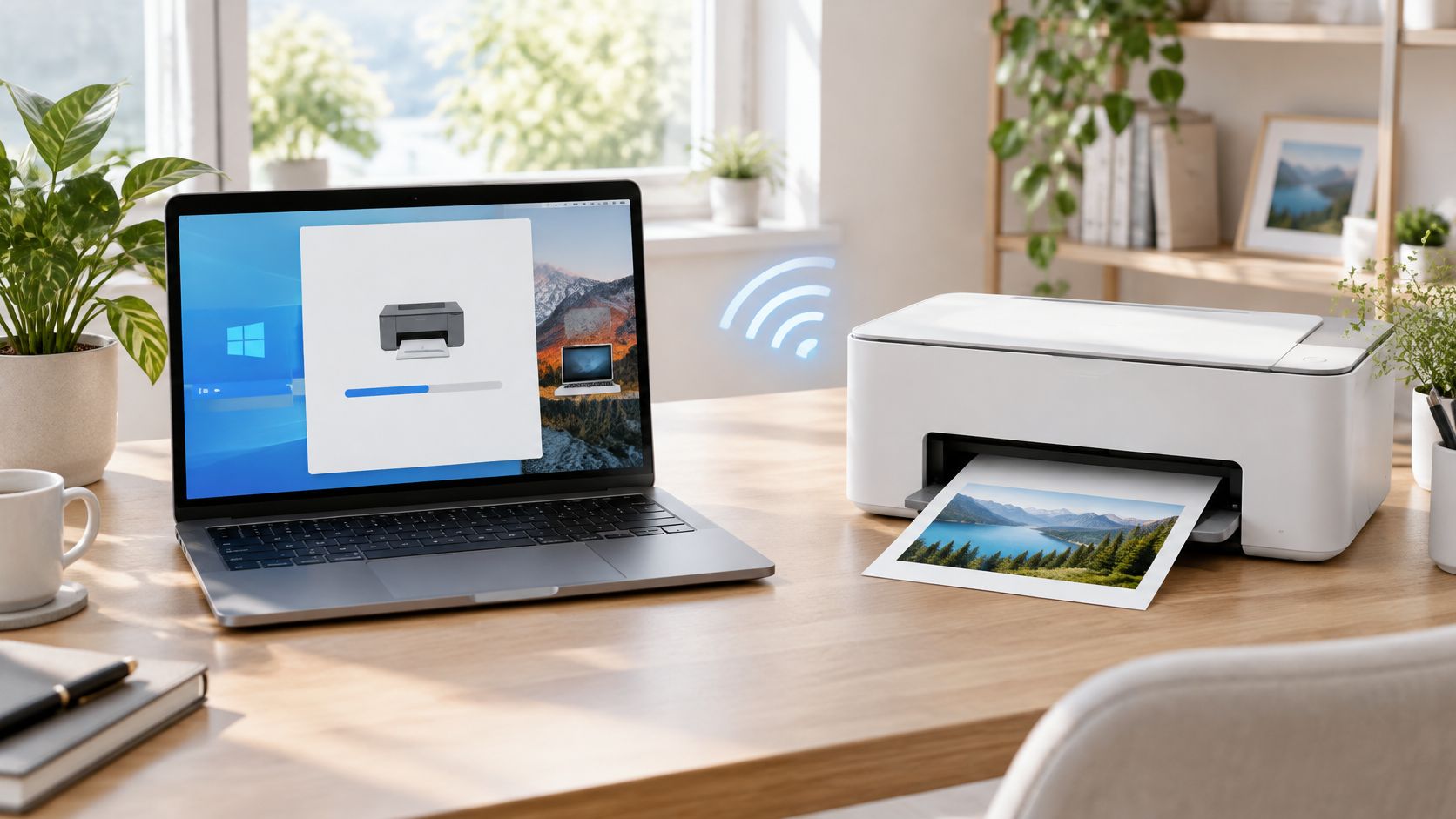
Your laptop is online, the printer's Wi-Fi light is on, and the document is ready. Yet the printer list is empty, or the printer appears with an unhelpful offline message. Before you download another driver, check whether your router allows the laptop and printer to communicate.
Learning how to connect a wireless printer to a laptop involves separate jobs: getting the printer onto a usable network, then adding its print queue to Windows or macOS. Start with the network, not the software. A driver won't fix guest-network isolation or a printer that can't authenticate with your router.
Pick the Connection Method Your Printer Supports
Find the row that matches your printer and the connection you can use.
| Method | Best for | Needs | Setup effort |
|---|---|---|---|
| Automatic discovery through AirPrint or IPP | Modern Wi-Fi printers on Mac or Windows | Same local Wi-Fi network as the laptop and compatible printing support | Lowest |
| Manual add by IP address | Printers that discovery misses | Printer IP address from its network report | Medium |
| Wi-Fi Direct | Printing without router access or from a guest-style environment | Wi-Fi Direct support on the printer and its connection credentials | Low |
| WPS push button | Routers with a WPS button | WPS support on both devices, using the timing in their instructions | Low |
| USB cable | Older printers without Wi-Fi or temporary wired printing | Compatible USB cable, laptop port or adapter, and a suitable driver | Low, but tied to the cable |
| Manufacturer app | Scanning, ink alerts, and firmware updates | Compatible app, printer connection, and an account if required | Medium to high |
Try built-in printing before downloading software
Driverless printing means you don't need to download a separate manufacturer driver for a compatible printer. macOS commonly uses AirPrint, while Windows can use built-in IPP-class printing with supported models. Apple's printer setup guide describes automatic discovery and supported network-printing connections on Mac.
The practical choices are automatic discovery, manual addition by IP address, or manufacturer software. Automatic discovery needs the least input; manual addition bypasses a missing discovery listing but still requires a working network connection.
Manufacturer software makes sense when you need scanning controls, ink monitoring, firmware tools, or specialist print settings. The trade-off can include account prompts, notifications, and background services, so don't install an entire software package just to print an ordinary document.
Check compatibility before choosing
Look for AirPrint, IPP, Wi-Fi Direct, or WPS in the printer's specifications or setup card. Check the router itself for a WPS button rather than assuming every router supports it. If the printer still needs to join your household network, follow the guide to connecting a printer to Wi-Fi.
There's also a security compatibility check. As LoginRadius explains in its WPA2 and WPA3 comparison, WPA3 requires compatible equipment, while transition mode can accommodate older devices.
Choose the connection, then troubleshoot it. Wi-Fi Direct creates a direct connection to the printer; it isn't the same as adding a printer through your home router.
Choose the matching row before changing settings. For normal shared household printing, I would start with automatic discovery and keep manual IP addition as the fallback.
Network Checks Before Discovery Works
A printer missing from the discovery list is usually a network problem, not a driver problem. Before reinstalling anything, rule out segmentation: a guest SSID, client isolation, or a security mode the printer can't join. A wireless printer needs a compatible Wi-Fi band, a reachable local network, and valid security credentials, and internet access alone proves none of them.
Check the network in a useful order
Start with the settings that separate devices even when everything looks connected:
- Compare the network names. Read the exact Wi-Fi name, also called the SSID, on the laptop and printer. A guest network or phone hotspot can leave the devices separated even though both appear connected.
- Check device isolation. In the router, look for settings such as AP isolation, client isolation, or guest access to local devices. Mesh systems can also separate devices deliberately. This router settings guide shows where those options usually live.
- Confirm the supported band. Some printers join only 2.4 GHz networks and can't see a 5 GHz SSID at all. Check the model's specifications rather than guessing from its age.
- Pause VPN interference. If your laptop uses a VPN, disconnect it temporarily where your organization's rules permit, or look for a VPN option that allows local-network access.
- Print the network report. Use the printer's Network Configuration, Wireless Report, or similarly named menu. Record its network name, connection status, and assigned IP address so you can compare them against the laptop's settings directly.
Different bands don't automatically mean different local networks. A laptop on a faster band can still reach a printer on a slower band when the router bridges them normally. Isolation, not the band label alone, is what blocks discovery.
Handle rejected passwords separately
If the printer rejects a known-good password, re-enter it carefully and check the router's security mode. A printer that lacks WPA3 support won't connect to a WPA3-only network.
Use WPA2/WPA3 transition mode only when it suits your equipment and security requirements. Another option is a compatible printer network that still permits access from trusted laptops, rather than an isolated guest network.
The same Wi-Fi name doesn't guarantee that the router permits device-to-device communication.
Don't buy a faster router just to solve printer discovery. Cisco's history of Wi-Fi describes capabilities well beyond ordinary document-printing needs; network membership and authentication usually matter more than maximum speed.
Adding a Wi-Fi Printer on Windows
Once the printer has joined the network, use Windows' own setup first. Microsoft's printer installation guide identifies the shared-network connection as the essential starting point for wireless installation.
Add the printer and its queue
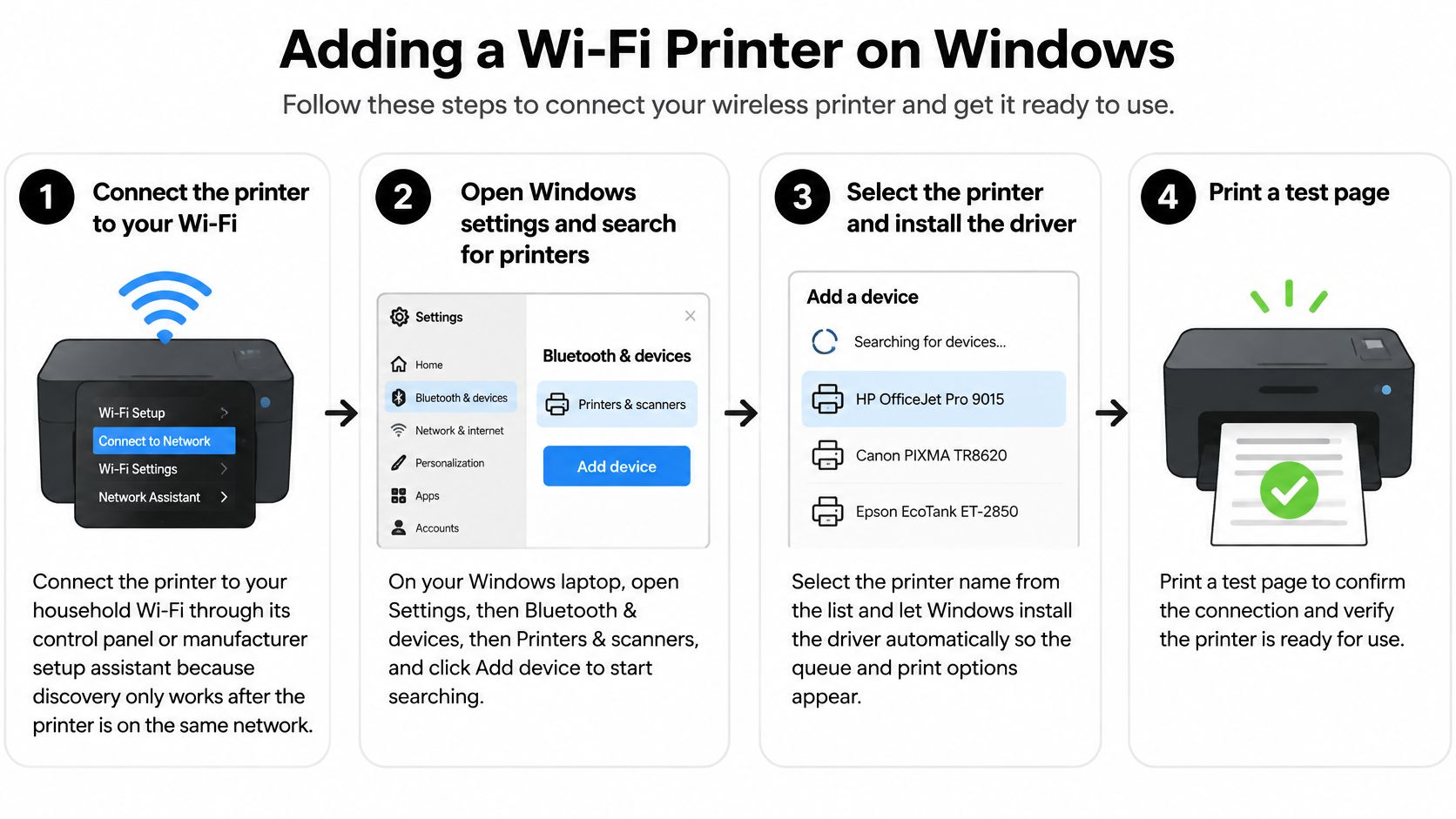
Connect the printer to household Wi-Fi. Use its control panel's wireless setup wizard or the manufacturer's setup assistant. A printer waiting in initial setup mode isn't necessarily connected to your router, even if its wireless light is flashing.
Verify the laptop's network. Open the laptop's Wi-Fi menu and confirm that it uses the intended household network, not a guest connection. This prevents you from troubleshooting Windows while the devices remain separated.
Open the printer settings. Go to Settings > Bluetooth & devices > Printers & scanners, then select Add device. Windows will search for available printers and display devices it can discover.
Select the correct printer. Match the model name to the label on the physical printer, then allow Windows to finish installing it. Don't launch a second installer while Windows is still creating the queue.
Use manual addition if discovery fails. Select the manual-add option, which may appear beside a message that your printer isn't listed, and choose the TCP/IP-address or hostname workflow. Enter the printer's current address from its network report, then follow the prompts to identify the device and driver.
Add manufacturer software only for a missing capability. If the installed queue lacks supported duplex controls, scanning, or the color settings you need, obtain the current package for the exact model and Windows version. Download it through the manufacturer's official support page, not a third-party driver utility.
Confirm that Windows can print
Return to Printers & scanners, select the installed printer, and open Printer properties to find Print Test Page. Keep paper loaded and check the printer's screen for a paper-size mismatch or another prompt that could pause the job.
A successful test confirms that Windows can send a job through that queue. It doesn't prove every application has selected the same printer, so check the destination again when printing your document.
Watch for similarly named entries. An old installation, a Wi-Fi Direct entry, and the normal network queue can look deceptively similar. Don't assume an unfamiliar discovered printer is yours, especially on a shared network.
Remove stale entries through Printers & scanners, then add the intended printer again. Give the working queue a recognizable name, such as the printer model plus its room, so you can select it confidently.
Setting Up on macOS and Linux
On a Mac, the shortest route is often the document's print dialog rather than a manufacturer installer. Use AirPrint when the printer supports it and the option appears.
Use AirPrint on the Mac
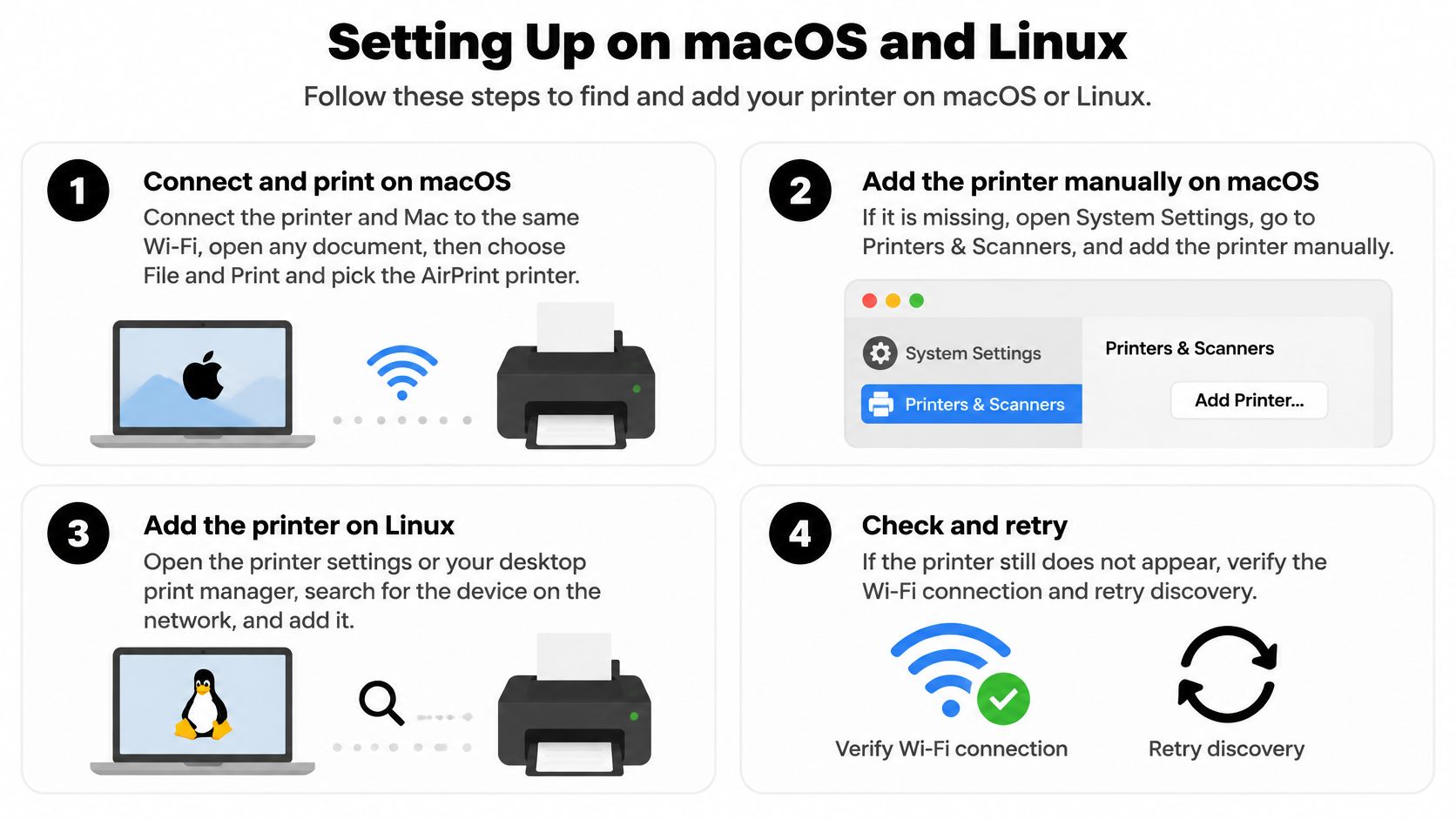
Connect and wake the printer. Make sure it has completed wireless setup and isn't showing an offline or setup warning. Keep the Mac connected to the intended local network.
Try printing directly. Open a document, choose File > Print, and check the Printer menu. Select the matching AirPrint printer if it appears.
Add it through System Settings if necessary. Open System Settings > Printers & Scanners, choose Add Printer, Scanner, or Fax, and select the device. When offered a choice in the Use field, select AirPrint for a compatible model.
Use the IP tab for a missing listing. Enter the address from the printer's network report and choose a protocol the printer supports. Don't select an unfamiliar protocol at random just to make the dialog accept the address.
Give discovery a chance to finish before repeating the process. Apple's add-and-manage-printers guide notes that discovery can take a minute or two and that some printers need a temporary USB connection and setup assistant to configure wireless networking.
Validate the Mac queue
Print a short test document, then check paper size, orientation, and double-sided printing where supported. Follow that with a print from another application, such as Preview or TextEdit.
If Preview prints but another app doesn't, inspect that app's selected destination and print settings before changing the router. Remove duplicate or obsolete printer entries if you keep selecting a queue that no longer works.
A phone can provide another independent printing test when the printer supports it. Use the phone-to-printer setup guide to configure that connection rather than assuming a manufacturer's phone app is required.
Keep Linux setup model-specific
Most desktop Linux distributions use CUPS, the printing system behind their printer settings. Open the desktop's printer manager, add a network printer, and choose IPP or a driverless option when the device advertises compatible support.
If driverless setup isn't available, check the manufacturer's Linux support for your exact model. Install its supported package or PPD file where that workflow applies; don't substitute a nearby model because its name looks similar.
Linux menu names and available packages differ by distribution. Check model support before buying a printer for Linux, and distinguish a missing software package from a printer that isn't reachable on the network.
Fixing Connection and Printing Failures
When the printer isn't found, identify where communication stops before reinstalling anything. A missing device, an offline queue, and a badly printed page need different fixes.
| Symptom | Likely cause | Fix |
|---|---|---|
| Printer not found | Guest network, client isolation, or incompatible band | Move both devices to a reachable main network, then add the printer by IP address |
| Printer shows offline | Sleep mode or stale queue | Wake the printer, remove the old queue, and add it again |
| Password rejected | Typo or WPA3 mismatch | Re-enter the exact password and use compatible WPA2/WPA3 transition mode if appropriate |
| Blank or garbled pages | Generic or wrong driver, or a consumable problem | Try the correct vendor driver or AirPrint/IPP queue, then check the printer's own test output |
| Prints from Mac but not Windows | Different driver path on Windows | Remove the Windows queue and add it again with the correct driver |
| Printer appears on one band only | Printer supports 2.4 GHz only | Use a compatible 2.4 GHz network with permitted access from the laptop |
Separate network trouble from queue trouble
Try opening the printer's built-in management page using the address shown on its network report, if the model provides one. A response confirms that the laptop can reach the printer, although it doesn't guarantee that the printing protocol or queue is configured correctly.
If the printer responds but a document fails, inspect the selected queue and its pending jobs. Cancel a stuck job, check whether printing is paused, and retry a simple document before replacing the driver.
If no device can reach the printer, investigate its network connection instead. If the laptop itself can't maintain Wi-Fi, use the laptop Wi-Fi troubleshooting guide before changing printer settings.
Useful distinction: A printer's own internal test page checks the printer hardware. A test page sent from the laptop checks the connection and print queue too.
Blank pages deserve that distinction. If the printer's internal report is also blank, changing a Windows driver won't resolve an ink, toner, or printhead problem. If its internal report looks normal but laptop output is garbled, the software path deserves closer attention.
Change one thing at a time
After a router replacement, check the saved network name, password, and security mode before doing a factory reset. A reset can erase useful connection details and force you through setup again without addressing the router setting that caused the failure.
Restart the printer when it stops responding, and restart the router when other local devices also have connection problems. Warn anyone using the network before interrupting it.
Don't promise yourself an instant fix for a hardware compatibility problem. A queue correction is a different job from updating firmware, obtaining vendor support, or replacing unsupported equipment.
Treat security transition mode as a migration choice, not permission to enable obsolete encryption indefinitely. If secure compatibility requires a firmware update or newer printer, plan that change rather than repeatedly weakening router settings.
Keeping the Printer Reliable and Knowing When to Stop
A reliable setup shouldn't depend on remembering which installer worked or which laptop happened to be awake. Keep the connection predictable, save the working queue, and record enough information to recover without starting over.
Make the working connection repeatable
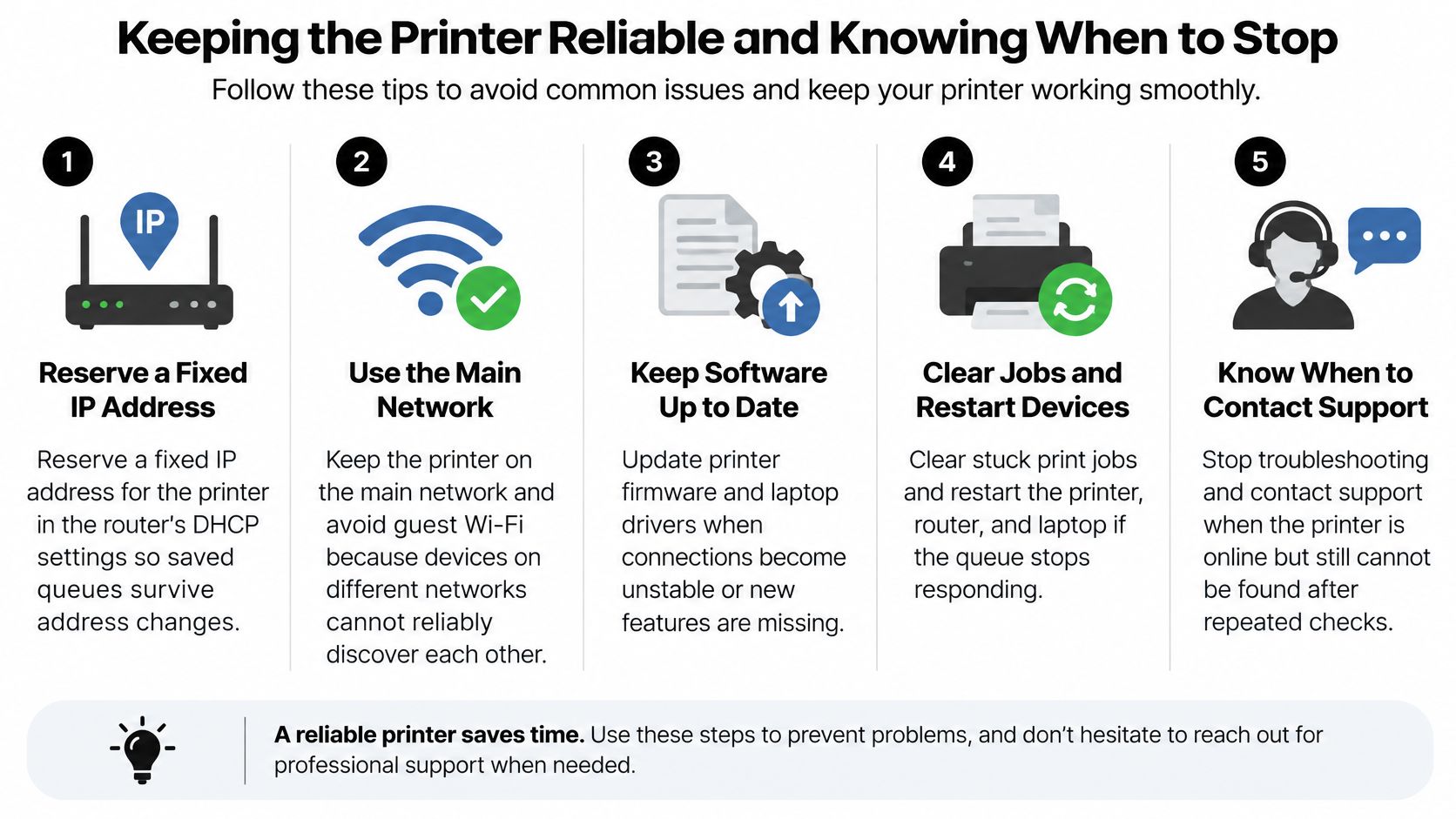
Reserve the printer's address in the router. Look under DHCP reservation, Address reservation, or the router's connected-device list. Reserve the printer's current address so an IP-based queue doesn't point to an address the router later assigns elsewhere. This is usually easier to maintain than manually entering unrelated static-network settings on the printer.
Keep trusted printing devices together. Leave the printer on your trusted household network. Keep visitors on guest Wi-Fi unless they need printing access, then use a deliberate option such as supported Wi-Fi Direct or controlled local-device access. Don't disable isolation for every guest just to solve an occasional printing request.
Protect the printer's settings and maintain its firmware. Set a distinct administrator password where the printer supports one, and protect any Wi-Fi Direct connection with its own credentials. Check the exact model's update instructions using the firmware update guide as a starting point. Don't interrupt power during an update.
Keep sensitive documents off unsecured networks. Don't enter your home Wi-Fi password into an unexpected advertisement, unsolicited support chat, or unfamiliar setup page. Use the printer's own controls or trusted manufacturer software, and verify the device before sending financial, medical, or identity documents.
Add the printer independently on each laptop. Use the working AirPrint or IP-based connection rather than sharing it through another household laptop when the printer already supports networking. Each computer can then print without depending on that other laptop staying awake and connected.
Save evidence of a working setup
Run the operating system's test print and inspect the actual page. Confirm that text is readable, paper size is correct, and the printer handles supported double-sided jobs as expected.
Then record the printer model, joined network name, reserved address, and working connection type in a private household setup note. Keep passwords in a password manager rather than writing them on the printer.
Save the working queue as the default if that suits your workflow. Before deleting another entry, confirm that it isn't a separate queue you intentionally use for different paper or specialist settings.
Stop repeating setup when the fault hasn't changed
If a test fails, return to the symptom that matches the failure. Don't cycle through a factory reset, a full software reinstall, and another router restart without checking what each change accomplished.
Contact manufacturer support when the printer is reachable but supported setup methods still fail. Provide the model, operating system, connection method, and result of the printer's internal test so the support conversation starts with useful evidence.
Consider replacement when dropouts continue on an otherwise working network, required security is incompatible with the model, or the manufacturer no longer provides necessary firmware support. A functioning print mechanism doesn't make an unsupported network connection worth maintaining indefinitely.
Before closing this guide, write down the printer's current address and network name. Those details give you a concrete starting point the next time printing stops.
Simply Tech Today offers plain-language setup guides and practical troubleshooting for everyday devices, apps, and home networks. Visit for help understanding router settings, maintaining your devices, and solving the connectivity problems that can interrupt printing.

Member discussion