
Why Bluetooth Not Connecting? Causes and Fixes for 2026
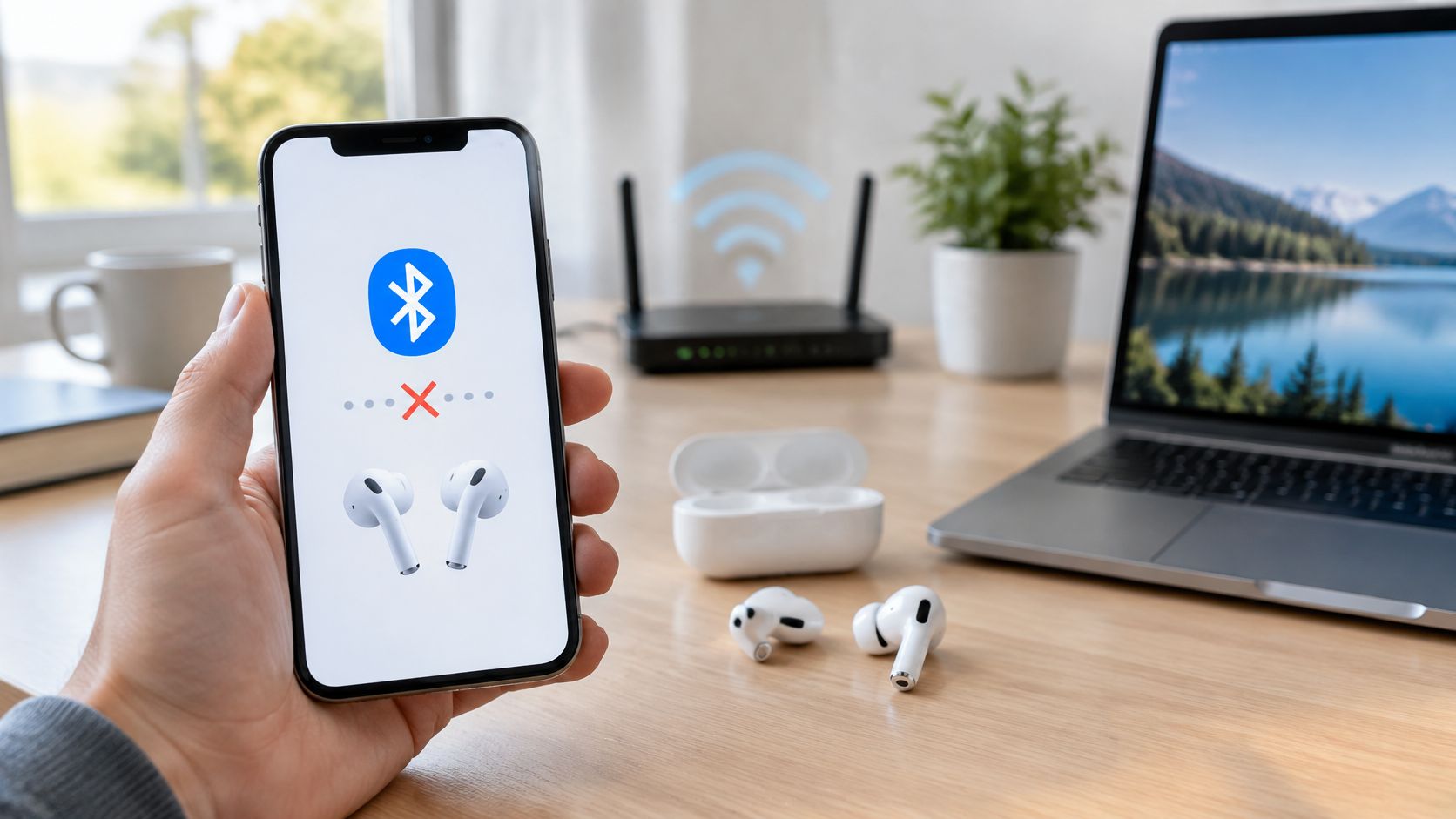
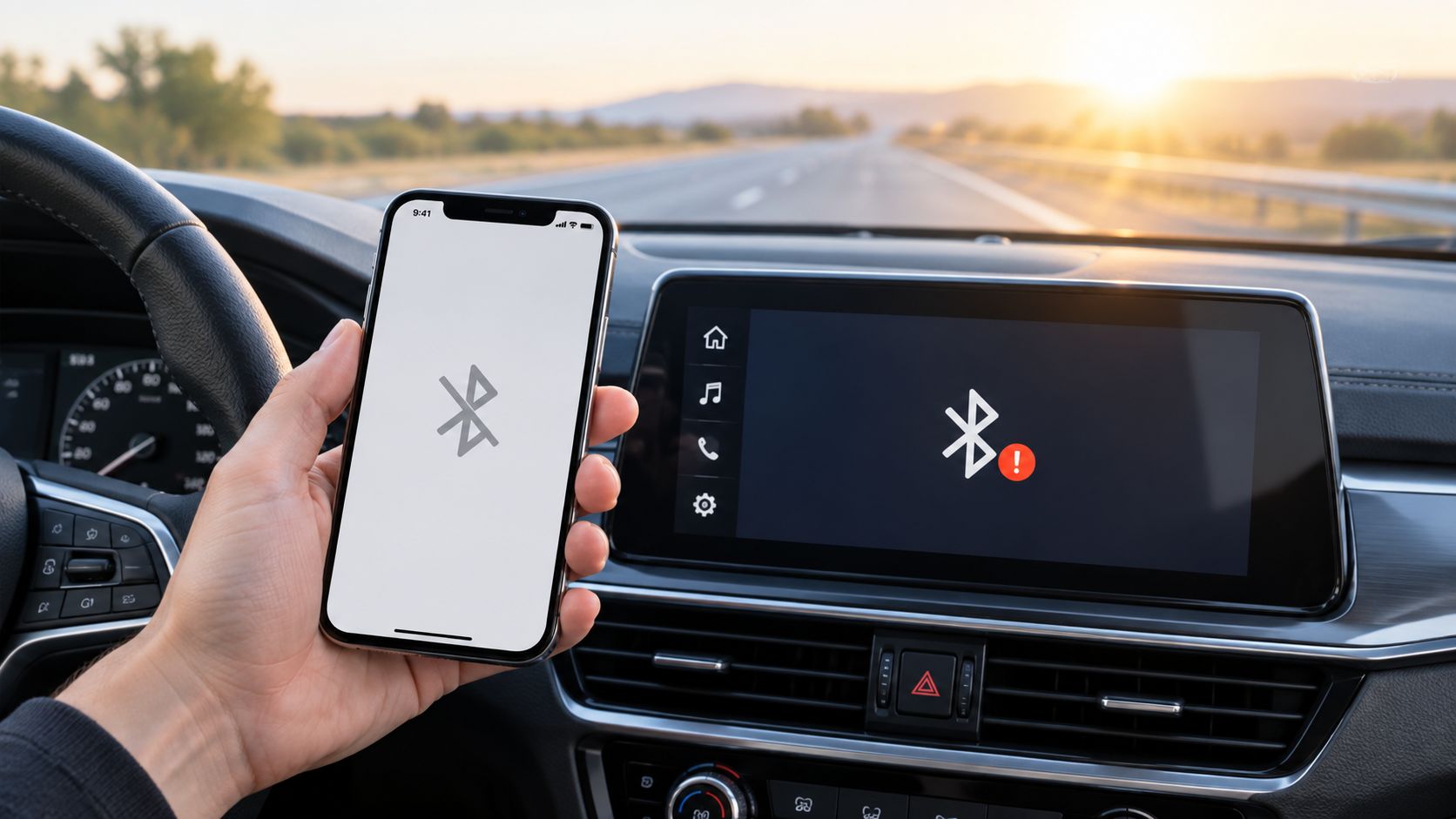
Your car stereo still appears in your phone's Bluetooth list, but tapping it never gets past connecting. It worked before the phone update, the stereo is right beside you, and switching Bluetooth off and on hasn't changed anything.
The useful question isn't just why Bluetooth isn't connecting. It's where the connection stops: discovery, pairing, authentication, or the feature you're trying to use. Identifying that stage saves you from resetting a working device or replacing an accessory that only needs a fresh pairing.
Match Your Symptom to the Likely Cause
A car stereo that remains visible after a phone update has passed the discovery stage. That doesn't prove the saved pairing still works, or that the phone and stereo agree on the requested audio connection.
Start with the symptom, not the reset button. These are working diagnoses, not guarantees; the first check should help you narrow the fault without erasing unrelated settings.
| Symptom | Most likely cause | First check | Rough time |
|---|---|---|---|
| Device does not appear in the scan list | Accessory not in pairing mode or still connected to another host | Put the accessory in pairing mode and disconnect other hosts | Quick check |
| Appears in the list but never connects | Stale bond or missing key on one side | Forget the device on both sides and pair again | Short re-pairing session |
| Connects but no sound or wrong audio mode | Profile or codec mismatch | Check the selected audio output and supported profiles | Short settings check |
| Drops out in crowded rooms, cars or offices | Radio interference | Test close together, away from Wi-Fi routers | Brief comparison test |
| Works in the morning, fails after sleep or a long gap | Low battery or aggressive power saving | Charge both devices and temporarily disable relevant battery restrictions | Charge first, then retest |
| Stopped working after a system update | Driver or operating-system Bluetooth fault | Check updates and restart the adapter | Allow for a restart |
| Fails in one app only | App permission denied | Check the app's Bluetooth permission | Quick permission check |
| Fails with every device and every host | Radio or hardware fault | Test the accessory with another phone or laptop | Short cross-device test |
Check the connection in layers
Start with power and surroundings. Charge the accessory, remove obvious obstructions, and bring the devices close together. Don't troubleshoot earbuds through a wall or a keyboard with an uncertain battery.
Radio conditions matter because Bluetooth shares spectrum with other equipment. A National Institute of Standards and Technology study found that simultaneous Bluetooth and Wi-Fi operation in the 2.4 GHz band can degrade performance through transmission errors, packet loss, and access delays. A failed connection doesn't automatically mean either device is defective.
Next, check the accessory's state. A powered-on speaker isn't necessarily discoverable, and headphones may reconnect to a nearby tablet before your phone gets a chance.
Only then investigate the saved pairing and supported functions. If the device appears consistently but refuses to link, a stored bond, missing key, or compatibility mismatch deserves attention before you blame range. Interference remains possible, but visibility changes which check is most useful.
Practical rule: Change one thing per test. If you restart, reset, move rooms, and update software together, you won't know which action mattered.
Run a Five-Minute Interference Test
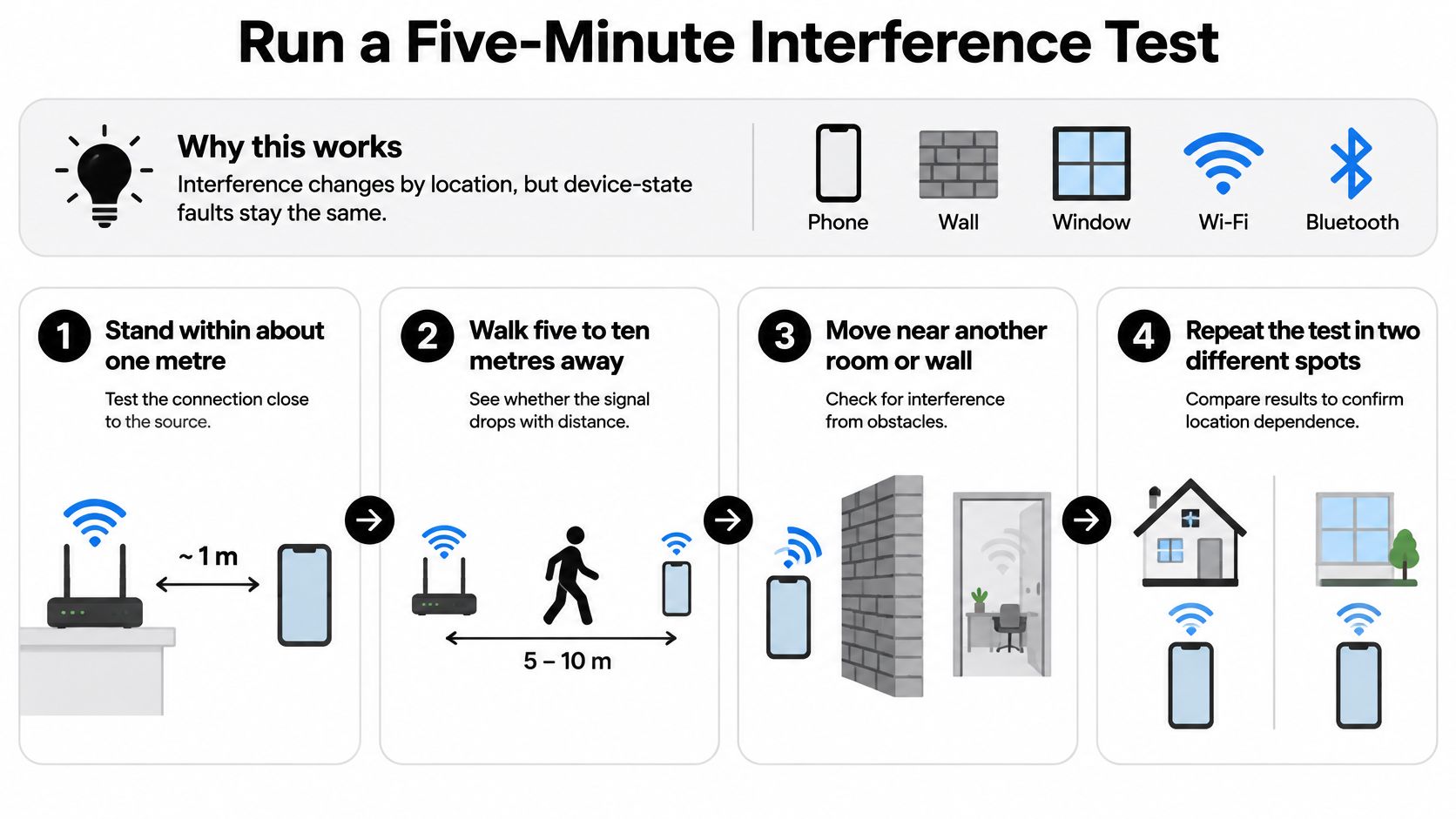
A location comparison separates environmental trouble from a persistent device-state problem. Interference shifts as nearby equipment transmits. An invalid pairing record does not repair itself because you walked into another room. If the accessory appears in the Bluetooth list but never links, this test shows whether range and congestion deserve attention or whether the failure sits in the saved bond or supported profiles.
Texas Instruments' Bluetooth troubleshooting guidance supports checking physical and radio conditions before investigating communication parameters, corrupted packets, and authentication problems. Treat the result as a screening test, not proof that the hardware is healthy.
Make controlled comparisons
Establish a close-range baseline. Put the charged devices beside each other with a clear path between them. Test first, then temporarily turn off your own nearby router if doing so will not interrupt someone else's work or essential equipment, and repeat without moving anything.
Check stability, not just the connection message. Play downloaded audio, type with the keyboard, or use the accessory's normal function. A connected label followed by silence or missed keystrokes is not a successful result.
Compare the troublesome location. Restore the router and retest before moving back to the place where the failure occurred. Keeping the router state unchanged during the location comparison helps distinguish a location problem from the effect of switching equipment off.
Try another phone or laptop. Disconnect the original host so it cannot reclaim the accessory. If the same failure follows the accessory, its settings, firmware, or hardware become stronger suspects.
Try another accessory on the original host. If that also fails, concentrate on the phone or computer. If it works, investigate the original accessory and that particular device combination.
Crowded apartments, offices, classrooms, airports, and cars make environmental comparisons useful. You cannot control every transmitter, but you can move away from a router, remove a physical obstruction, or test at home before assuming an accessory has failed.
Where your equipment supports it, moving Wi-Fi traffic to a higher-frequency band can reduce shared-band congestion. The wireless connectivity solutions guide can help you consider the wider setup rather than repeatedly resetting Bluetooth.
A success in the clear location is a clue, not a cure. Return to the original conditions to confirm it.
How to Re-Pair Phones and Clear Stale Bonds
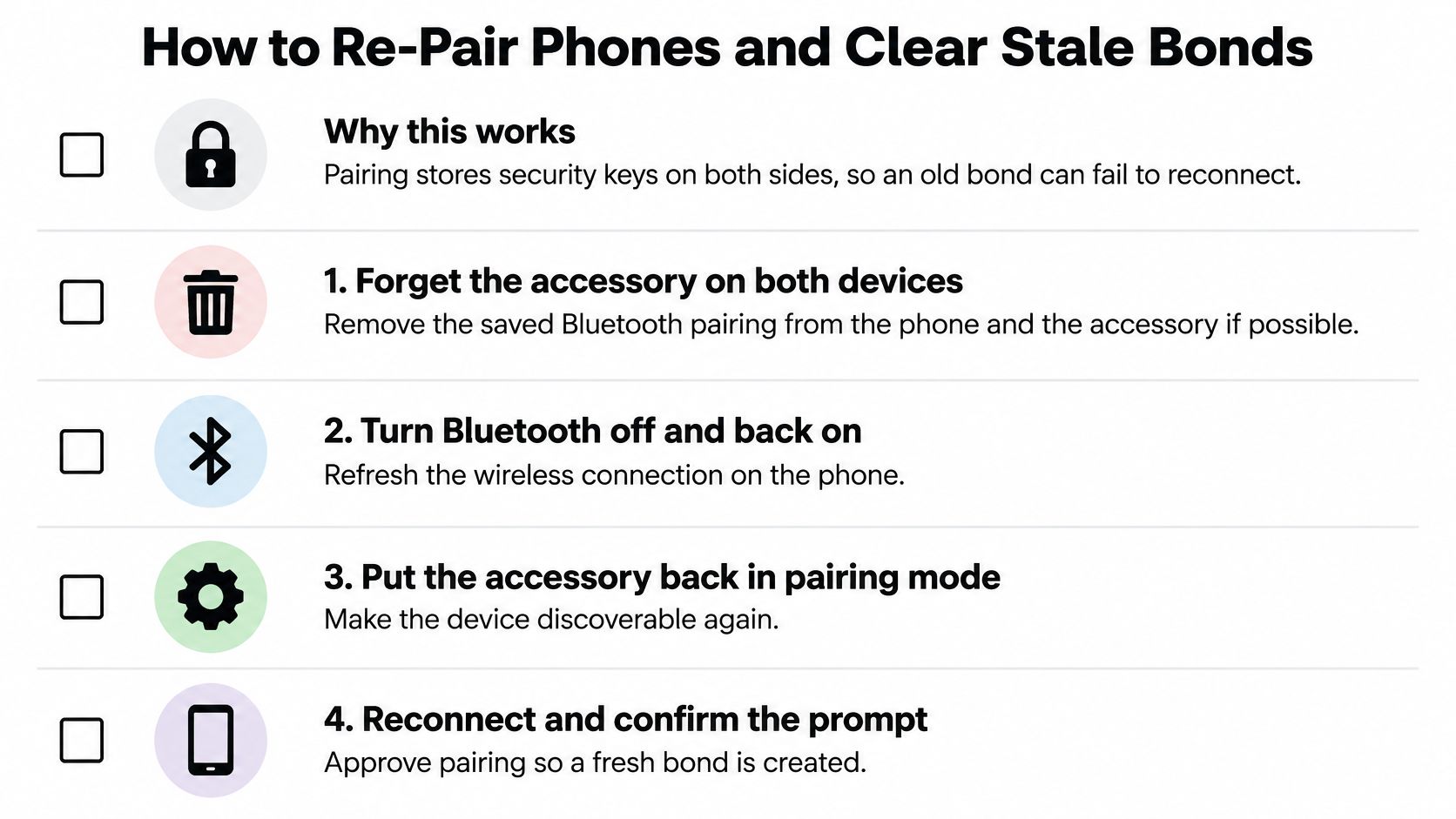
Discovery and bonding are different steps. During pairing, devices establish security information for later connections. If their saved information no longer matches, your phone may display the accessory's name but fail when it tries to reconnect.
Google's Android Bluetooth troubleshooting guide recommends removing saved devices and restarting as part of recovery. Re-pairing is useful because it rebuilds the relationship, rather than asking the same broken relationship to reconnect.
Rebuild the pairing before resetting everything
Remove the saved accessory. On iPhone, open Settings > Bluetooth, tap the information icon beside the device, and select Forget This Device. On Android, open the accessory's Bluetooth settings and choose Forget or Unpair; wording differs by manufacturer.
Clear the matching record where possible. Delete the phone from the car stereo's paired-device list, or use the accessory's documented pairing-memory procedure. Don't assume a long button press clears memory, because it may trigger a factory reset instead.
Restart both devices. Restart the phone and power-cycle the accessory. This clears temporary operating state without immediately erasing all the phone's network settings.
Enter pairing mode and reconnect. Use the accessory's pairing button or menu, checking its manual for the correct light or voice prompt. Select it on the phone and approve any matching confirmation prompts.
Escalate only if the fresh pairing fails. Some Android devices expose Bluetooth storage controls; others provide a reset for Bluetooth and network settings. Read the confirmation screen carefully because these actions can remove saved pairings and, depending on the reset, other network information.
Before retrying, temporarily disable Bluetooth on nearby laptops and tablets that normally use the accessory. A headset reconnecting to a work laptop can look like a failed phone pairing.
Record your saved headphones, keyboards, and car connections before clearing Bluetooth storage. You'll need to configure them again afterward.
Don't clear storage merely because a cache-clearing suggestion appeared in a troubleshooting list. Removing one broken pairing is less disruptive than removing every pairing.
For a dashboard system, use the car Bluetooth connection troubleshooting guide to check vehicle-specific pairing and audio settings. Perform setup while parked, and avoid a full infotainment reset until you know which personal settings it will erase.
Laptop Fixes for Drivers, Permissions and Services
| Task | Windows 11 | macOS |
|---|---|---|
| Turn Bluetooth on | Settings > Bluetooth & devices > Bluetooth toggle | System Settings > Bluetooth > Bluetooth toggle |
| Remove a saved device | Settings > Bluetooth & devices > Devices, then remove the device | System Settings > Bluetooth, open the device's details, then Forget This Device |
| Reset the Bluetooth module | Device Manager > Bluetooth > uninstall the adapter, then restart | Restart the Mac. Older releases may offer Shift + Option > Bluetooth menu > Debug > Reset the Bluetooth module; current releases generally don't |
| Update the driver | Device Manager > Bluetooth > adapter > Update driver; also check the laptop maker's support tools | System Settings > General > Software Update |
| Check app access | Check available Bluetooth or device-access controls under Settings > Privacy & security, plus the app's settings | System Settings > Privacy & Security > Bluetooth |
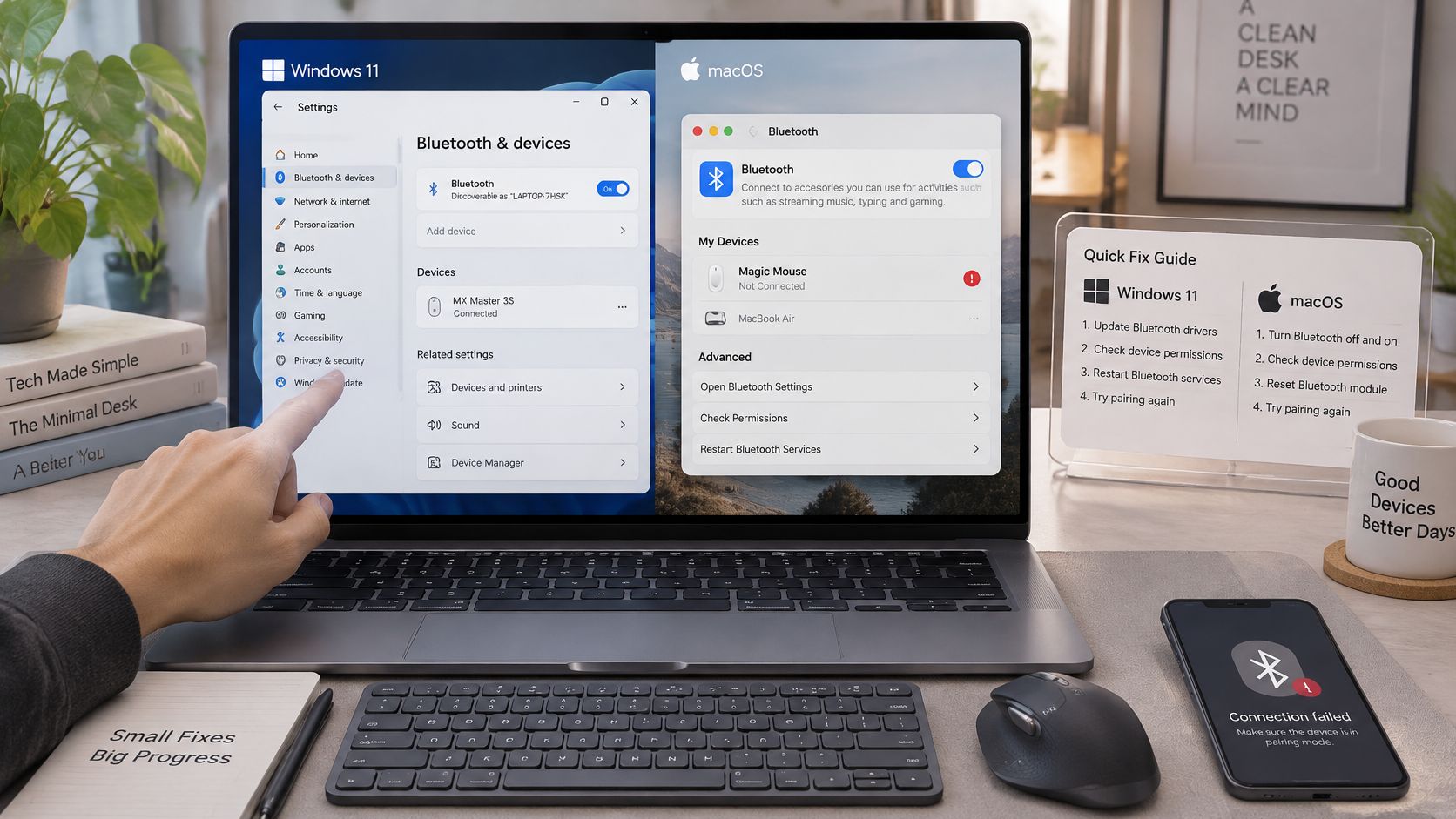
Start with the controls that can disable the radio. Turn off Airplane mode on Windows, check any physical wireless switch or function key, and confirm Bluetooth is enabled in system settings.
Then remove only the affected accessory and pair it again. A laptop that connects to a mouse but not a headset doesn't yet justify reinstalling its entire Bluetooth adapter.
Escalate from settings to drivers
On Windows, open Device Manager and inspect the Bluetooth adapter for a warning symbol. Install an appropriate driver from Windows Update or the laptop manufacturer before using third-party driver utilities.
If a restart and update don't help, uninstall the Bluetooth adapter and restart Windows so it can attempt to reinstall it. Have a wired keyboard or mouse available, and download the manufacturer's driver beforehand if Bluetooth is your only convenient input method.
Use these targeted checks rather than changing unrelated services:
- Bluetooth Support Service: Open the Services app and check whether the service can run. If it's disabled, restore the appropriate configuration rather than forcing every Bluetooth-related service to start automatically.
- External adapters: Identify whether you're using the built-in radio or a USB Bluetooth dongle. Update the driver for the adapter handling the connection.
- App permissions: If system pairing works but one application fails, inspect that app's access and output settings before reinstalling hardware.
On a Mac, Bluetooth drivers normally arrive with macOS updates. Don't keep searching for the old Debug reset menu if your release doesn't include it; restart and install available system updates instead.
An update immediately preceding the failure is a useful clue, not proof of the cause. For older Windows installations, the Windows 10 Bluetooth troubleshooting guide provides a more appropriate settings reference.
When the Accessory Itself Is the Problem
Being discoverable doesn't prove an accessory supports the job you want it to do. A television may detect headphones yet lack the required audio-output support, while a headset may handle music correctly but behave differently during calls.
Bluetooth version labels aren't enough to settle compatibility. The Bluetooth interoperability review describes a system of profiles and evolving features, rather than a single universal connection capability.
Separate audio and switching problems
Profiles define the function. Music playback and hands-free calling use different profiles. If music works but calls don't, check call-audio settings and documented profile support instead of treating the headset as completely disconnected.
Codecs define the audio format. Devices need a mutually supported format, and compatible products should negotiate one. A missing optional codec doesn't automatically prevent playback, so check the selected output and disable forced codec settings before declaring the hardware incompatible.
Multipoint changes which host gets attention. Say headphones are connected to both a laptop and a phone. A phone call can interrupt laptop audio without the headphones losing their Bluetooth connection entirely; temporarily disabling multipoint helps identify that behavior.
For television listening, the guide to connecting AirPods to a TV helps distinguish pairing controls from audio-output requirements. Controllers need a different diagnostic path: CTF Mobile Phones & Computer Repairs provides device-specific steps to fix a PS5 controller connection, where console pairing and USB behavior also matter.
Check support before buying replacements
LE Audio and Auracast require explicit compatibility. The Bluetooth SIG's Auracast overview describes compatible products discovering and joining shared audio broadcasts. That isn't the same workflow as ordinary device-to-device headphone pairing.
Use the manufacturer's specifications and companion app to verify the exact feature. Update the accessory's firmware, select the intended audio output, and test without optional switching features enabled.
A reset can remove a bad configuration. It can't add a feature that the hardware and software don't support.
If the accessory works reliably for its documented functions but not your intended use, replacement may be reasonable. Choose by explicit feature support, not just by a newer Bluetooth version printed on the box.
Decide Whether to Reset, Repair or Replace
Stop repeating resets when controlled tests keep producing the same failure. If an accessory fails across different hosts after a clean pairing, a quiet-location test, and appropriate host troubleshooting, an accessory-side fault becomes more likely. That can still involve firmware, so cross-device failure alone isn't conclusive proof of damaged hardware.
Build a useful repair record
Check for evidence that supports a warranty or repair request:
- Consistent failure: The accessory won't work with otherwise functional phones or computers.
- Abnormal power behavior: Charging, indicator lights, or startup behavior differs from the manual.
- Physical damage: The fault began after a drop, liquid exposure, or damage to a connector.
- No firmware improvement: The manufacturer's supported update procedure doesn't resolve the issue.
Use the firmware update guide if you're unsure how to check the installed version. Don't interrupt an update or install firmware meant for another model.
Keep a short log with the accessory model, firmware version, host devices, each changed setting, and the result. Give that record to support rather than starting another round of identical toggles.
If the evidence points to missing feature support, confirm compatibility before buying anything. If it points to a defective accessory, start the warranty or repair claim.
Tech Today offers practical guides to device setup, wireless connections, and everyday troubleshooting. Visit Simply Tech Today for help checking your car, laptop, or audio accessory's specific settings before you reset or replace it.

Member discussion