
How to Disable Location Services on Any Device Quickly
You open a food delivery app to check dinner options, and it already knows your neighborhood. Then your weather app nails your location before you type anything. Later, a shopping app asks for location access even though you just want to browse. That's usually the moment people start looking up how to disable location services.
Turning location off sounds simple, but phones now handle location in layers. There's the main device switch, app-by-app permissions, browser access for websites, and in some cases stored location history. If you only change one setting, your phone may still share more than you expect.
Why Disabling Location Services Matters for Privacy and Control
Location settings affect everyday tools you probably use without thinking much about them. Maps need your current position. Ride-hailing apps use pickup points. Weather apps check your area. Some phones also use location to personalize results and suggestions. A global consumer study found that just under two thirds of consumers share their location data at least sometimes, which shows this isn't a niche setting for privacy enthusiasts. It's a mainstream feature tied to normal phone use, as noted in this global location privacy consumer study.
That same reality is why people get uneasy about it. A phone that helps you find coffee nearby can also keep a detailed sense of where you spend time. For many people, the issue isn't “I never want location on.” It's “I want to decide which app gets it, when, and for what reason.”
What location settings actually control
There are two separate ideas that often get mixed together:
- Live location access: Whether apps can see where you are right now.
- Stored location history: Whether your phone or account keeps records of places you've been.
Public guidance from the California Attorney General's privacy office shows that major platforms have long treated these as separate controls, with device-level switches for real-time access and account-level options for stored history such as Google Location History or iPhone Frequent Locations in System Services, as described in this California location privacy guidance.
That layered design matters. You might block a delivery app from seeing your current location and still have historical records stored elsewhere. Or you might leave location on for maps but stop a history feature from saving your routine.
If you care about more than one kind of privacy setting, this often overlaps with other habits too, such as checking data privacy in voice dictation and reviewing broader online privacy protection basics.
Big takeaway: Turning off location isn't one decision. It's a set of smaller decisions about real-time access, saved history, and which apps actually need your location.
How to Turn Off Location Services on iPhone and iPad
If you use an iPhone or iPad, the cleanest way to disable location services is through Apple's main privacy menu. This is the fastest option when you want a broad stop, not a careful app-by-app cleanup.
Turn location off for the whole device
Apple's support guidance says the highest-confidence device-wide path is:
- Open Settings
- Tap Privacy & Security
- Tap Location Services
- Switch Location Services off
That full toggle stops app requests in one step, based on Apple's Location Services settings for iPhone and iPad.
This is the setting to use if you want a quick privacy reset. It's also useful before travel, during a privacy-sensitive situation, or when you're troubleshooting a phone that seems to be asking for location too often.
Use app-level control if you still need maps or rideshare
A lot of people don't want a full shutdown. They want Apple Maps, Google Maps, or Uber to work, but they don't want a shopping app or game checking their location.
From the same Location Services screen, tap any app and choose a permission level such as:
- Never for apps that don't need location at all
- While Using the App for apps like maps, weather, or delivery
- Ask Next Time when you want the phone to prompt you again later
This is usually the better setup for daily life. You keep useful features without giving every app broad access.
If you leave the main Location Services switch on, your phone can still provide location to apps you've approved. App settings help you limit access, but they don't replace the global off switch.
The common iPhone mistake
Many people think they've fully locked location down because they changed a few app permissions. But if Location Services remains on, approved apps can still use it.
That's why it helps to decide your goal first:
- Maximum shutdown: Turn the main toggle off
- Balanced privacy: Keep the main toggle on, then restrict apps one by one
- Minimal disruption: Allow only a few apps while using them
If you're already reviewing privacy permissions on iOS, it also makes sense to check how to turn off app tracking on iPhone, since location and ad tracking often get reviewed together.
A simple iPhone audit
Run through this quick check:
- Maps apps: Keep only if you use navigation often
- Retail apps: Switch to Never unless store lookup matters
- Social apps: Ask whether sharing your location adds anything useful
- Utilities: Weather may be fine on While Using the App
That small audit is often enough to make your iPhone feel much less intrusive without breaking the apps you rely on.
How to Turn Off Location on Android and Fine Tune Accuracy
Android gives you solid location controls, but they're spread across a few menus. That's why people sometimes turn location off and still feel unsure about what changed.
Turn off Android location globally
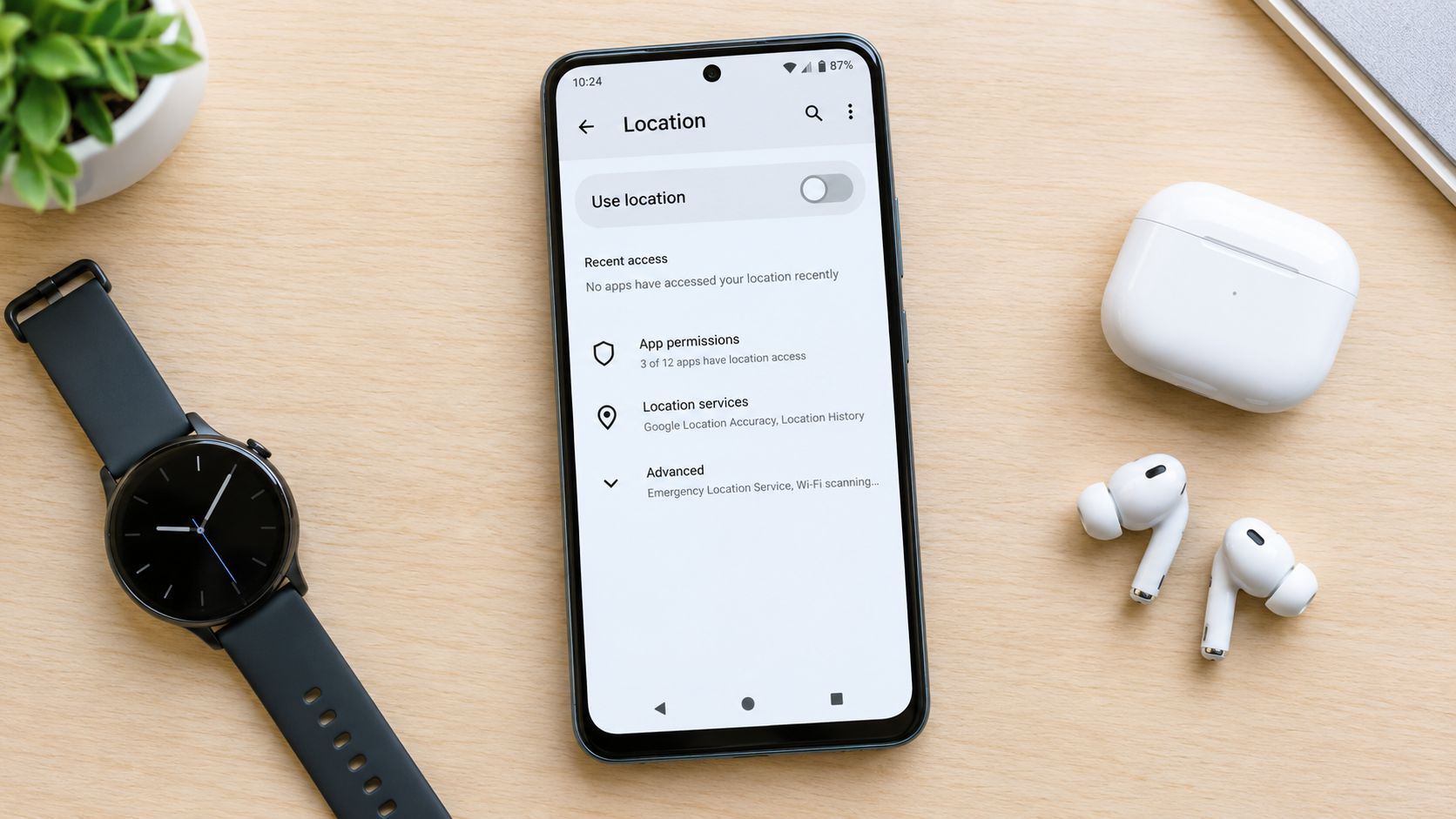
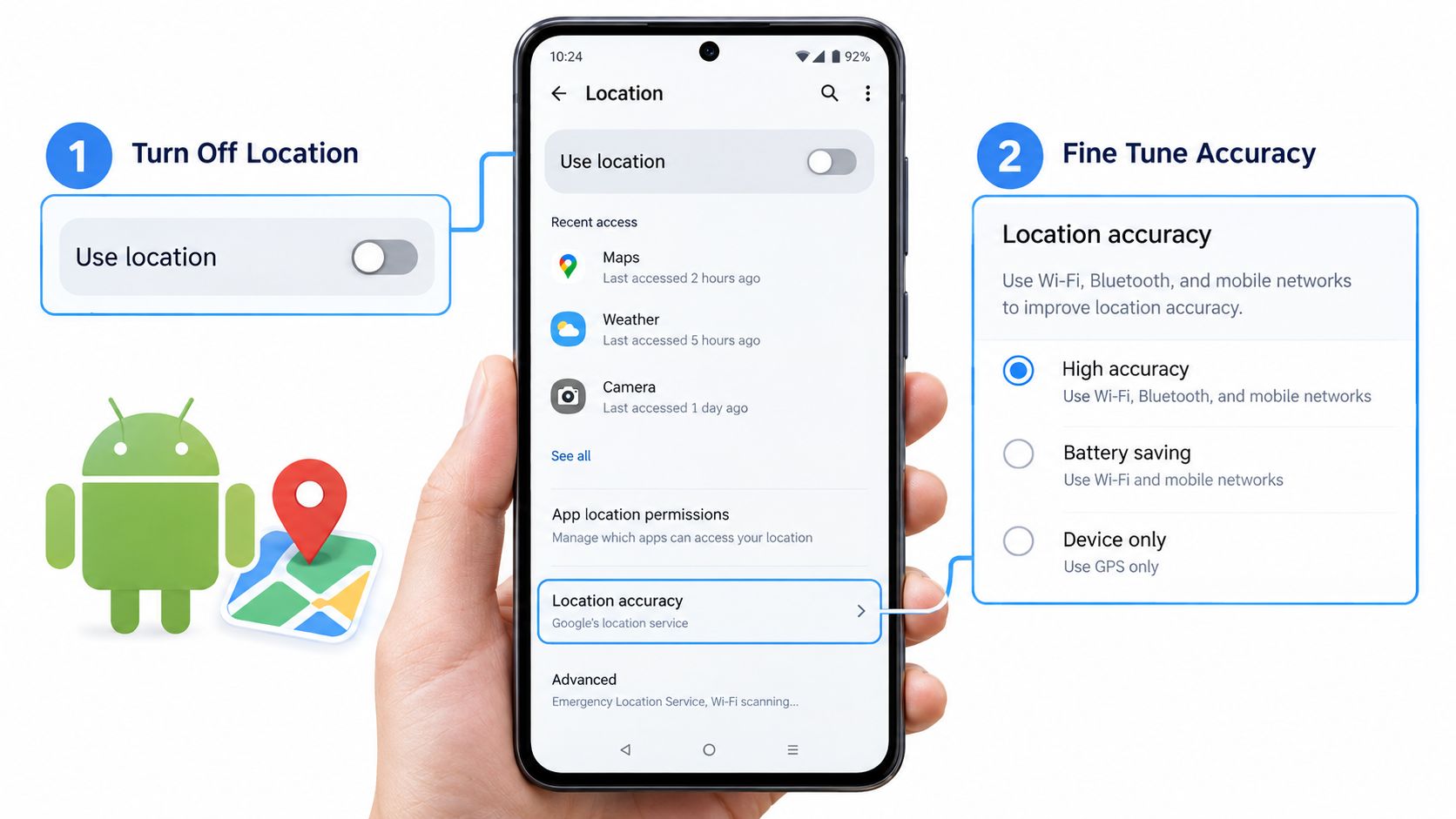
A practical path on many Android phones is:
- Open Settings
- Tap Location
- Switch Use location off
That global setting is the fastest answer to how to disable location services on Android. An independent step-by-step guide also notes that permission menus can vary by Android version, which is why your phone may use slightly different labels in the same area of settings, as explained in this Android location settings guide.
For some people, that's enough. For others, it's only the first layer.
Review app location permissions
Android usually lets you fine-tune each app with options such as:
- Allow all the time
- Allow only while using the app
- Ask every time
- Don't allow
Those choices matter because one navigation app with background access can behave very differently from a photo editor that should never need your location.
A practical way to consider it:
- Keep Allow only while using the app for Google Maps, Waze, or a rideshare app if you use them often.
- Use Don't allow for games, shopping apps, and simple tools that don't depend on your position.
- Choose Ask every time if you only use an app occasionally and want a reminder before it checks location.
Fine tune accuracy and scanning
Android phones may also offer Google Location Accuracy or related scanning features. These can use nearby signals such as Wi-Fi and Bluetooth to refine your position.
That's helpful for convenience, but it can confuse people who assumed turning off GPS meant all location help was gone. On many devices, you should also check for:
- Google Location Accuracy
- Wi-Fi scanning
- Bluetooth scanning
If your goal is stronger privacy or less background activity, those are worth reviewing.
Practical rule: On Android, “location off” and “location no longer refined by nearby signals” may be two separate decisions.
Why Android menus feel inconsistent
Android isn't one identical system across every phone. Samsung, Google Pixel, and other manufacturers can place the same setting in slightly different spots. That doesn't mean the option is missing. It usually means the menu wording changed.
If you share a device, lend it to someone, or want a lightweight privacy setup for another user, Android's guest mode features can also help keep personal settings and activity more separate.
A good final test is simple. Open a map app after making changes. If it asks again for permission or can't find you automatically, your settings are doing what you intended.
Managing Location Access for Browsers and Individual Apps
You turn off location for a few apps, then open a weather site or store finder in your browser and it still asks where you are. That catches people off guard because phones have more than one permission layer.
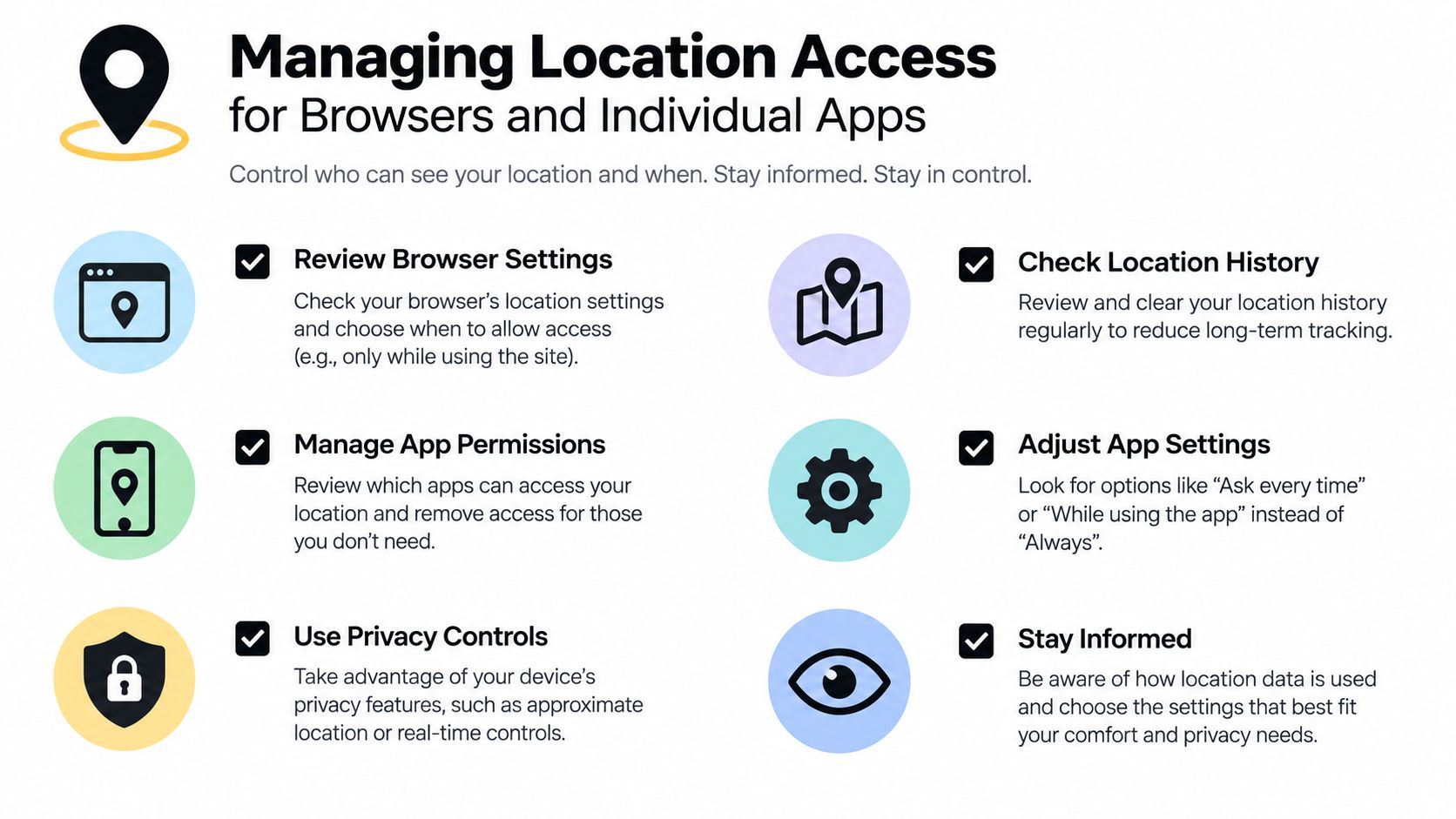
A simple way to understand it is to treat location settings like doors in the same house. Your phone has a main front door, each app has its own room door, and your browser gives individual websites their own keys. Closing one door does not always close the others.
Browser permissions are their own layer
A browser app such as Safari or Chrome can ask for location on behalf of a website. If you tapped Allow before, that site may keep permission until you remove it.
That matters in everyday situations:
- A local news site may want your area for weather or alerts
- A store locator may need location once, but not forever
- A travel or map website may be useful only while you are actively using it
If a site needs your location, allow it for that moment. If the benefit is minor, deny it and type your city or ZIP code instead.
For browser-specific steps, use the browser's own help pages, such as Google's Chrome site settings guide.
App permissions work differently from browser permissions
Apps and websites may seem similar on screen, but your phone treats them differently.
An app like Uber, Google Maps, or your weather app gets permission through the operating system. A website opened in Safari or Chrome gets permission through the browser too. That is why you can block an app but still see location prompts on the web, or clear browser site settings while an app continues to know where you are.
Make app-by-app choices based on the job
The easiest approach is to match the permission to the app's purpose.
- Maps and rideshare apps: Allow while using the app
- Weather apps: Consider while using, or enter your city manually if you prefer
- Food delivery apps: Useful during ordering and tracking, less useful later
- Social apps: Review carefully unless sharing location is part of what you want to do
- Photo editors, note apps, and simple games: Usually do not need location
This selective setup is often easier to live with than turning everything off. You keep the convenience you use and cut the access that feels unnecessary.
A good rule is simple: give location only when it clearly improves the task in front of you.
If Safari keeps holding on to old website behavior while you review permissions, these steps for how to reset Safari browser settings can help clear out stuck site data and prompts.
What Still Tracks You and How to Choose the Right Privacy Level
You turn off location before leaving home, then your phone still shows nearby weather, suggests places, or helps an emergency feature figure out where you are. That feels confusing until you picture location settings as layers, not one master lock.
The main device switch is only one layer. Your phone can still keep separate controls for emergency use, system features, saved place patterns, browser permissions, and Android accuracy tools. So the better question is not "on or off." It is "which kind of location access do I want to stop?"
What may still use location after the main switch changes
Different phones label these controls differently, but they often fall into a few buckets:
- Emergency location features, which can work separately for safety reasons
- System-level features, such as device services that use location in the background
- Saved location history or significant places, which can store patterns about where you go
- Browser-based website access, which is separate from app permissions
- Android accuracy, Wi-Fi scanning, or Bluetooth scanning tools, which help estimate your position even when GPS is not the whole story
A simple comparison helps here. App-level controls are like giving one store a key to your building. System-level controls are like giving the building manager access to shared areas. Browser permissions are a third layer, because a website asking for location inside Safari or Chrome is not the same as an installed app asking through the phone.
Match the privacy level to your real goal
| If your goal is... | Best setting choice | What you give up |
|---|---|---|
| Stop as much location sharing as possible | Turn off the main device location setting, then review browser and system-level location controls too | Maps, rideshare pickup, automatic weather, and local recommendations work less smoothly |
| Keep daily apps working but cut unnecessary tracking | Leave location on, but limit access to selected apps and block browser requests you do not trust | A few apps may ask again for permission when they need your location |
| Reduce stored patterns about where you go | Check history-related or significant-location settings, not just the main switch | Some personalized suggestions may become less accurate |
| Improve privacy without changing phone behavior too much | Allow location only while using important apps, and turn off extras like scanning features if you do not need them | Location may take a little longer to lock in for some tasks |
Selective restriction usually works better for busy people than a full shutdown. You keep directions, deliveries, and weather where they help, while cutting the quiet background access that often matters more for privacy.
A better way to decide
Start with the outcome you want to prevent.
If you do not want random apps checking where you are, focus on app permissions. If you do not want websites asking for your location, check Safari or Chrome site settings. If you are more concerned about patterns over time, look for history, significant places, or similar system features.
That is the useful shift. You are not choosing between total exposure and total blackout. You are choosing which doors stay open.
If your goal also includes reducing what websites and networks can infer about you online, learning how to use a VPN on iPhone can complement these location settings without replacing them.
Take Control of Your Location Settings With Confidence
The easiest version of this job is flipping the main switch off. The smarter version is matching the setting to your goal.
If you want a fast lock-down, use the full device toggle on iPhone or Android. If you still need directions, ride pickups, or neighborhood weather, keep location on and narrow it to the few apps that need it. If a site keeps trying to use your location, check the browser permission too.
Quick confidence check
After changing settings, test your phone in a normal way:
- Open Maps: See whether it can still find you automatically
- Try Weather: Confirm whether local updates still work the way you want
- Check one browser: Make sure websites aren't still using old permissions
- Review System Services or accuracy settings: Catch the settings people often miss
That last check matters because layered controls are the whole story here. A phone can stop broad app access while still keeping separate settings for websites, emergency use, or system features.
The best privacy setup is the one you understand well enough to maintain.
A final habit makes everything easier. Revisit location permissions whenever you install a new app. Permission prompts are easiest to manage when the app is new and your reason for using it is still clear.
Tech Today breaks down privacy settings, phone features, and everyday tech choices in plain language, so you can fix confusing settings without digging through menus for half an hour. If this guide helped you sort out location access, visit Simply Tech Today for more practical how-tos on iPhone, Android, browsers, and digital privacy.
Member discussion