
Slow Laptop Fixes That Actually Work in 2026
Your laptop probably isn't “just old.” It's doing one of a few predictable things badly.
Maybe it takes forever to boot, then Chrome stutters, the fan ramps up while you're only checking email, and every click feels half a second behind. Many respond the wrong way. They clear random temp files, install a sketchy “PC cleaner,” and hope for magic. That wastes time.
The fix is to find the bottleneck first. Then apply the right slow laptop fixes once, instead of trying twelve generic tips that barely matter.
Why Your Laptop Feels Slow and How to Tell What Is Wrong
Start with Task Manager, not settings menus, not cleanup apps, and definitely not registry hacks.
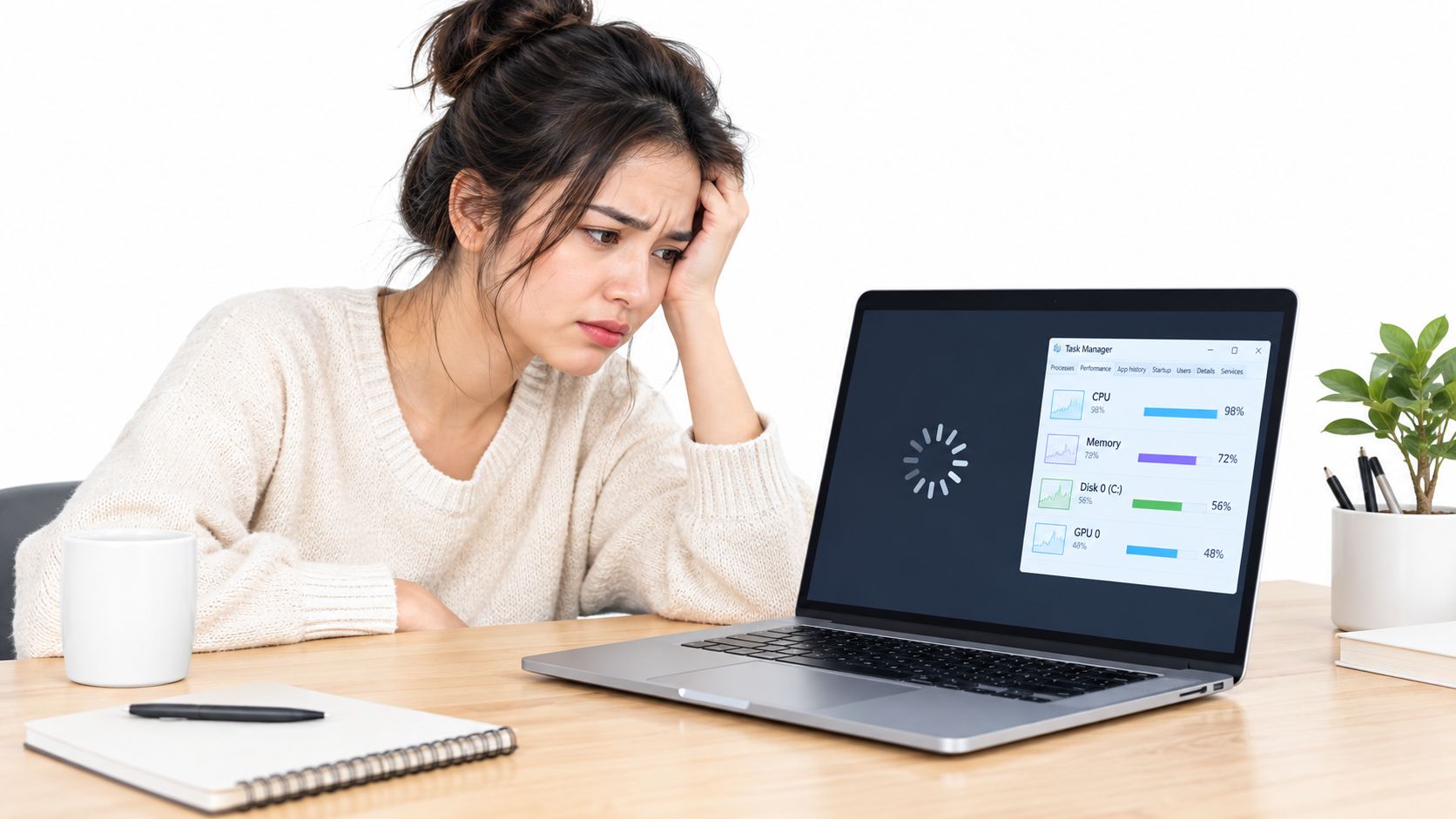
Press Ctrl + Shift + Esc, sign in normally, then watch the machine for the first couple of minutes after login. That short window tells you a lot. A practical diagnostic flow is to monitor CPU, Memory, and Disk right after startup and match the bottleneck to the likely cause. If Disk sits at 100% while CPU and Memory stay moderate, storage is usually the limiter. If Memory stays above about 85% to 90% and disk activity spikes from swapping, RAM is the problem. If CPU hangs around 90% to 100% while the others stay lower, the processor or a runaway app is the issue, based on the diagnostic workflow described in this benchmark-driven guide to what slows old laptops down.
A visual check helps more than guessing.
Read the three tabs that matter
Processes shows what's eating resources right now. Sort by CPU, then Memory, then Disk. You're looking for obvious hogs you recognize, like a browser with too many tabs or a game launcher doing background updates.
Performance shows the bigger pattern. If Disk pegs hard during simple tasks, the drive is struggling. If Memory stays crowded with only a few apps open, you're running out of RAM. If CPU usage stays high when you're barely doing anything, check the exact process causing it and review how to check CPU usage properly.
Startup tells you what slows boot. Windows exposes startup impact labels directly, and Intel's guide explains them clearly: Low means under 300 ms of CPU use and under 292 KB of disk use, Medium means more than 300 ms but under 1 second of CPU use or more than 292 KB but under 3 MB of disk use, and High means more than 1 second of CPU use or more than 3 MB of disk use in Intel's startup impact explanation.
The four usual causes
Most slow laptops boil down to these:
- A hard drive that can't keep up. Old spinning drives make everything feel delayed, especially boot and app launches.
- Not enough RAM. The system starts swapping to disk, and then even basic multitasking feels rough.
- An overheating CPU. Fans run loudly under light work, and the laptop slows itself down to protect the chip.
- A runaway background process. One bad app, sync client, updater, or browser extension can drag the whole machine down.
Practical rule: Don't touch ten settings before you answer one question. Which graph in Task Manager is screaming first?
Quick decision tree
Use this and move fast:
- Disk maxed out often. Prioritize storage diagnosis.
- Memory nearly full during normal use. Think RAM or fewer open apps.
- CPU pinned high. Find the app or service causing it.
- Fans loud when workload is light. Suspect heat, dust, or power settings.
That's the difference between real slow laptop fixes and random computer folklore.
Quick Software Fixes You Can Do in the Next Hour
If Task Manager doesn't point to a dead-simple hardware bottleneck yet, do the safe software cleanup first. These steps are boring. They also work.
Start with boot clutter
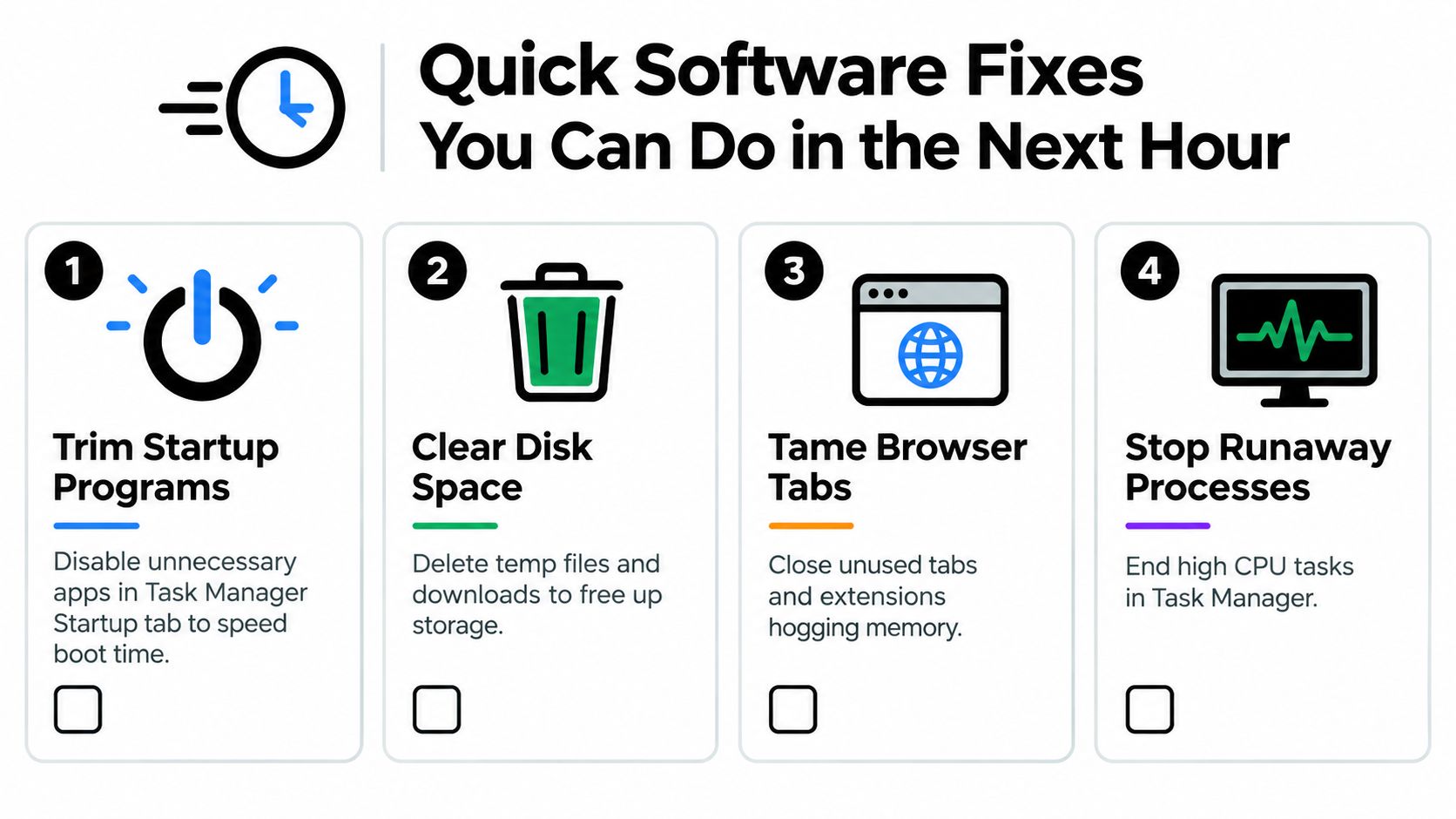
Too many startup apps make a decent laptop feel broken. Open Task Manager > Startup and disable anything that doesn't need to launch every time Windows starts.
Focus on chat apps, game launchers, update assistants, music apps, and vendor utilities you never use. Leave security software and hardware drivers alone. Startup trimming matters because Windows explicitly surfaces those impact labels, and they're there for a reason.
Then reclaim storage and basic responsiveness
A fuller drive tends to make a sluggish machine feel worse. One practical cleanup sequence from an expert guide is to restart the machine, trim startup programs, free disk space until at least 15% remains available, close unused browser tabs, remove unneeded extensions, check for runaway background processes, clean vents, and avoid leaving Windows in Power Saver mode if performance is the priority, as outlined in this step-by-step slow computer remediation guide.
Do these in order:
- Restart first. Not shutdown, restart. It clears a lot of temporary nonsense.
- Empty Downloads and trash. Forgetting both slows things down.
- Run Disk Cleanup or Storage Sense. Remove temp files and leftovers.
- Uninstall apps you don't use. Go to Settings, sort by size or install date, and be ruthless.
Don't waste time cleaning browser cache before you've checked whether your drive is nearly full or your startup list is ridiculous.
Browser tabs are often the hidden problem
I've seen plenty of “slow laptops” that were really just too many browser tabs, pinned web apps, and bloated extensions. Browsers can chew through memory.
Try this short reset:
- Close tabs you aren't using. Not “might use later.” Close them.
- Disable extensions you don't trust or need. Coupon tools, auto-download helpers, random PDF widgets, and toolbar junk are frequent offenders.
- Use your browser's task manager. Chrome and Edge both let you see which tab or extension is chewing resources.
- Clear browser buildup when pages feel broken or sticky. If you need the steps, this guide on how to clear browser cache is a solid refresher.
If apps keep relaunching and eating resources in the background, this practical walkthrough on how to stop apps running in background is worth using alongside Task Manager.
End only the processes you recognize
Sort Processes by CPU or Memory and look for obvious troublemakers. Then close only what you understand.
Safe examples usually include:
- A frozen browser tab
- A game launcher downloading in the background
- A cloud app you're not using right now
- A media app still running after you closed its window
Don't start force-killing random Windows processes because somebody on a forum said so. That's how you create new problems.
Deeper Software Cleanup That Lasts Longer
Quick cleanup helps, but some slow laptop fixes only stick if you treat them like maintenance instead of a rescue mission. Windows updates, driver updates, malware checks, and power settings aren't glamorous. They matter because they prevent the same slowdown from coming back.
The software hygiene routine that actually pays off
Use the laptop maker's tools first. For drivers, that usually means the manufacturer's support app or support page for your exact model. That's a better move than grabbing mystery downloads from random driver sites.
For power settings, check whether the machine is stuck in a battery-saving mode when you want speed. One common mistake is leaving Windows in Power Saver and then wondering why everything feels throttled.
Here's a simple schedule that keeps the machine sane:
| Task | Recommended Frequency | Best Tool or Setting |
|---|---|---|
| Windows updates | Monthly or when prompted | Windows Update |
| Driver checks | Every few months | Laptop manufacturer support app or support page |
| Malware scan | Every few months, or sooner if behavior changes | Microsoft Defender and a reputable second-opinion scanner |
| Power mode review | Whenever performance feels capped | Windows Power settings |
| Storage cleanup scheduling | Check every few months | Storage Sense |
| Remove bloatware and trial apps | Every few months | Installed Apps in Settings |
Malware, junkware, and recurring clutter
If a laptop slows down for no obvious reason, run a layered malware check. Start with Microsoft Defender, then use one reputable on-demand scanner as a second opinion. That catches the obvious stuff without turning your machine into a security software cage match.
Also remove trial apps, vendor promos, and old utilities you never asked for. Those don't always look malicious, but they can still run services, schedule tasks, and throw background popups.
Worth doing regularly: Driver updates and malware scans won't make every laptop feel new, but they stop avoidable software problems from piling up quietly.
If you want a broader maintenance baseline, this guide on how to speed up computer performance covers the same kind of recurring upkeep in plain language. Tech Today also publishes approachable how-tos like that for people who want practical steps without the usual jargon wall.
Don't defrag the wrong drive
There's one myth that needs to die. SSDs should not be defragmented, while HDDs can be optimized, according to the earlier expert guidance. If you don't know which drive you have yet, check that before running old-school tune-up routines.
That single detail tells you whether you're maintaining the laptop or just pressing buttons.
When Upgrading Hardware Beats Any Software Trick
Some laptops don't need more cleanup. They need one good part.
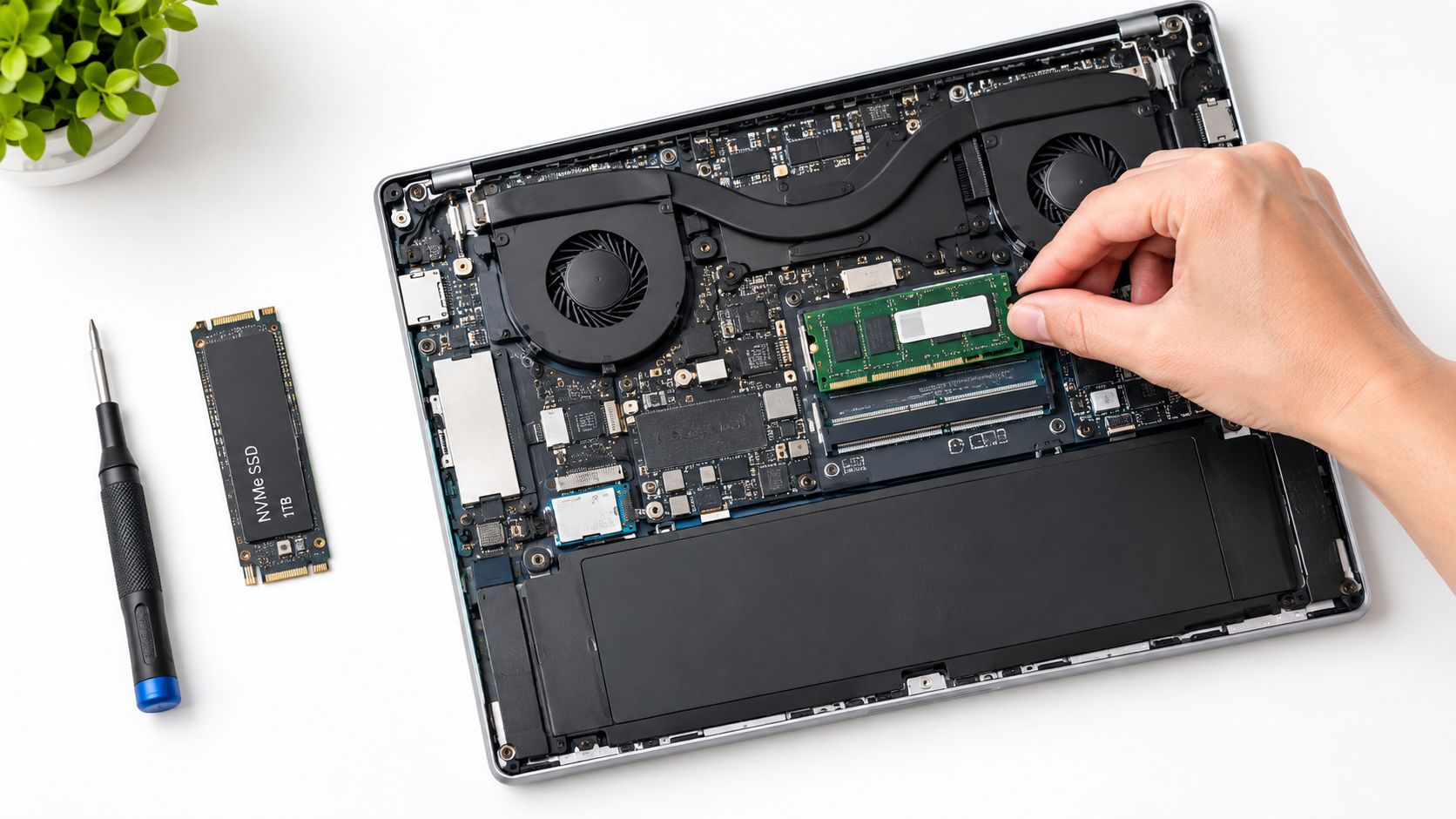
If software cleanup helped only a little, the decision is usually RAM or SSD. Not both by default. Not a random “performance booster” app. One of those two, based on what Task Manager showed you earlier.
SSD upgrades fix sluggish storage
If your laptop still uses a spinning hard drive, replacing it with an SSD is the most obvious hardware win. In a Windows 10 comparison, SSD systems booted in about 12.5 seconds on average while HDD systems took about 32.7 seconds in this cited comparison. The same source set also reported SSD boot times of 12 to 15 seconds versus 30 to 34 seconds for HDDs, which is why an HDD-to-SSD swap became one of the most widely recommended laptop upgrades.
That's why I tell people this bluntly: if your Disk usage is the recurring choke point and the machine still has an HDD, stop fiddling with cleanup tools and replace the drive if the laptop supports it.
Common signs an SSD upgrade is the right fix:
- Boot feels painfully slow every day
- Apps take forever to open even after a restart
- Disk usage spikes during simple tasks
- The laptop pauses while loading files or switching apps
RAM upgrades fix multitasking pressure
RAM matters when the laptop feels fine with one app, then collapses once you add browser tabs, streaming, spreadsheets, chat apps, or photo work. The giveaway is Memory pressure, not just “it feels slow.”
Good upgrade candidates usually behave like this:
- One browser window is fine, several become messy
- Switching between apps causes lag
- Disk activity rises because Windows starts swapping
- The machine recovers when you close tabs and background apps
Compare the two before spending money
Here's the no-nonsense view:
| Upgrade | Symptom It Fixes | Expected Gain | Typical Cost (USD) | DIY Difficulty |
|---|---|---|---|---|
| SSD | Slow boot, slow app launches, constant disk bottleneck | Major improvement in startup and responsiveness, especially when replacing an HDD | Varies by laptop and SSD type | Moderate |
| RAM | Slow multitasking, memory pressure, app switching lag | Better headroom with more apps and tabs open | Varies by laptop and RAM type | Easy to moderate |
I'm not listing prices because they vary too much by model, memory type, and storage size. Check your exact laptop before buying anything.
Buy the part that matches the bottleneck. Storage first for a hard-drive machine. Memory first when RAM pressure is obvious. Anything else is guessing.
Before opening the laptop, also check whether overheating is part of the slowdown. A machine that throttles from heat can mimic weak hardware, so this guide on how to fix laptop overheating is useful if fans stay loud and performance drops during light work.
Repair It or Replace It? Knowing When to Stop
Not every slow laptop deserves another round of upgrades.
A lot of advice online assumes every machine should be “optimized” forever. That's nonsense. Some laptops are worth a fresh SSD or a RAM bump. Others are money pits with hinges cracking, batteries swelling, and processors that were tired years ago.
The honest cutoff
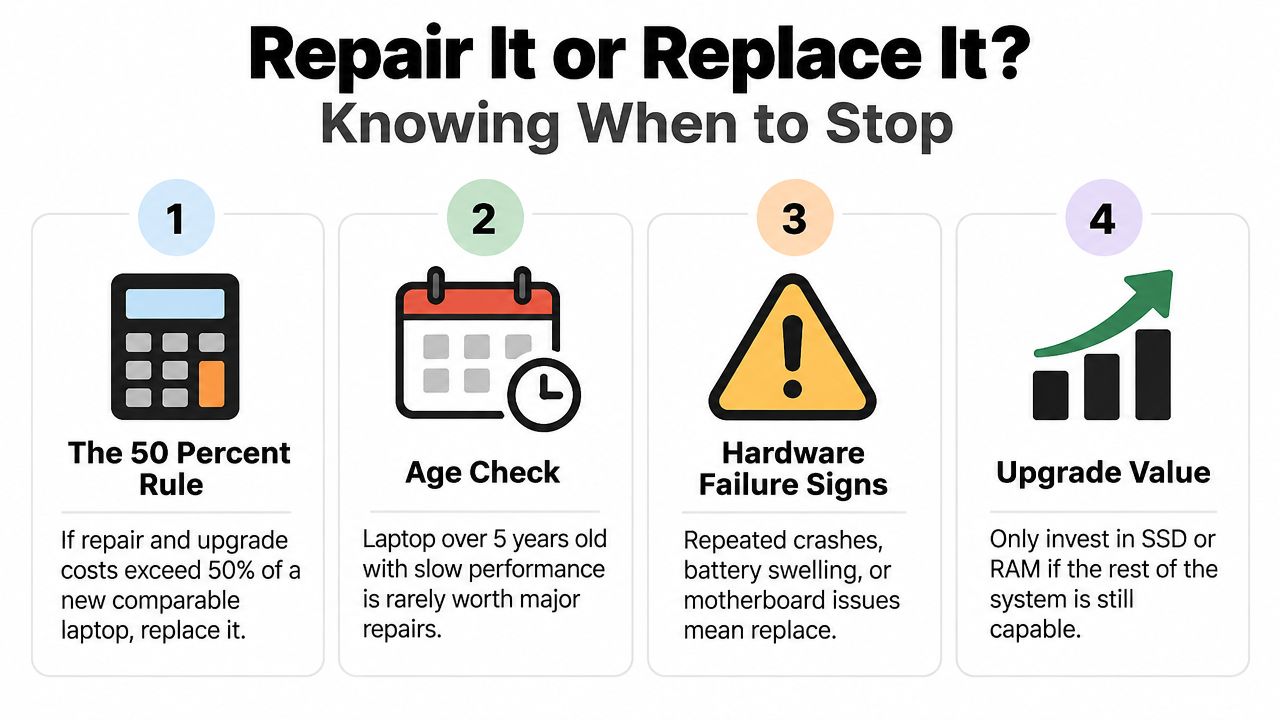
One useful angle in newer guidance is the shift from simple cleanup advice to a repair-versus-replacement decision. A recent article says startup times over two minutes and app launches over 10 seconds can point to deeper problems like HDD fragmentation, RAM bottlenecks, or thermal throttling, and it recommends checking drive health, backing up data, and then deciding whether upgrades or repair are justified in this replacement-focused 2026 guide.
That's the right mindset. If the laptop is structurally failing or can't handle a current operating system smoothly, stop treating it like a weekend project.
Cases where I'd stop spending
I'd lean toward replacement if you're dealing with several of these at once:
- Battery trouble plus other failures. A swollen battery, bad keyboard, and flaky charging port together usually aren't worth chasing.
- Chassis damage near the hinge. That often gets worse and can pull cables or crack the display housing.
- Motherboard-level faults. Random shutdowns, charging logic issues, or power faults on an out-of-warranty laptop usually mean bad economics.
- Repeated instability after basic fixes. If the machine keeps crashing even after cleanup and maintenance, trust the pattern.
Five questions that give you a real answer
Ask these before you spend another dollar:
- Does it feel slow because of one clear bottleneck, or because everything is aging at once?
- Can you still upgrade the part that matters, or is the RAM or storage soldered?
- Is the battery, hinge, keyboard, or screen also failing?
- Would you trust this laptop for school, work, or travel next month?
- Would a newer machine solve more than speed alone, like charging, battery life, ports, or reliability?
If your answers lean toward “this thing has multiple problems,” replace it. If you're shopping, this guide on how to choose the right laptop helps narrow down what matters instead of chasing flashy specs.
Simple Habits to Keep Your Laptop Fast
The best slow laptop fixes are the ones you don't need to repeat in panic mode.
Most machines don't suddenly become unusable overnight. They get slower because small problems stack up. Too many startup apps. Too many tabs. Too much junk on the drive. Too many weeks without a restart.
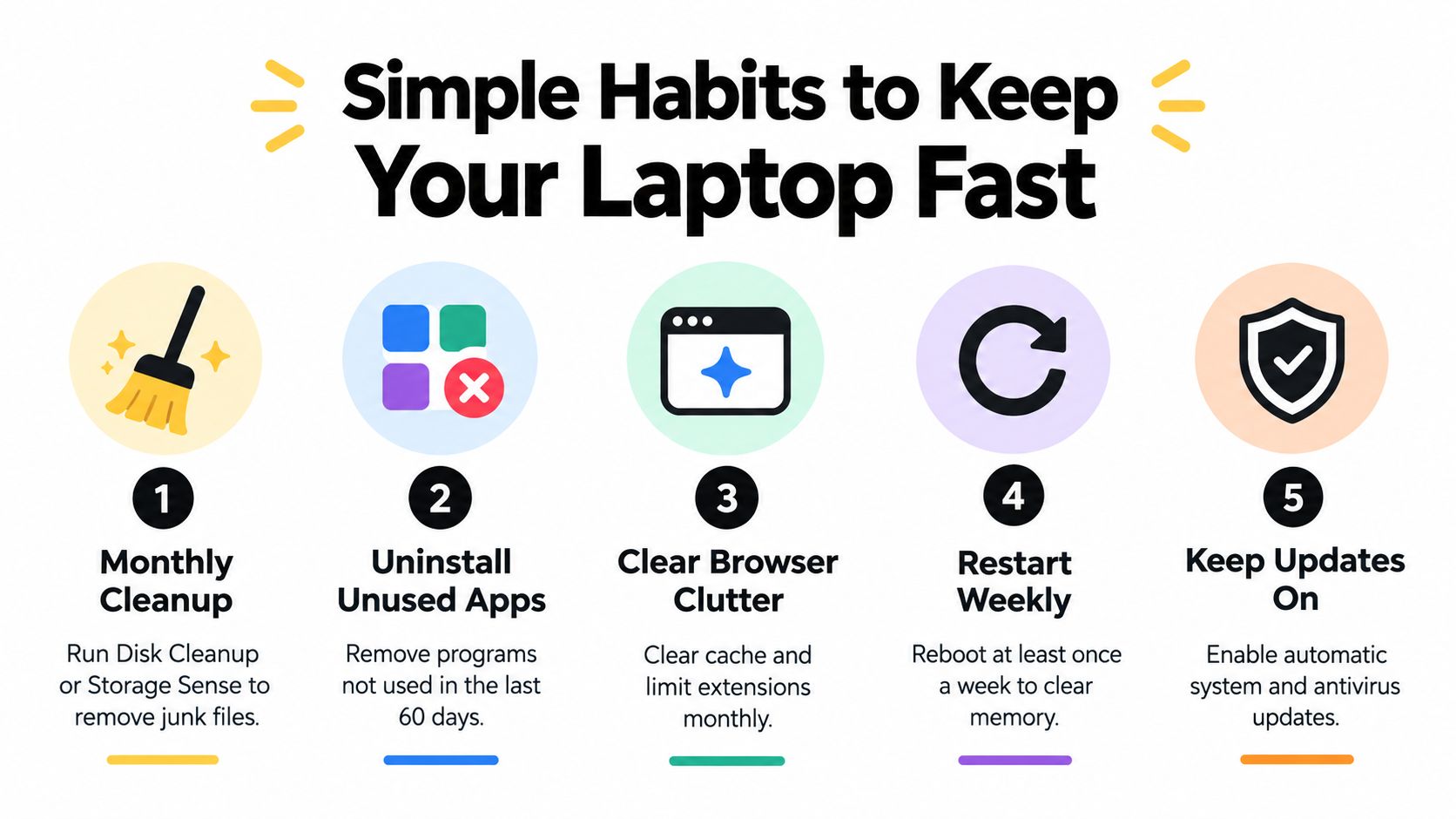
The monthly routine
Do this once a month and keep it short:
- Run Disk Cleanup or Storage Sense. Clear junk before it piles up.
- Review installed apps. If you haven't used something in a long while, uninstall it.
- Check browser clutter. Remove extensions you forgot about and clear built-up cache when browsing gets weird.
- Look at the Startup tab. New apps love sneaking themselves into boot.
The habits that prevent fan noise and slowdown
This part is less about software and more about not abusing the machine.
Keep the laptop on a hard surface so vents can breathe. Don't leave a pile of browser tabs, a video stream, and background sync tools running all day while wondering why the fan sounds angry. If the vents are visibly dusty, clean them carefully so the laptop can hold normal speed under load instead of heat-throttling itself.
A broad coverage review of slow-laptop advice noted that many articles repeat the same generic checklists but often miss the more useful question of whether the root cause is heat, battery-saver throttling, low RAM, or a nearly full drive in this analysis of common slow-laptop troubleshooting coverage. That's exactly why maintenance should include quick diagnosis, not just cleanup.
The most skipped habit that still matters
Restart the laptop at least once a week.
Sleep mode is convenient, but some systems get progressively messier when they never get a clean reboot. Memory gets cluttered. Updates stay half-applied. Background apps linger longer than they should.
Use a recurring reminder like this:
Calendar reminder: First Saturday of each month, clean storage, review startup apps, remove one unused app, clear browser clutter, then restart.
That takes a few minutes. It prevents a lot of “why is this thing suddenly so slow?” moments.
If you like practical troubleshooting without the usual nonsense, Simply Tech Today publishes clear guides on laptop performance, overheating, cleanup, and buying decisions in plain English. If your machine is dragging and you want fixes that match the problem, it's a good place to keep reading.


Member discussion