
How to Move Files from Google Drive to OneDrive Safely

You've signed into OneDrive, opened Google Drive beside it, and realized your files aren't all the same kind of thing. Photos and PDFs look straightforward, but your project folders also contain Google Docs, shared spreadsheets, and links colleagues still use. Dragging everything across sounds simple until you need to know whether the destination matches the source.
Learning how to move files from Google Drive to OneDrive is mostly about managing those differences. Choose a transfer method that suits your files, keep a record of what you selected, and don't remove the originals until you've checked the results.
Compare the Transfer Methods at a Glance
Nothing moves: Google Drive keeps the originals, and OneDrive receives copies. Deleting the old files is a separate decision, made after you've verified the destination.
The right method depends on file count, total size, Google-native content, and available storage. A folder full of PDFs needs less preparation than a working library of Sheets, shared Docs, and nested project folders.
Transfer methods compared by limits and storage
| Method | Best for | Limits | Keeps Google formats | Extra storage needed |
|---|---|---|---|---|
| Manual download and upload | Ordinary files in manageable batches | Browser selection and upload limits apply | No, export native documents first | Local disk for the ZIP and extracted files |
| OneDrive cloud import | Whole folders without local staging | File-size, path, and file-type restrictions | Don't assume native behavior survives | OneDrive capacity for the selected content |
| Desktop sync client | Larger libraries uploaded from a computer | Account, application, and path restrictions | Uses the exported file type | Local disk for staging and synced content |
| Google Takeout export | Broad Drive archives | Archive parts must be downloaded and extracted | Archive contents as exported | Google storage if delivered to Drive, plus local extraction space |
| Microsoft Mover or third-party tool | Business-wide or repeated migrations | Confirm current availability, account support, and vendor rules | Confirm conversion and metadata support | Any applicable licence and destination storage |
Manual batches are the simplest starting point when you can comfortably inspect the selection. Use the desktop client when you want uploads to continue through a local folder rather than repeatedly managing browser selections.
Cloud import avoids staging the entire selection on your computer, if the feature is available for your account. Takeout suits an archive-oriented export, while a business migration tool is worth evaluating when account mapping, reporting, and controlled retries matter more than simplicity. Don't assume an older recommendation for Microsoft Mover establishes its current availability or suitability.
Choose for the job, not the longest feature list
The useful habit is comparing tools against your actual workflow. Eztrackr's guide to choosing the right job search tool applies that approach to job searching; for file transfers, your comparison criteria are storage, conversion, permissions, and recovery from failures.
If local folders, cloud storage, and synchronization still feel interchangeable, this explanation of how to use cloud storage helps distinguish them before you start.
Finish your preparation by checking Google storage, local disk space, and OneDrive capacity against the selected content. Don't choose a method that needs more staging space than your computer can provide.
Move Ordinary Files by Hand in Batches
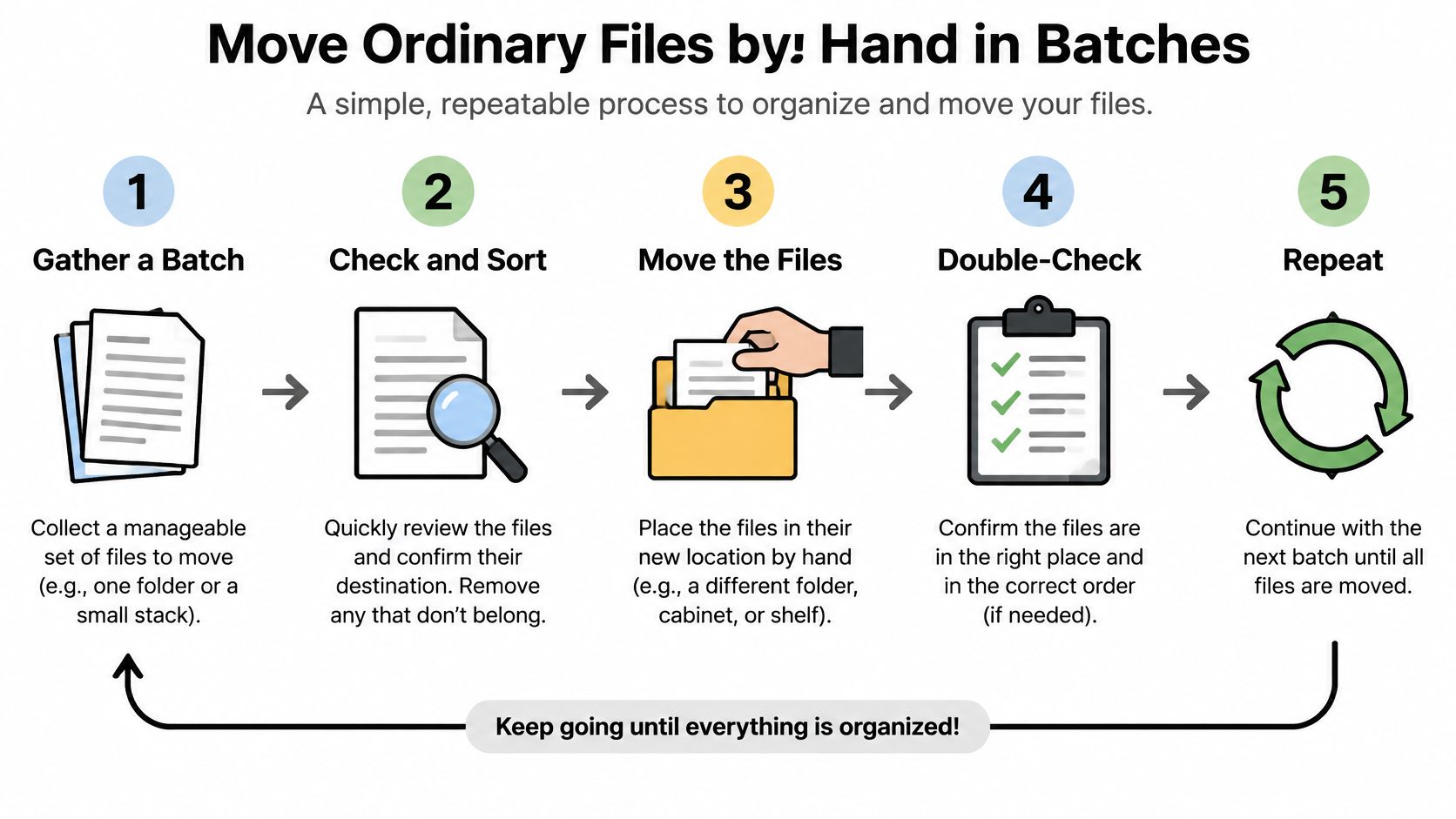
The manual route is a download followed by an upload, with your computer acting as the staging area. It's useful for photos, PDFs, existing Office documents, and other ordinary files because you don't need a separate migration service.
Microsoft's Drive-to-OneDrive instructions describe downloading selected Drive content, extracting the archive, and placing the files in your local OneDrive folder, where uploading begins automatically. Allow space for both the compressed archive and its extracted contents.
Follow the download-and-upload sequence
Select a manageable batch in Google Drive and choose Download. Use an identifiable folder or project rather than an arbitrary selection scattered across your account. That gives you a clear boundary when checking what arrived.
Save the ZIP somewhere easy to find. Create a staging folder outside OneDrive and give the download a descriptive name. Don't leave several similarly named archives in Downloads and rely on memory to distinguish them.
Open OneDrive settings and add your Microsoft account if needed. Confirm the account address before proceeding, especially if you use both personal and work accounts. Uploading successfully to the wrong account still leaves you with a cleanup job.
Open the OneDrive folder on your computer. Create a clearly named destination folder for the batch so you can distinguish new content from existing files. Avoid mixing imported material into an already crowded folder before you've validated it.
Extract the ZIP into your staging folder. Open the extracted tree and inspect it before uploading. Dragging the ZIP itself into OneDrive stores an archive, not a browsable set of individual documents.
Drag the extracted files into the destination OneDrive folder. OneDrive starts uploading automatically; inspect its status indicators and check marks rather than assuming the drag operation completed the transfer. Keep the computer connected while synchronization runs.
Clean up staging files only after verification. Once the destination checks pass, remove the downloaded ZIP and any redundant extracted copy outside OneDrive. Don't delete the files inside the synchronized OneDrive folder as a space-saving shortcut, because that can delete the cloud copies too.
The batch workflow gives you a clear place to pause and check your work.
Make failures easy to isolate
A huge download is awkward to diagnose. If extraction fails, your connection drops, or storage runs out, you need to identify the affected content before trying again.
Project-based batches give you a practical recovery unit. Keep a small transfer log with the source folder, destination folder, and current state, such as downloaded, extracted, uploading, or checked.
Practical rule: A staging folder is temporary. A synchronized OneDrive folder is part of your live cloud storage.
If you're replacing a computer at the same time, separate the cloud transfer from the rest of your device setup. A broader guide to transferring files to a new computer can help you avoid confusing local backups with synchronized files.
Google-native documents need extra attention. Treat their downloaded versions as exports, not as guarantees that the original editing experience, history, or collaboration settings survived.
Cloud Import Limits That Block a Full Transfer
Say you import a shared project folder and the job reaches completion, but a colleague can't find a drawing or a file buried inside a long folder path. The completion message tells you the operation stopped running. It doesn't prove that every source object was eligible to transfer.
OneDrive's built-in cloud import can copy individual files and folders without local staging. It isn't a full Google account migration, and its exclusions matter before you authorize a large selection.
Cloud import limits that cause skipped files
Microsoft's cloud import guidance sets a 15 GB maximum per file, filename and folder-name limits of 256 and 250 characters, respectively, and a 400-character combined path limit. It also excludes the file types and account content listed below.
| Limit | Value | What happens if exceeded |
|---|---|---|
| Maximum file size | 15 GB per file | File is not transferred |
| Filename length | 256 characters | File is not transferred |
| Folder name length | 250 characters | Folder path fails to copy |
| Combined path length | 400 characters | Deeply nested files are skipped |
| Zero-byte files | Excluded | Empty files don't arrive |
| Google Drawings, Forms, Sites, and Maps | Excluded | Not copied by cloud import |
| Email, mailboxes, contacts, and calendars | Excluded | Outside the scope of file import |
Path length includes the folder hierarchy, not just the final filename. A perfectly reasonable filename can still sit beneath enough descriptive project folders to create an over-limit path.
For example, a team might organize work by department, client, campaign, deliverable, review status, and archive category. Shortening only the document name may not solve the problem. Simplify the destination hierarchy deliberately and record any renamed paths so colleagues can find their work.
Inspect exceptions before starting
Review large media files, software archives, empty placeholder files, and Google-specific objects separately. Put anything that doesn't qualify into an exception list with an intended action, rather than hoping a retry will make it compatible.
Useful exception actions include:
- Rename or reorganize: Shorten a filename or reduce folder depth before another attempt.
- Use another transfer route: Evaluate a different upload method for ordinary files that exceed the import-specific size restriction.
- Preserve separately: Keep unsupported Google objects available at the source until you've chosen a usable replacement.
- Exclude intentionally: Record empty placeholders or obsolete content you've decided not to migrate.
Also compare the selected content with available destination capacity. Importing a broad folder tree can consume storage you were reserving for everyday OneDrive use.
Photo libraries deserve particular care because folders can contain original images, edited copies, videos, and exports of the same event. If you're reconsidering where that material belongs, compare free photo storage options before copying an archive into your working document space.
Takeout is an alternative when you want a broad archive rather than a selective cloud import. It adds a download-and-extract stage, so it doesn't eliminate storage planning.
End the import by comparing the source inventory with the destination and reviewing skipped items individually. An unexplained difference is unfinished work, even when the import interface reports completion.
Use Google Takeout or a Migration Tool
Choose Google Takeout when you want a broad export of Drive content. Choose a migration tool when you need a managed business process. Neither is automatically a better option for a small folder of ordinary files.
Handle Takeout as an archive
Start Takeout, deselect unrelated services, and select Drive. Review the available export settings and choose a delivery method that fits your storage situation.
If you choose delivery to Google Drive, the archive consumes Google storage while it remains there. Download all archive parts to your computer, confirm each download completed, and retain the original parts until extraction succeeds.
Then:
- Inspect the extracted tree: Check that the folders you intended to export are present.
- Separate metadata from working documents: Don't mistake supporting export files for documents that need to become part of your everyday OneDrive library.
- Upload identifiable batches: Keep archive extraction separate from destination synchronization.
- Check exported documents: Treat native Google content as converted material requiring an opening and editing test.
An archive is useful for retaining a snapshot. It isn't a substitute for validating a usable working library.
Evaluate business tools against specific requirements
For an organizational transfer, ask prospective vendors about scheduling, retries, reporting, account mapping, and permissions handling. Treat these as capabilities to verify, not features every tool necessarily includes.
If an older procedure mentions Microsoft Mover, confirm the currently supported Microsoft migration route before building your plan around it. For third-party products, check supported account types, authorization requirements, licence terms, and the treatment of versions and shared links.
Buy a migration workflow you can inspect and retry, not a promise that everything will stay identical.
Run representative content through the proposed tool before purchasing or authorizing a broad migration. Review its actual destination files and exception report, not just its summary dashboard.
Convert Google Docs, Sheets and Slides Correctly
Start with an inventory that separates ordinary files from Google-native documents. A PDF can be copied as a file; a Google Doc needs an export into a format that Word can open and edit.
Google's Drive export-format documentation lists Microsoft-compatible exports, including DOCX for Docs, XLSX for Sheets, and PPTX for Slides. It also documents export options for Drawings, so being excluded from OneDrive cloud import doesn't mean an object has no export option anywhere.
Google-native files and their Microsoft export formats
| Google file type | Export format | Opens in Microsoft 365 | What to recheck |
|---|---|---|---|
| Google Docs | DOCX | Yes, in Word | Layout, comments, and headings |
| Google Sheets | XLSX | Yes, in Excel | Formulas, charts, and named ranges |
| Google Slides | PPTX | Yes, in PowerPoint | Fonts, embedded media, and transitions |
| Google Drawings | PDF or a supported image export | Viewable or insertable, not an equivalent editable drawing | Visual quality and lost editing capability |
| Google Forms | No equivalent Office form file in this workflow | Not as a working Microsoft form | Questions, branching, responses, and replacement workflow |
Don't label Drawings, Forms, Sites, and Maps as successfully migrated just because related files appear in an export. A picture of a drawing or an archive of content isn't necessarily a working replacement for the original application.
Record unsupported workflows separately. For Forms, that might mean preserving the original while you rebuild and test a replacement form, rather than treating a response spreadsheet as the entire form.
Check behavior, not just appearance
Open exported Docs in Word and inspect page breaks, tables, headers, headings, and comments that matter to the document's purpose. A document that opens without an error can still need layout repairs.
For Sheets, use known inputs and compare the results in Excel. Pay particular attention to important formulas, charts, named ranges, and references to other documents. A financial workbook needs a calculation check, not just a glance at its first tab.
For Slides, run the presentation in PowerPoint. Check font substitution, object placement, embedded media, and transitions rather than judging only the thumbnail view.
- Freeze edits: Agree on a pause while you create the final exports.
- Mark conversion status: Distinguish exported, uploaded, opened, and functionally checked.
- Keep unresolved originals: Retain source documents that still need repair or replacement.
If someone must edit during the transfer, record the document and export it again afterward. Otherwise, you can finish with a readable but outdated copy and no obvious error message.
Verify Results and Keep Sharing Intact
An upload finishing is not the same as a migration passing inspection. Verify content, structure, document behavior, and access independently so a successful copy doesn't conceal a broken working process.
Begin with source and destination inventories. Compare file counts by folder, inspect paths, and compare sizes for unchanged ordinary files. Use representative hashes when you need stronger evidence that binary files match; don't expect an exported Google document to have the same hash or size as its source object.
Use the right upload channel
For large libraries, the desktop sync client is easier to manage than repeated browser drags. Divide the work into named batches, let each synchronize, and record exceptions before continuing.
Microsoft's OneDrive restrictions guidance documents a 250 GB individual-file maximum through current browsers and up to 2,500 files in a website operation. Those are channel-specific limits, not permission to assume that every app, account, or import route accepts the same selection.
For work or school accounts, have the administrator confirm the applicable client restrictions and tenant policies before scheduling a large transfer. Don't plan around a limit copied from instructions for a different upload method.
Transfer symptoms, causes and fixes
| Symptom | Likely cause | Fix |
|---|---|---|
| Fewer files in OneDrive than in Drive | Unsupported types, over-limit files, or zero-byte files | Compare inventories and retry eligible skipped items after fixing the cause |
| Upload stops partway | Interrupted connection or expired sign-in | Sign in again and retry only the failed batch |
| Duplicate files appear | A whole batch was retried | Identify duplicates and retry only failed files |
| Colleagues lose access to shared files | Copies don't inherit Google sharing | Recreate sharing in OneDrive and test each link |
| Sync client shows an error icon | Path problem or insufficient local disk space | Inspect the error, shorten the path or free space, and synchronize again |
Signing back in or correcting a sharing setting may be quick. Re-exporting documents, reorganizing a folder tree, or uploading missing content requires another transfer cycle, so leave time for those repairs.
Rebuild access deliberately
Create a sharing register with each important folder, its intended collaborators, and whether they need viewing or editing access. Recreate those settings in OneDrive and ask a recipient to test access using their own account.
Replace Google links in frequently used emails, project notes, and internal instructions. Don't broaden permissions just to make a test link work.
If colleagues need help understanding where documents belong before the cutover, this guide to creating folders for Google Docs can help clarify the source organization. For teams reconsidering their editing workflow, the SubmitMySaas document collaboration roundup provides context for comparing collaboration options.
Acceptance test: A colleague can find the right document, open it, and perform the intended task without relying on the old Google link.
Don't assume revision history came across with the current file. If historical versions are important, make their preservation a separate requirement before approving deletion of the source.
Pick Your Method and Run a Test Batch
Choose your method from the inventory you have, not the account's overall appearance. A modest folder tree can contain complicated spreadsheets and critical external shares, while a much larger photo archive may consist entirely of ordinary files.
Use manual batches for a straightforward selection, desktop sync for sustained local uploads, and cloud import when local staging is impractical and your content qualifies. Use Takeout for archive-oriented exports, or evaluate a business tool when reporting and account coordination justify the extra setup.
Prove the workflow with representative content
Don't test only easy files. Build a small trial containing the kinds of content most likely to cause problems.
- Ordinary large file: Confirm the chosen channel handles it and the destination opens correctly.
- Google Doc or Sheet: Test conversion and the features you depend on.
- Shared document: Recreate access and have a collaborator verify it.
- Nested folder: Inspect the resulting hierarchy and any renamed paths.
Keep the test within a clearly named destination folder. Avoid using multiple transfer methods for the same batch, because that makes duplicates and unexplained differences harder to trace.
Record a clear pass or fail
Your test passes when the expected files are accounted for, representative documents work, and intended collaborators can access them. Record exceptions explicitly instead of accepting a vague result such as mostly complete.
Save your checklist as a reusable template with fields for source folder, destination folder, transfer status, conversion checks, missing items, and access checks. During the full transfer, retry only the content that failed, then repeat the relevant validation.
For irreplaceable material, consider an independent backup rather than relying entirely on synchronized folders. This guide to external hard drives for backup can help you choose storage for that separate copy.
Delete from Google Drive only after you've accepted the destination, resolved exceptions, and confirmed that nobody still depends on the old links. That final decision turns a collection of copies into a completed move.
Tech Today offers straightforward setup, storage, and troubleshooting guides that make file transfers easier to plan and check. Visit Simply Tech Today for practical help with your next device setup, backup plan, or cloud-storage decision.
Member discussion