
Can You Create Folders in Google Docs? How It Works
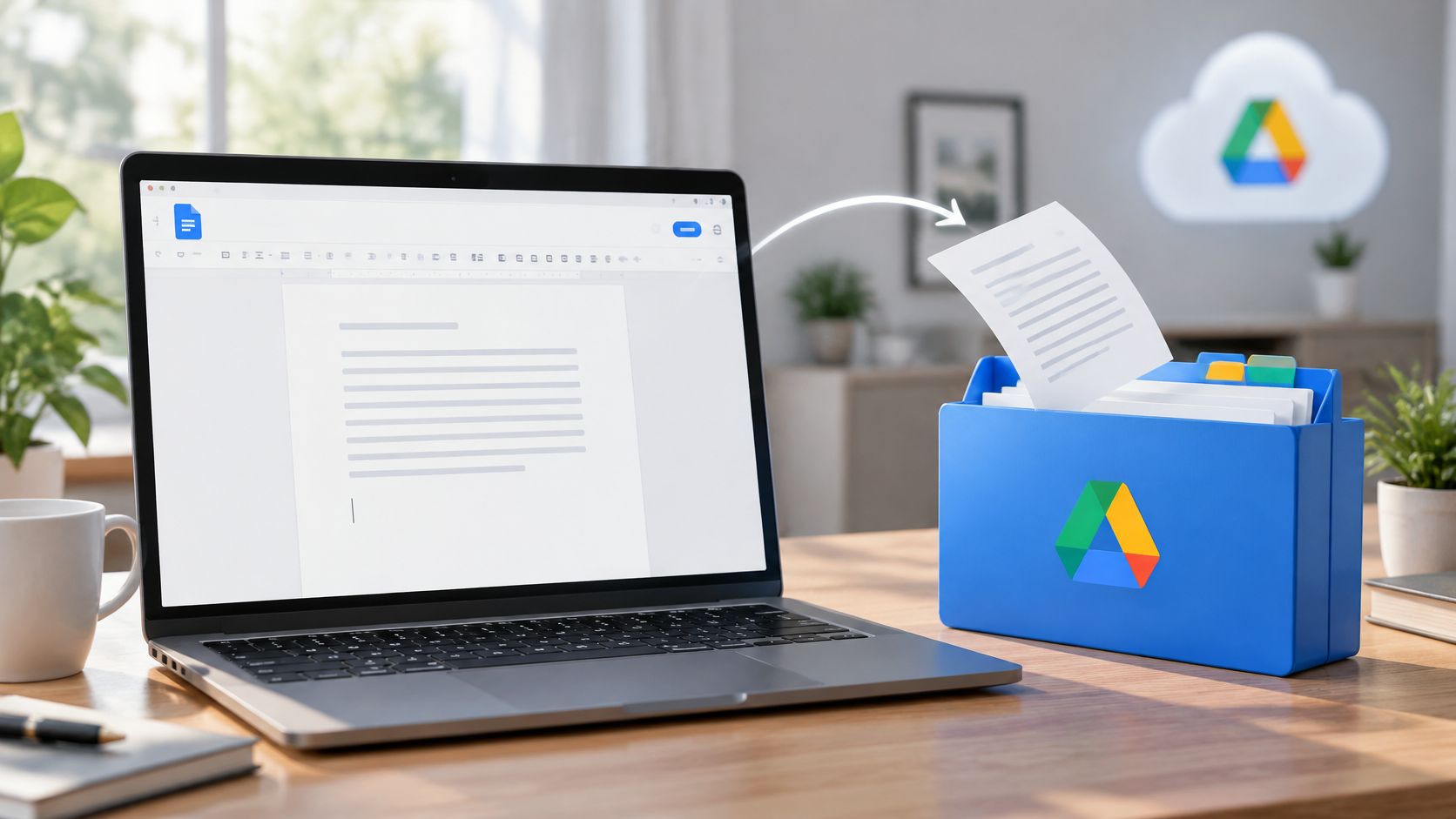
Yes, you can create folders for Google Docs files, but you make the folder in Google Drive, not inside the Docs editor. In Drive, choose New > Folder, name it, and then move your documents into it.
If you can sort files so easily, why does a private draft sometimes become visible to a whole class or team after one tidy drag and drop? That question reveals the main issue with Can you create folders in Google Docs. A folder is not just a label for finding things faster. It can also act as a permission container, so where you put a document may change who can open it.
Yes, but Folders Live in Google Drive
The direct answer is yes, with one location change. You organize Google Docs files in folders, but you create those folders in Google Drive. You won't find a standalone folder button on the Docs homepage or inside the editor.
Think of Docs as the desk where you write and Drive as the filing cabinet where the paper goes. Docs is mainly for creating and editing documents. Drive stores and sorts Docs, Sheets, Slides, uploaded files, and folders together, so one project can hold every file type in one place.
Where you can and cannot create a folder
| Where you are | Can you create a folder? | What it holds |
|---|---|---|
| Google Docs homepage or editor | No folder option here | Documents only |
| Google Drive, My Drive | Yes, via New > Folder | Your personal Docs, Sheets, Slides and uploads |
| Shared drive in Drive | Yes, via New > Folder | Team files with shared access rules |
The Google Workspace guide to organizing files in Drive gives the desktop path as Drive, then New, then Folder, then a name, then Create. It also describes placing a document by selecting it, choosing More, then Move to, and picking the destination. In My Drive, you can also drag files and folders into another folder.
A practical order is to create subject or project folders in Drive first, then move existing documents into them. Once your cabinet is set up, working on content gets simpler too, for example when you make an outline in Google Docs inside a document that already lives in the right place. Don't hunt for a folder button in Docs. Go to Drive.
How to Create a Folder in Google Drive
Use the browser version first if you're learning, because every label is easier to see on a larger screen. The mobile steps use the same idea with fewer buttons.
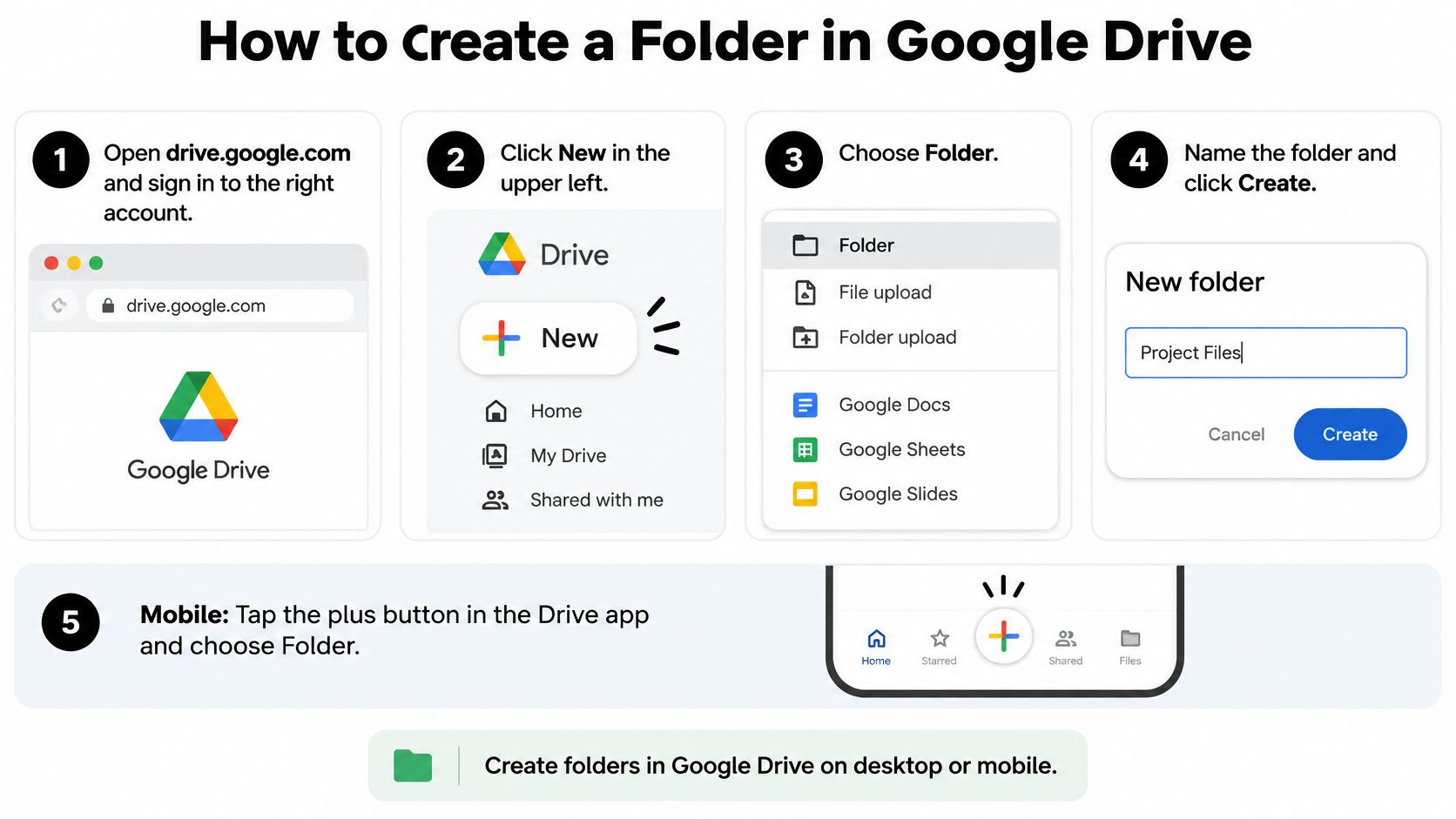
On a computer
- Open drive.google.com and sign in.
- Check the account photo to confirm you're in the right personal, school, or work account.
- Click New in the upper left.
- Choose Folder.
- Type a clear name, such as Biology Notes or Client Proposal.
- Click Create.
The new folder appears in My Drive at the top level and it's ready to receive documents. If you want a folder inside another folder, open that outer folder first and then use New > Folder. Drive puts the new folder where you're standing, just as a physical cabinet drawer holds the folder you add to it.
On a phone or tablet
Open the Google Drive app, tap the plus (+) button, choose Folder, name it, and tap Create. Use the Drive app for this job, not the Docs app, because Drive is the storage view. If you're unsure why files created in one Google app appear in another, it helps to understand how cloud storage works as shared storage behind separate apps.
Practical rule: Check the account before you click Create. A folder made in your personal account won't appear when you're signed into work, even though both screens look almost identical.
The wrong account is the most common slip, and it makes documents seem lost later. Create the folder, see it listed in My Drive, and only then start moving files. If you don't see it, check whether you're inside another folder or looking at Recent instead of My Drive.
How to Move Docs Into Folders and Use Shortcuts
You've got three desktop ways to move an existing document, and they all change the same thing, its folder location. Pick the one that matches where you're already working.
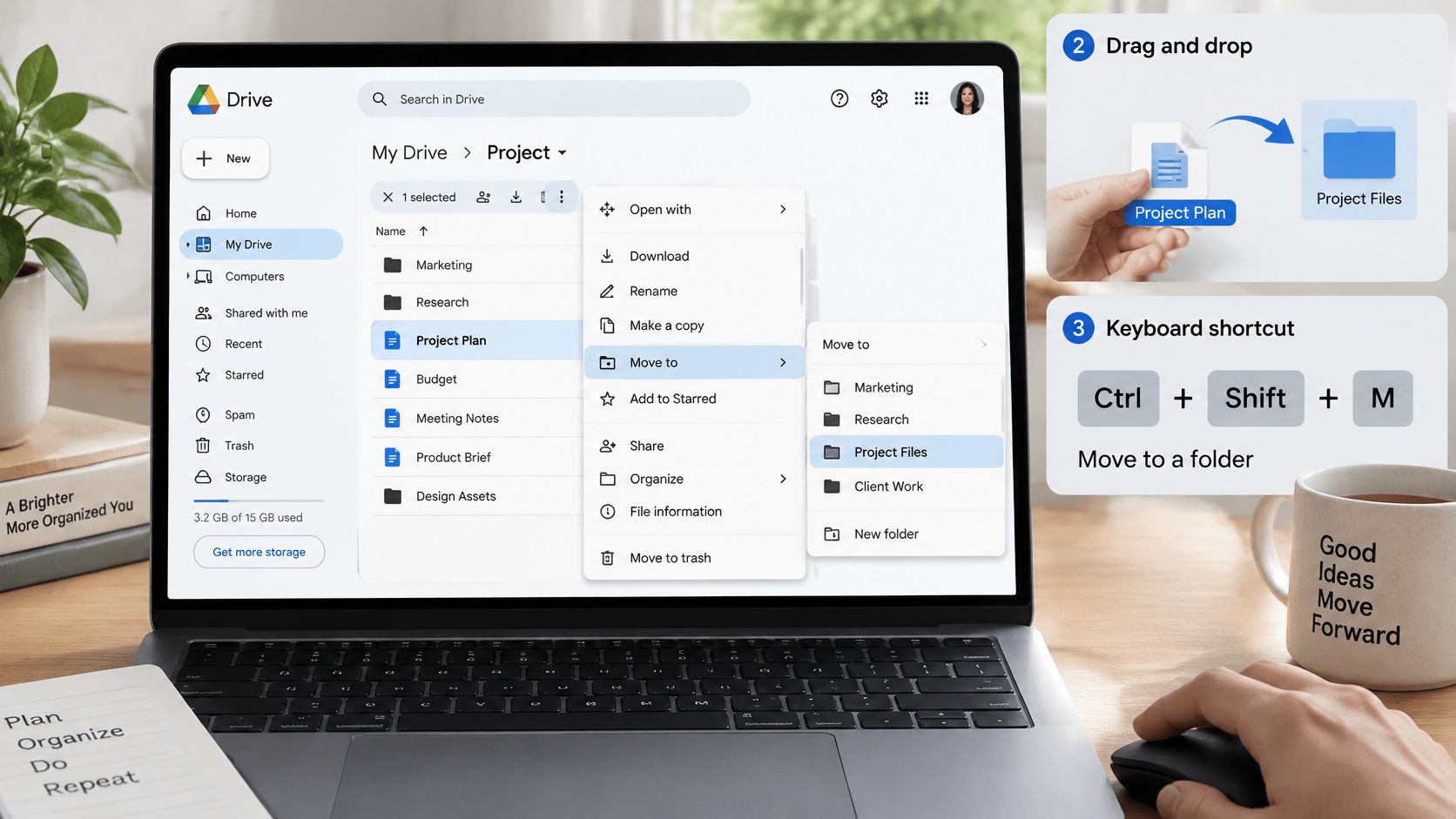
Three ways on a computer
- From Drive: Select the file, choose More, choose Move to, and pick the destination folder.
- By dragging: Drag the file onto the folder in My Drive and release it when the folder is highlighted.
- From inside the document: Open File, choose the move option, then select an existing folder or create a new one if your interface offers it.
On mobile, open the Drive app, tap the three-dot menu beside the file, choose Move, and select the folder. In the Docs app, open the document and look in its three-dot menu for a move option, though Drive gives you the clearest view of the destination. These small filing habits are part of learning how to use cloud storage without losing track of newer versions.
When one document belongs in two places
A family budget might belong in both Household and Taxes. Moving it solves only one home, and making a copy creates two versions that can drift apart. A shortcut is a link to the original file, so people can reach the same document from another folder without duplicating it.
The Google Drive help page on shortcuts explains that a My Drive file can appear in multiple folders through shortcuts, while a shared-drive file can have only one parent folder. It also warns that seeing a shortcut doesn't guarantee access, because creating the shortcut doesn't change the original file's permissions.
So a shortcut helps with finding, not with granting entry. If a classmate can see the shortcut but can't open the linked document, the original sharing settings still need attention. Use shortcuts for cross-project filing, but always test whether the intended reader can open the file itself.
How Folder Placement Changes Who Can Access Your Docs
Say you draft salary notes privately, then tidy up by moving the document into a shared work folder. You may have just shared it with everyone who can access that folder, with no separate warning screen. That's why placement deserves as much attention as naming.
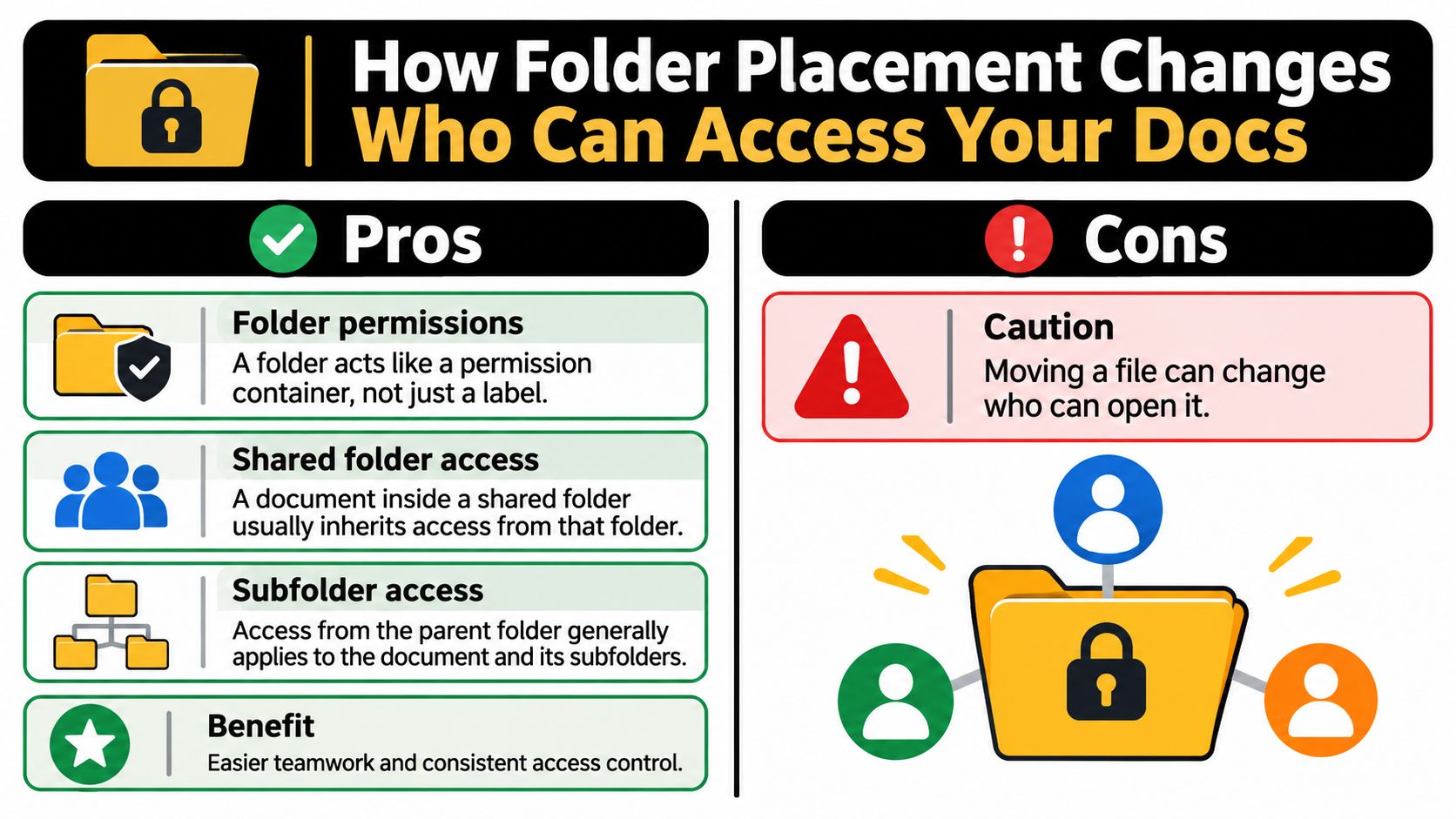
The Google Drive sharing guide identifies Viewer, Commenter, and Editor roles, and explains that permissions inherited from a shared folder generally apply to documents and subfolders inside it. Editors can typically edit, delete, move, and add files in a shared folder, while Commenters cannot modify the folder structure.
What each folder role can do
| Role | Open and read files | Comment | Edit, move or add files |
|---|---|---|---|
| Viewer | Yes | No | No |
| Commenter | Yes | Yes | No |
| Editor | Yes | Yes | Yes |
A key constraint is that inherited access cannot normally be reduced on one child document below the parent folder's level. If the folder gives a group Editor access, you can't reliably make one document inside it private by tweaking only that document. Changing the parent folder's permissions, or moving the document elsewhere, is the usual remedy.
A folder behaves less like a sticky note and more like a room key. Putting a document in the room gives key holders a way in.
Keep separate folders for different audiences, such as Private Drafts and Ready to Share. That separation reduces accidental exposure and makes access easier to audit, because you review one folder list instead of checking every document one by one.
Organizing Team Docs in Shared Drives
My Drive belongs to one person. If that person leaves a school or company, their files can become awkward for others to manage. A shared drive belongs to a team or organization, so project folders can outlast staff changes.
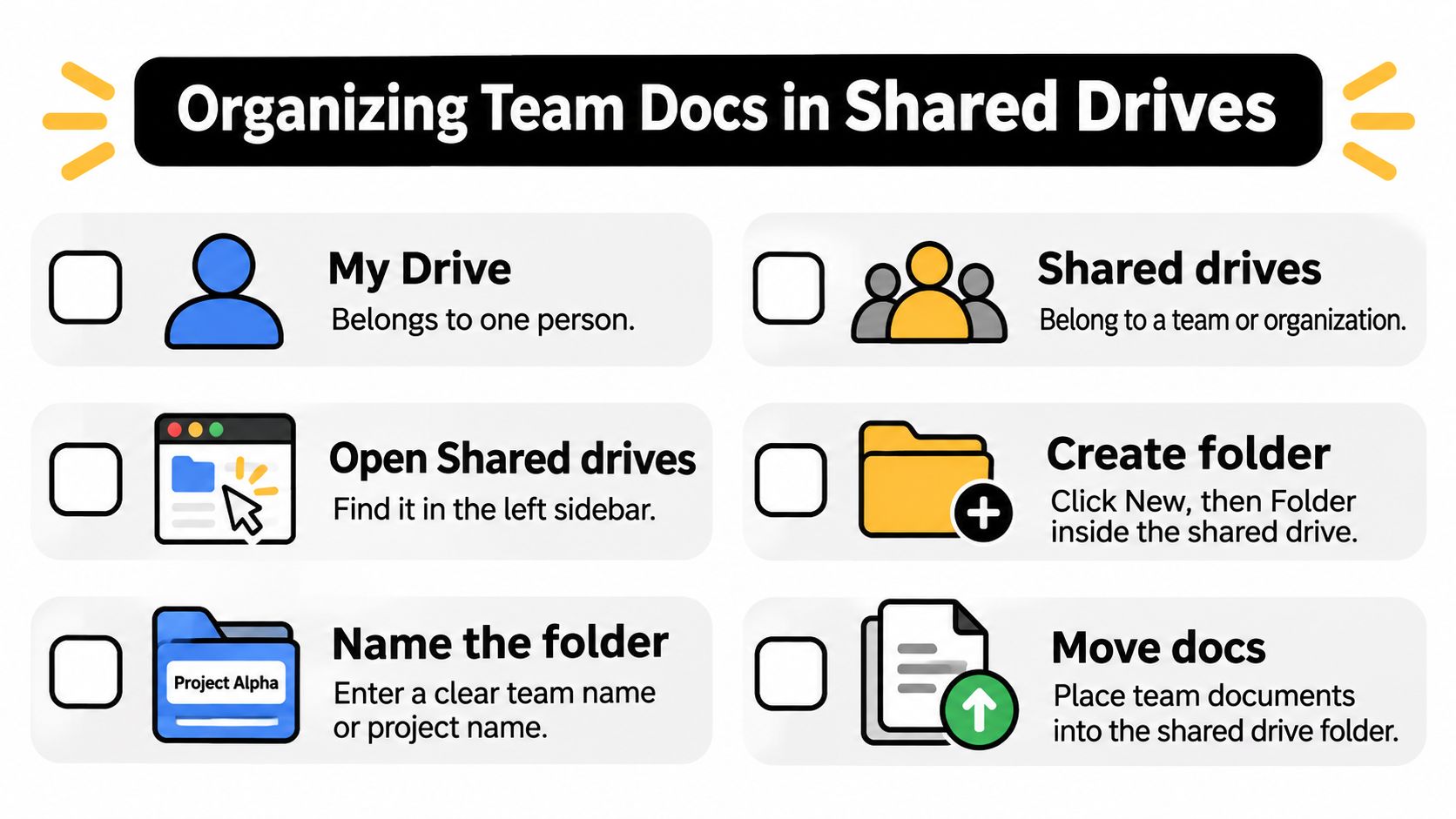
The Google Workspace guide to shared drives says you can open Shared drives, select a drive, click New, and choose a folder, then add or move files into that structure. It also states that shared-drive subfolders inherit the same permission level as the top-level folder, and moving folders between shared drives requires Manager access to both shared drives.
That inheritance makes the top level your most important decision. The top-level folder works like the front door of a building: everyone let in there can reach every room inside. Set who belongs and at what role before you build project subfolders underneath, because each subfolder hands out the same keys without anyone noticing. Moving a folder between shared drives is really a move between two buildings, which is why Manager access is required on both sides. A document a whole department could open can become unreachable for them the moment it lands under a different top level.
A simple team setup
Use one shared drive per department or long-running program, then one folder per project inside it. Give each project folder a named owner who watches access and tidiness. That owner doesn't need to approve every document, but someone should know why the folder exists.
Before adding a new team folder, teams can borrow habits from the best way to organize files on a computer and answer four questions:
- Who needs access? Name the actual people or groups.
- Which role fits each person? Viewer, Commenter, Editor, or Manager should match the job.
- Who can move files in and out? Decide this before an urgent transfer.
- Who reviews the folder each quarter? Put a name and a date on the review.
A folder that answers all four questions stays understandable long after its creator moves on, which is exactly the problem a shared drive exists to solve.
Naming and Structuring Folders for Shared Docs
Good names let a new teammate predict what's inside before opening anything. Use one pattern and stick to it, such as project, year, and status. Acme Website 2026 Drafts tells readers the client, the period, and how finished the work is.
Limit nesting to about three levels. Course Name, then Assignments, then a dated folder is easy to scan. Five levels turn filing into a treasure hunt, and people start saving duplicates at the top just to avoid the digging.
A layout that stays readable
- Course or team name: The stable home, such as History 101 or Marketing.
- Work type: Assignments, Readings, Meetings, or Final Submissions.
- Status where needed: Drafts, In Review, and Final for documents that move through stages.
- Archive: Finished work goes here so active folders stay short.
Folder names are visible to everyone with access, so don't put sensitive details, student concerns, or private client notes in a name. For longer research projects, the same habits support keeping dissertation sources and citations organized, because source folders and draft folders stay distinct instead of merging into one pile.
Review your structure monthly and rename or archive what no longer matters. If two folders keep receiving the same kind of document, merge them or sharpen the names. For broader cleanup principles beyond Google apps, how to organize digital files covers consistent naming across devices and storage services.
Confirm Access Before You Move Your Next Doc
Run this short routine before every move into a shared folder. It takes under a minute and prevents the most common folder mistake.
- Open the target folder and check its sharing settings.
- Confirm who has Editor, Commenter, or Viewer access.
- Decide whether the document should be moved or only linked with a shortcut.
- Move the file, then open it from the new location.
- Ask one intended reader to confirm they can open it, if the document matters.
If the file shouldn't be shared at that level, don't fiddle only with the document settings. Move it to a private folder or change the parent folder's access. When you set up a new class or team space, revisit the roles table and shared drive checklist above while the folder is still empty. That's the easiest moment to fix access, before real documents and real readers arrive.
If the difference between Docs and Drive finally clicks, Simply Tech Today can help with the next everyday puzzle, from cloud storage and file organization to privacy settings explained in plain language. Visit for clear, practical guides you can follow step by step, and use the pre-move check above the next time you file a document for your class, family, or team.
Member discussion